
Using Zoom Text MagnifierReader CTWorks Assistive Technology This

- Slides: 28
Using Zoom. Text Magnifier/Reader
CTWorks Assistive Technology This presentation is intended to provide information about and how to use the assistive technology available in each of the CTWorks Career Centers. The information will be helpful to employers, job seekers, service providers and Career Center staff.
CTWorks Assistive Technology Presentation team members include Michelle Laramie, Rehabilitation Technologist for the CT Board of Education and Services for the Blind, Arlene Lugo, Program Director of the Connecticut Tech Act for the Bureau of Rehabilitation Services of the CT Department of Social Services, Kathleen Marioni, Operations Coordinator for the CT Department of Labor, and Joyce Barcley, AVP Special Projects for The Work. Place, Inc. This presentation was developed by members of the Connecticut State Leaders Innovation Institute, funded by a grant from the U. S. Department of Labor, Office of Disability Employment Policy (Number OD-16563 -07 -75 -4 -34). The opinions expressed herein do not necessarily reflect the views or policies of the U. S. Department of Labor, nor does mention of trade names, commercial products, or organizations imply the endorsement of the U. S. Department of Labor.
Disclaimer This tutorial provides a summary of many of the key features in the Zoom. Text Magnifier/Reader program. It is by no means a comprehensive tutorial of the entire product and its features. Please consult the User Guide within the product or visit the AI Squared website for more information: http: //www. aisquared. com/
Using Zoom. Text Magnifier/Reader In this course you will learn about Zoom. Text Magnifier/Reader. By the end of this course you will be able to answer the following questions: • What is Zoom. Text Magnifier/Reader • Who would use this product? • What can it be used to do? • How are the major features used and configured?
What is Zoom. Text Magnifier/Reader? Zoom. Text Magnifier/Reader is a magnification and screen reading program that enlarges, enhances and reads aloud from the computer screen.
Who Will/Will Not Benefit From Using Zoom. Text? • People who cannot see, due to a vision loss, a standard computer screen because it is too small. • People who need larger, different shaped or different colored mouse pointers and cursors in order to locate them on a computer screen. • People who need different fonts styles to best read a document in situations where changing the font is not an option.
Who Will/Will Not Benefit From Using Zoom. Text? • People who need a different color combination to best see the computer for example white letters on a black background. • People who experience eye fatigue with reading on the computer: Zoom. Text can read information on the screen including but not limited to documents and web pages. • People who are totally blind do not generally use Zoom. Text because it does not provide enough spoken feedback as someone who cannot see at all needs to access the computer.
Starting Zoom. Text Start Zoom. Text by performing any of the following: • Double click the Zoom. Text 9. 1 program icon on your Windows desktop. • In the Windows Start menu, choose Programs -> Zoom. Text 9. 1 • Use the shortcut key Ctrl+Alt+Z
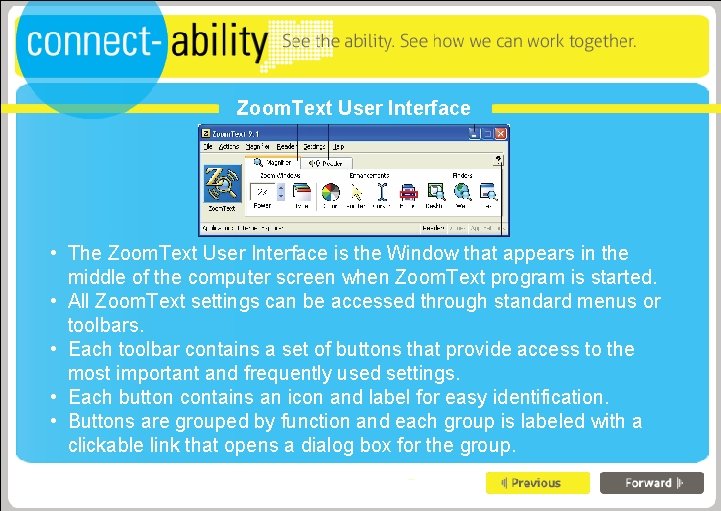
Zoom. Text User Interface • The Zoom. Text User Interface is the Window that appears in the middle of the computer screen when Zoom. Text program is started. • All Zoom. Text settings can be accessed through standard menus or toolbars. • Each toolbar contains a set of buttons that provide access to the most important and frequently used settings. • Each button contains an icon and label for easy identification. • Buttons are grouped by function and each group is labeled with a clickable link that opens a dialog box for the group.
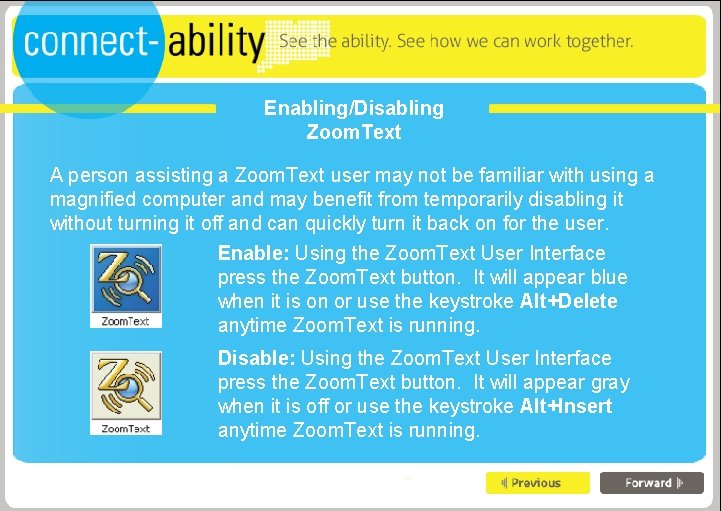
Enabling/Disabling Zoom. Text A person assisting a Zoom. Text user may not be familiar with using a magnified computer and may benefit from temporarily disabling it without turning it off and can quickly turn it back on for the user. Enable: Using the Zoom. Text User Interface press the Zoom. Text button. It will appear blue when it is on or use the keystroke Alt+Delete anytime Zoom. Text is running. Disable: Using the Zoom. Text User Interface press the Zoom. Text button. It will appear gray when it is off or use the keystroke Alt+Insert anytime Zoom. Text is running.
Magnification Features • Magnifies the screen from 1. 25 times to 36 times. • Enlarges all text and images on the screen. • Only a portion of the screen is visible but the entire screen can be navigated by using the mouse or keystrokes.
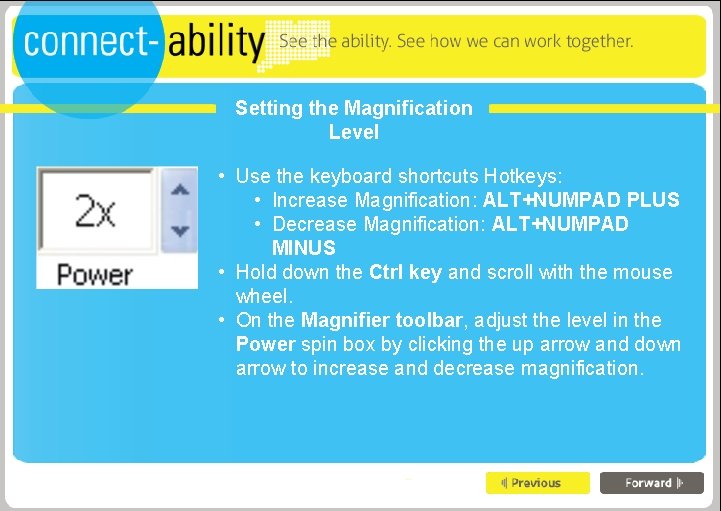
Setting the Magnification Level • Use the keyboard shortcuts Hotkeys: • Increase Magnification: ALT+NUMPAD PLUS • Decrease Magnification: ALT+NUMPAD MINUS • Hold down the Ctrl key and scroll with the mouse wheel. • On the Magnifier toolbar, adjust the level in the Power spin box by clicking the up arrow and down arrow to increase and decrease magnification.
Screen Enhancements • Screen enhancements improve the legibility of the screen. • A modified mouse pointer and/or text cursor makes them easier to see and follow. • Font enhancements increase print quality and creates text that is easy to read at all magnification levels without changing the original document. • Modified screen colors improve contrast and clarity.
Pointer Enhancements • Zoom. Text can adjust the size and color of the pointer and activate a locator that emphasizes the pointer position on the screen. • Zoom. Text has built in Pointer Enhancements but most users prefer a custom enhancement. • To Choose a Preset Scheme on the Magnifier toolbar, select Pointer Scheme, and then select the desired pointer scheme.
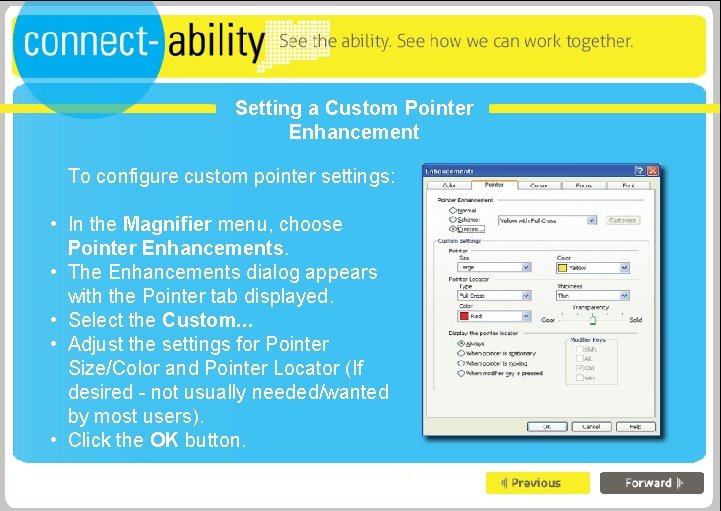
Setting a Custom Pointer Enhancement • • • To configure custom pointer settings: In the Magnifier menu, choose Pointer Enhancements. The Enhancements dialog appears with the Pointer tab displayed. Select the Custom. . . Adjust the settings for Pointer Size/Color and Pointer Locator (If desired - not usually needed/wanted by most users). Click the OK button.
Cursor Enhancements • Cursor enhancements make it easy to locate and follow the text cursor. • Users can choose from high visibility locators to mark the cursor’s position, without obscuring the surrounding text. • Users can choose from preset cursor schemes or configure custom cursor settings. • Use the hotkey CTRL+SHIFT+R (Blue wedges work for many users) • To choose a preset cursor scheme: • On the Magnifier toolbar, select Cursor Scheme and then select the desired cursor scheme (Blue wedges work for many users).
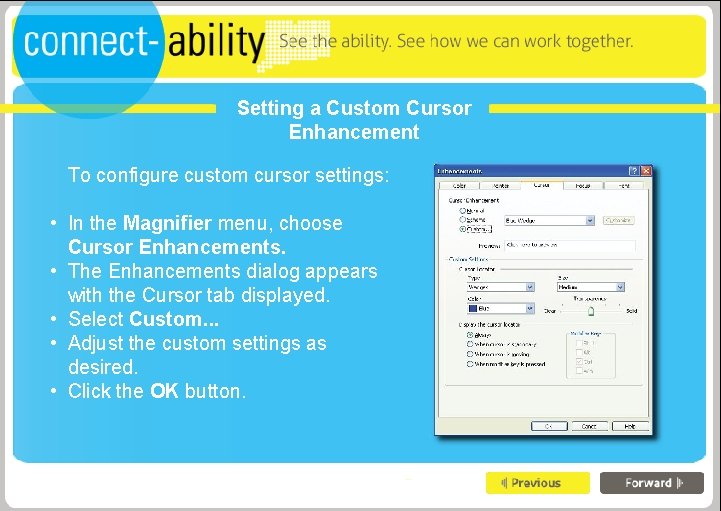
Setting a Custom Cursor Enhancement To configure custom cursor settings: • In the Magnifier menu, choose Cursor Enhancements. • The Enhancements dialog appears with the Cursor tab displayed. • Select Custom. . . • Adjust the custom settings as desired. • Click the OK button.
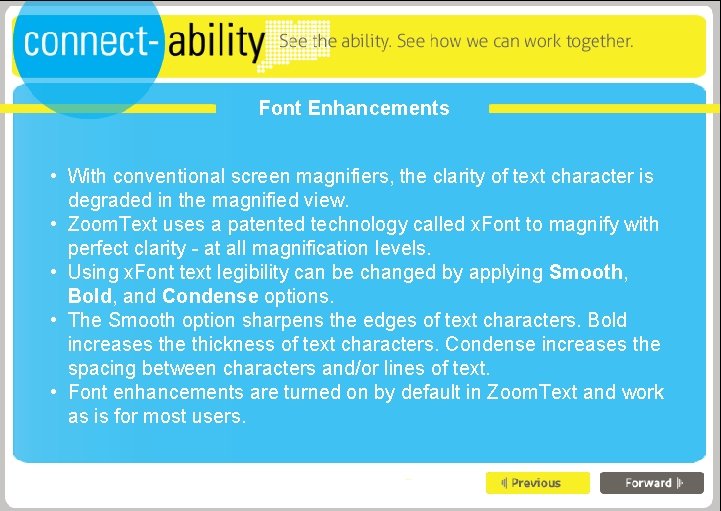
Font Enhancements • With conventional screen magnifiers, the clarity of text character is degraded in the magnified view. • Zoom. Text uses a patented technology called x. Font to magnify with perfect clarity - at all magnification levels. • Using x. Font text legibility can be changed by applying Smooth, Bold, and Condense options. • The Smooth option sharpens the edges of text characters. Bold increases the thickness of text characters. Condense increases the spacing between characters and/or lines of text. • Font enhancements are turned on by default in Zoom. Text and work as is for most users.
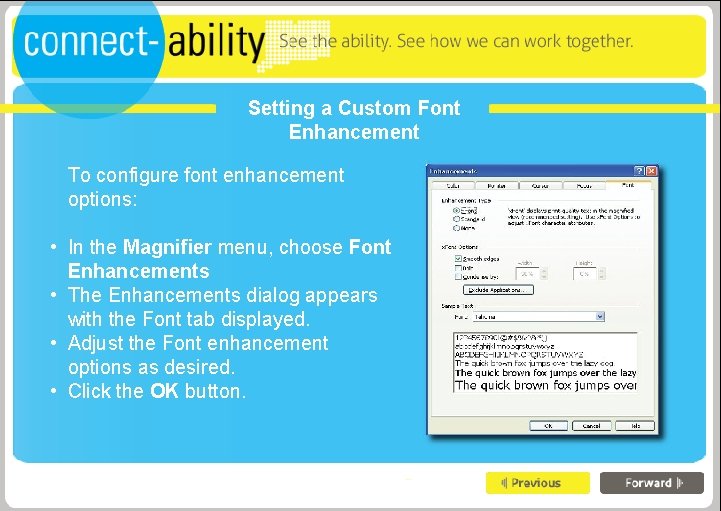
Setting a Custom Font Enhancement To configure font enhancement options: • In the Magnifier menu, choose Font Enhancements • The Enhancements dialog appears with the Font tab displayed. • Adjust the Font enhancement options as desired. • Click the OK button.
Screen Reading Features in Zoom. Text • Zoom. Text offers speech as a back up to the magnified images on the screen. • Zoom. Text does not read everything on the screen. • Zoom. Text can be used to read continuously in documents, web pages and email. • The speech rate can be adjusted faster or slower to meet user needs. • Zoom. Text can provide an echo while typing for characters and/or words.
Common Screen Reading Features in Zoom. Text • Speech: Turns speech output on and off, and allows quick switching between recently used speech synthesizers. • Rate: Controls how fast Zoom. Text speaks. • Typing: Selects typing echo settings. Typing echo provides immediate feedback of the keys and/or words as they are typed. • App. Reader: App. Reader provides continuous reading of documents, web pages and email.
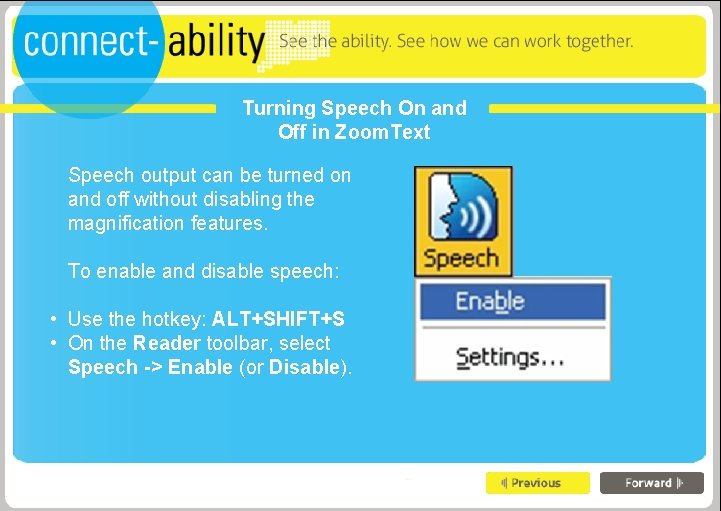
Turning Speech On and Off in Zoom. Text Speech output can be turned on and off without disabling the magnification features. To enable and disable speech: • Use the hotkey: ALT+SHIFT+S • On the Reader toolbar, select Speech -> Enable (or Disable).
Using Zoom. Text For Automatic Reading App. Reader is a tool built into Zoom. Text that can automatically read through the entire document, or you can manually read by word, line, sentence or paragraph. Open the document, web page or email that you wish to read. Use the hotkey: ALT+SHIFT+A, or…
Using Zoom. Text For Automatic Reading 1. On the Reader toolbar, select App. Rdr. App. Reader begins reading from the current text cursor position. If a text cursor does not exist, App. Reader starts in paused mode, with the first word in the magnified view (from the top left corner). Note: The App. Reader button is disabled (grayed out) when the last active application does not contain readable text. 2. To start and stop automatic reading, press ENTER or click the left mouse. 3. When using the mouse, you can resume reading from a new location by clicking on the word where you wish to begin reading. 4. To exit App. Reader, press ESC or right mouse click. 5. When App. Reader exits, the cursor is automatically positioned at the last word that was highlighted in App. Reader (if a visible cursor exists in the application).
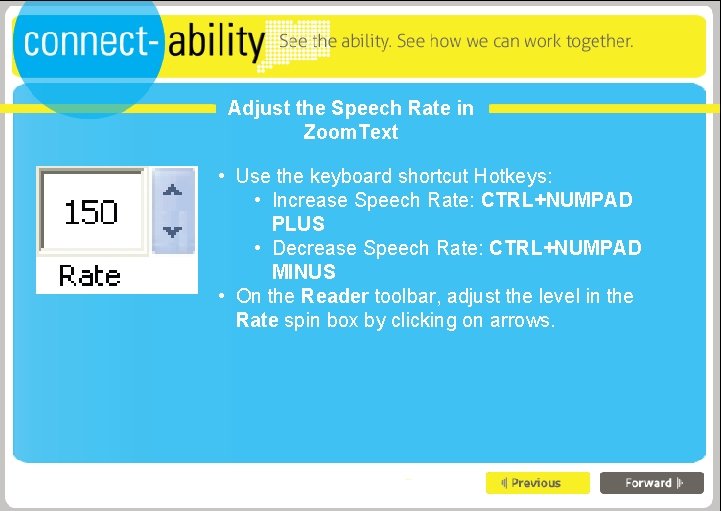
Adjust the Speech Rate in Zoom. Text • Use the keyboard shortcut Hotkeys: • Increase Speech Rate: CTRL+NUMPAD PLUS • Decrease Speech Rate: CTRL+NUMPAD MINUS • On the Reader toolbar, adjust the level in the Rate spin box by clicking on arrows.
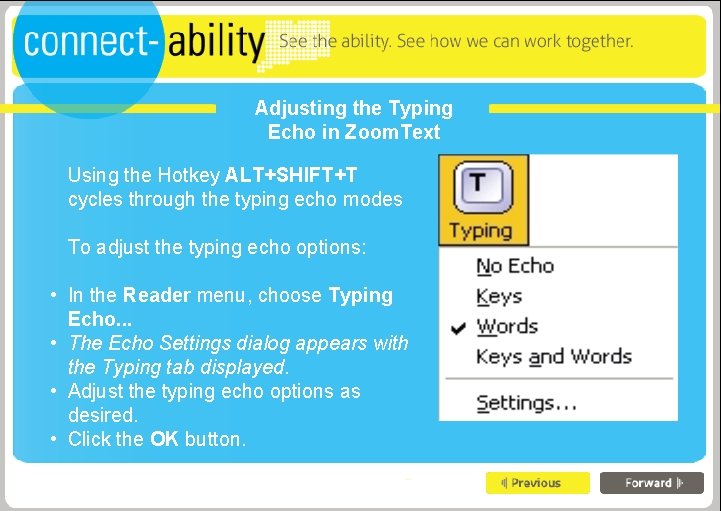
Adjusting the Typing Echo in Zoom. Text Using the Hotkey ALT+SHIFT+T cycles through the typing echo modes To adjust the typing echo options: • In the Reader menu, choose Typing Echo. . . • The Echo Settings dialog appears with the Typing tab displayed. • Adjust the typing echo options as desired. • Click the OK button.
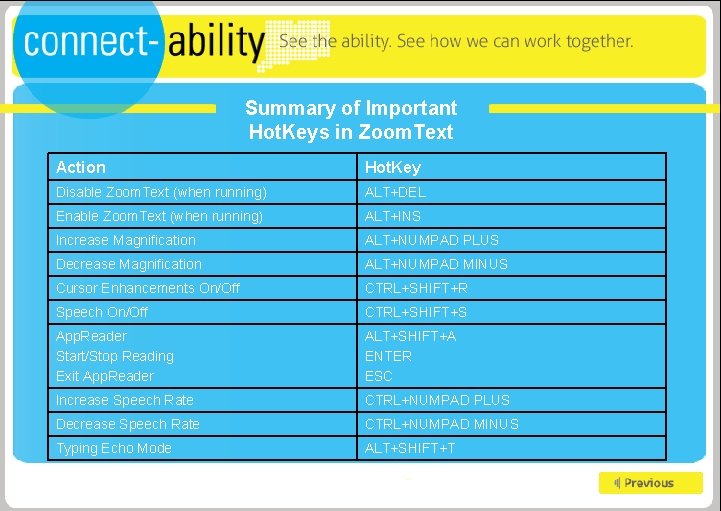
Summary of Important Hot. Keys in Zoom. Text Action Hot. Key Disable Zoom. Text (when running) ALT+DEL Enable Zoom. Text (when running) ALT+INS Increase Magnification ALT+NUMPAD PLUS Decrease Magnification ALT+NUMPAD MINUS Cursor Enhancements On/Off CTRL+SHIFT+R Speech On/Off CTRL+SHIFT+S App. Reader Start/Stop Reading Exit App. Reader ALT+SHIFT+A ENTER ESC Increase Speech Rate CTRL+NUMPAD PLUS Decrease Speech Rate CTRL+NUMPAD MINUS Typing Echo Mode ALT+SHIFT+T