
Using Windows Deployment Services And Microsoft System Center


- Slides: 42
Using Windows Deployment Services And Microsoft System Center To Deploy And Manage A Point-of. Service (POS) System Running POSReady Alexander Wechsler Enterprise Architect|CEO Microsoft Regional Director Germany|e. MVP Wechsler Consulting GMBH & Co. KG Session Code: EMB 203
Scenario Planning
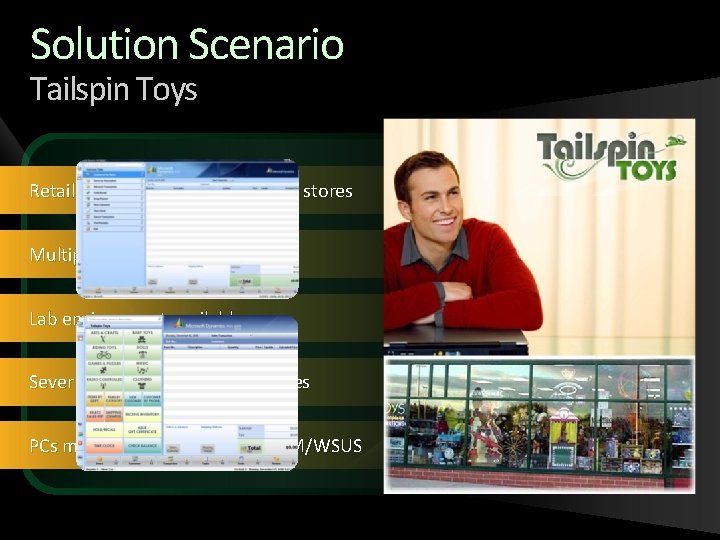
Solution Scenario Tailspin Toys Retailer with 2000 lanes and 400 stores Multiple hardware types Lab environment available Sever based environment in stores PCs managed centrally with SCCM/WSUS
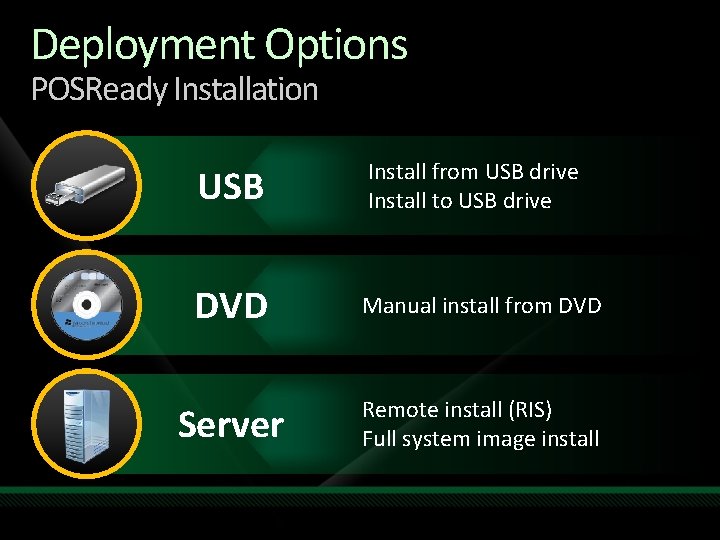
Deployment Options POSReady Installation USB Install from USB drive Install to USB drive DVD Manual install from DVD Server Remote install (RIS) Full system image install
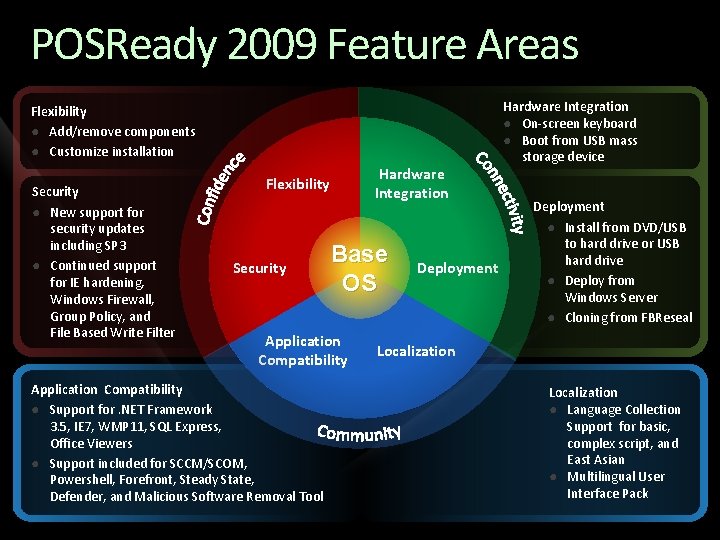
POSReady 2009 Feature Areas Flexibility ● Add/remove components ● Customize installation Security ● New support for security updates including SP 3 ● Continued support for IE hardening, Windows Firewall, Group Policy, and File Based Write Filter Hardware Integration Flexibility Security Base OS Application Compatibility ● Support for. NET Framework 3. 5, IE 7, WMP 11, SQL Express, Office Viewers ● Support included for SCCM/SCOM, Powershell, Forefront, Steady State, Defender, and Malicious Software Removal Tool Deployment Hardware Integration ● On-screen keyboard ● Boot from USB mass storage device Deployment ● Install from DVD/USB to hard drive or USB hard drive ● Deploy from Windows Server ● Cloning from FBReseal Localization ● Language Collection Support for basic, complex script, and East Asian ● Multilingual User Interface Pack
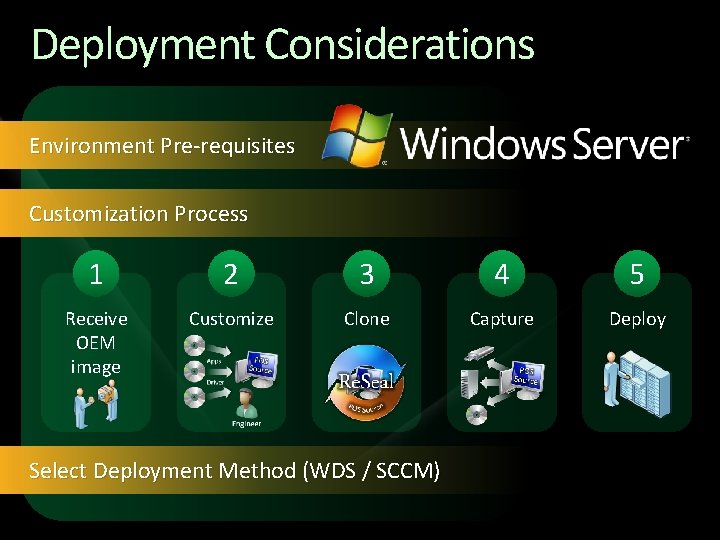
Deployment Considerations Environment Pre-requisites Customization Process 1 2 3 4 5 Receive OEM image Customize Clone Capture Deploy Select Deployment Method (WDS / SCCM)
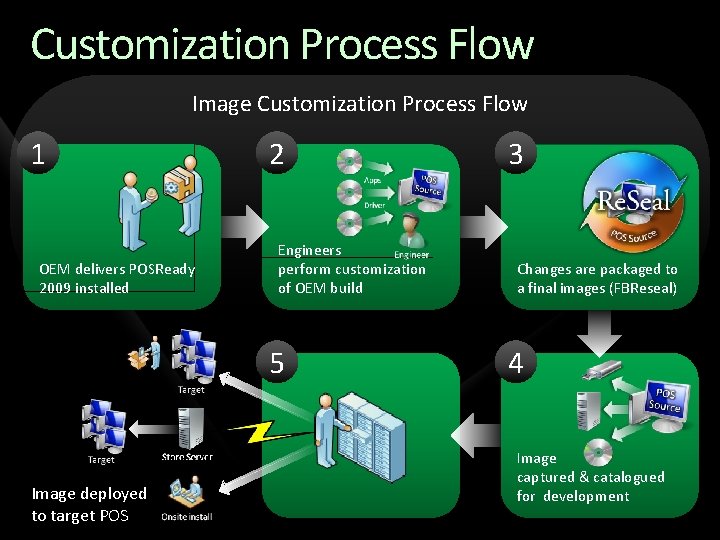
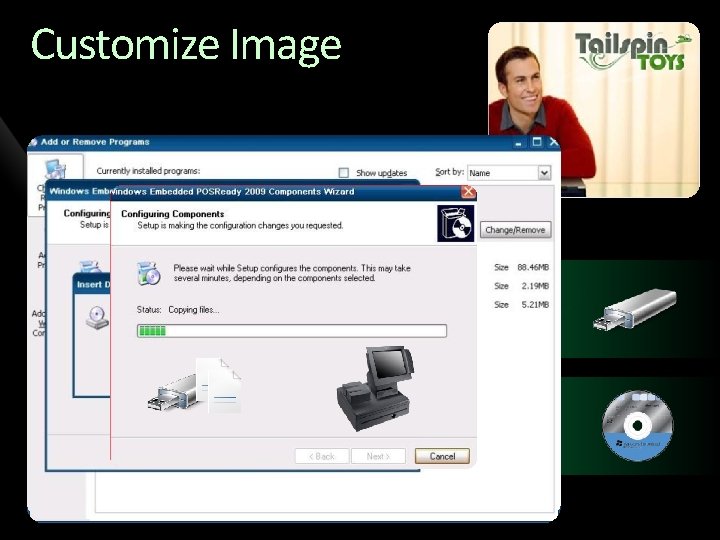
Customization Process Flow Image Customization Process Flow 1 OEM delivers POSReady 2009 installed 2 Engineers perform customization of OEM build 5 Image deployed to target POS 3 Changes are packaged to a final images (FBReseal) 4 Image captured & catalogued for development
Customize Image
demo Customize / Reseal
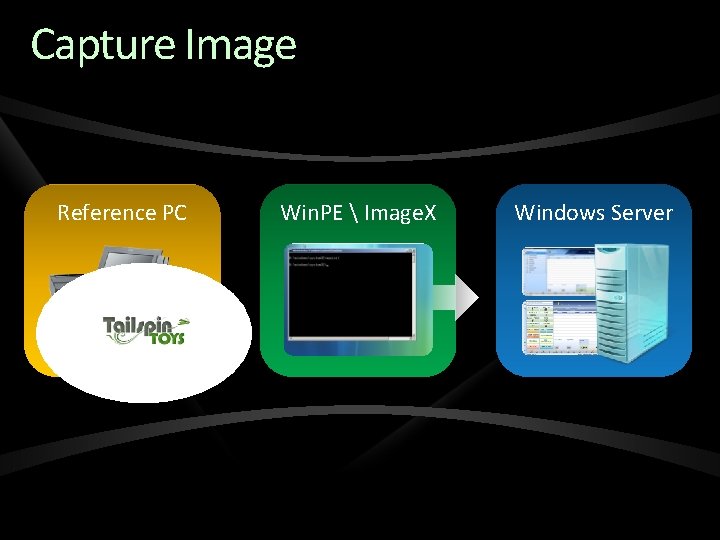
Capture Image Reference PC Win. PE Image. X Windows Server
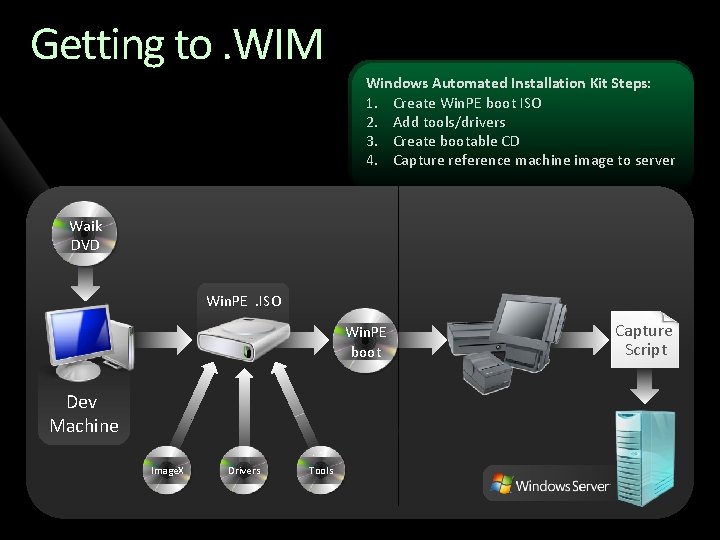
Getting to. WIM Windows Automated Installation Kit Steps: 1. Create Win. PE boot ISO 2. Add tools/drivers 3. Create bootable CD 4. Capture reference machine image to server Waik DVD Win. PE. ISO Win. PE boot Dev Machine Image. X Drivers Tools Capture Script
demo Image Sealing / Capture
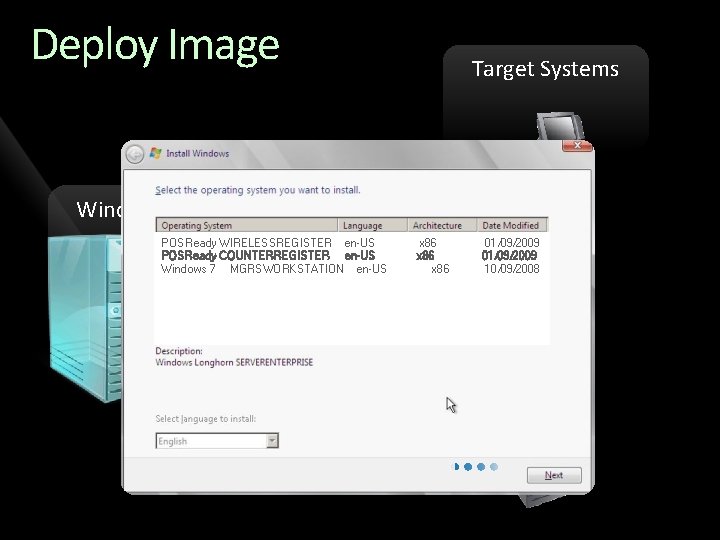
Deploy Image Target Systems Window Server POSReady WIRELESSREGISTER en-US POSReady COUNTERREGISTER en-US Windows 7 MGRSWORKSTATION en-US x 86 01/09/2009 10/09/2008
demo WDS Deplyoment
Systems Management Patch Management Software Update Services XP Pro equivalent Device Management System Statistics and Reporting Pre-built management packs
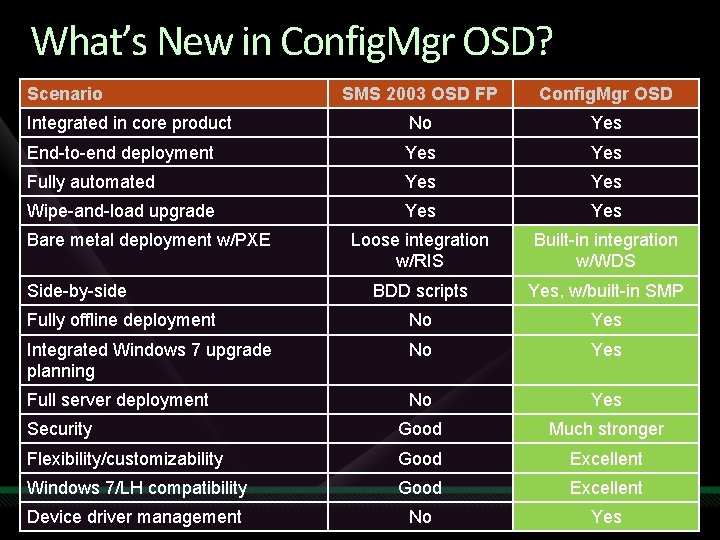
What’s New in Config. Mgr OSD? Scenario SMS 2003 OSD FP Config. Mgr OSD Integrated in core product No Yes End-to-end deployment Yes Fully automated Yes Wipe-and-load upgrade Yes Loose integration w/RIS Built-in integration w/WDS BDD scripts Yes, w/built-in SMP Fully offline deployment No Yes Integrated Windows 7 upgrade planning No Yes Full server deployment No Yes Security Good Much stronger Flexibility/customizability Good Excellent Windows 7/LH compatibility Good Excellent Device driver management No Yes Bare metal deployment w/PXE Side-by-side
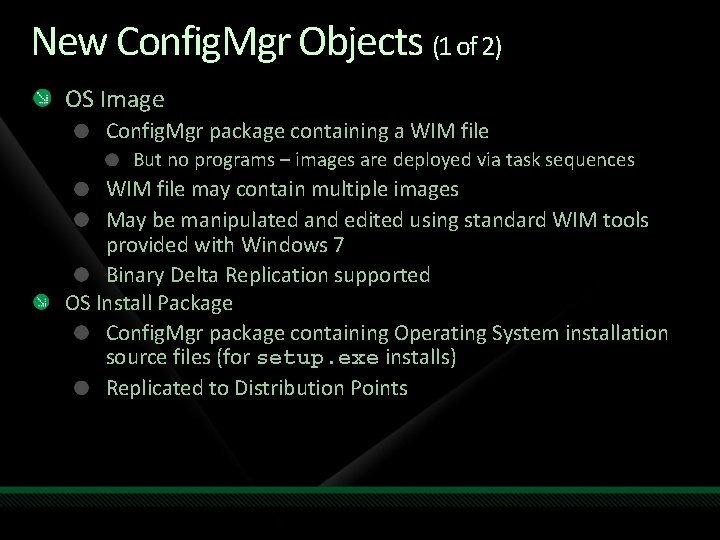
New Config. Mgr Objects (1 of 2) OS Image Config. Mgr package containing a WIM file But no programs – images are deployed via task sequences WIM file may contain multiple images May be manipulated and edited using standard WIM tools provided with Windows 7 Binary Delta Replication supported OS Install Package Config. Mgr package containing Operating System installation source files (for setup. exe installs) Replicated to Distribution Points
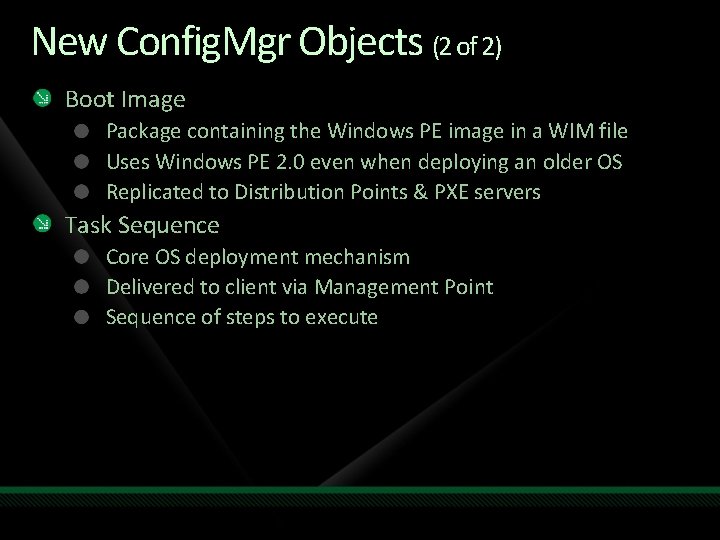
New Config. Mgr Objects (2 of 2) Boot Image Package containing the Windows PE image in a WIM file Uses Windows PE 2. 0 even when deploying an older OS Replicated to Distribution Points & PXE servers Task Sequence Core OS deployment mechanism Delivered to client via Management Point Sequence of steps to execute
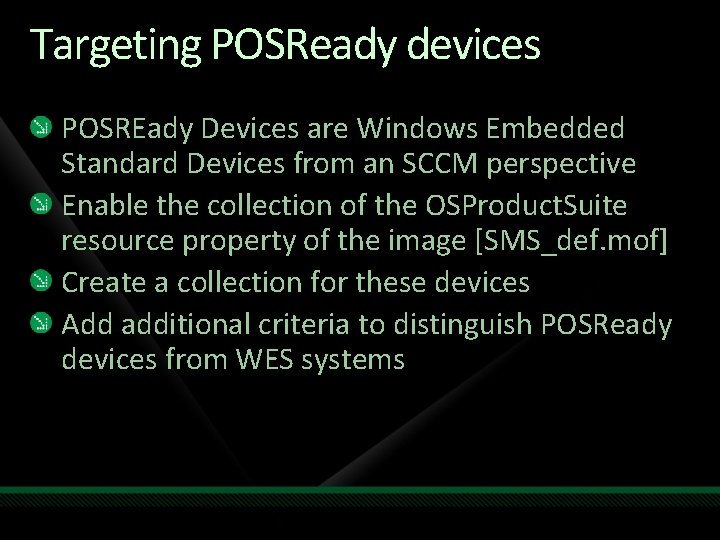
Targeting POSReady devices POSREady Devices are Windows Embedded Standard Devices from an SCCM perspective Enable the collection of the OSProduct. Suite resource property of the image [SMS_def. mof] Create a collection for these devices Add additional criteria to distinguish POSReady devices from WES systems
demo Targeting POS Devices
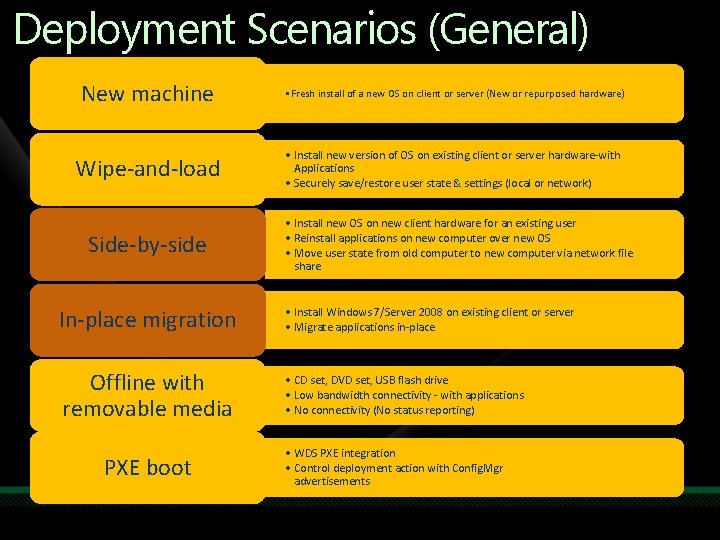
Deployment Scenarios (General) New machine • Fresh install of a new OS on client or server (New or repurposed hardware) Wipe-and-load • Install new version of OS on existing client or server hardware-with Applications • Securely save/restore user state & settings (local or network) Side-by-side • Install new OS on new client hardware for an existing user • Reinstall applications on new computer over new OS • Move user state from old computer to new computer via network file share In-place migration • Install Windows 7/Server 2008 on existing client or server • Migrate applications in-place Offline with removable media • CD set, DVD set, USB flash drive • Low bandwidth connectivity - with applications • No connectivity (No status reporting) PXE boot • WDS PXE integration • Control deployment action with Config. Mgr advertisements
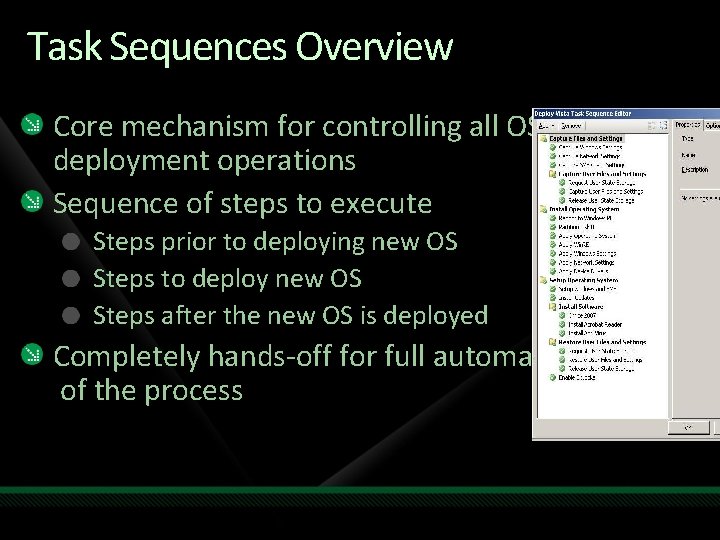
Task Sequences Overview Core mechanism for controlling all OS deployment operations Sequence of steps to execute Steps prior to deploying new OS Steps to deploy new OS Steps after the new OS is deployed Completely hands-off for full automation of the process
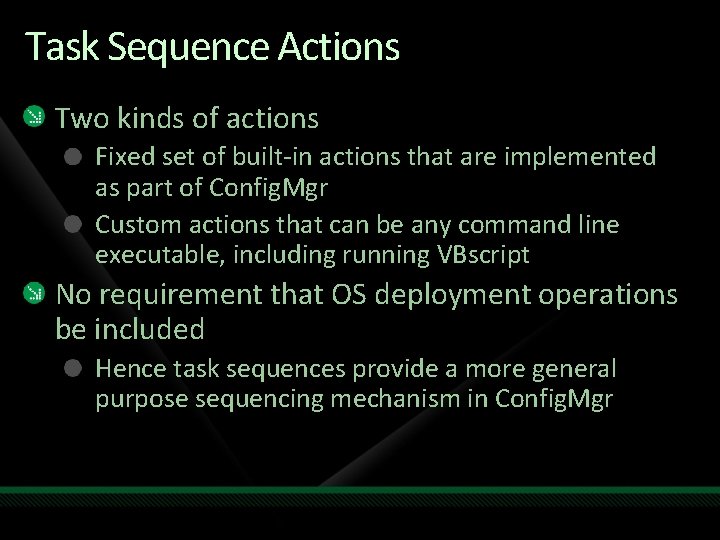
Task Sequence Actions Two kinds of actions Fixed set of built-in actions that are implemented as part of Config. Mgr Custom actions that can be any command line executable, including running VBscript No requirement that OS deployment operations be included Hence task sequences provide a more general purpose sequencing mechanism in Config. Mgr
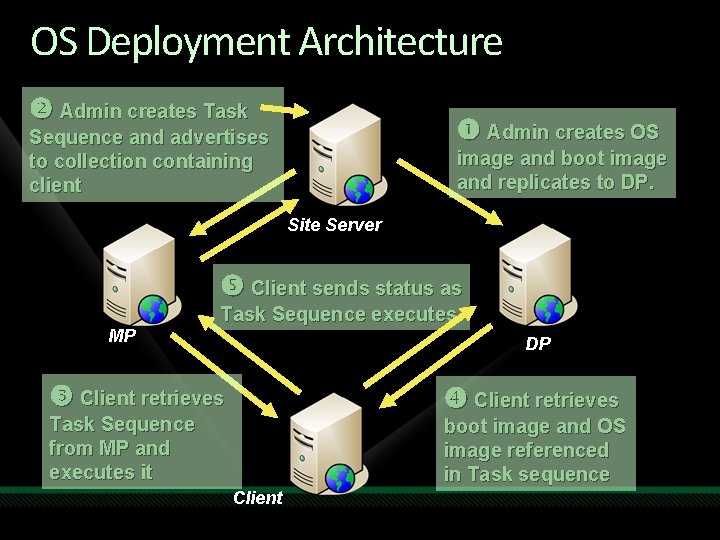
OS Deployment Architecture Admin creates Task Admin creates OS Sequence and advertises to collection containing client image and boot image and replicates to DP. Site Server Client sends status as Task Sequence executes MP DP Client retrieves Task Sequence from MP and executes it boot image and OS image referenced in Task sequence Client
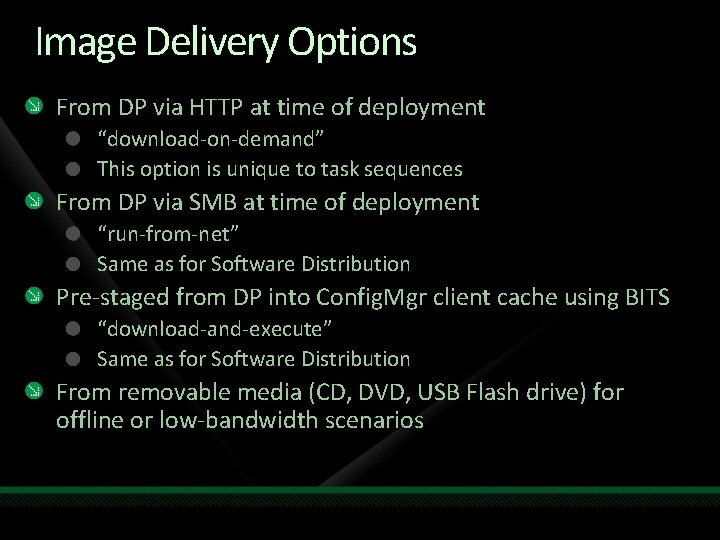
Image Delivery Options From DP via HTTP at time of deployment “download-on-demand” This option is unique to task sequences From DP via SMB at time of deployment “run-from-net” Same as for Software Distribution Pre-staged from DP into Config. Mgr client cache using BITS “download-and-execute” Same as for Software Distribution From removable media (CD, DVD, USB Flash drive) for offline or low-bandwidth scenarios
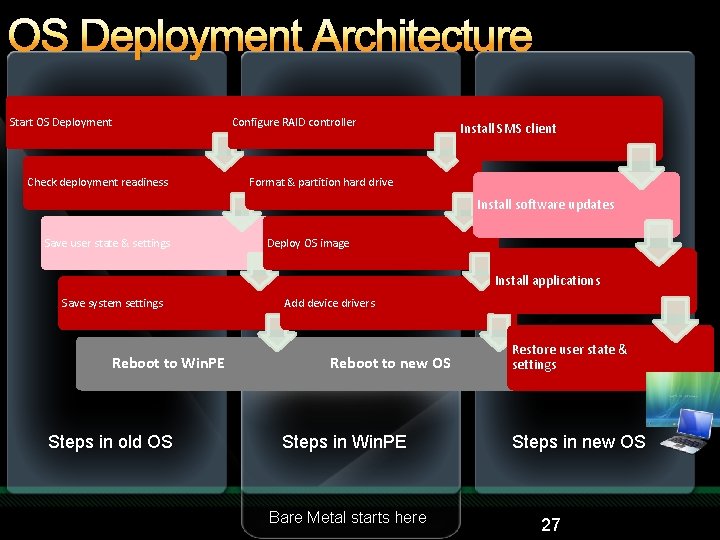
OS Deployment Architecture Start OS Deployment Check deployment readiness Configure RAID controller Install SMS client Format & partition hard drive Install software updates Save user state & settings Deploy OS image Install applications Save system settings Reboot to Win. PE Steps in old OS Add device drivers Reboot to new OS Steps in Win. PE Bare Metal starts here Restore user state & settings Steps in new OS 27
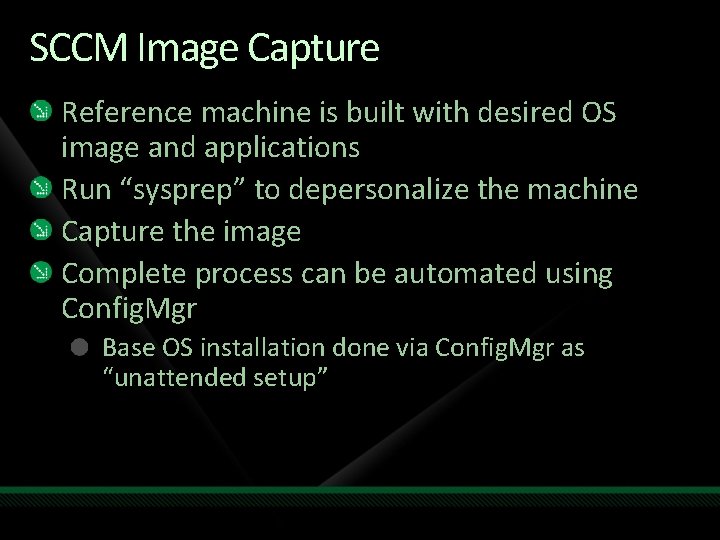
SCCM Image Capture Reference machine is built with desired OS image and applications Run “sysprep” to depersonalize the machine Capture the image Complete process can be automated using Config. Mgr Base OS installation done via Config. Mgr as “unattended setup”
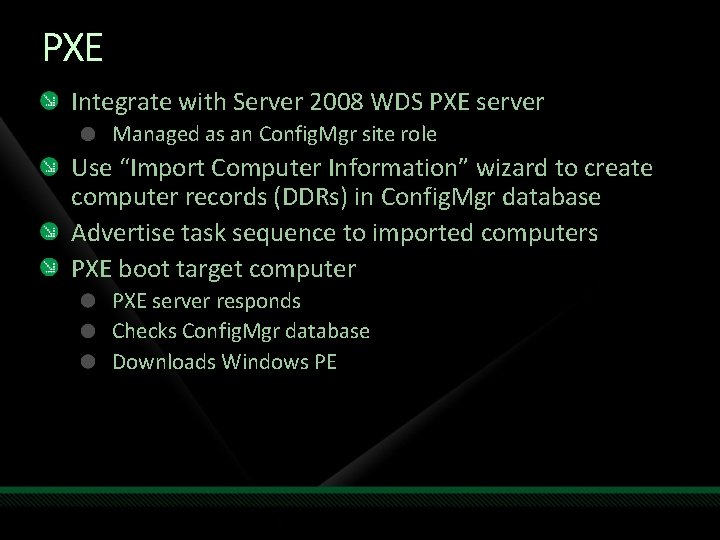
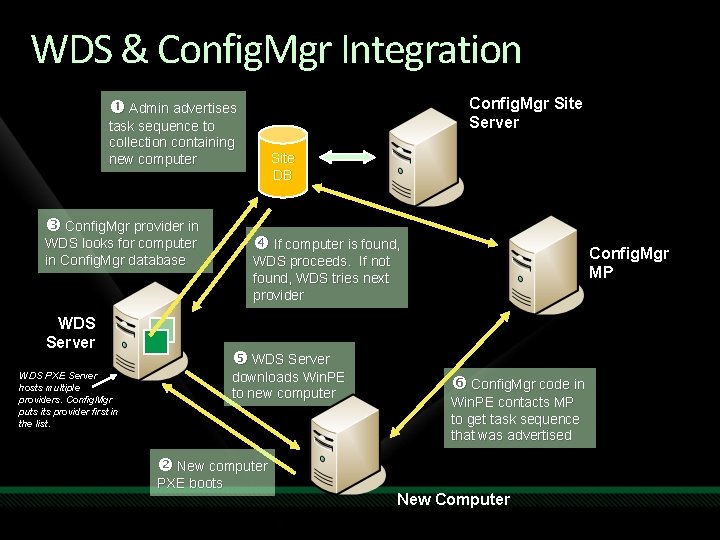
PXE Integrate with Server 2008 WDS PXE server Managed as an Config. Mgr site role Use “Import Computer Information” wizard to create computer records (DDRs) in Config. Mgr database Advertise task sequence to imported computers PXE boot target computer PXE server responds Checks Config. Mgr database Downloads Windows PE
WDS & Config. Mgr Integration Config. Mgr Site Server Admin advertises task sequence to collection containing new computer Config. Mgr provider in WDS looks for computer in Config. Mgr database WDS Server Site DB If computer is found, Config. Mgr MP WDS proceeds. If not found, WDS tries next provider WDS Server downloads Win. PE to new computer WDS PXE Server hosts multiple providers. Config. Mgr puts its provider first in the list. Config. Mgr code in Win. PE contacts MP to get task sequence that was advertised New computer PXE boots New Computer
demo Image SCCM PXE Distribution
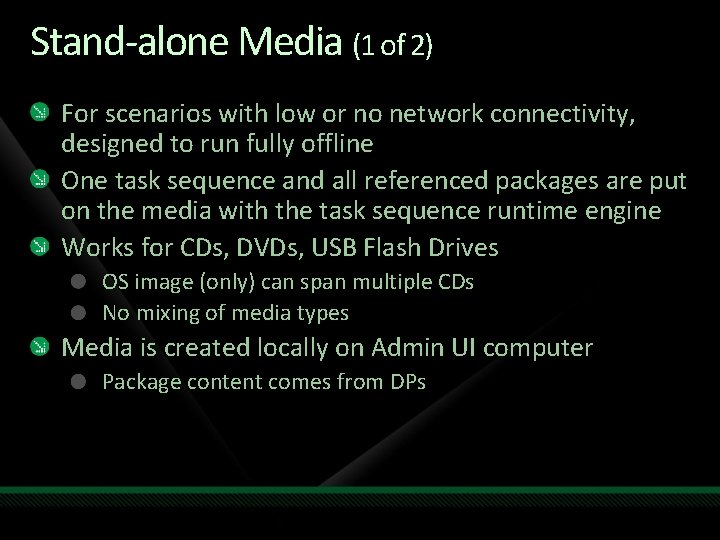
Stand-alone Media (1 of 2) For scenarios with low or no network connectivity, designed to run fully offline One task sequence and all referenced packages are put on the media with the task sequence runtime engine Works for CDs, DVDs, USB Flash Drives OS image (only) can span multiple CDs No mixing of media types Media is created locally on Admin UI computer Package content comes from DPs
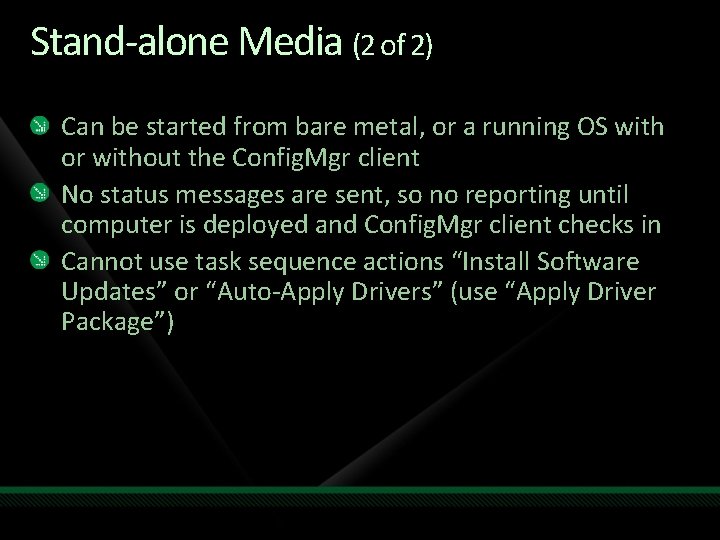
Stand-alone Media (2 of 2) Can be started from bare metal, or a running OS with or without the Config. Mgr client No status messages are sent, so no reporting until computer is deployed and Config. Mgr client checks in Cannot use task sequence actions “Install Software Updates” or “Auto-Apply Drivers” (use “Apply Driver Package”)
demo Standalone media
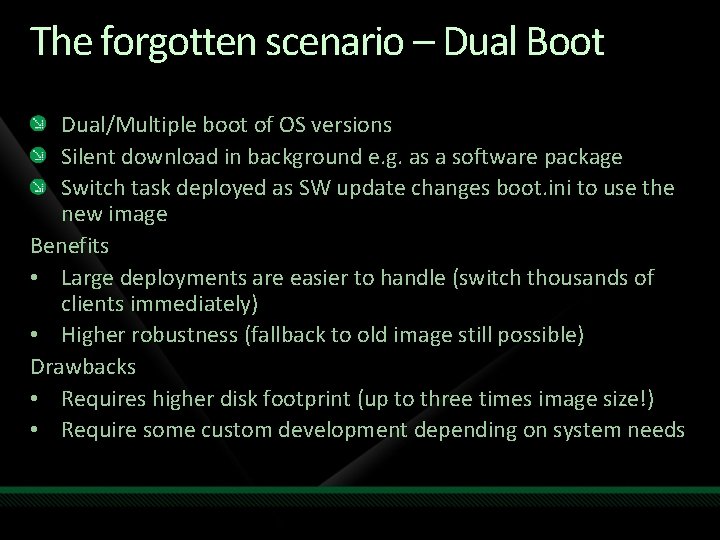
The forgotten scenario – Dual Boot Dual/Multiple boot of OS versions Silent download in background e. g. as a software package Switch task deployed as SW update changes boot. ini to use the new image Benefits • Large deployments are easier to handle (switch thousands of clients immediately) • Higher robustness (fallback to old image still possible) Drawbacks • Requires higher disk footprint (up to three times image size!) • Require some custom development depending on system needs
POSReady Guidance Deployment Planning Guide Available now at http: //microsoft. download. com
question & answer
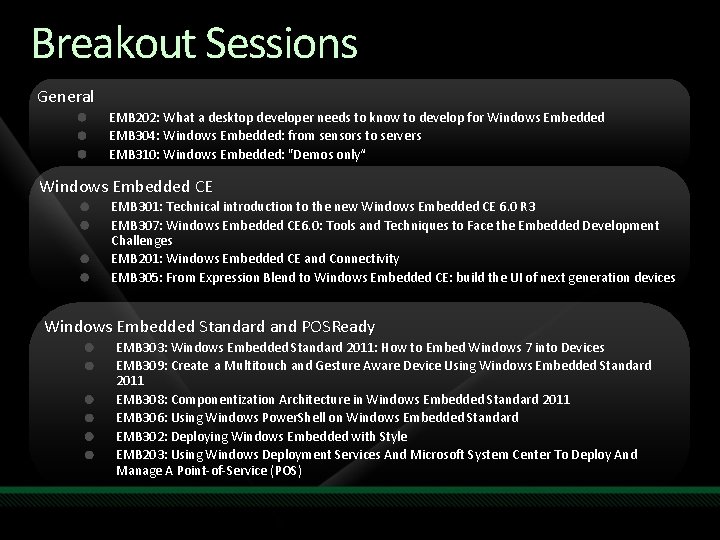
Breakout Sessions General EMB 202: What a desktop developer needs to know to develop for Windows Embedded EMB 304: Windows Embedded: from sensors to servers EMB 310: Windows Embedded: "Demos only“ Windows Embedded CE EMB 301: Technical introduction to the new Windows Embedded CE 6. 0 R 3 EMB 307: Windows Embedded CE 6. 0: Tools and Techniques to Face the Embedded Development Challenges EMB 201: Windows Embedded CE and Connectivity EMB 305: From Expression Blend to Windows Embedded CE: build the UI of next generation devices Windows Embedded Standard and POSReady EMB 303: Windows Embedded Standard 2011: How to Embed Windows 7 into Devices EMB 309: Create a Multitouch and Gesture Aware Device Using Windows Embedded Standard 2011 EMB 308: Componentization Architecture in Windows Embedded Standard 2011 EMB 306: Using Windows Power. Shell on Windows Embedded Standard EMB 302: Deploying Windows Embedded with Style EMB 203: Using Windows Deployment Services And Microsoft System Center To Deploy And Manage A Point-of-Service (POS)
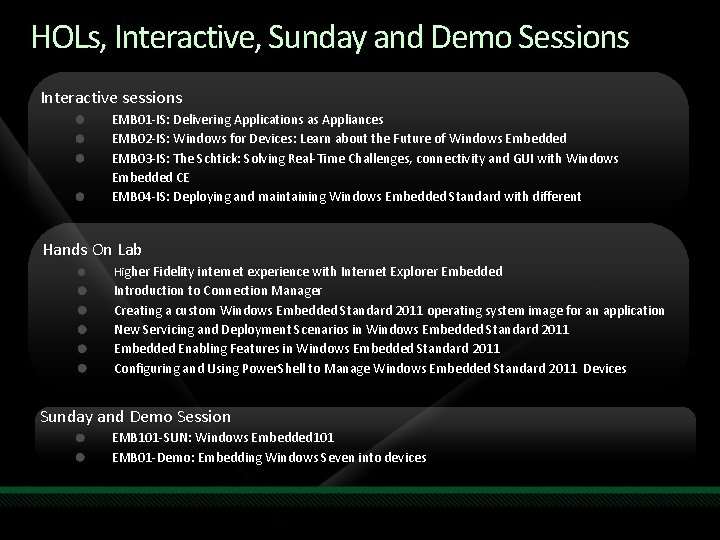
HOLs, Interactive, Sunday and Demo Sessions Interactive sessions EMB 01 -IS: Delivering Applications as Appliances EMB 02 -IS: Windows for Devices: Learn about the Future of Windows Embedded EMB 03 -IS: The Schtick: Solving Real-Time Challenges, connectivity and GUI with Windows Embedded CE EMB 04 -IS: Deploying and maintaining Windows Embedded Standard with different Hands On Lab Higher Fidelity internet experience with Internet Explorer Embedded Introduction to Connection Manager Creating a custom Windows Embedded Standard 2011 operating system image for an application New Servicing and Deployment Scenarios in Windows Embedded Standard 2011 Embedded Enabling Features in Windows Embedded Standard 2011 Configuring and Using Power. Shell to Manage Windows Embedded Standard 2011 Devices Sunday and Demo Session EMB 101 -SUN: Windows Embedded 101 EMB 01 -Demo: Embedding Windows Seven into devices
Useful URLs Microsoft Web sites http: //windowsembedded. com http: //msdn. microsoft. com/en-us/windowsembedded/ce/default. aspx http: //msdn. microsoft. com/en-us/windowsembedded/standard/default. aspx http: //technet. microsoft. com/en-us/windowsembedded/posready/default. aspx Blogs http: //blogs. msdn. com/obloch http: //blogs. msdn. com/mikehall http: //blogs. msdn. com/jcoyne Other http: //www. wechsler-consulting. de http: //windowsfordevices
Complete an evaluation on Comm. Net and enter to win an Xbox 360 Elite!
© 2009 Microsoft Corporation. All rights reserved. Microsoft, Windows 7 and other product names are or may be registered trademarks and/or trademarks in the U. S. and/or other countries. The information herein is for informational purposes only and represents the current view of Microsoft Corporation as of the date of this presentation. Because Microsoft must respond to changing market conditions, it should not be interpreted to be a commitment on the part of Microsoft, and Microsoft cannot guarantee the accuracy of any information provided after the date of this presentation. MICROSOFT MAKES NO WARRANTIES, EXPRESS, IMPLIED OR STATUTORY, AS TO THE INFORMATION IN THIS PRESENTATION.