
Using Web 2 0 Technologies in the Classroom
Using Web 2. 0 Technologies in the Classroom

Acknowledgements This resource is designed as an output from a Training and Development Agency Research Grant led by Dr Helen Boulton at Nottingham Trent University. Acknowledgements: We would like to thank the NTU team (Rachael Smith, Kate Buttler and David Chaplain) the trainee teachers (Jinder Mahal, Rosie Hall, Shabana Majid, Lee Edwards, Marie Bauder, Naomi Patrick, and Amy Emerson) and the teachers (Adam Blazewicz-Bell at The National Academy School, Jon Marshall at Djanogly City Academy School, Amy Stelfox at The Nottingham Academy, Colin Sisson at Nottingham Bluecoat School, and Christine Turner at English Martyrs School) who took part in this research project. Introduction to EPS page 2

What is Web 2. 0 Technology? “Web 2. 0 technology is the social web, it is software that supports group interaction” Shirky (2003) Web 2. 0 Technology is the term given to describe the second generation of the world wide web that focuses on the ability for people to collaborate and share information online. It refers to the transition from the static HTML web pages to a more dynamic web page that allows open communication and the sharing of information between users. page 3
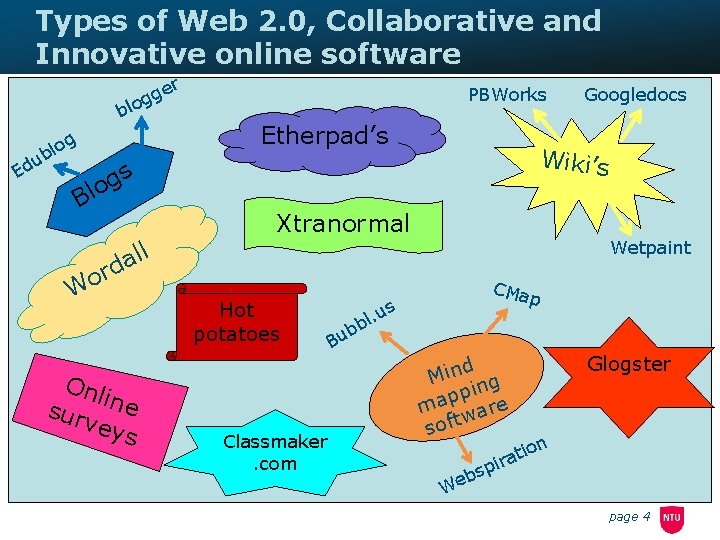
Types of Web 2. 0, Collaborative and Innovative online software r e gg blo u Ed g o l b s g Blo ll a ord W Onl sur ine vey s PBWorks Etherpad’s Wiki’s Xtranormal Hot potatoes Classmaker. com us. l bb u B Googledocs Wetpaint CMa p d n i M g n i p p ma are w soft n io rat i bsp e W Glogster page 4
Web 2. 0 technology 1: Etherpads This is a web-based collaborative real-time editor that allows authors to simultaneously edit a text document, and see all of the participants' edits in real-time It also contains a chat feature in the sidebar that allows further communication and discussion. Example Etherpad: http: //openetherpad. org/7 Xb 5 No. Qq. Dd page 5
Web 2. 0 technology 1: Etherpads/Piratepad To set up a new etherpad, you need to type in the URL: http: //openetherpad. org/; or to set up a piratepad www. piratepad. net. Etherpad tutorial available at: http: //www. youtube. com/watch? v=B 69 sx 77 d. XIg&feature=player_de tailpage Type it in as you see it above, DO NOT type it in to Google or any other search engine as you will not find the correct site. Rules to remember: 1. Very Important!!! Before you edit the page, copy and paste the URL to a word document and Save. You will not be able to access this etherpad or piratepad again, if you do not do so. 2. The page saves every couple of seconds, however to force a save, click on ‘Save Revisions’ 3. You can colour code your name to changes should you wish 4. All the class can access it at once, unlike a wiki 5. You can save the pad after it has been used and download it as a PDF, HTML or Word document by going to ‘Slide Timer’ page 6
Case Study Examples: For examples of how to use etherpad and piratepad in the classroom look at: Case Study 1 – Year 9 English lesson at Djanogly City Academy Case Study 4 – Year 9 English lesson at Nottingham Academy Introduction to EPS page 7
Web 2. 0 technology 2: Wiki In exploring Wikis, the best way is for you to experience a wiki for yourself. To create a wiki, you can use Pbworks. co. uk, Blogger. com, Wordpress. com, etc. Watch the video: www. commoncraft. com/video/wikis A wiki is similar to an etherpad. By selecting one or more themes, you can create and edit it adding your ideas (target audience, level & scope), concepts and understanding, creating links to tools, exemplars, resources and research. For example, you could start with a list which others can add to and expand upon - the pages are yours to do what you wish to! The pages that you edit and create aim to be a collaborative effort, with no one single author or voice. page 8
Case Study Examples: For examples of how to use wikis in the classroom go to: Case Study 2: Year 9 Science at The National Academy School. Case Study 3: Year 7 English at Bluecoat Academy. Case Study 5: Year 9 Science at English Martyrs School. Introduction to EPS page 9
Web 2. 0 technology 3: Blogs A blog can be defined as: “a website that allows users to reflect, share opinions, and discuss various topics in the form of an online journal while readers may comment on” http: //en. wiktionary. org/wiki/blog [accessed 19/4/10] This is good for getting students to evaluate or reflect on a particular learning process that has taken place in the lesson. Link to video on blogs: http: //teachertube. com/view. Video. php? video_id=15427 page 10
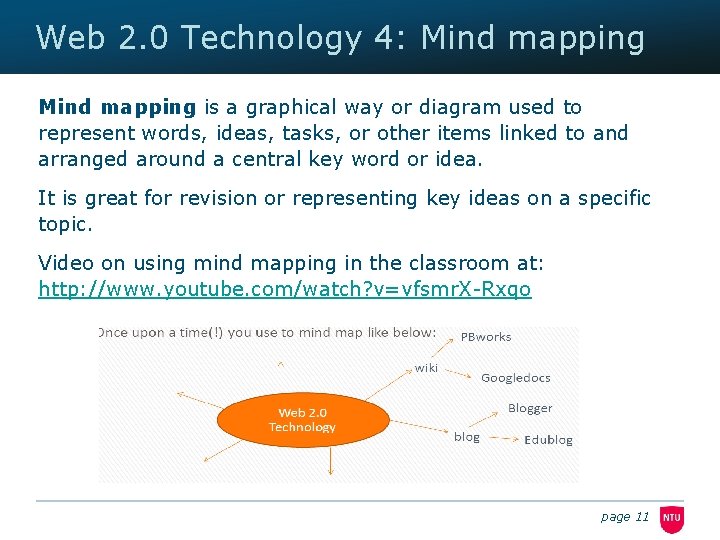
Web 2. 0 Technology 4: Mind mapping is a graphical way or diagram used to represent words, ideas, tasks, or other items linked to and arranged around a central key word or idea. It is great for revision or representing key ideas on a specific topic. Video on using mind mapping in the classroom at: http: //www. youtube. com/watch? v=vfsmr. X-Rxqo page 11
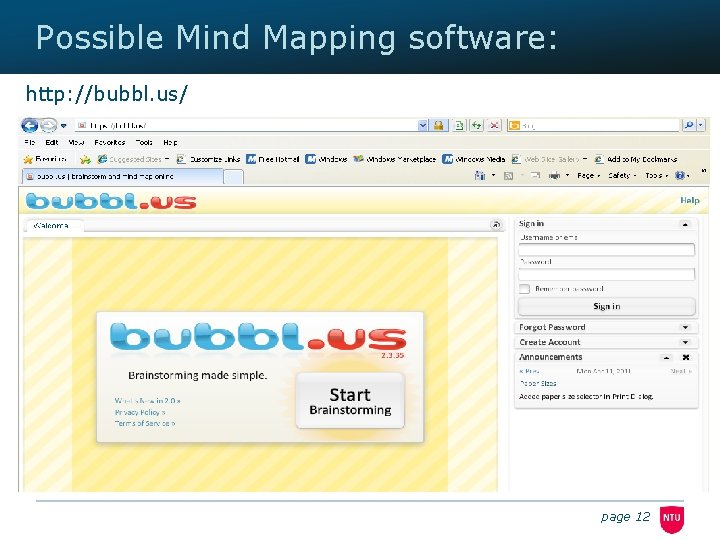
Possible Mind Mapping software: http: //bubbl. us/ page 12
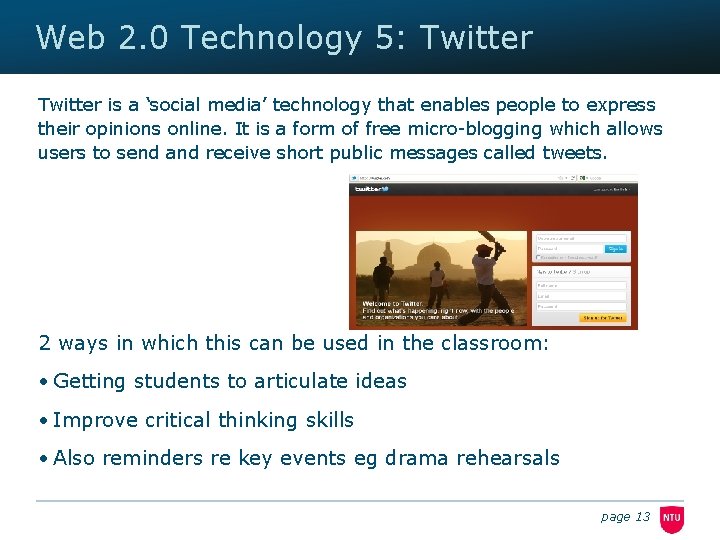
Web 2. 0 Technology 5: Twitter is a ‘social media’ technology that enables people to express their opinions online. It is a form of free micro-blogging which allows users to send and receive short public messages called tweets. 2 ways in which this can be used in the classroom: • Getting students to articulate ideas • Improve critical thinking skills • Also reminders re key events eg drama rehearsals page 13
Web 2. 0 Technology 6: Corkboard. IT This collaborative software is easy to set up and only requires one username and password which can be set up very simply and given to students. Students can sign in at the same time as each other and edit it. This is ideal for sharing learning in a plenary or ideas for projects as a starter activity. Introduction to EPS page 14
Case Study Examples: For examples of how to use Corkboard. It in the classroom go to: Case Study 1: Year 9 English at Djanogly City Academy. Introduction to EPS page 15
Digital Literacy: It is important to remember about ‘Digital literacy’ when using these technologies in the classroom. Digital Literacy is the combination of skills, knowledge and understanding that young people need to learn in order to participate fully and safely in an digital world. It is a combination of functional technology skills, critical thinking, collaboration skills and social awareness. Please refer to the Becta handout entitled ‘Digital Literacy’ included in this pack for more information. page 16
Activity If you are working in your subject group or on your own look at your scheme of work for one year group and consider how you can utilise some of the new technologies you have been introduced to. Identify how you would ‘scaffold’ the use of the technologies and how they may enhance the engagement of your students as well as potentially raise their literacy skills. Introduction to EPS page 17
Alternative Activity: Consider one technology and identify where you could use this in your teaching this term. What would you need to prepare? What support, if any, would you need? Make an action plan and consider how you will evaluate impact. Introduction to EPS page 18
Comments We hope that you have found this resource useful. Please can you email comments to helen. boulton@ntu. ac. uk using the heading TDA Project Feedback in the subject heading. Please feel free to circulate this resource. page 19
- Slides: 19