
Using the Vendor Portal Using the Vendor Portal
- Slides: 14
Using the Vendor Portal
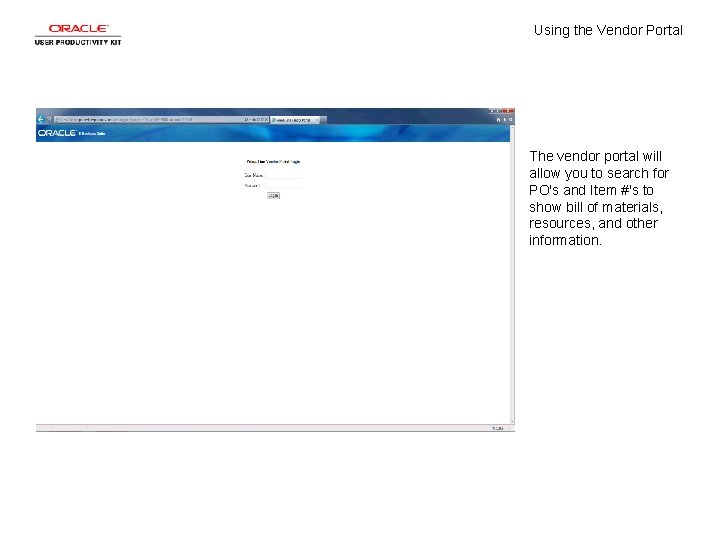
Using the Vendor Portal The vendor portal will allow you to search for PO's and Item #'s to show bill of materials, resources, and other information.
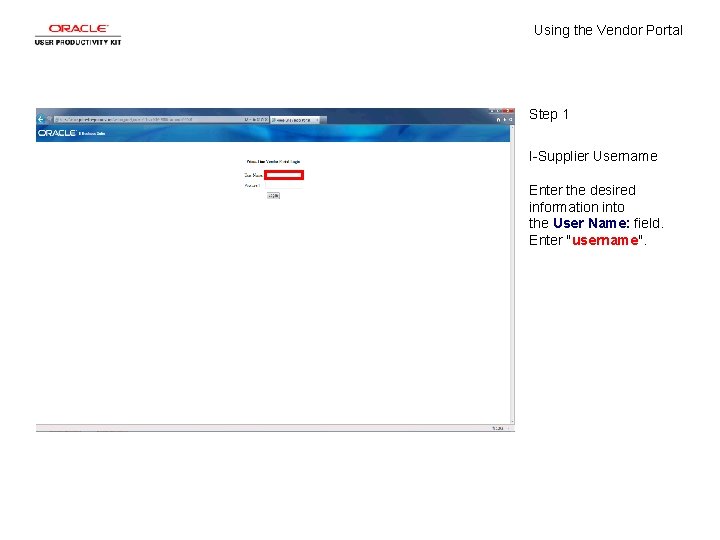
Using the Vendor Portal Step 1 I-Supplier Username Enter the desired information into the User Name: field. Enter "username".
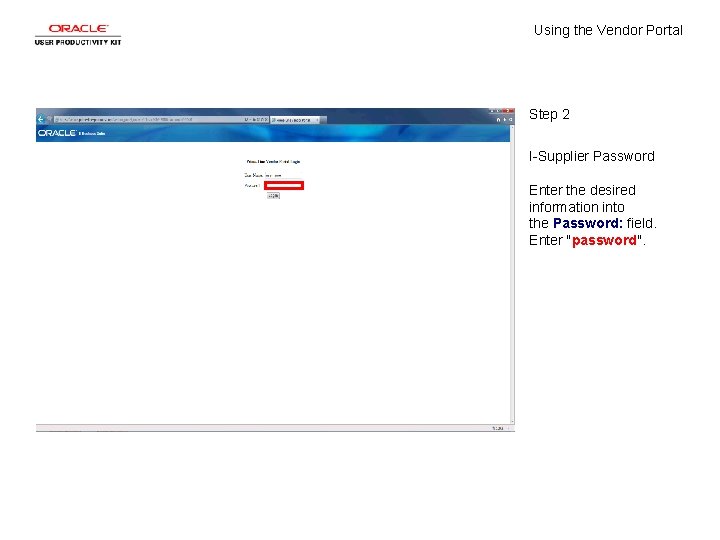
Using the Vendor Portal Step 2 I-Supplier Password Enter the desired information into the Password: field. Enter "password".
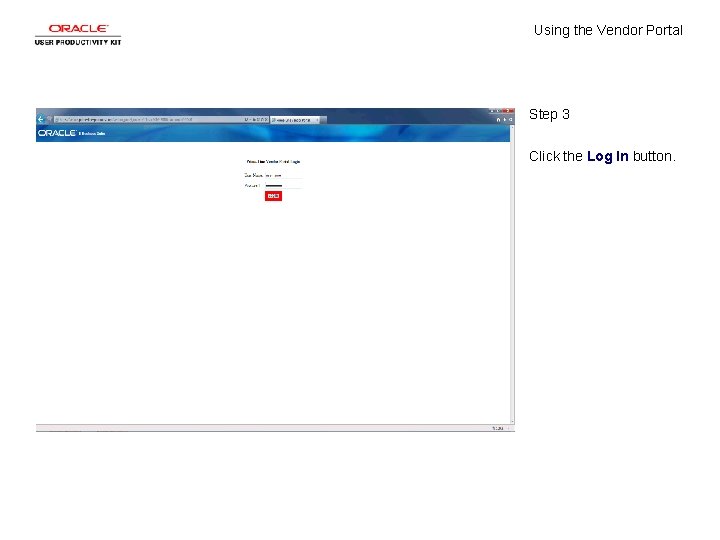
Using the Vendor Portal Step 3 Click the Log In button.
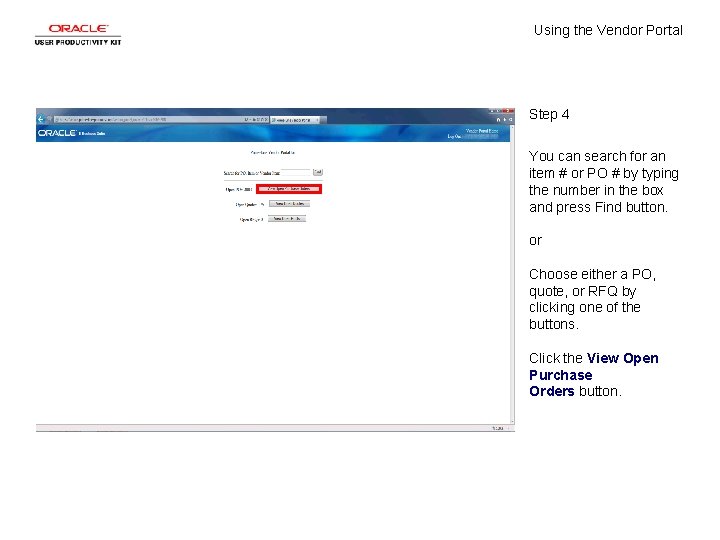
Using the Vendor Portal Step 4 You can search for an item # or PO # by typing the number in the box and press Find button. or Choose either a PO, quote, or RFQ by clicking one of the buttons. Click the View Open Purchase Orders button.
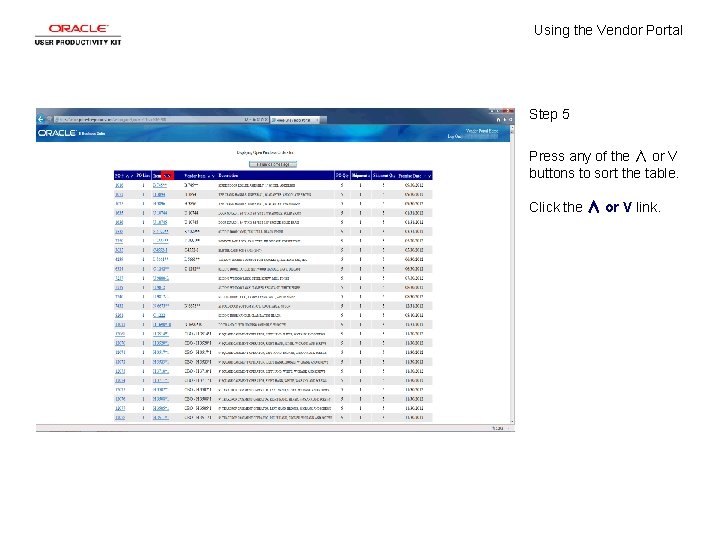
Using the Vendor Portal Step 5 Press any of the ∧ or V buttons to sort the table. Click the ∧ or V link.
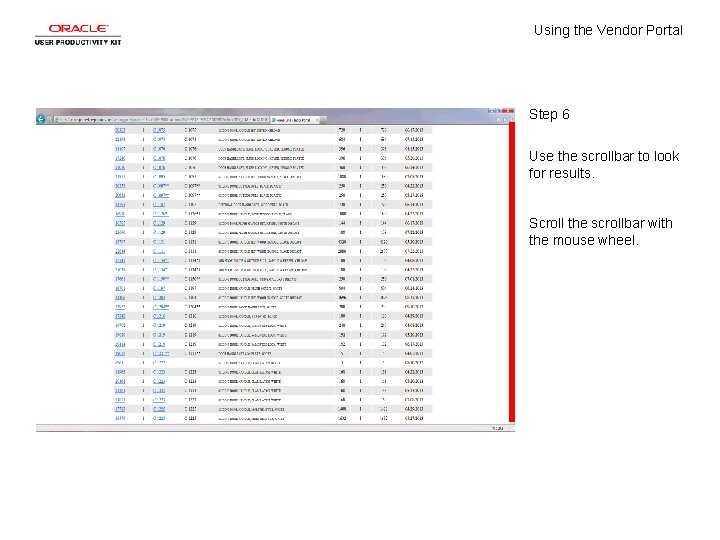
Using the Vendor Portal Step 6 Use the scrollbar to look for results. Scroll the scrollbar with the mouse wheel.
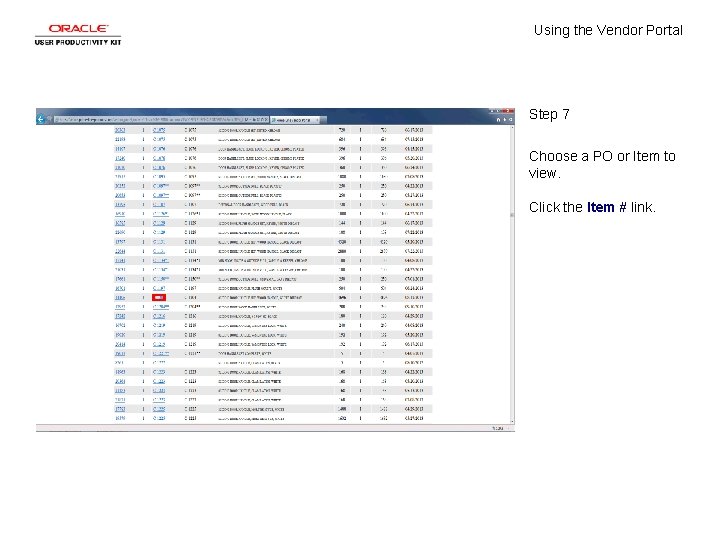
Using the Vendor Portal Step 7 Choose a PO or Item to view. Click the Item # link.
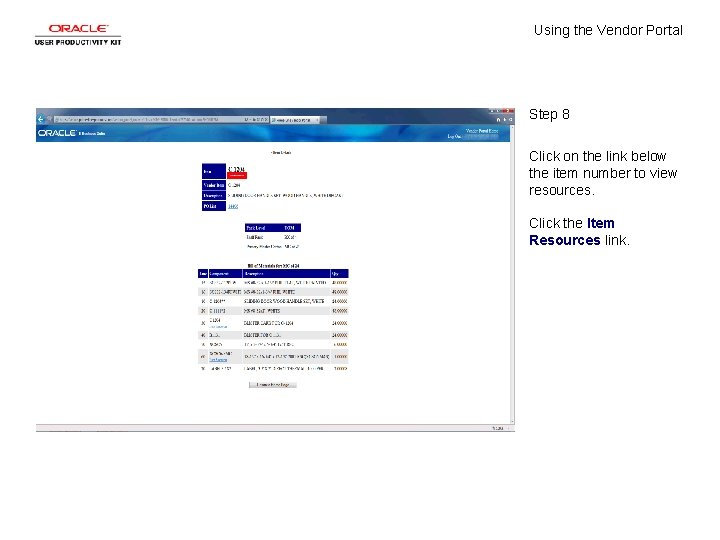
Using the Vendor Portal Step 8 Click on the link below the item number to view resources. Click the Item Resources link.
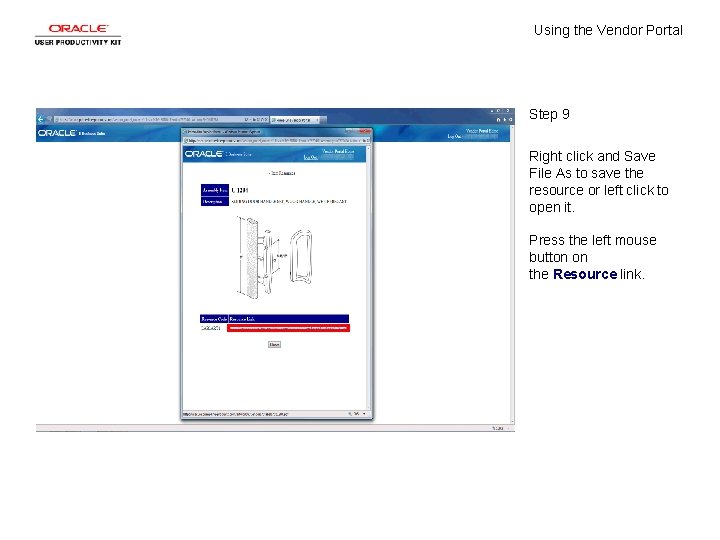
Using the Vendor Portal Step 9 Right click and Save File As to save the resource or left click to open it. Press the left mouse button on the Resource link.
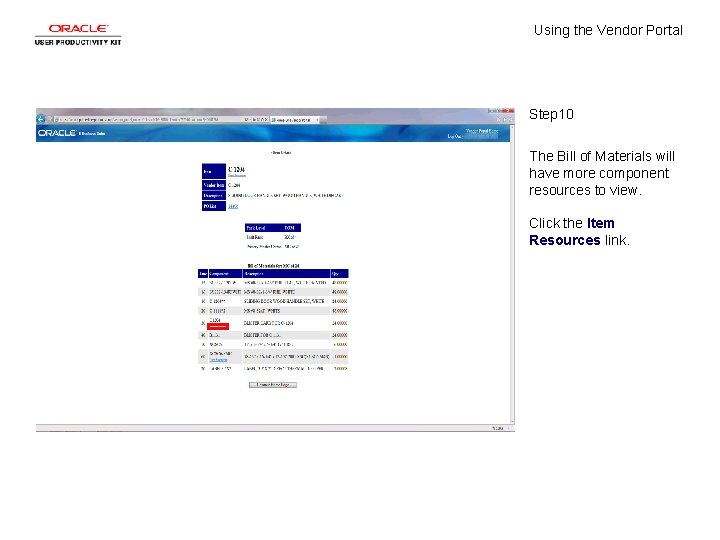
Using the Vendor Portal Step 10 The Bill of Materials will have more component resources to view. Click the Item Resources link.
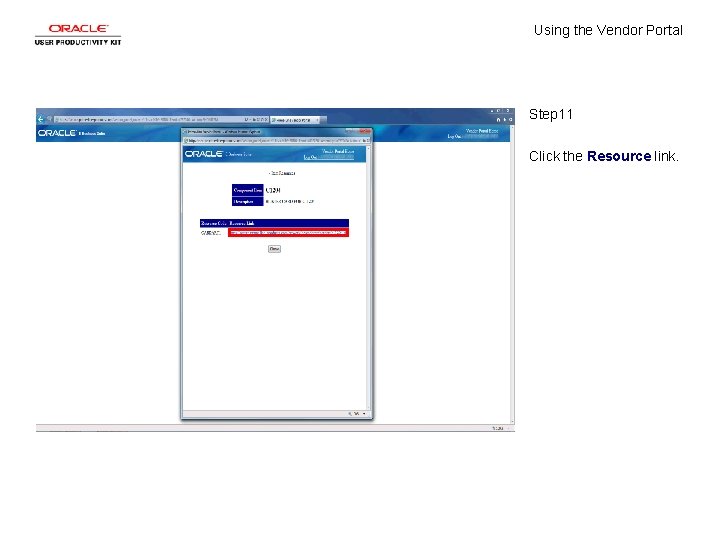
Using the Vendor Portal Step 11 Click the Resource link.
Using the Vendor Portal Step 12 Explore the website and learn how it works best for you! End of Procedure.