
Using the Polar Beat App to Track Your
Using the Polar Beat App to Track Your Workouts CVA Personal Fitness @Cobb. Virtual Slide number 1 www. cobbvirtualacademy. org
Is there an app for that? ? YES! - Polar App Compatibility Google/Droid Apple/i. OS • HTC One Max • HTC One M 8 with Android 4. 3 or later • HTC One Mini 2 • Huawei Ascend P 7 • LG G Flex • LG G 3 • HTC One Mini with Android 4. 3 or later • HTC One with Android 4. 3 or later • LG G 2 with Android 4. 3 or later • LG Nexus 4 with Android 4. 3 or later • LG Nexus 5 with Android 4. 3 or later • Motorola Moto G with Android 4. 3 or later • Motorola Moto X with Android 4. 3 or later • Samsung Galaxy S 3 with Android 4. 3 or later • Samsung Galaxy S 4 with Android 4. 3 or later • Samsung Galaxy S 5 with Android 4. 3 or later • Samsung S 5 Mini • Samsung Galaxy Note II with Android 4. 3 or later • Samsung Galaxy Note III with Android 4. 3 or later • Sony Xperia Z 1 Compact with Android 4. 3 or later • Sony Xperia Z 2 with Android 4. 3 or later • i. Pad (3 rd and 4 th generation) • i. Pad mini • i. Phone 4 S • i. Phone 5 C • i. Phone 5 S • i. Phone 6 • i. Pod touch (5 th generation) MAKE SURE BLUETOOTH IS ACTIVATED ON YOUR DEVICE! 2 www. cobbvirtualacademy. org

Create a Polar Account! • Use the computer to go to flow. polar. com in order to create your account. • Please wait for teacher instructions for creating your account. It is crucial that you use a specific email address and password. • When you have completed creating your account, log into your Polar Beat app on your device and wait for instructions. 3 www. cobbvirtualacademy. org
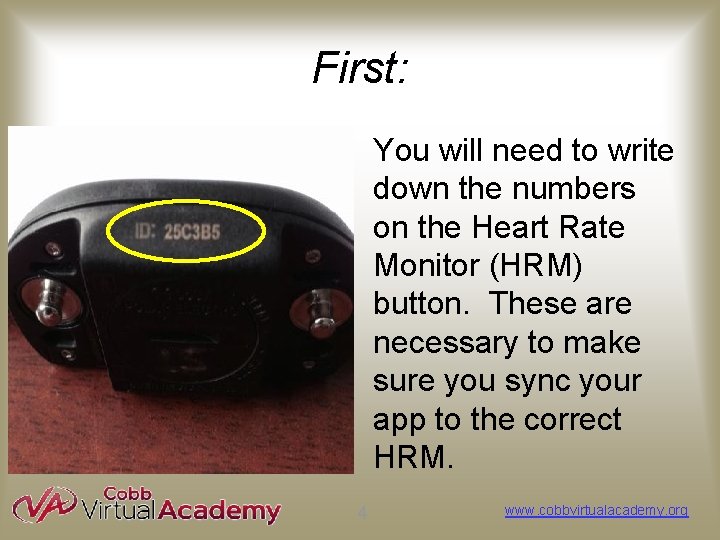
First: You will need to write down the numbers on the Heart Rate Monitor (HRM) button. These are necessary to make sure you sync your app to the correct HRM. 4 www. cobbvirtualacademy. org
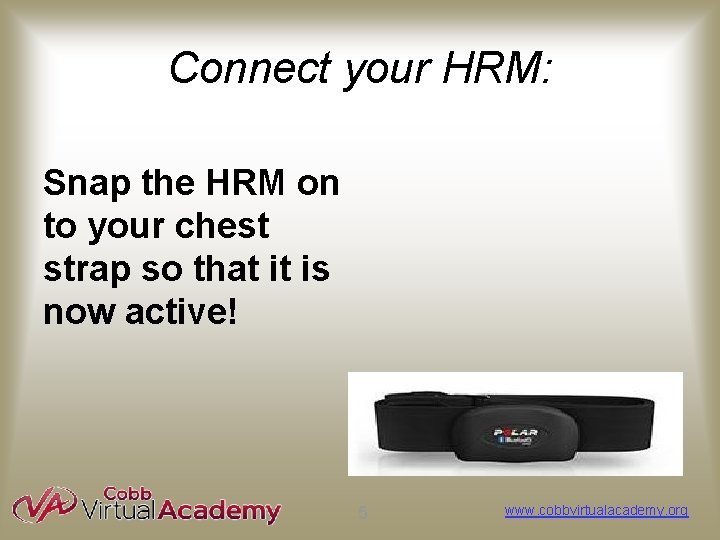
Connect your HRM: Snap the HRM on to your chest strap so that it is now active! 5 www. cobbvirtualacademy. org
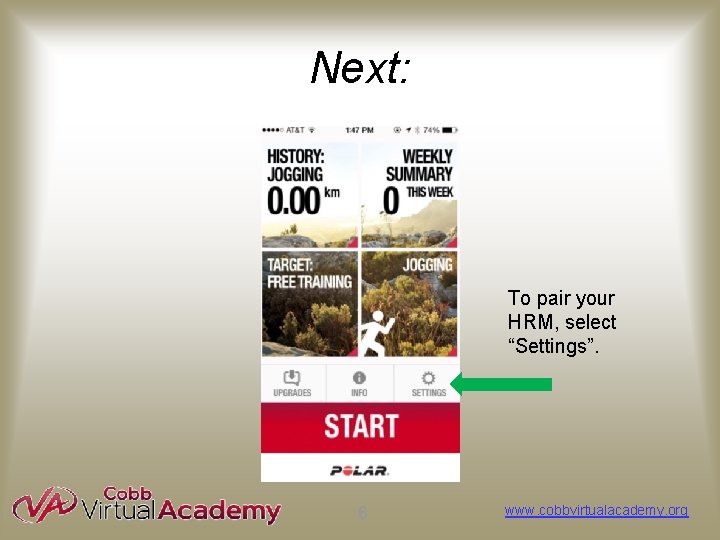
Next: To pair your HRM, select “Settings”. 6 www. cobbvirtualacademy. org
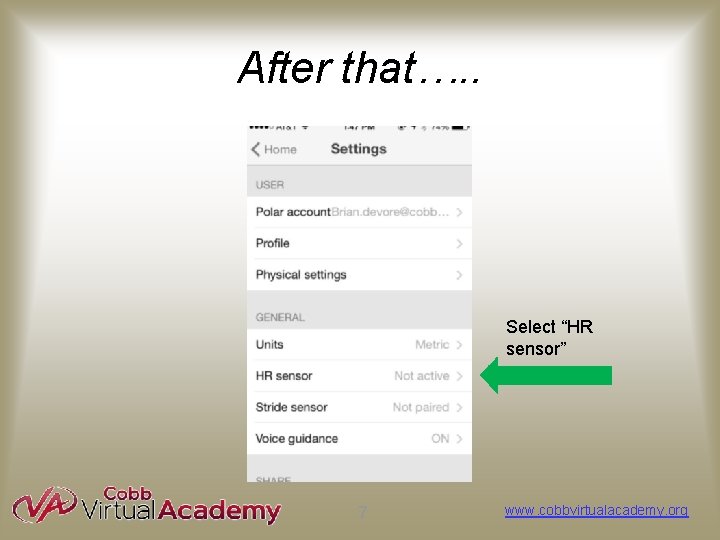
After that…. . Select “HR sensor” 7 www. cobbvirtualacademy. org
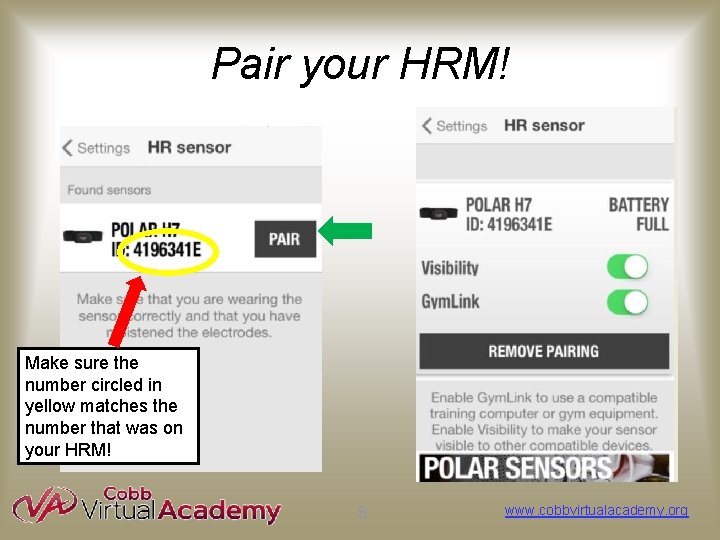
Pair your HRM! Make sure the number circled in yellow matches the number that was on your HRM! 8 www. cobbvirtualacademy. org
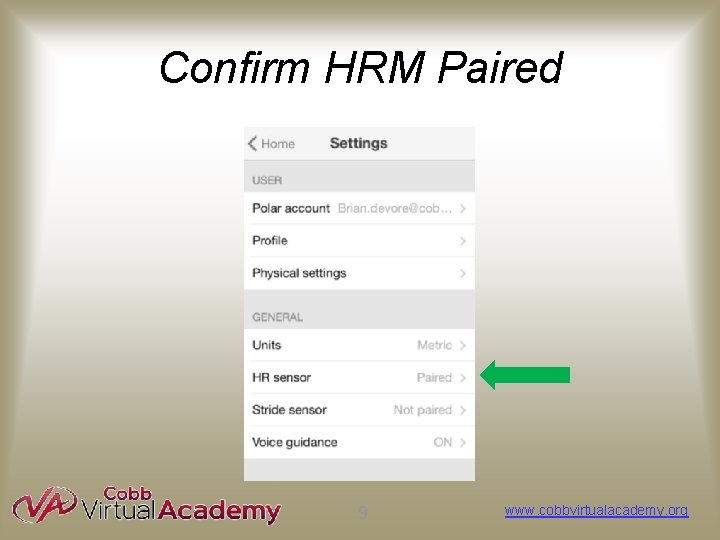
Confirm HRM Paired 9 www. cobbvirtualacademy. org
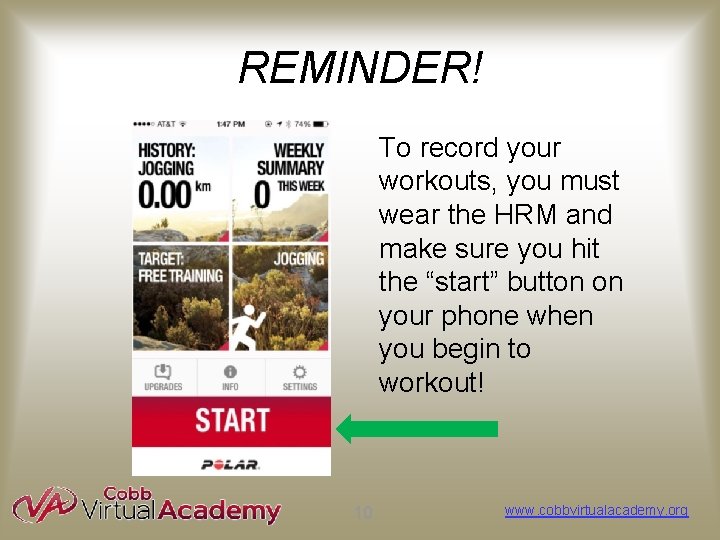
REMINDER! To record your workouts, you must wear the HRM and make sure you hit the “start” button on your phone when you begin to workout! 10 www. cobbvirtualacademy. org
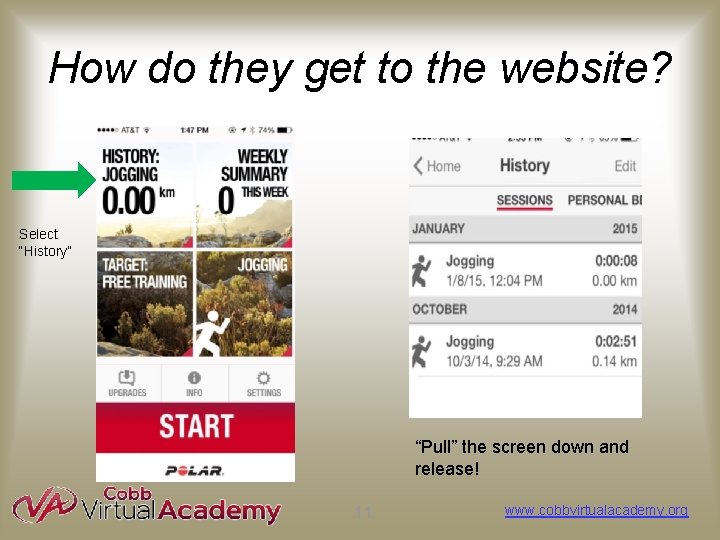
How do they get to the website? Select “History” “Pull” the screen down and release! 11 www. cobbvirtualacademy. org
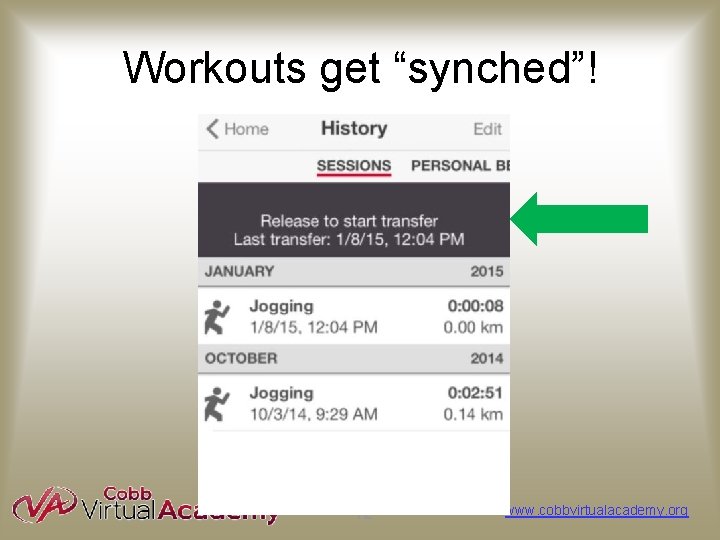
Workouts get “synched”! 12 www. cobbvirtualacademy. org
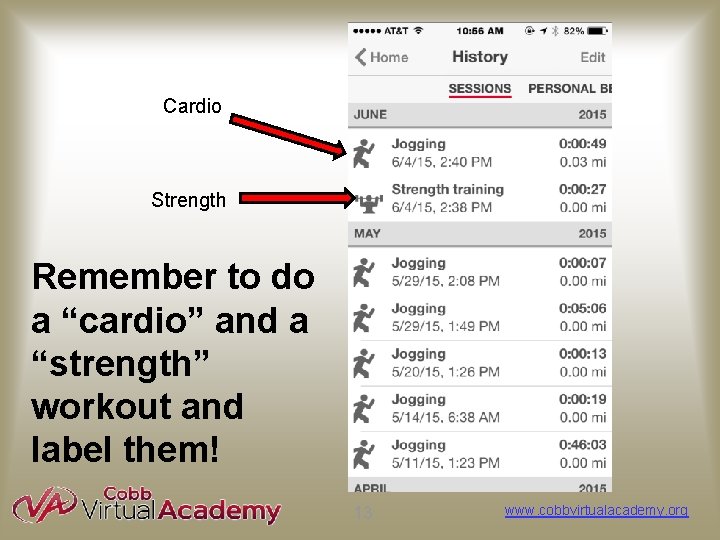
Cardio Strength Remember to do a “cardio” and a “strength” workout and label them! 13 www. cobbvirtualacademy. org
Questions? ? • Look at the “Polar Equipment Help” folder in your course. • Contact your teacher! • Try the Polar Flow Help site. 14 www. cobbvirtualacademy. org
- Slides: 14