
Using the Match Workbench Concept Using the Match
Using the Match Workbench Concept

Using the Match Workbench
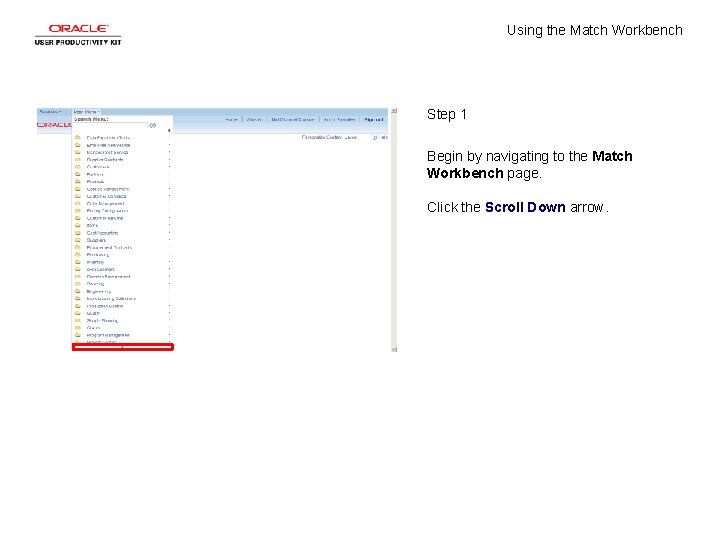
Using the Match Workbench Step 1 Begin by navigating to the Match Workbench page. Click the Scroll Down arrow.
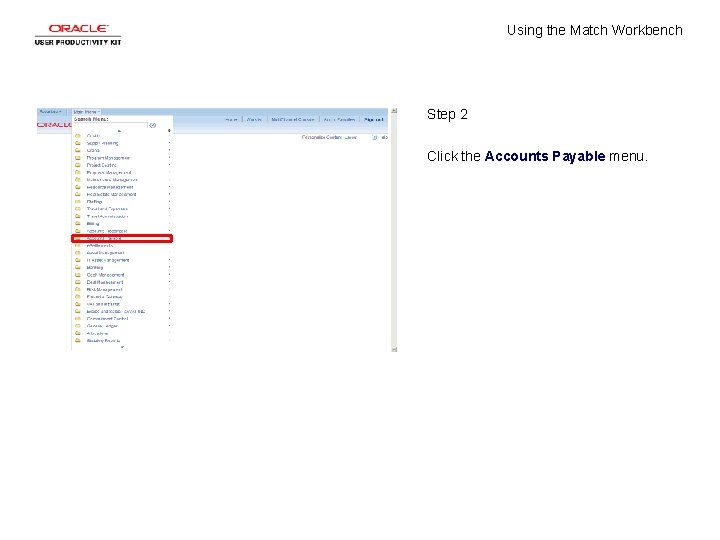
Using the Match Workbench Step 2 Click the Accounts Payable menu.
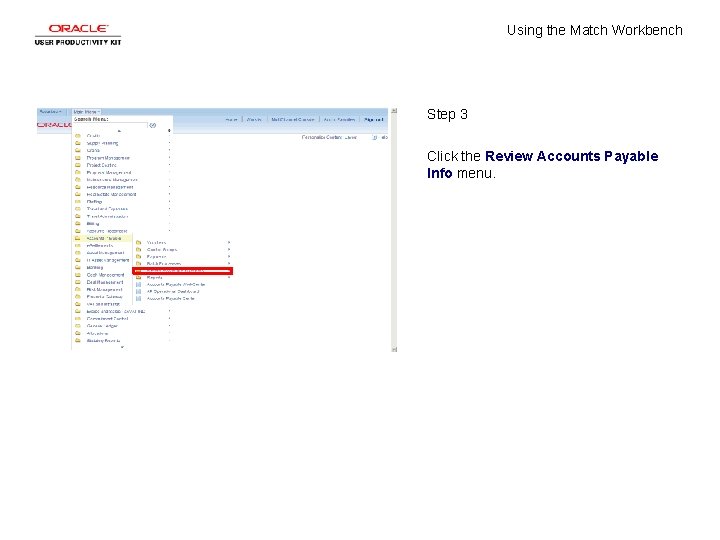
Using the Match Workbench Step 3 Click the Review Accounts Payable Info menu.
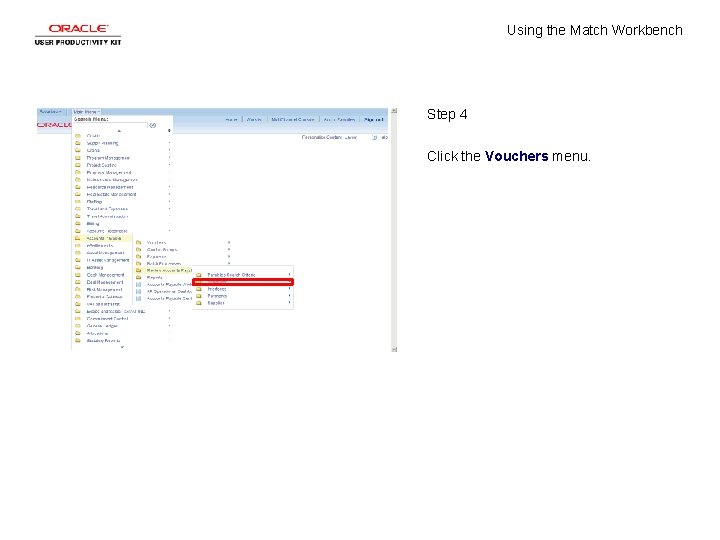
Using the Match Workbench Step 4 Click the Vouchers menu.
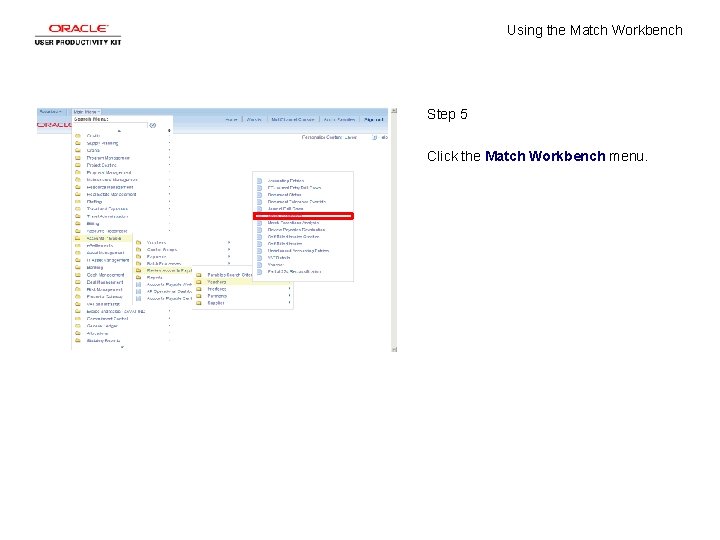
Using the Match Workbench Step 5 Click the Match Workbench menu.
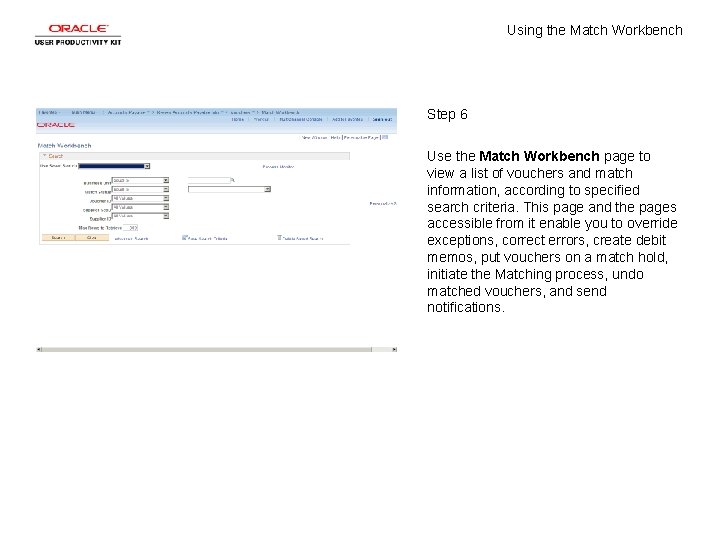
Using the Match Workbench Step 6 Use the Match Workbench page to view a list of vouchers and match information, according to specified search criteria. This page and the pages accessible from it enable you to override exceptions, correct errors, create debit memos, put vouchers on a match hold, initiate the Matching process, undo matched vouchers, and send notifications.

Using the Match Workbench Step 7 Click in the Business Unit field.
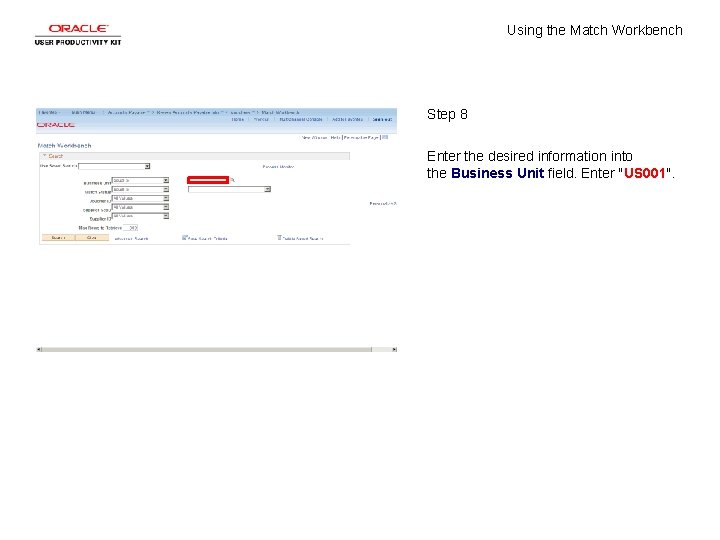
Using the Match Workbench Step 8 Enter the desired information into the Business Unit field. Enter "US 001".
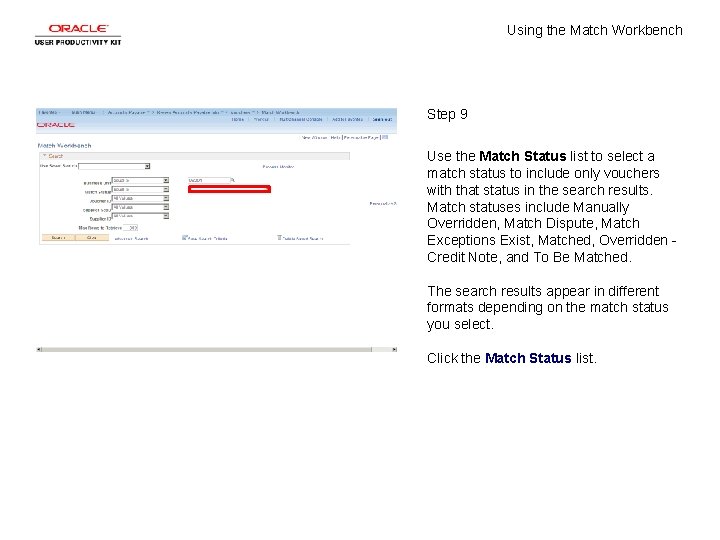
Using the Match Workbench Step 9 Use the Match Status list to select a match status to include only vouchers with that status in the search results. Match statuses include Manually Overridden, Match Dispute, Match Exceptions Exist, Matched, Overridden - Credit Note, and To Be Matched. The search results appear in different formats depending on the match status you select. Click the Match Status list.
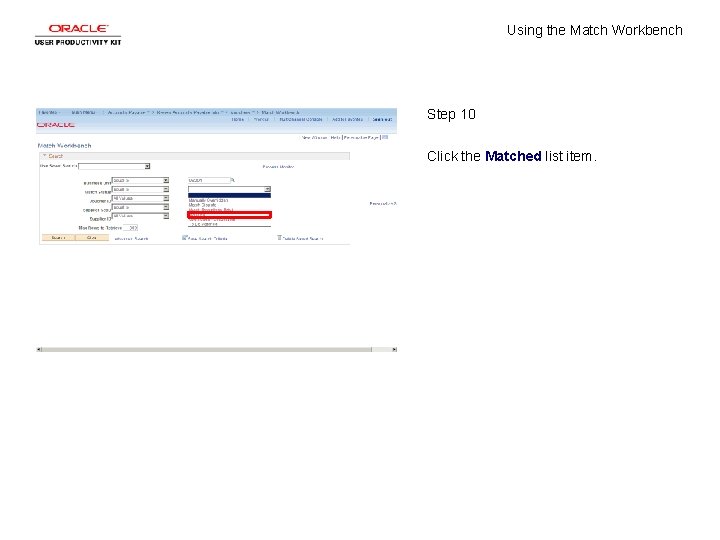
Using the Match Workbench Step 10 Click the Matched list item.
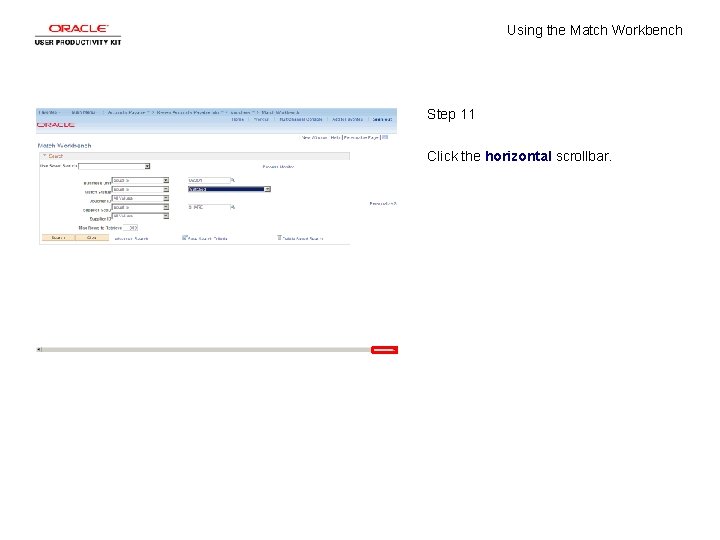
Using the Match Workbench Step 11 Click the horizontal scrollbar.
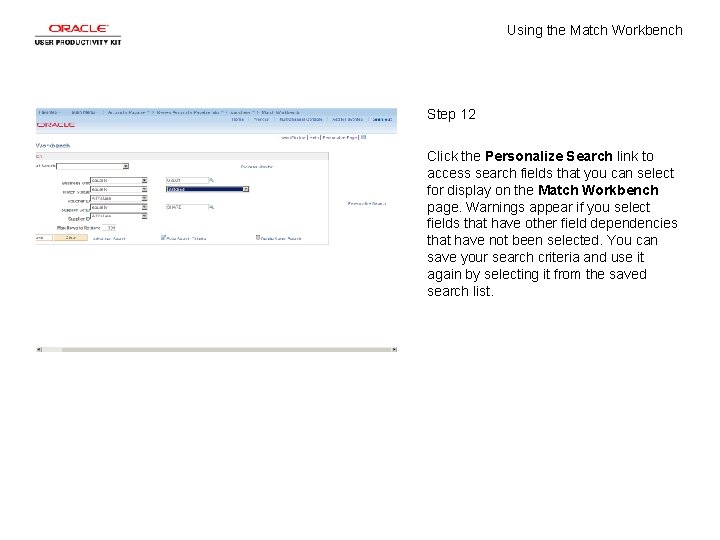
Using the Match Workbench Step 12 Click the Personalize Search link to access search fields that you can select for display on the Match Workbench page. Warnings appear if you select fields that have other field dependencies that have not been selected. You can save your search criteria and use it again by selecting it from the saved search list.
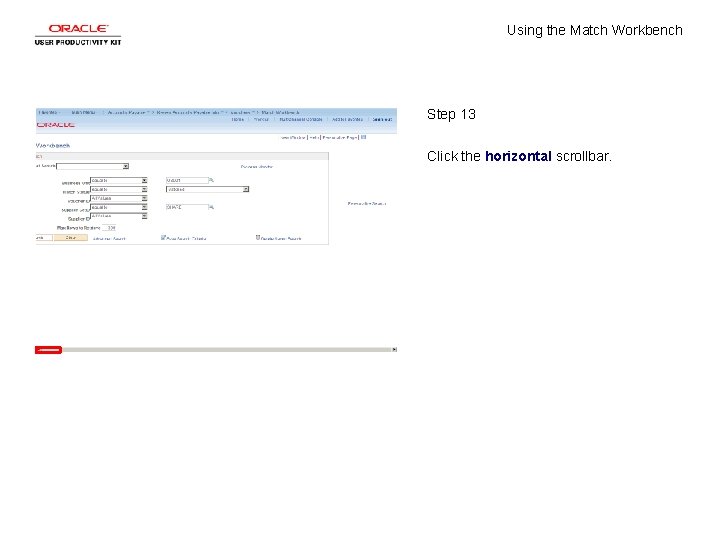
Using the Match Workbench Step 13 Click the horizontal scrollbar.
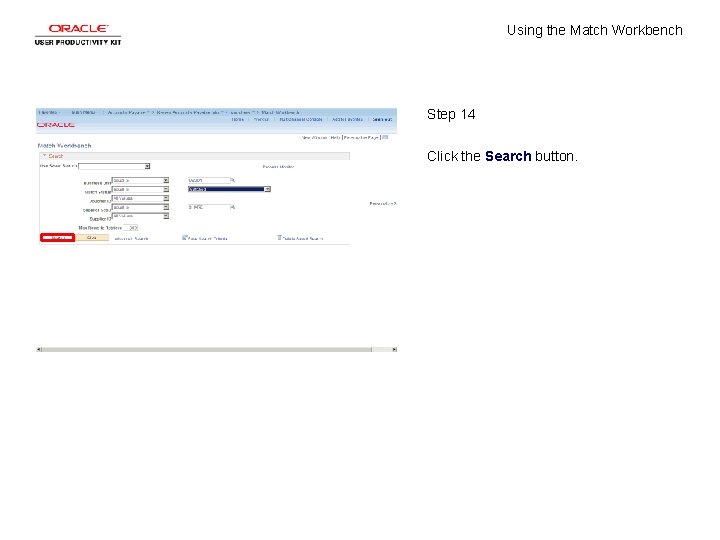
Using the Match Workbench Step 14 Click the Search button.
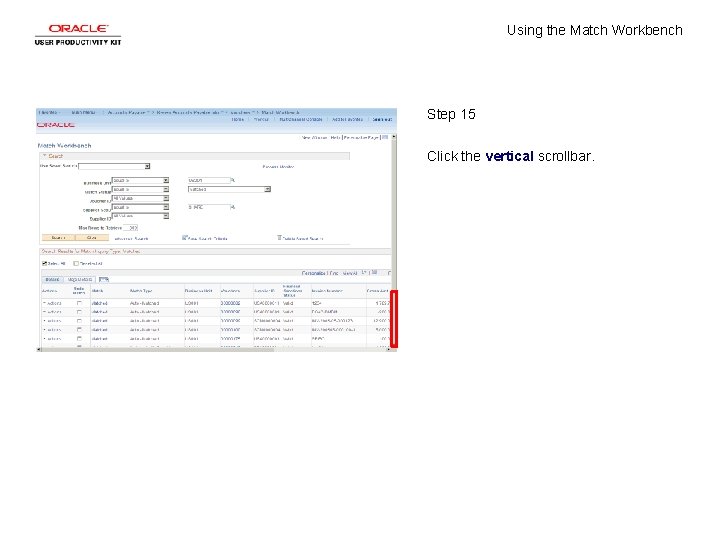
Using the Match Workbench Step 15 Click the vertical scrollbar.
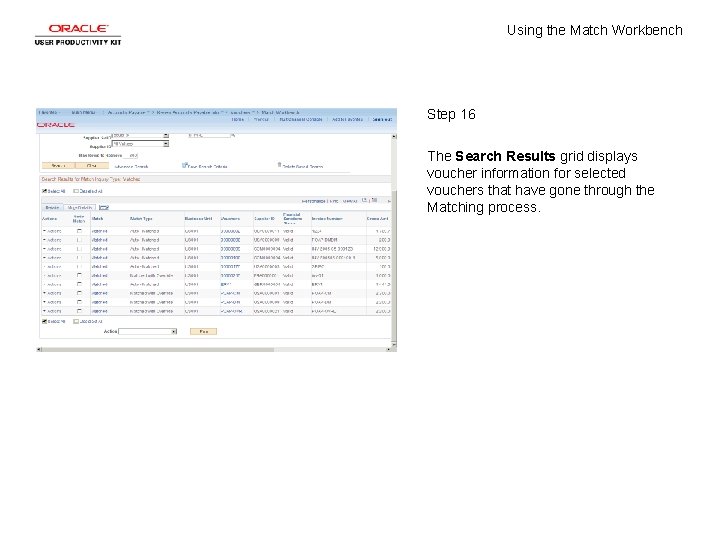
Using the Match Workbench Step 16 The Search Results grid displays voucher information for selected vouchers that have gone through the Matching process.
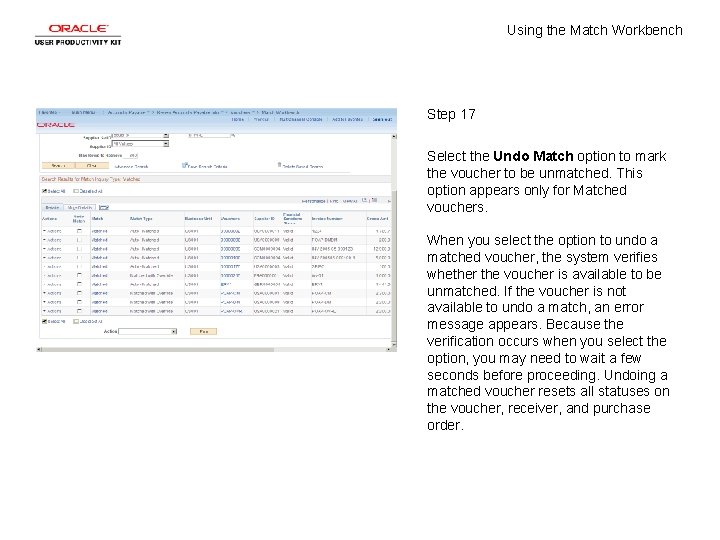
Using the Match Workbench Step 17 Select the Undo Match option to mark the voucher to be unmatched. This option appears only for Matched vouchers. When you select the option to undo a matched voucher, the system verifies whether the voucher is available to be unmatched. If the voucher is not available to undo a match, an error message appears. Because the verification occurs when you select the option, you may need to wait a few seconds before proceeding. Undoing a matched voucher resets all statuses on the voucher, receiver, and purchase order.
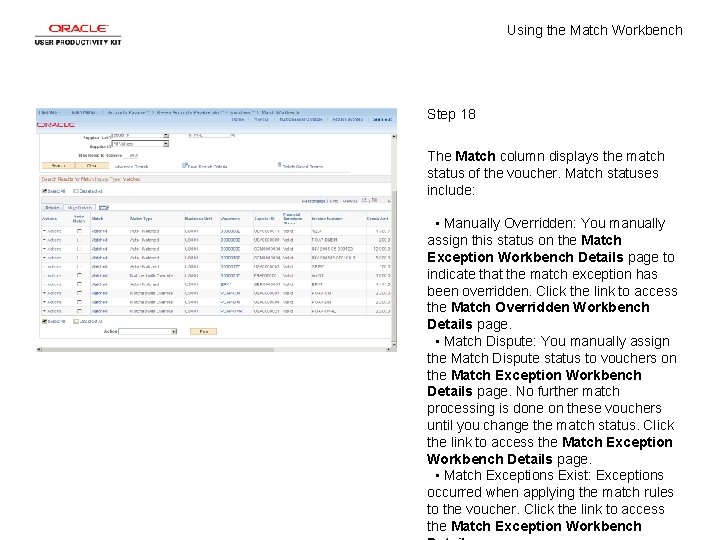
Using the Match Workbench Step 18 The Match column displays the match status of the voucher. Match statuses include: • Manually Overridden: You manually assign this status on the Match Exception Workbench Details page to indicate that the match exception has been overridden. Click the link to access the Match Overridden Workbench Details page. • Match Dispute: You manually assign the Match Dispute status to vouchers on the Match Exception Workbench Details page. No further match processing is done on these vouchers until you change the match status. Click the link to access the Match Exception Workbench Details page. • Match Exceptions Exist: Exceptions occurred when applying the match rules to the voucher. Click the link to access the Match Exception Workbench
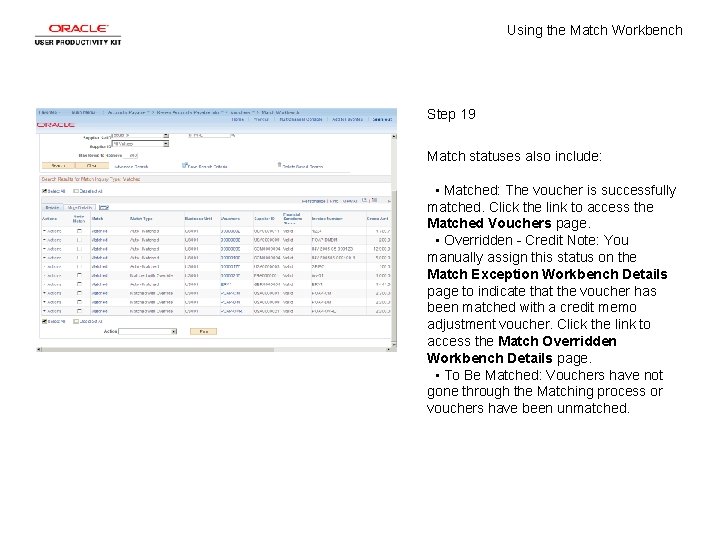
Using the Match Workbench Step 19 Match statuses also include: • Matched: The voucher is successfully matched. Click the link to access the Matched Vouchers page. • Overridden - Credit Note: You manually assign this status on the Match Exception Workbench Details page to indicate that the voucher has been matched with a credit memo adjustment voucher. Click the link to access the Match Overridden Workbench Details page. • To Be Matched: Vouchers have not gone through the Matching process or vouchers have been unmatched.
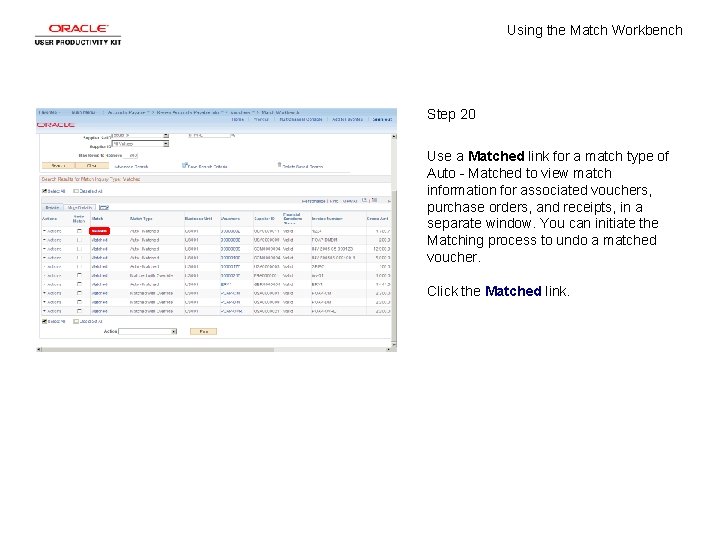
Using the Match Workbench Step 20 Use a Matched link for a match type of Auto - Matched to view match information for associated vouchers, purchase orders, and receipts, in a separate window. You can initiate the Matching process to undo a matched voucher. Click the Matched link.
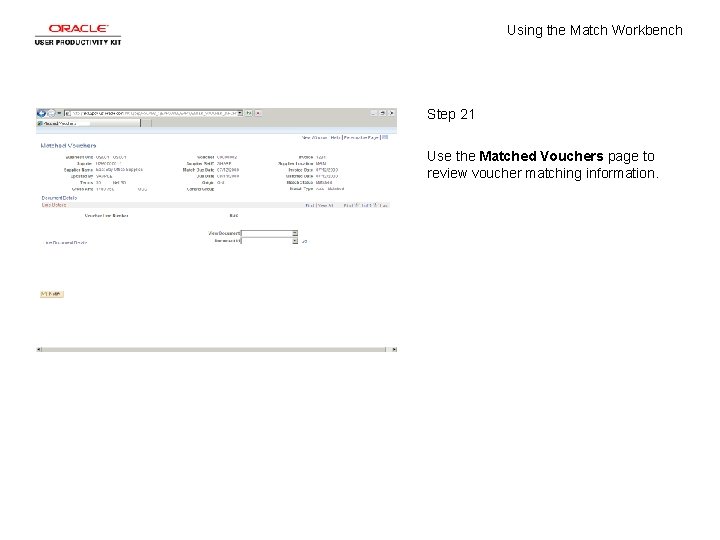
Using the Match Workbench Step 21 Use the Matched Vouchers page to review voucher matching information.
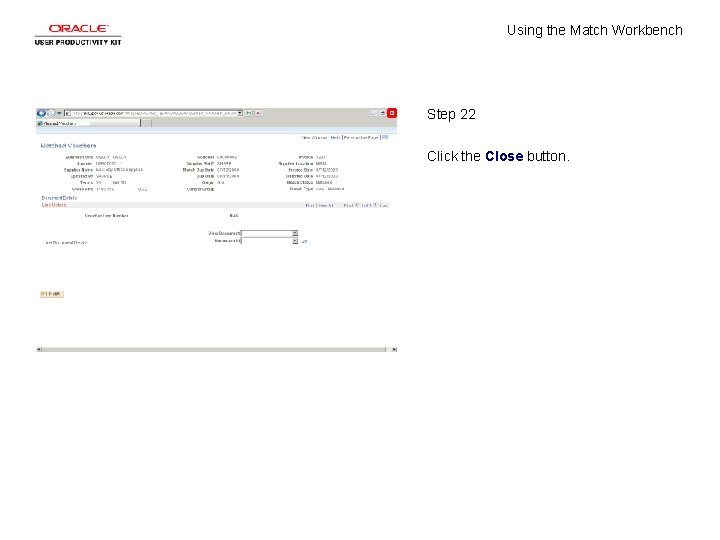
Using the Match Workbench Step 22 Click the Close button.
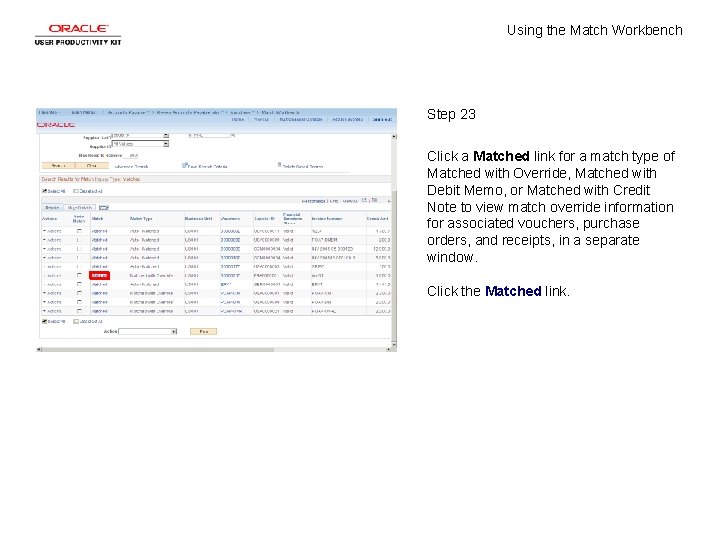
Using the Match Workbench Step 23 Click a Matched link for a match type of Matched with Override, Matched with Debit Memo, or Matched with Credit Note to view match override information for associated vouchers, purchase orders, and receipts, in a separate window. Click the Matched link.
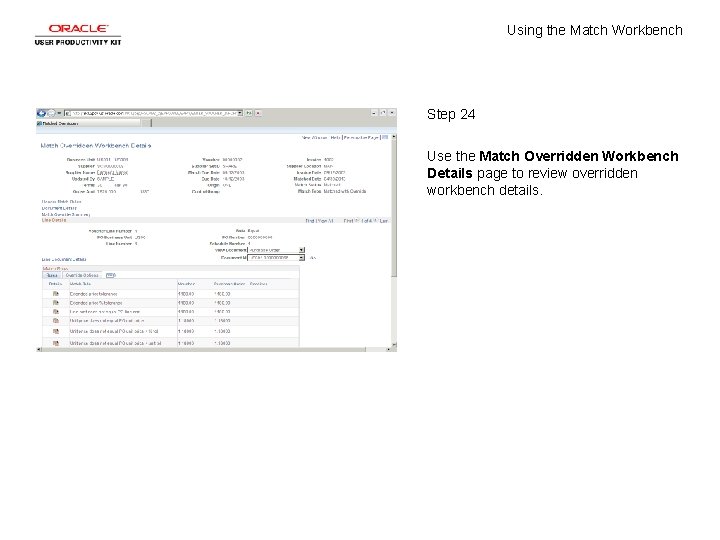
Using the Match Workbench Step 24 Use the Match Overridden Workbench Details page to review overridden workbench details.
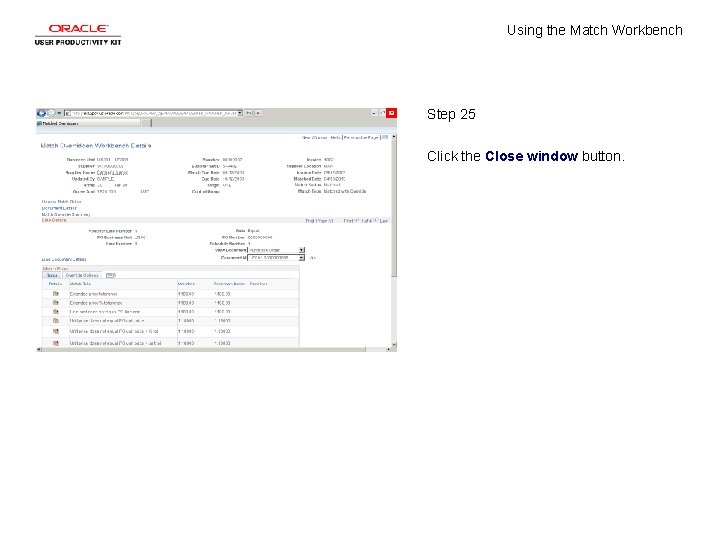
Using the Match Workbench Step 25 Click the Close window button.
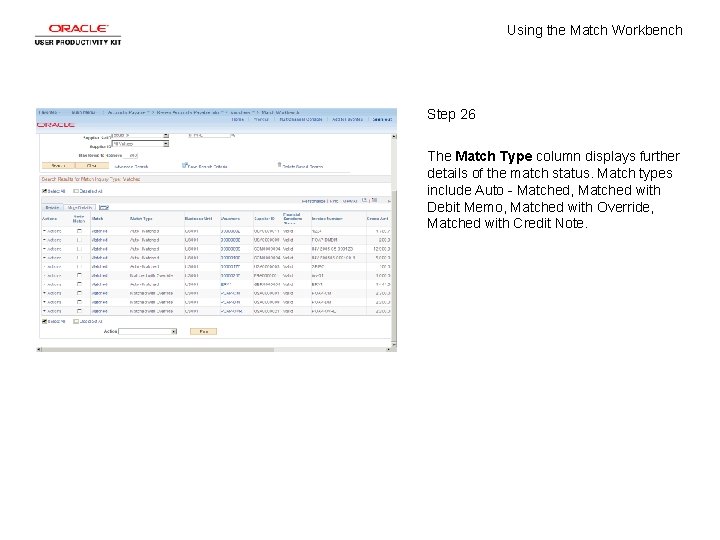
Using the Match Workbench Step 26 The Match Type column displays further details of the match status. Match types include Auto - Matched, Matched with Debit Memo, Matched with Override, Matched with Credit Note.
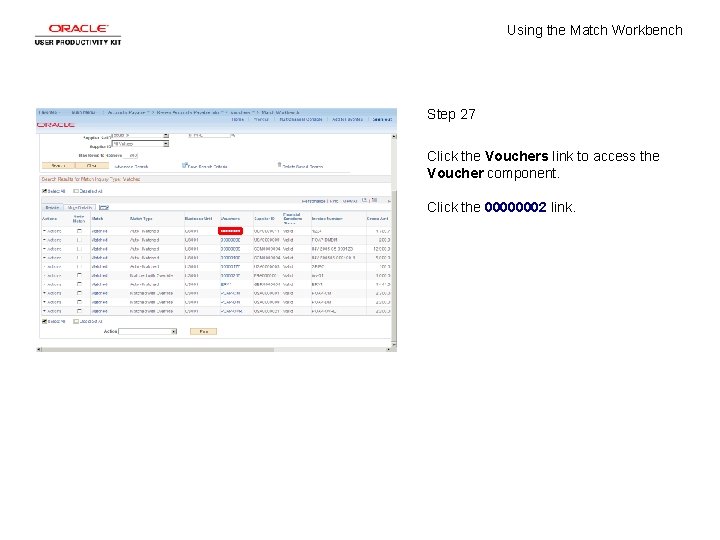
Using the Match Workbench Step 27 Click the Vouchers link to access the Voucher component. Click the 00000002 link.
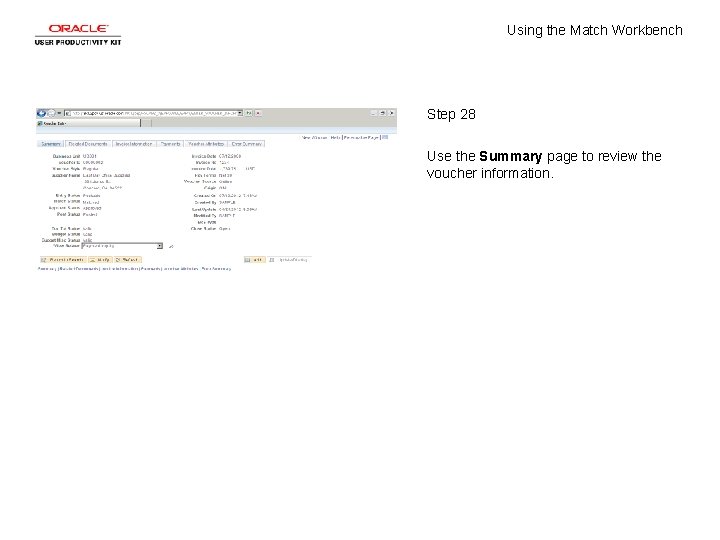
Using the Match Workbench Step 28 Use the Summary page to review the voucher information.
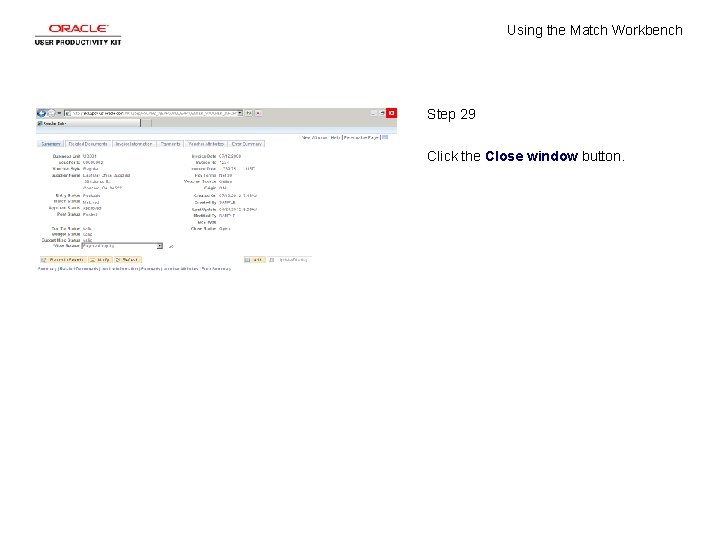
Using the Match Workbench Step 29 Click the Close window button.
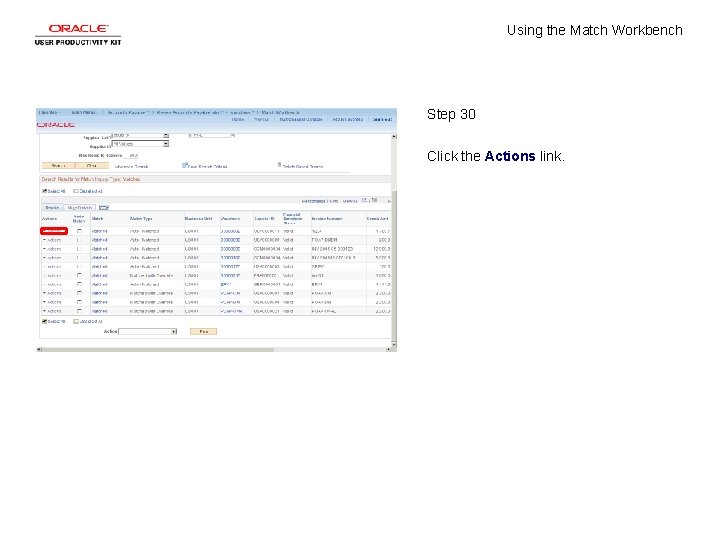
Using the Match Workbench Step 30 Click the Actions link.
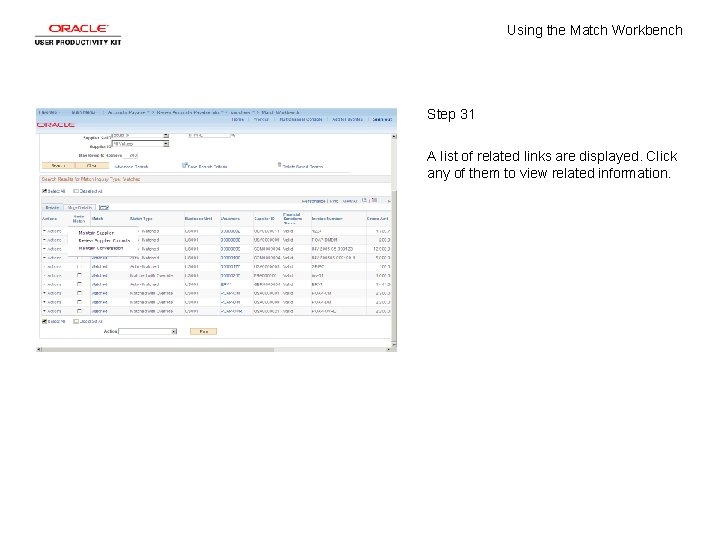
Using the Match Workbench Step 31 A list of related links are displayed. Click any of them to view related information.
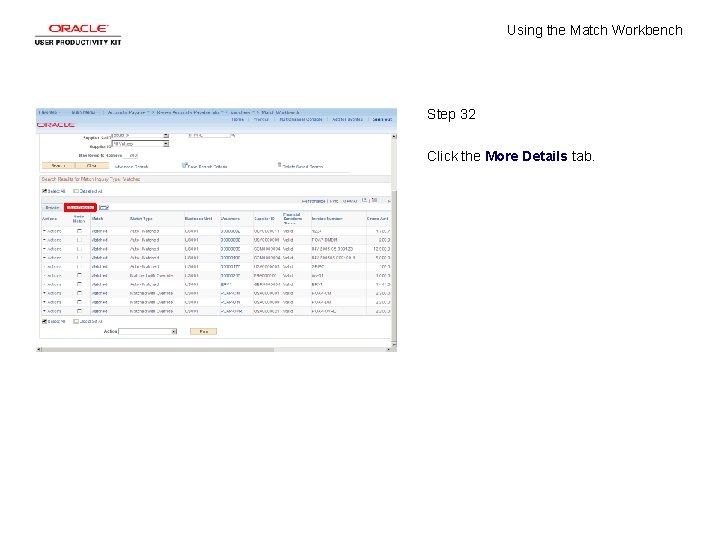
Using the Match Workbench Step 32 Click the More Details tab.
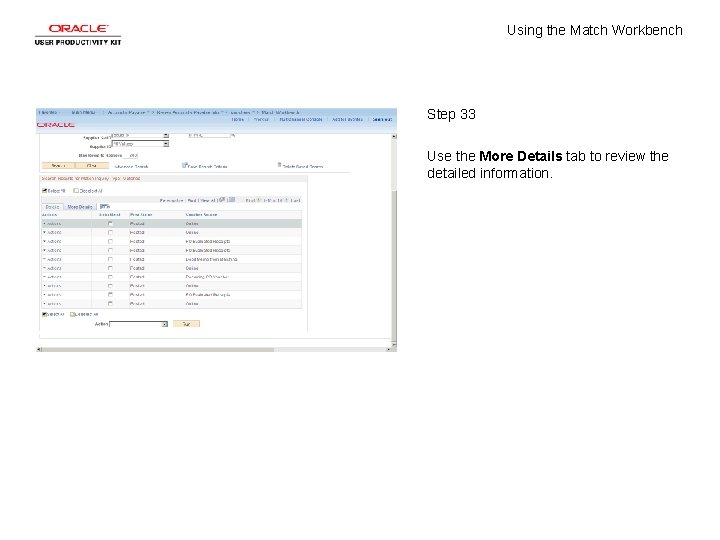
Using the Match Workbench Step 33 Use the More Details tab to review the detailed information.
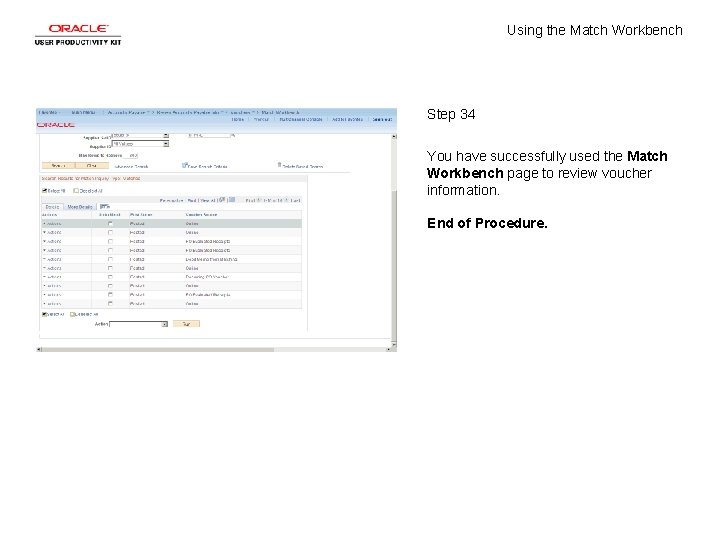
Using the Match Workbench Step 34 You have successfully used the Match Workbench page to review voucher information. End of Procedure.
- Slides: 36