
Using the CNA eTool for HUD Multifamily Properties
- Slides: 17
Using the CNA e-Tool for HUD Multifamily Properties Office of Asset Management and Portfolio Oversight BMCC May 1, 2018
Relevant Guidance • Housing Notice 2016 -18 – Implementation of CNA e. Tool • MAP Guide – Section 5. 2. B. 2 – Qualifications of Needs Assessors • Housing Handbook 4350. 1 – Chapter 4 – Reserve for Replacement – Chapter 7 – Processing Budgeted Rent Increases • Standard of Work in Process 2
What is a Capital Needs Assessment (CNA) - Describes the physical condition, inventory, durability of a Multifamily property. - Prepared by an independent 3 rd party needs assessor - Must include a year by year schedule of projected capital needs and associated costs (provided by the needs assessor) - The Estimate Period for HUD CNAs is 20 years, but insured mortgages require a new “ 10 -Year Update” - The CNA describes critical, non-critical, and future repairs/replacements. 3
OAMPO Requirements CNA e-Tool use is required as of February 1, 2018 for the following types of transactions: - PRACs with rent increases that significantly impact the Reserve for Replacement account (more than 5% or $500) - FHA Insured Mortgage 10 year capital needs updates - All 223(f) and 223(a)(7) endorsed since 2002 - All MF endorsements since 2010 - Partial Payment of Claim (PPC) - Loan Modifications Expense is eligible for reimbursement from Reserve for Replacement account 4
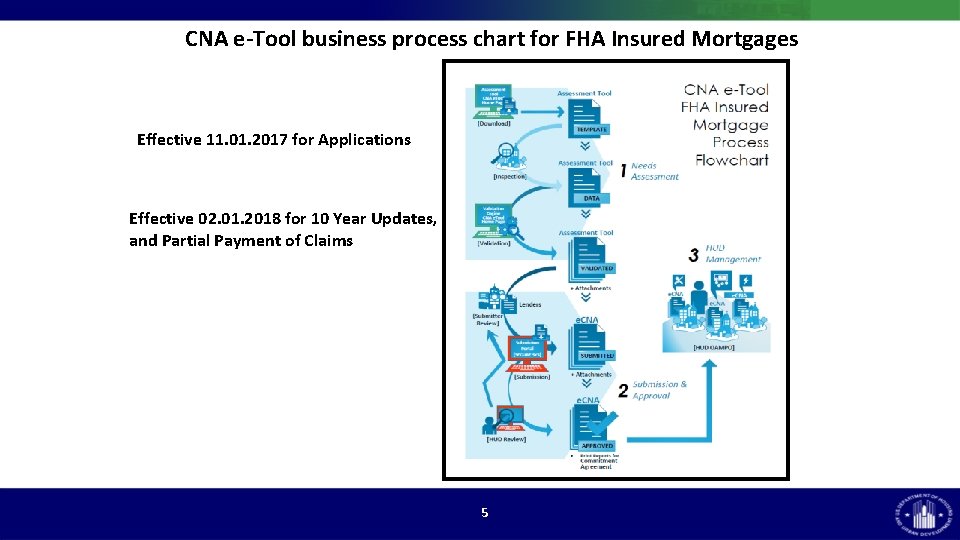
CNA e-Tool business process chart for FHA Insured Mortgages Effective 11. 01. 2017 for Applications Effective 02. 01. 2018 for 10 Year Updates, and Partial Payment of Claims 5
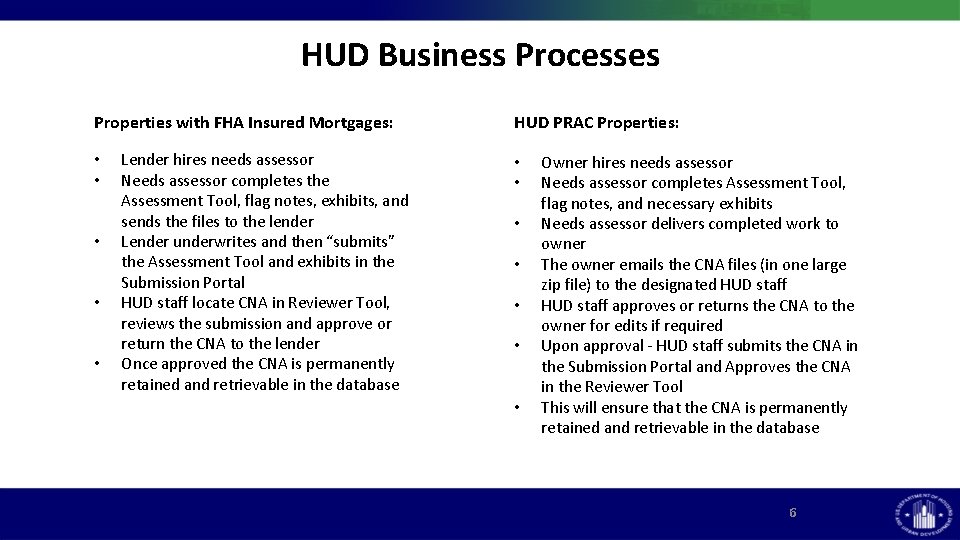
HUD Business Processes Properties with FHA Insured Mortgages: • • • Lender hires needs assessor Needs assessor completes the Assessment Tool, flag notes, exhibits, and sends the files to the lender Lender underwrites and then “submits” the Assessment Tool and exhibits in the Submission Portal HUD staff locate CNA in Reviewer Tool, reviews the submission and approve or return the CNA to the lender Once approved the CNA is permanently retained and retrievable in the database HUD PRAC Properties: • • Owner hires needs assessor Needs assessor completes Assessment Tool, flag notes, and necessary exhibits Needs assessor delivers completed work to owner The owner emails the CNA files (in one large zip file) to the designated HUD staff approves or returns the CNA to the owner for edits if required Upon approval - HUD staff submits the CNA in the Submission Portal and Approves the CNA in the Reviewer Tool This will ensure that the CNA is permanently retained and retrievable in the database 6
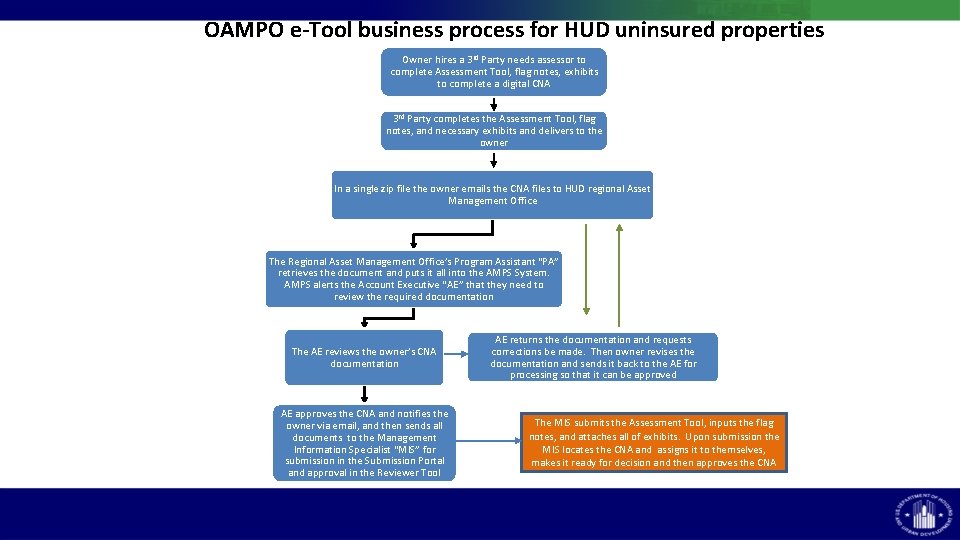
OAMPO e-Tool business process for HUD uninsured properties Owner hires a 3 rd Party needs assessor to complete Assessment Tool, flag notes, exhibits to complete a digital CNA 3 rd Party completes the Assessment Tool, flag notes, and necessary exhibits and delivers to the owner In a single zip file the owner emails the CNA files to HUD regional Asset Management Office The Regional Asset Management Office’s Program Assistant “PA” retrieves the document and puts it all into the AMPS System. AMPS alerts the Account Executive “AE” that they need to review the required documentation The AE reviews the owner’s CNA documentation AE approves the CNA and notifies the owner via email, and then sends all documents to the Management Information Specialist “MIS” for submission in the Submission Portal and approval in the Reviewer Tool AE returns the documentation and requests corrections be made. Then owner revises the documentation and sends it back to the AE for processing so that it can be approved The MIS submits the Assessment Tool, inputs the flag notes, and attaches all of exhibits. Upon submission the MIS locates the CNA and assigns it to themselves, makes it ready for decision and then approves the CNA
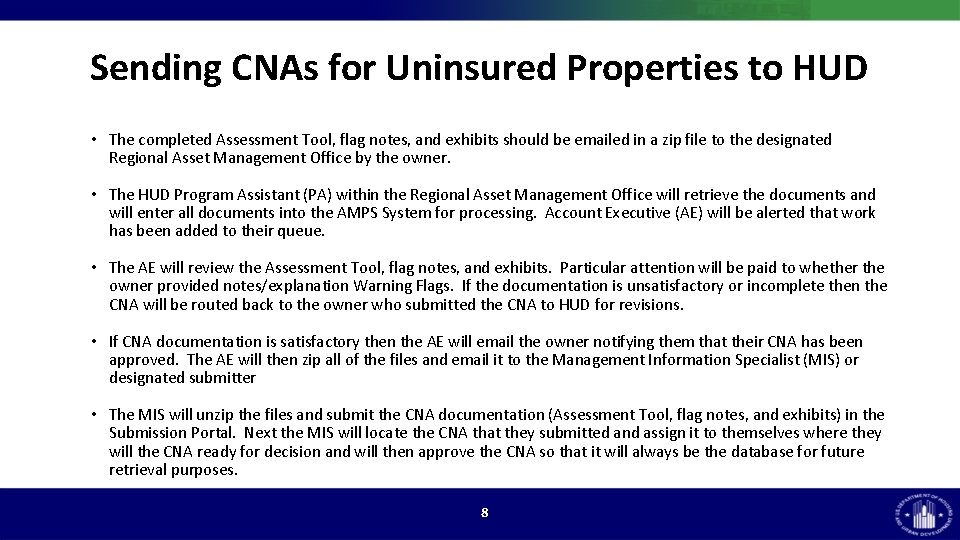
Sending CNAs for Uninsured Properties to HUD • The completed Assessment Tool, flag notes, and exhibits should be emailed in a zip file to the designated Regional Asset Management Office by the owner. • The HUD Program Assistant (PA) within the Regional Asset Management Office will retrieve the documents and will enter all documents into the AMPS System for processing. Account Executive (AE) will be alerted that work has been added to their queue. • The AE will review the Assessment Tool, flag notes, and exhibits. Particular attention will be paid to whether the owner provided notes/explanation Warning Flags. If the documentation is unsatisfactory or incomplete then the CNA will be routed back to the owner who submitted the CNA to HUD for revisions. • If CNA documentation is satisfactory then the AE will email the owner notifying them that their CNA has been approved. The AE will then zip all of the files and email it to the Management Information Specialist (MIS) or designated submitter • The MIS will unzip the files and submit the CNA documentation (Assessment Tool, flag notes, and exhibits) in the Submission Portal. Next the MIS will locate the CNA that they submitted and assign it to themselves where they will the CNA ready for decision and will then approve the CNA so that it will always be the database for future retrieval purposes. 8
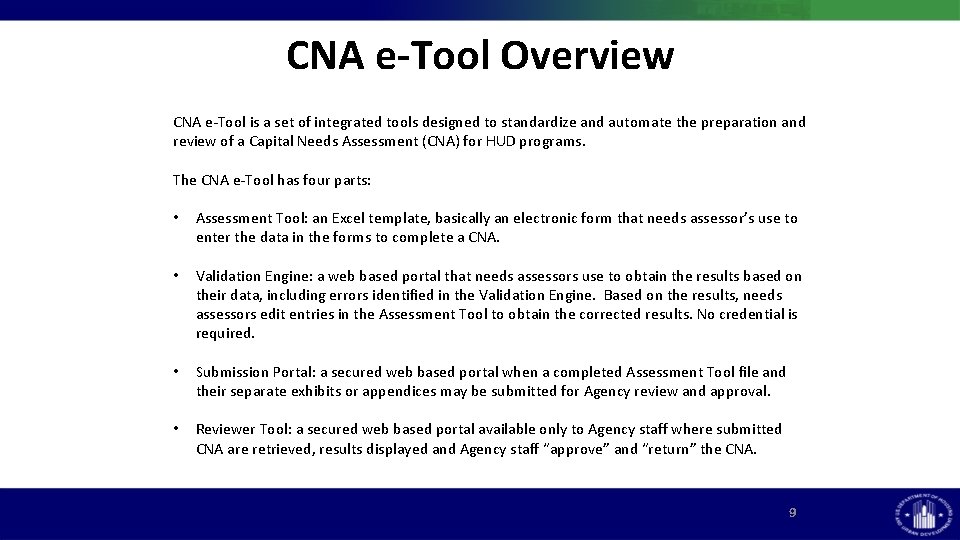
CNA e-Tool Overview CNA e-Tool is a set of integrated tools designed to standardize and automate the preparation and review of a Capital Needs Assessment (CNA) for HUD programs. The CNA e-Tool has four parts: • Assessment Tool: an Excel template, basically an electronic form that needs assessor’s use to enter the data in the forms to complete a CNA. • Validation Engine: a web based portal that needs assessors use to obtain the results based on their data, including errors identified in the Validation Engine. Based on the results, needs assessors edit entries in the Assessment Tool to obtain the corrected results. No credential is required. • Submission Portal: a secured web based portal when a completed Assessment Tool file and their separate exhibits or appendices may be submitted for Agency review and approval. • Reviewer Tool: a secured web based portal available only to Agency staff where submitted CNA are retrieved, results displayed and Agency staff “approve” and “return” the CNA. 9
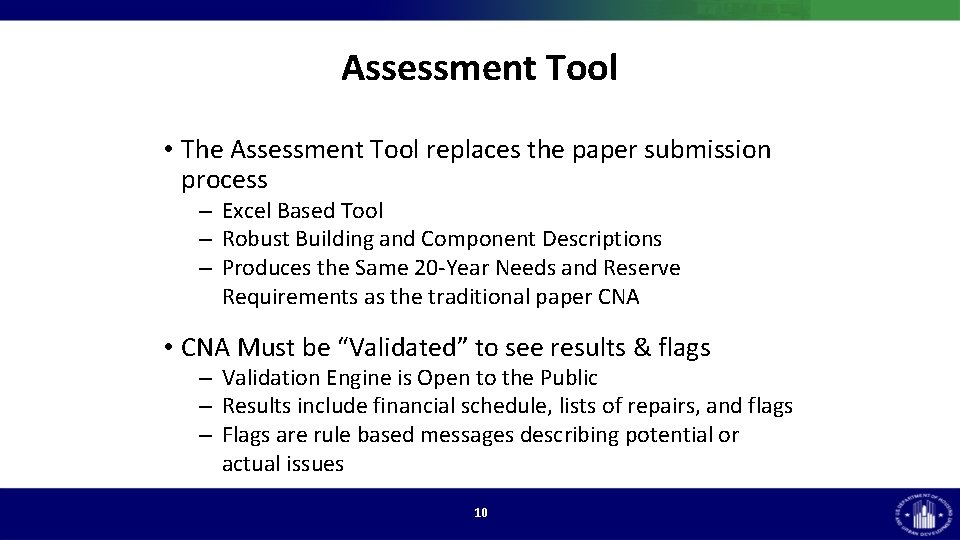
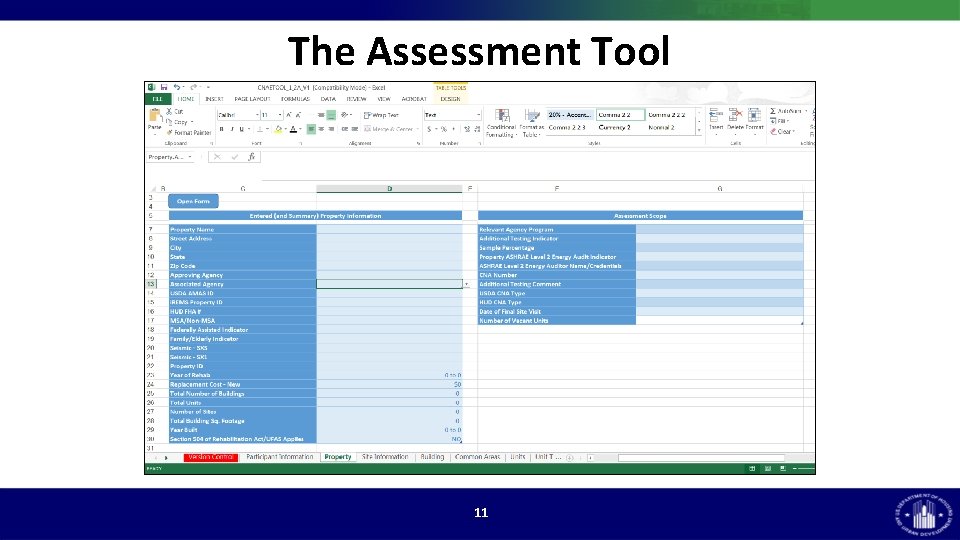
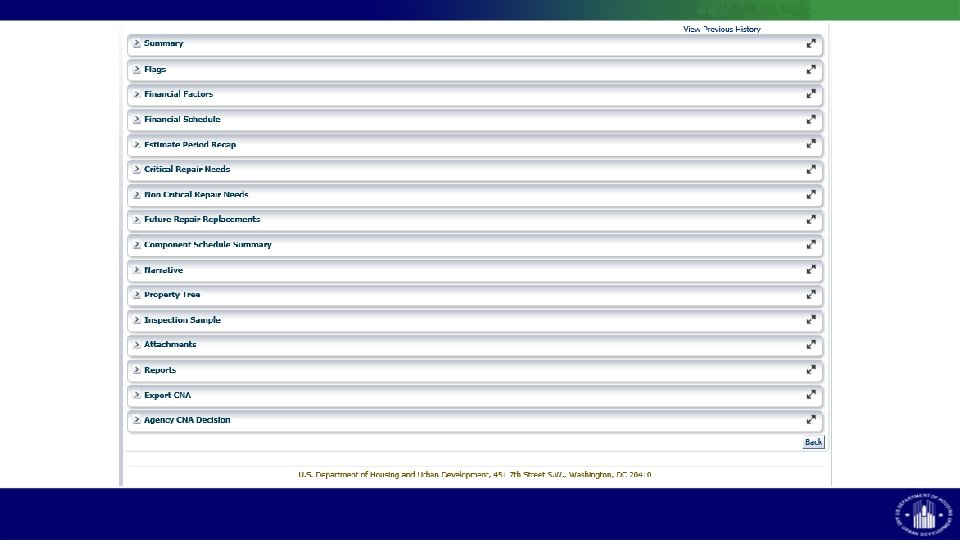
Assessment Tool • The Assessment Tool replaces the paper submission process – Excel Based Tool – Robust Building and Component Descriptions – Produces the Same 20 -Year Needs and Reserve Requirements as the traditional paper CNA • CNA Must be “Validated” to see results & flags – Validation Engine is Open to the Public – Results include financial schedule, lists of repairs, and flags – Flags are rule based messages describing potential or actual issues 10
The Assessment Tool 11
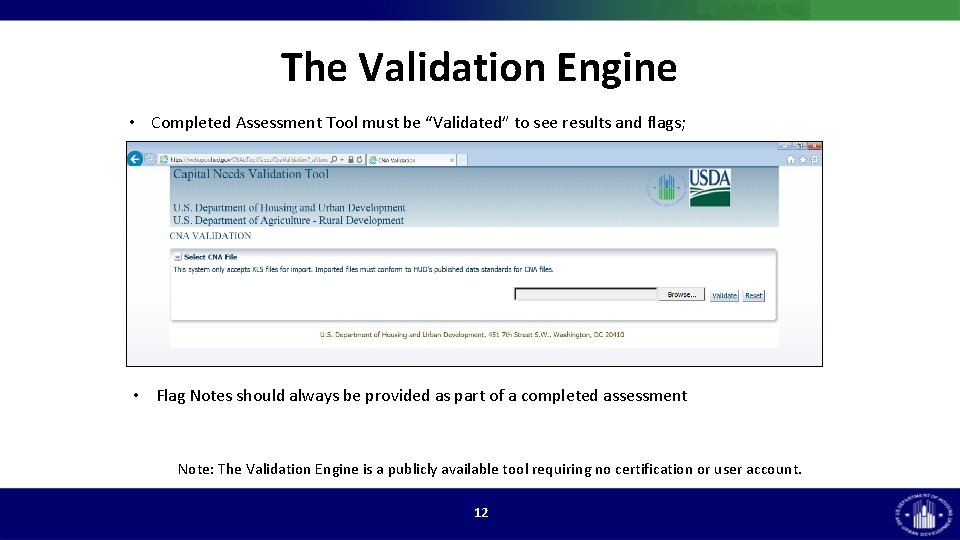
The Validation Engine • Completed Assessment Tool must be “Validated” to see results and flags; • Flag Notes should always be provided as part of a completed assessment Note: The Validation Engine is a publicly available tool requiring no certification or user account. 12
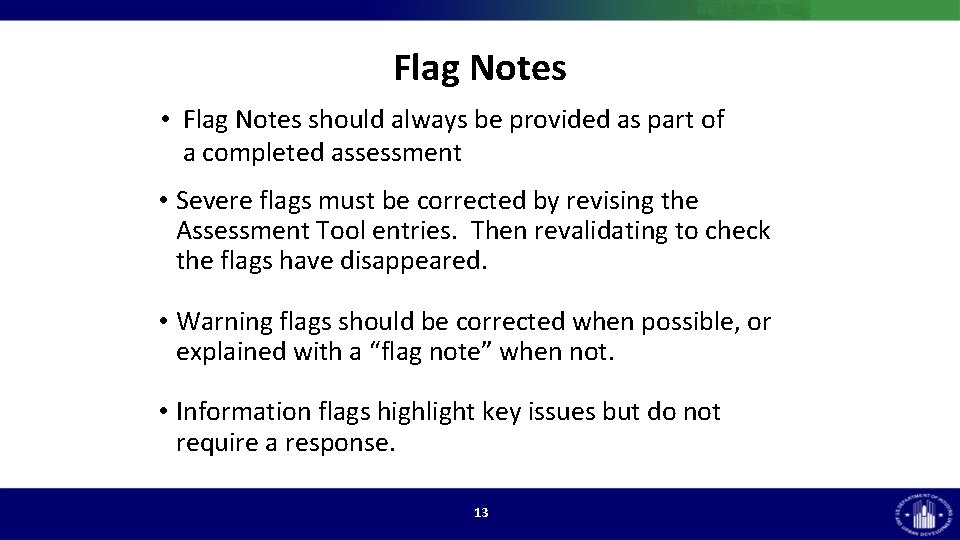
Flag Notes • Flag Notes should always be provided as part of a completed assessment • Severe flags must be corrected by revising the Assessment Tool entries. Then revalidating to check the flags have disappeared. • Warning flags should be corrected when possible, or explained with a “flag note” when not. • Information flags highlight key issues but do not require a response. 13
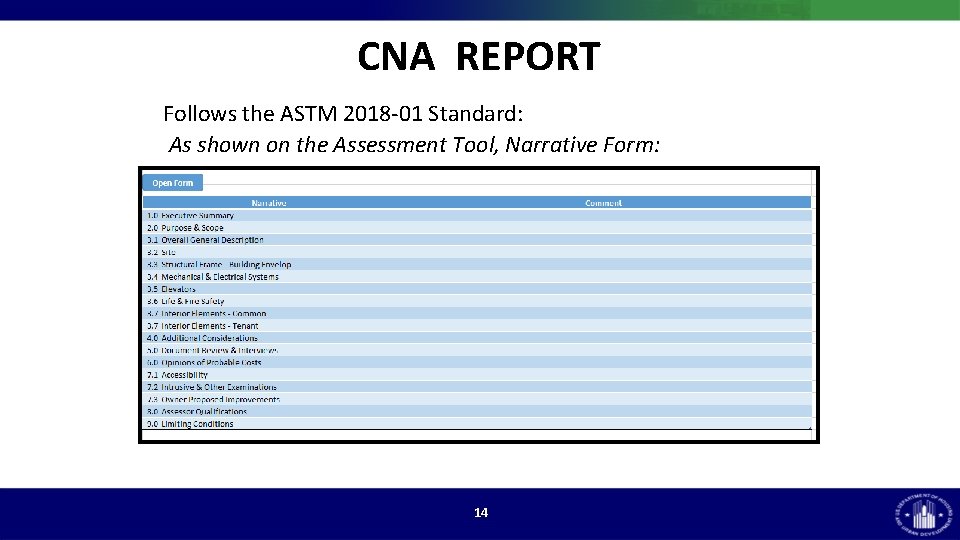
CNA REPORT Follows the ASTM 2018 -01 Standard: As shown on the Assessment Tool, Narrative Form: 14
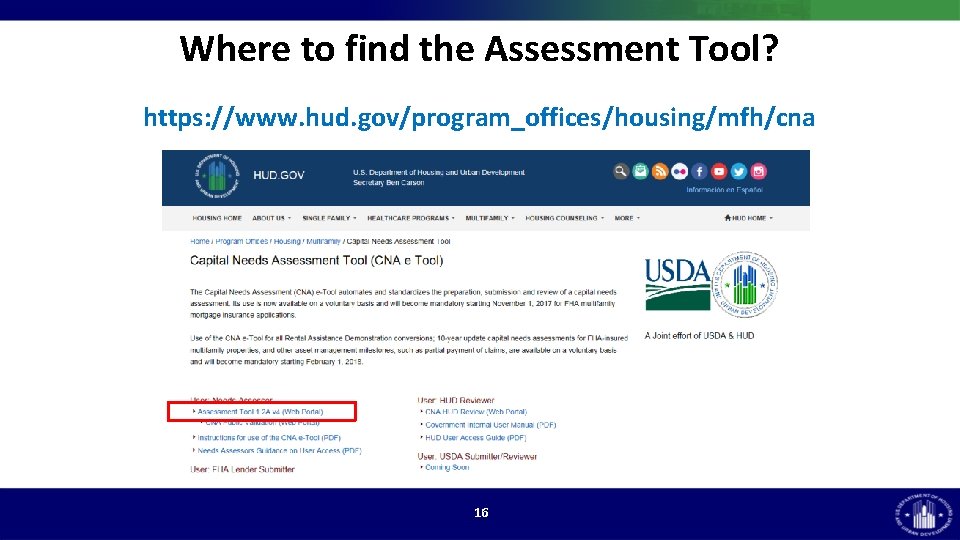
Where to find the Assessment Tool? https: //www. hud. gov/program_offices/housing/mfh/cna 16
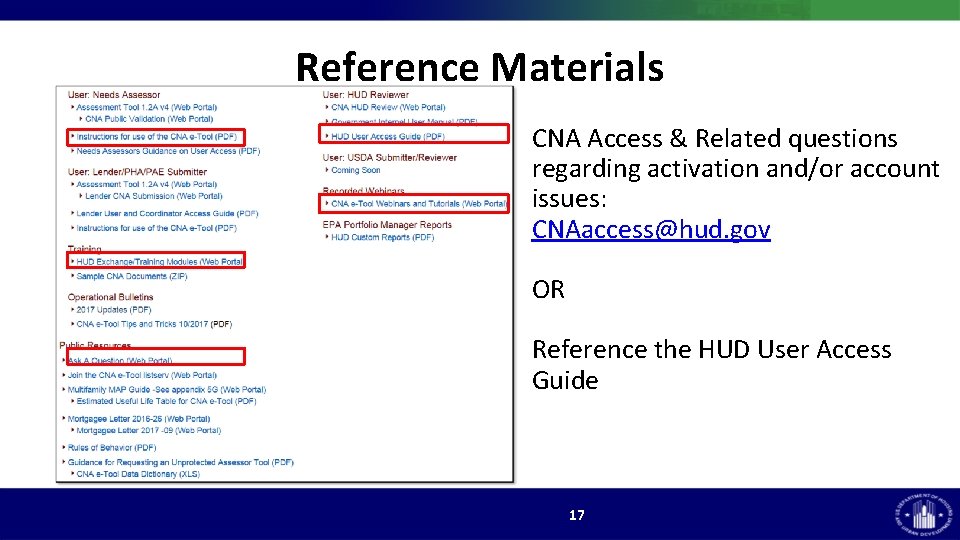
Reference Materials CNA Access & Related questions regarding activation and/or account issues: CNAaccess@hud. gov OR Reference the HUD User Access Guide 17