
USING SYNERGY TO EMAIL ANNOUNCEMENTS AND POST ASSIGNMENTS
- Slides: 16
USING SYNERGY TO EMAIL ANNOUNCEMENTS AND POST ASSIGNMENTS Brown Bag Lunch January 13, 2015
ADVISORY Improved communication between advisors, teachers, parents, and students. Establish effective habits and routines for students. Get used to communicating with teachers with email. Get used to checking calendar. Advisors monitor upcoming student work. Students monitor upcoming work. Classroom teachers improve organization and preparation of students.
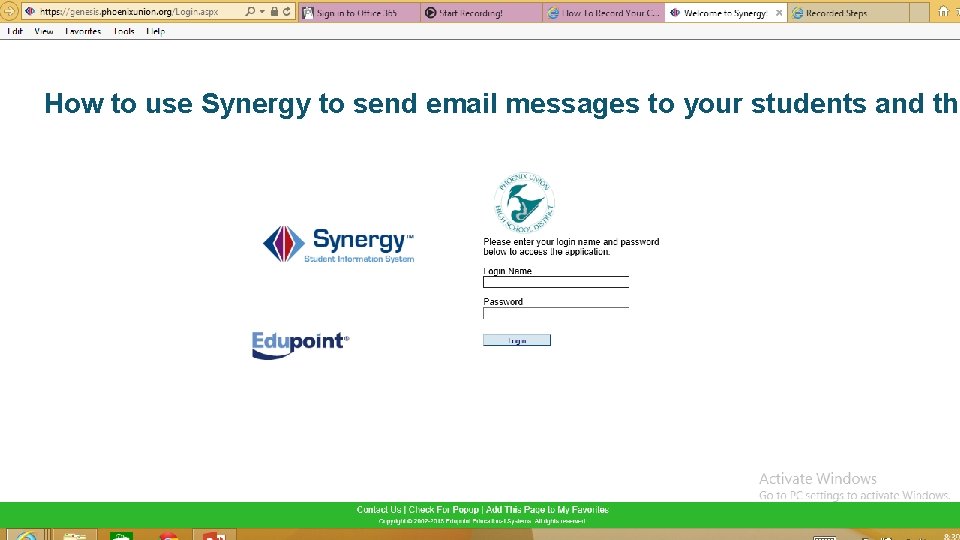
How to use Synergy to send email messages to your students and the
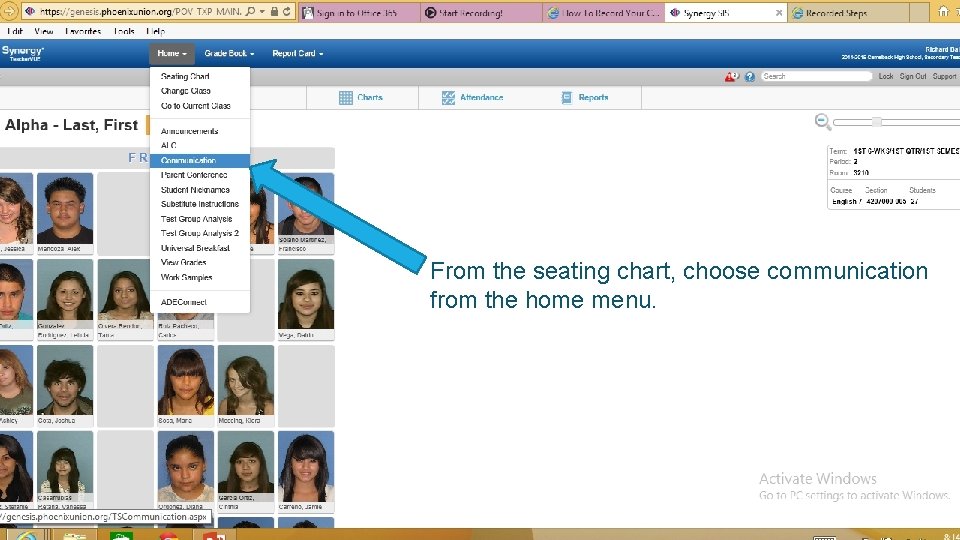
From the seating chart, choose communication from the home menu.
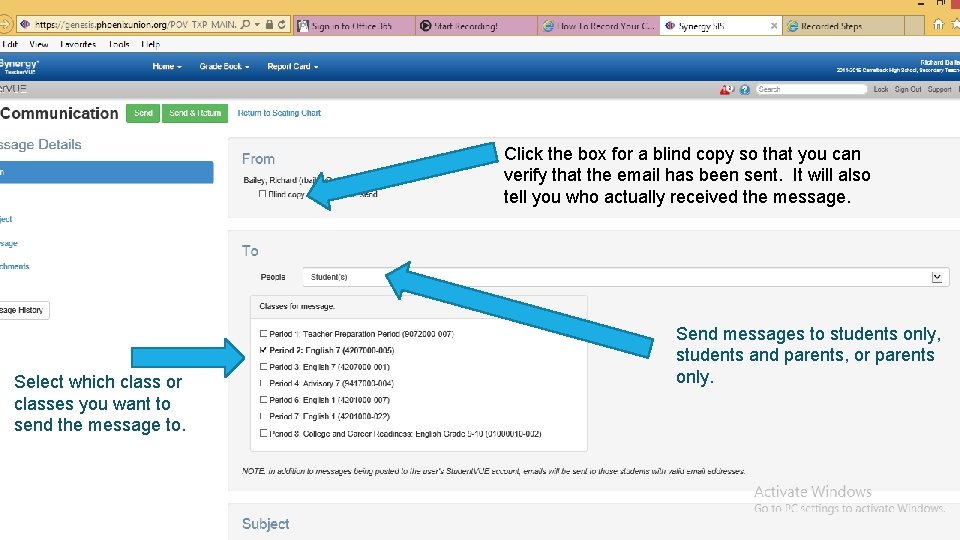
Click the box for a blind copy so that you can verify that the email has been sent. It will also tell you who actually received the message. Select which class or classes you want to send the message to. Send messages to students only, students and parents, or parents only.
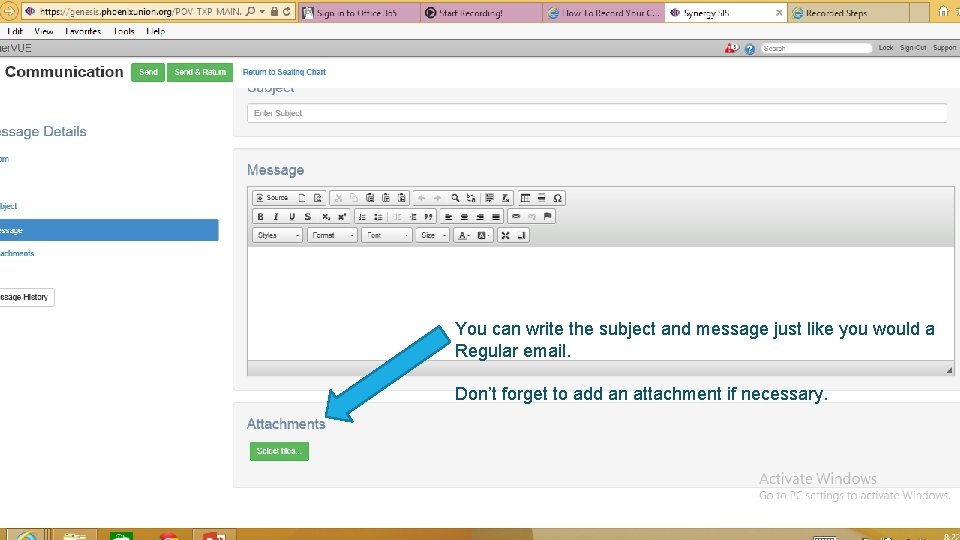
You can write the subject and message just like you would a Regular email. Don’t forget to add an attachment if necessary.
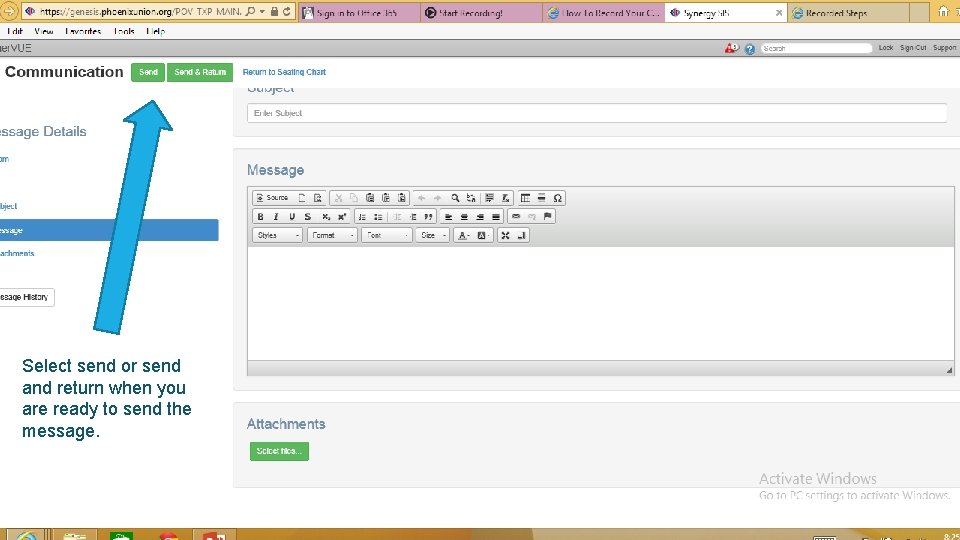
Select send or send and return when you are ready to send the message.
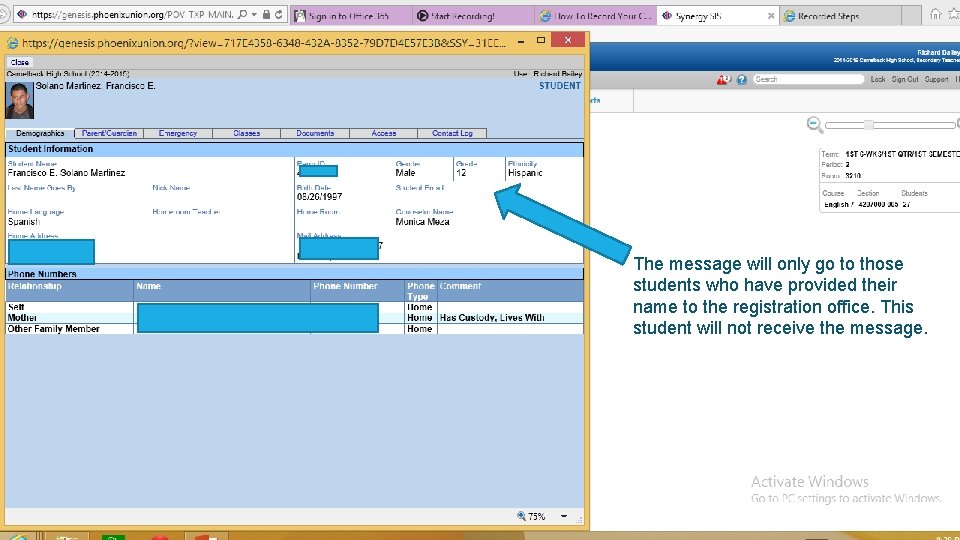
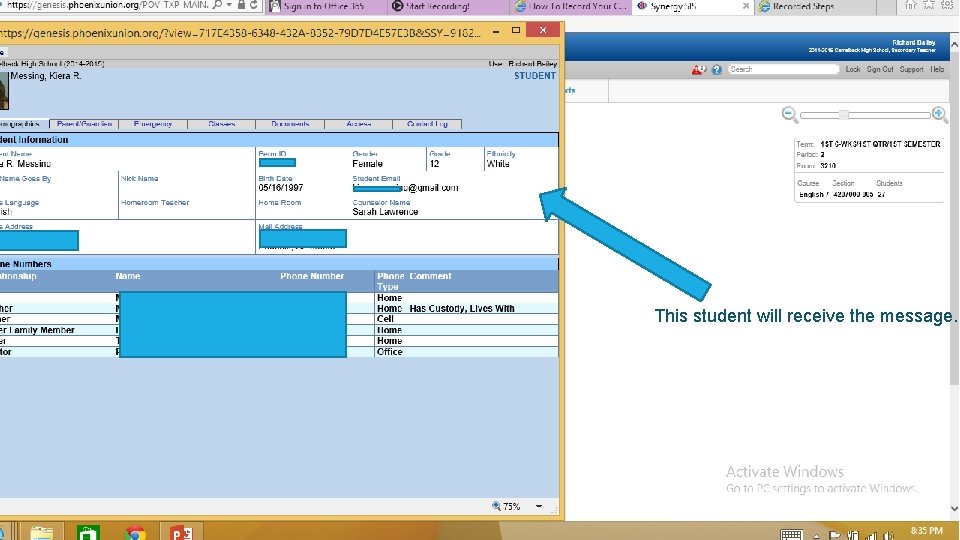
The message will only go to those students who have provided their name to the registration office. This student will not receive the message.
This student will receive the message.
Using the calendar in Synergy to communicate with students. This student will receive the message.
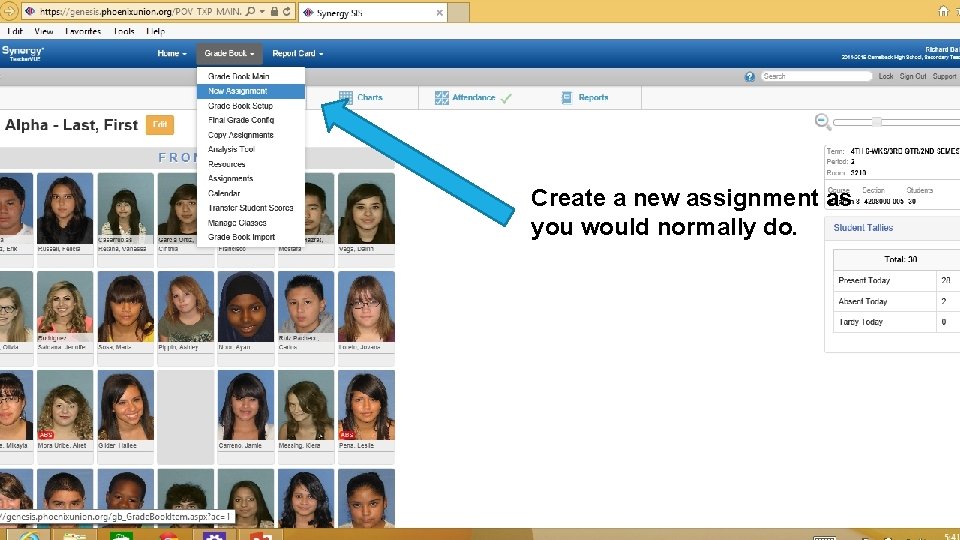
Create a new assignment as you would normally do.
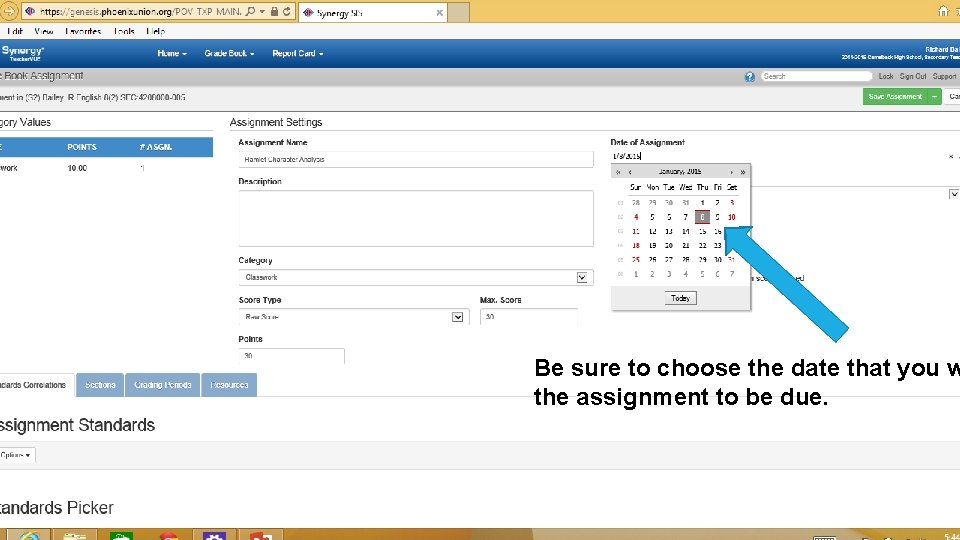
Be sure to choose the date that you w the assignment to be due.
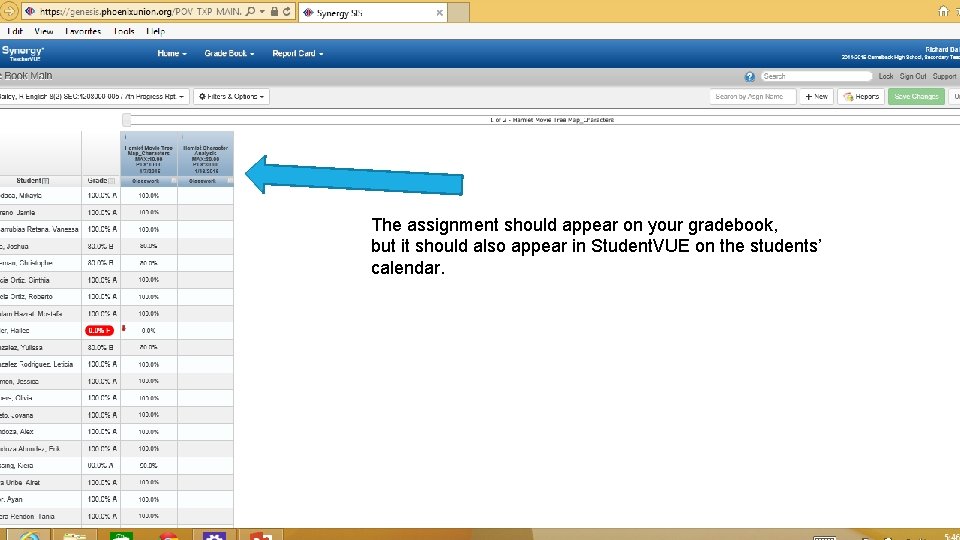
The assignment should appear on your gradebook, but it should also appear in Student. VUE on the students’ calendar.
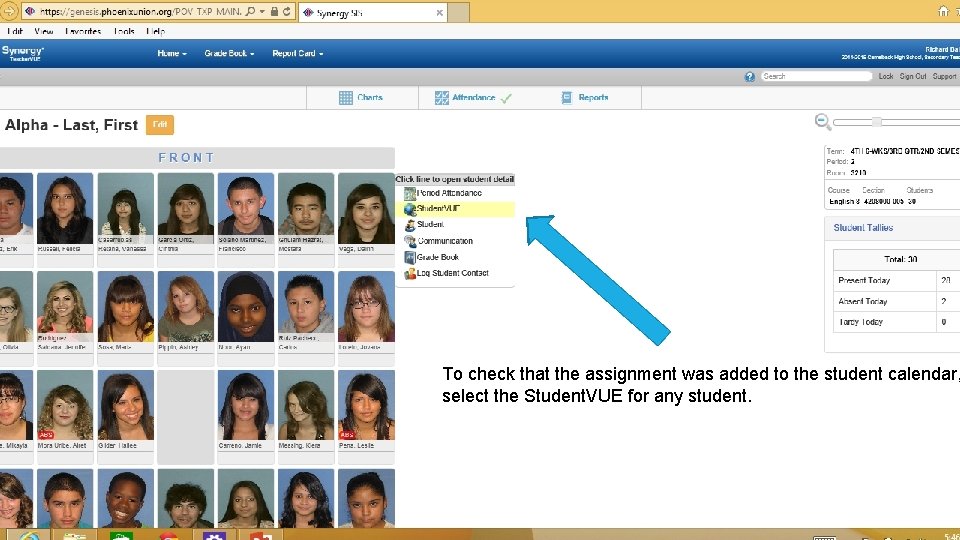
To check that the assignment was added to the student calendar, select the Student. VUE for any student.
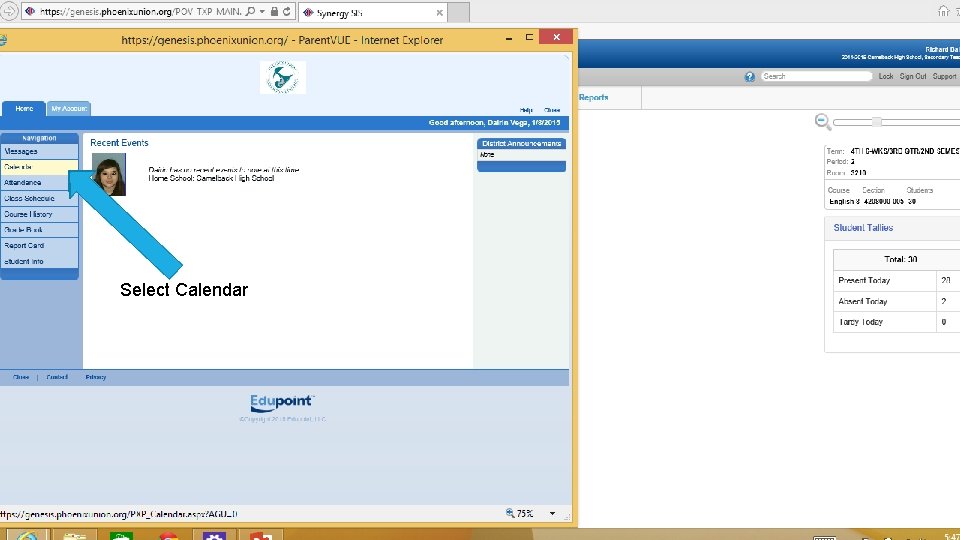
Select Calendar
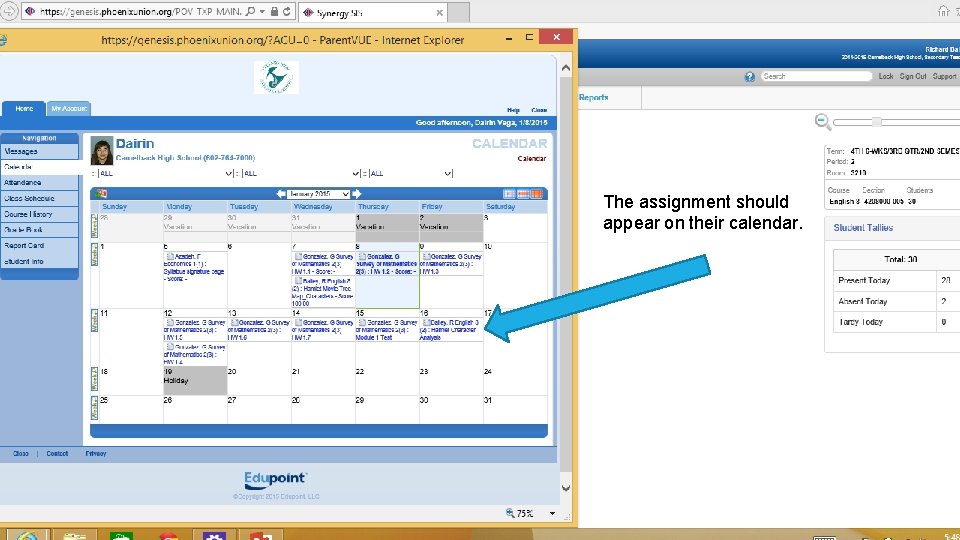
The assignment should appear on their calendar.