
Using Processor Expert to Generate Code for IAR


- Slides: 29
Using Processor Expert to Generate Code for IAR
What will be covered • How to use Processor Expert Driver Suite • Create a new application for KL 25 Z 128 • Configure Interval Timer and GPIO drivers to make blue LED in FRDM-KL 125 Z blink • Import this configuration to IAR workbench
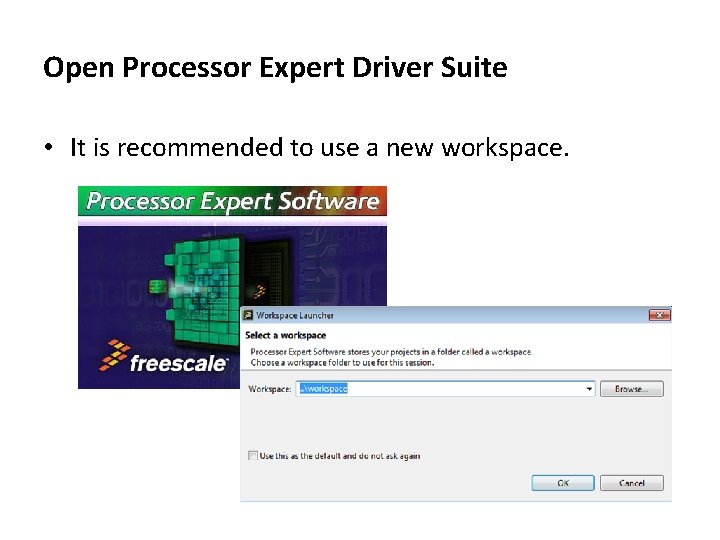
Open Processor Expert Driver Suite • It is recommended to use a new workspace.
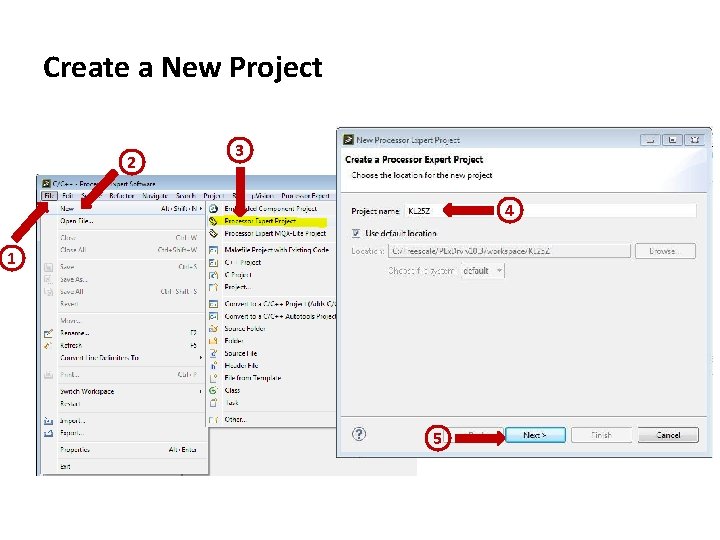
Create a New Project 2 3 4 1 5
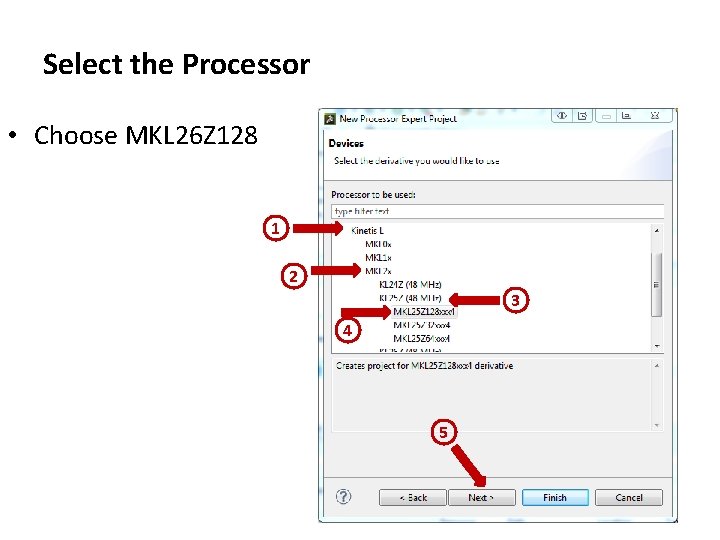
Select the Processor • Choose MKL 26 Z 128 1 2 3 4 5
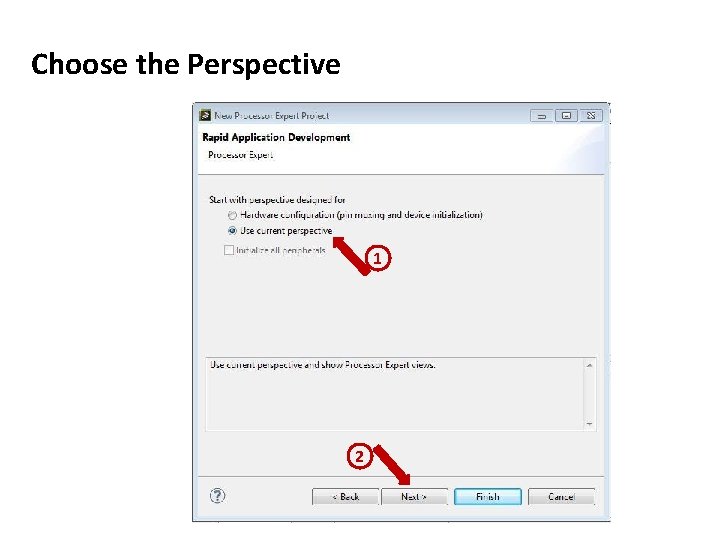
Choose the Perspective 1 2
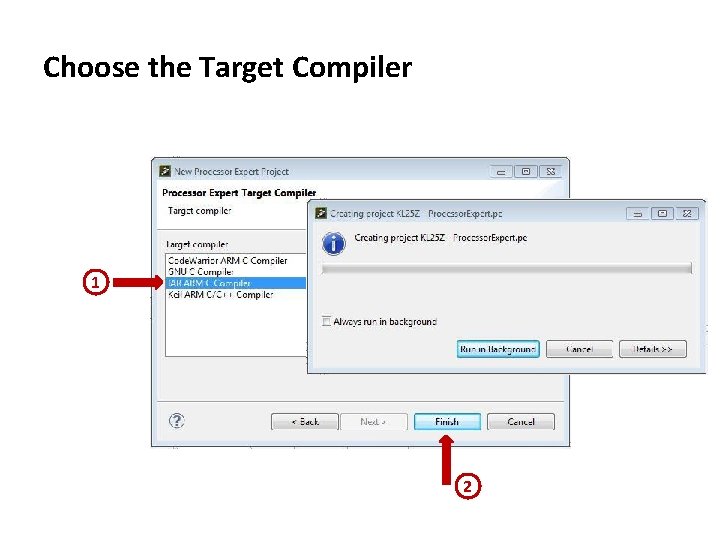
Choose the Target Compiler 1 2
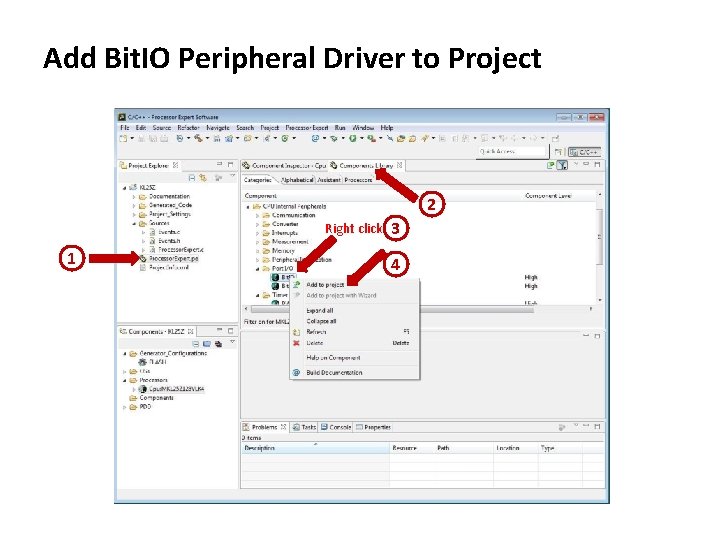
Add Bit. IO Peripheral Driver to Project 2 Right click 1 3 4
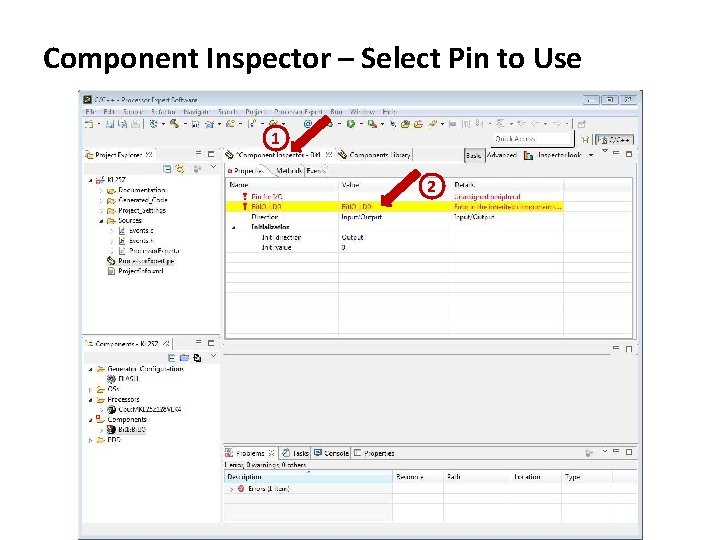
Component Inspector – Select Pin to Use 1 2
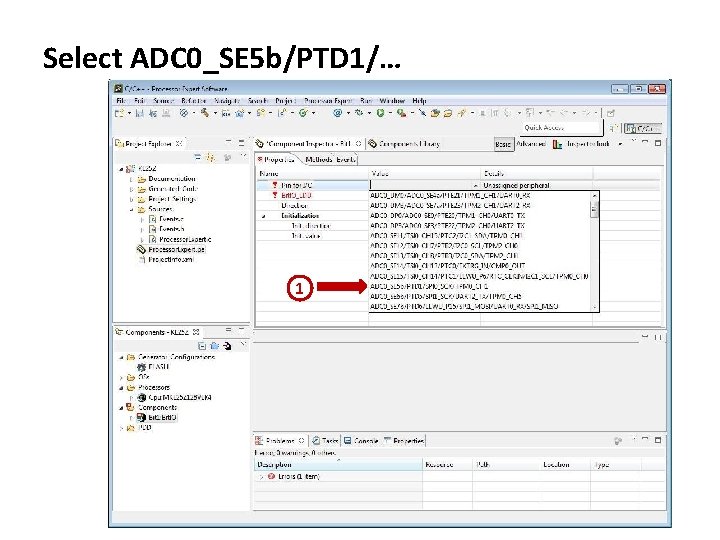
Select ADC 0_SE 5 b/PTD 1/… 1
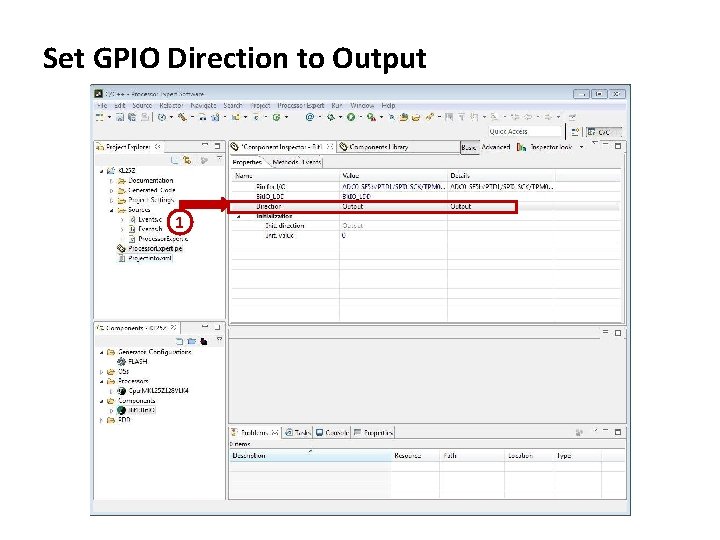
Set GPIO Direction to Output 1
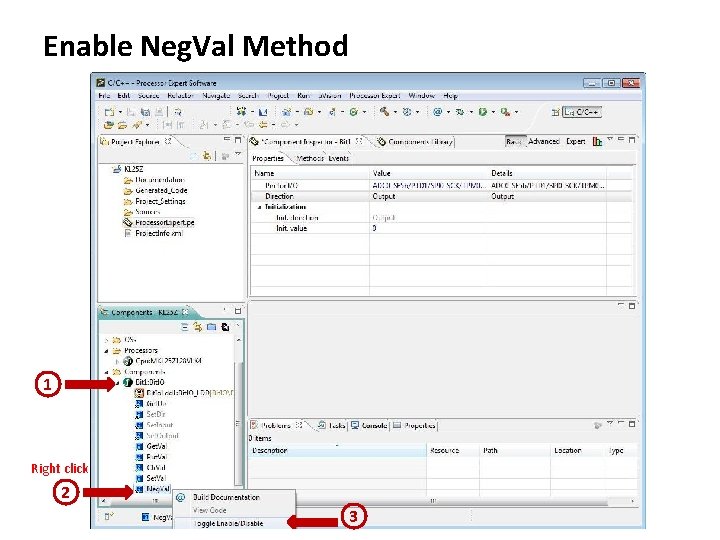
Enable Neg. Val Method 1 Right click 2 3
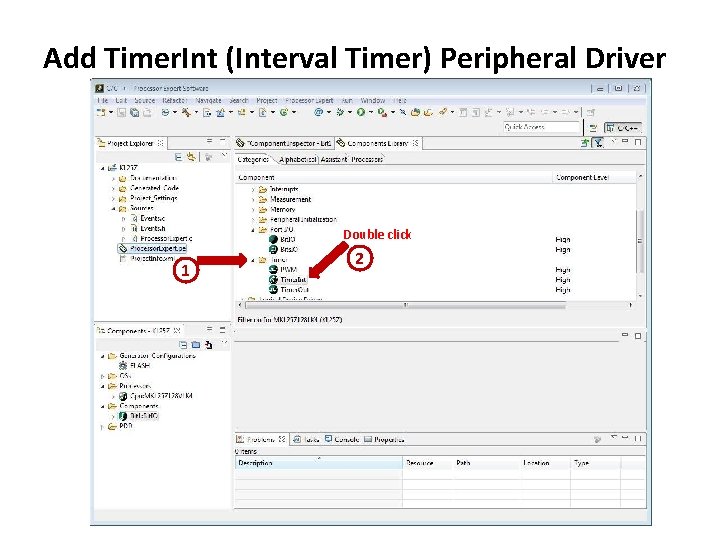
Add Timer. Int (Interval Timer) Peripheral Driver Double click 1 2
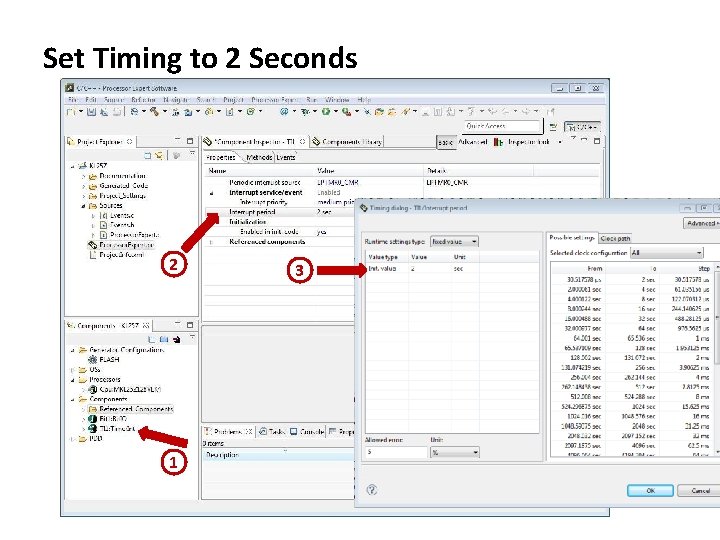
Set Timing to 2 Seconds 2 1 3
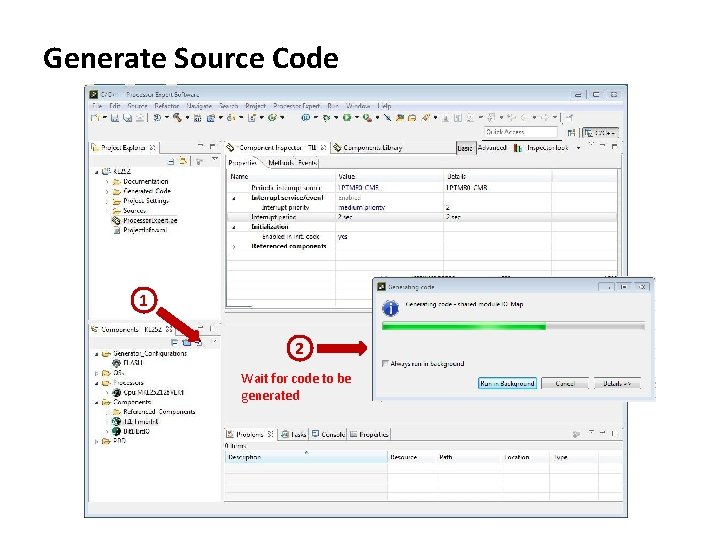
Generate Source Code 1 2 Wait for code to be generated
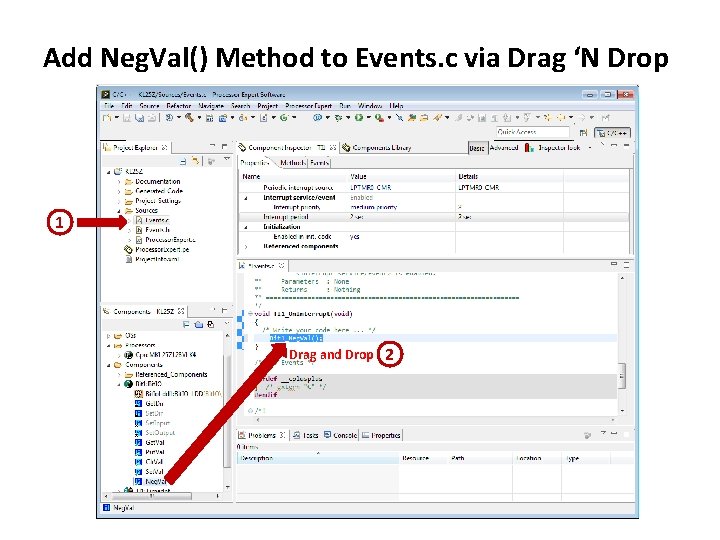
Add Neg. Val() Method to Events. c via Drag ‘N Drop 1 Drag and Drop 2
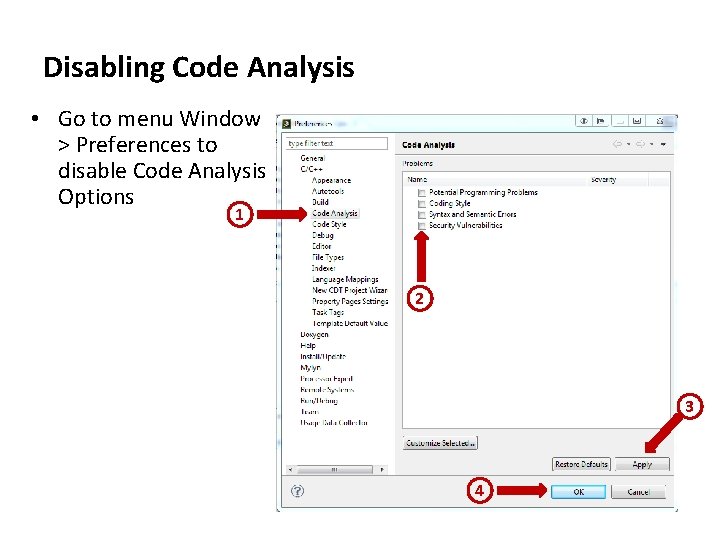
Disabling Code Analysis • Go to menu Window > Preferences to disable Code Analysis Options 1 2 3 4
Flip Over to IAR • Launch IAR Workbench v 6. 60 or later
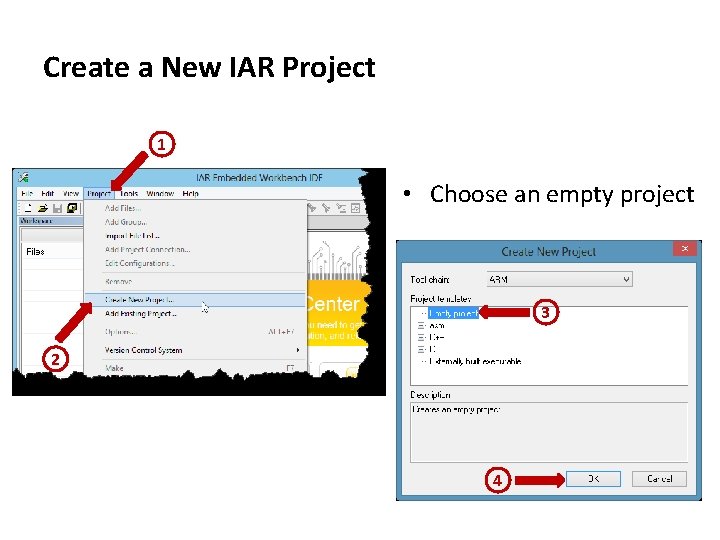
Create a New IAR Project 1 • Choose an empty project 3 2 4
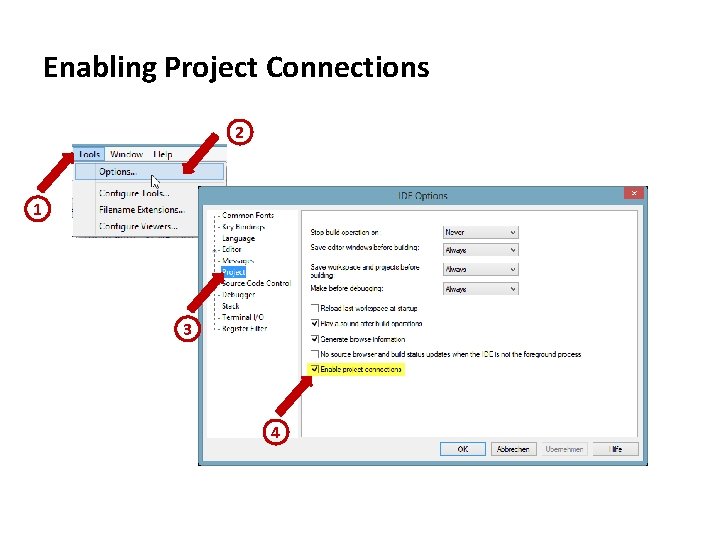
Enabling Project Connections 2 1 3 4
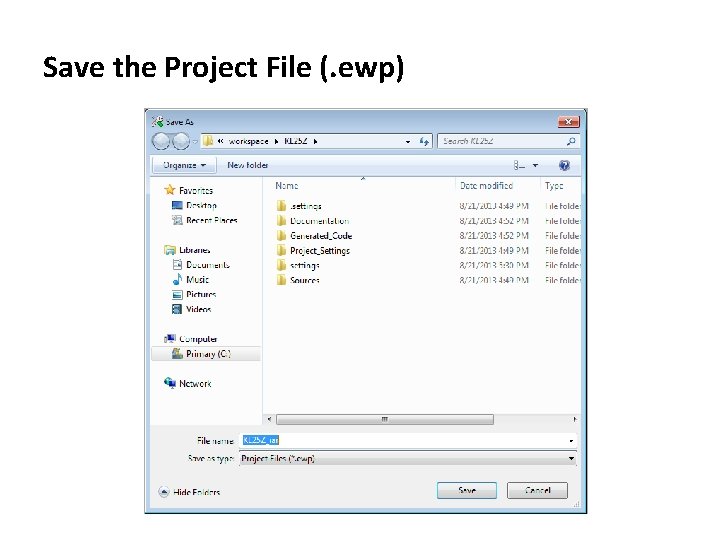
Save the Project File (. ewp)
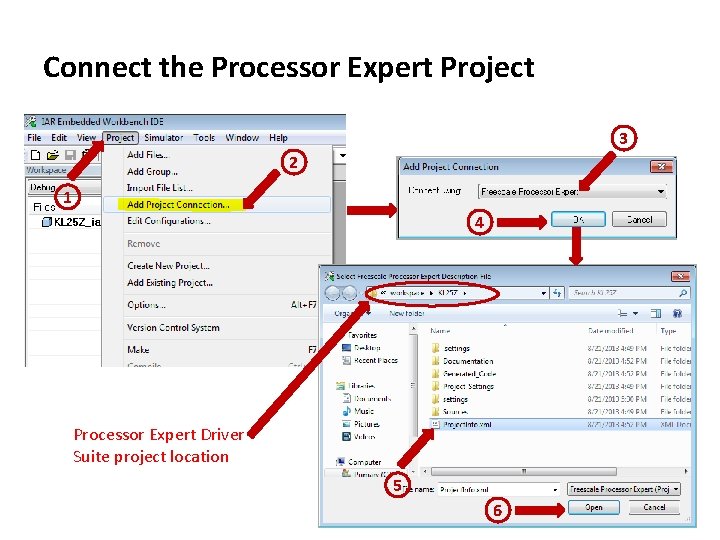
Connect the Processor Expert Project 3 2 1 4 Processor Expert Driver Suite project location 5 5 6
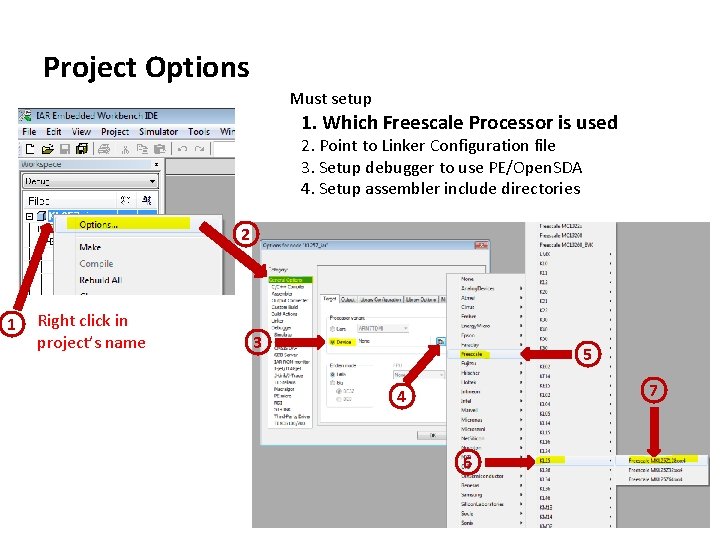
Project Options Must setup 1. Which Freescale Processor is used 2. Point to Linker Configuration file 3. Setup debugger to use PE/Open. SDA 4. Setup assembler include directories 2 1 Right click in project’s name 3 5 7 4 6
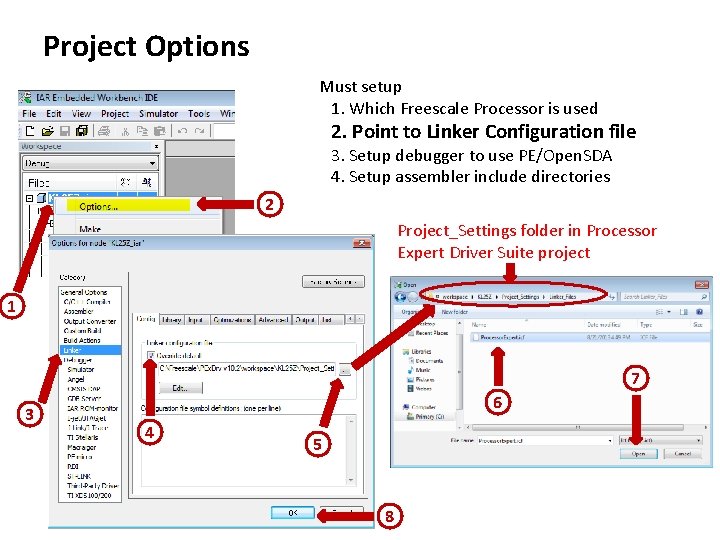
Project Options Must setup 1. Which Freescale Processor is used 2. Point to Linker Configuration file 3. Setup debugger to use PE/Open. SDA 4. Setup assembler include directories 2 Project_Settings folder in Processor Expert Driver Suite project 1 7 3 6 4 5 8
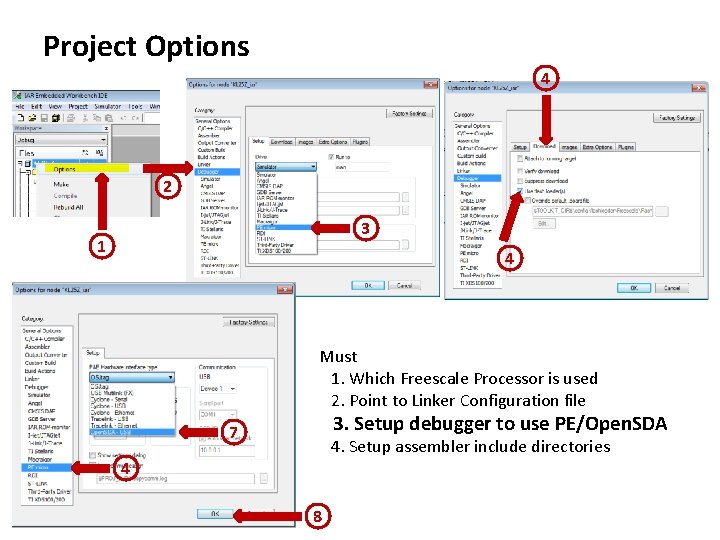
Project Options 4 2 3 1 4 Must 1. Which Freescale Processor is used 2. Point to Linker Configuration file 3. Setup debugger to use PE/Open. SDA 7 4. Setup assembler include directories 4 8
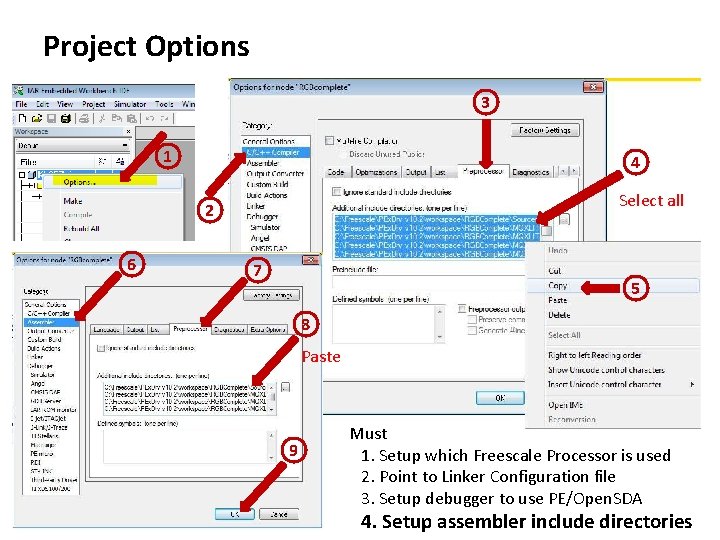
Project Options 3 1 4 Select all 2 6 7 5 8 Paste 3 4 9 Must 1. Setup which Freescale Processor is used 2. Point to Linker Configuration file 3. Setup debugger to use PE/Open. SDA 4. Setup assembler include directories
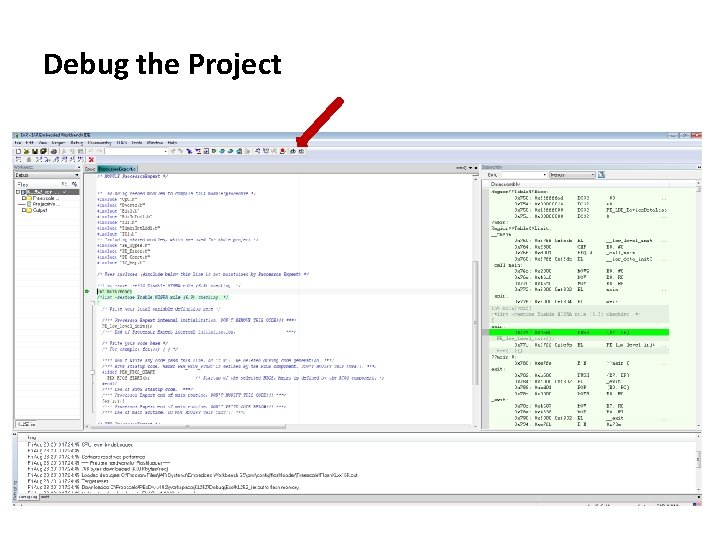
Debug the Project
For more information go to www. freescale. com/Code. Warrior Or go directly to the processor Expert web page at www. freescale. com/Processor. Expert