
USING POWERPOINT Microsoft Power Point is a computer

- Slides: 13
USING POWERPOINT
Microsoft Power. Point is a computer application used for making presentations.
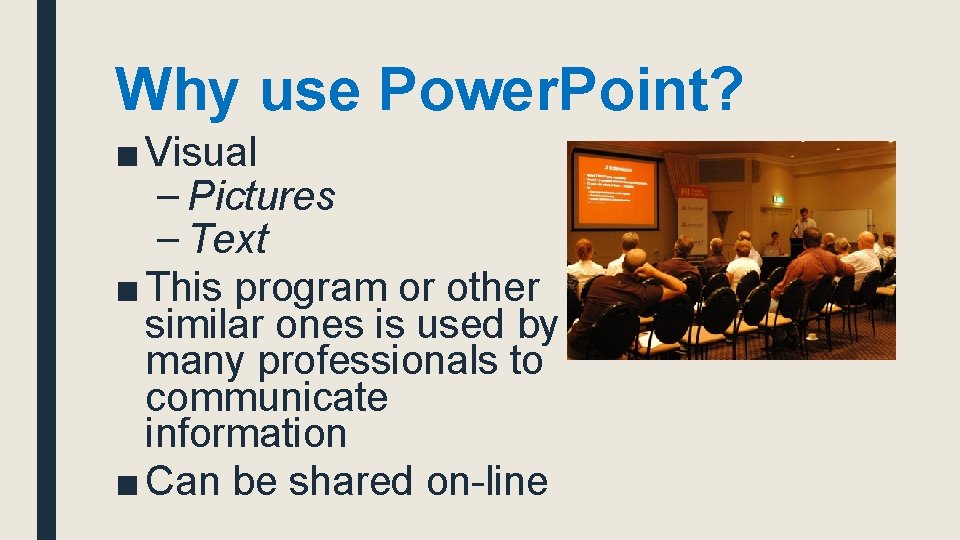
Why use Power. Point? ■ Visual – Pictures – Text ■ This program or other similar ones is used by many professionals to communicate information ■ Can be shared on-line
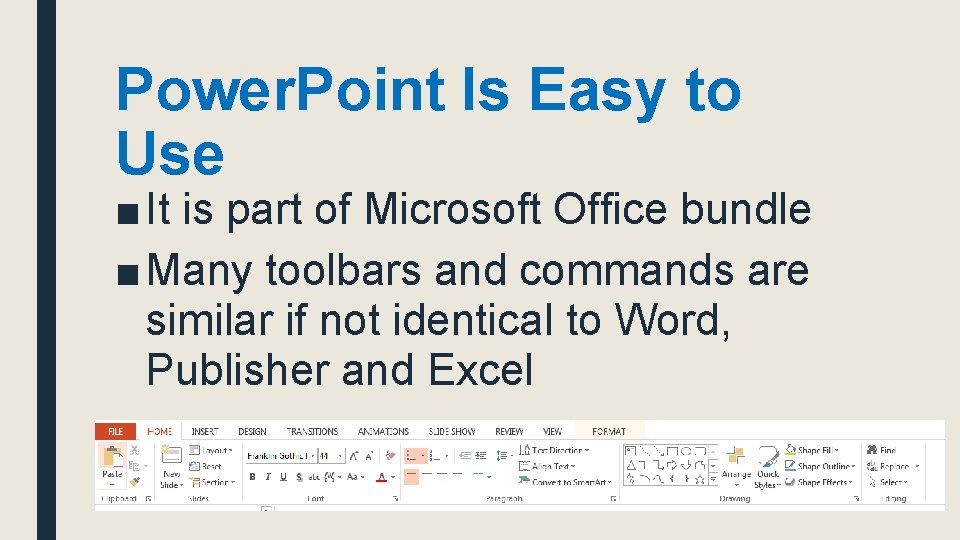
Power. Point Is Easy to Use ■ It is part of Microsoft Office bundle ■ Many toolbars and commands are similar if not identical to Word, Publisher and Excel
Getting Started ■ To open, use the “button” and select Program Files ■ Look for the MS Office folder and select Power. Point ■ Be sure to right click, and drag icon to your tray at the bottom of the screen.
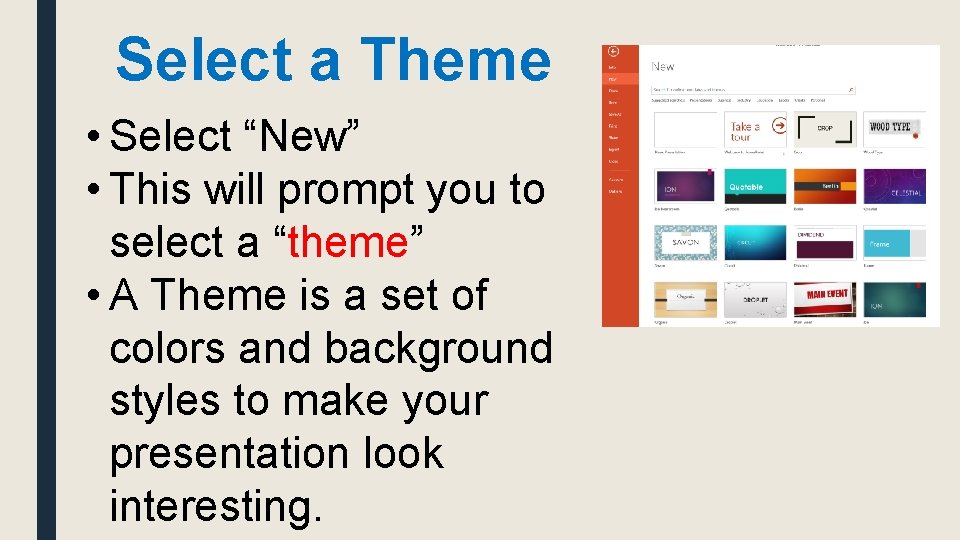
Select a Theme • Select “New” • This will prompt you to select a “theme” • A Theme is a set of colors and background styles to make your presentation look interesting.
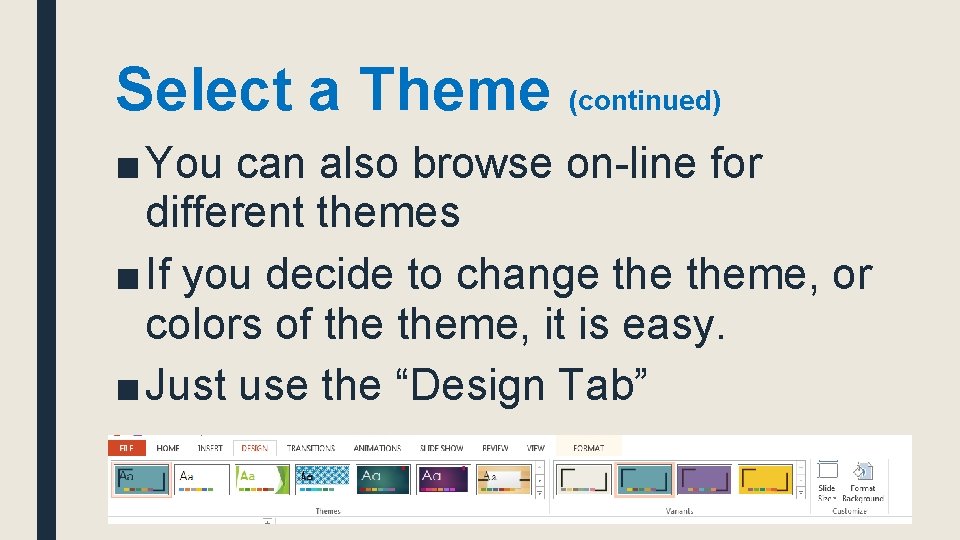
Select a Theme (continued) ■ You can also browse on-line for different themes ■ If you decide to change theme, or colors of theme, it is easy. ■ Just use the “Design Tab”
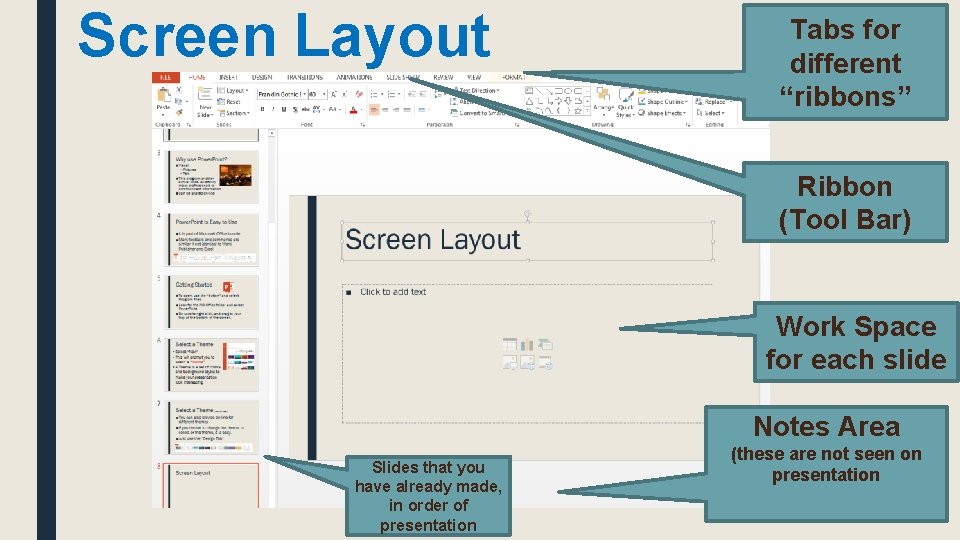
Screen Layout Tabs for different “ribbons” Ribbon (Tool Bar) Work Space for each slide Notes Area Slides that you have already made, in order of presentation (these are not seen on presentation
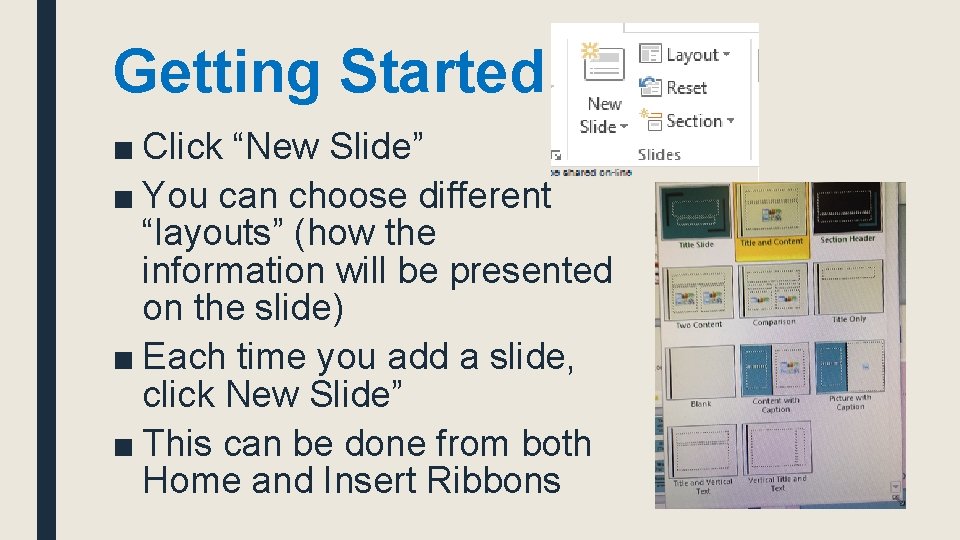
Getting Started ■ Click “New Slide” ■ You can choose different “layouts” (how the information will be presented on the slide) ■ Each time you add a slide, click New Slide” ■ This can be done from both Home and Insert Ribbons
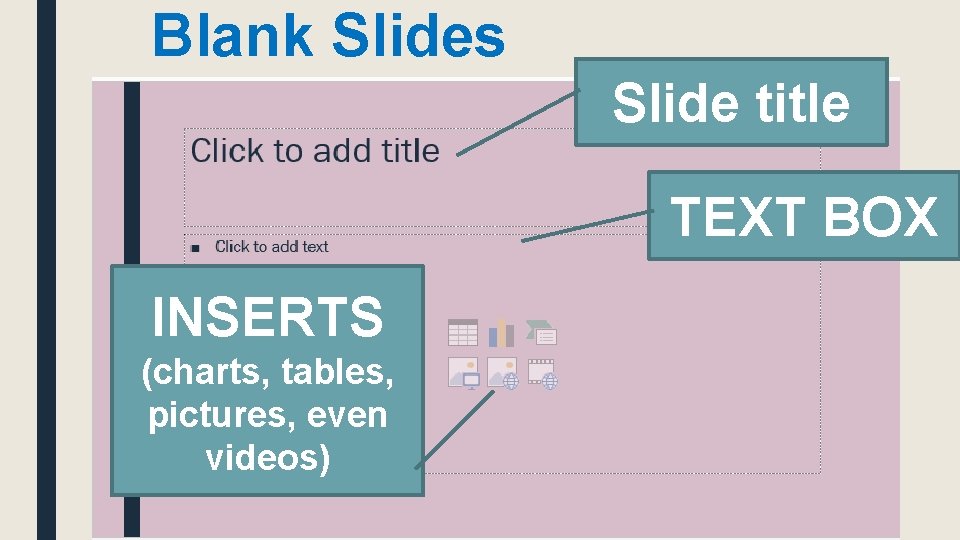
Blank Slides Slide title TEXT BOX INSERTS (charts, tables, pictures, even videos)
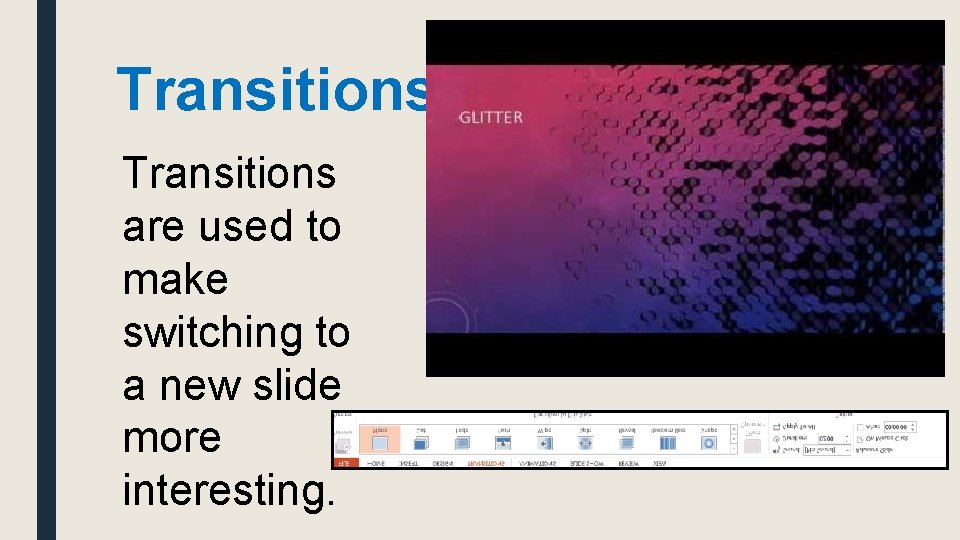
Transitions are used to make switching to a new slide more interesting.
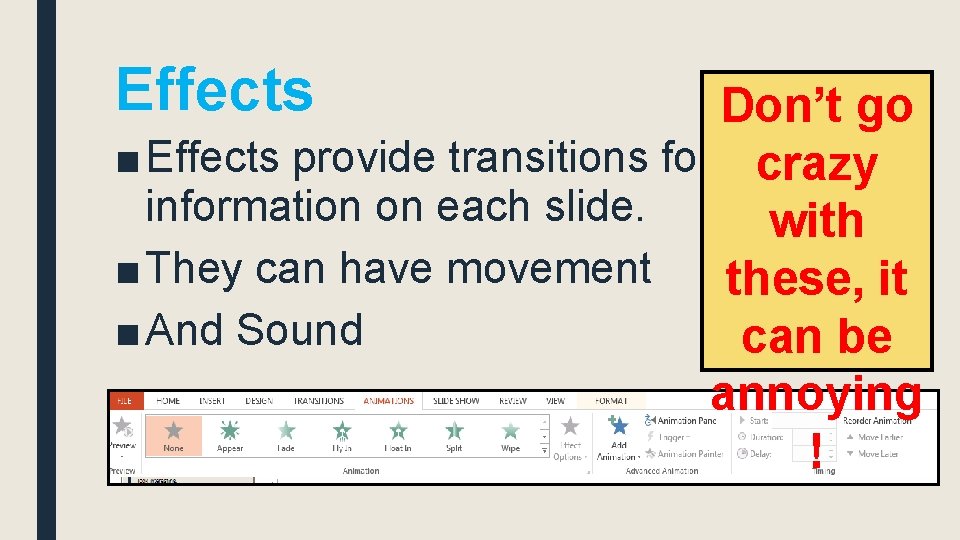
Effects Don’t go ■ Effects provide transitions for crazy information on each slide. with ■ They can have movement these, it ■ And Sound can be annoying !
NOW YOU TRY IT!!!!!