
Using parallel tools on the SDSC IBM Data
Using parallel tools on the SDSC IBM Data. Star l. Data. Star Overview l. HPM l. Perf l. IPM l. VAMPIR l. Total. View
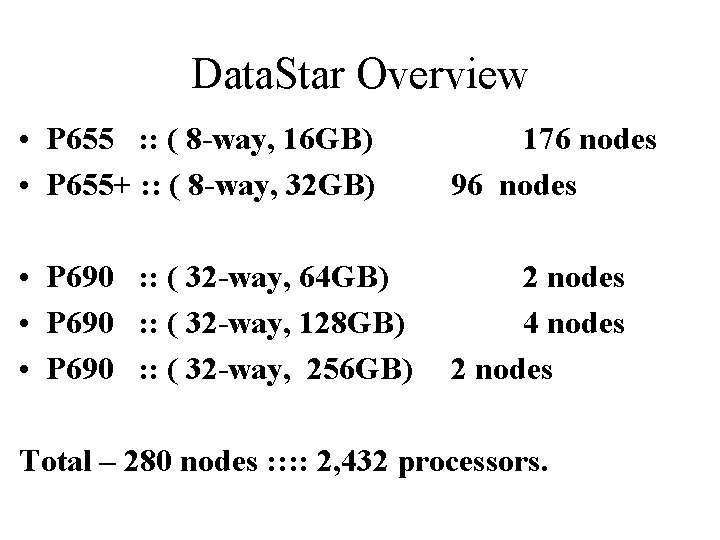
Data. Star Overview • P 655 : : ( 8 -way, 16 GB) • P 655+ : : ( 8 -way, 32 GB) 176 nodes 96 nodes • P 690 : : ( 32 -way, 64 GB) • P 690 : : ( 32 -way, 128 GB) • P 690 : : ( 32 -way, 256 GB) 2 nodes 4 nodes 2 nodes Total – 280 nodes : : 2, 432 processors.
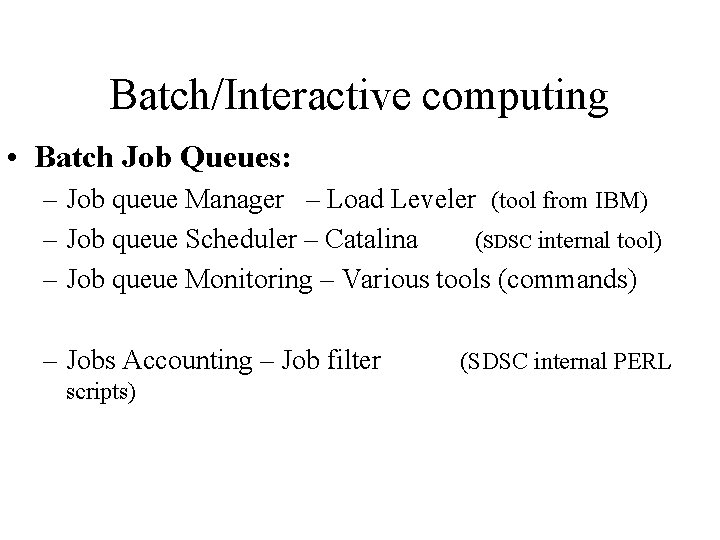
Batch/Interactive computing • Batch Job Queues: – Job queue Manager – Load Leveler (tool from IBM) – Job queue Scheduler – Catalina (SDSC internal tool) – Job queue Monitoring – Various tools (commands) – Jobs Accounting – Job filter scripts) (SDSC internal PERL
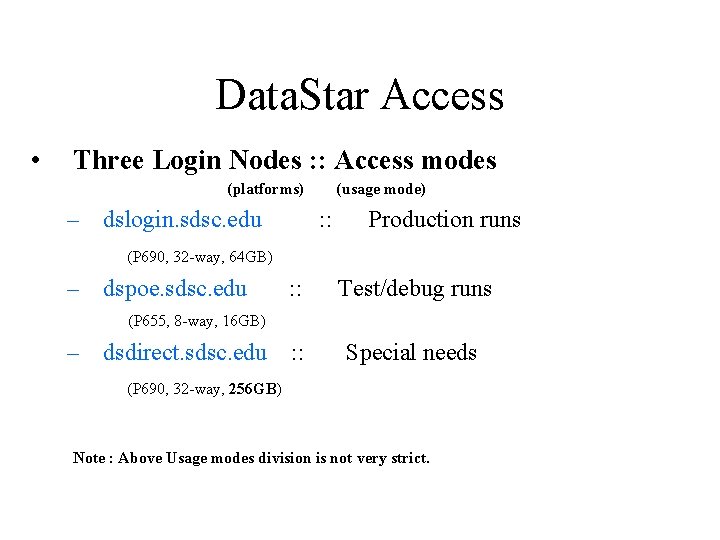
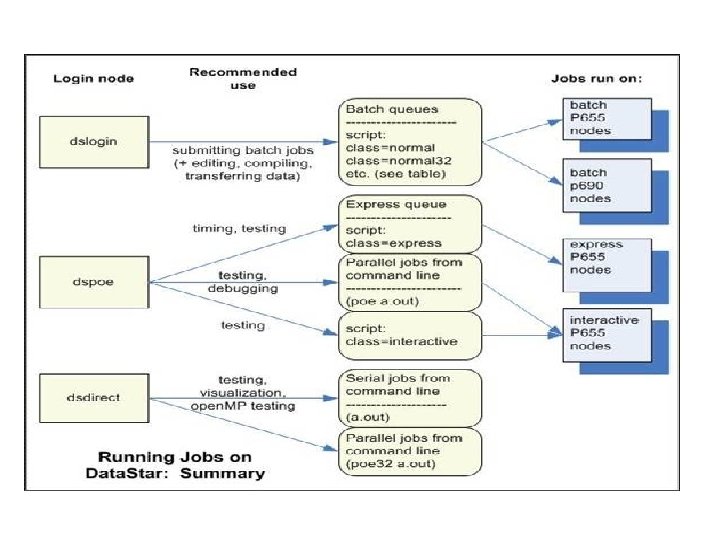
Data. Star Access • Three Login Nodes : : Access modes (platforms) – dslogin. sdsc. edu (usage mode) : : Production runs (P 690, 32 -way, 64 GB) – dspoe. sdsc. edu : : Test/debug runs (P 655, 8 -way, 16 GB) – dsdirect. sdsc. edu : : Special needs (P 690, 32 -way, 256 GB) Note : Above Usage modes division is not very strict.
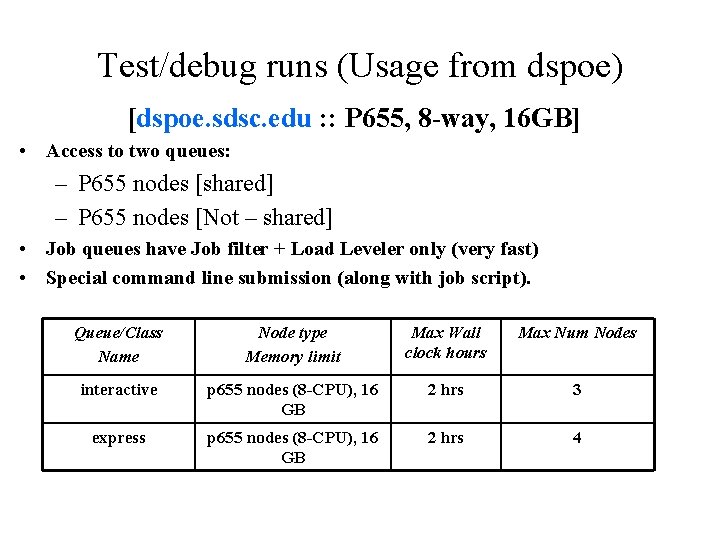
Test/debug runs (Usage from dspoe) [dspoe. sdsc. edu : : P 655, 8 -way, 16 GB] • Access to two queues: – P 655 nodes [shared] – P 655 nodes [Not – shared] • Job queues have Job filter + Load Leveler only (very fast) • Special command line submission (along with job script). Queue/Class Name Node type Memory limit Max Wall clock hours Max Num Nodes interactive p 655 nodes (8 -CPU), 16 GB 2 hrs 3 express p 655 nodes (8 -CPU), 16 GB 2 hrs 4
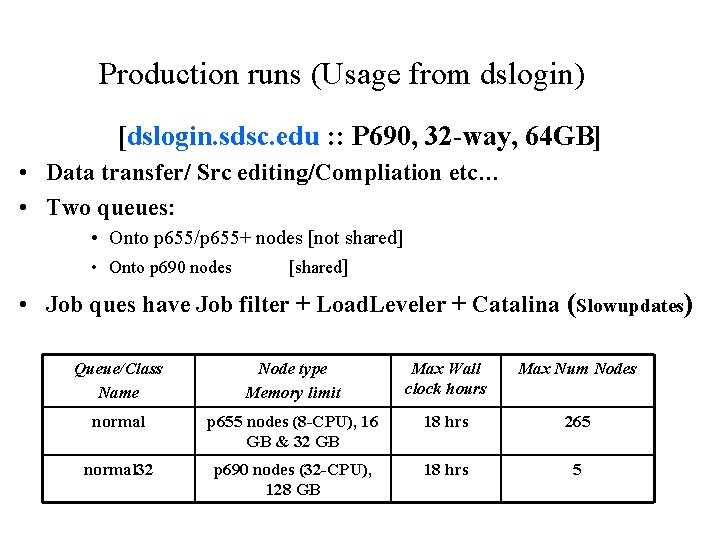
Production runs (Usage from dslogin) [dslogin. sdsc. edu : : P 690, 32 -way, 64 GB] • Data transfer/ Src editing/Compliation etc… • Two queues: • Onto p 655/p 655+ nodes [not shared] • Onto p 690 nodes [shared] • Job ques have Job filter + Load. Leveler + Catalina (Slowupdates) Queue/Class Name Node type Memory limit Max Wall clock hours Max Num Nodes normal p 655 nodes (8 -CPU), 16 GB & 32 GB 18 hrs 265 normal 32 p 690 nodes (32 -CPU), 128 GB 18 hrs 5
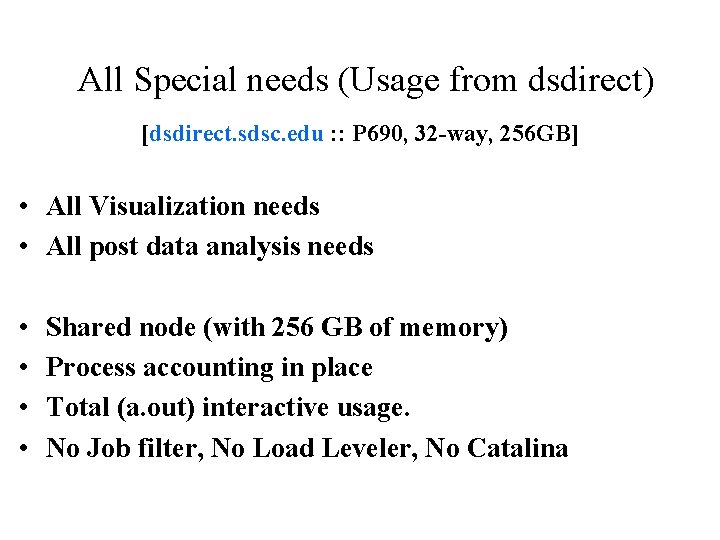
All Special needs (Usage from dsdirect) [dsdirect. sdsc. edu : : P 690, 32 -way, 256 GB] • All Visualization needs • All post data analysis needs • • Shared node (with 256 GB of memory) Process accounting in place Total (a. out) interactive usage. No Job filter, No Load Leveler, No Catalina
IBM Hardware Performance Monitor (hpm)
What is Performance? - Where is time spent and how is time spent? • • • MIPS – Millions of Instructions Per Second MFLOPS – Millions of Floating-Point Operations Per Second Run time/CPU time
What is a Performance Monitor? - Provides detailed processor/system data • Processor Monitors – – Typically a group of registers Special purpose registers keep track of programmable events Non-intrusive counts result in “accurate” measurement of processor events Typical Events counted are Instruction, floating point instruction, cache misses, etc. • System Level Monitors – Can be hardware or software – Intended to measure system activity – Examples: • bus monitor: measures memory traffic, can analyze cache coherency issues in multiprocessor system • Network monitor: measures network traffic, can analyze web traffic internally and externally
Hardware Counter Motivations - To understand execution behavior of application code • Why not use software? – Strength: simple, GUI interface – Weakness: large overhead, intrusive, higher level, abstraction and simplicity • How about using a simulator? – Strength: control, low-level, accurate – Weakness: limit on size of code, difficult to implement, time-consuming to run • When should we directly use hardware counters? – Software and simulators not available or not enough – Strength: non-intrusive, instruction level analysis, moderate control, very accurate, low overhead – Weakness: not typically reusable, OS kernel support
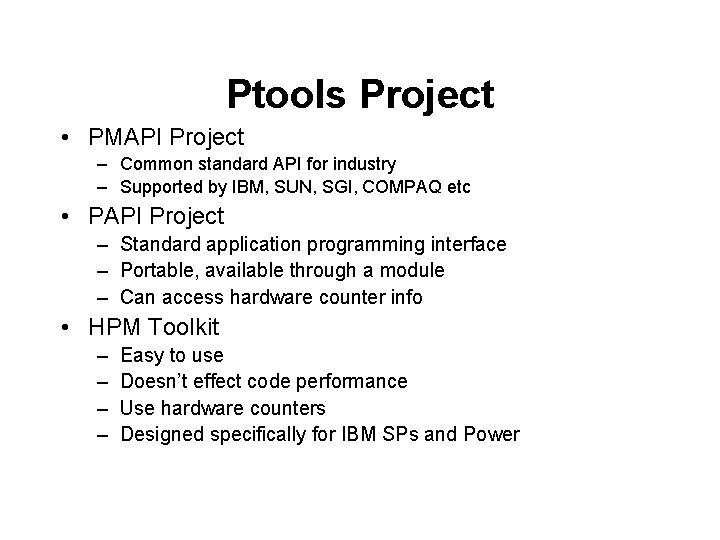
Ptools Project • PMAPI Project – Common standard API for industry – Supported by IBM, SUN, SGI, COMPAQ etc • PAPI Project – Standard application programming interface – Portable, available through a module – Can access hardware counter info • HPM Toolkit – – Easy to use Doesn’t effect code performance Use hardware counters Designed specifically for IBM SPs and Power
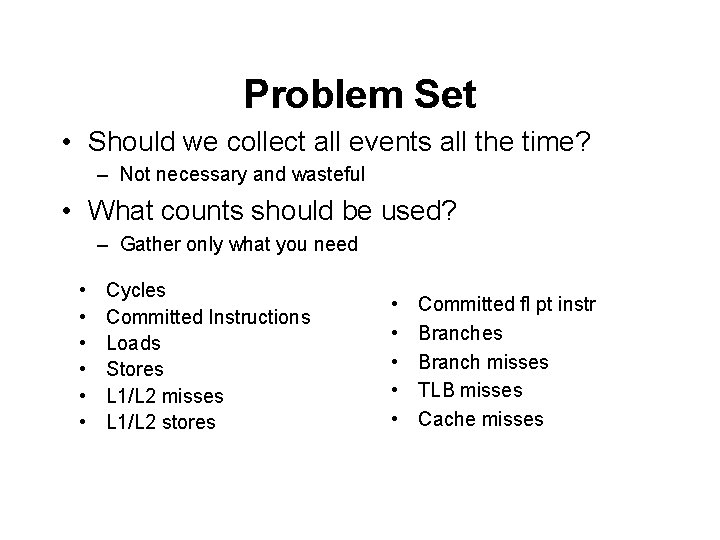
Problem Set • Should we collect all events all the time? – Not necessary and wasteful • What counts should be used? – Gather only what you need • • • Cycles Committed Instructions Loads Stores L 1/L 2 misses L 1/L 2 stores • • • Committed fl pt instr Branches Branch misses TLB misses Cache misses
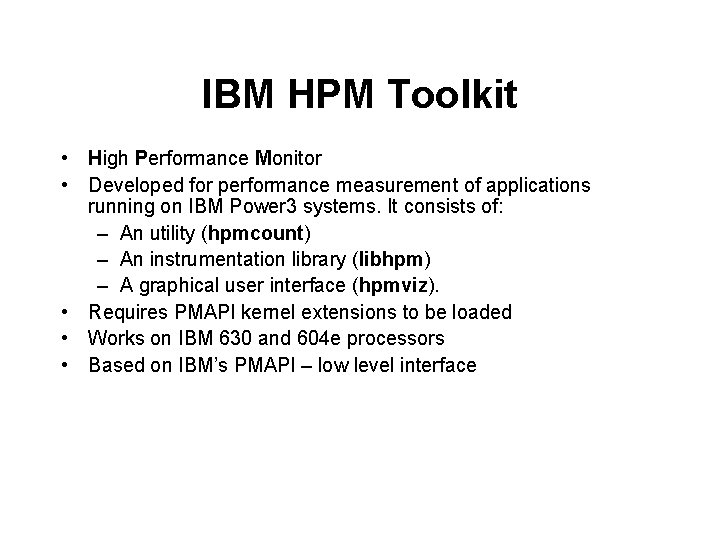
IBM HPM Toolkit • High Performance Monitor • Developed for performance measurement of applications running on IBM Power 3 systems. It consists of: – An utility (hpmcount) – An instrumentation library (libhpm) – A graphical user interface (hpmviz). • Requires PMAPI kernel extensions to be loaded • Works on IBM 630 and 604 e processors • Based on IBM’s PMAPI – low level interface
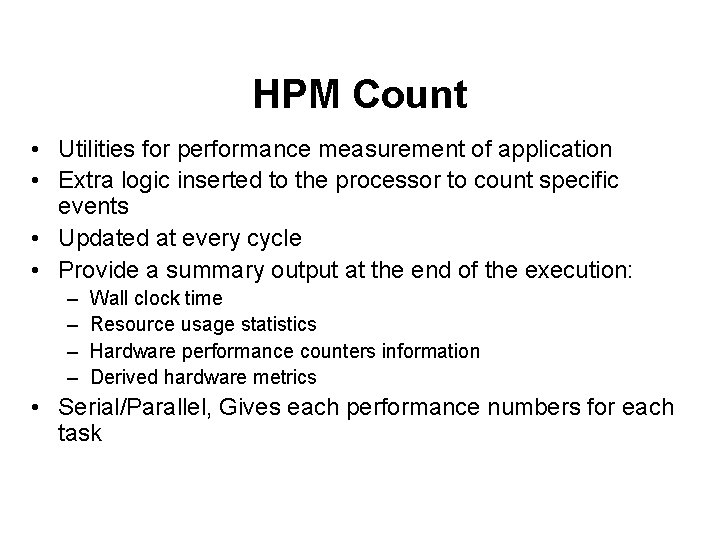
HPM Count • Utilities for performance measurement of application • Extra logic inserted to the processor to count specific events • Updated at every cycle • Provide a summary output at the end of the execution: – – Wall clock time Resource usage statistics Hardware performance counters information Derived hardware metrics • Serial/Parallel, Gives each performance numbers for each task
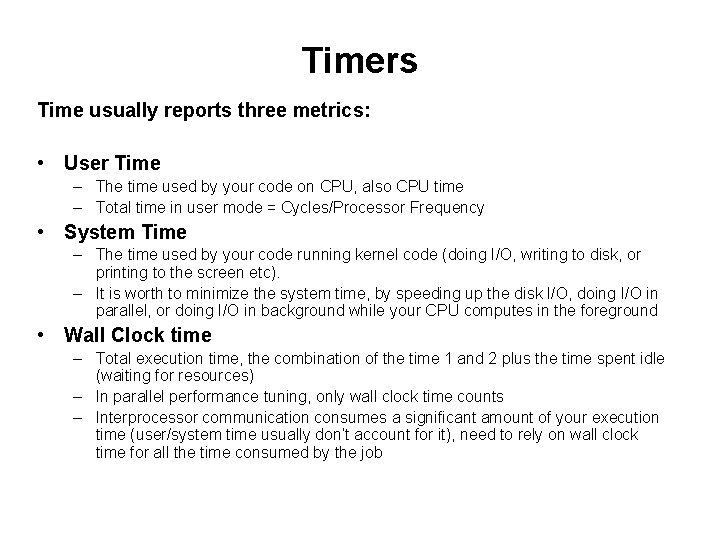
Timers Time usually reports three metrics: • User Time – The time used by your code on CPU, also CPU time – Total time in user mode = Cycles/Processor Frequency • System Time – The time used by your code running kernel code (doing I/O, writing to disk, or printing to the screen etc). – It is worth to minimize the system time, by speeding up the disk I/O, doing I/O in parallel, or doing I/O in background while your CPU computes in the foreground • Wall Clock time – Total execution time, the combination of the time 1 and 2 plus the time spent idle (waiting for resources) – In parallel performance tuning, only wall clock time counts – Interprocessor communication consumes a significant amount of your execution time (user/system time usually don’t account for it), need to rely on wall clock time for all the time consumed by the job
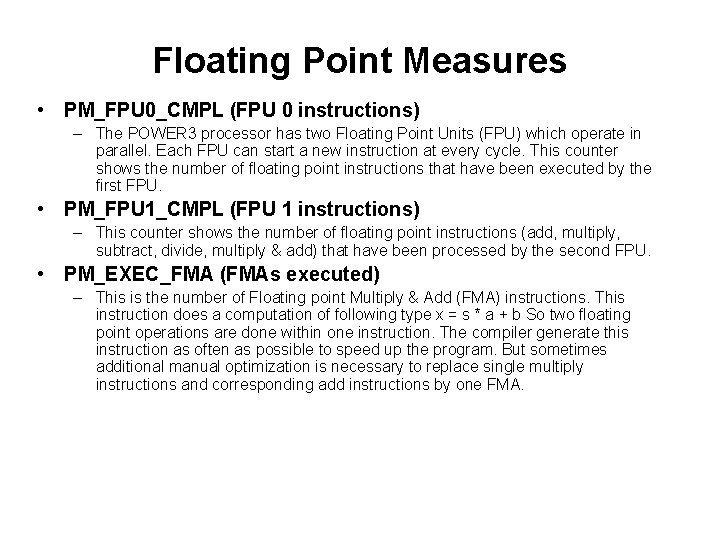
Floating Point Measures • PM_FPU 0_CMPL (FPU 0 instructions) – The POWER 3 processor has two Floating Point Units (FPU) which operate in parallel. Each FPU can start a new instruction at every cycle. This counter shows the number of floating point instructions that have been executed by the first FPU. • PM_FPU 1_CMPL (FPU 1 instructions) – This counter shows the number of floating point instructions (add, multiply, subtract, divide, multiply & add) that have been processed by the second FPU. • PM_EXEC_FMA (FMAs executed) – This is the number of Floating point Multiply & Add (FMA) instructions. This instruction does a computation of following type x = s * a + b So two floating point operations are done within one instruction. The compiler generate this instruction as often as possible to speed up the program. But sometimes additional manual optimization is necessary to replace single multiply instructions and corresponding add instructions by one FMA.
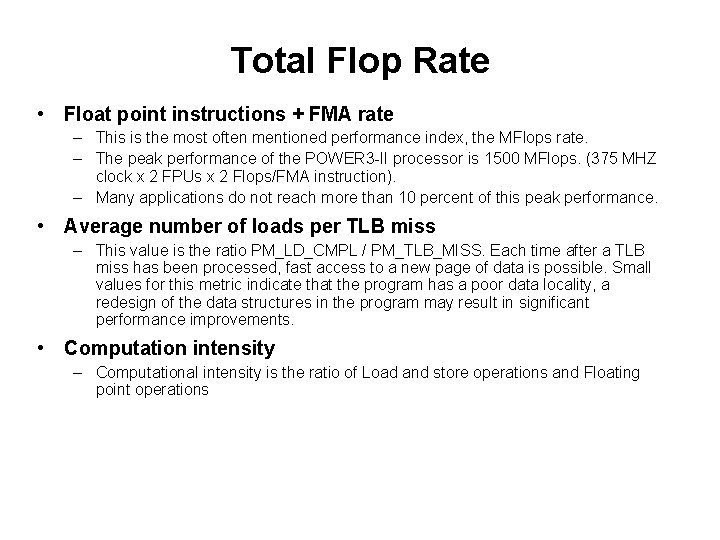
Total Flop Rate • Float point instructions + FMA rate – This is the most often mentioned performance index, the MFlops rate. – The peak performance of the POWER 3 -II processor is 1500 MFlops. (375 MHZ clock x 2 FPUs x 2 Flops/FMA instruction). – Many applications do not reach more than 10 percent of this peak performance. • Average number of loads per TLB miss – This value is the ratio PM_LD_CMPL / PM_TLB_MISS. Each time after a TLB miss has been processed, fast access to a new page of data is possible. Small values for this metric indicate that the program has a poor data locality, a redesign of the data structures in the program may result in significant performance improvements. • Computation intensity – Computational intensity is the ratio of Load and store operations and Floating point operations

PERF
The perf utility provides a succinct code performance report to help get the most out of HPM output or MPI_Trace output. It can help make your case for an allocation request.
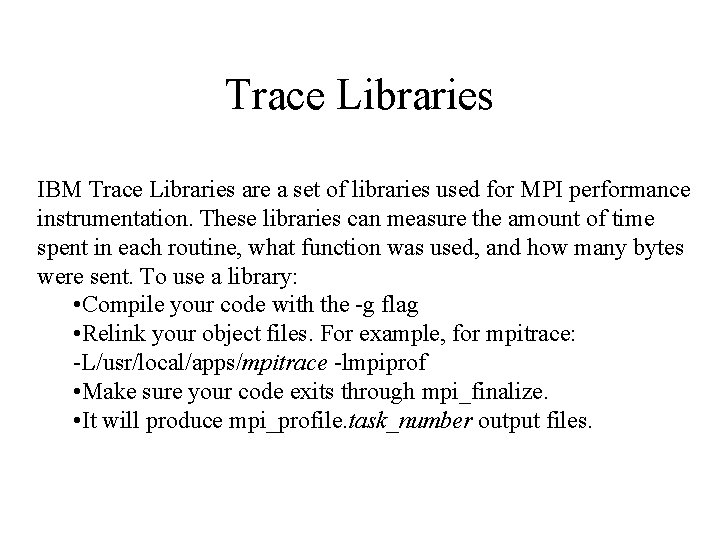
Trace Libraries IBM Trace Libraries are a set of libraries used for MPI performance instrumentation. These libraries can measure the amount of time spent in each routine, what function was used, and how many bytes were sent. To use a library: • Compile your code with the -g flag • Relink your object files. For example, for mpitrace: -L/usr/local/apps/mpitrace -lmpiprof • Make sure your code exits through mpi_finalize. • It will produce mpi_profile. task_number output files.
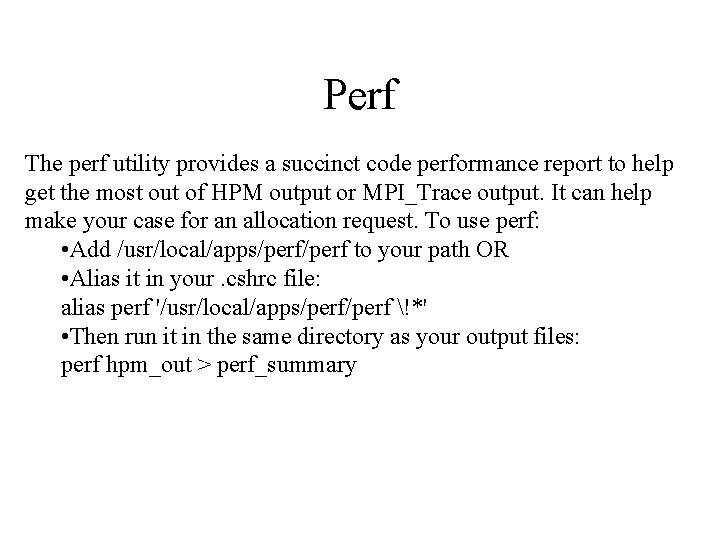
Perf The perf utility provides a succinct code performance report to help get the most out of HPM output or MPI_Trace output. It can help make your case for an allocation request. To use perf: • Add /usr/local/apps/perf to your path OR • Alias it in your. cshrc file: alias perf '/usr/local/apps/perf !*' • Then run it in the same directory as your output files: perf hpm_out > perf_summary
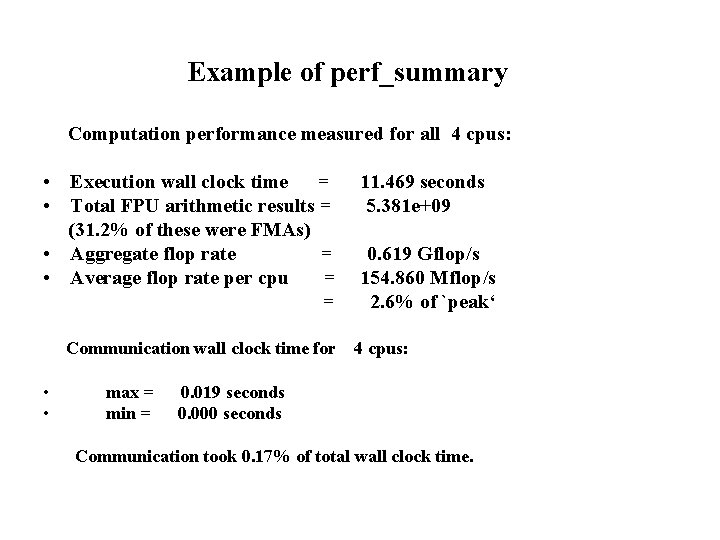
Example of perf_summary Computation performance measured for all 4 cpus: • Execution wall clock time = • Total FPU arithmetic results = (31. 2% of these were FMAs) • Aggregate flop rate = • Average flop rate per cpu = = Communication wall clock time for • • max = min = 11. 469 seconds 5. 381 e+09 0. 619 Gflop/s 154. 860 Mflop/s 2. 6% of `peak‘ 4 cpus: 0. 019 seconds 0. 000 seconds Communication took 0. 17% of total wall clock time.
IPM - Integrated Performance Monitoring
Integrated Performance Monitoring (IPM) is a tool that allows users to obtain a concise summary of the performance and communication characteristics of their codes. IPM is invoked by the user at the time a job is run. By default, a short, text-based summary of the code's performance is provided, and a more detailed Web page. More details at: http: //www. sdsc. edu/us/tools/top/ipm/
VAMPIR – Visualization and Analysis of MPI Programs
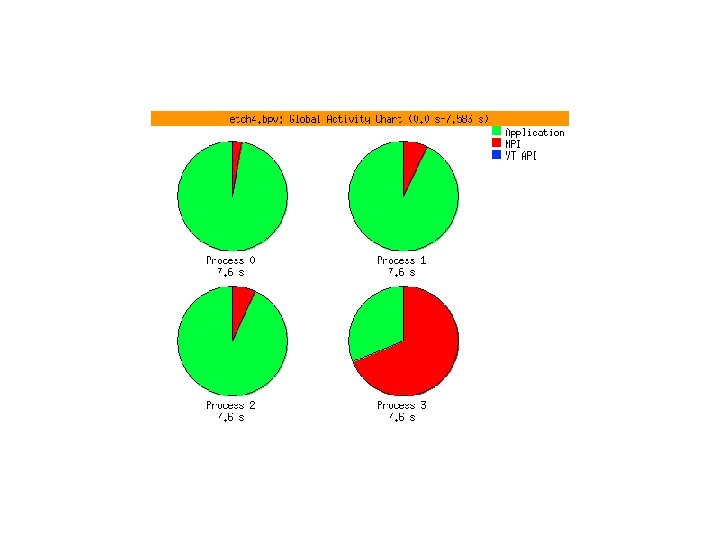
VAMPIR l. Much harder to debug and tune parallel programs than sequential ones. The reasons for performance problems, in particular, are notoriously hard to find. l. Assume that the performance is disappointing. Initially, the programmer has no idea where and for what to look to identify the performance bottleneck.
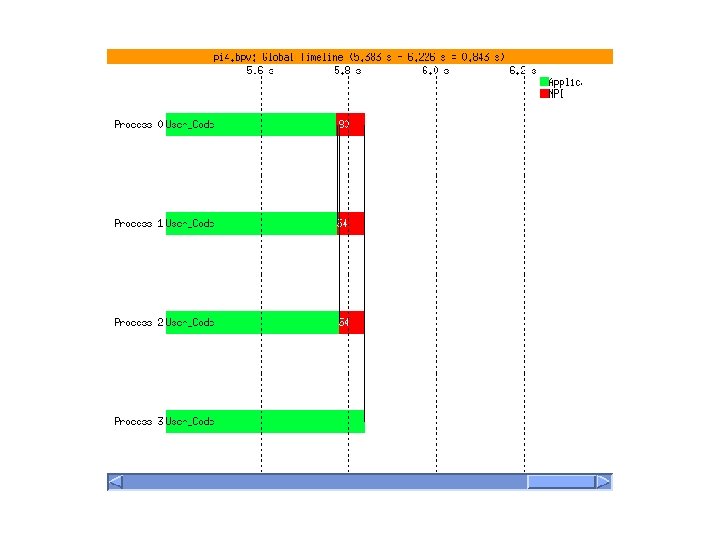
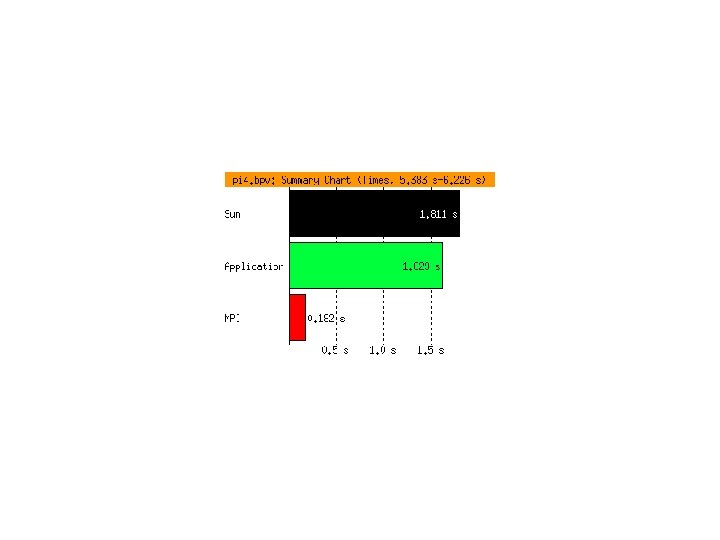
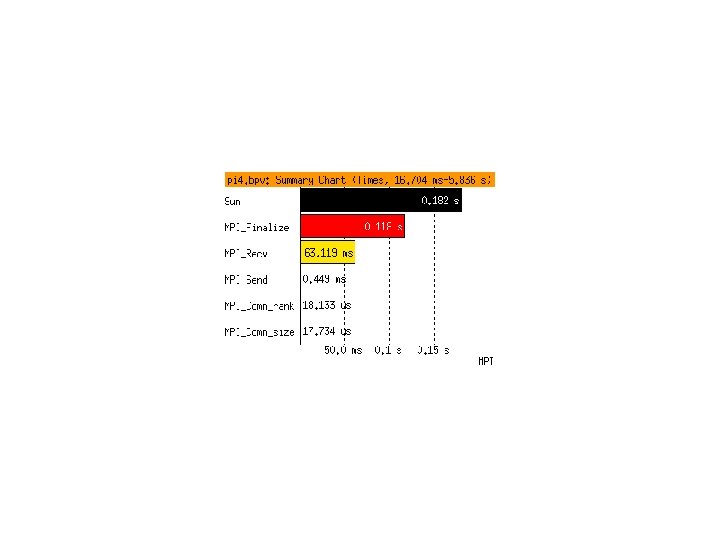
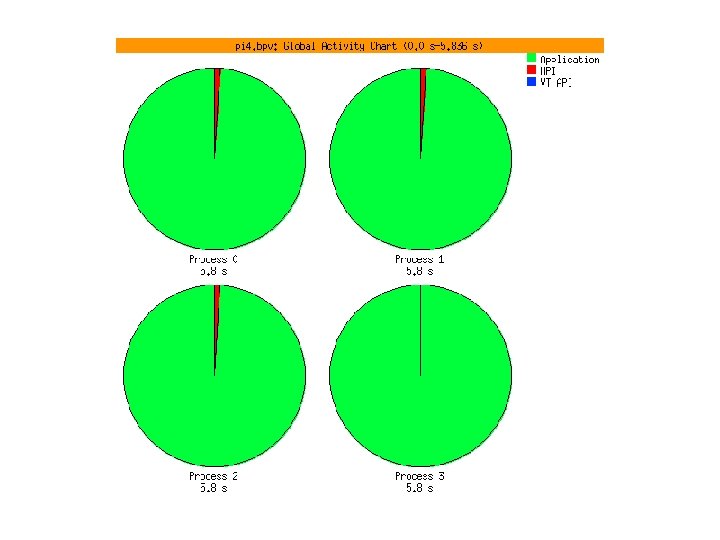
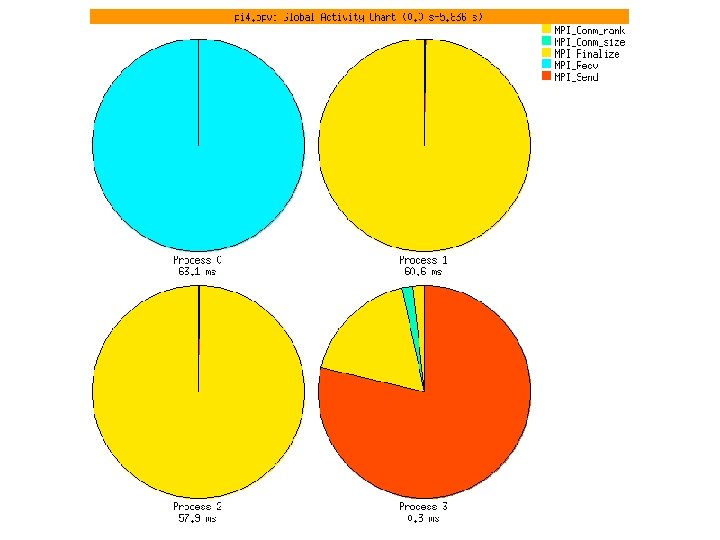
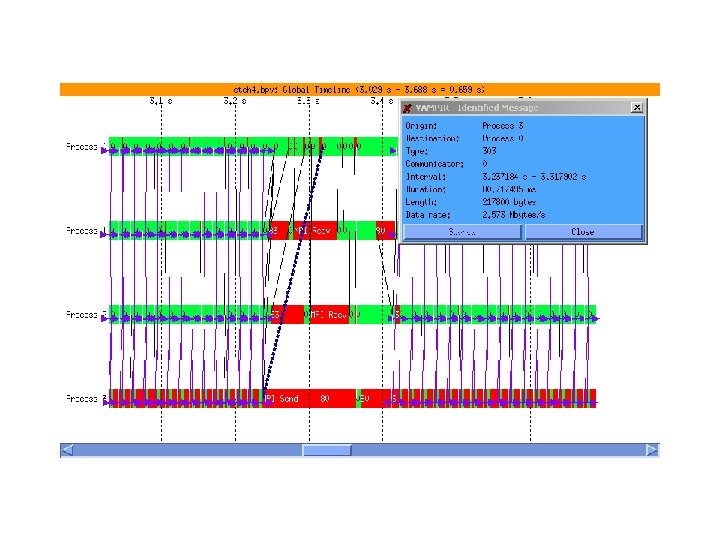
VAMPIR converts the trace information into a variety of graphical views, e. g. : ltimeline displays showing state changes and communication, lcommunication statistics indicating data volumes and transmission rates, and more.
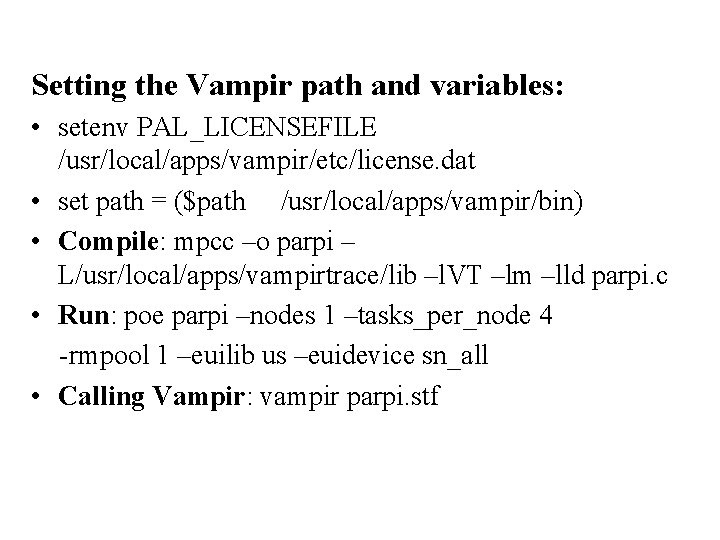
Setting the Vampir path and variables: • setenv PAL_LICENSEFILE /usr/local/apps/vampir/etc/license. dat • set path = ($path /usr/local/apps/vampir/bin) • Compile: mpcc –o parpi – L/usr/local/apps/vampirtrace/lib –l. VT –lm –lld parpi. c • Run: poe parpi –nodes 1 –tasks_per_node 4 -rmpool 1 –euilib us –euidevice sn_all • Calling Vampir: vampir parpi. stf

Total. View
Discovering Total. View The Etnus Total. View® debugger is a powerful, sophisticated, and programmable tool that allows you to debug, analyze, and tune the performance of complex serial, multiprocessor, and multithreaded programs. If you want to jump in and get started quickly, you should go to the Website at http: //www. etnus. com and select Total. View's "Getting Started" area. (It's the blue oval link on the right near the bottom. )
- Slides: 40