
Using One Drive LE SS ON 2 What
- Slides: 11
Using One Drive LE SS ON 2
What does it mean? ? One Drive in Office 365 will be like your work area in school. As it will be used throughout your school life, you will need to organise it properly so that you will be able to do work.
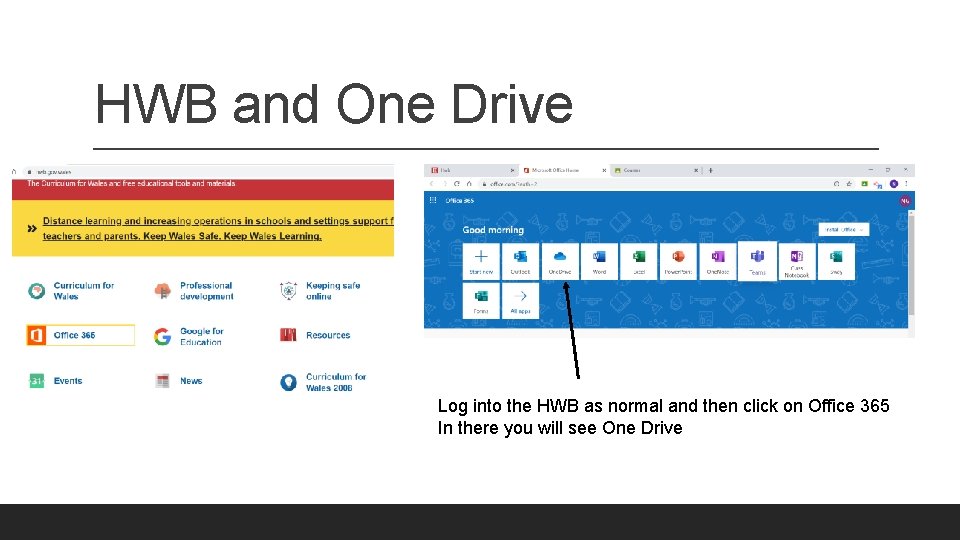
HWB and One Drive Log into the HWB as normal and then click on Office 365 In there you will see One Drive
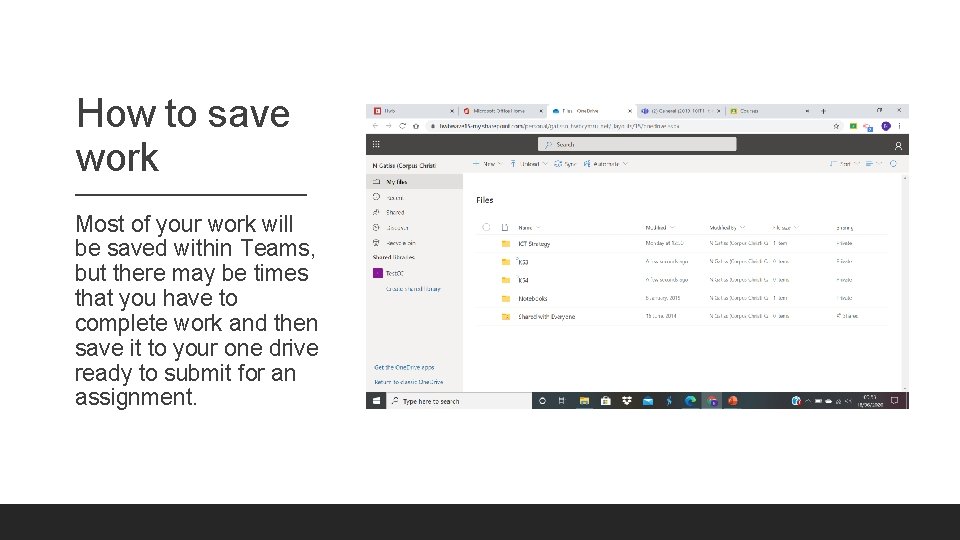
How to save work Most of your work will be saved within Teams, but there may be times that you have to complete work and then save it to your one drive ready to submit for an assignment.
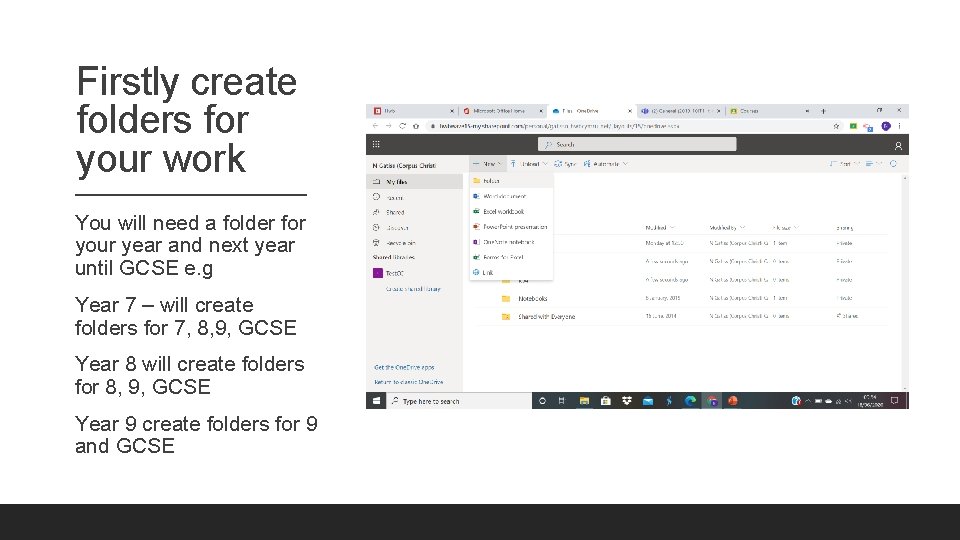
Firstly create folders for your work You will need a folder for your year and next year until GCSE e. g Year 7 – will create folders for 7, 8, 9, GCSE Year 8 will create folders for 8, 9, GCSE Year 9 create folders for 9 and GCSE
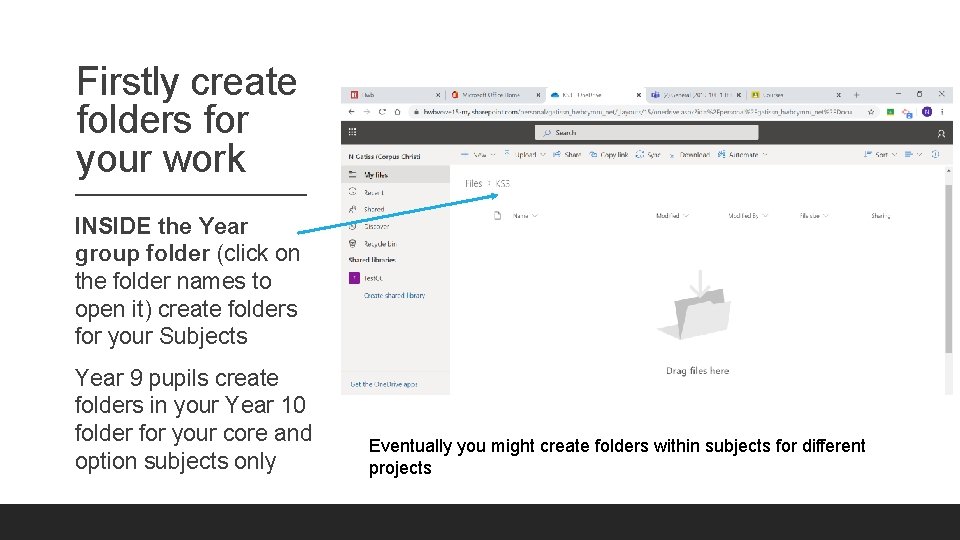
Firstly create folders for your work INSIDE the Year group folder (click on the folder names to open it) create folders for your Subjects Year 9 pupils create folders in your Year 10 folder for your core and option subjects only Eventually you might create folders within subjects for different projects
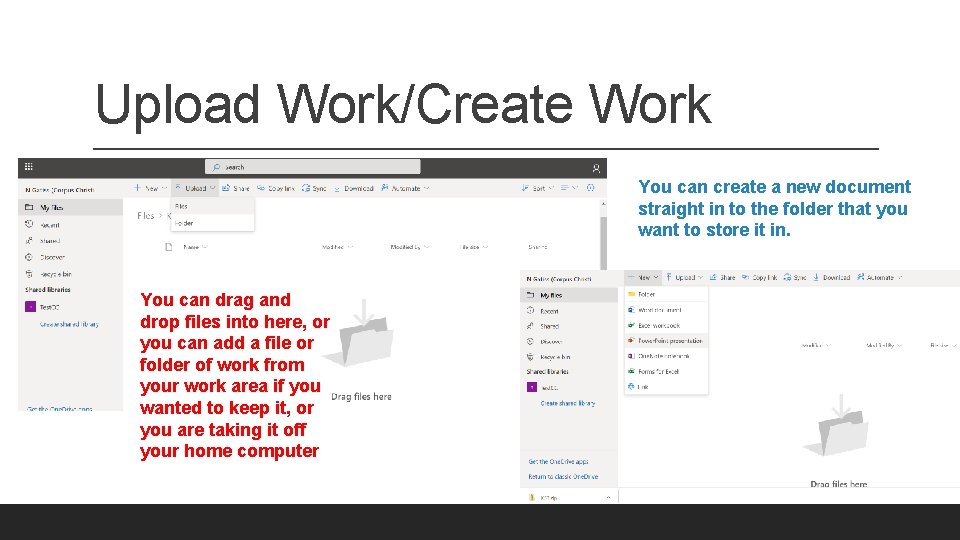
Upload Work/Create Work You can create a new document straight in to the folder that you want to store it in. You can drag and drop files into here, or you can add a file or folder of work from your work area if you wanted to keep it, or you are taking it off your home computer
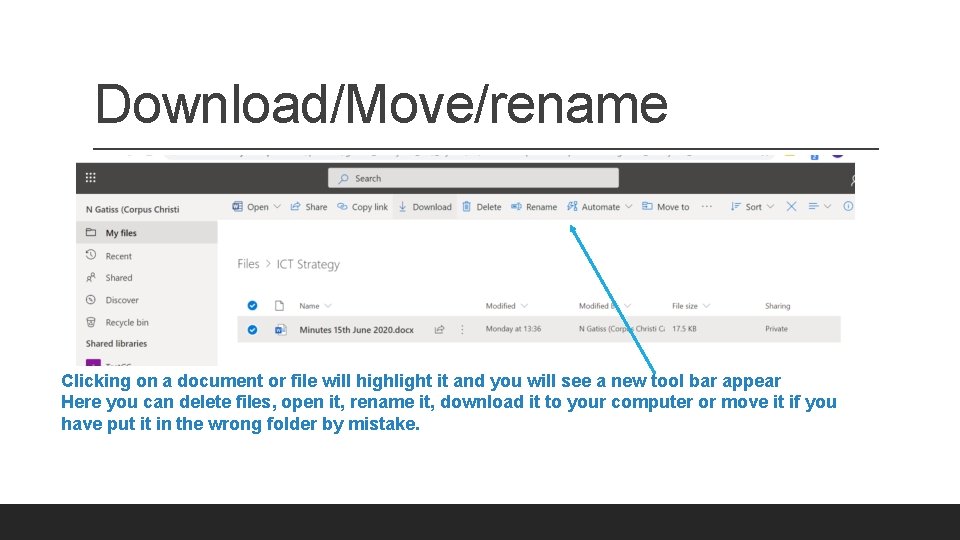
Download/Move/rename Clicking on a document or file will highlight it and you will see a new tool bar appear Here you can delete files, open it, rename it, download it to your computer or move it if you have put it in the wrong folder by mistake.
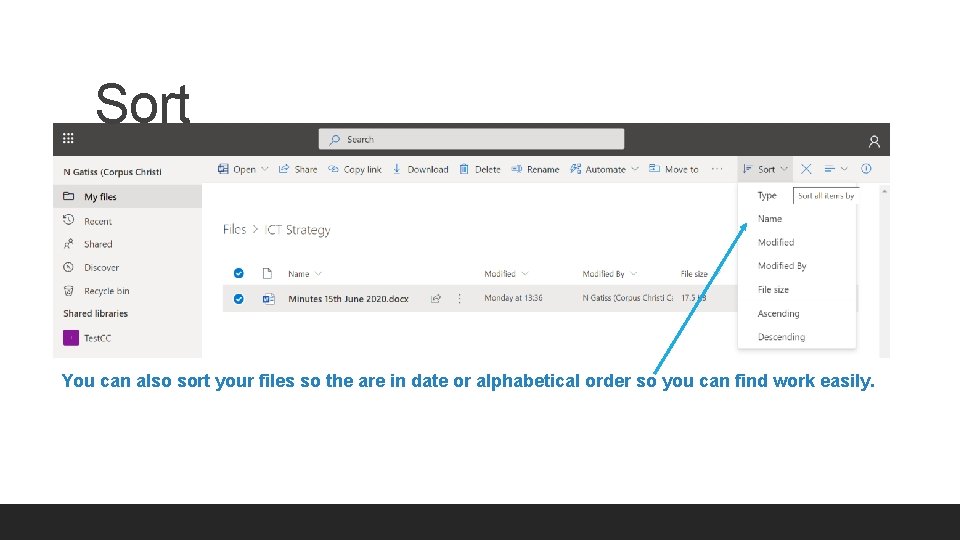
Sort You can also sort your files so the are in date or alphabetical order so you can find work easily.
Task Log into your HWB and go into Office 365. Then click on the One Drive and create your folders.
Any other questions on One Drive? Contact your class or form teacher first. If there are still problems please contact Nicola. gatiss@corpuschristihigh. school Or Mark. letman@corpuschristihigh. school