
Using Office 365 in the Classroom BY SARAH
Using Office 365 in the Classroom BY SARAH FLOYD
Office 365 in my Classroom I teach in the Smart. Lab at my school. While the Smart. Lab consists of many technologies that students get to experience, we use Office 365 daily for grades 3 -5. Some uses: q. Journaling q. Self-assessing q. Presenting q. Sharing
Things to Know q. Students must have school emails set up to use Office 365. q. Someone at an administrative level should be able to help you set up or locate your students’ emails. q. Make sure these emails are easy to remember (we use firstname. lastname@ourschooldistrict. org). q. Set every students’ password as the same thing (i. e. Password 1). q. Office 365 works best for students in grades 3 -5 because they have some computer skills and writing skills. q. Students need the process of using different aspects of Office 365 modeled for them for several weeks before they can automatically use it without help. q. Encourage students to help each other through this process (the Smart. Lab uses the “ 3 before me” rule). q. This is a great tool for teachers to check students’ understanding in this technological age.
Journaling q. In the Smart. Lab, students in grades 3 -5 journal about their learning experiences every day. The computers get wiped clean each time I shut them down, so the students have to save their work some other way. q. We use One. Note in Office 365 for journaling. It allows students to log into their account, open One. Note, copy the journal template I put into One. Note, and work on it under their own name. q. One. Note saves their changes automatically so they do not have to save to the computer and upload into Office 365 every day. q. First, the teacher has to create a Class Notebook. q. Once this is done, the students are made a member of the Class in their One. Note.
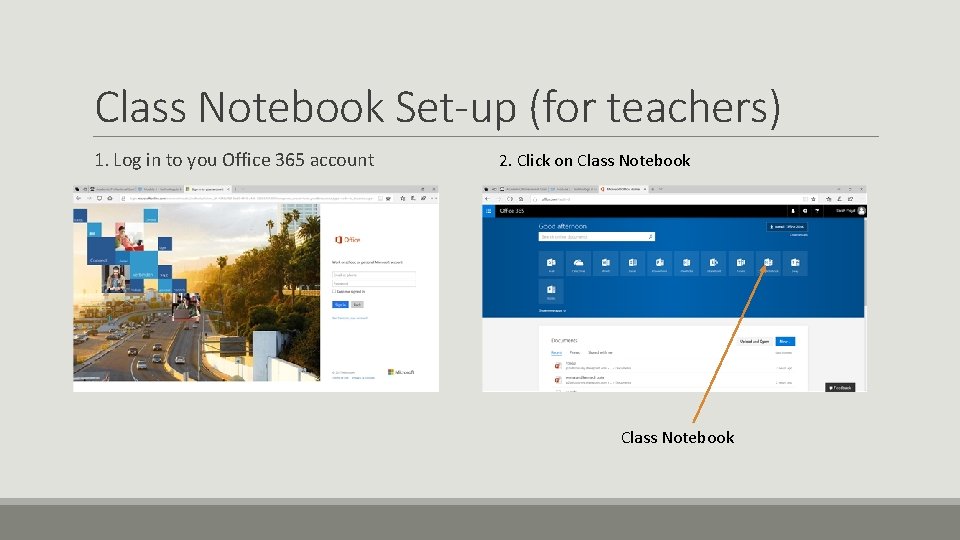
Class Notebook Set-up (for teachers) 1. Log in to you Office 365 account 2. Click on Class Notebook
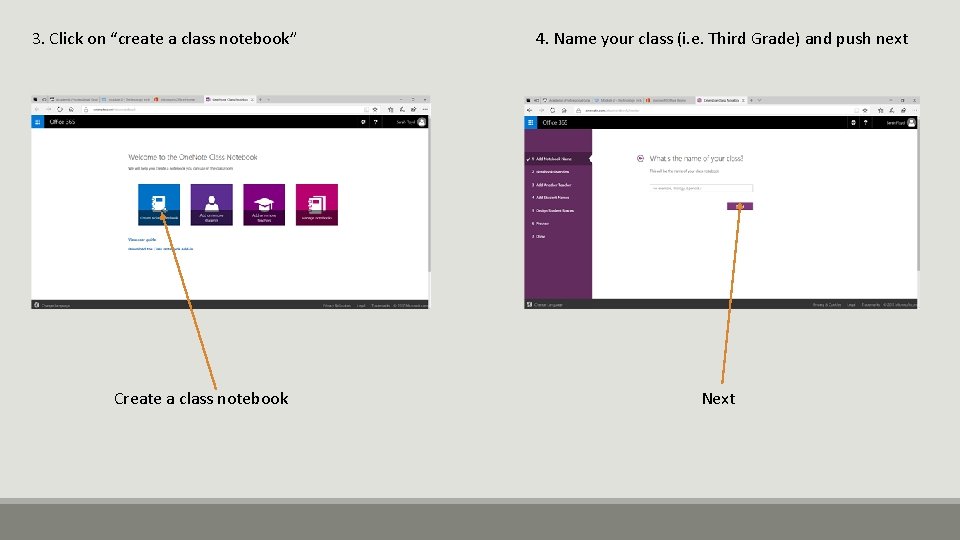
3. Click on “create a class notebook” Create a class notebook 4. Name your class (i. e. Third Grade) and push next Next
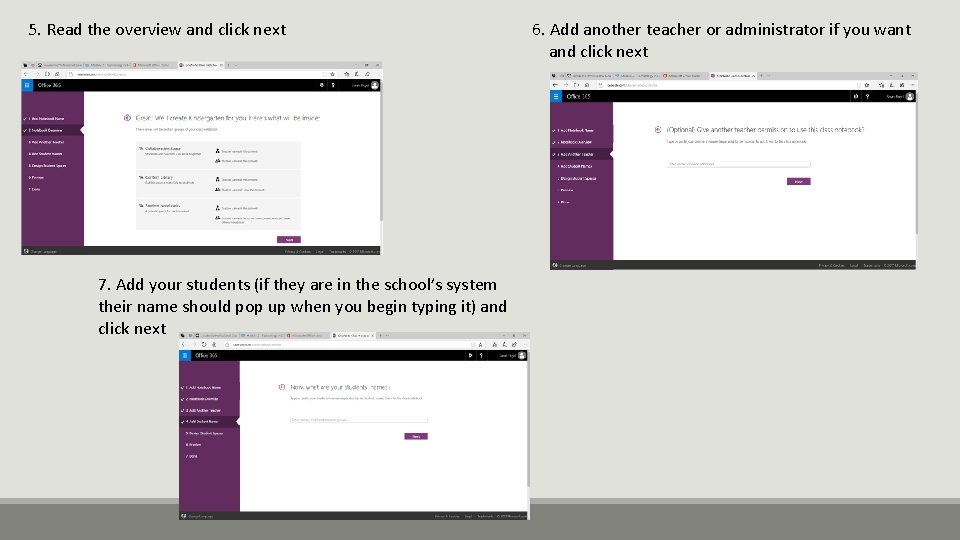
5. Read the overview and click next 7. Add your students (if they are in the school’s system their name should pop up when you begin typing it) and click next 6. Add another teacher or administrator if you want and click next
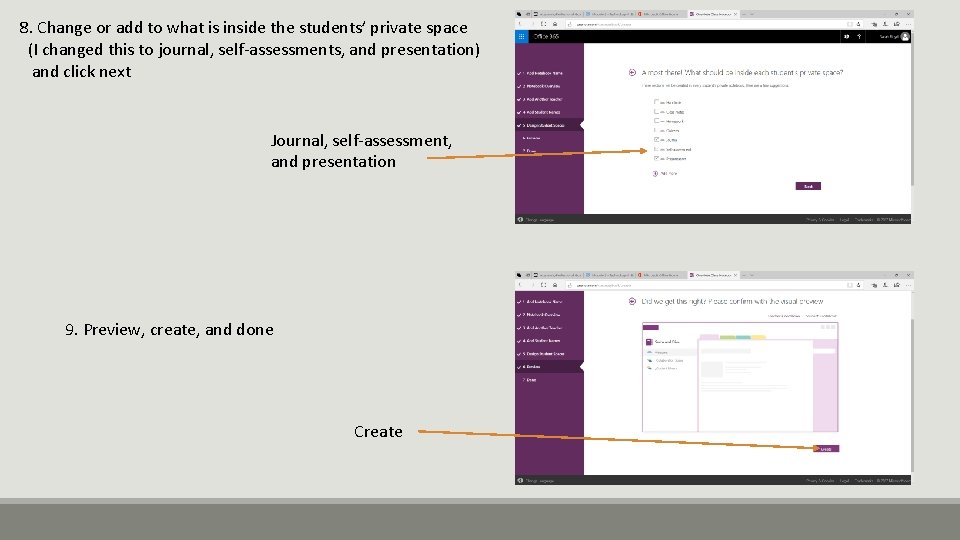
8. Change or add to what is inside the students’ private space (I changed this to journal, self-assessments, and presentation) and click next Journal, self-assessment, and presentation 9. Preview, create, and done Create
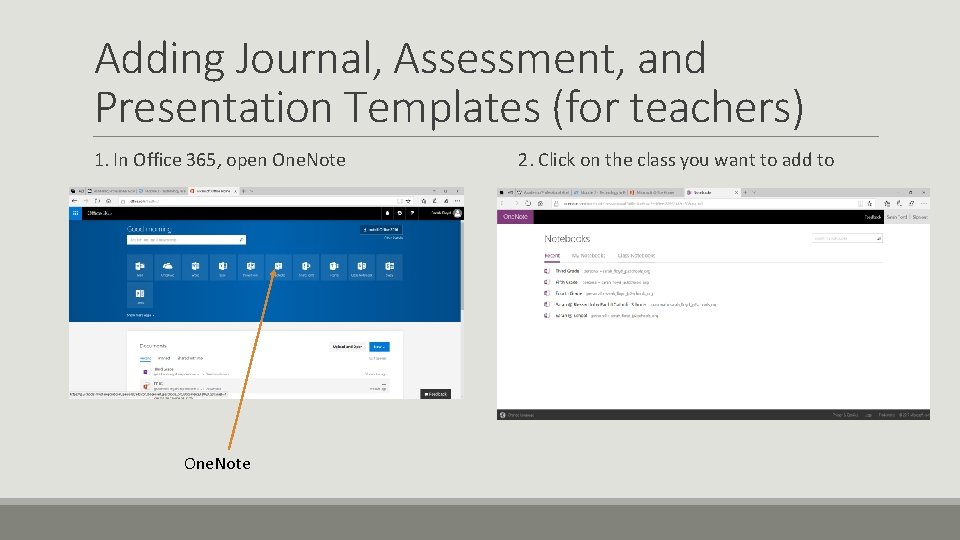
Adding Journal, Assessment, and Presentation Templates (for teachers) 1. In Office 365, open One. Note 2. Click on the class you want to add to
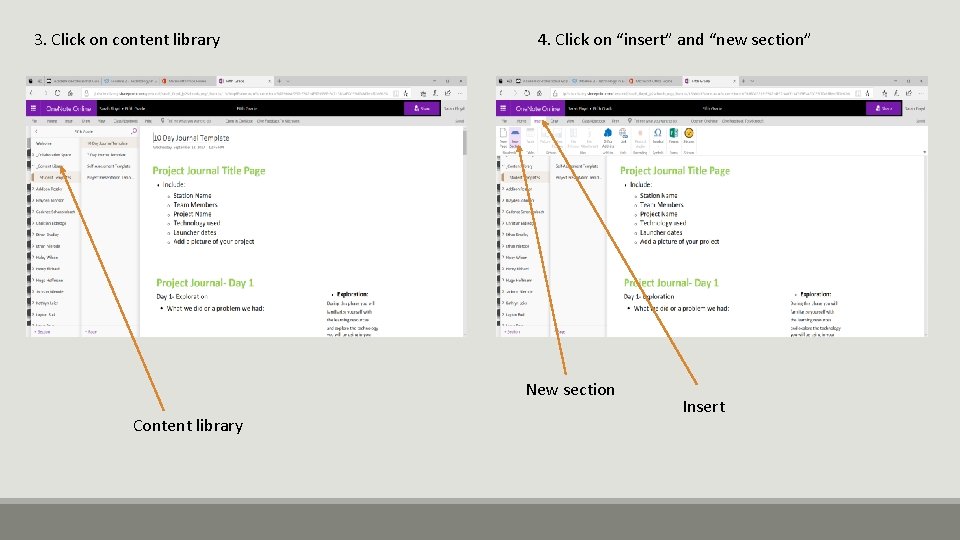
3. Click on content library 4. Click on “insert” and “new section” New section Content library Insert
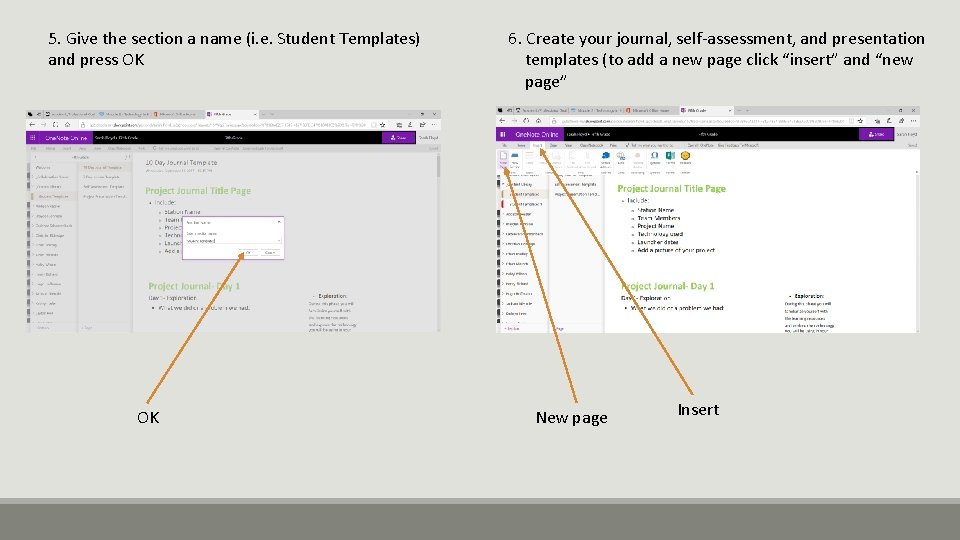
5. Give the section a name (i. e. Student Templates) and press OK OK 6. Create your journal, self-assessment, and presentation templates (to add a new page click “insert” and “new page” New page Insert
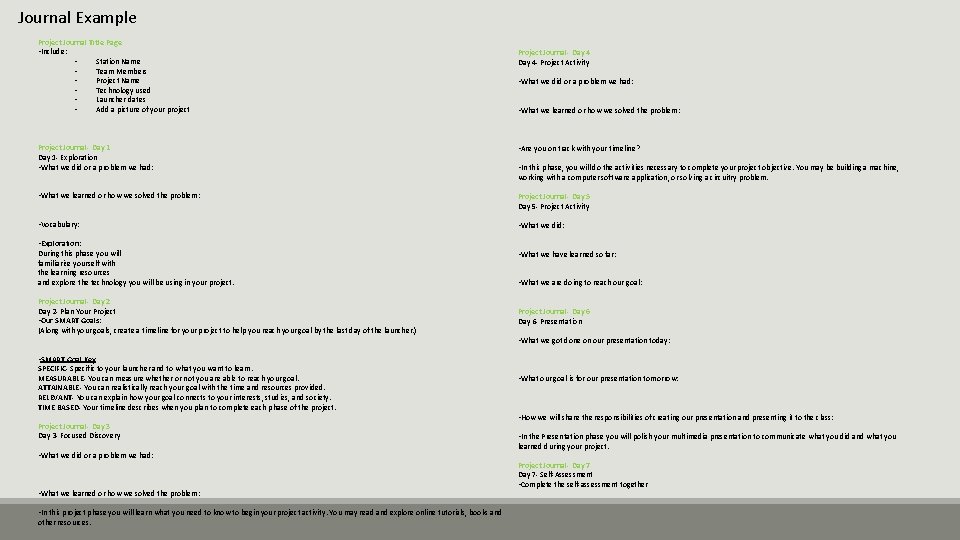
Journal Example Project Journal Title Page • Include: • Station Name • Team Members • Project Name • Technology used • Launcher dates • Add a picture of your project Project Journal- Day 1 - Exploration • What we did or a problem we had: Project Journal- Day 4 - Project Activity • What we did or a problem we had: • What we learned or how we solved the problem: • Are you on track with your timeline? • In this phase, you will do the activities necessary to complete your project objective. You may be building a machine, working with a computer software application, or solving a circuitry problem. • What we learned or how we solved the problem: Project Journal- Day 5 - Project Activity • Vocabulary: • What we did: • Exploration: During this phase you will familiarize yourself with the learning resources and explore the technology you will be using in your project. Project Journal- Day 2 - Plan Your Project • Our SMART Goals: (Along with your goals, create a timeline for your project to help you reach your goal by the last day of the launcher. ) • What we have learned so far: • What we are doing to reach our goal: Project Journal- Day 6 - Presentation • What we got done on our presentation today: • SMART Goal Key SPECIFIC- Specific to your launcher and to what you want to learn. MEASURABLE- You can measure whether or not you are able to reach your goal. ATTAINABLE- You can realistically reach your goal with the time and resources provided. RELEVANT- You can explain how your goal connects to your interests, studies, and society. TIME BASED- Your timeline describes when you plan to complete each phase of the project. Project Journal- Day 3 - Focused Discovery • What we did or a problem we had: • What we learned or how we solved the problem: • In this project phase you will learn what you need to know to begin your project activity. You may read and explore online tutorials, books and other resources. • What our goal is for our presentation tomorrow: • How we will share the responsibilities of creating our presentation and presenting it to the class: • In the Presentation phase you will polish your multimedia presentation to communicate what you did and what you learned during your project. Project Journal- Day 7 - Self-Assessment • Complete the self-assessment together
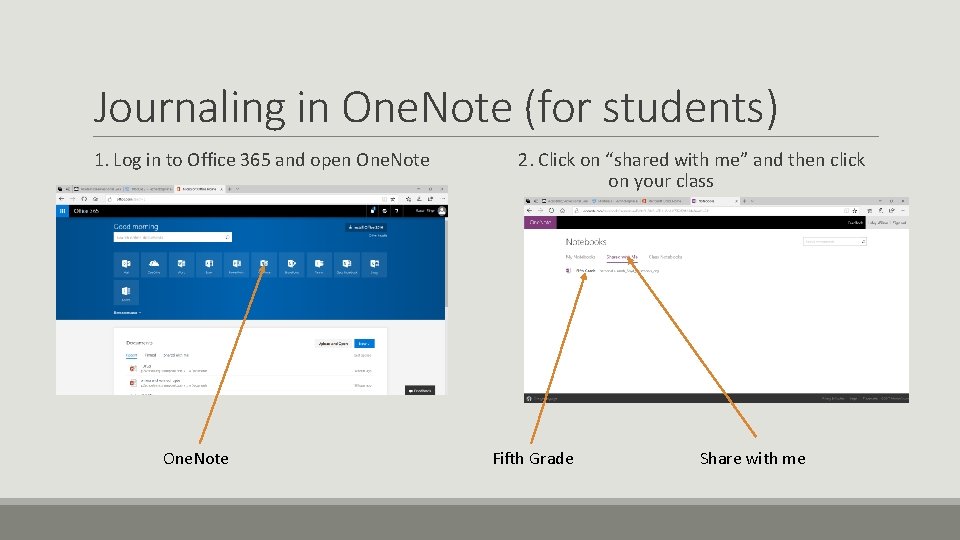
Journaling in One. Note (for students) 1. Log in to Office 365 and open One. Note 2. Click on “shared with me” and then click on your class Fifth Grade Share with me
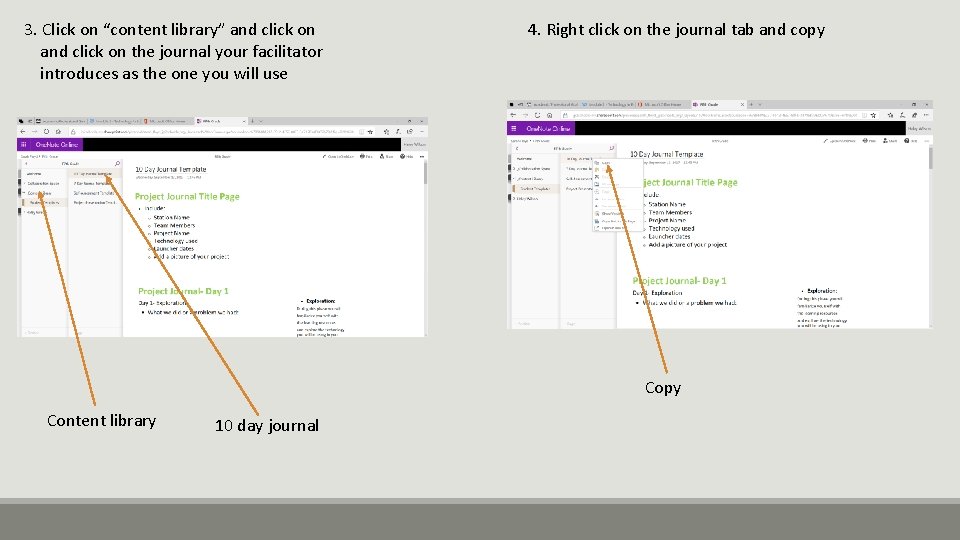
3. Click on “content library” and click on the journal your facilitator introduces as the one you will use 4. Right click on the journal tab and copy Content library 10 day journal
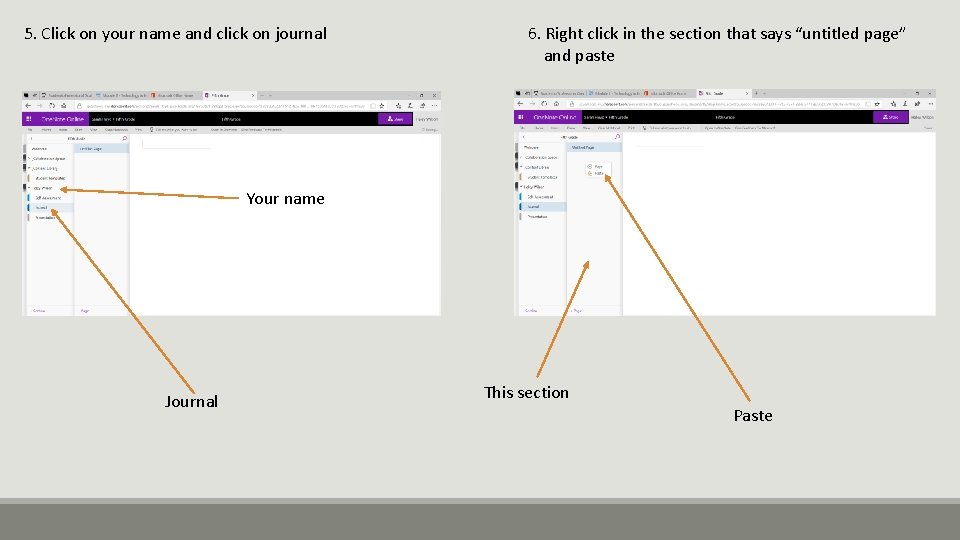
5. Click on your name and click on journal 6. Right click in the section that says “untitled page” and paste Your name Journal This section Paste
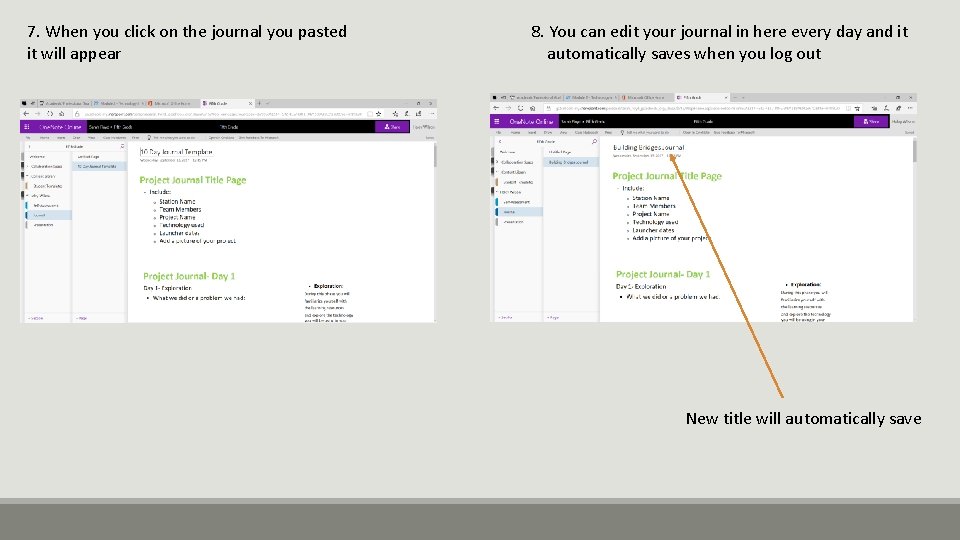
7. When you click on the journal you pasted it will appear 8. You can edit your journal in here every day and it automatically saves when you log out New title will automatically save
Self-assessing in One. Note (for students) q. Students will follow the same instructions for journaling in One. Note for the self-assessments. q. They have to copy and paste the self-assessment into their own name. q. Then they can edit the self-assessment in One. Note under their name and it will save automatically when they log out. q. The teacher can also edit the students’ self-assessments and add in the scores or feedback that they want the students to be able to see.
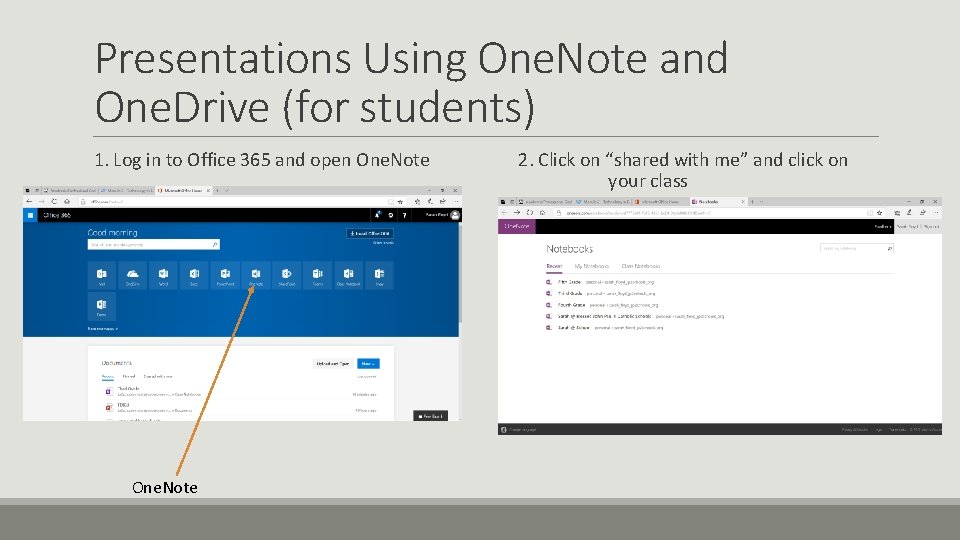
Presentations Using One. Note and One. Drive (for students) 1. Log in to Office 365 and open One. Note 2. Click on “shared with me” and click on your class
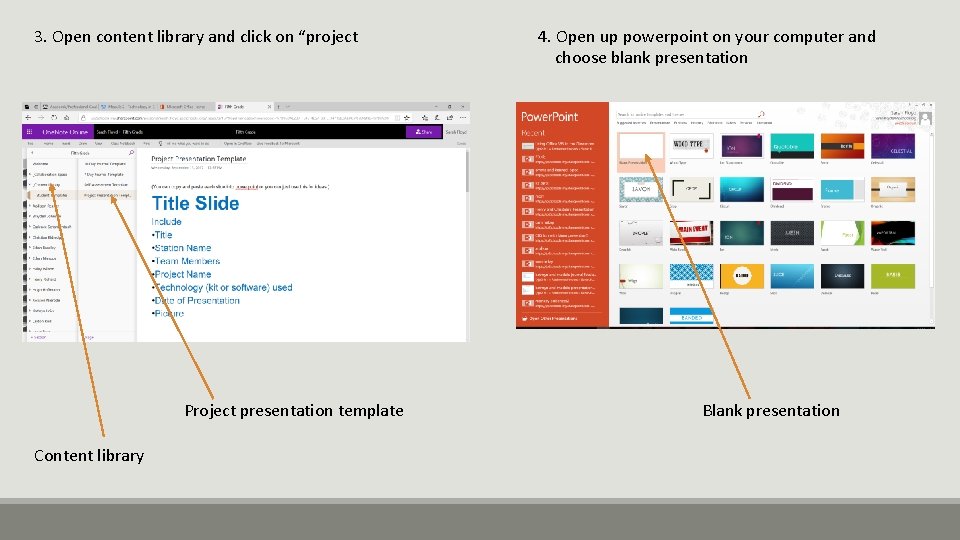
3. Open content library and click on “project Project presentation template Content library 4. Open up powerpoint on your computer and choose blank presentation Blank presentation
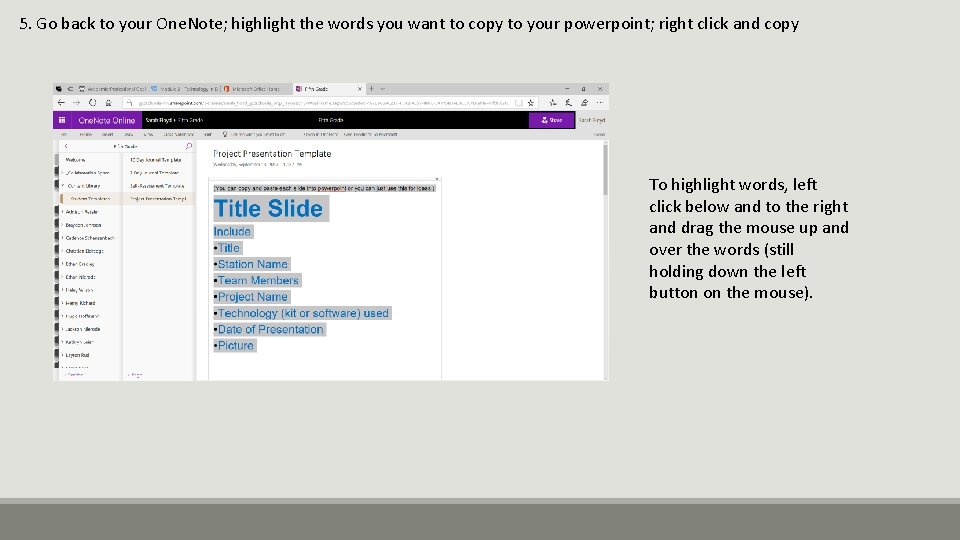
5. Go back to your One. Note; highlight the words you want to copy to your powerpoint; right click and copy To highlight words, left click below and to the right and drag the mouse up and over the words (still holding down the left button on the mouse).
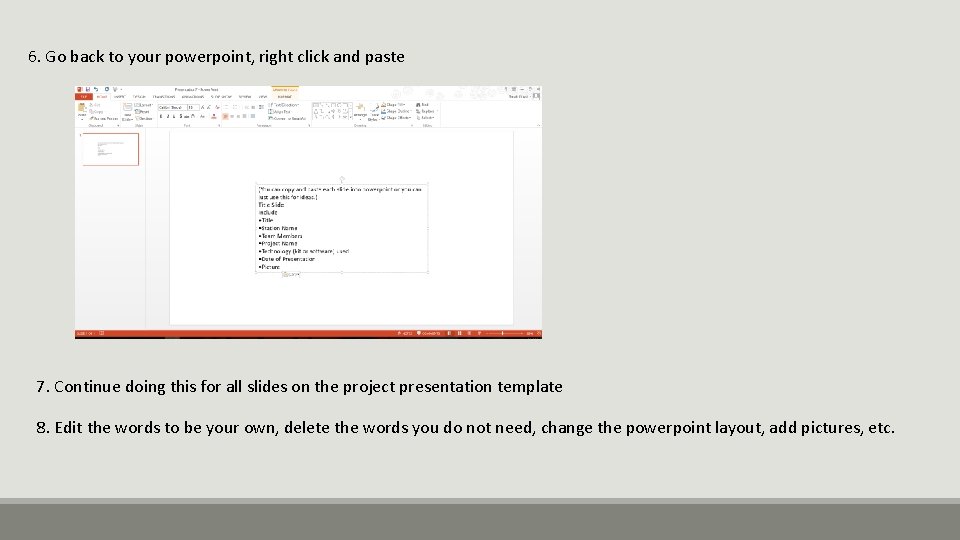
6. Go back to your powerpoint, right click and paste 7. Continue doing this for all slides on the project presentation template 8. Edit the words to be your own, delete the words you do not need, change the powerpoint layout, add pictures, etc.
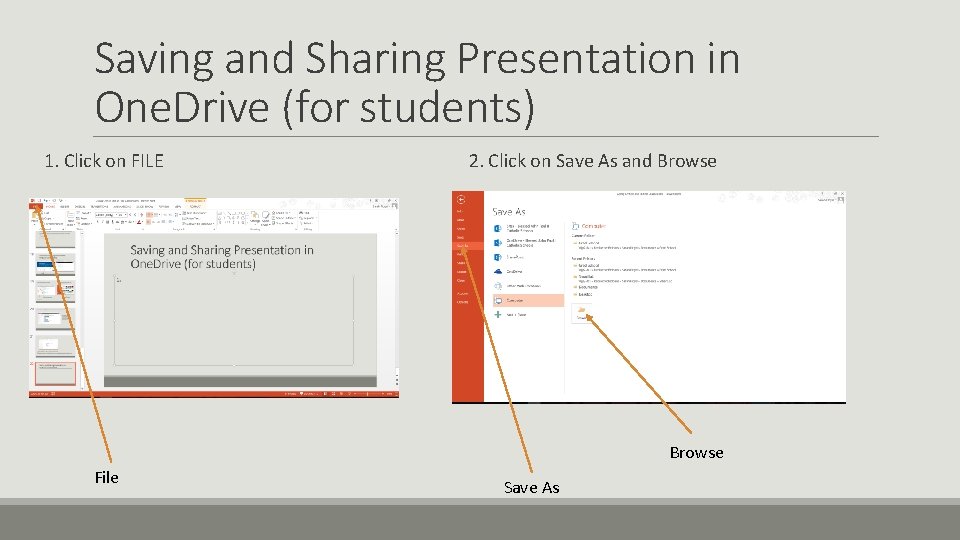
Saving and Sharing Presentation in One. Drive (for students) 1. Click on FILE 2. Click on Save As and Browse File Save As
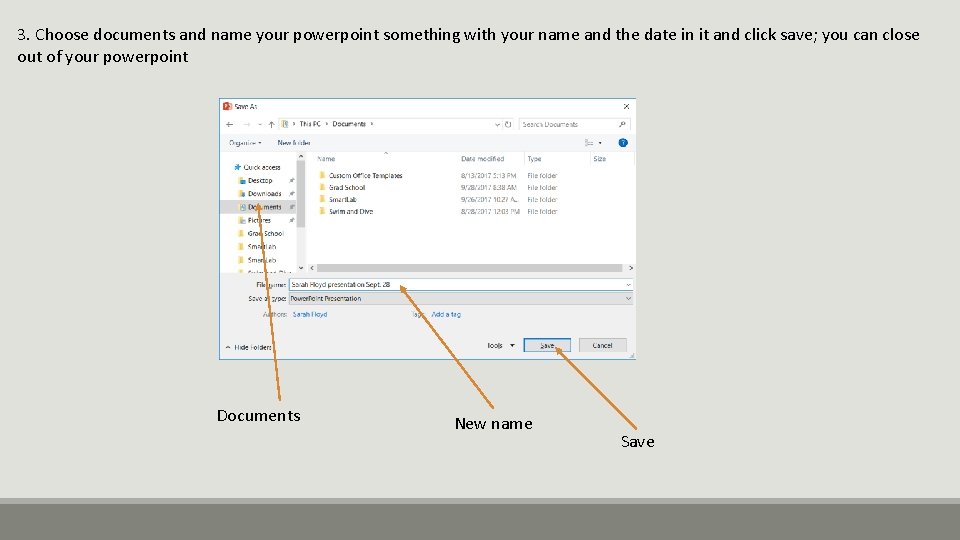
3. Choose documents and name your powerpoint something with your name and the date in it and click save; you can close out of your powerpoint Documents New name Save
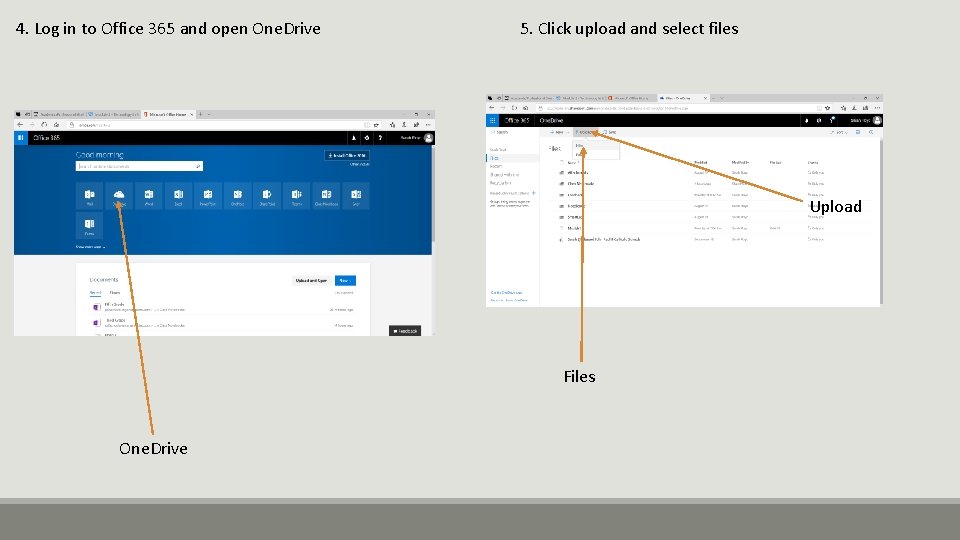
4. Log in to Office 365 and open One. Drive 5. Click upload and select files Upload Files One. Drive
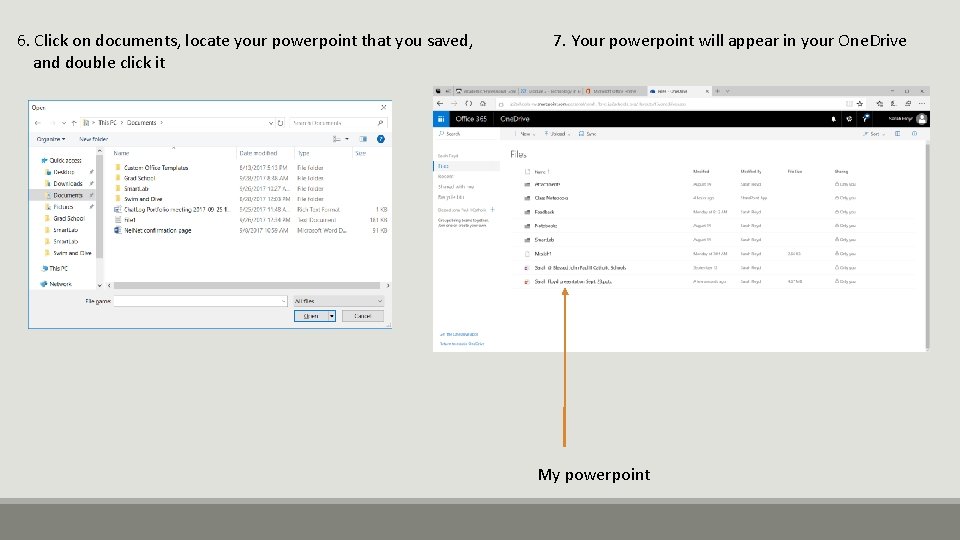
6. Click on documents, locate your powerpoint that you saved, and double click it 7. Your powerpoint will appear in your One. Drive My powerpoint
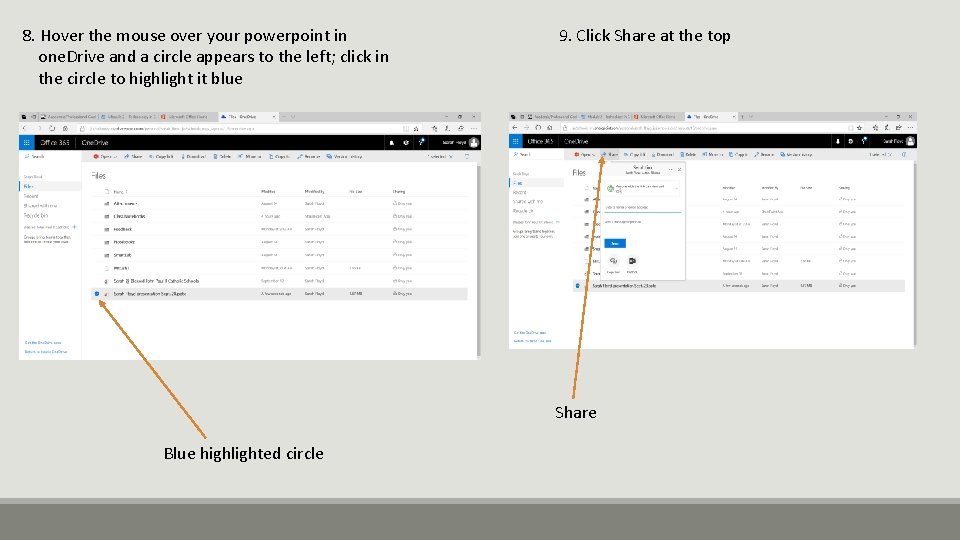
8. Hover the mouse over your powerpoint in one. Drive and a circle appears to the left; click in the circle to highlight it blue 9. Click Share at the top Share Blue highlighted circle
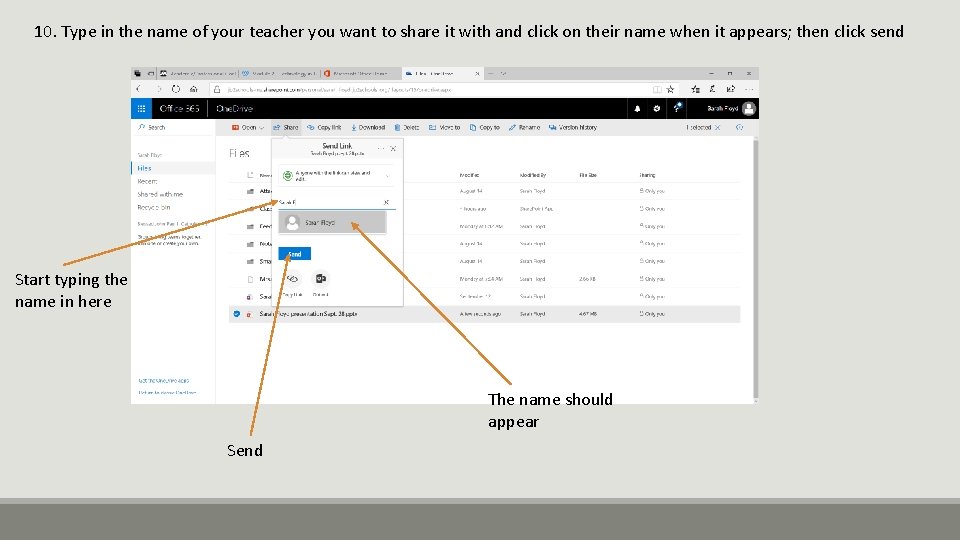
10. Type in the name of your teacher you want to share it with and click on their name when it appears; then click send Start typing the name in here The name should appear Send
Reflection q. Using Office 365 in the classroom falls into the Augmentation section of SAMR. q. Office 365 is a substitute for saving to files in the computer and getting a copy to the teacher in some other form, like through attaching it to an email or printing it out on paper. q. It also has functional improvement because while documents on the computer could (and do) get wiped clean, the items students complete and save into their Office 365 account will be there forever. q. Further, the students are able to share with the teacher in just a couple of clicks and the teacher is able to go into the students’ work in One. Note and view it/give feedback. q. Finally, the teacher can share templates/expectations with students in Office 365 instead of providing a hard copy. q. One step that I have not implemented yet that would make this tool even more of an improvement is showing parents how to access their children’s work in Office 365. q. Parents could log in to their child’s account or I could find a way to add them to the Class Notebook so they are able to see what their child is doing. q. This would be a great way to involve parents.
- Slides: 28