
Using NJDEP Online to Create and Submit Annual
Using NJDEP Online to Create and Submit Annual Compliance Certification & Six Month Deviation Reports October 2009 State of New Jersey Department of Environmental Protection 1
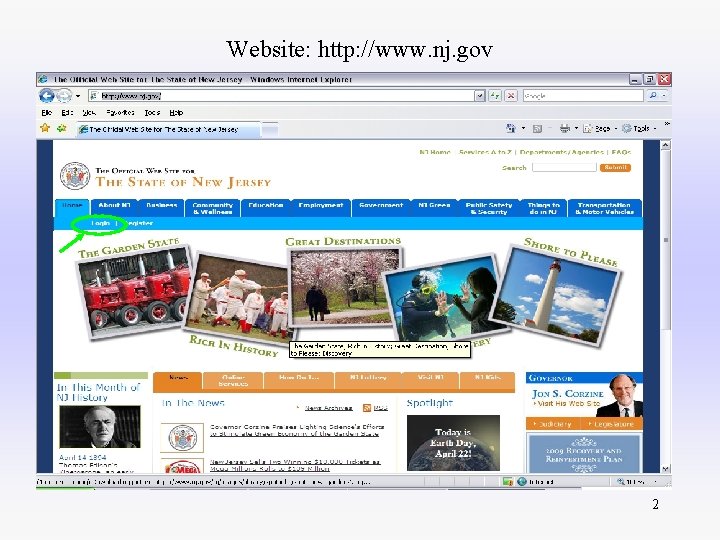
Website: http: //www. nj. gov 2
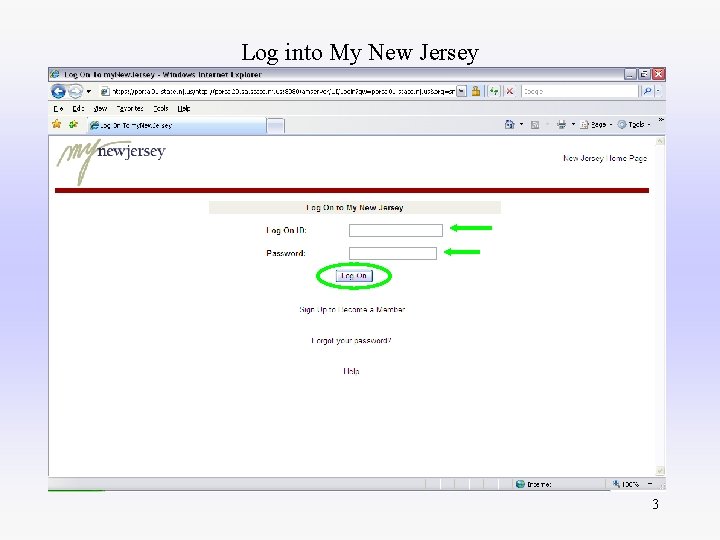
Log into My New Jersey 3
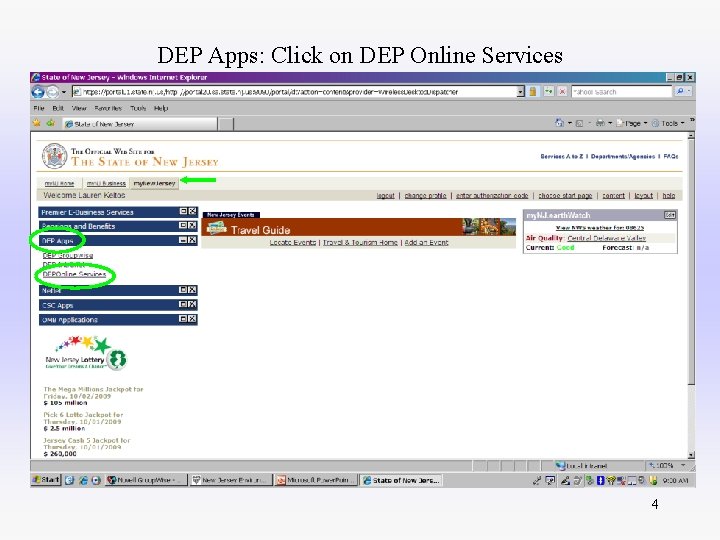
DEP Apps: Click on DEP Online Services 4
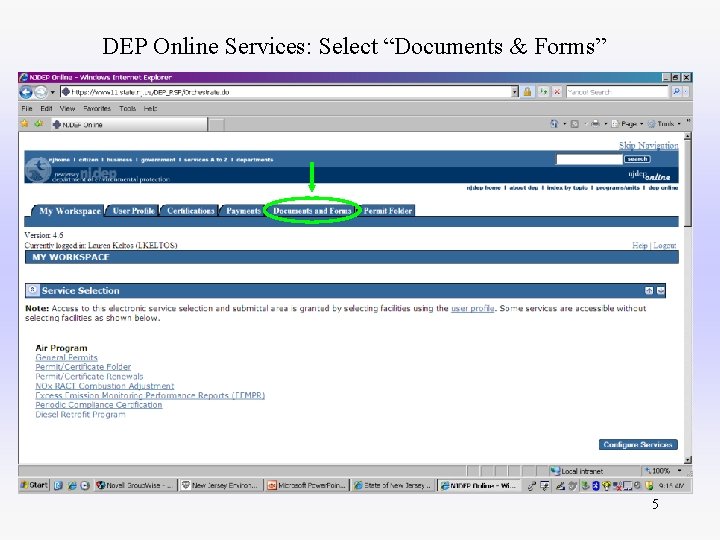
DEP Online Services: Select “Documents & Forms” 5
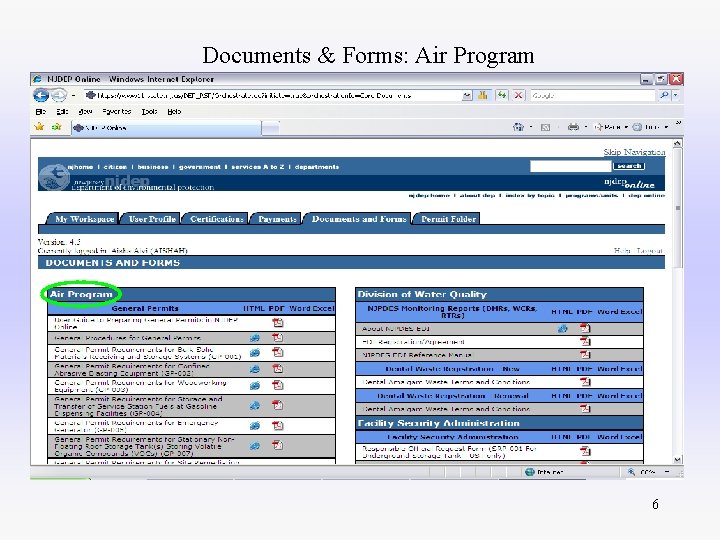
Documents & Forms: Air Program 6
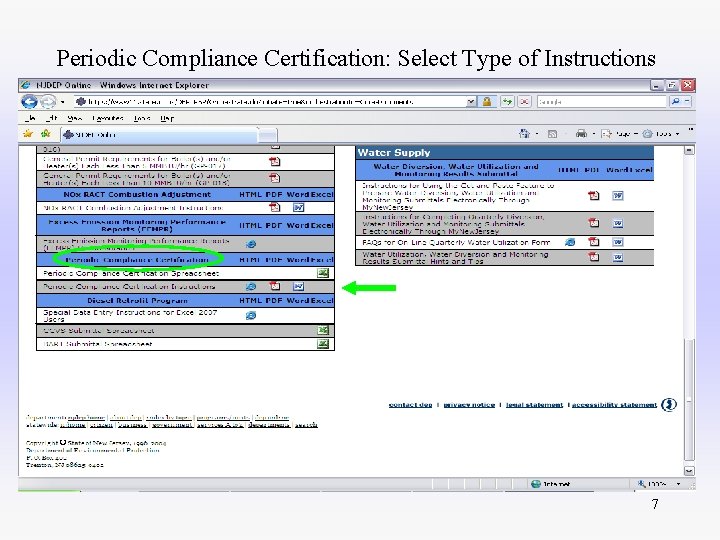
Periodic Compliance Certification: Select Type of Instructions 7
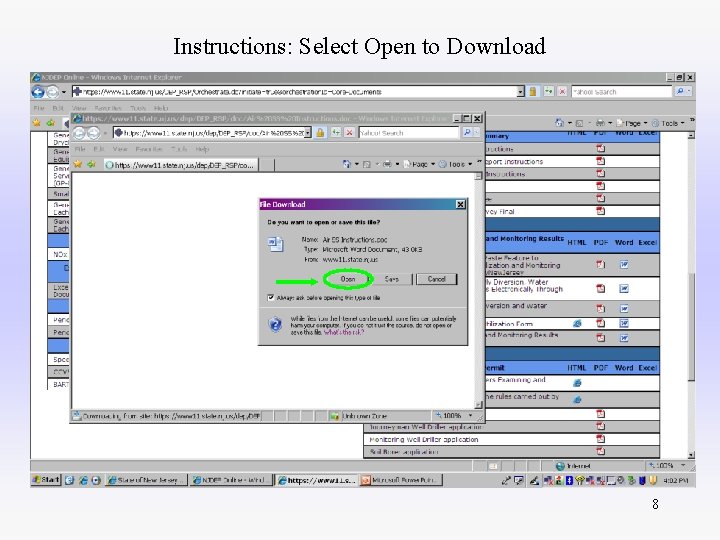
Instructions: Select Open to Download 8
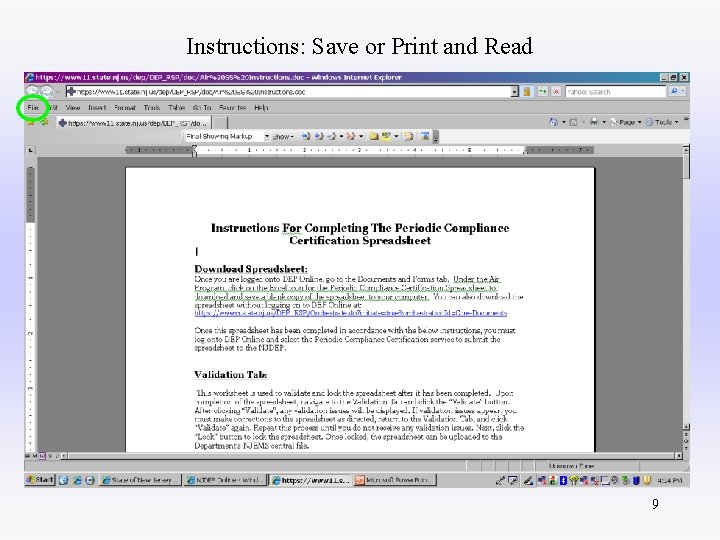
Instructions: Save or Print and Read 9
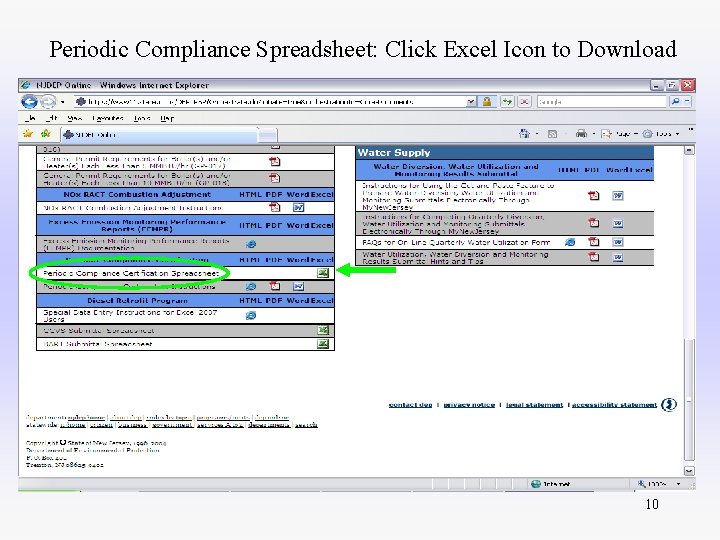
Periodic Compliance Spreadsheet: Click Excel Icon to Download 10
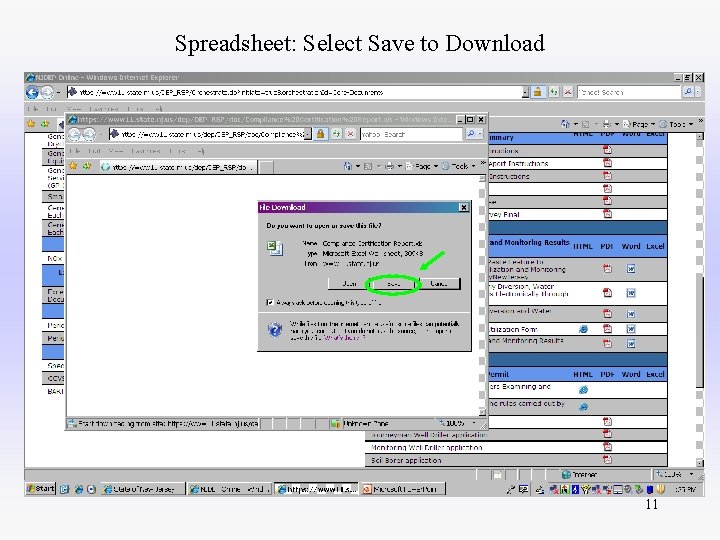
Spreadsheet: Select Save to Download 11
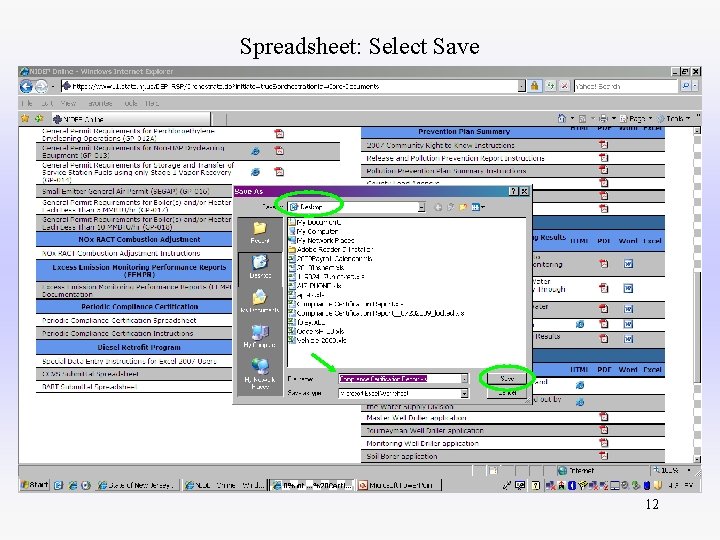
Spreadsheet: Select Save 12
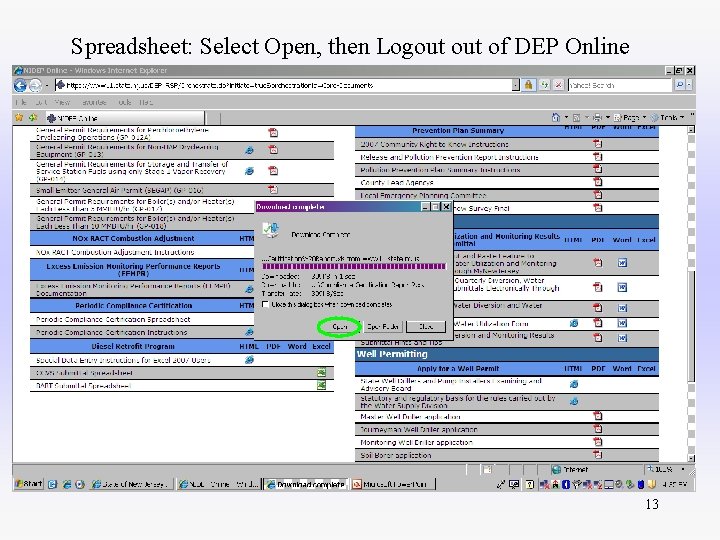
Spreadsheet: Select Open, then Logout of DEP Online 13
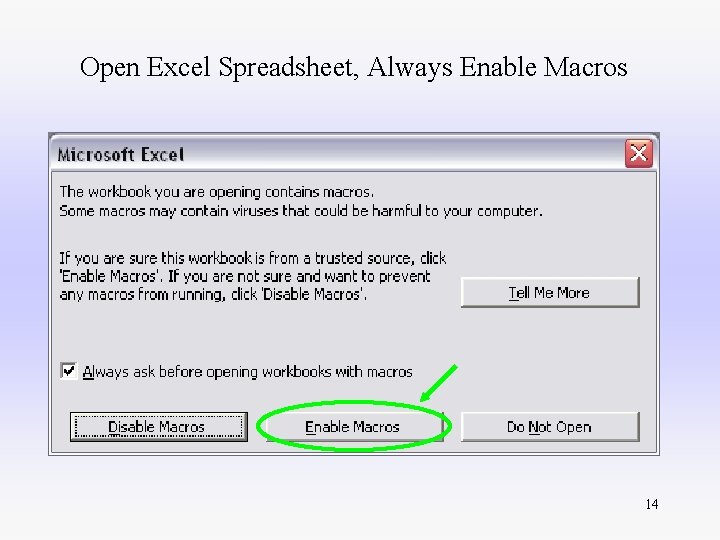
Open Excel Spreadsheet, Always Enable Macros 14
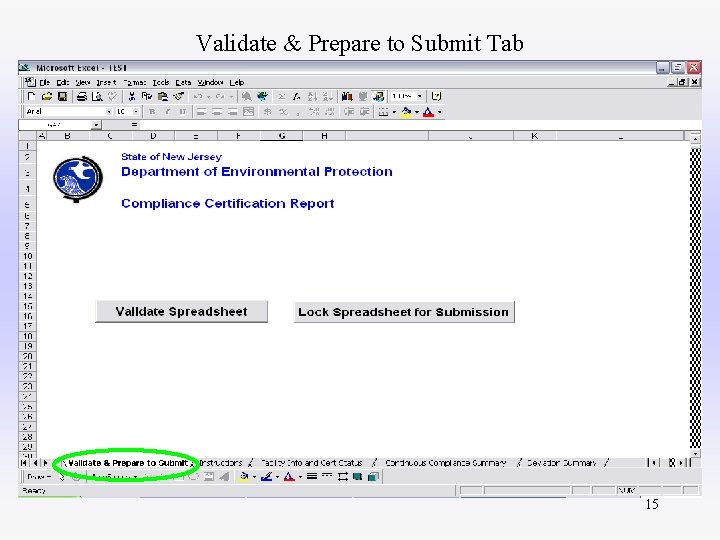
Validate & Prepare to Submit Tab 15
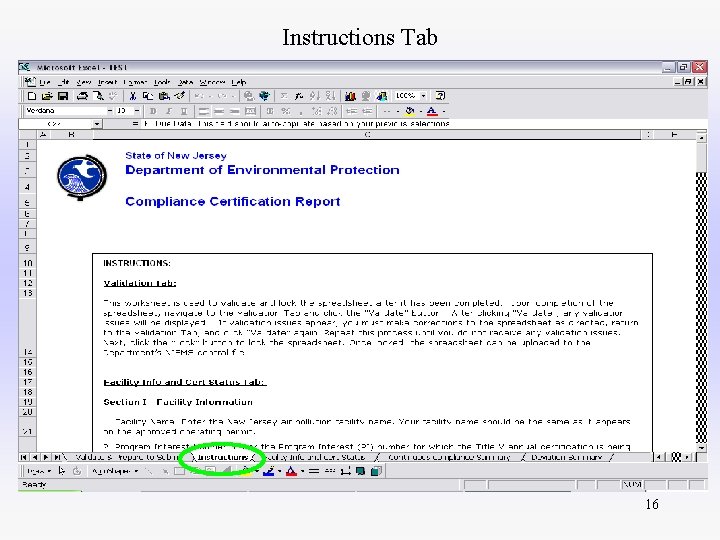
Instructions Tab 16
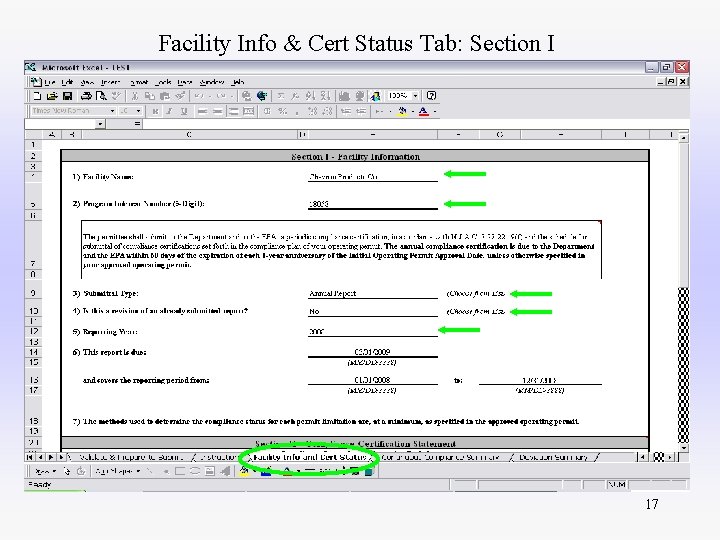
Facility Info & Cert Status Tab: Section I 17
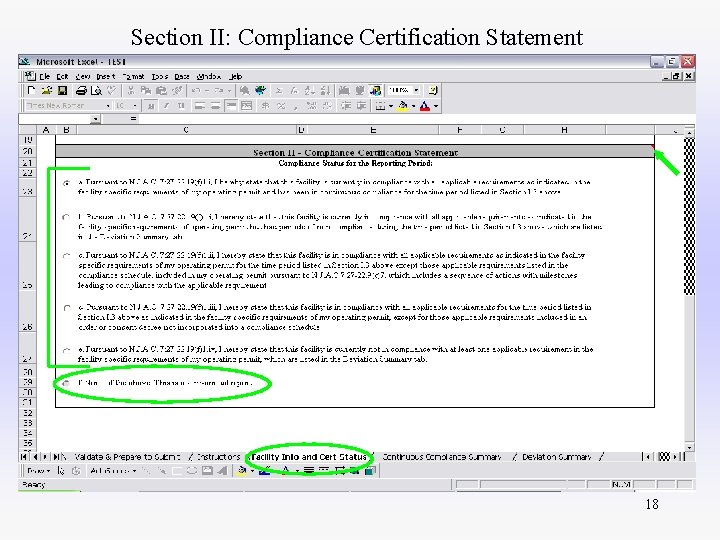
Section II: Compliance Certification Statement 18
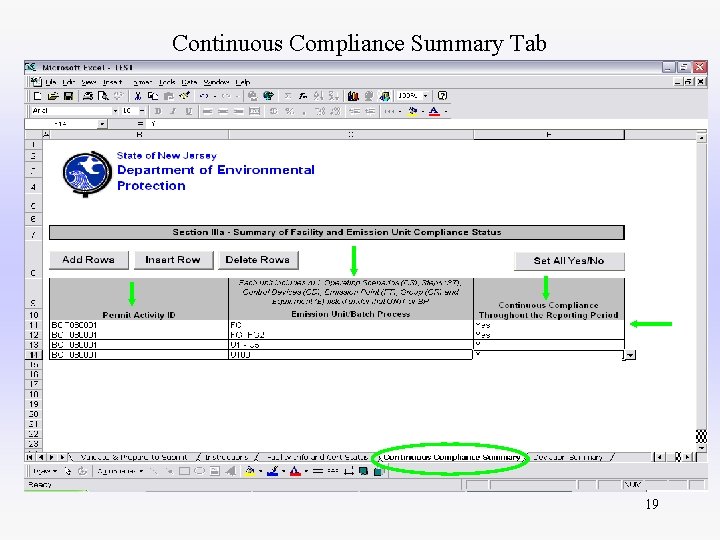
Continuous Compliance Summary Tab 19
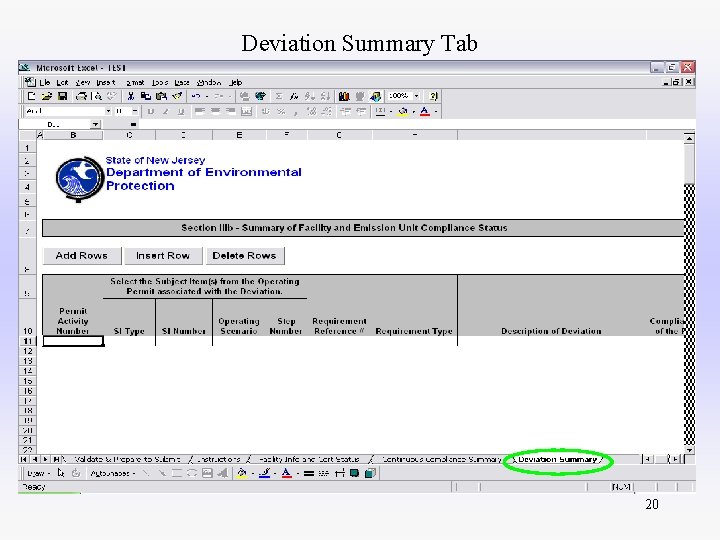
Deviation Summary Tab 20
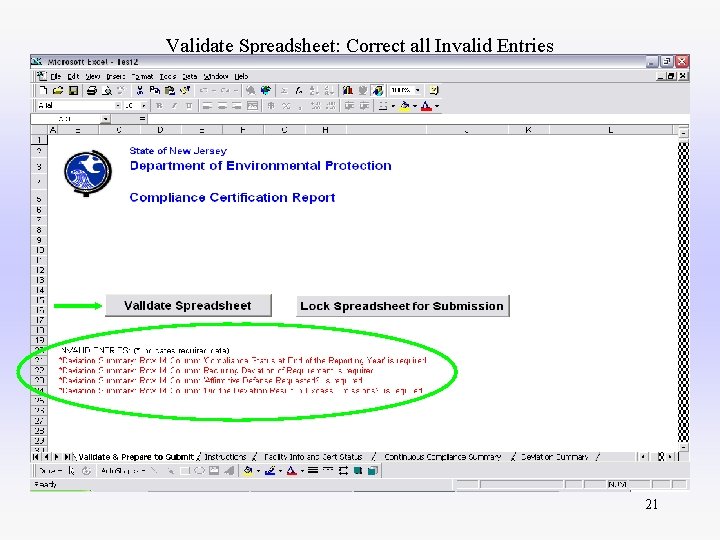
Validate Spreadsheet: Correct all Invalid Entries 21
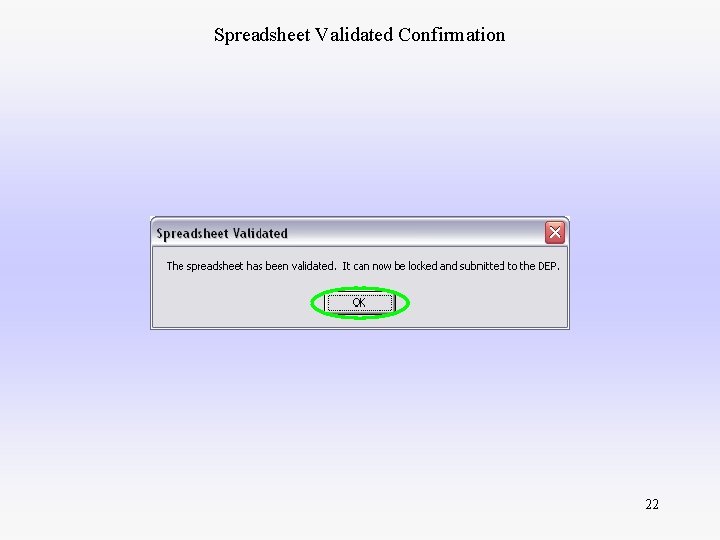
Spreadsheet Validated Confirmation 22
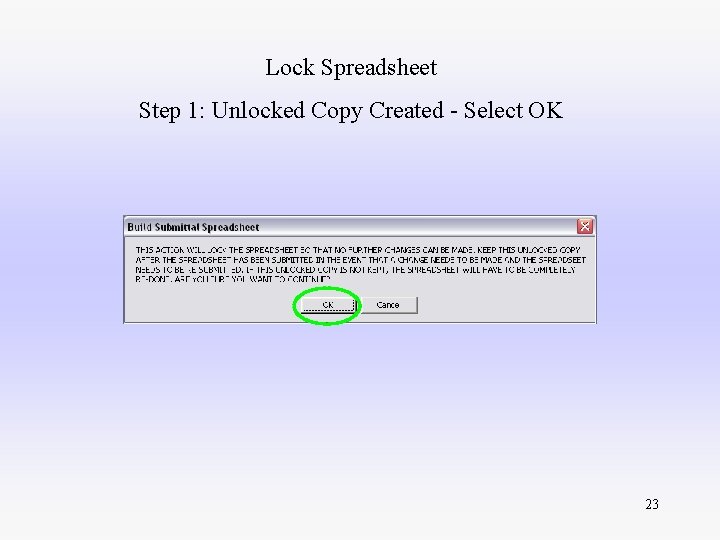
Lock Spreadsheet Step 1: Unlocked Copy Created - Select OK 23
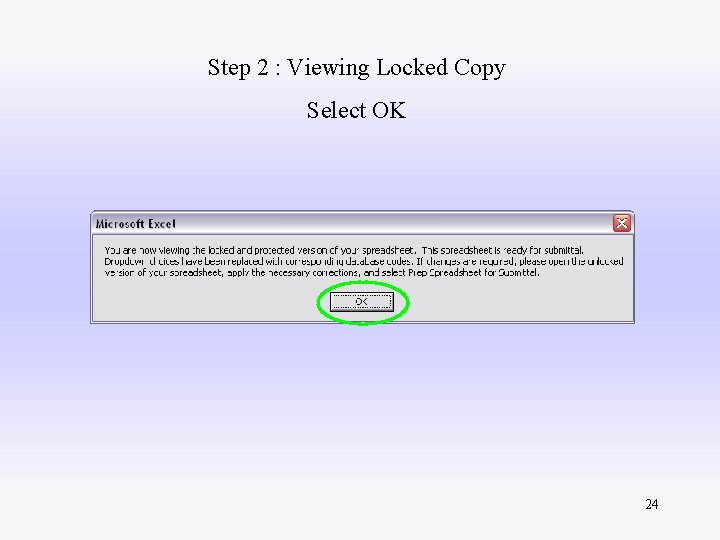
Step 2 : Viewing Locked Copy Select OK 24
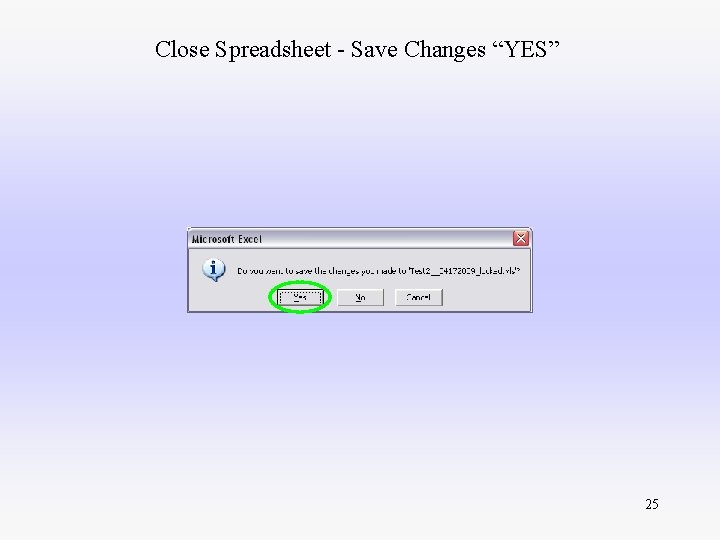
Close Spreadsheet - Save Changes “YES” 25
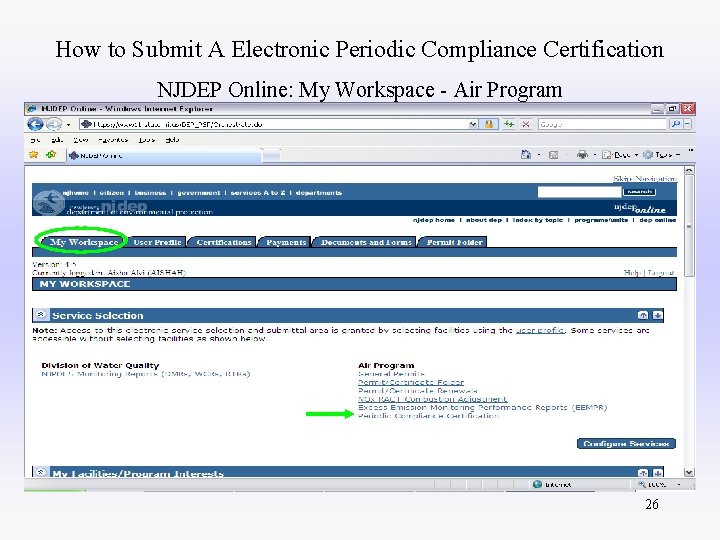
How to Submit A Electronic Periodic Compliance Certification NJDEP Online: My Workspace - Air Program 26
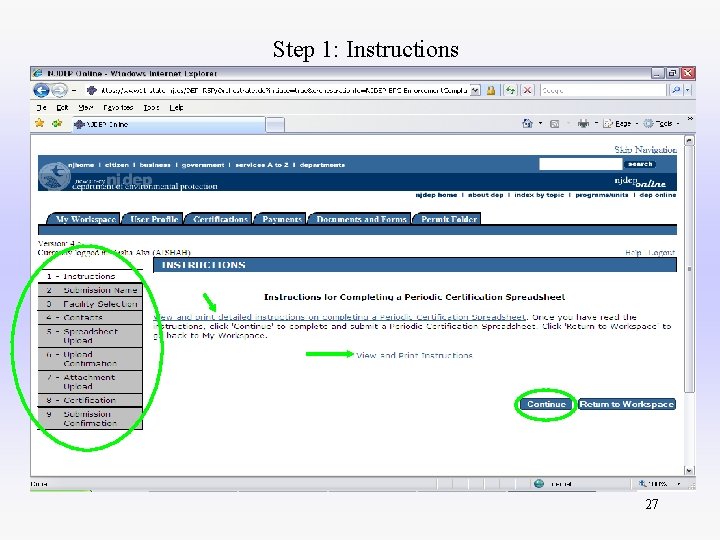
Step 1: Instructions 27
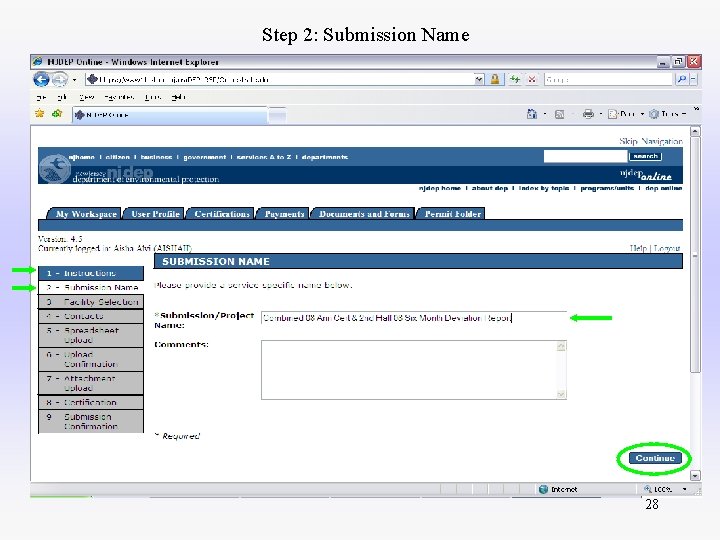
Step 2: Submission Name 28
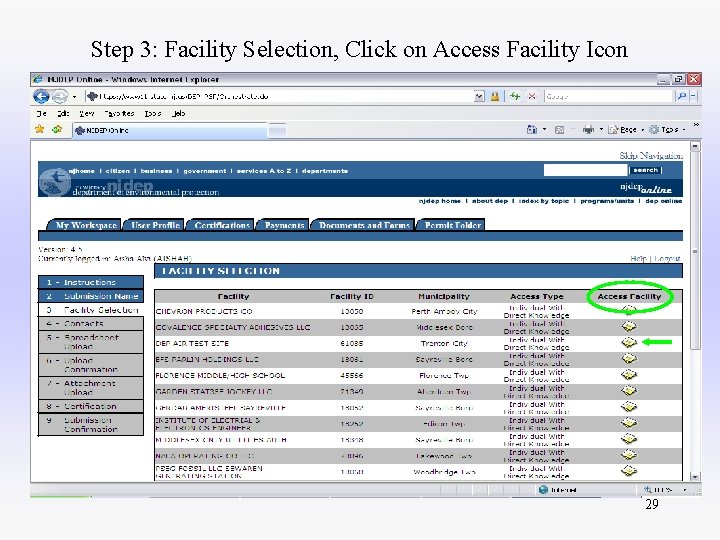
Step 3: Facility Selection, Click on Access Facility Icon 29
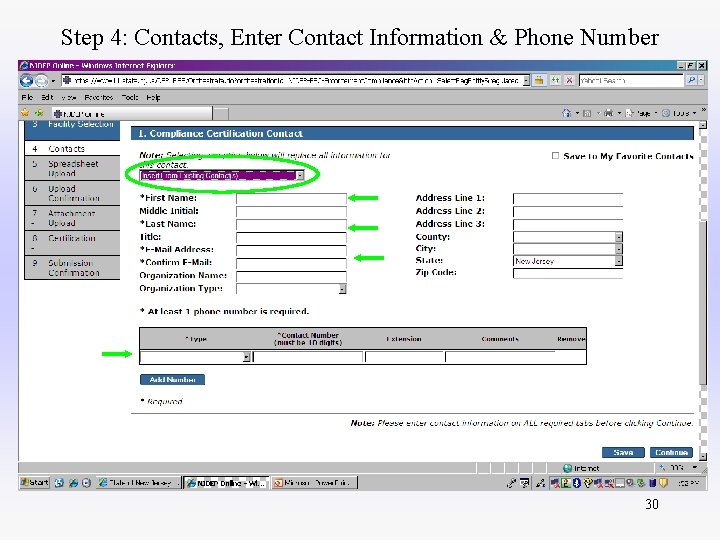
Step 4: Contacts, Enter Contact Information & Phone Number 30
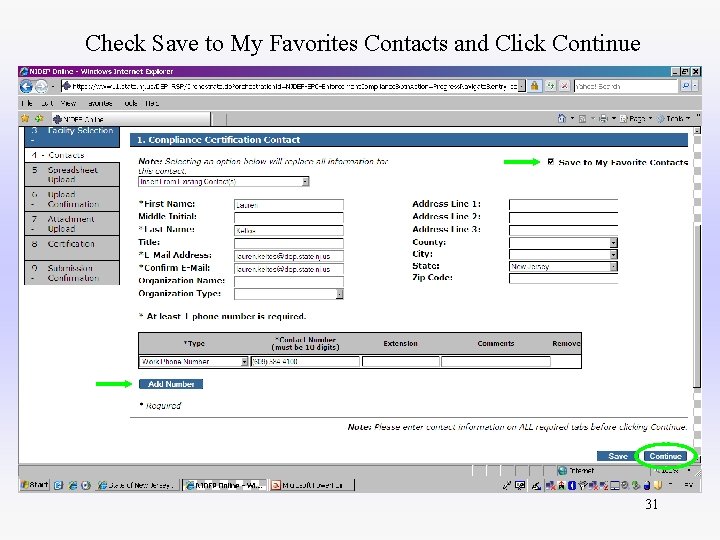
Check Save to My Favorites Contacts and Click Continue 31
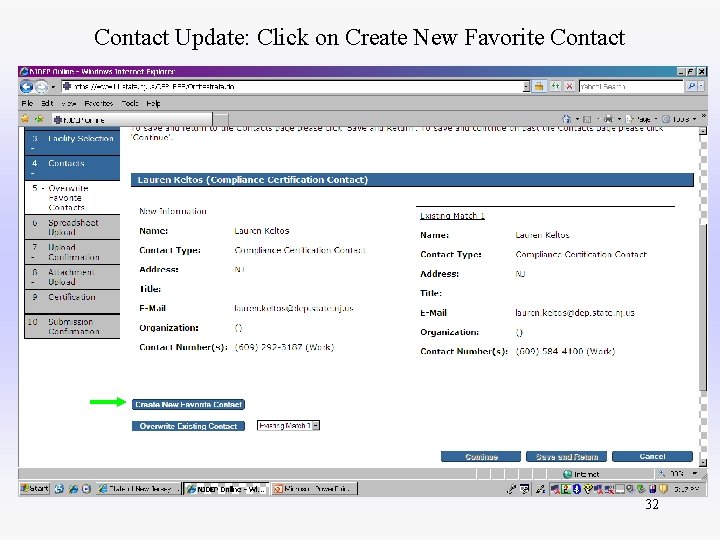
Contact Update: Click on Create New Favorite Contact 32
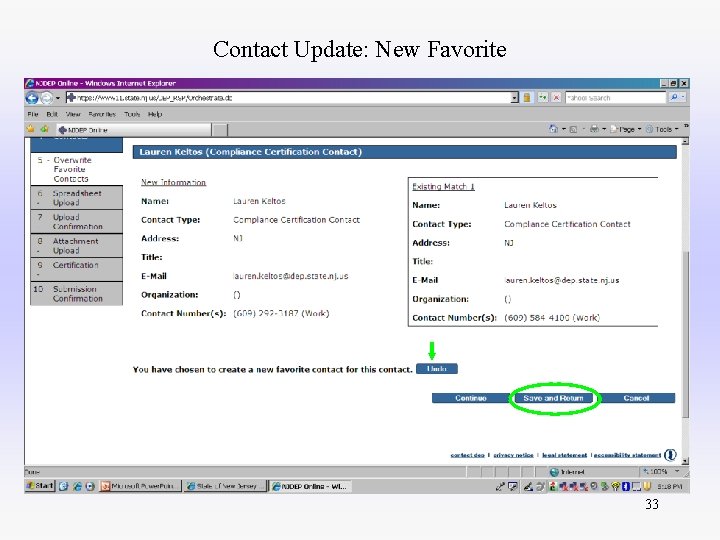
Contact Update: New Favorite 33
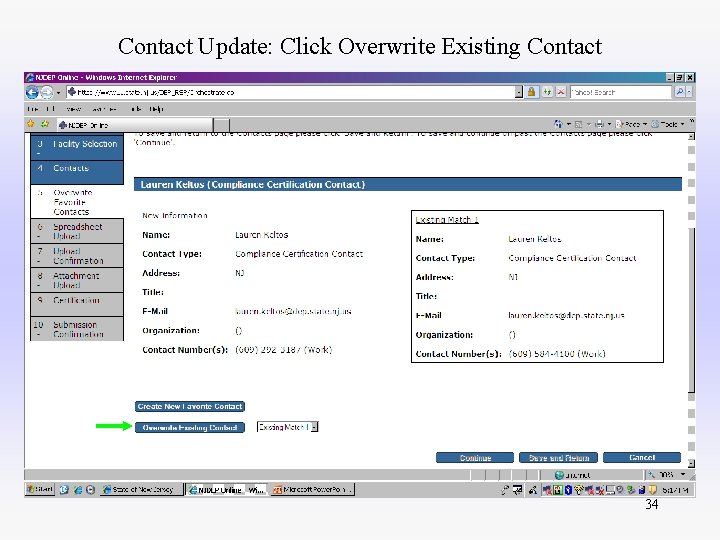
Contact Update: Click Overwrite Existing Contact 34
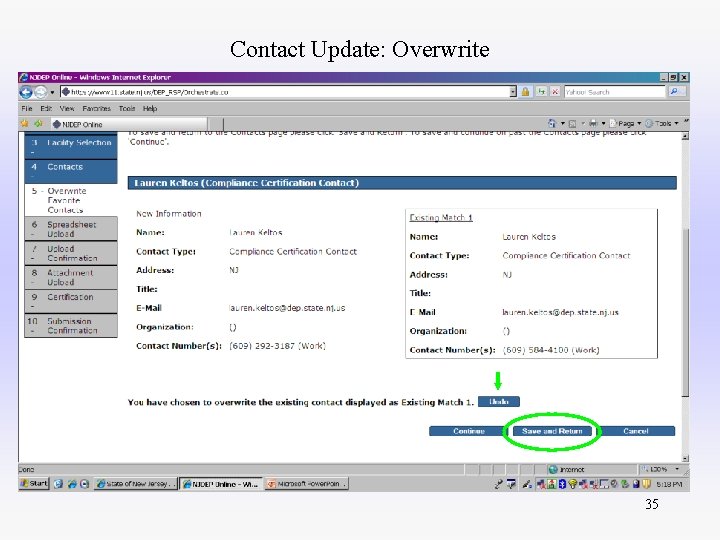
Contact Update: Overwrite 35
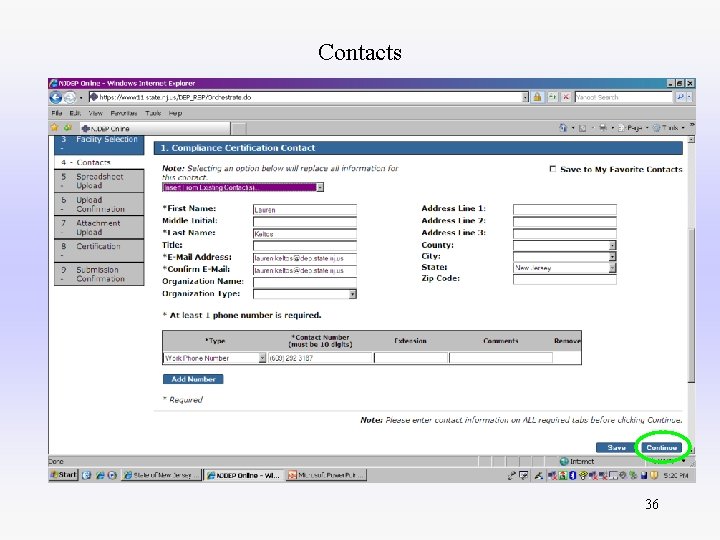
Contacts 36
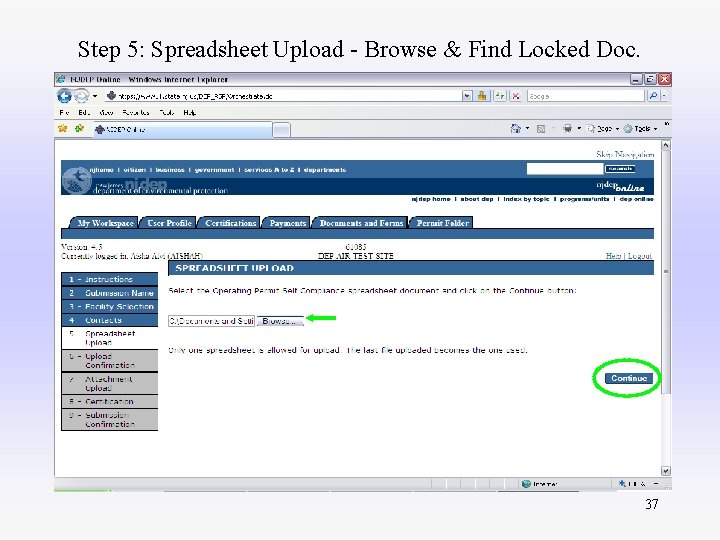
Step 5: Spreadsheet Upload - Browse & Find Locked Doc. 37
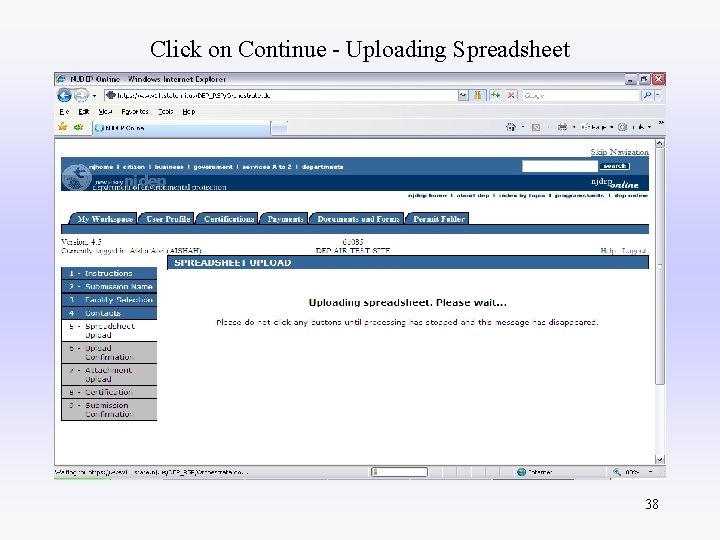
Click on Continue - Uploading Spreadsheet 38
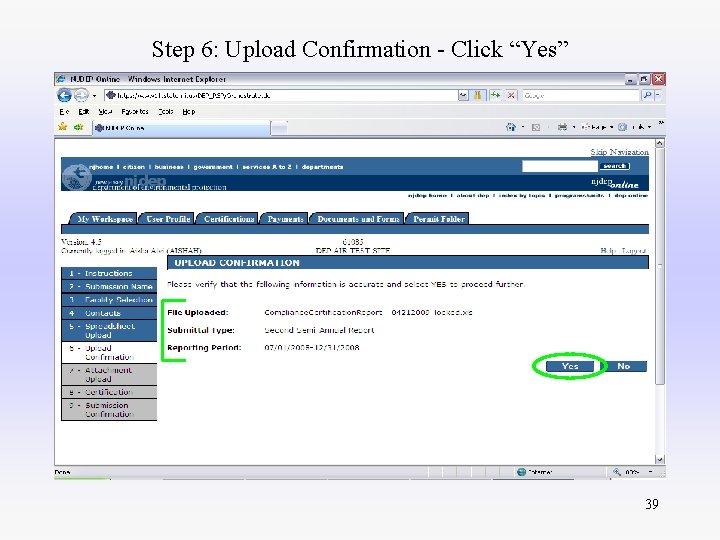
Step 6: Upload Confirmation - Click “Yes” 39
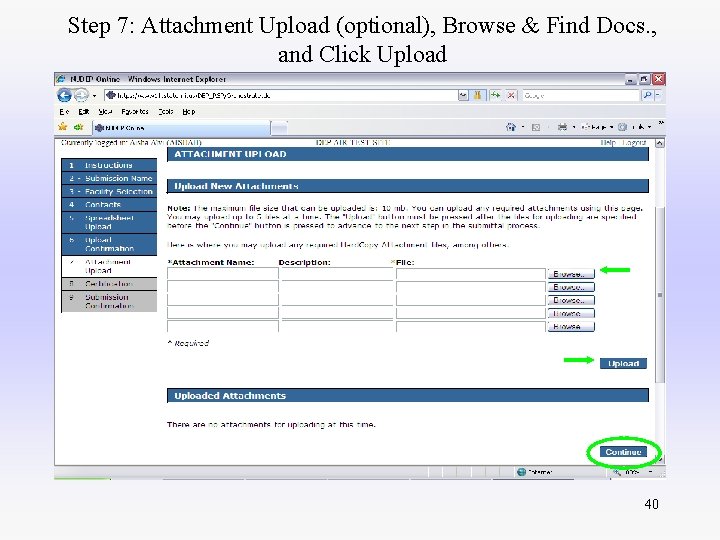
Step 7: Attachment Upload (optional), Browse & Find Docs. , and Click Upload 40
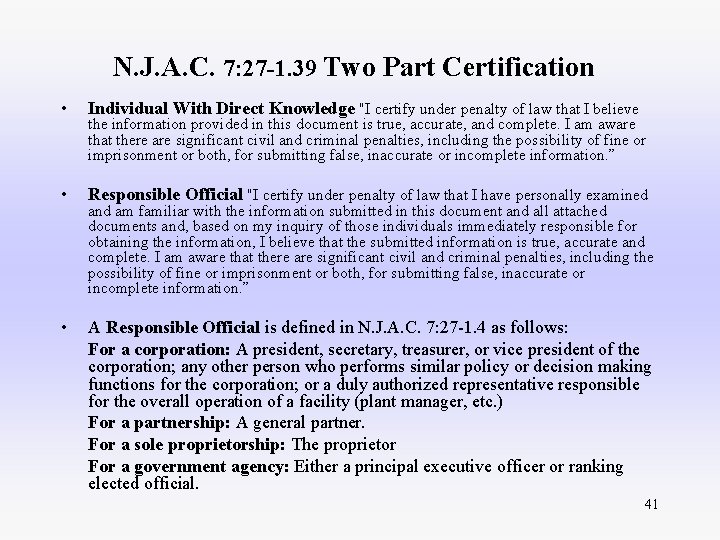
N. J. A. C. 7: 27 -1. 39 Two Part Certification • Individual With Direct Knowledge "I certify under penalty of law that I believe • Responsible Official "I certify under penalty of law that I have personally examined • A Responsible Official is defined in N. J. A. C. 7: 27 -1. 4 as follows: For a corporation: A president, secretary, treasurer, or vice president of the corporation; any other person who performs similar policy or decision making functions for the corporation; or a duly authorized representative responsible for the overall operation of a facility (plant manager, etc. ) For a partnership: A general partner. For a sole proprietorship: The proprietor For a government agency: Either a principal executive officer or ranking elected official. the information provided in this document is true, accurate, and complete. I am aware that there are significant civil and criminal penalties, including the possibility of fine or imprisonment or both, for submitting false, inaccurate or incomplete information. ” and am familiar with the information submitted in this document and all attached documents and, based on my inquiry of those individuals immediately responsible for obtaining the information, I believe that the submitted information is true, accurate and complete. I am aware that there are significant civil and criminal penalties, including the possibility of fine or imprisonment or both, for submitting false, inaccurate or incomplete information. ” 41
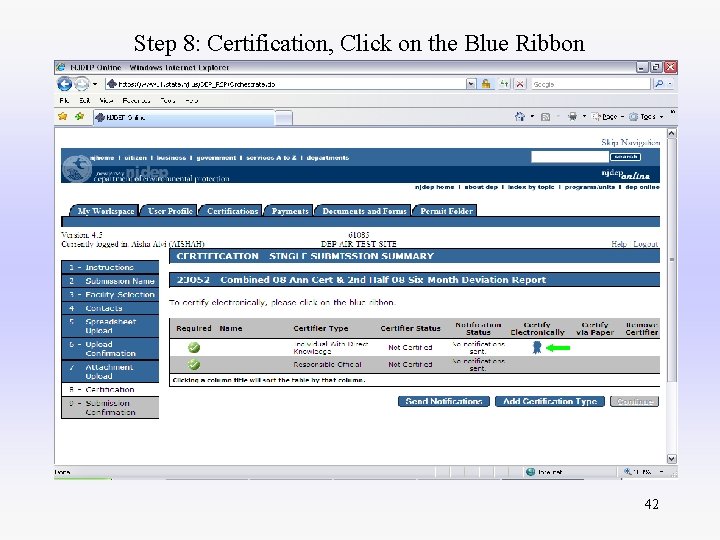
Step 8: Certification, Click on the Blue Ribbon 42
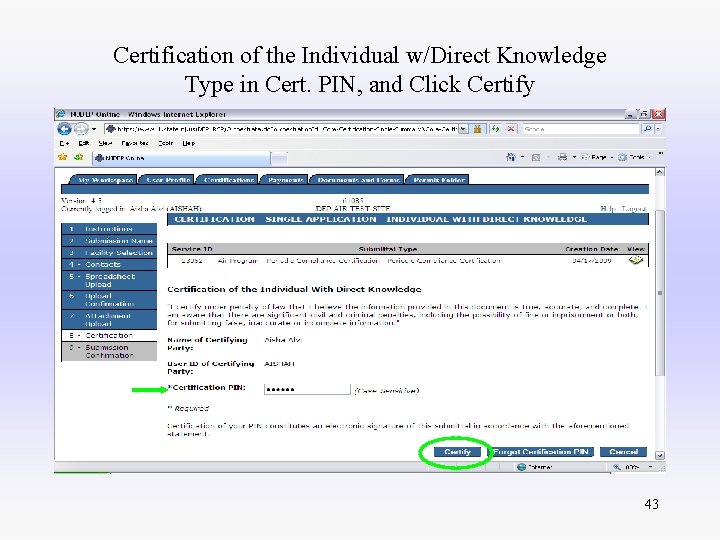
Certification of the Individual w/Direct Knowledge Type in Cert. PIN, and Click Certify 43
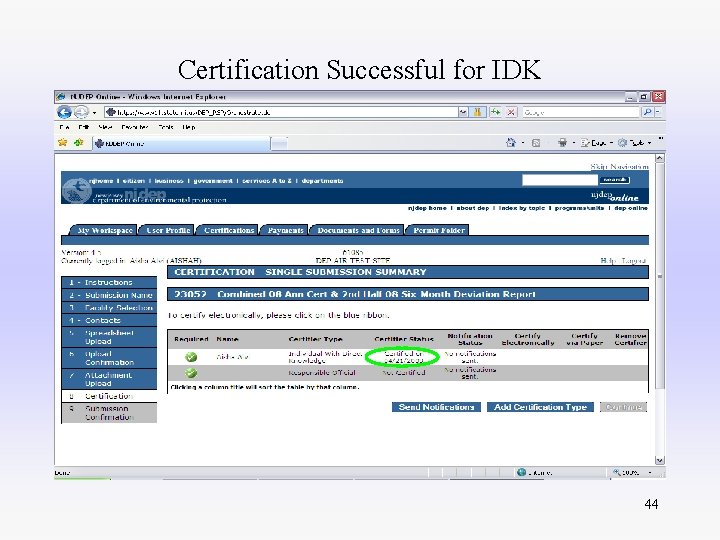
Certification Successful for IDK 44
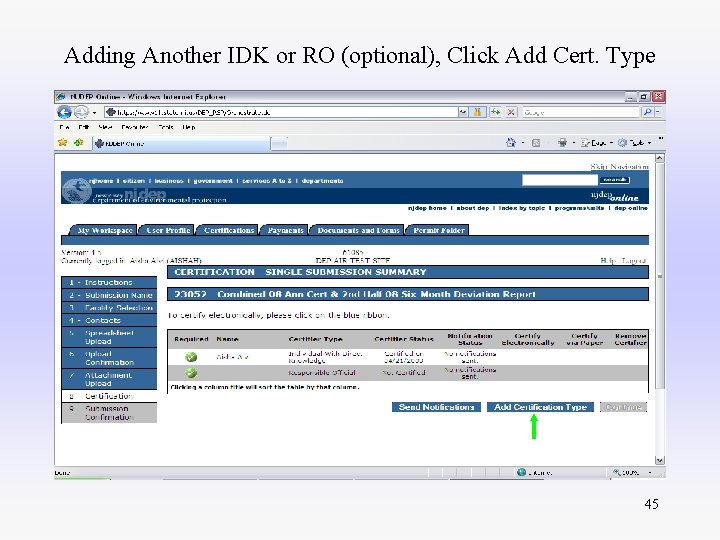
Adding Another IDK or RO (optional), Click Add Cert. Type 45
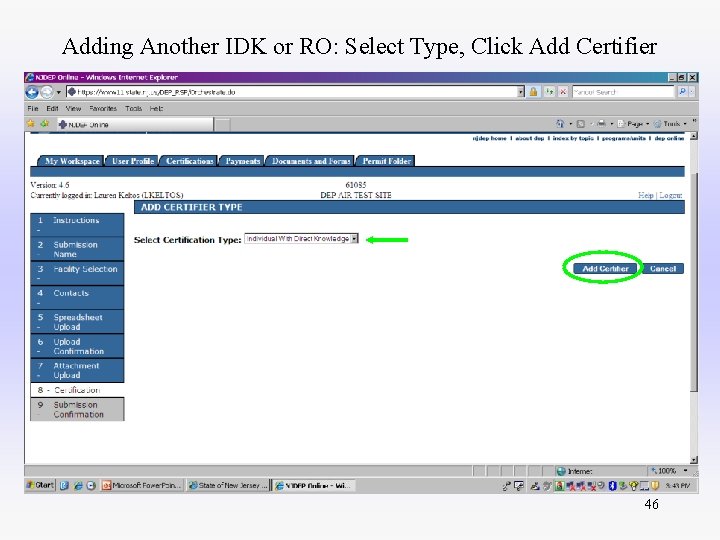
Adding Another IDK or RO: Select Type, Click Add Certifier 46
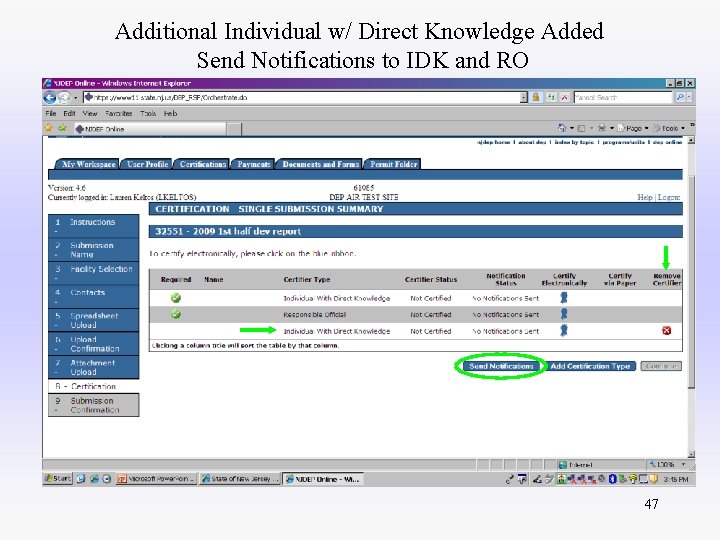
Additional Individual w/ Direct Knowledge Added Send Notifications to IDK and RO 47
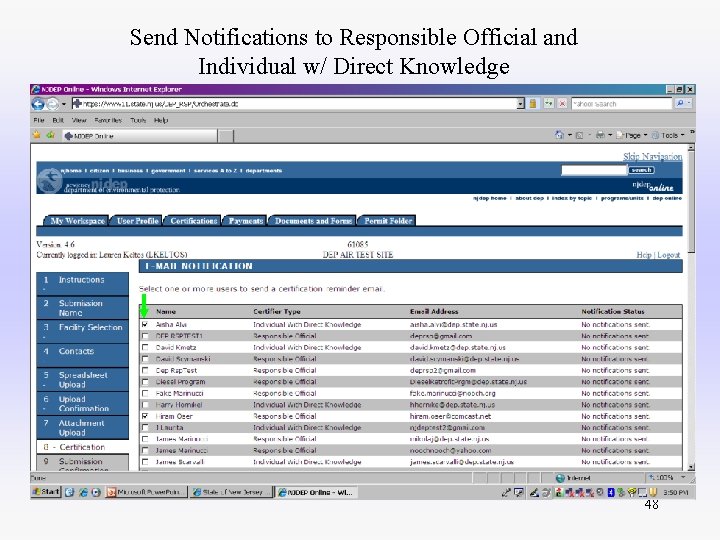
Send Notifications to Responsible Official and Individual w/ Direct Knowledge 48
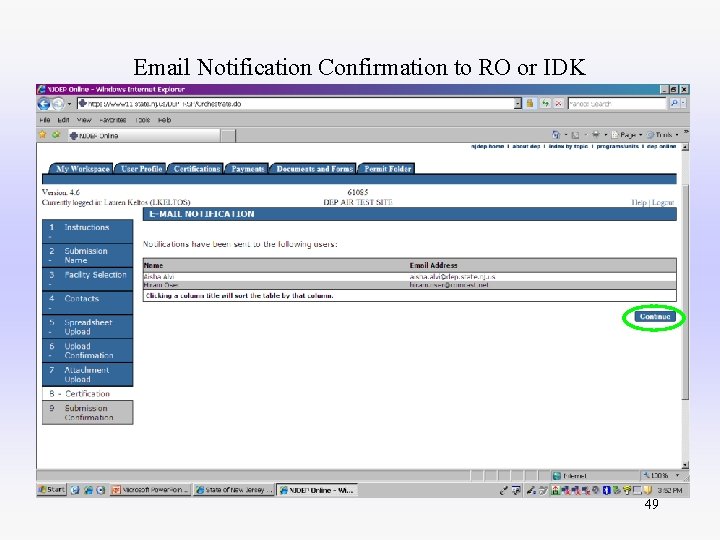
Email Notification Confirmation to RO or IDK 49
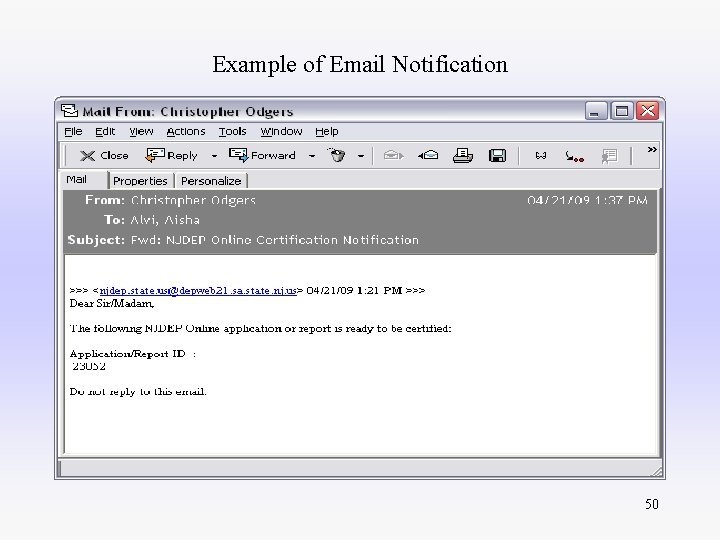
Example of Email Notification 50
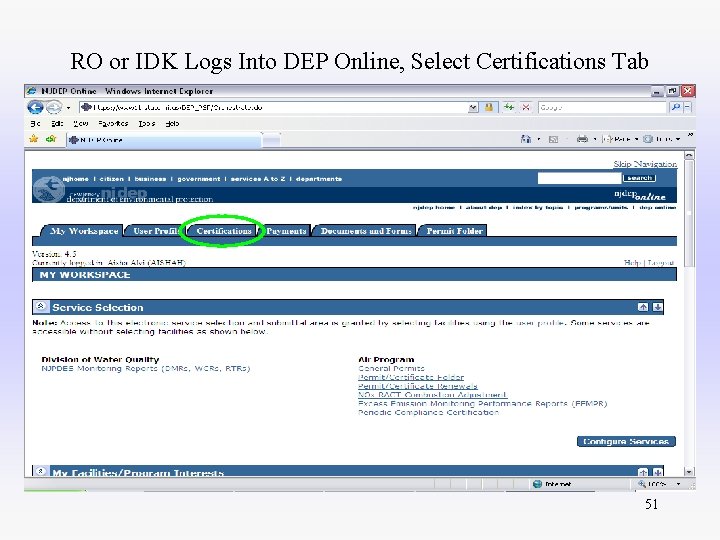
RO or IDK Logs Into DEP Online, Select Certifications Tab 51
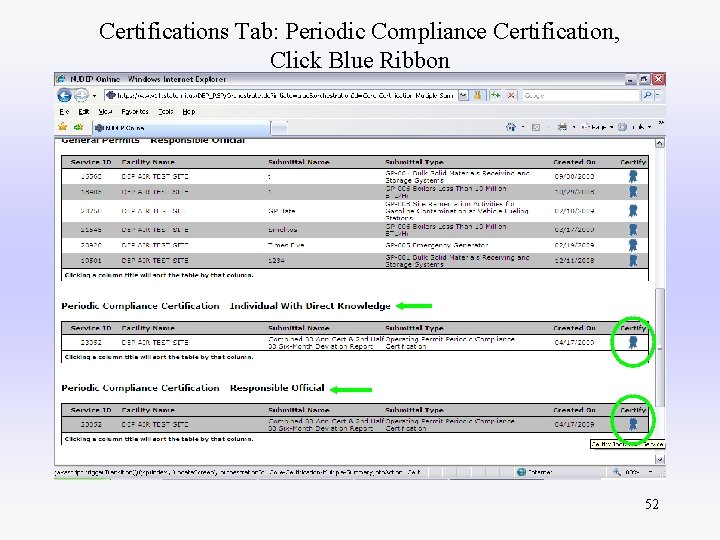
Certifications Tab: Periodic Compliance Certification, Click Blue Ribbon 52
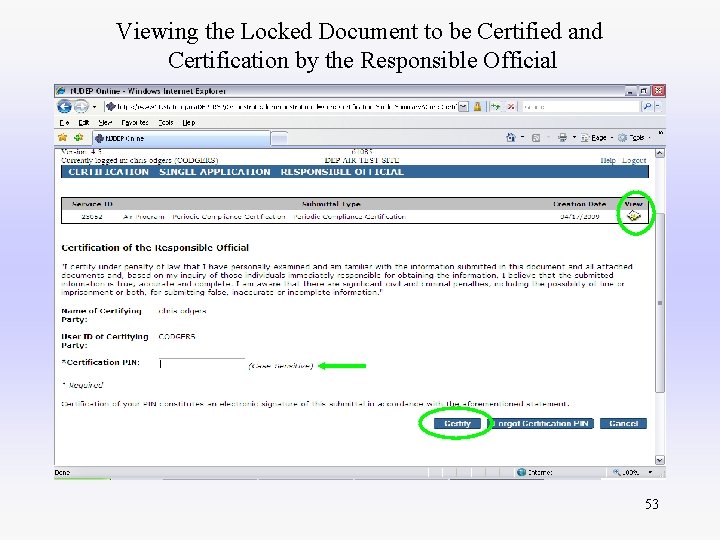
Viewing the Locked Document to be Certified and Certification by the Responsible Official 53
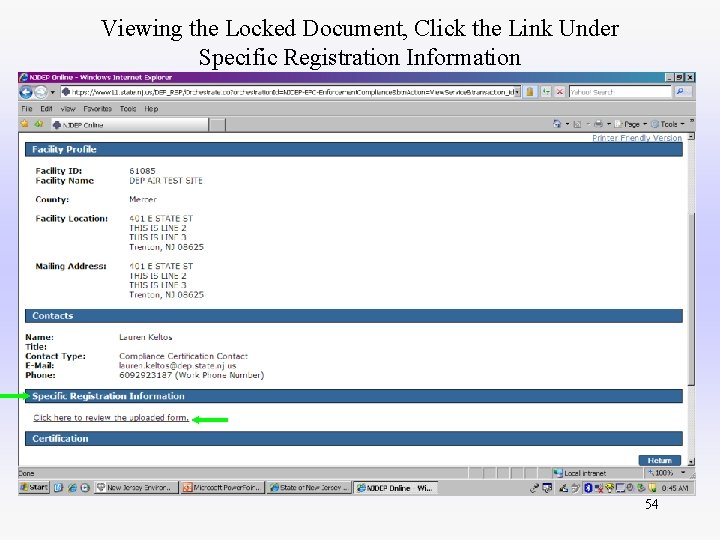
Viewing the Locked Document, Click the Link Under Specific Registration Information 54
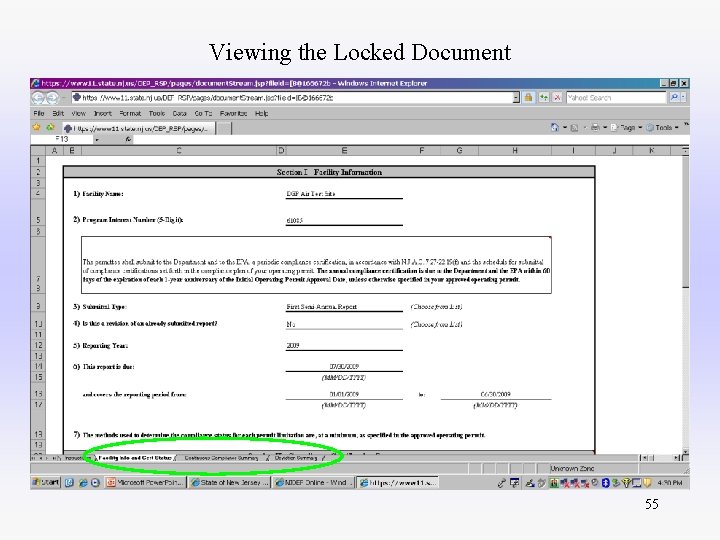
Viewing the Locked Document 55
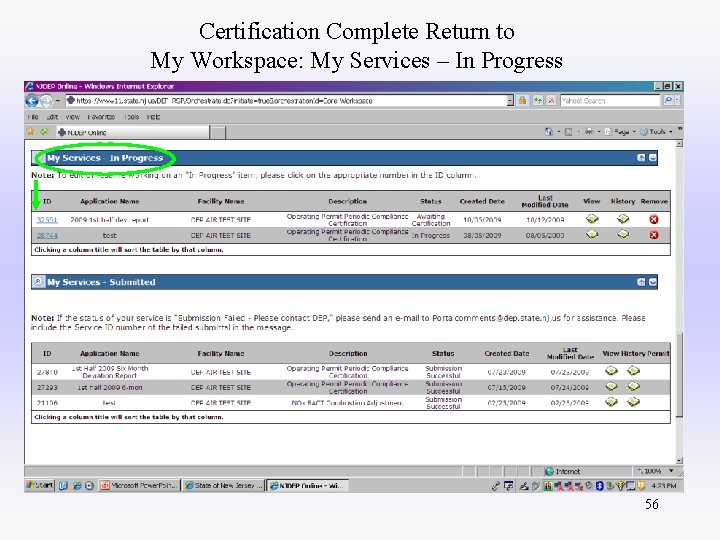
Certification Complete Return to My Workspace: My Services – In Progress 56
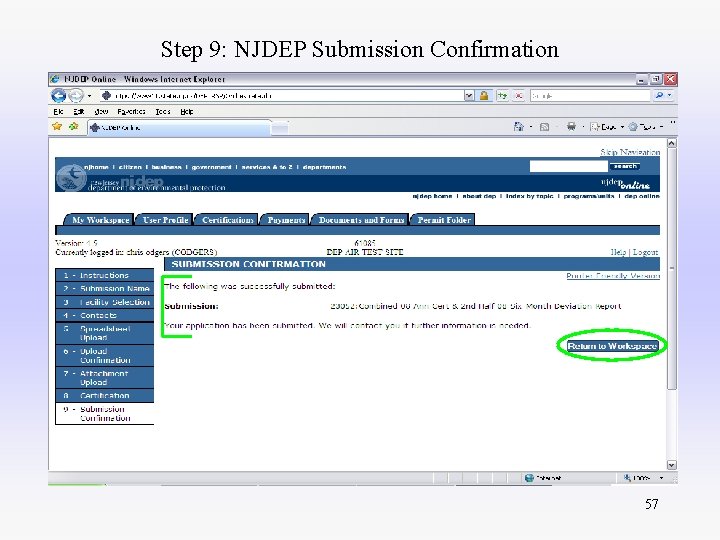
Step 9: NJDEP Submission Confirmation 57
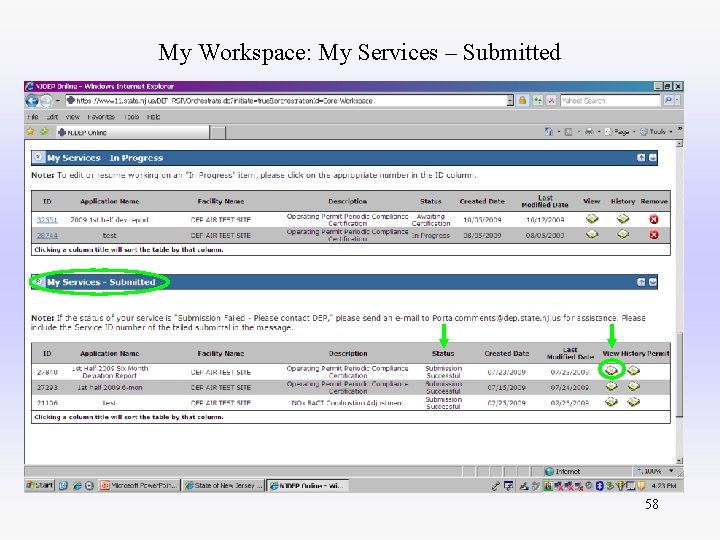
My Workspace: My Services – Submitted 58
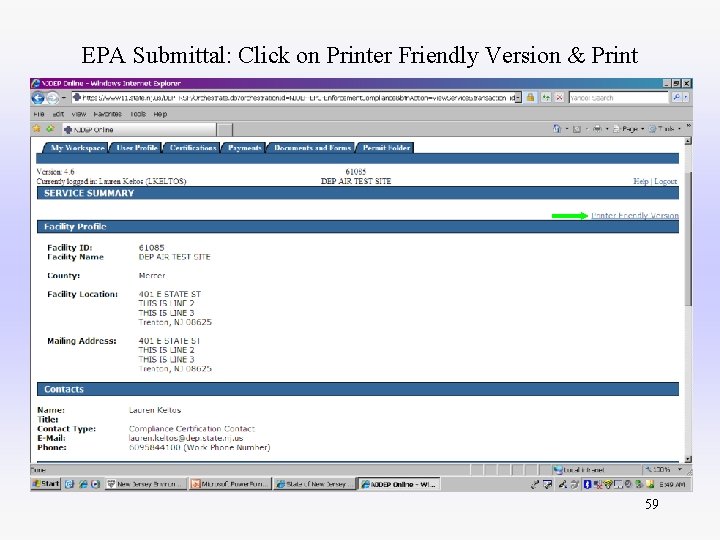
EPA Submittal: Click on Printer Friendly Version & Print 59
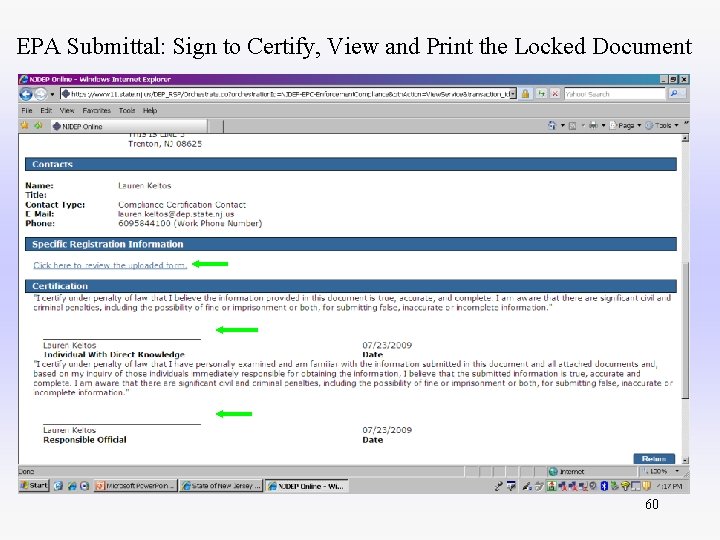
EPA Submittal: Sign to Certify, View and Print the Locked Document 60
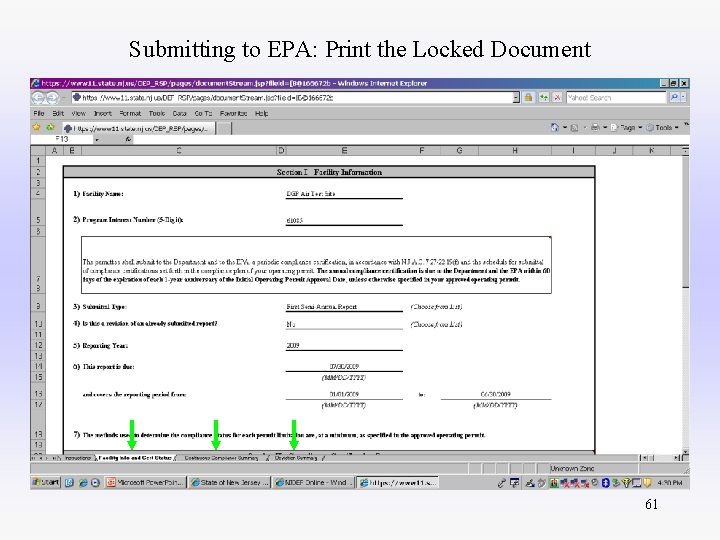
Submitting to EPA: Print the Locked Document 61
AIR Compliance & Enforcement Regional Contact Information: Northern Regional Office Michael Papp, Manager phone (973) 656 -4444 7 Ridgedale Ave fax (973) 656 -4080 Cedar Knolls, NJ 07927 (Bergen, Essex, Hunterdon, Hudson, Morris, Passaic, Somerset, Sussex, Union, and Warren counties) Central Regional Office Patricia A. Conti, Manager phone (609) 292 -3187 fax (609) 292 -6450 (Burlington, Mercer, Middlesex, Monmouth, and Ocean counties) PO Box 407 Trenton, NJ 08625 (US Mail) 401 East State St. P. O. Box 407 Trenton, NJ 08625 (Fed. Ex/UPS) Southern Regional Office Richelle Wormley, Manager phone (856) 614 -3601 fax (856) 614 -3613 (Atlantic, Camden, Cape May, Cumberland, Gloucester, and Salem counties) One Port Center 2 Riverside Drive Camden, NJ 08103 62
THANK YOU Lauren Keltos, Air CRO, (609)292 -3187
- Slides: 63