
Using NEDSS for Surveillance Rules of the road
- Slides: 43
Using NEDSS for Surveillance Rules of the road Utilization of data
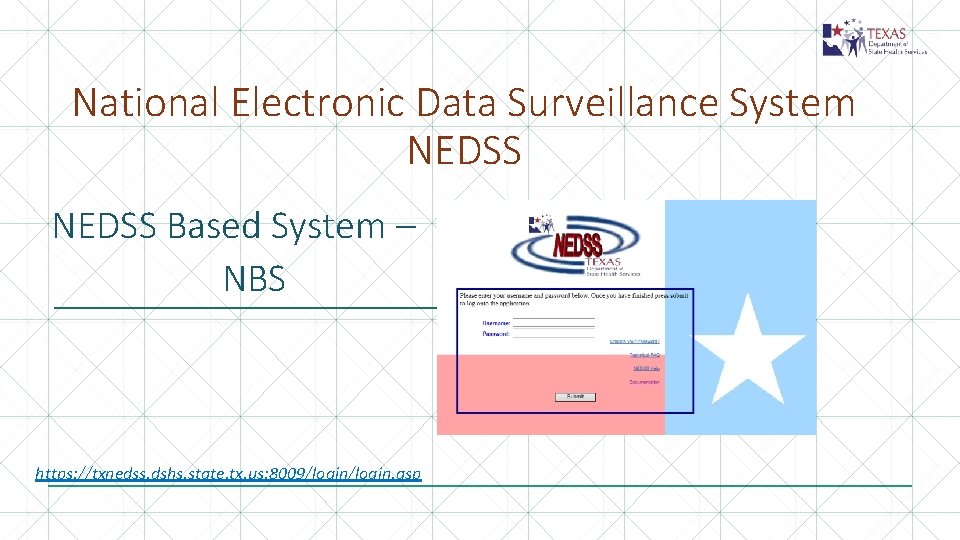
National Electronic Data Surveillance System NEDSS Based System – NBS https: //txnedss. dshs. state. tx. us: 8009/login. asp
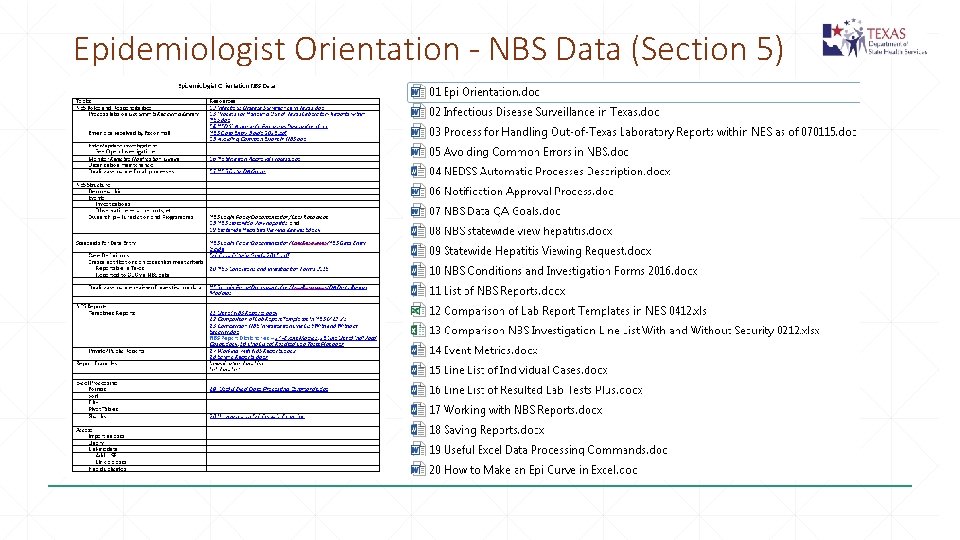
Epidemiologist Orientation - NBS Data (Section 5)
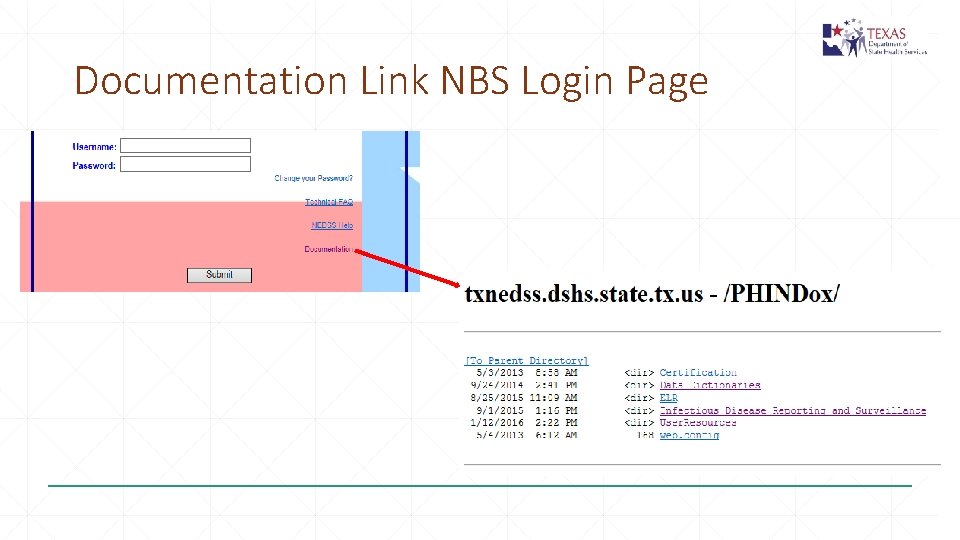
Documentation Link NBS Login Page
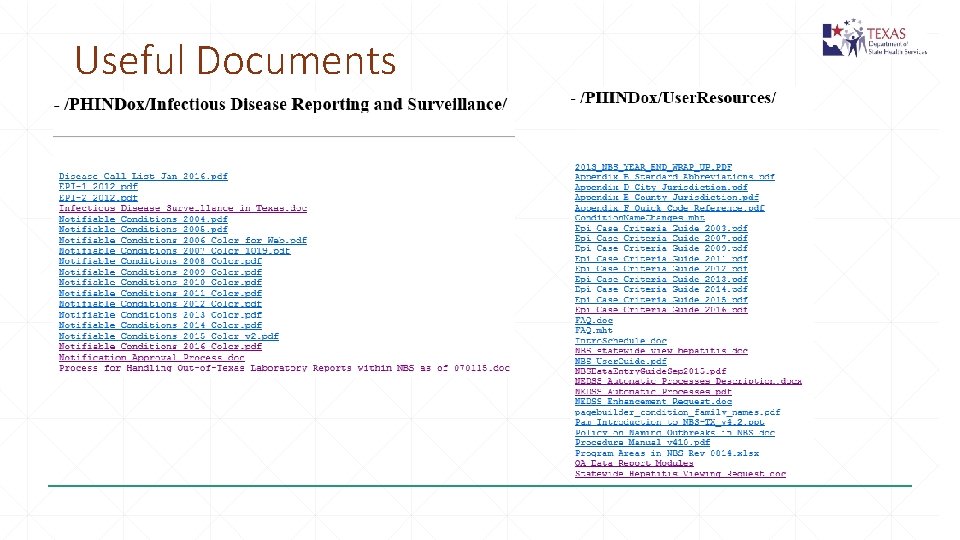
Useful Documents
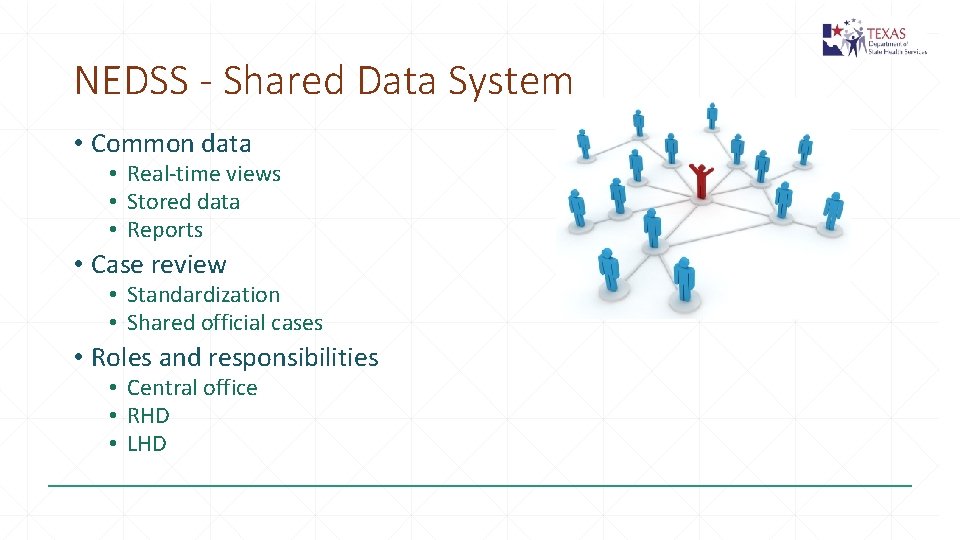
NEDSS - Shared Data System • Common data • Real-time views • Stored data • Reports • Case review • Standardization • Shared official cases • Roles and responsibilities • Central office • RHD • LHD
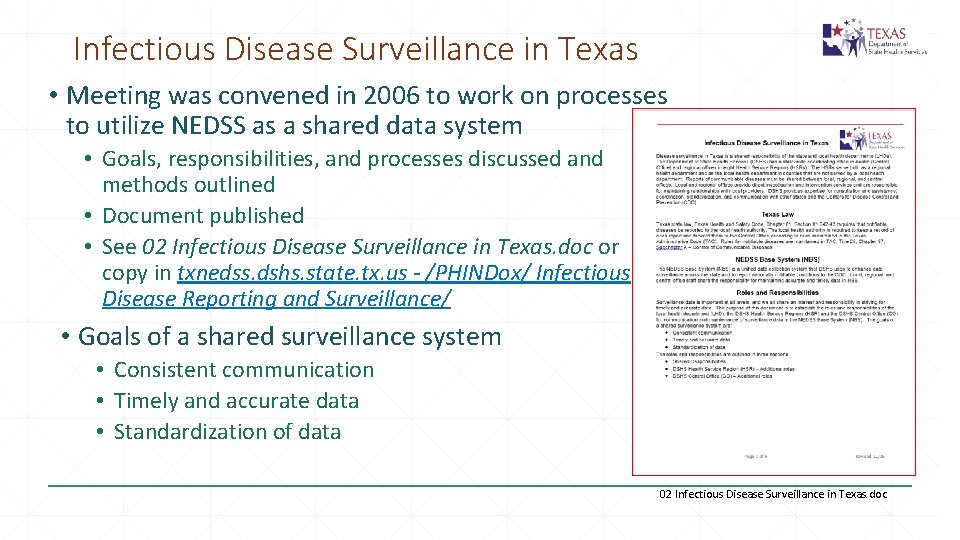
Infectious Disease Surveillance in Texas • Meeting was convened in 2006 to work on processes to utilize NEDSS as a shared data system • Goals, responsibilities, and processes discussed and methods outlined • Document published • See 02 Infectious Disease Surveillance in Texas. doc or copy in txnedss. dshs. state. tx. us - /PHINDox/ Infectious Disease Reporting and Surveillance/ • Goals of a shared surveillance system • Consistent communication • Timely and accurate data • Standardization of data 02 Infectious Disease Surveillance in Texas. doc
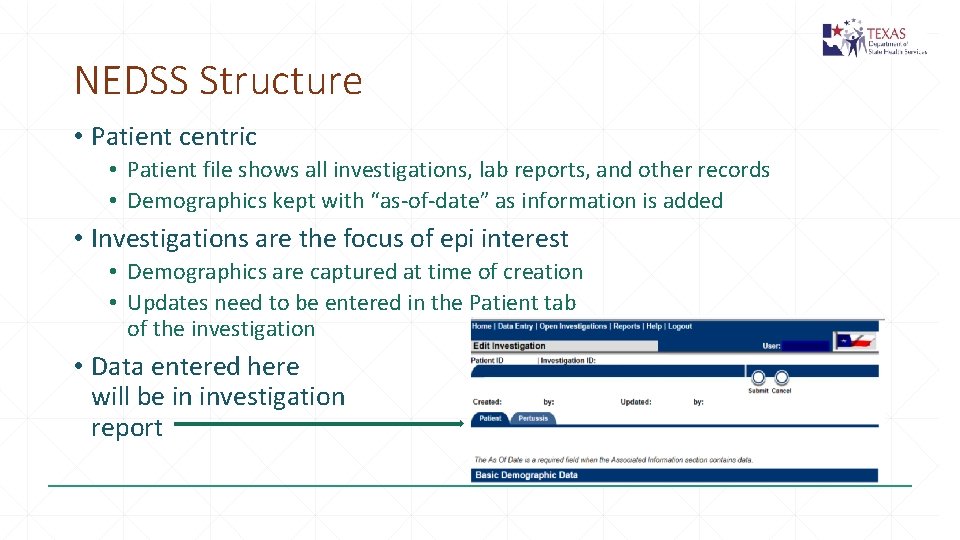
NEDSS Structure • Patient centric • Patient file shows all investigations, lab reports, and other records • Demographics kept with “as-of-date” as information is added • Investigations are the focus of epi interest • Demographics are captured at time of creation • Updates need to be entered in the Patient tab of the investigation • Data entered here will be in investigation report
NEDSS Structure • Ownership Silos – Permission Sets • Jurisdiction • • • Only see geographic jurisdictions assigned to you Central Office staff have statewide view RHDs see RHD and LHDs in their region LHDs see just their jurisdiction Applies to queues, events (investigations, lab reports, morbidity reports, vaccination history, etc. and report data • Program Area • RHDS and LHDs see most or all program areas in EAIDB and Zoonosis • TB and animal rabies generally seen by different staff • Central office staff limited by Program Areas relevant to their team • This allows shorter queues and better focus than seeing all conditions statewide • Laboratory reports need to be assigned to correct program area for appropriate CO staff to see it
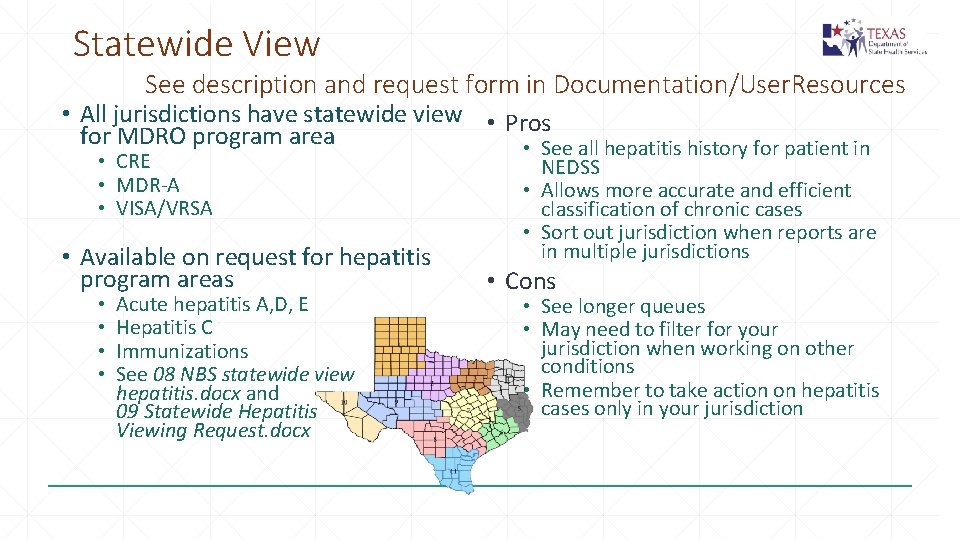
Statewide View See description and request form in Documentation/User. Resources • All jurisdictions have statewide view • Pros for MDRO program area • See all hepatitis history for patient in • CRE • MDR-A • VISA/VRSA • Available on request for hepatitis program areas • • Acute hepatitis A, D, E Hepatitis C Immunizations See 08 NBS statewide view hepatitis. docx and 09 Statewide Hepatitis Viewing Request. docx NEDSS • Allows more accurate and efficient classification of chronic cases • Sort out jurisdiction when reports are in multiple jurisdictions • Cons • See longer queues • May need to filter for your jurisdiction when working on other conditions • Remember to take action on hepatitis cases only in your jurisdiction
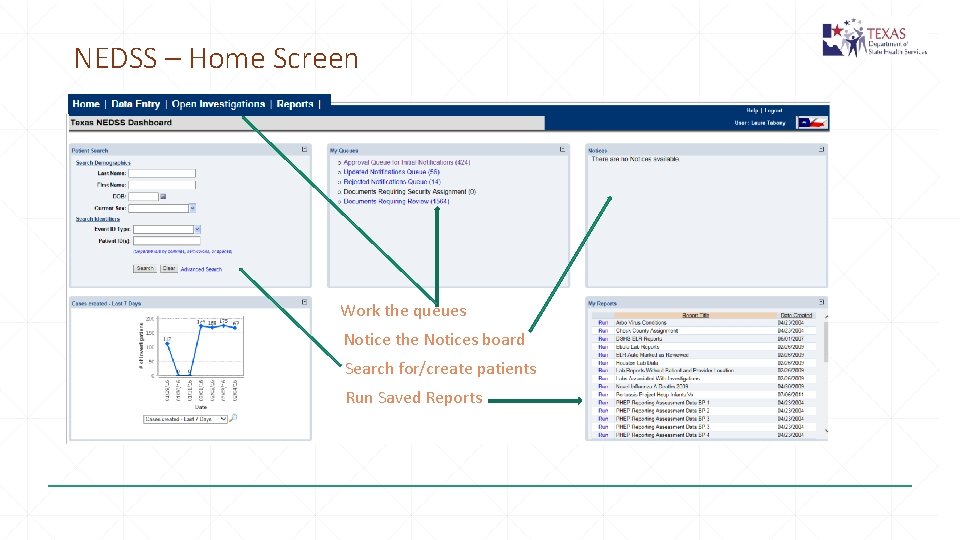
NEDSS – Home Screen Work the queues Notice the Notices board Search for/create patients Run Saved Reports
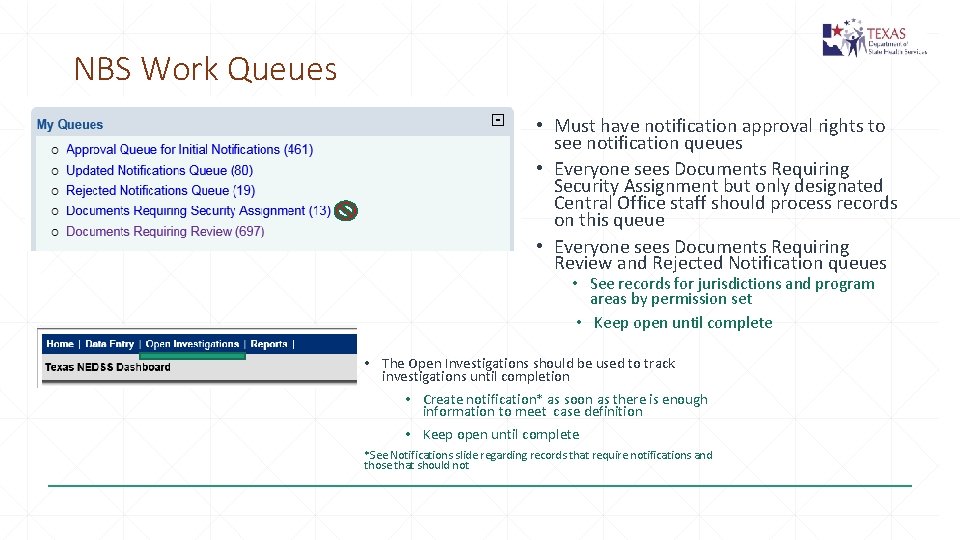
NBS Work Queues • Must have notification approval rights to see notification queues • Everyone sees Documents Requiring Security Assignment but only designated Central Office staff should process records on this queue • Everyone sees Documents Requiring Review and Rejected Notification queues • See records for jurisdictions and program areas by permission set • Keep open until complete • The Open Investigations should be used to track investigations until completion • Create notification* as soon as there is enough information to meet case definition • Keep open until complete *See Notifications slide regarding records that require notifications and those that should not
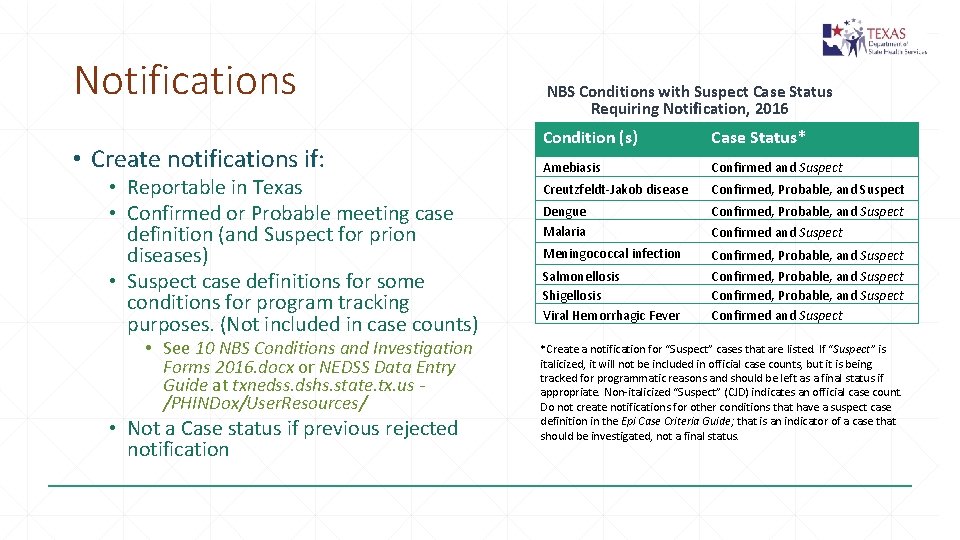
Notifications • Create notifications if: • Reportable in Texas • Confirmed or Probable meeting case definition (and Suspect for prion diseases) • Suspect case definitions for some conditions for program tracking purposes. (Not included in case counts) • See 10 NBS Conditions and Investigation Forms 2016. docx or NEDSS Data Entry Guide at txnedss. dshs. state. tx. us /PHINDox/User. Resources/ • Not a Case status if previous rejected notification NBS Conditions with Suspect Case Status Requiring Notification, 2016 Condition (s) Case Status* Amebiasis Confirmed and Suspect Creutzfeldt-Jakob disease Confirmed, Probable, and Suspect Dengue Malaria Confirmed, Probable, and Suspect Meningococcal infection Confirmed, Probable, and Suspect Salmonellosis Shigellosis Viral Hemorrhagic Fever Confirmed, Probable, and Suspect Confirmed and Suspect *Create a notification for “Suspect” cases that are listed. If “Suspect” is italicized, it will not be included in official case counts, but it is being tracked for programmatic reasons and should be left as a final status if appropriate. Non-italicized “Suspect” (CJD) indicates an official case count. Do not create notifications for other conditions that have a suspect case definition in the Epi Case Criteria Guide; that is an indicator of a case that should be investigated, not a final status.
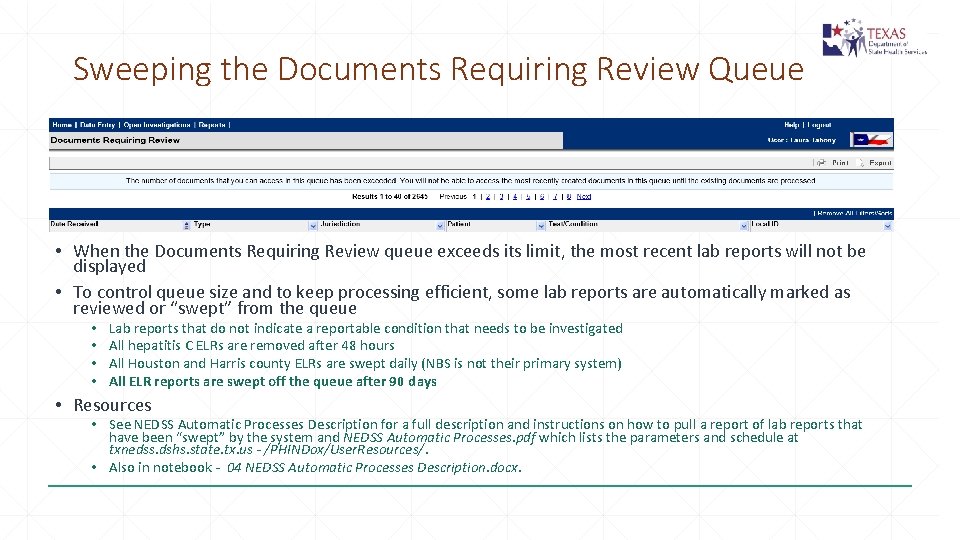
Sweeping the Documents Requiring Review Queue • When the Documents Requiring Review queue exceeds its limit, the most recent lab reports will not be displayed • To control queue size and to keep processing efficient, some lab reports are automatically marked as reviewed or “swept” from the queue • • Lab reports that do not indicate a reportable condition that needs to be investigated All hepatitis C ELRs are removed after 48 hours All Houston and Harris county ELRs are swept daily (NBS is not their primary system) All ELR reports are swept off the queue after 90 days • Resources • See NEDSS Automatic Processes Description for a full description and instructions on how to pull a report of lab reports that have been “swept” by the system and NEDSS Automatic Processes. pdf which lists the parameters and schedule at txnedss. dshs. state. tx. us - /PHINDox/User. Resources/. • Also in notebook - 04 NEDSS Automatic Processes Description. docx.
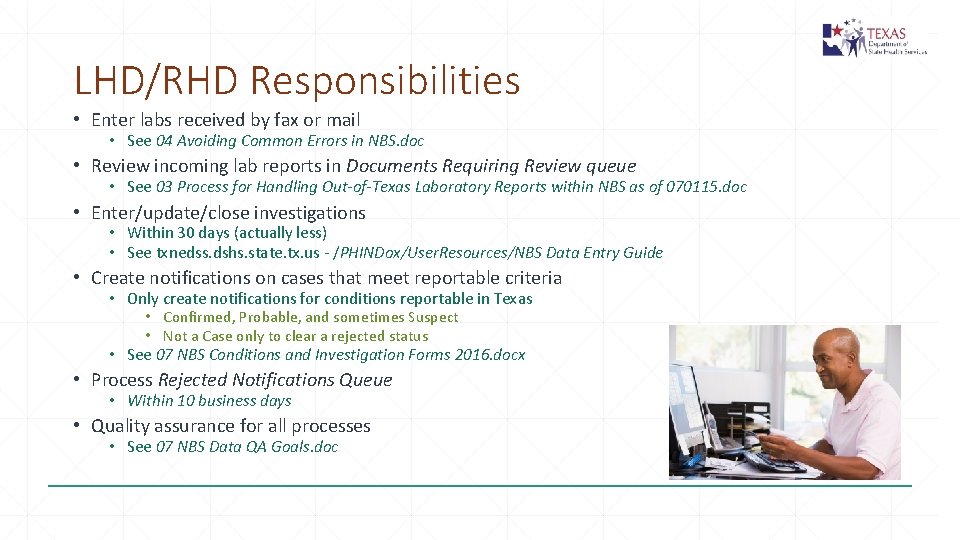
LHD/RHD Responsibilities • Enter labs received by fax or mail • See 04 Avoiding Common Errors in NBS. doc • Review incoming lab reports in Documents Requiring Review queue • See 03 Process for Handling Out-of-Texas Laboratory Reports within NBS as of 070115. doc • Enter/update/close investigations • Within 30 days (actually less) • See txnedss. dshs. state. tx. us - /PHINDox/User. Resources/NBS Data Entry Guide • Create notifications on cases that meet reportable criteria • Only create notifications for conditions reportable in Texas • Confirmed, Probable, and sometimes Suspect • Not a Case only to clear a rejected status • See 07 NBS Conditions and Investigation Forms 2016. docx • Process Rejected Notifications Queue • Within 10 business days • Quality assurance for all processes • See 07 NBS Data QA Goals. doc
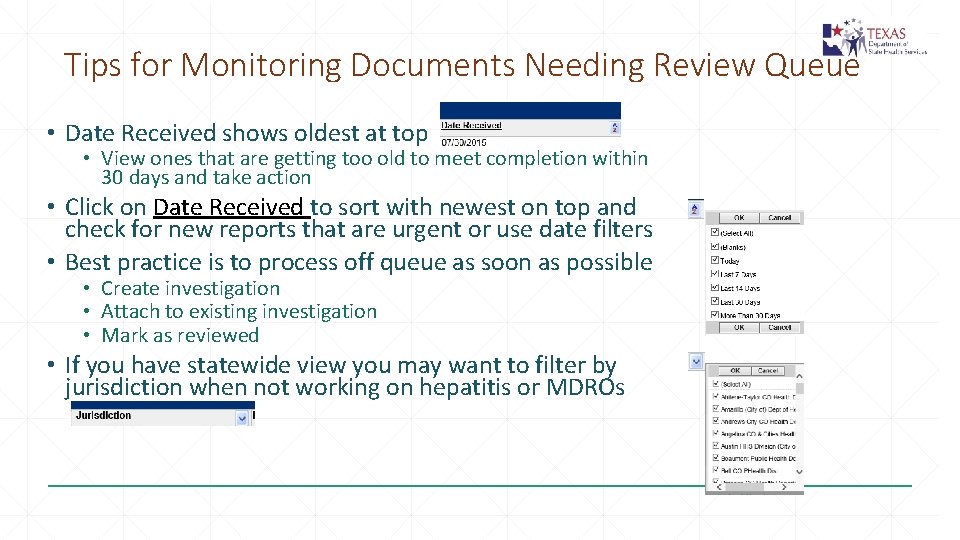
Tips for Monitoring Documents Needing Review Queue • Date Received shows oldest at top • View ones that are getting too old to meet completion within 30 days and take action • Click on Date Received to sort with newest on top and check for new reports that are urgent or use date filters • Best practice is to process off queue as soon as possible • Create investigation • Attach to existing investigation • Mark as reviewed • If you have statewide view you may want to filter by jurisdiction when not working on hepatitis or MDROs
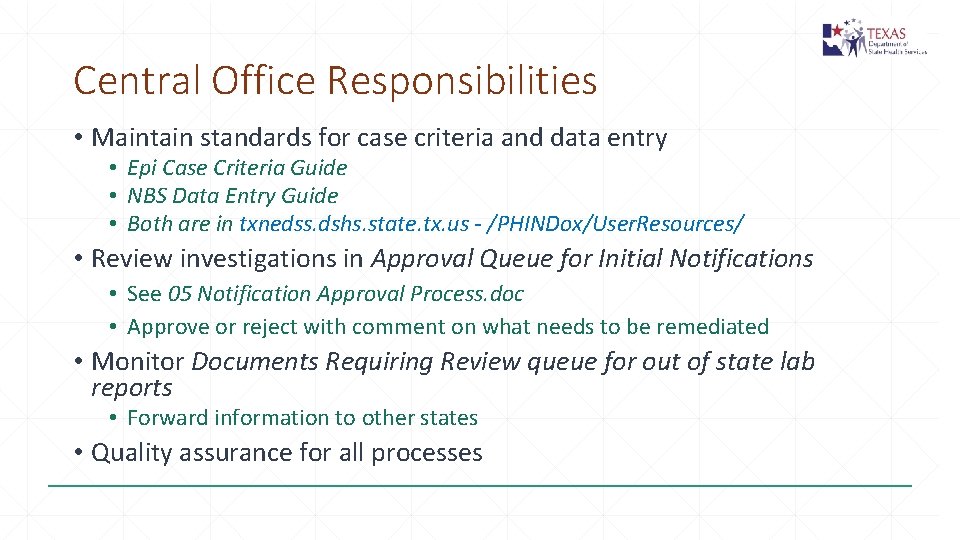
Central Office Responsibilities • Maintain standards for case criteria and data entry • Epi Case Criteria Guide • NBS Data Entry Guide • Both are in txnedss. dshs. state. tx. us - /PHINDox/User. Resources/ • Review investigations in Approval Queue for Initial Notifications • See 05 Notification Approval Process. doc • Approve or reject with comment on what needs to be remediated • Monitor Documents Requiring Review queue for out of state lab reports • Forward information to other states • Quality assurance for all processes
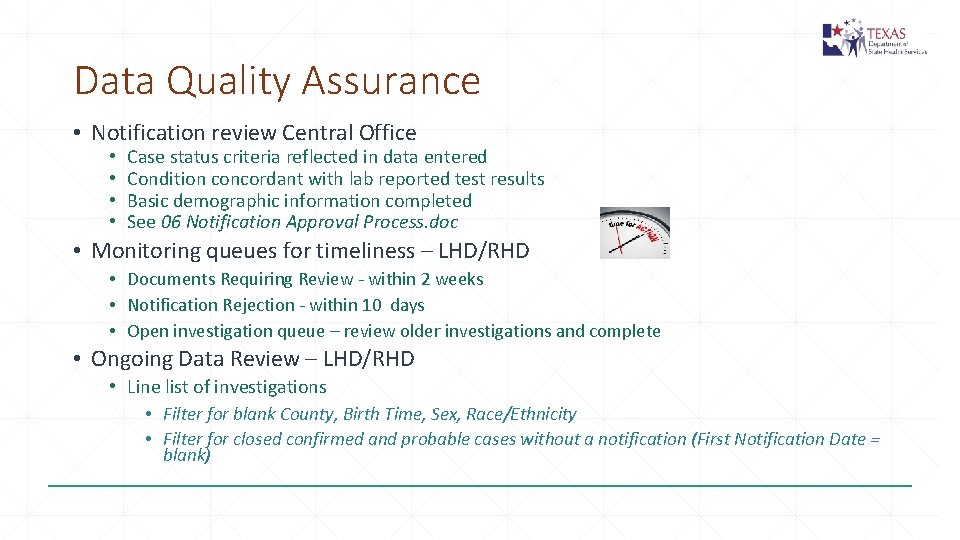
Data Quality Assurance • Notification review Central Office • • Case status criteria reflected in data entered Condition concordant with lab reported test results Basic demographic information completed See 06 Notification Approval Process. doc • Monitoring queues for timeliness – LHD/RHD • Documents Requiring Review - within 2 weeks • Notification Rejection - within 10 days • Open investigation queue – review older investigations and complete • Ongoing Data Review – LHD/RHD • Line list of investigations • Filter for blank County, Birth Time, Sex, Race/Ethnicity • Filter for closed confirmed and probable cases without a notification (First Notification Date = blank)
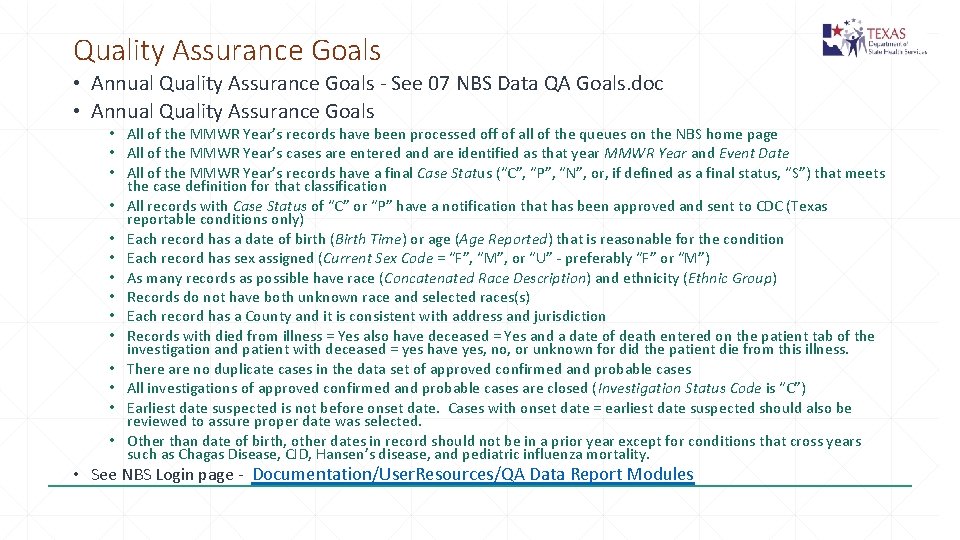
Quality Assurance Goals • Annual Quality Assurance Goals - See 07 NBS Data QA Goals. doc • Annual Quality Assurance Goals • All of the MMWR Year’s records have been processed off of all of the queues on the NBS home page • All of the MMWR Year’s cases are entered and are identified as that year MMWR Year and Event Date • All of the MMWR Year’s records have a final Case Status (“C”, “P”, “N”, or, if defined as a final status, “S”) that meets the case definition for that classification • All records with Case Status of “C” or “P” have a notification that has been approved and sent to CDC (Texas reportable conditions only) • Each record has a date of birth (Birth Time) or age (Age Reported) that is reasonable for the condition • Each record has sex assigned (Current Sex Code = “F”, “M”, or “U” - preferably “F” or “M”) • As many records as possible have race (Concatenated Race Description) and ethnicity (Ethnic Group) • Records do not have both unknown race and selected races(s) • Each record has a County and it is consistent with address and jurisdiction • Records with died from illness = Yes also have deceased = Yes and a date of death entered on the patient tab of the investigation and patient with deceased = yes have yes, no, or unknown for did the patient die from this illness. • There are no duplicate cases in the data set of approved confirmed and probable cases • All investigations of approved confirmed and probable cases are closed (Investigation Status Code is “C”) • Earliest date suspected is not before onset date. Cases with onset date = earliest date suspected should also be reviewed to assure proper date was selected. • Other than date of birth, other dates in record should not be in a prior year except for conditions that cross years such as Chagas Disease, CJD, Hansen’s disease, and pediatric influenza mortality. • See NBS Login page - Documentation/User. Resources/QA Data Report Modules
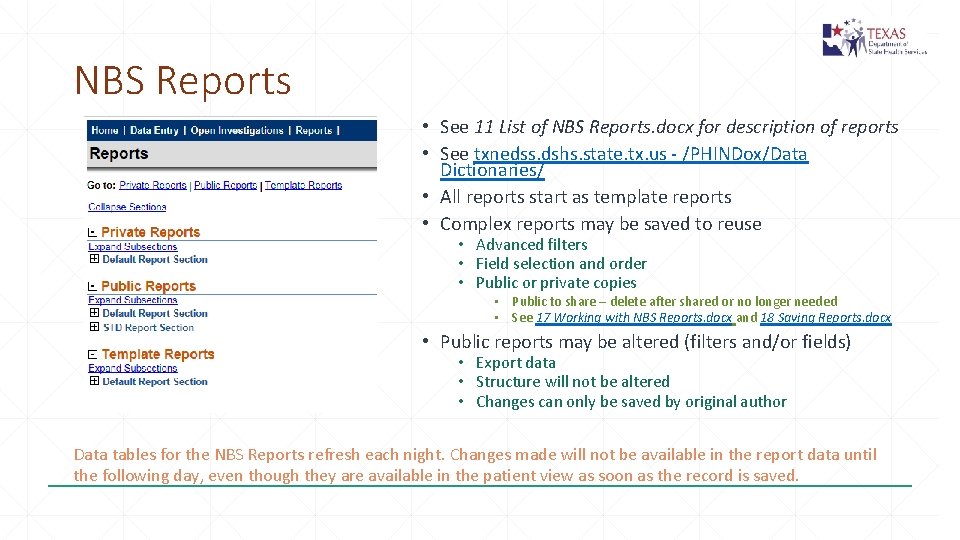
NBS Reports • See 11 List of NBS Reports. docx for description of reports • See txnedss. dshs. state. tx. us - /PHINDox/Data Dictionaries/ • All reports start as template reports • Complex reports may be saved to reuse • Advanced filters • Field selection and order • Public or private copies • Public to share – delete after shared or no longer needed • See 17 Working with NBS Reports. docx and 18 Saving Reports. docx • Public reports may be altered (filters and/or fields) • Export data • Structure will not be altered • Changes can only be saved by original author Data tables for the NBS Reports refresh each night. Changes made will not be available in the report data until the following day, even though they are available in the patient view as soon as the record is saved.
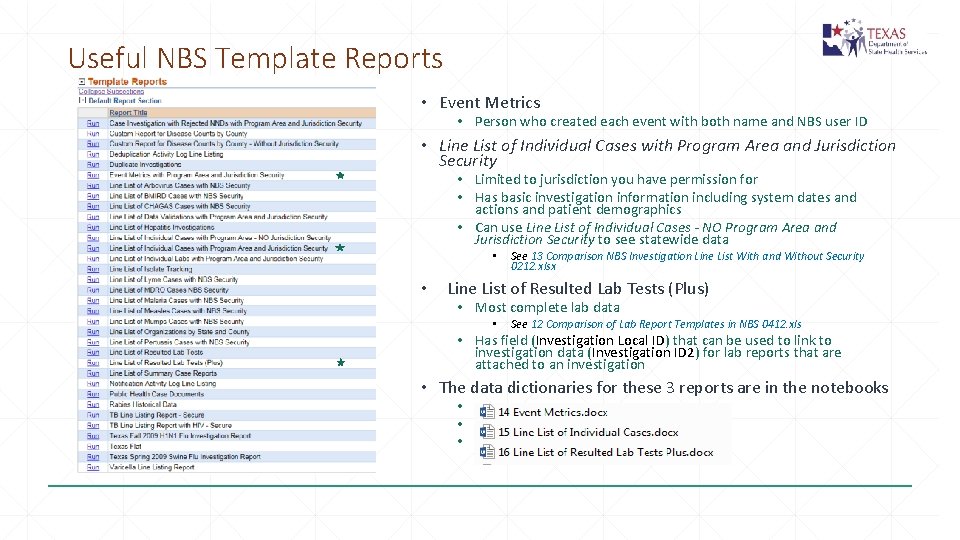
Useful NBS Template Reports • Event Metrics • Person who created each event with both name and NBS user ID • Line List of Individual Cases with Program Area and Jurisdiction Security • Limited to jurisdiction you have permission for • Has basic investigation information including system dates and actions and patient demographics • Can use Line List of Individual Cases - NO Program Area and Jurisdiction Security to see statewide data • • See 13 Comparison NBS Investigation Line List With and Without Security 0212. xlsx Line List of Resulted Lab Tests (Plus) • Most complete lab data • See 12 Comparison of Lab Report Templates in NBS 0412. xls • Has field (Investigation Local ID) that can be used to link to investigation data (Investigation ID 2) for lab reports that are attached to an investigation • The data dictionaries for these 3 reports are in the notebooks • • •
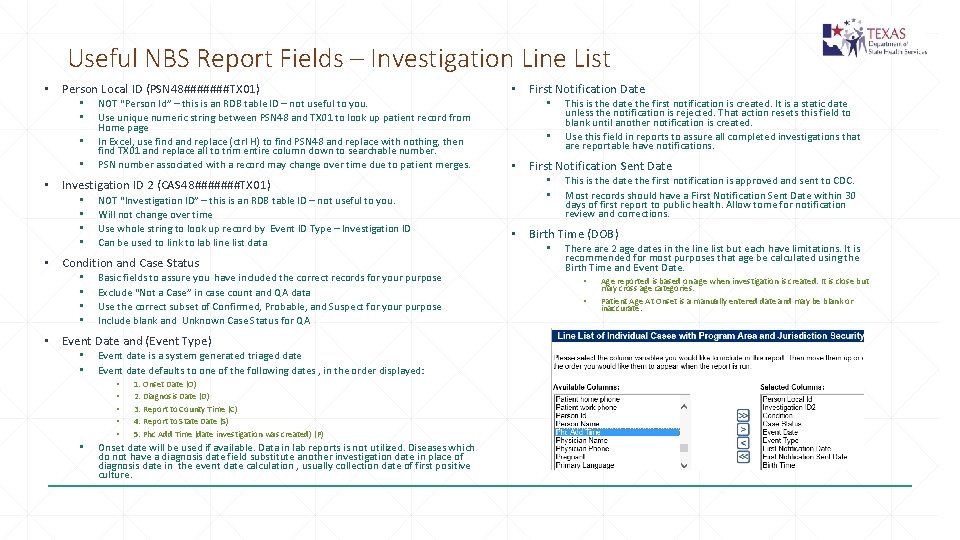
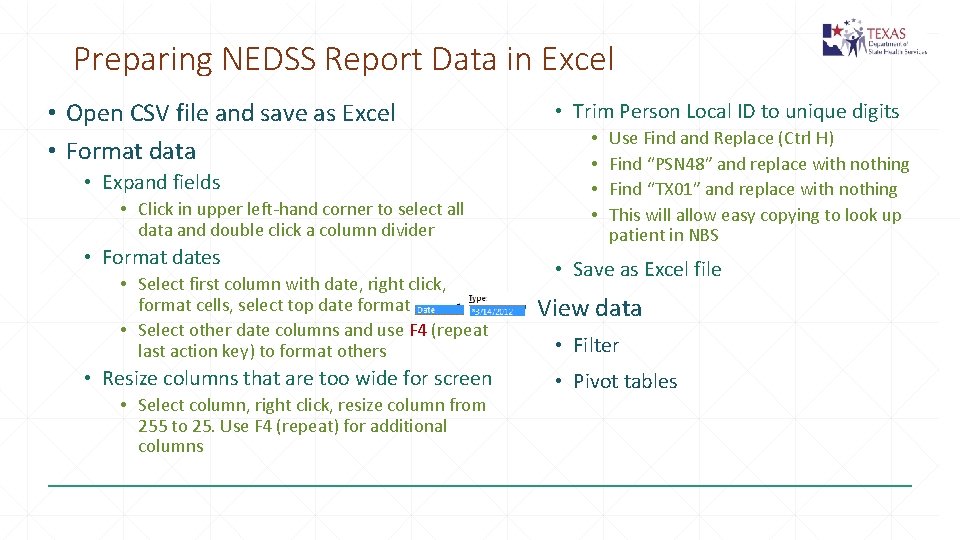
Useful NBS Report Fields – Investigation Line List • Person Local ID (PSN 48#######TX 01) • • NOT “Person Id” – this is an RDB table ID – not useful to you. Use unique numeric string between PSN 48 and TX 01 to look up patient record from Home page In Excel, use find and replace (ctrl H) to find PSN 48 and replace with nothing, then find TX 01 and replace all to trim entire column down to searchable number. PSN number associated with a record may change over time due to patient merges. • Investigation ID 2 (CAS 48#######TX 01) • • NOT “Investigation ID” – this is an RDB table ID – not useful to you. Will not change over time Use whole string to look up record by Event ID Type – Investigation ID Can be used to link to lab line list data • Condition and Case Status • • Basic fields to assure you have included the correct records for your purpose Exclude “Not a Case” in case count and QA data Use the correct subset of Confirmed, Probable, and Suspect for your purpose Include blank and Unknown Case Status for QA • Event Date and (Event Type) • • Event date is a system generated triaged date Event date defaults to one of the following dates , in the order displayed: • • • 1. Onset Date (O) 2. Diagnosis Date (D) 3. Report to County Time (C) 4. Report to State Date (S) 5. Phc Add Time (date investigation was created) (P) Onset date will be used if available. Data in lab reports is not utilized. Diseases which do not have a diagnosis date field substitute another investigation date in place of diagnosis date in the event date calculation , usually collection date of first positive culture. • First Notification Date • • This is the date the first notification is created. It is a static date unless the notification is rejected. That action resets this field to blank until another notification is created. Use this field in reports to assure all completed investigations that are reportable have notifications. • First Notification Sent Date • • This is the date the first notification is approved and sent to CDC. Most records should have a First Notification Sent Date within 30 days of first report to public health. Allow tome for notification review and corrections. • Birth Time (DOB) • There are 2 age dates in the line list but each have limitations. It is recommended for most purposes that age be calculated using the Birth Time and Event Date. • • Age reported is based on age when investigation is created. It is close but may cross age categories. Patient Age At Onset is a manually entered date and may be blank or inaccurate.
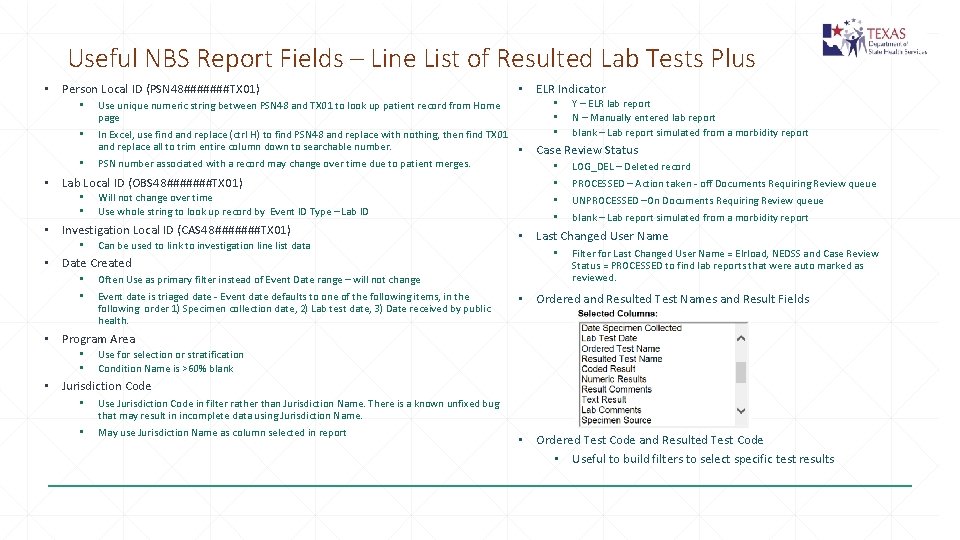
Useful NBS Report Fields – Line List of Resulted Lab Tests Plus • Person Local ID (PSN 48#######TX 01) • Use unique numeric string between PSN 48 and TX 01 to look up patient record from Home page • In Excel, use find and replace (ctrl H) to find PSN 48 and replace with nothing, then find TX 01 and replace all to trim entire column down to searchable number. • PSN number associated with a record may change over time due to patient merges. • Lab Local ID (OBS 48#######TX 01) • • Will not change over time Use whole string to look up record by Event ID Type – Lab ID • Investigation Local ID (CAS 48#######TX 01) • Can be used to link to investigation line list data • Date Created • • Often Use as primary filter instead of Event Date range – will not change Event date is triaged date - Event date defaults to one of the following items, in the following order 1) Specimen collection date, 2) Lab test date, 3) Date received by public health. • ELR Indicator • • • Y – ELR lab report N – Manually entered lab report blank – Lab report simulated from a morbidity report • Case Review Status • • LOG_DEL – Deleted record PROCESSED – Action taken - off Documents Requiring Review queue UNPROCESSED –On Documents Requiring Review queue blank – Lab report simulated from a morbidity report • Last Changed User Name • Filter for Last Changed User Name = Elrload, NEDSS and Case Review Status = PROCESSED to find lab reports that were auto marked as reviewed. • Ordered and Resulted Test Names and Result Fields • Program Area • • Use for selection or stratification Condition Name is >60% blank • Jurisdiction Code • Use Jurisdiction Code in filter rather than Jurisdiction Name. There is a known unfixed bug that may result in incomplete data using Jurisdiction Name. • May use Jurisdiction Name as column selected in report • Ordered Test Code and Resulted Test Code • Useful to build filters to select specific test results
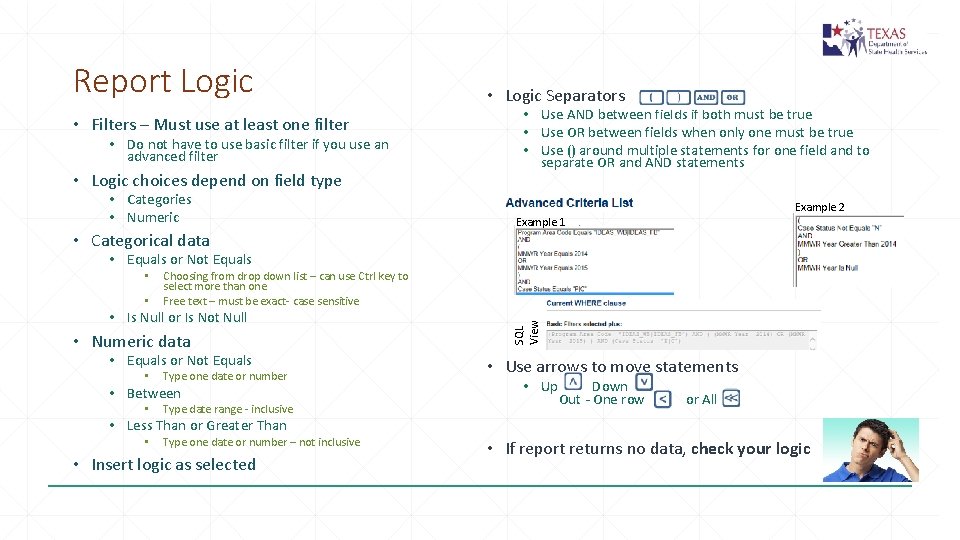
Report Logic • Filters – Must use at least one filter • Do not have to use basic filter if you use an advanced filter • Logic choices depend on field type • Categories • Numeric • Categorical data • Logic Separators • Use AND between fields if both must be true • Use OR between fields when only one must be true • Use () around multiple statements for one field and to separate OR and AND statements Example 2 Example 1 • Equals or Not Equals • Choosing from drop down list – can use Ctrl key to select more than one Free text – must be exact- case sensitive • Is Null or Is Not Null • Numeric data • Equals or Not Equals • Type one date or number • Between • Type date range - inclusive SQL View • • Use arrows to move statements • Up Down Out - One row or All • Less Than or Greater Than • Type one date or number – not inclusive • Insert logic as selected • If report returns no data, check your logic
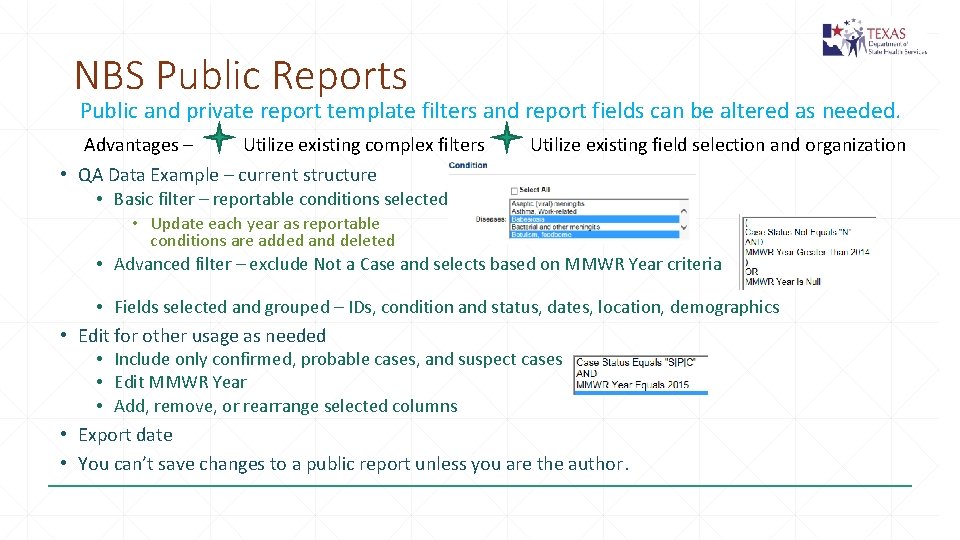
NBS Public Reports Public and private report template filters and report fields can be altered as needed. Advantages – Utilize existing complex filters Utilize existing field selection and organization • QA Data Example – current structure • Basic filter – reportable conditions selected • Update each year as reportable conditions are added and deleted • Advanced filter – exclude Not a Case and selects based on MMWR Year criteria • Fields selected and grouped – IDs, condition and status, dates, location, demographics • Edit for other usage as needed • Include only confirmed, probable cases, and suspect cases • Edit MMWR Year • Add, remove, or rearrange selected columns • Export date • You can’t save changes to a public report unless you are the author.
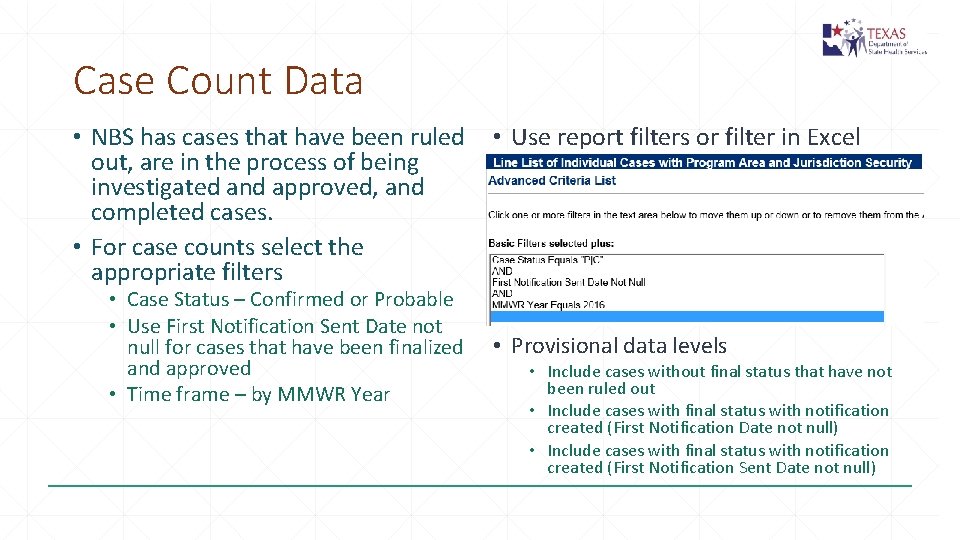
Case Count Data • NBS has cases that have been ruled out, are in the process of being investigated and approved, and completed cases. • For case counts select the appropriate filters • Case Status – Confirmed or Probable • Use First Notification Sent Date not null for cases that have been finalized and approved • Time frame – by MMWR Year • Use report filters or filter in Excel • Provisional data levels • Include cases without final status that have not been ruled out • Include cases with final status with notification created (First Notification Date not null) • Include cases with final status with notification created (First Notification Sent Date not null)
Preparing NEDSS Report Data in Excel • Open CSV file and save as Excel • Format data • Expand fields • Click in upper left-hand corner to select all data and double click a column divider • Format dates • Select first column with date, right click, format cells, select top date format • Select other date columns and use F 4 (repeat last action key) to format others • Resize columns that are too wide for screen • Select column, right click, resize column from 255 to 25. Use F 4 (repeat) for additional columns • Trim Person Local ID to unique digits • • Use Find and Replace (Ctrl H) Find “PSN 48” and replace with nothing Find “TX 01” and replace with nothing This will allow easy copying to look up patient in NBS • Save as Excel file • View data • Filter • Pivot tables
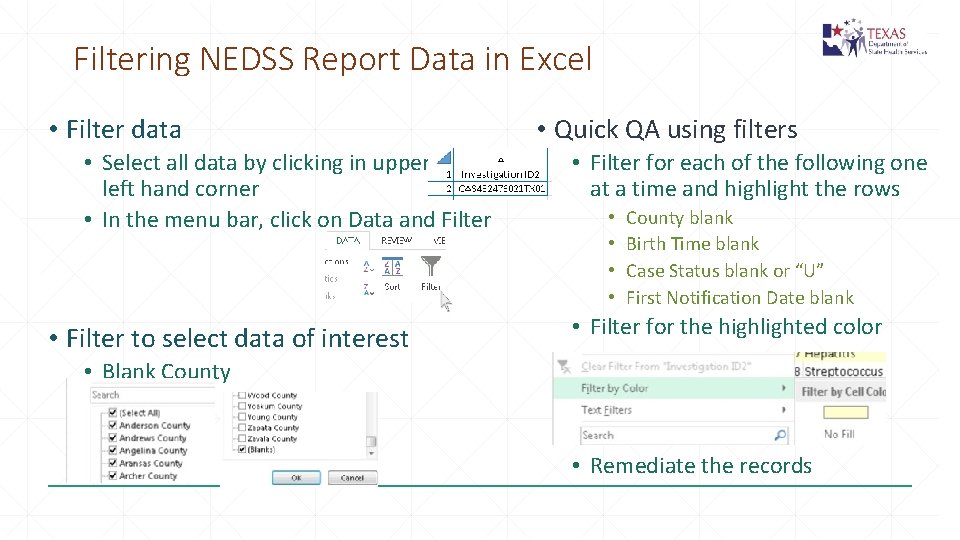
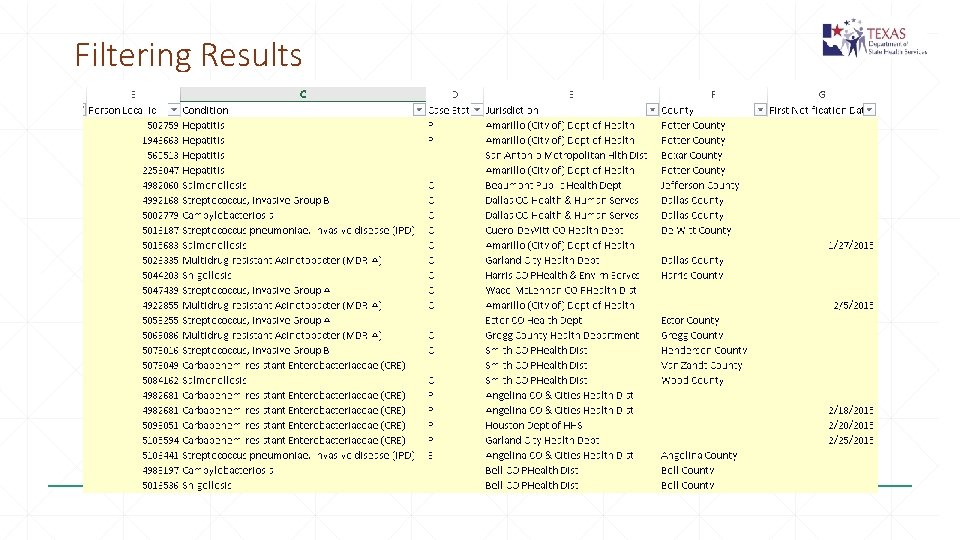
Filtering NEDSS Report Data in Excel • Filter data • Select all data by clicking in upper left hand corner • In the menu bar, click on Data and Filter • Filter to select data of interest • Quick QA using filters • Filter for each of the following one at a time and highlight the rows • • County blank Birth Time blank Case Status blank or “U” First Notification Date blank • Filter for the highlighted color • Blank County • Remediate the records
Filtering Results
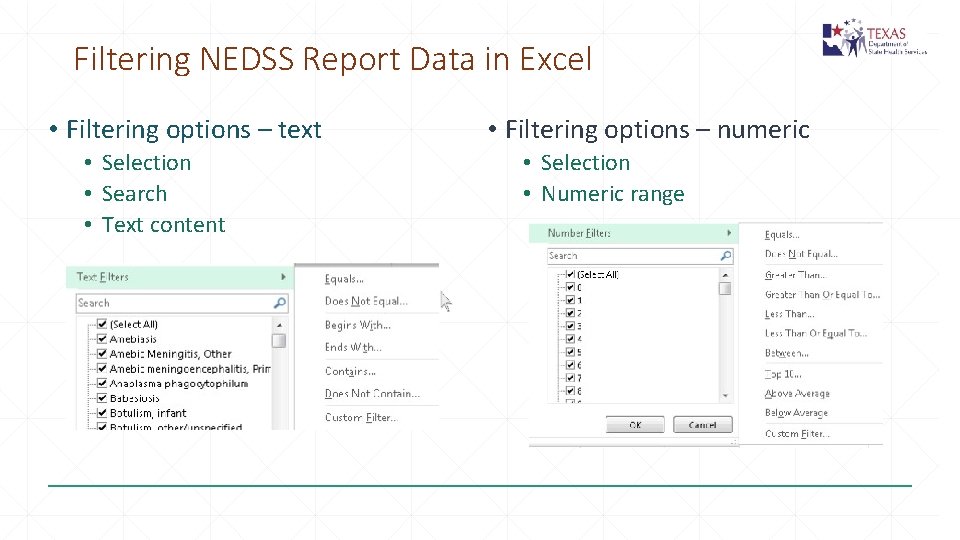
Filtering NEDSS Report Data in Excel • Filtering options – text • Selection • Search • Text content • Filtering options – numeric • Selection • Numeric range
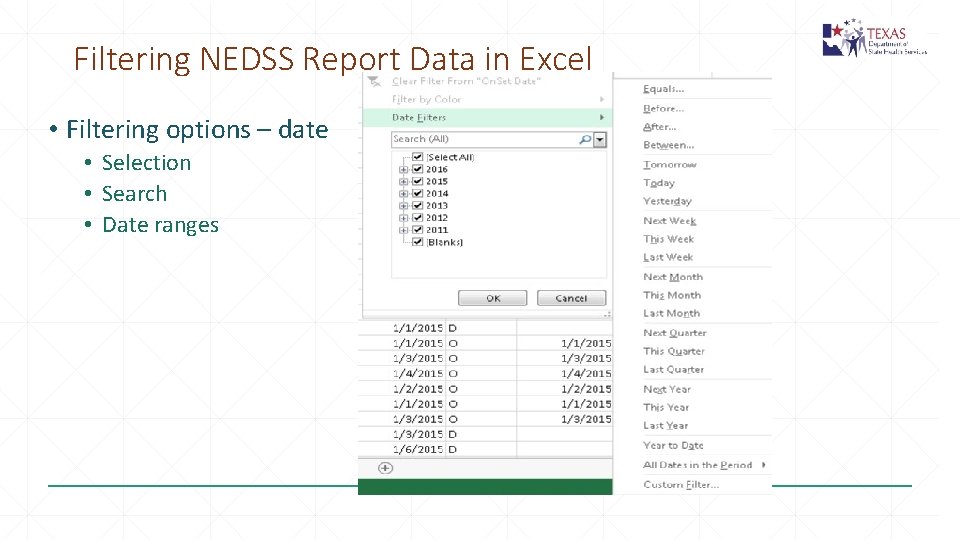
Filtering NEDSS Report Data in Excel • Filtering options – date • Selection • Search • Date ranges
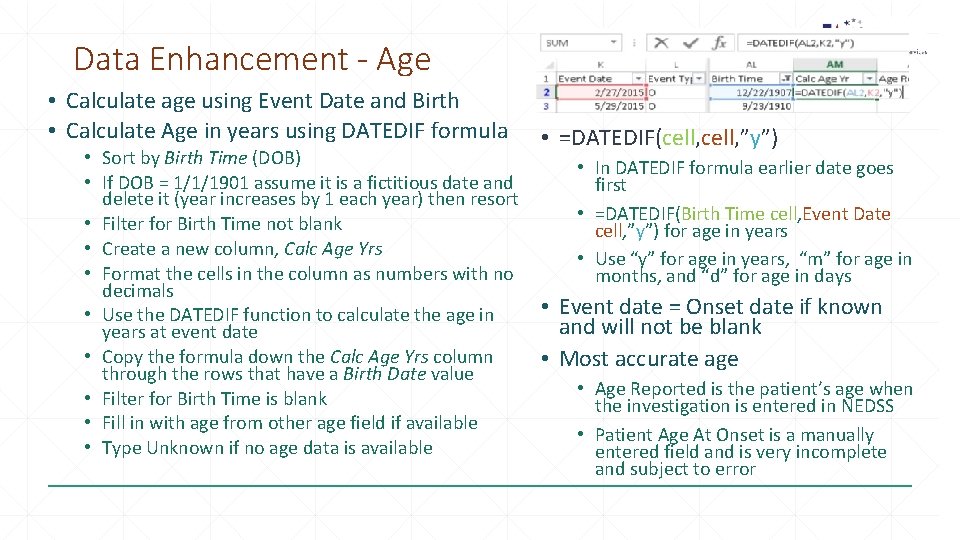
Data Enhancement - Age • Calculate age using Event Date and Birth • Calculate Age in years using DATEDIF formula • Sort by Birth Time (DOB) • If DOB = 1/1/1901 assume it is a fictitious date and delete it (year increases by 1 each year) then resort • Filter for Birth Time not blank • Create a new column, Calc Age Yrs • Format the cells in the column as numbers with no decimals • Use the DATEDIF function to calculate the age in years at event date • Copy the formula down the Calc Age Yrs column through the rows that have a Birth Date value • Filter for Birth Time is blank • Fill in with age from other age field if available • Type Unknown if no age data is available • =DATEDIF(cell, ”y”) • In DATEDIF formula earlier date goes first • =DATEDIF(Birth Time cell, Event Date cell, ”y”) for age in years • Use “y” for age in years, “m” for age in months, and “d” for age in days • Event date = Onset date if known and will not be blank • Most accurate age • Age Reported is the patient’s age when the investigation is entered in NEDSS • Patient Age At Onset is a manually entered field and is very incomplete and subject to error
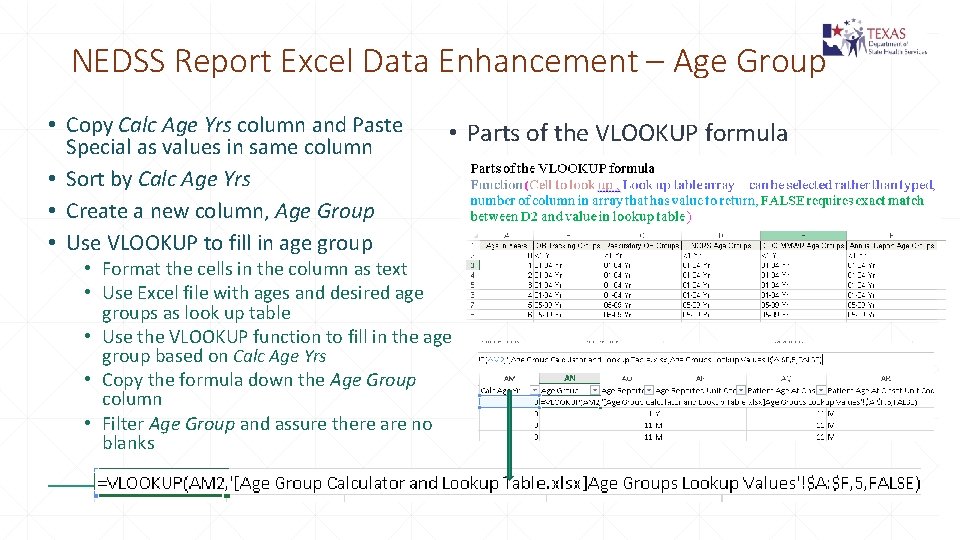
NEDSS Report Excel Data Enhancement – Age Group • Copy Calc Age Yrs column and Paste Special as values in same column • Sort by Calc Age Yrs • Create a new column, Age Group • Use VLOOKUP to fill in age group • Parts of the VLOOKUP formula • Format the cells in the column as text • Use Excel file with ages and desired age groups as look up table • Use the VLOOKUP function to fill in the age group based on Calc Age Yrs • Copy the formula down the Age Group column • Filter Age Group and assure there are no blanks
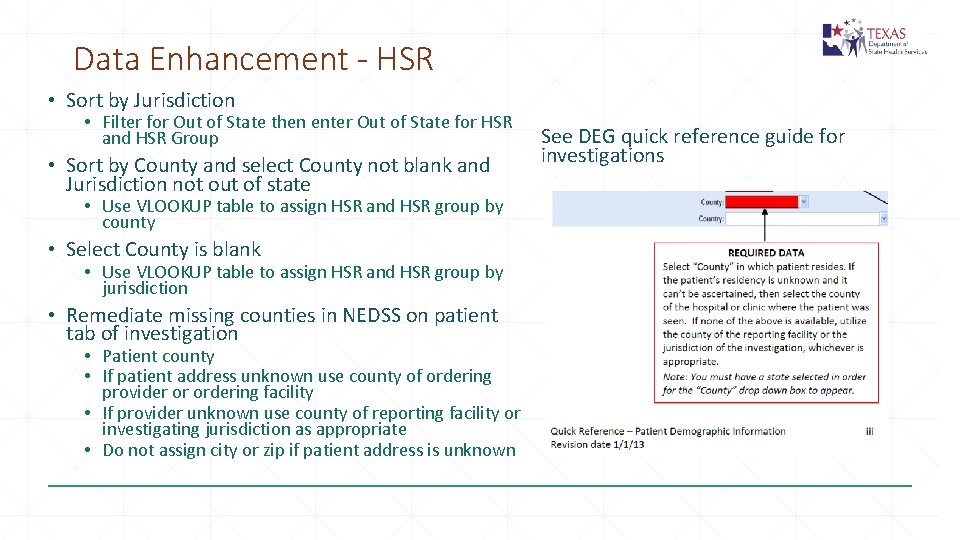
Data Enhancement - HSR • Sort by Jurisdiction • Filter for Out of State then enter Out of State for HSR and HSR Group • Sort by County and select County not blank and Jurisdiction not out of state • Use VLOOKUP table to assign HSR and HSR group by county • Select County is blank • Use VLOOKUP table to assign HSR and HSR group by jurisdiction • Remediate missing counties in NEDSS on patient tab of investigation • Patient county • If patient address unknown use county of ordering provider or ordering facility • If provider unknown use county of reporting facility or investigating jurisdiction as appropriate • Do not assign city or zip if patient address is unknown See DEG quick reference guide for investigations
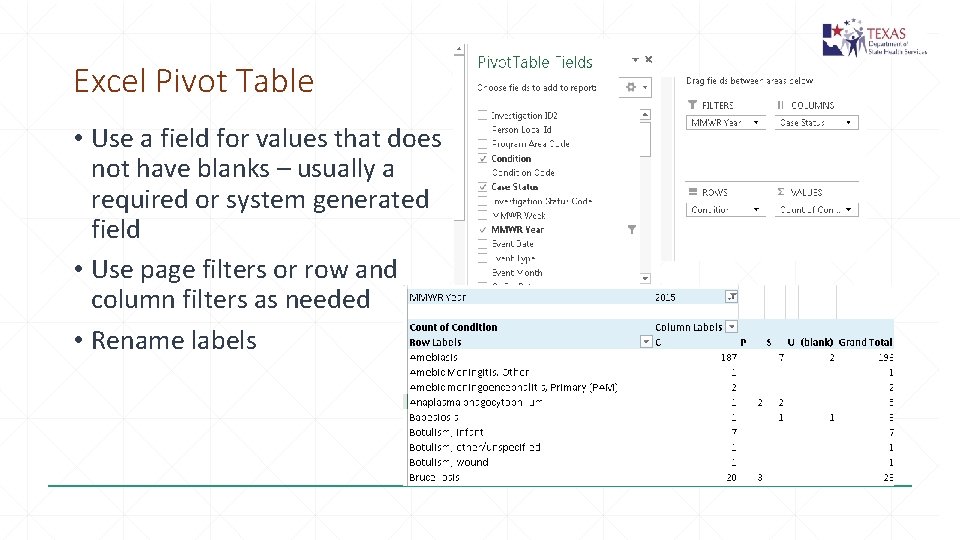
Excel Pivot Table • Use a field for values that does not have blanks – usually a required or system generated field • Use page filters or row and column filters as needed • Rename labels
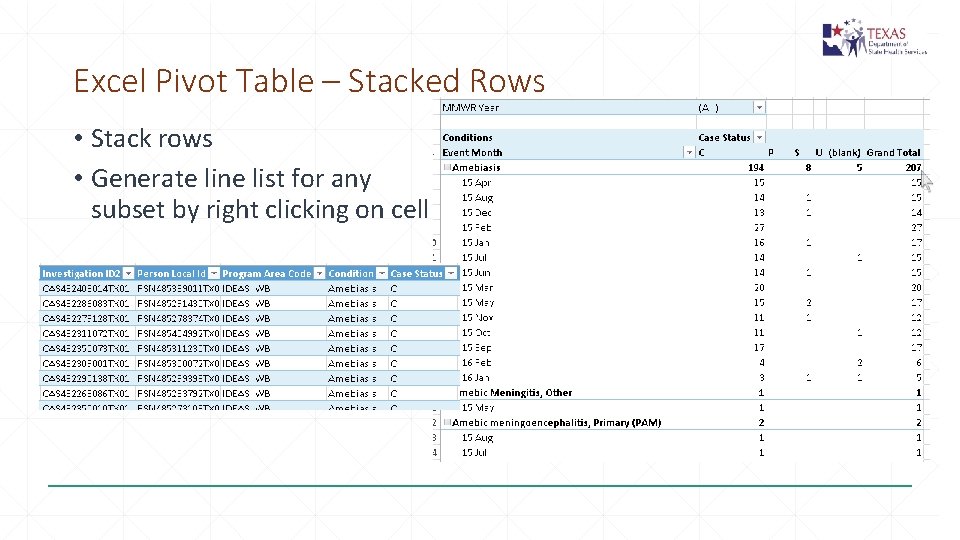
Excel Pivot Table – Stacked Rows • Stack rows • Generate line list for any subset by right clicking on cell
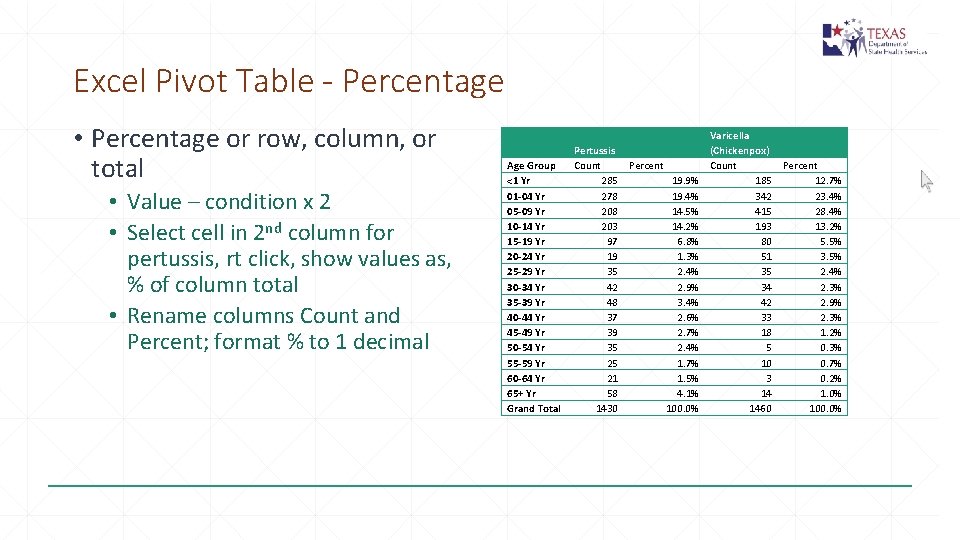
Excel Pivot Table - Percentage • Percentage or row, column, or total • Value – condition x 2 • Select cell in 2 nd column for pertussis, rt click, show values as, % of column total • Rename columns Count and Percent; format % to 1 decimal Age Group <1 Yr 01 -04 Yr 05 -09 Yr 10 -14 Yr 15 -19 Yr 20 -24 Yr 25 -29 Yr 30 -34 Yr 35 -39 Yr 40 -44 Yr 45 -49 Yr 50 -54 Yr 55 -59 Yr 60 -64 Yr 65+ Yr Grand Total Pertussis Count Percent 285 19. 9% 278 19. 4% 208 14. 5% 203 14. 2% 97 6. 8% 19 1. 3% 35 2. 4% 42 2. 9% 48 3. 4% 37 2. 6% 39 2. 7% 35 2. 4% 25 1. 7% 21 1. 5% 58 4. 1% 1430 100. 0% Varicella (Chickenpox) Count Percent 185 12. 7% 342 23. 4% 415 28. 4% 193 13. 2% 80 5. 5% 51 3. 5% 35 2. 4% 34 2. 3% 42 2. 9% 33 2. 3% 18 1. 2% 5 0. 3% 10 0. 7% 3 0. 2% 14 1. 0% 1460 100. 0%
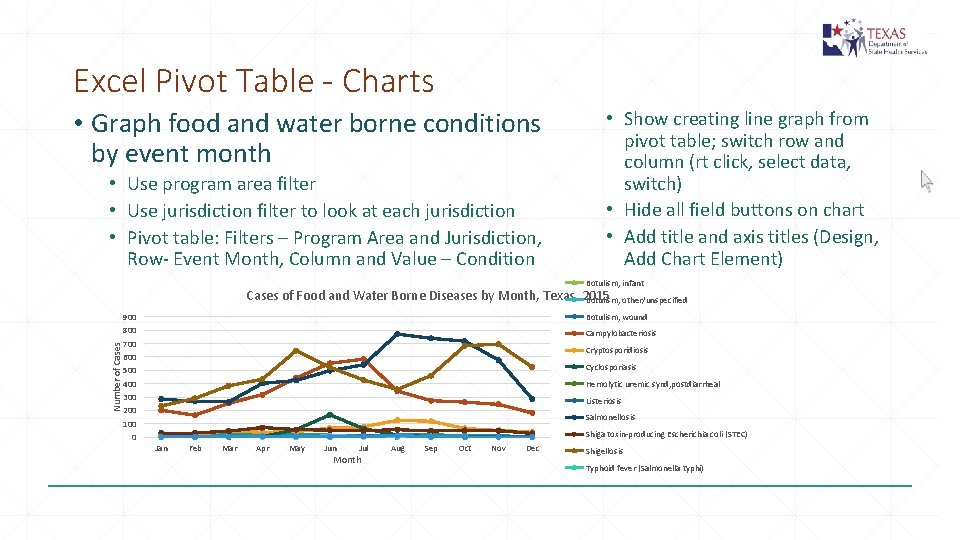
Excel Pivot Table - Charts • Graph food and water borne conditions by event month • Use program area filter • Use jurisdiction filter to look at each jurisdiction • Pivot table: Filters – Program Area and Jurisdiction, Row- Event Month, Column and Value – Condition • Show creating line graph from pivot table; switch row and column (rt click, select data, switch) • Hide all field buttons on chart • Add title and axis titles (Design, Add Chart Element) Amebiasis Botulism, infant Number of Cases of Food and Water Borne Diseases by Month, Texas, 2015 Botulism, other/unspecified 900 800 700 600 500 400 300 200 100 0 Botulism, wound Campylobacteriosis Cryptosporidiosis Cyclosporiasis Hemolytic uremic synd, postdiarrheal Listeriosis Salmonellosis Shiga toxin-producing Escherichia coli (STEC) Jan Feb Mar Apr May Jun Jul Month Aug Sep Oct Nov Dec Shigellosis Typhoid fever (Salmonella typhi) Vibrio parahaemolyticus Vibrio vulnificus infection Vibriosis, other or unspecified
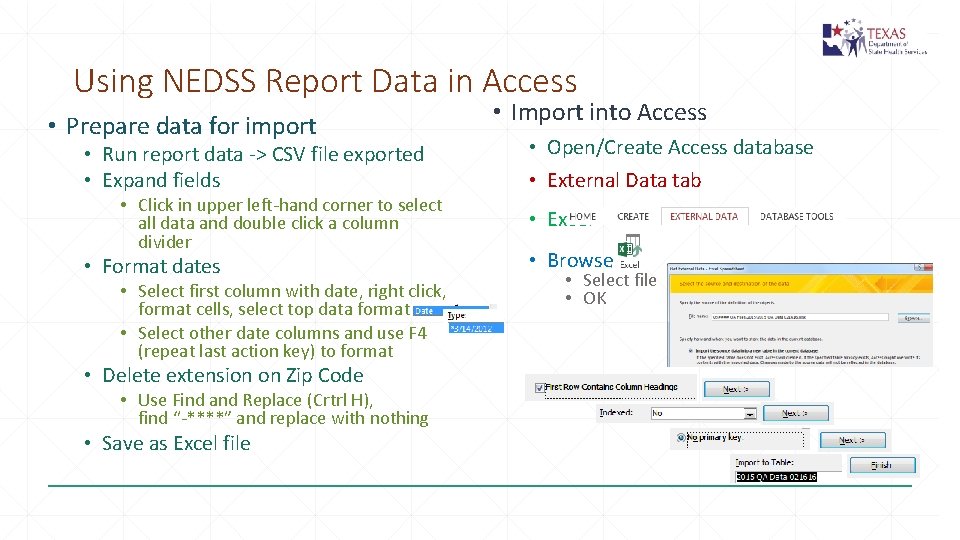
Using NEDSS Report Data in Access • Prepare data for import • Run report data -> CSV file exported • Expand fields • Click in upper left-hand corner to select all data and double click a column divider • Format dates • Select first column with date, right click, format cells, select top data format • Select other date columns and use F 4 (repeat last action key) to format • Delete extension on Zip Code • Use Find and Replace (Crtrl H), find “-****” and replace with nothing • Save as Excel file • Import into Access • Open/Create Access database • External Data tab • Excel • Browse • Select file • OK
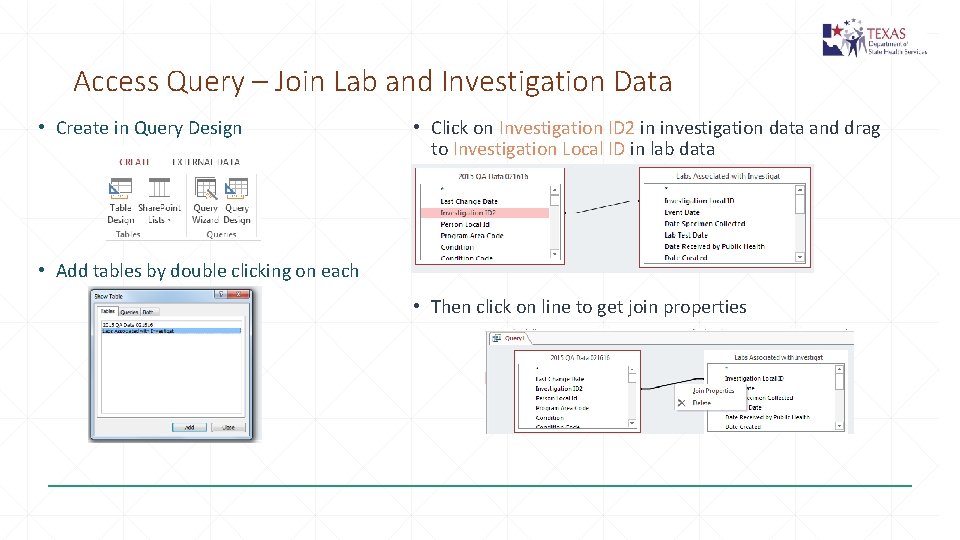
Access Query – Join Lab and Investigation Data • Create in Query Design • Click on Investigation ID 2 in investigation data and drag to Investigation Local ID in lab data • Add tables by double clicking on each • Then click on line to get join properties
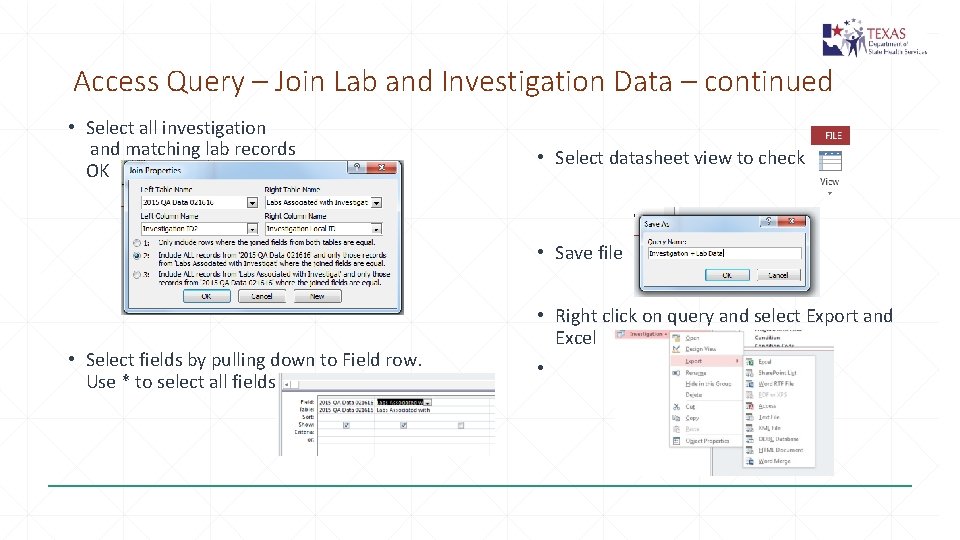
Access Query – Join Lab and Investigation Data – continued • Select all investigation and matching lab records OK • Select datasheet view to check • Save file • Select fields by pulling down to Field row. Use * to select all fields • Right click on query and select Export and Excel •
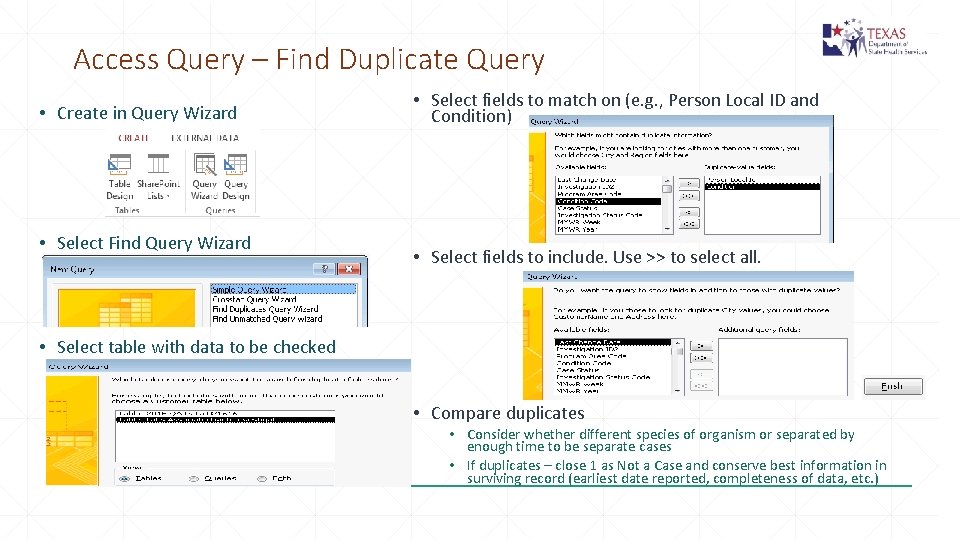
Access Query – Find Duplicate Query • Create in Query Wizard • Select Find Query Wizard • Select fields to match on (e. g. , Person Local ID and Condition) • Select fields to include. Use >> to select all. • Select table with data to be checked • Compare duplicates • Consider whether different species of organism or separated by enough time to be separate cases • If duplicates – close 1 as Not a Case and conserve best information in surviving record (earliest date reported, completeness of data, etc. )
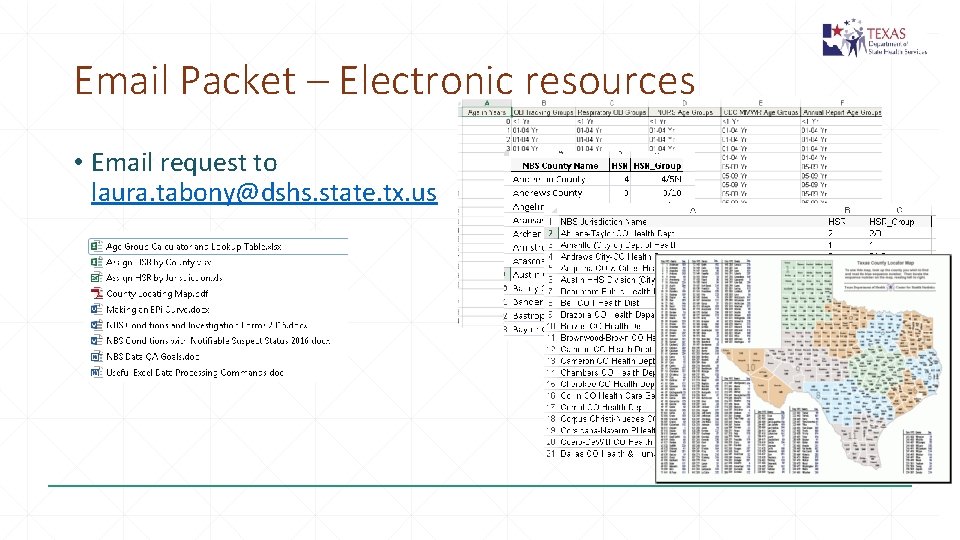
Email Packet – Electronic resources • Email request to laura. tabony@dshs. state. tx. us