
Using Native Functions 7 th Nov 2019 What
- Slides: 20
Using Native Functions 7 th Nov 2019
What is an app? • The Android OS is a multi-user Linux system • Each app has its own user • OS sets permissions for all files in an app such that only the app's user can access them • Every app runs its own process • Every process runs in its own VM • Principle of least privilege
App components • Activities • Control user interface with the app • Services • Run background processes • Receivers • Hooks to the system that enable user notifications • Providers • Manage app data that requires persistent storage • Android speciality: any app component can activate any other app component
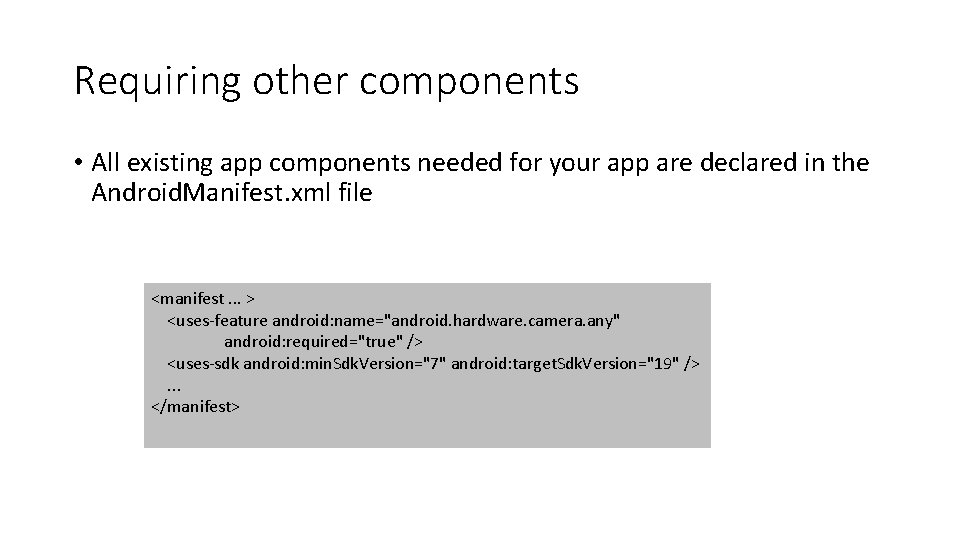
Requiring other components • All existing app components needed for your app are declared in the Android. Manifest. xml file <manifest. . . > <uses-feature android: name="android. hardware. camera. any" android: required="true" /> <uses-sdk android: min. Sdk. Version="7" android: target. Sdk. Version="19" />. . . </manifest>
Permissions • Permissions preserve the privacy of each app, as well as the device owner • Apps must ask for permission before accessing device native functionalities • • • Send SMS Read contact list Access camera Access sensors Activate Bluetooth
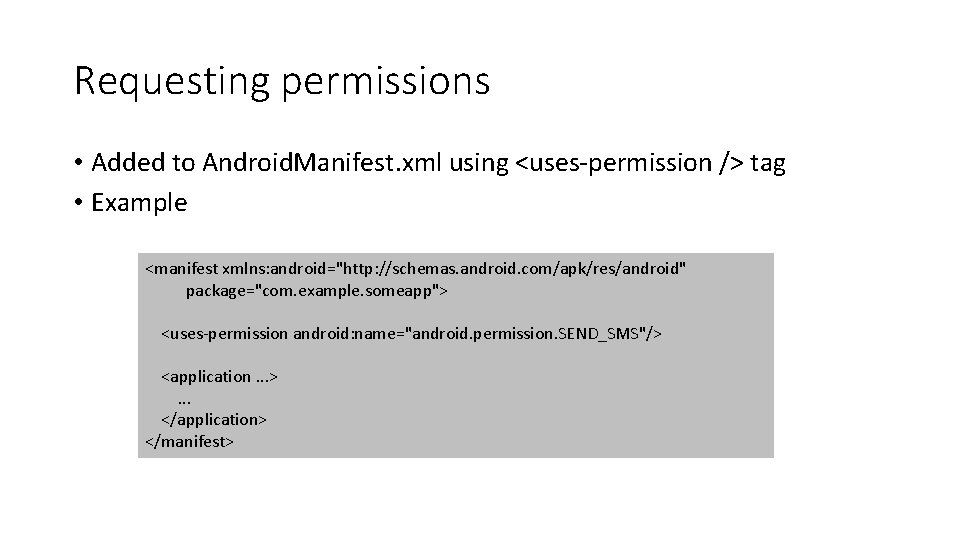
Requesting permissions • Added to Android. Manifest. xml using <uses-permission /> tag • Example <manifest xmlns: android="http: //schemas. android. com/apk/res/android" package="com. example. someapp"> <uses-permission android: name="android. permission. SEND_SMS"/> <application. . . >. . . </application> </manifest>
Permission approval • Normal • Permissions are granted automatically by system • Signature • Permissions are granted automatically by system if the app trying to use the permission is signed by the same certificate as the app that defines the permission • Dangerous • App must prompt the user for permission • Used to ask for permissions at install-time • Since SDK 23, ask for permissions at run-time
Native functions • Two prominent activities • • Camera Geolocation We discuss sample apps for both All instructions for RN version 0. 60+ • Less prominent activities • Bluetooth • Environment sensors • Temperature, humidity, • Motion sensors • Accelerometer, gyroscope, step counting, rotation • Position sensors • Geomagnetic sensor, accelerometer
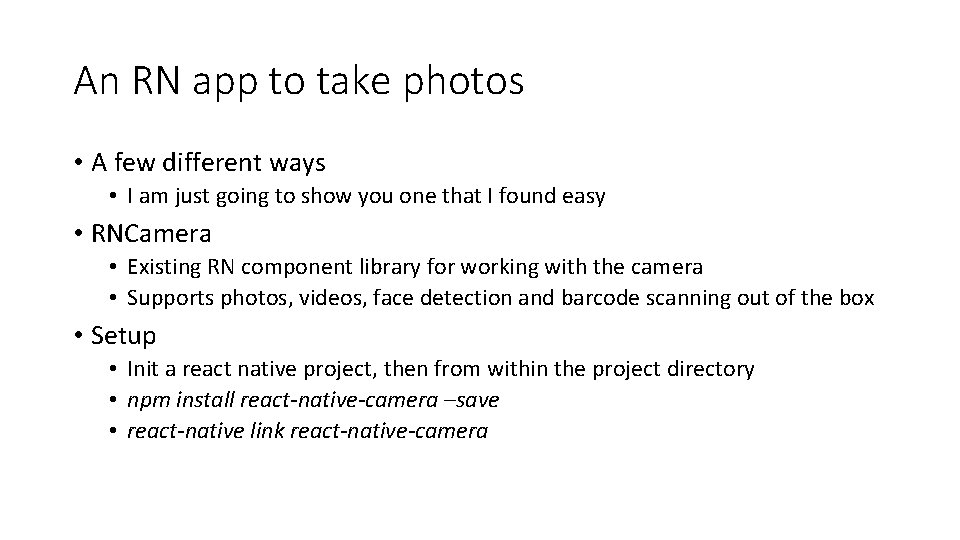
An RN app to take photos • A few different ways • I am just going to show you one that I found easy • RNCamera • Existing RN component library for working with the camera • Supports photos, videos, face detection and barcode scanning out of the box • Setup • Init a react native project, then from within the project directory • npm install react-native-camera –save • react-native link react-native-camera
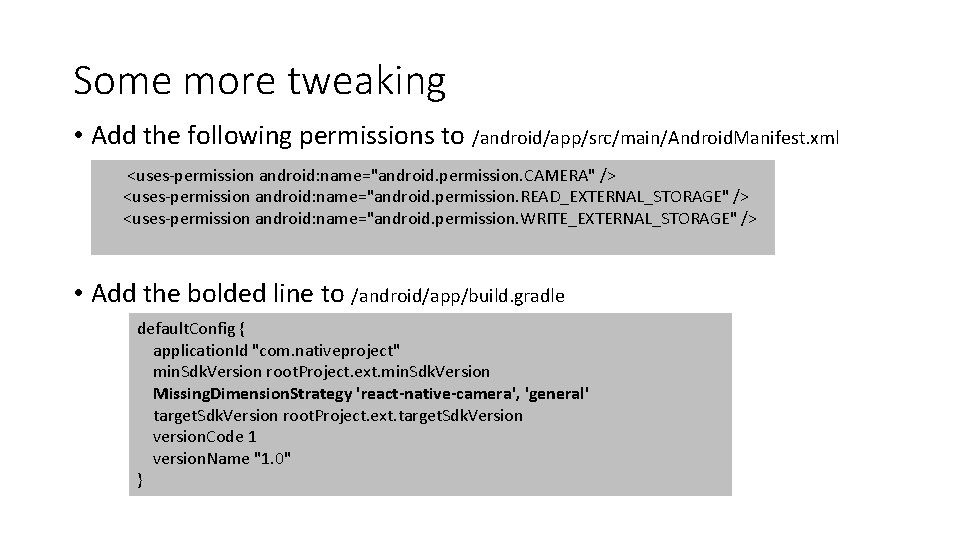
Some more tweaking • Add the following permissions to /android/app/src/main/Android. Manifest. xml <uses-permission android: name="android. permission. CAMERA" /> <uses-permission android: name="android. permission. READ_EXTERNAL_STORAGE" /> <uses-permission android: name="android. permission. WRITE_EXTERNAL_STORAGE" /> • Add the bolded line to /android/app/build. gradle default. Config { application. Id "com. nativeproject" min. Sdk. Version root. Project. ext. min. Sdk. Version Missing. Dimension. Strategy 'react-native-camera', 'general' target. Sdk. Version root. Project. ext. target. Sdk. Version version. Code 1 version. Name "1. 0" }
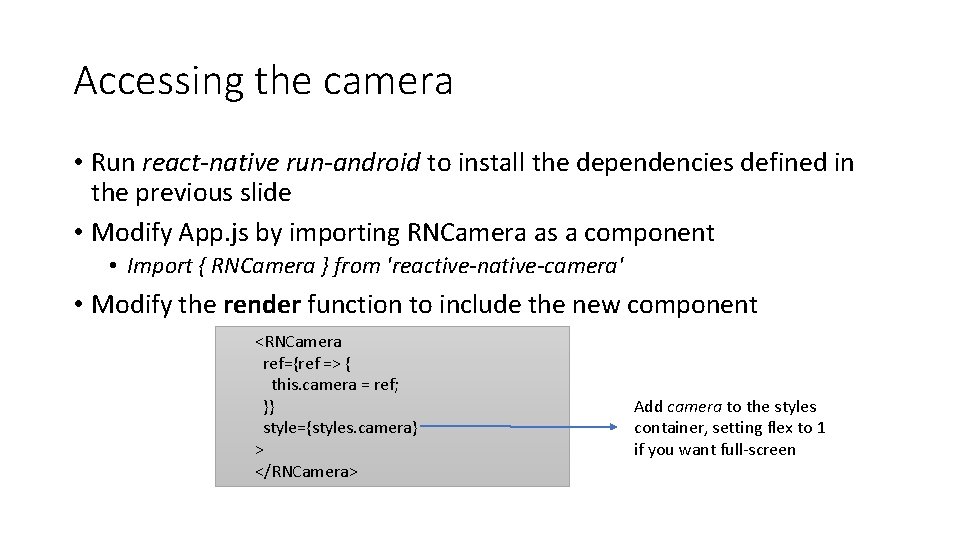
Accessing the camera • Run react-native run-android to install the dependencies defined in the previous slide • Modify App. js by importing RNCamera as a component • Import { RNCamera } from 'reactive-native-camera' • Modify the render function to include the new component <RNCamera ref={ref => { this. camera = ref; }} style={styles. camera} > </RNCamera> Add camera to the styles container, setting flex to 1 if you want full-screen
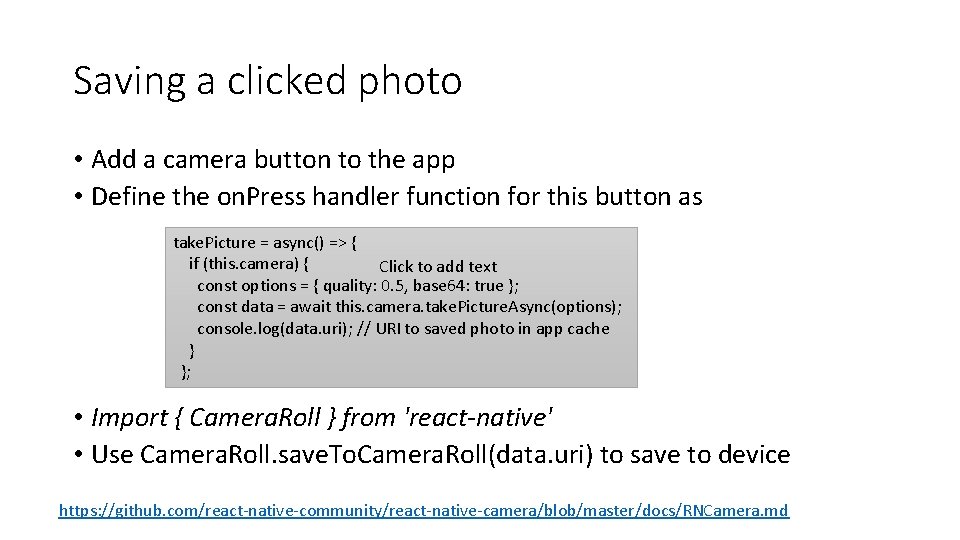
Saving a clicked photo • Add a camera button to the app • Define the on. Press handler function for this button as take. Picture = async() => { if (this. camera) { Click to add text const options = { quality: 0. 5, base 64: true }; const data = await this. camera. take. Picture. Async(options); console. log(data. uri); // URI to saved photo in app cache } }; • Import { Camera. Roll } from 'react-native' • Use Camera. Roll. save. To. Camera. Roll(data. uri) to save to device https: //github. com/react-native-community/react-native-camera/blob/master/docs/RNCamera. md
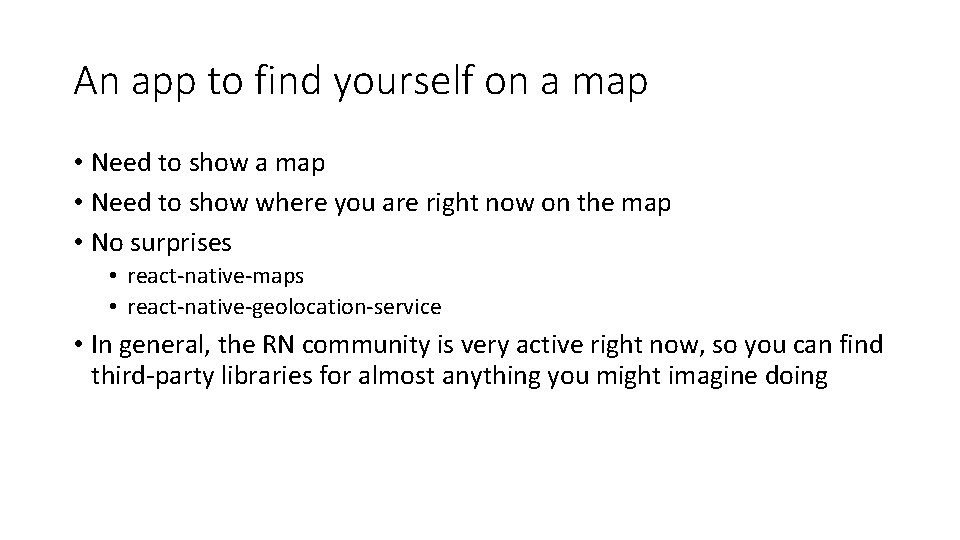
An app to find yourself on a map • Need to show where you are right now on the map • No surprises • react-native-maps • react-native-geolocation-service • In general, the RN community is very active right now, so you can find third-party libraries for almost anything you might imagine doing
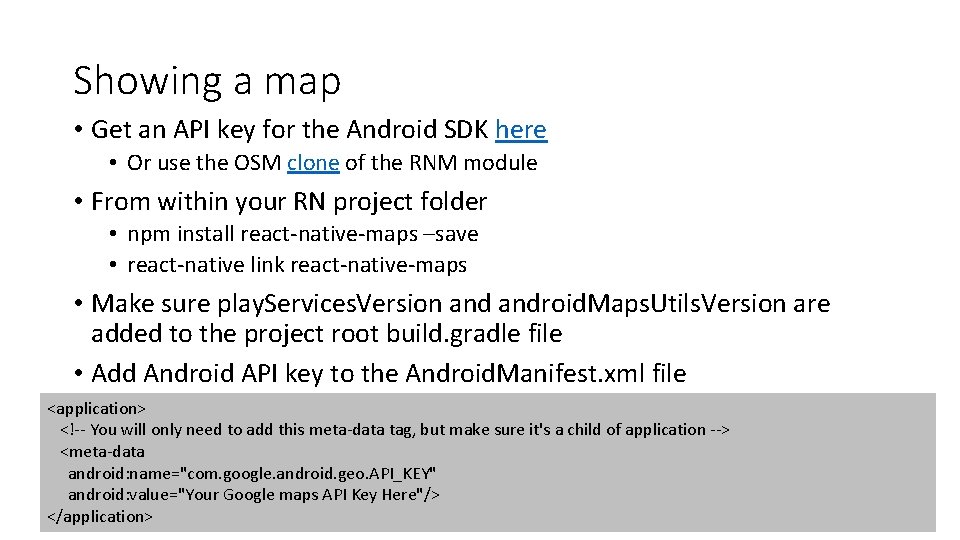
Showing a map • Get an API key for the Android SDK here • Or use the OSM clone of the RNM module • From within your RN project folder • npm install react-native-maps –save • react-native link react-native-maps • Make sure play. Services. Version android. Maps. Utils. Version are added to the project root build. gradle file • Add Android API key to the Android. Manifest. xml file <application> <!-- You will only need to add this meta-data tag, but make sure it's a child of application --> <meta-data android: name="com. google. android. geo. API_KEY" android: value="Your Google maps API Key Here"/> </application>
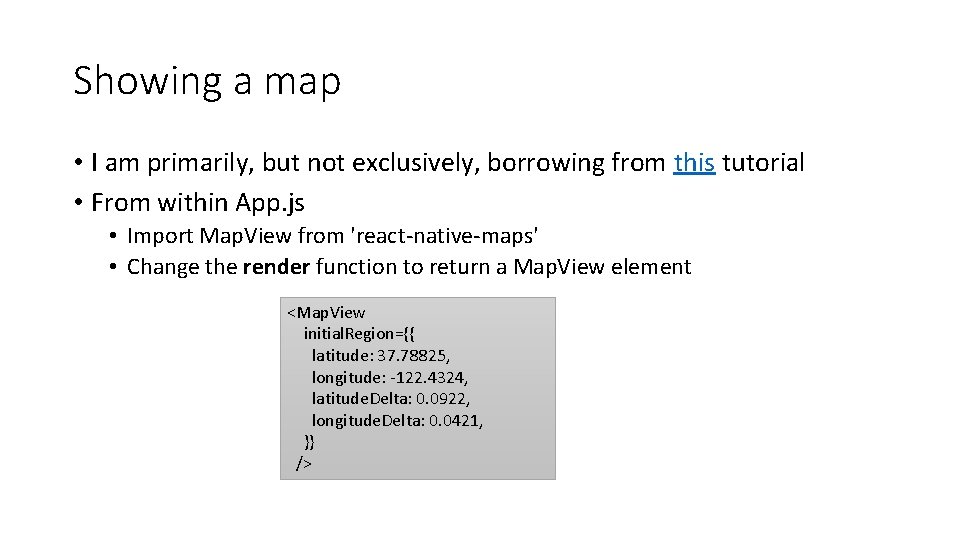
Showing a map • I am primarily, but not exclusively, borrowing from this tutorial • From within App. js • Import Map. View from 'react-native-maps' • Change the render function to return a Map. View element <Map. View initial. Region={{ latitude: 37. 78825, longitude: -122. 4324, latitude. Delta: 0. 0922, longitude. Delta: 0. 0421, }} />
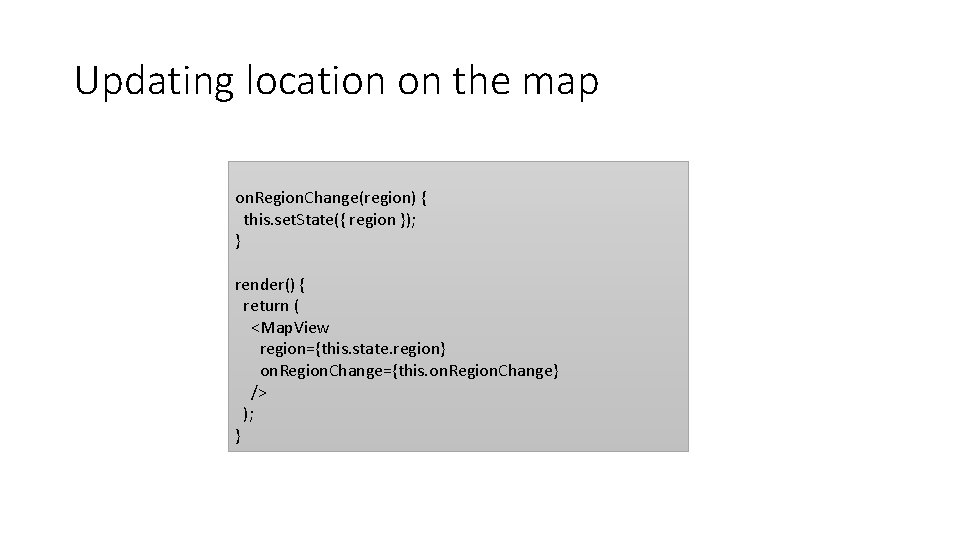
Updating location on the map on. Region. Change(region) { this. set. State({ region }); } render() { return ( <Map. View region={this. state. region} on. Region. Change={this. on. Region. Change} /> ); }
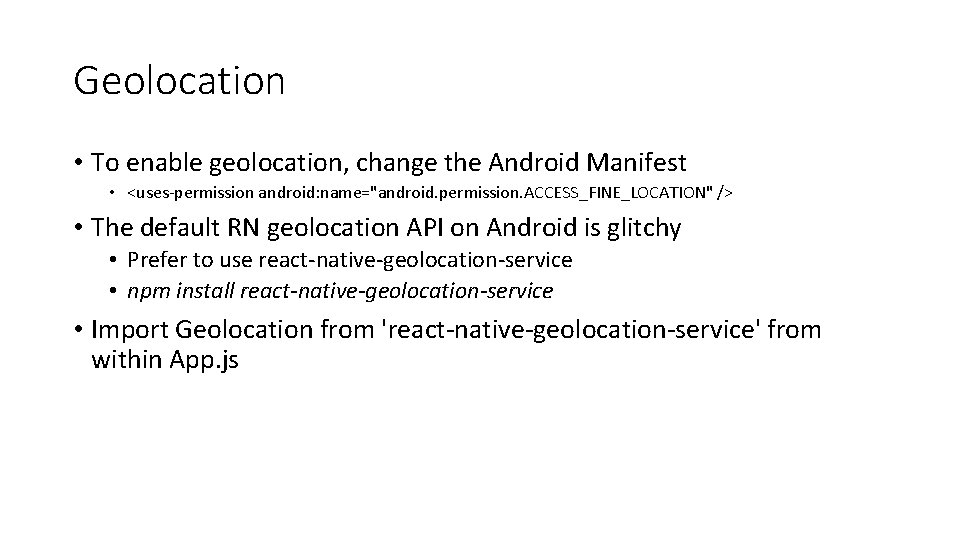
Geolocation • To enable geolocation, change the Android Manifest • <uses-permission android: name="android. permission. ACCESS_FINE_LOCATION" /> • The default RN geolocation API on Android is glitchy • Prefer to use react-native-geolocation-service • npm install react-native-geolocation-service • Import Geolocation from 'react-native-geolocation-service' from within App. js
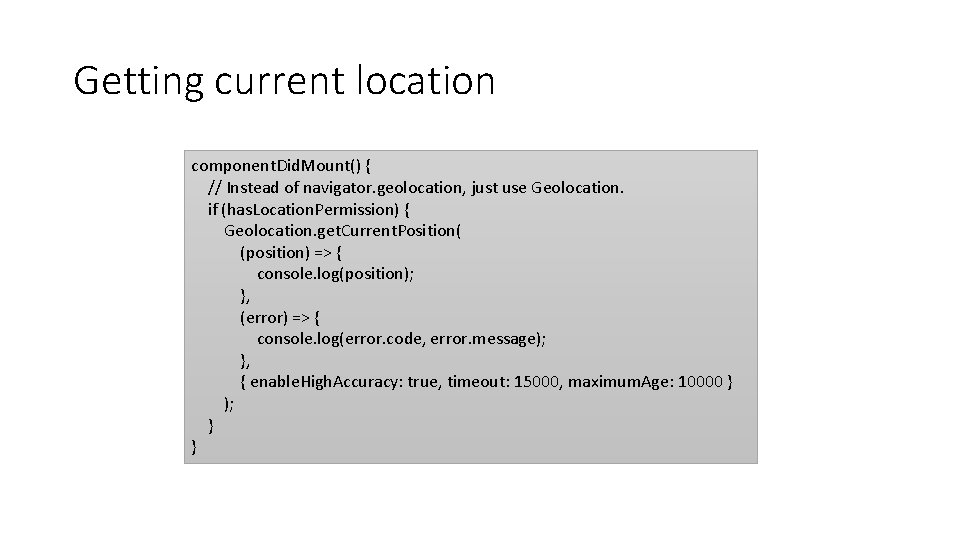
Getting current location component. Did. Mount() { // Instead of navigator. geolocation, just use Geolocation. if (has. Location. Permission) { Geolocation. get. Current. Position( (position) => { console. log(position); }, (error) => { console. log(error. code, error. message); }, { enable. High. Accuracy: true, timeout: 15000, maximum. Age: 10000 } ); } }
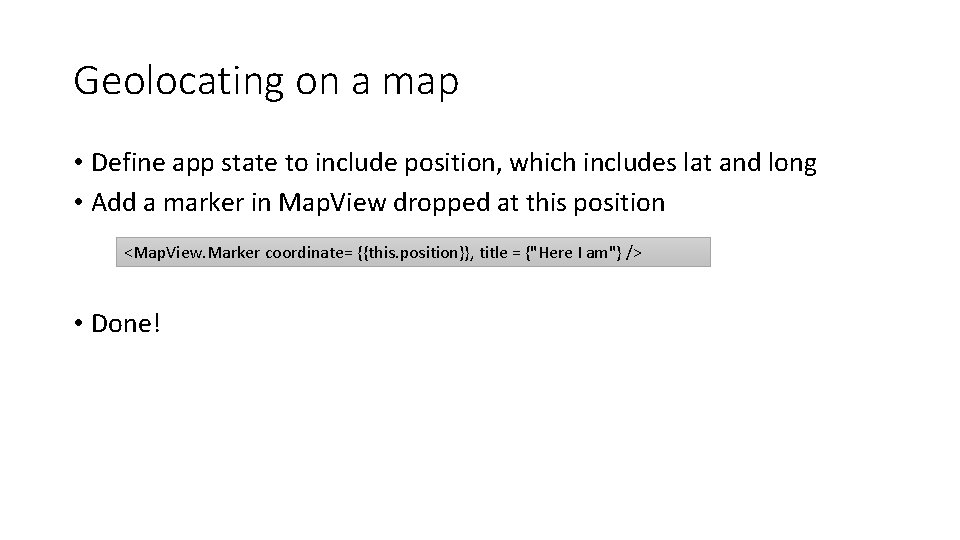
Geolocating on a map • Define app state to include position, which includes lat and long • Add a marker in Map. View dropped at this position <Map. View. Marker coordinate= {{this. position}}, title = {"Here I am"} /> • Done!
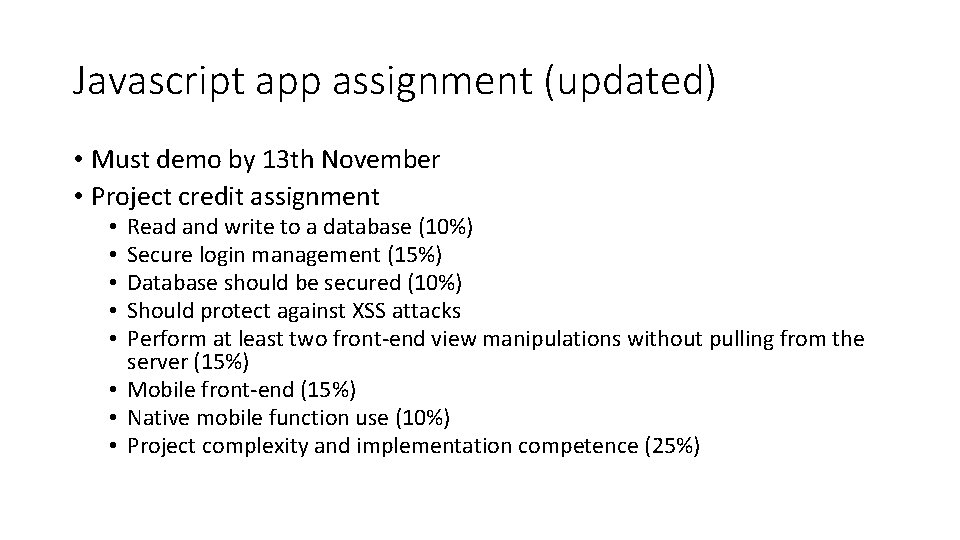
Javascript app assignment (updated) • Must demo by 13 th November • Project credit assignment Read and write to a database (10%) Secure login management (15%) Database should be secured (10%) Should protect against XSS attacks Perform at least two front-end view manipulations without pulling from the server (15%) • Mobile front-end (15%) • Native mobile function use (10%) • Project complexity and implementation competence (25%) • • •