
Using Microsoft Words Review Features South Hills School

![Comment “[A] note or annotation that an author or reviewer can add to a](https://slidetodoc.com/presentation_image_h2/bd415a827a403504b10867e8c898e6bb/image-17.jpg "Comment “[A] note or annotation that an author or reviewer can add to a")
- Slides: 32
Using Microsoft Word’s Review Features South Hills School of Business & Technology Live Online Learning Session June 23, 2020 Presenter: Marsha Ann Tate, Ph. D.
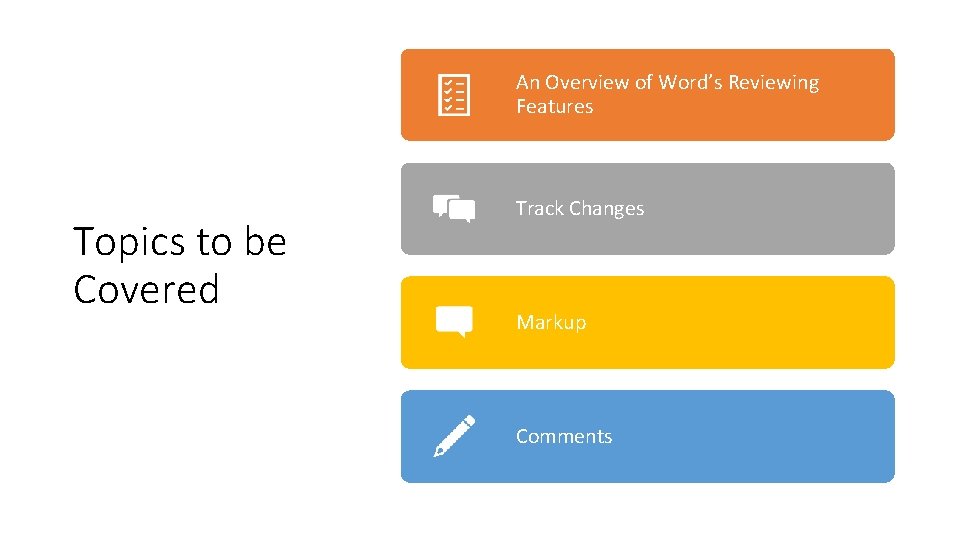
An Overview of Word’s Reviewing Features Topics to be Covered Track Changes Markup Comments
Track Changes Tools for Reviewing Documents Markup Comments
Track Changes
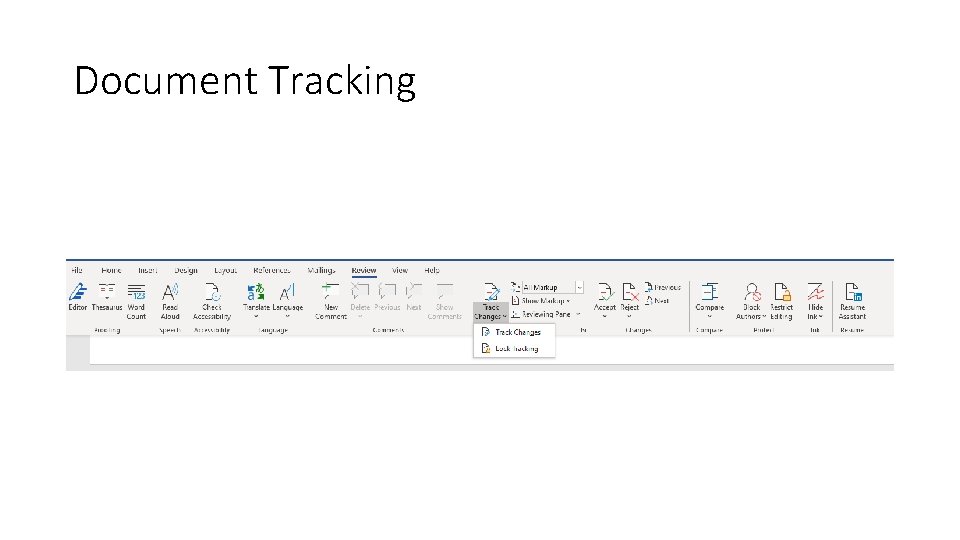
Document Tracking
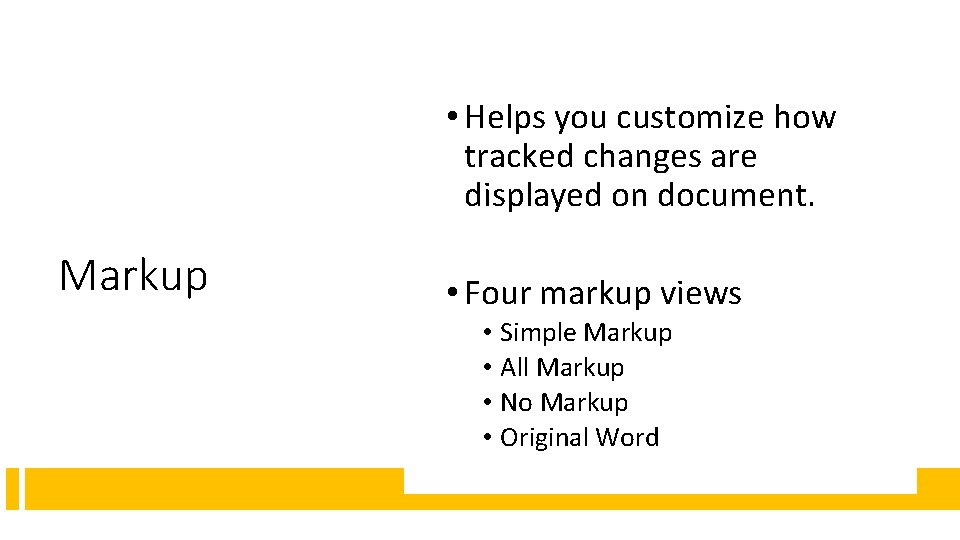
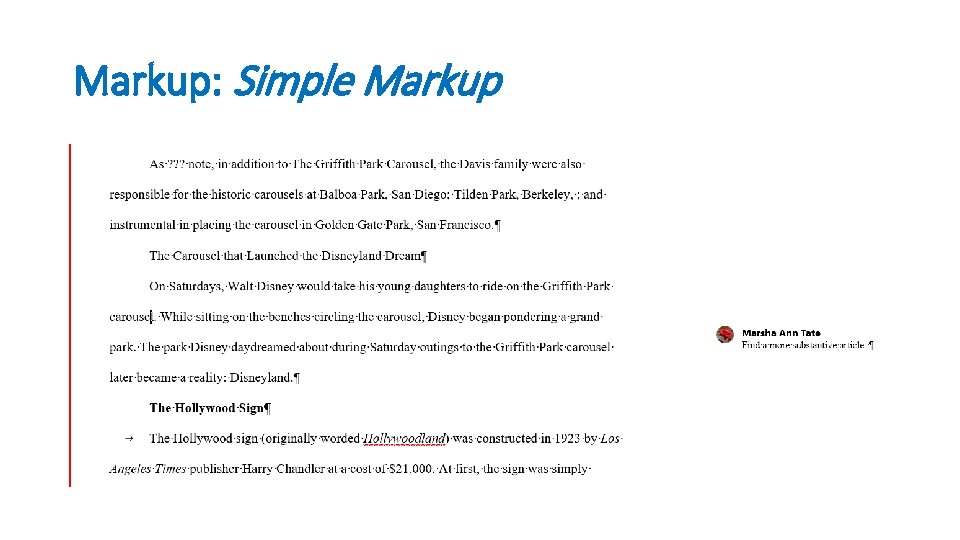
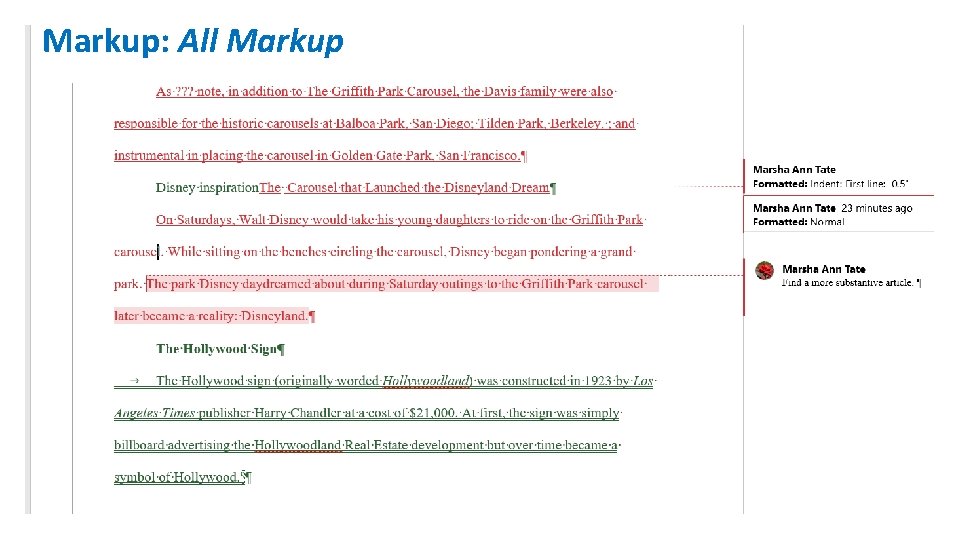
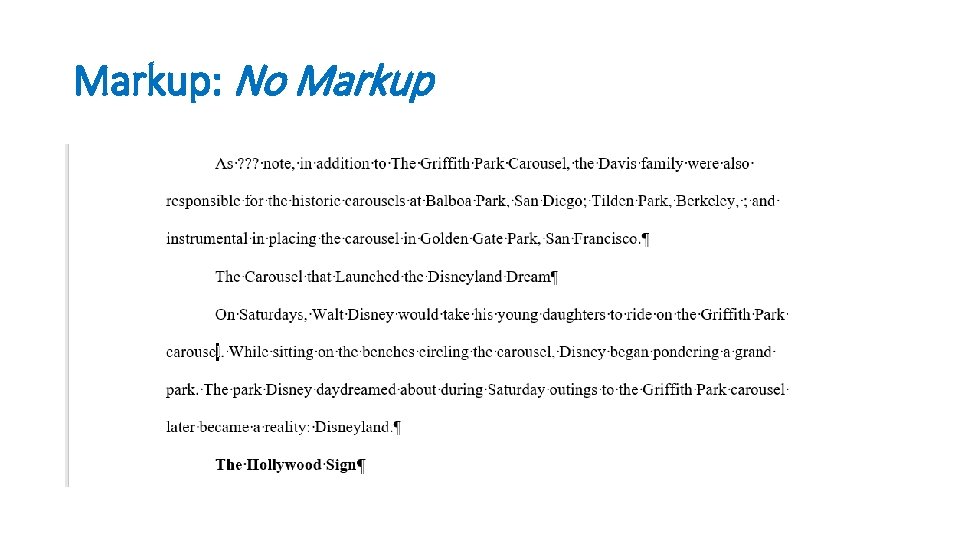
• Helps you customize how tracked changes are displayed on document. Markup • Four markup views • Simple Markup • All Markup • No Markup • Original Word
Markup: Simple Markup
Markup: All Markup
Markup: No Markup
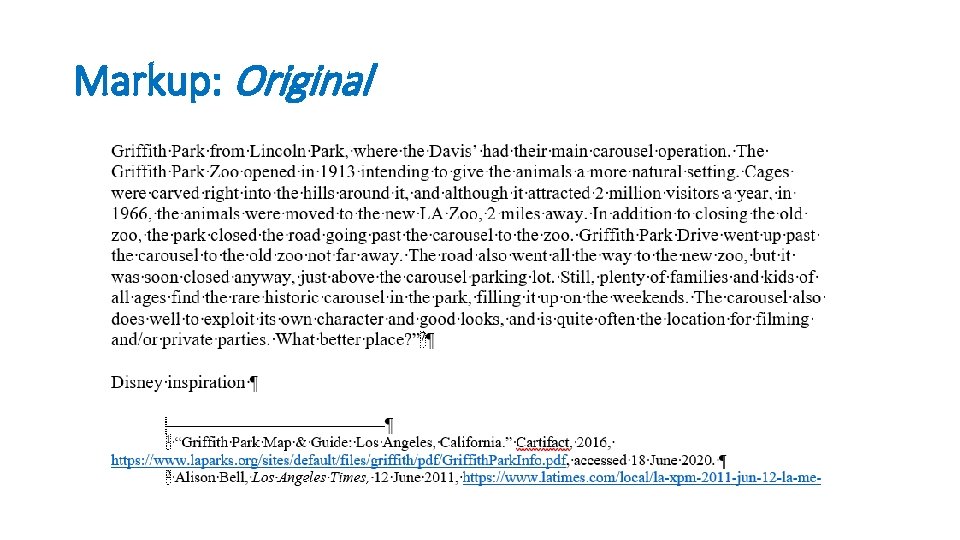
Markup: Original
No Markup DOES NOT delete revisions or comments, it only HIDES them. IMPORTANT!!! To remove revisions or comments permanently, you MUST accept or reject all changes.
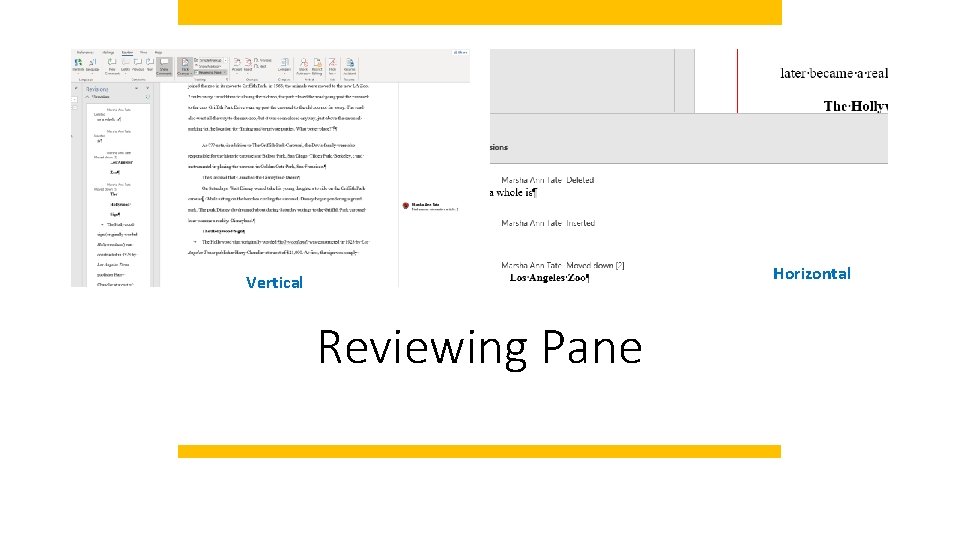
Reviewing Pane
Reviewing Pane When a document contains many documents or very long comments, Word will not always display the complete text of an individual comment in a balloon. Use the Reviewing pane to view the complete text for all comments in a document.
Horizontal Vertical Reviewing Pane
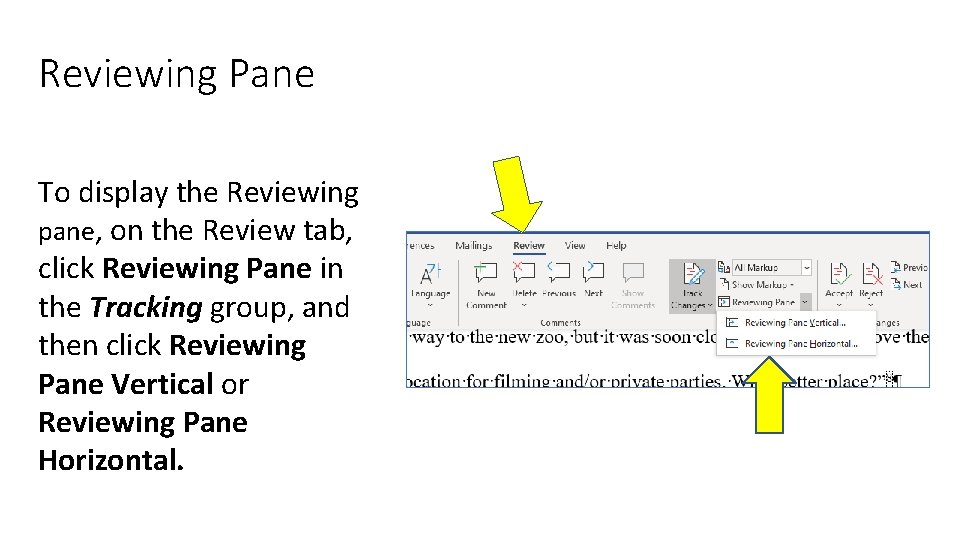
Reviewing Pane To display the Reviewing pane, on the Review tab, click Reviewing Pane in the Tracking group, and then click Reviewing Pane Vertical or Reviewing Pane Horizontal.
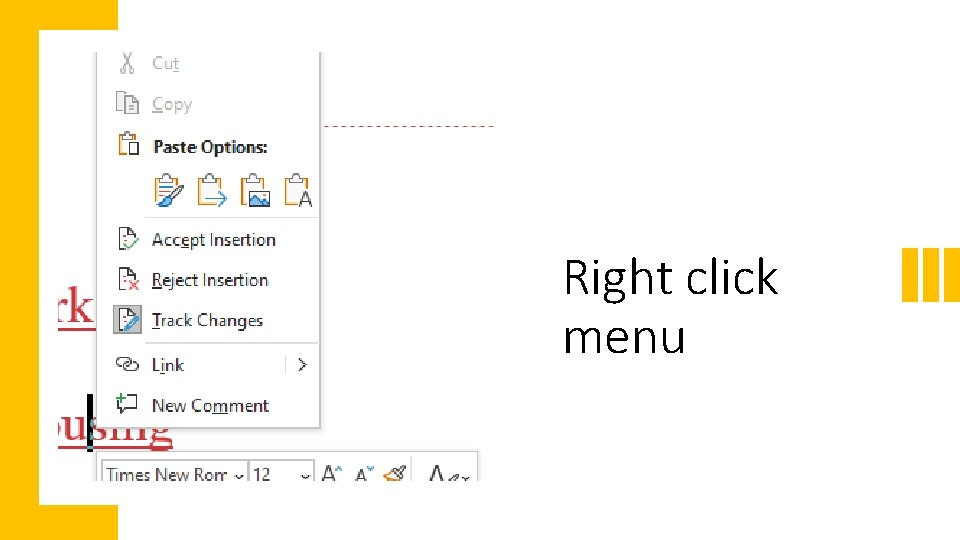
Right click menu
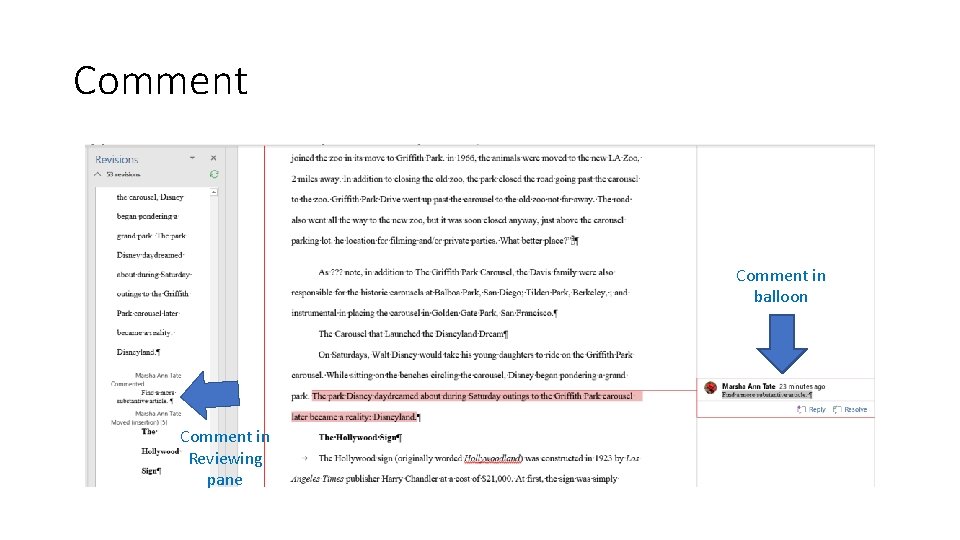
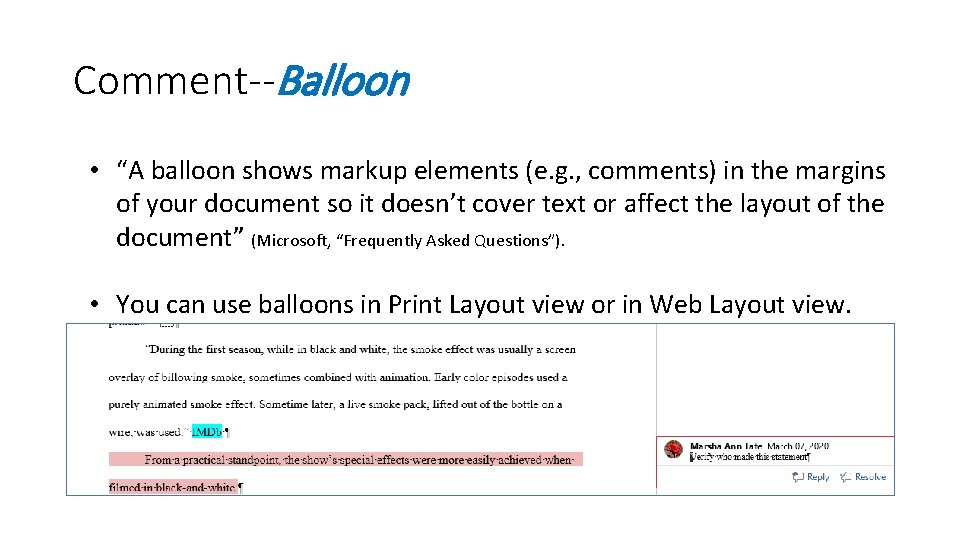
Comment “[A] note or annotation that an author or reviewer can add to a document” (Microsoft, “Frequently Asked Questions”). Displays in the Reviewing pane or in a balloon in the margin of the document.
Comment in balloon Comment in Reviewing pane
Comment--Balloon • “A balloon shows markup elements (e. g. , comments) in the margins of your document so it doesn’t cover text or affect the layout of the document” (Microsoft, “Frequently Asked Questions”). • You can use balloons in Print Layout view or in Web Layout view.
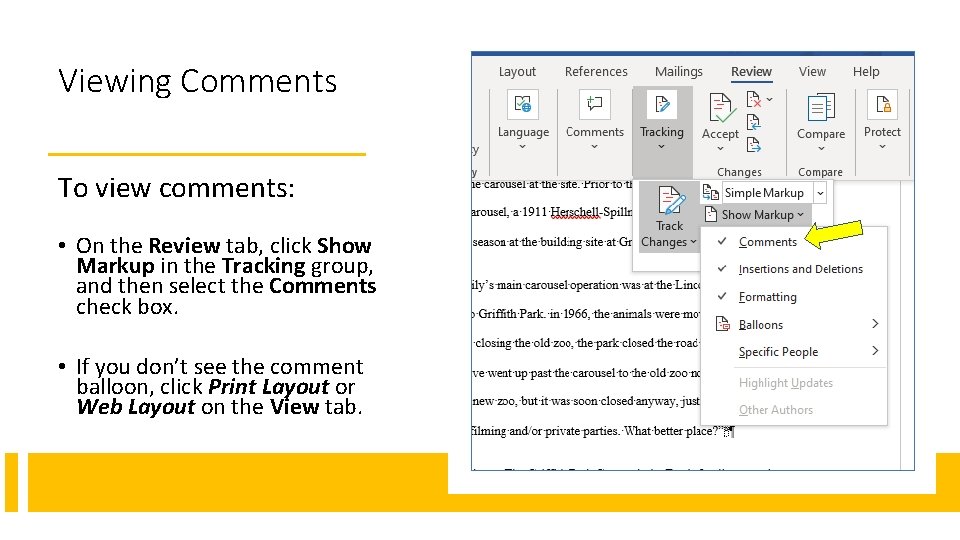
Viewing Comments To view comments: • On the Review tab, click Show Markup in the Tracking group, and then select the Comments check box. • If you don’t see the comment balloon, click Print Layout or Web Layout on the View tab.
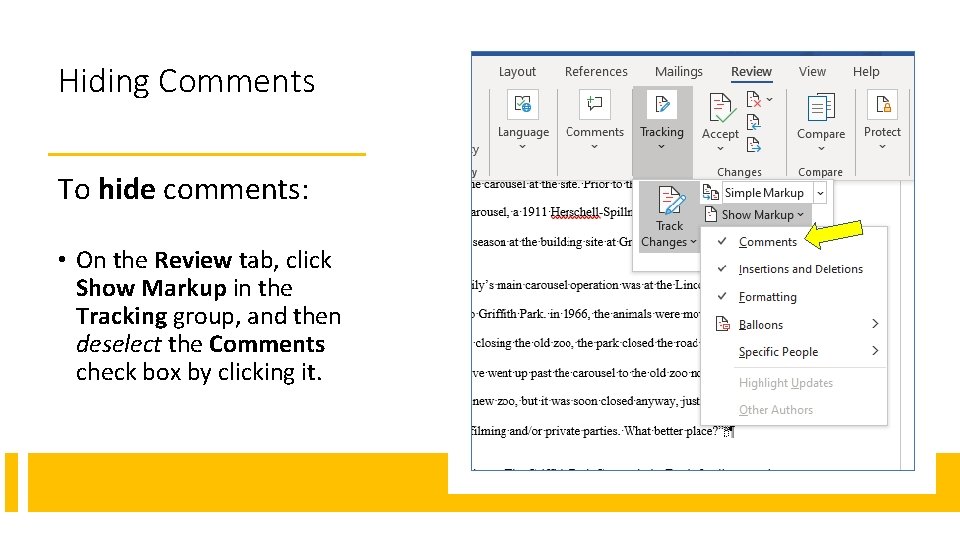
Hiding Comments To hide comments: • On the Review tab, click Show Markup in the Tracking group, and then deselect the Comments check box by clicking it.
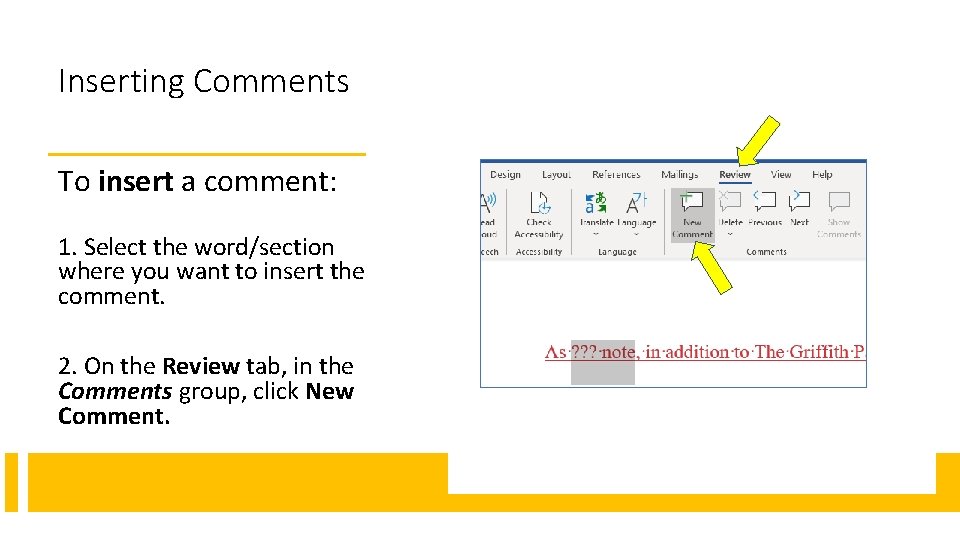
Inserting Comments To insert a comment: 1. Select the word/section where you want to insert the comment. 2. On the Review tab, in the Comments group, click New Comment.
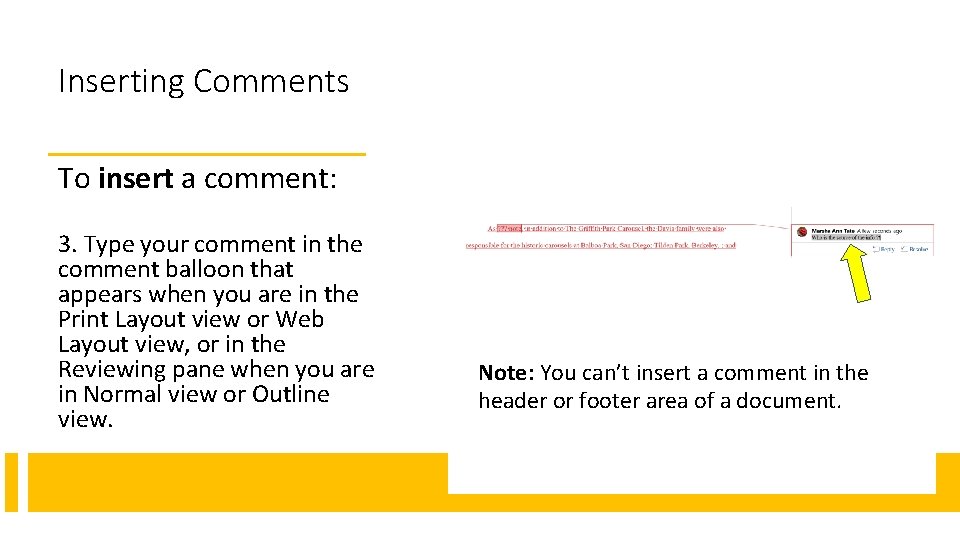
Inserting Comments To insert a comment: 3. Type your comment in the comment balloon that appears when you are in the Print Layout view or Web Layout view, or in the Reviewing pane when you are in Normal view or Outline view. Note: You can’t insert a comment in the header or footer area of a document.
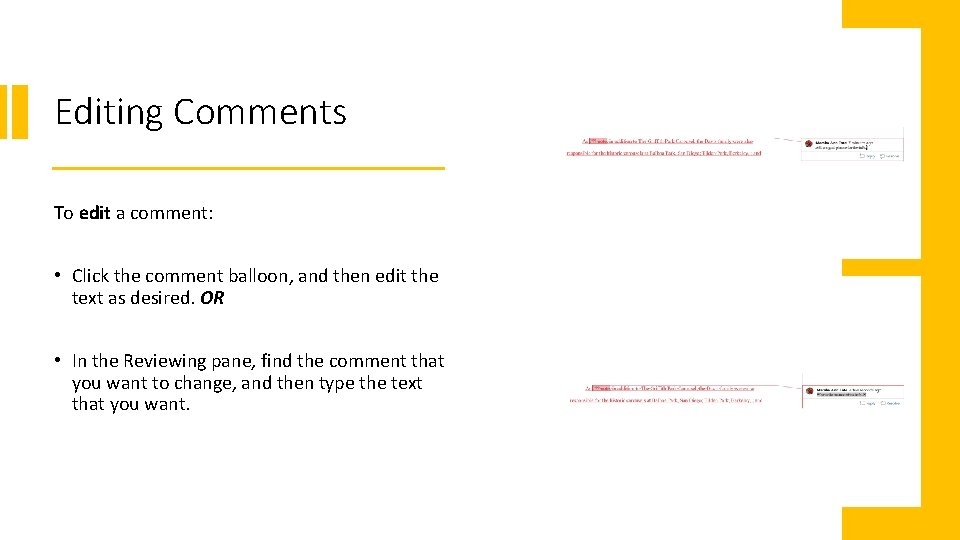
Editing Comments To edit a comment: • Click the comment balloon, and then edit the text as desired. OR • In the Reviewing pane, find the comment that you want to change, and then type the text that you want.
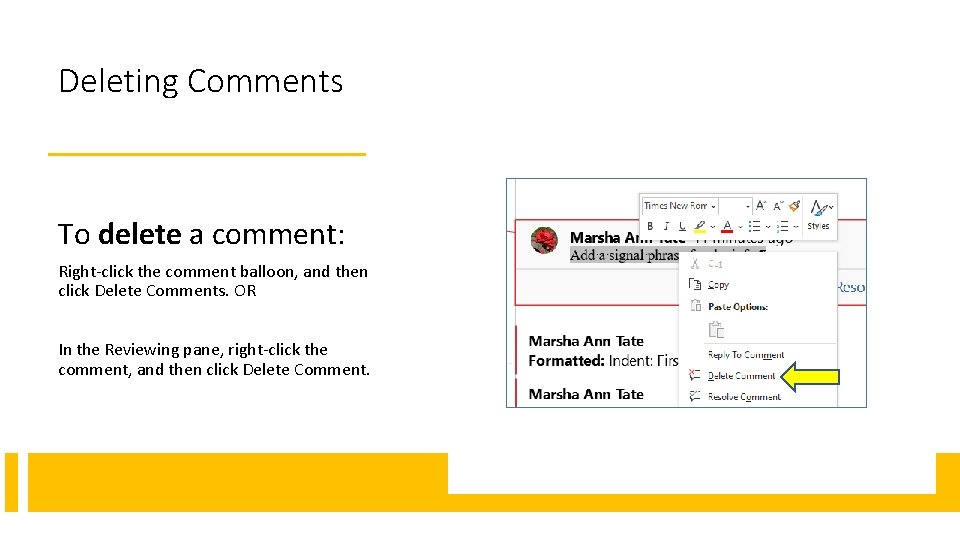
Deleting Comments To delete a comment: Right-click the comment balloon, and then click Delete Comments. OR In the Reviewing pane, right-click the comment, and then click Delete Comment.
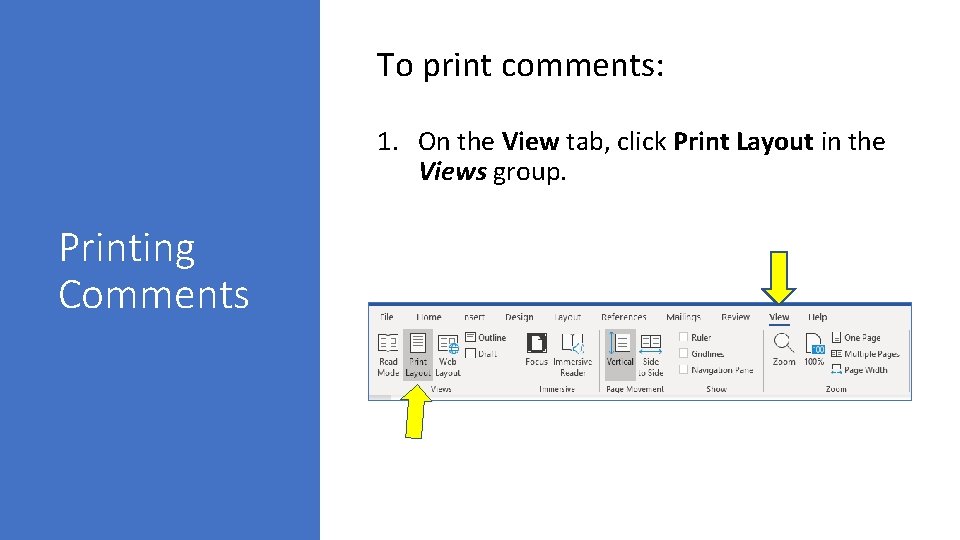
To print comments: 1. On the View tab, click Print Layout in the Views group. Printing Comments
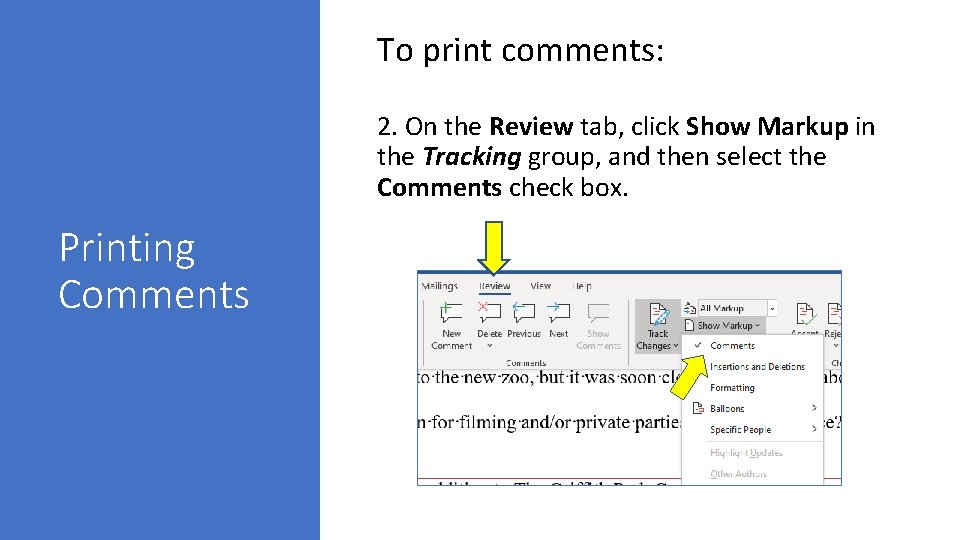
To print comments: 2. On the Review tab, click Show Markup in the Tracking group, and then select the Comments check box. Printing Comments
3. To display the comments the way that you want them to appear in the printed document, do one of the following: Printing Comments To print comments: View all comments: To view all comments in your document, on the Review tab, click Show Markup in the Tracking group, point to Reviewers, and then click to select All Reviewers. View comments that were made by a reviewer: To view the comments that were made by a specific reviewer, on the Review tab, click Show Markup in the Tracking group, point to Reviewers, and then click to select the reviewer whose comments that you want to display.
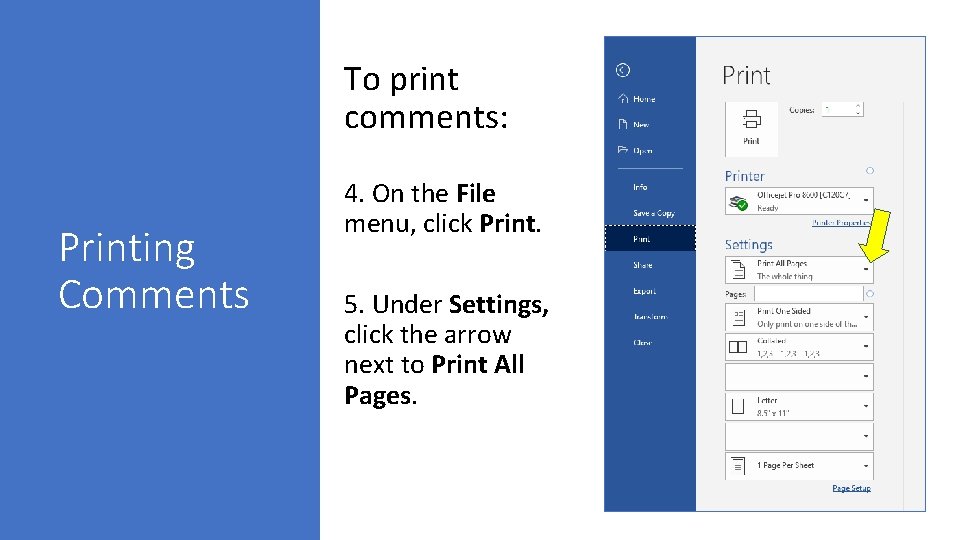
To print comments: Printing Comments 4. On the File menu, click Print. 5. Under Settings, click the arrow next to Print All Pages.
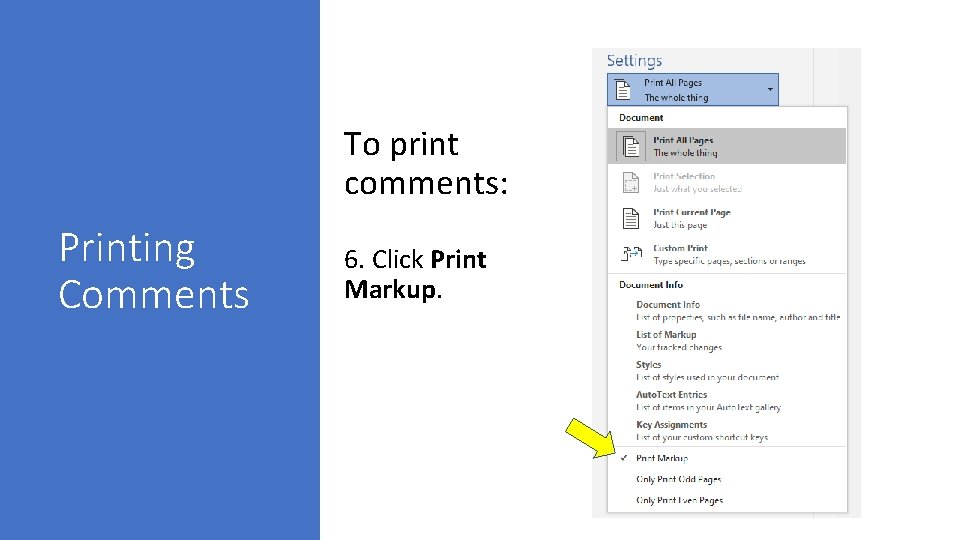
To print comments: Printing Comments 6. Click Print Markup.
References Microsoft. “Frequently Asked Questions about the Comments Feature in Word. ” https: //docs. microsoft. com/enus/office/troubleshoot/word/faq-about-comments-feature-in-word (accessed 23 June 2020).
Thank you! Questions or comments? marsha@mtateresearch. com Power. Point presentations of sessions and supplemental resources are available at https: //mtateresearch. com/computer_cour ses_supplemental_resources