
Using Micro Grade Classroom Management Software 2001 Chariot

- Slides: 57
Using Micro. Grade Classroom Management Software © 2001 Chariot Software Group
Why Use Micro. Grade? l l l l Keeps you organized and informed Saves time Lets students know where they stand Provides many different types of reports Makes seating charts Tracks attendance Improves Communication – – Built-in email feature for student and parent contact Securely post to the Internet with Web. Grade © 2001 Chariot Software Group
Choose Your Grading System l l l l Total points Percent weight of categories and assignments Relative weight of assignments Bonus assignments Drop a low score Four quarters and final exam © 2001 Chariot Software Group
Micro. Grade Highlights l l l l Quick Start Student rosters Individual grade sheets Class grade sheets Blank worksheets Entire grade book Grades by assignment Statistics report © 2001 Chariot Software Group l l Free form reports Attendance records Seating charts Grade posting – – l Paper Screen Internet E-mail Web. Grade
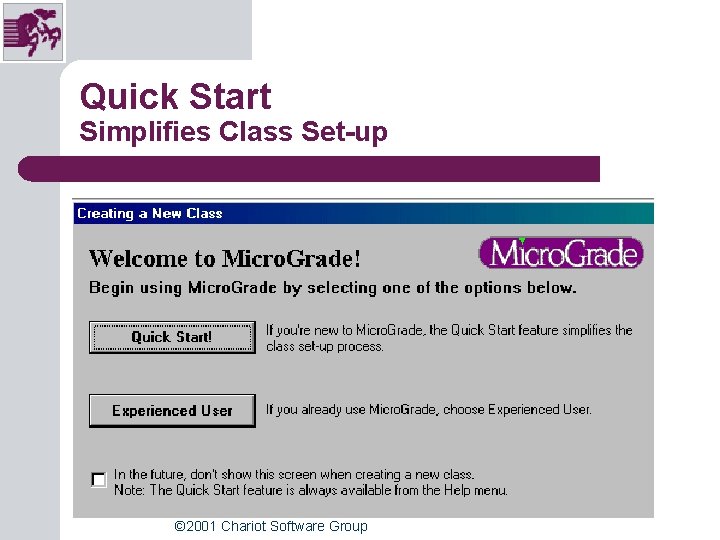
Quick Start Simplifies Class Set-up © 2001 Chariot Software Group
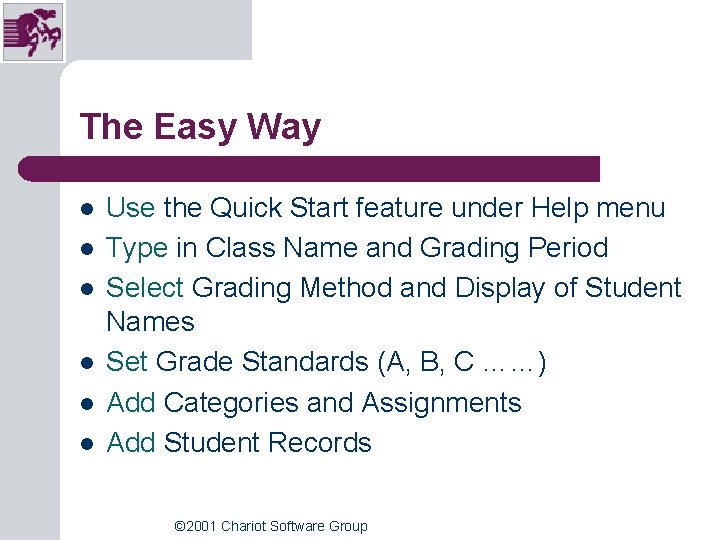
The Easy Way l l l Use the Quick Start feature under Help menu Type in Class Name and Grading Period Select Grading Method and Display of Student Names Set Grade Standards (A, B, C ……) Add Categories and Assignments Add Student Records © 2001 Chariot Software Group
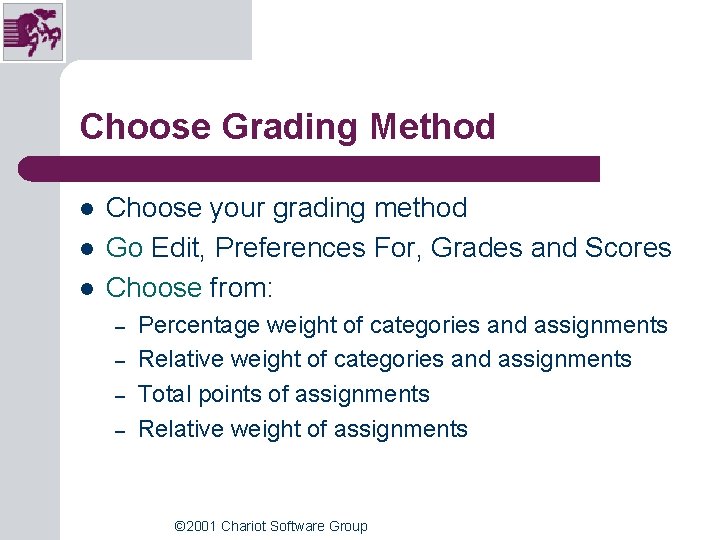
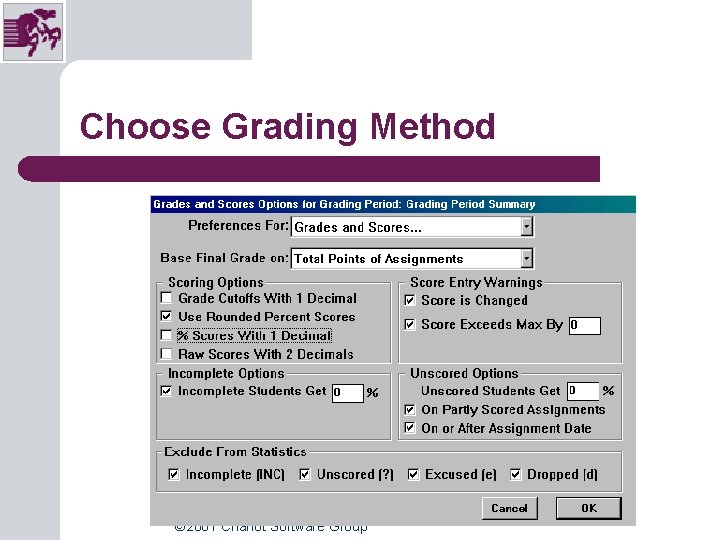
Choose Grading Method l l l Choose your grading method Go Edit, Preferences For, Grades and Scores Choose from: – – Percentage weight of categories and assignments Relative weight of categories and assignments Total points of assignments Relative weight of assignments © 2001 Chariot Software Group
Choose Grading Method © 2001 Chariot Software Group
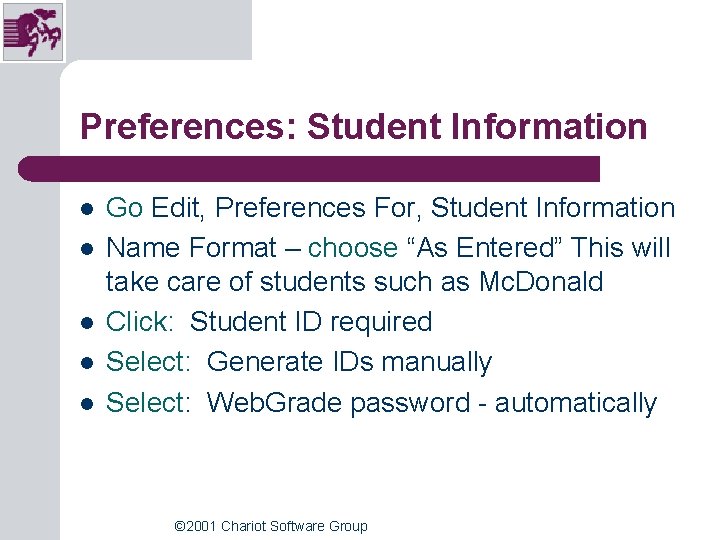
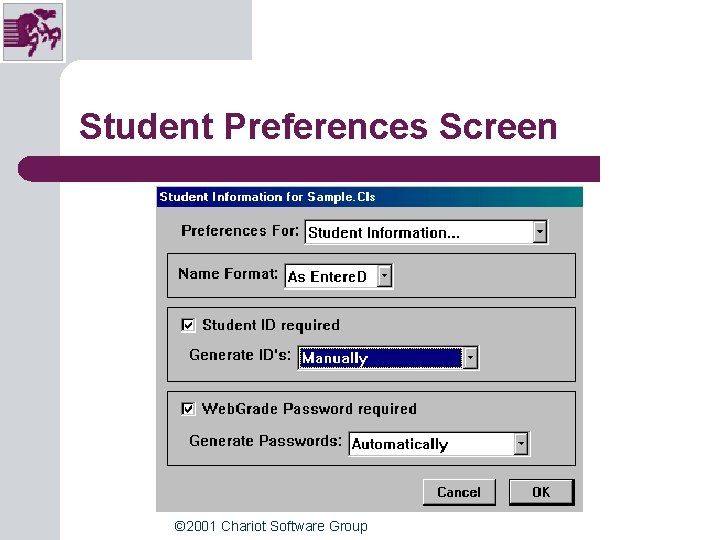
Preferences: Student Information l l l Go Edit, Preferences For, Student Information Name Format – choose “As Entered” This will take care of students such as Mc. Donald Click: Student ID required Select: Generate IDs manually Select: Web. Grade password - automatically © 2001 Chariot Software Group
Student Preferences Screen © 2001 Chariot Software Group
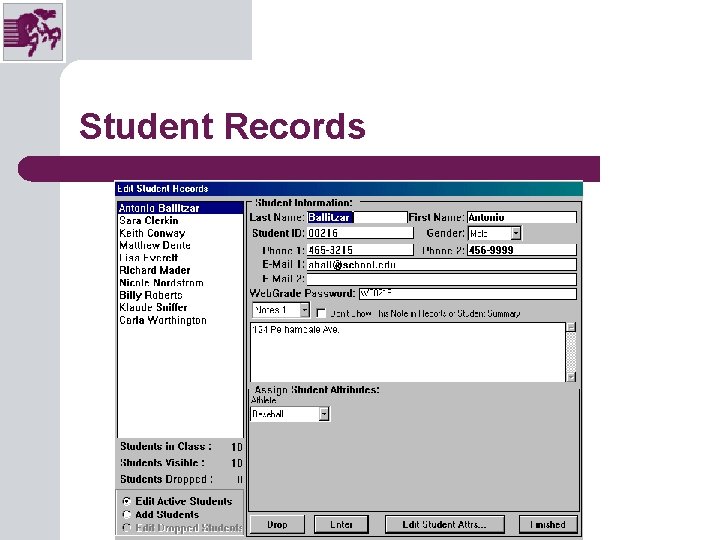
Entering Student Information l l l Go: Students, Student Records Add students: Make sure “Add Students” button is checked Type: required information (last name, first name, student ID) Type: any other information you want to include in student records Edit student: make sure “Edit Active Student” button is checked © 2001 Chariot Software Group
Student Records © 2001 Chariot Software Group
Student Attributes l l l Used when you want to sort a list of students Suggestion – combine students taking same course into one file (all English 10) Sort students according to – – Period Homeroom Counselor Your own groupings © 2001 Chariot Software Group
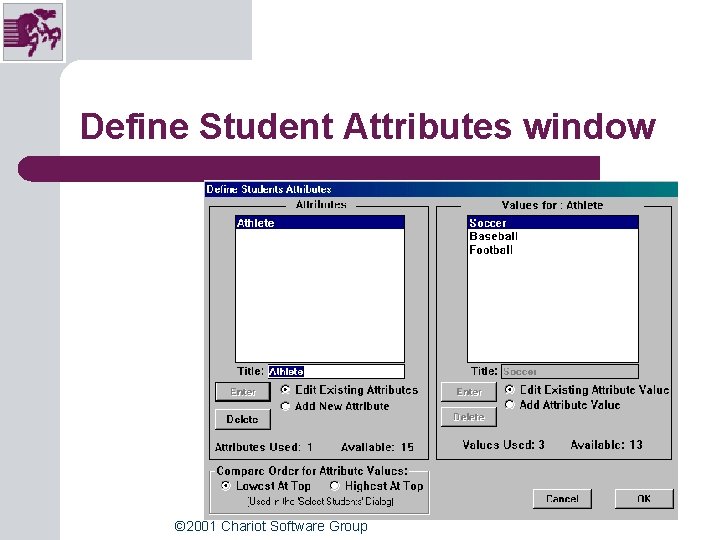
Define Student Attributes l l l Go To: Students, Define Student Attributes Click: Add New Attribute Type: Attribute title Click: Add Attribute Value Type: Values for Attribute (i. e. period numbers) © 2001 Chariot Software Group
Define Student Attributes window © 2001 Chariot Software Group
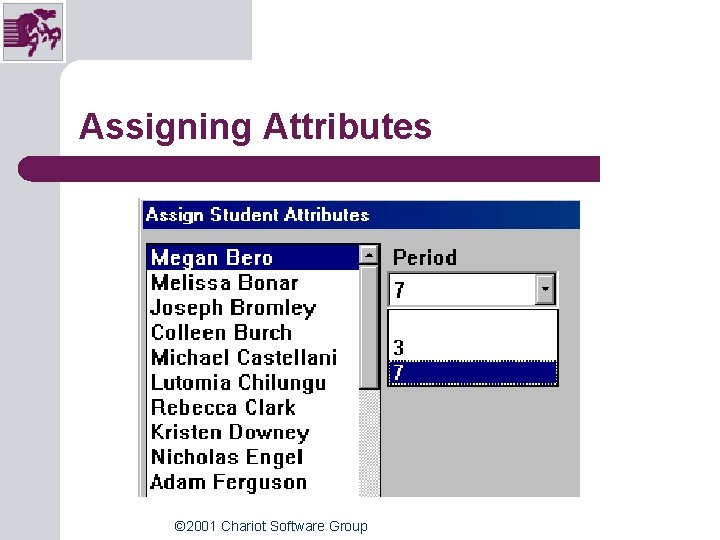
Assign Student Attributes l l l Go: Students, Assign Student Attributes Select: Attribute for each student as they are highlighted Use: Down arrow key to select students © 2001 Chariot Software Group
Assigning Attributes © 2001 Chariot Software Group
Select Students Using Attributes l l l Go: Students, Select Students Use first column of buttons, select Student Use second column, select Period Use third column, select equals (=) Use last button, choose period you want © 2001 Chariot Software Group
Select Students © 2001 Chariot Software Group
Preferences for Display & Sorting l l l Uncheck “Mark altered scores with a * Adjust “Highlight this grade or below in red. ” Adjust Windows highlight color © 2001 Chariot Software Group
Preferences for Display & Sorting © 2001 Chariot Software Group
Security Issues l l Use a password? Where you keep your “main files” – – – l Work from a hard drive, floppy backup Work from a floppy for portability, hard drive backup School vs. home Always make a backup – ALWAYS © 2001 Chariot Software Group
Working with Class Rosters l l l Type in names manually Import names from School Information System Import from a text file Exporting names for use with other programs Use Export, General to transfer roster to another Micro. Grade file (Middle School teams) © 2001 Chariot Software Group
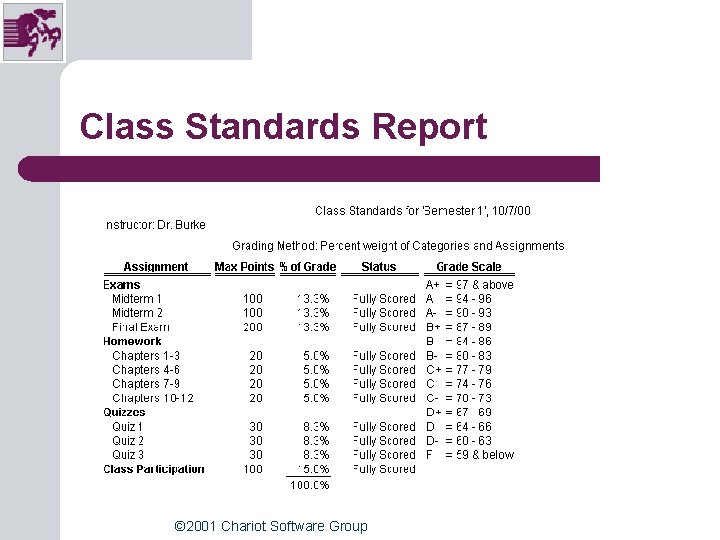
Grade Standards l l Used for High Schools and Middle Schools Same standards for entire school – consistent © 2001 Chariot Software Group
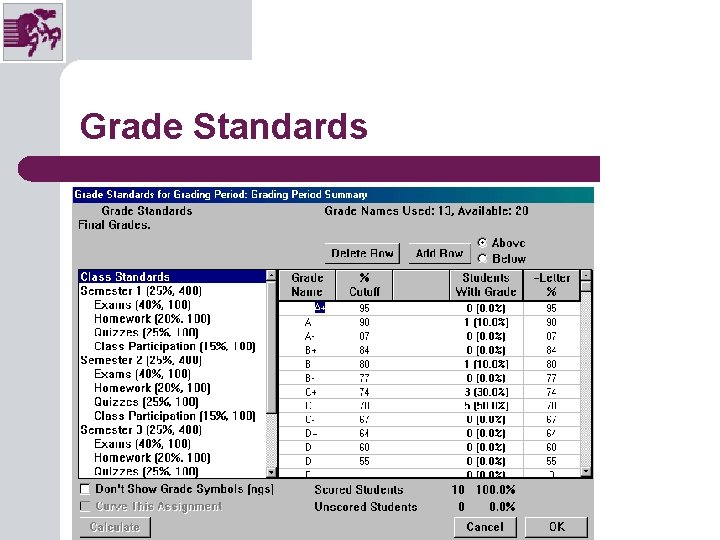
Grade Standards © 2001 Chariot Software Group
Changing Grade Standards Table l l l Go: Edit, Grade Standards In “% Cutoff” column, use lowest number for that category Eliminate rows you don’t want or need © 2001 Chariot Software Group
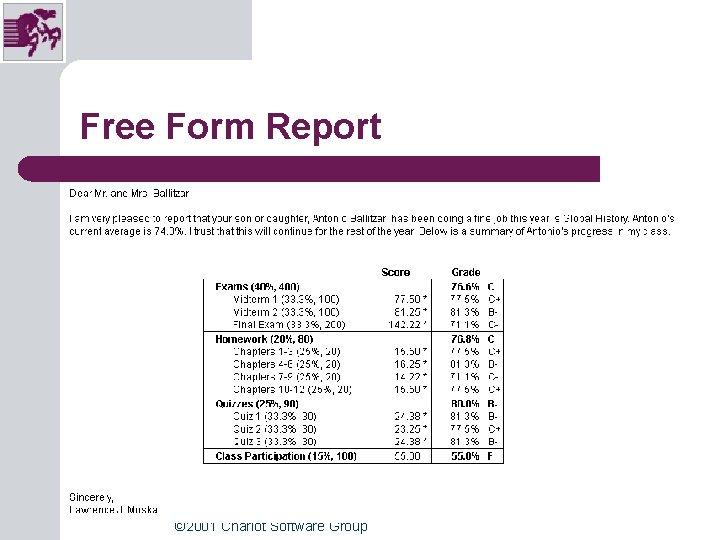
E-mail Reports Micro. Grade can e-mail the following reports: l l l The Class Roster Report The Student Summary Report The Class Standards Report The Grades by Assignment Report The Free Form Report © 2001 Chariot Software Group
E-mail l l Must be connected to SMTP server Must have e-mail addresses for students – l Enter manually or import from SIS You can send free form e-mail to one, many or all students © 2001 Chariot Software Group
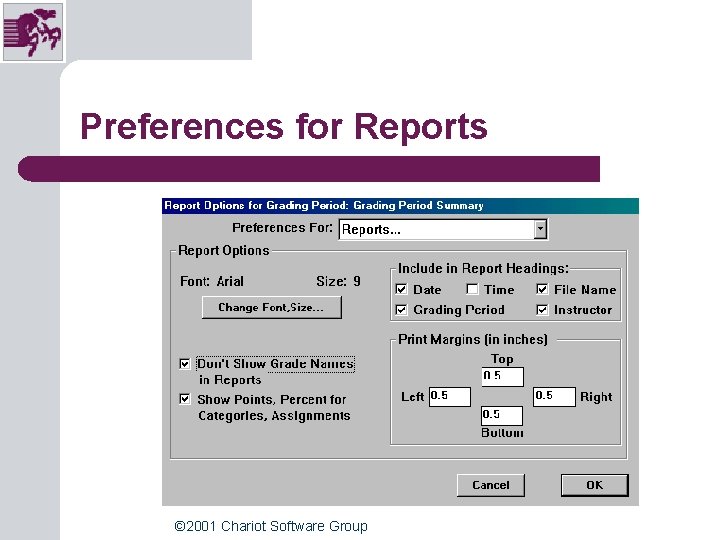
Report Preferences l l Change font and size Decide what information to use in headers Show or not show grade letters in reports Show points or percent for categories and assignments © 2001 Chariot Software Group
Preferences for Reports © 2001 Chariot Software Group
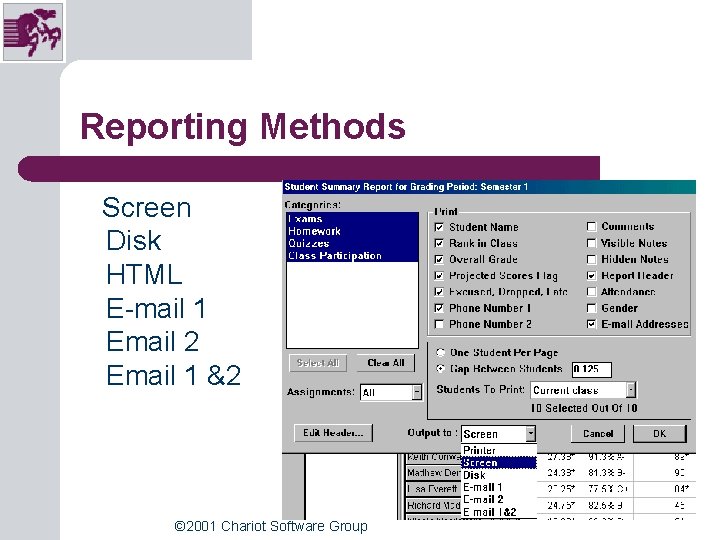
Reporting Methods Screen Disk HTML E-mail 1 Email 2 Email 1 &2 © 2001 Chariot Software Group Printer
Sample Reports l l l Start with output to screen – save paper Can shrink using page setup Use horizontal format where appropriate Post on door, bulletin board, wall Use e-mail and web to save paper © 2001 Chariot Software Group
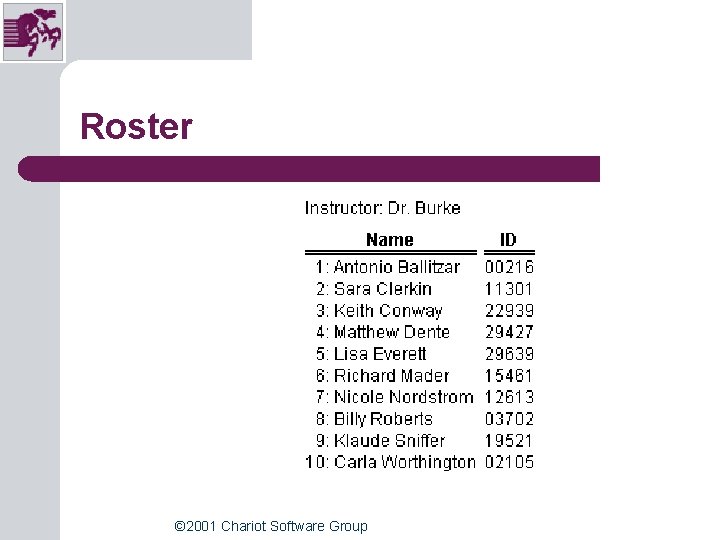
Roster © 2001 Chariot Software Group
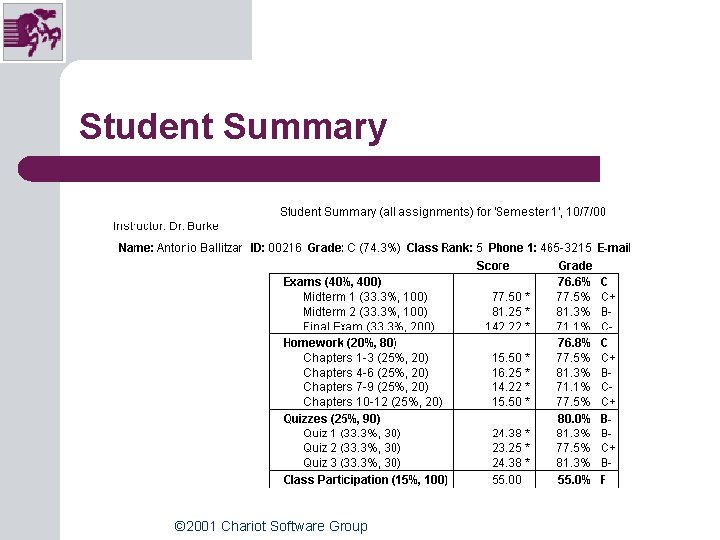
Student Summary © 2001 Chariot Software Group
Class Standards Report © 2001 Chariot Software Group
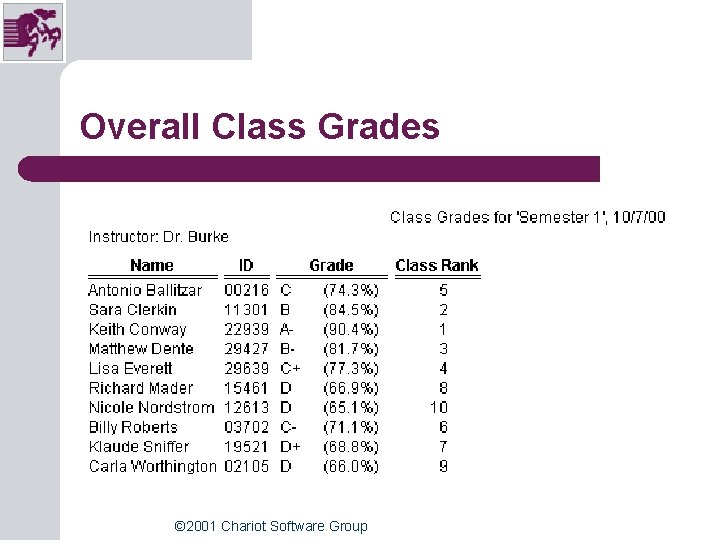
Overall Class Grades © 2001 Chariot Software Group
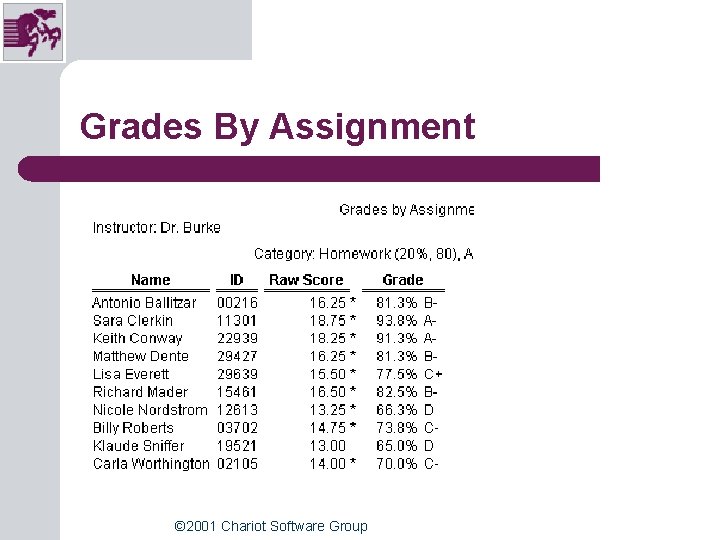
Grades By Assignment © 2001 Chariot Software Group
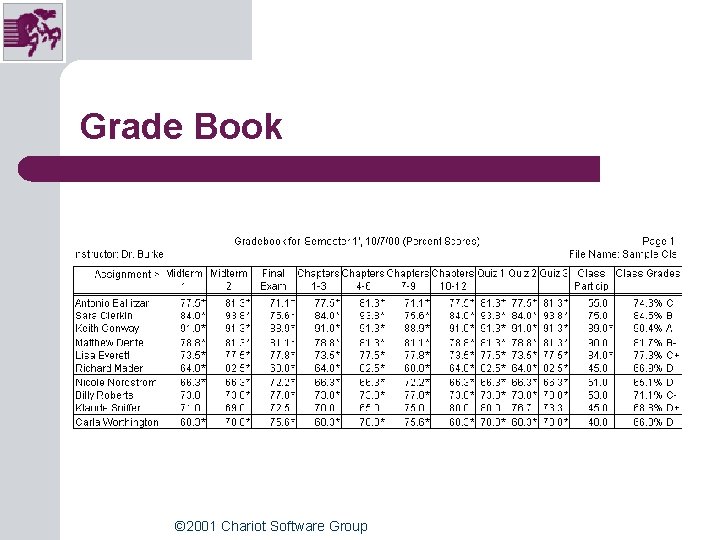
Grade Book © 2001 Chariot Software Group
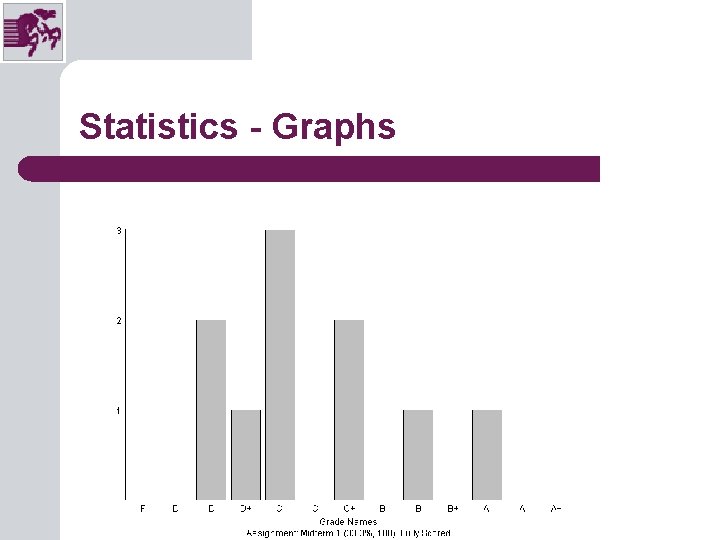
Statistics - Graphs © 2001 Chariot Software Group
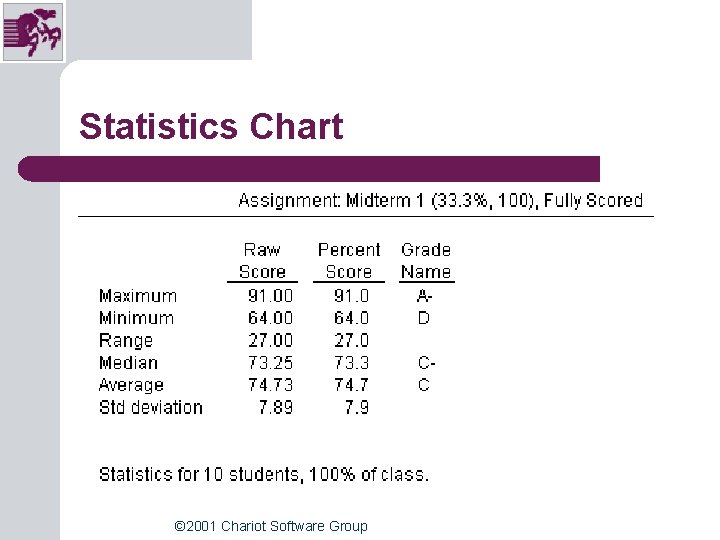
Statistics Chart © 2001 Chariot Software Group
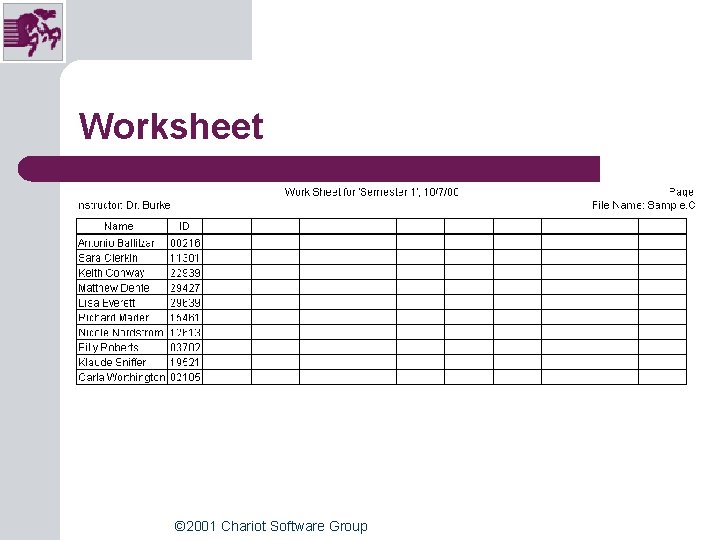
Worksheet © 2001 Chariot Software Group
Free Form Report © 2001 Chariot Software Group
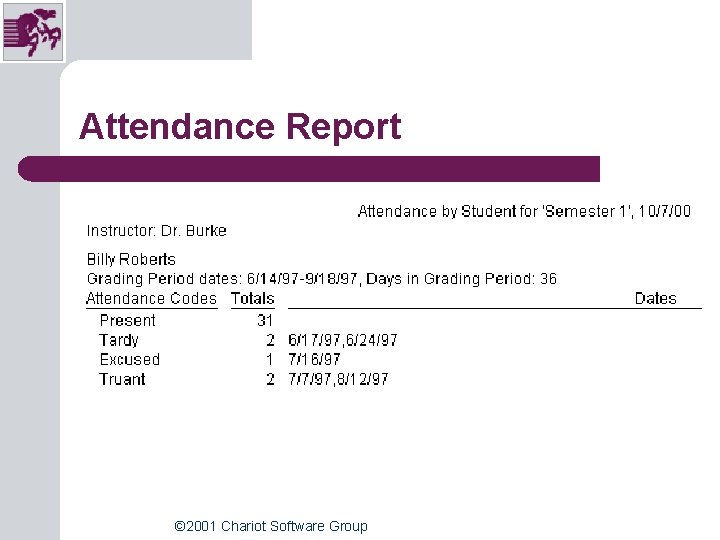
Attendance Report © 2001 Chariot Software Group
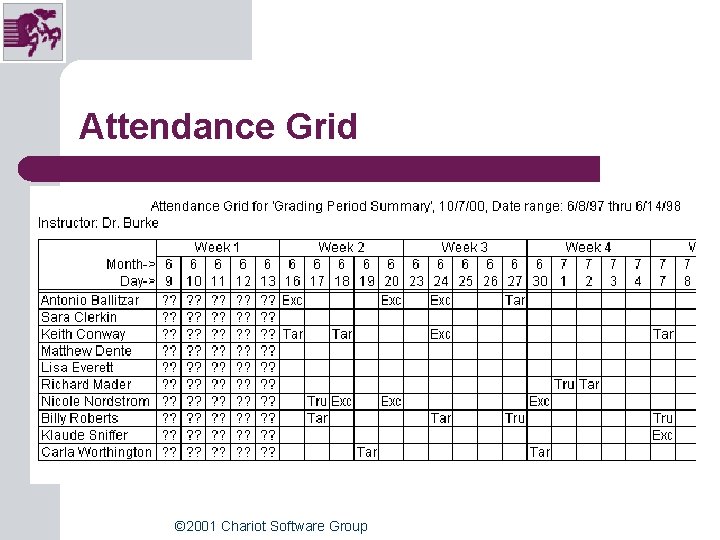
Attendance Grid © 2001 Chariot Software Group
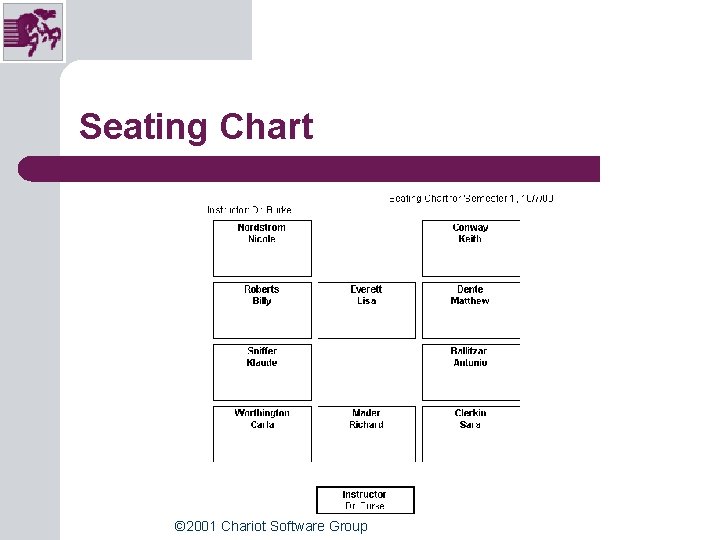
Seating Chart © 2001 Chariot Software Group
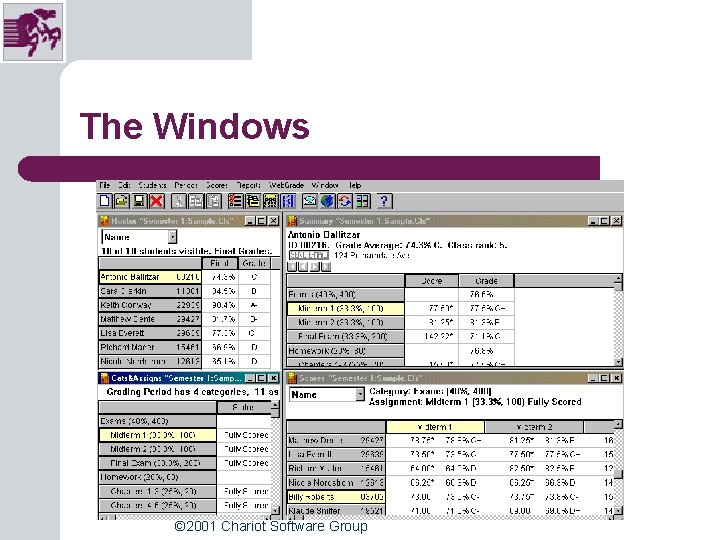
The Windows © 2001 Chariot Software Group
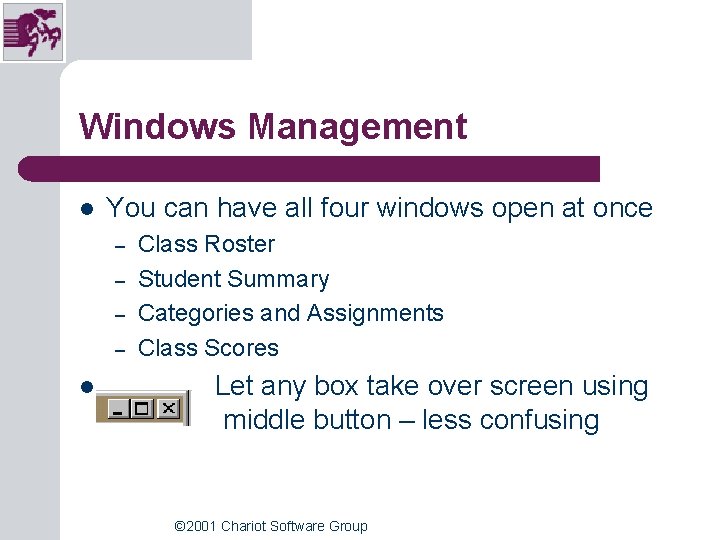
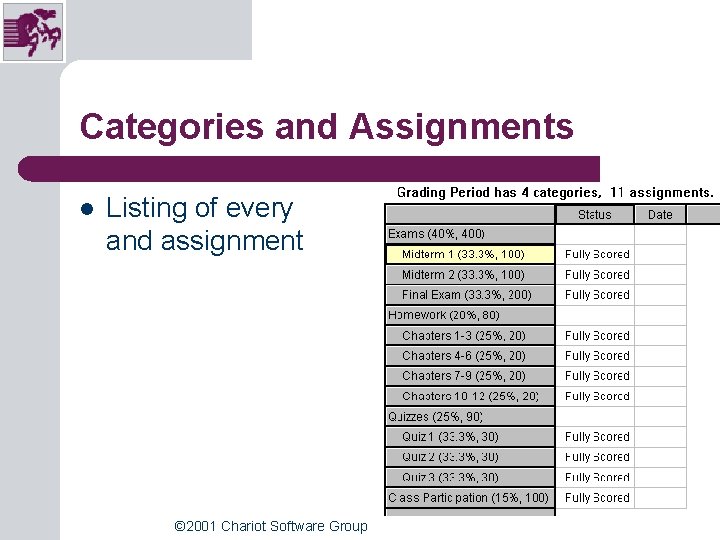
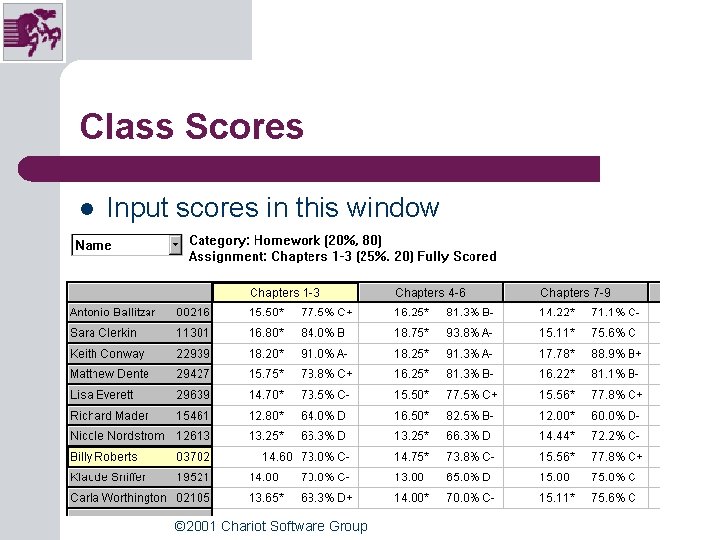
Windows Management l You can have all four windows open at once – – l Class Roster Student Summary Categories and Assignments Class Scores Let any box take over screen using middle button – less confusing © 2001 Chariot Software Group
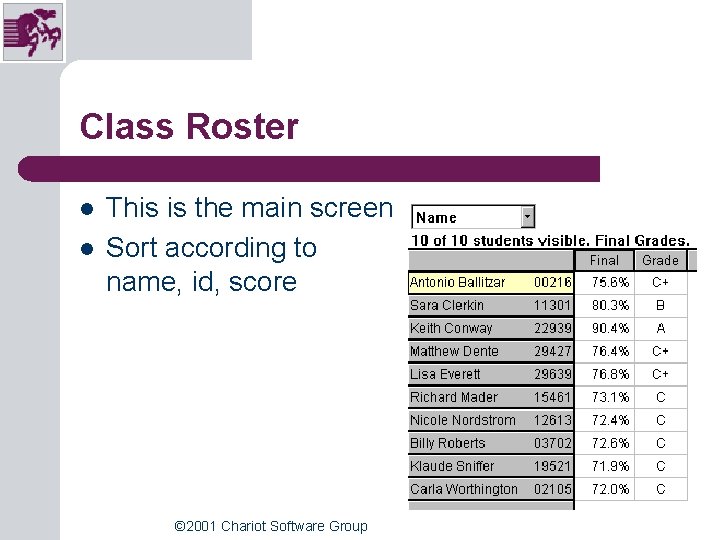
Class Roster l l This is the main screen Sort according to name, id, score © 2001 Chariot Software Group
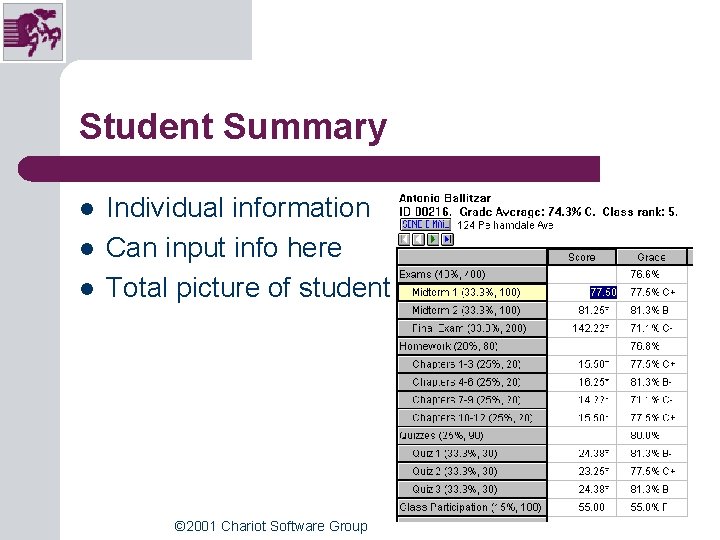
Student Summary l l l Individual information Can input info here Total picture of student © 2001 Chariot Software Group
Categories and Assignments l Listing of every and assignment © 2001 Chariot Software Group test
Class Scores l Input scores in this window © 2001 Chariot Software Group
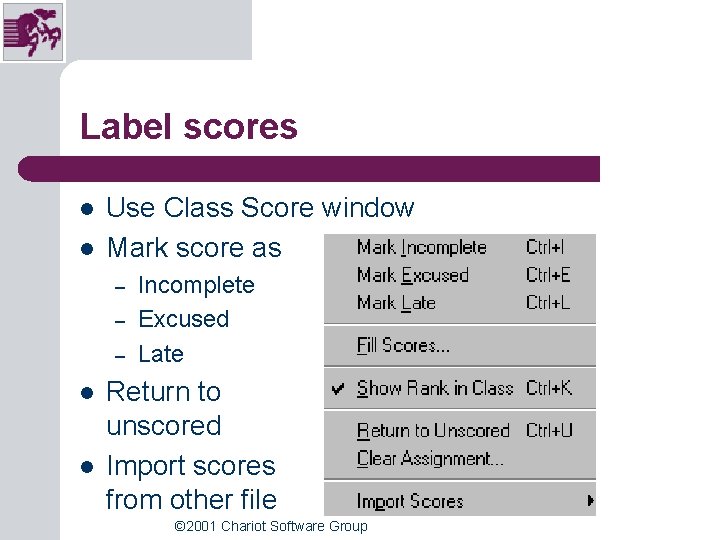
Label scores l l Use Class Score window Mark score as – – – l l Incomplete Excused Late Return to unscored Import scores from other file © 2001 Chariot Software Group
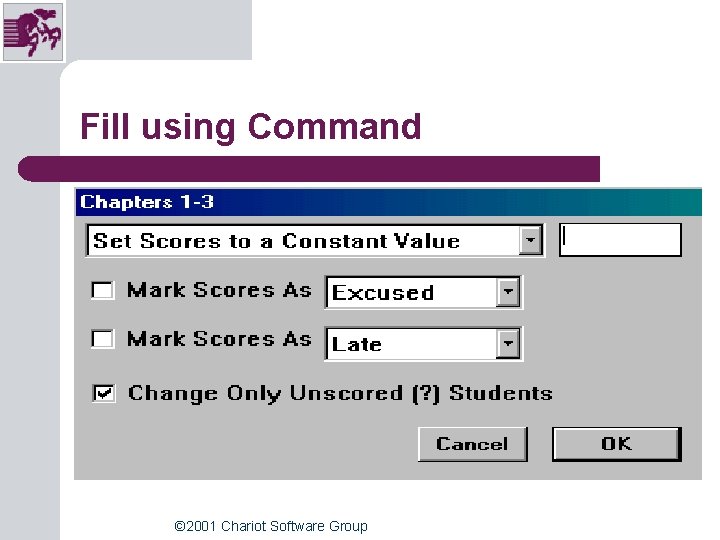
Fill using Command © 2001 Chariot Software Group
What else can you do? l l l Export rosters for use in spreadsheet – posting sheet Set up and assign comments Import scores from other Micro. Grade files Use Micro. Grade for attendance Use Micro. Grade Help Instruction manual available from Chariot © 2001 Chariot Software Group
Web. Grade l l l Send reports to Web. Grade – Chariot’s server Accessed by students, parents, counselors, resource room teachers Everyone informed and up-to-date Total grade sheet available for viewing Roster, graphical statistics available © 2001 Chariot Software Group
Web. Grade Process l l l Upload to Chariot Open account – follow online instructions Each class has own file Students access by using student ID and password generated by Micro. Grade Go to Web. Grade © 2001 Chariot Software Group
Contact Information l l Web Site: www. chariot. com Email: info@chariot. com Telephone: 619 -298 -0202 Mail Address: – – – Chariot Software Group 2827 Presidio Drive San Diego, CA 92110 © 2001 Chariot Software Group