
Using Maxient for Academic Integrity Reporting To file
- Slides: 9
Using Maxient for Academic Integrity Reporting
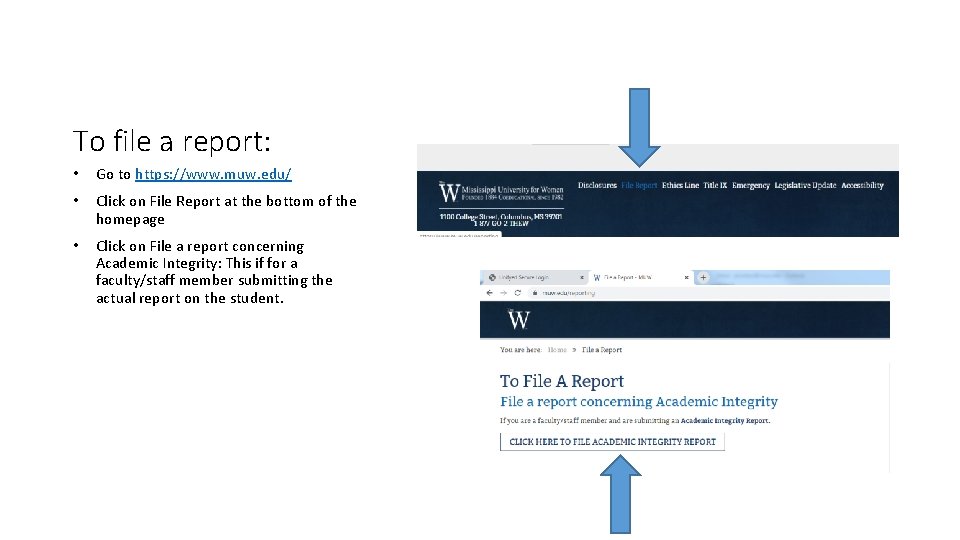
To file a report: • Go to https: //www. muw. edu/ • Click on File Report at the bottom of the homepage • Click on File a report concerning Academic Integrity: This if for a faculty/staff member submitting the actual report on the student.
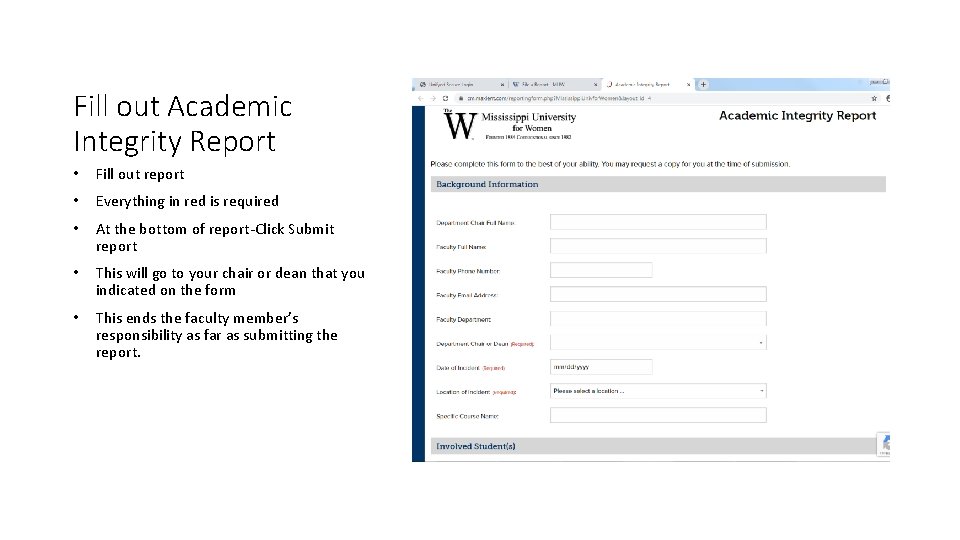
Fill out Academic Integrity Report • Fill out report • Everything in red is required • At the bottom of report-Click Submit report • This will go to your chair or dean that you indicated on the form • This ends the faculty member’s responsibility as far as submitting the report.
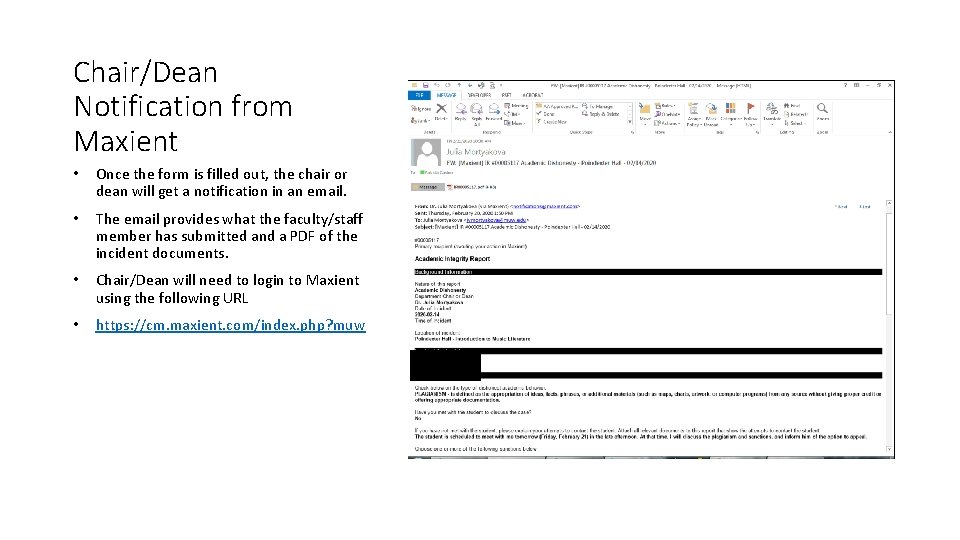
Chair/Dean Notification from Maxient • Once the form is filled out, the chair or dean will get a notification in an email. • The email provides what the faculty/staff member has submitted and a PDF of the incident documents. • Chair/Dean will need to login to Maxient using the following URL • https: //cm. maxient. com/index. php? muw
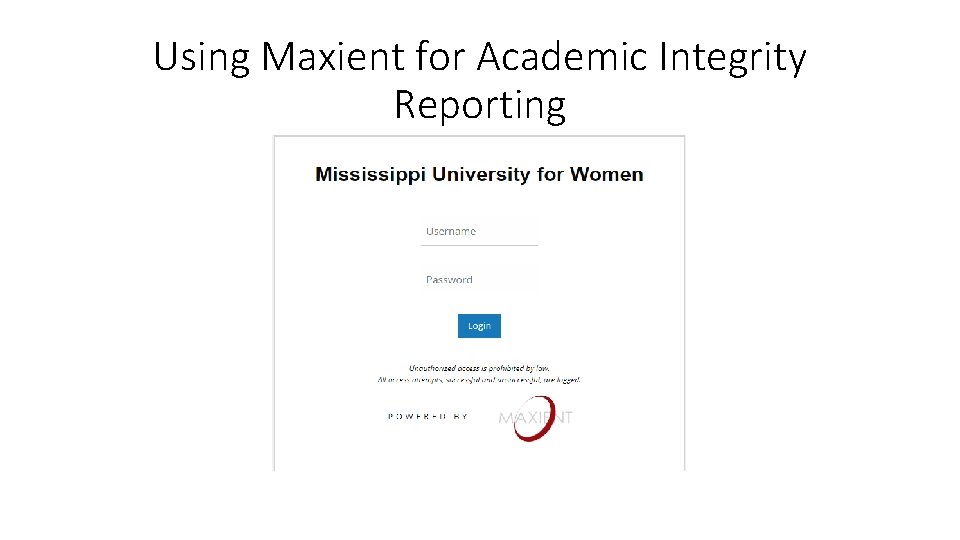
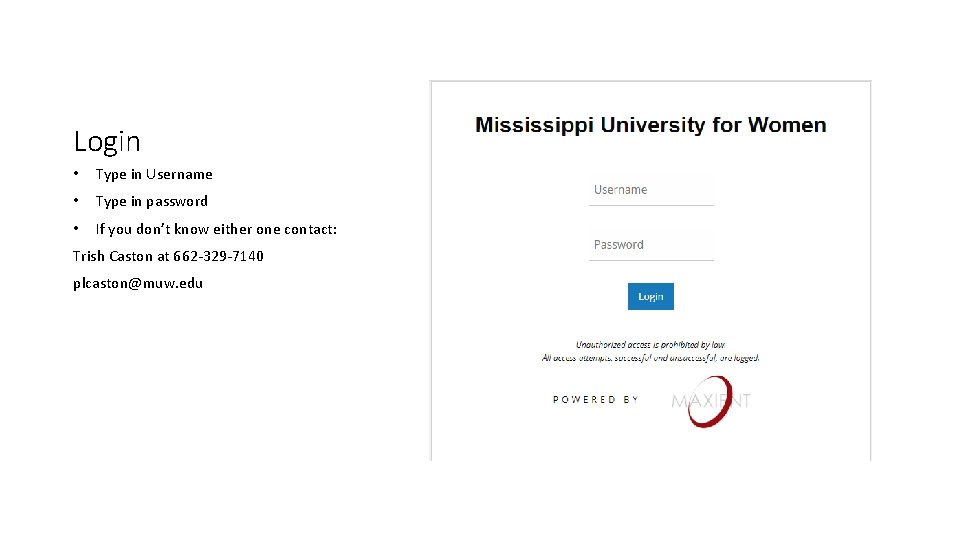
Login • Type in Username • Type in password • If you don’t know either one contact: Trish Caston at 662 -329 -7140 plcaston@muw. edu
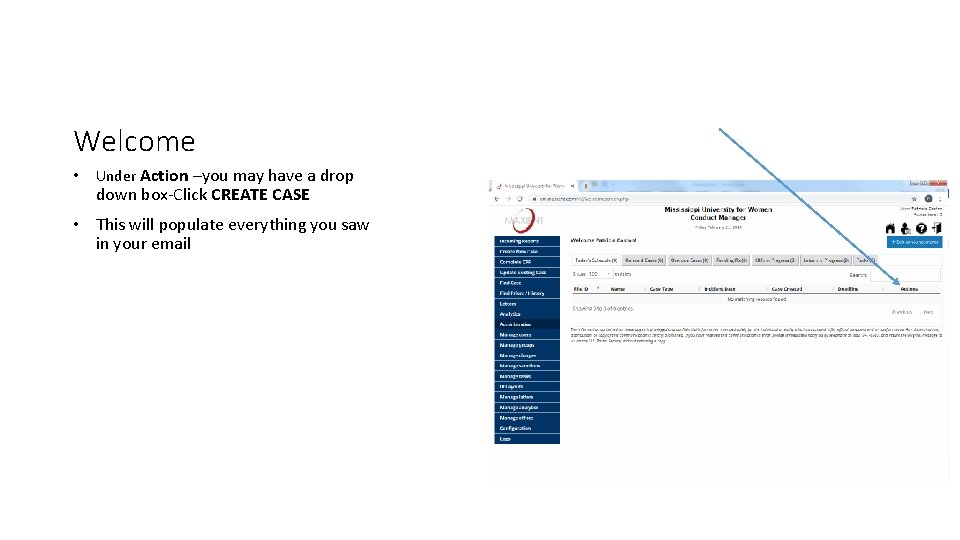
Welcome • Under Action –you may have a drop down box-Click CREATE CASE • This will populate everything you saw in your email
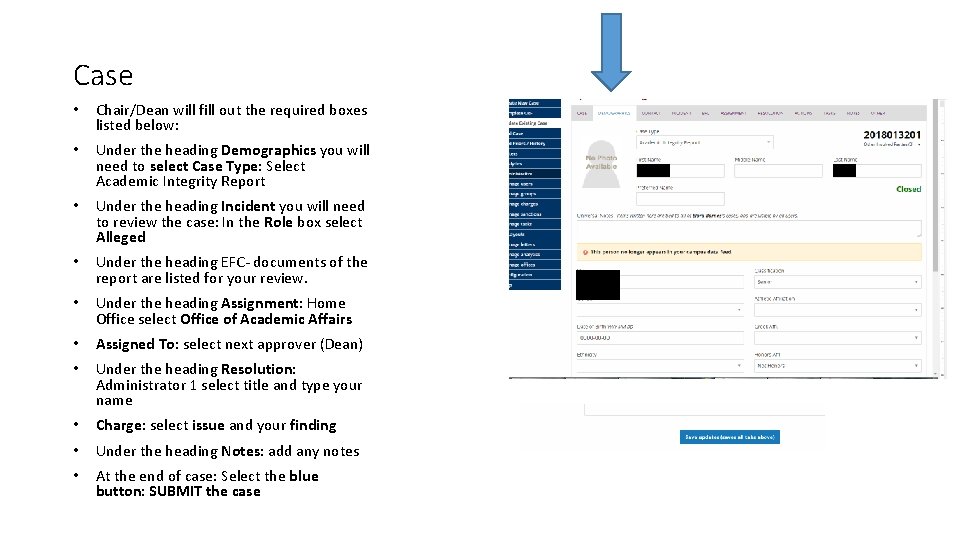
Case • Chair/Dean will fill out the required boxes listed below: • Under the heading Demographics you will need to select Case Type: Select Academic Integrity Report • Under the heading Incident you will need to review the case: In the Role box select Alleged • Under the heading EFC- documents of the report are listed for your review. • Under the heading Assignment: Home Office select Office of Academic Affairs • Assigned To: select next approver (Dean) • Under the heading Resolution: Administrator 1 select title and type your name • Charge: select issue and your finding • Under the heading Notes: add any notes • At the end of case: Select the blue button: SUBMIT the case
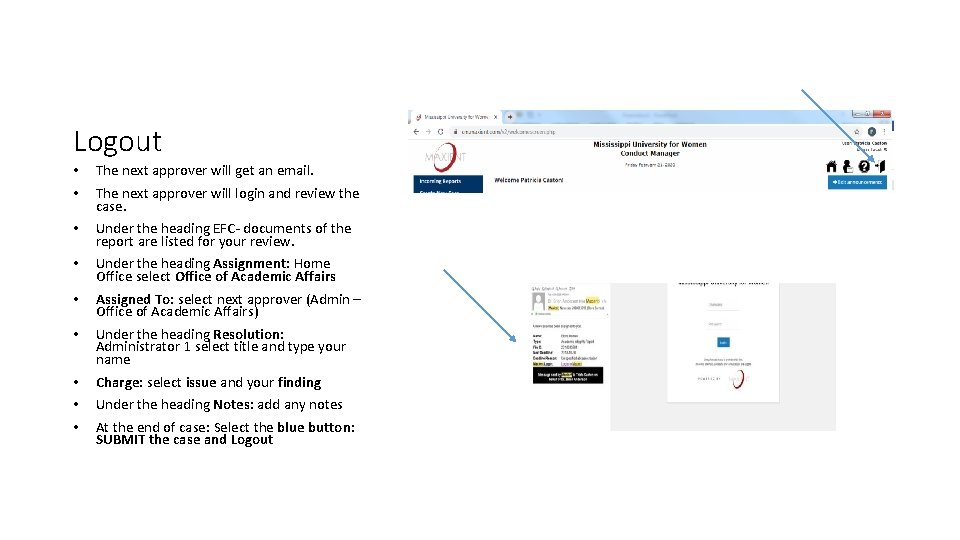
Logout • • The next approver will get an email. • Under the heading EFC- documents of the report are listed for your review. • Under the heading Assignment: Home Office select Office of Academic Affairs • Assigned To: select next approver (Admin – Office of Academic Affairs) • Under the heading Resolution: Administrator 1 select title and type your name • • • Charge: select issue and your finding The next approver will login and review the case. Under the heading Notes: add any notes At the end of case: Select the blue button: SUBMIT the case and Logout
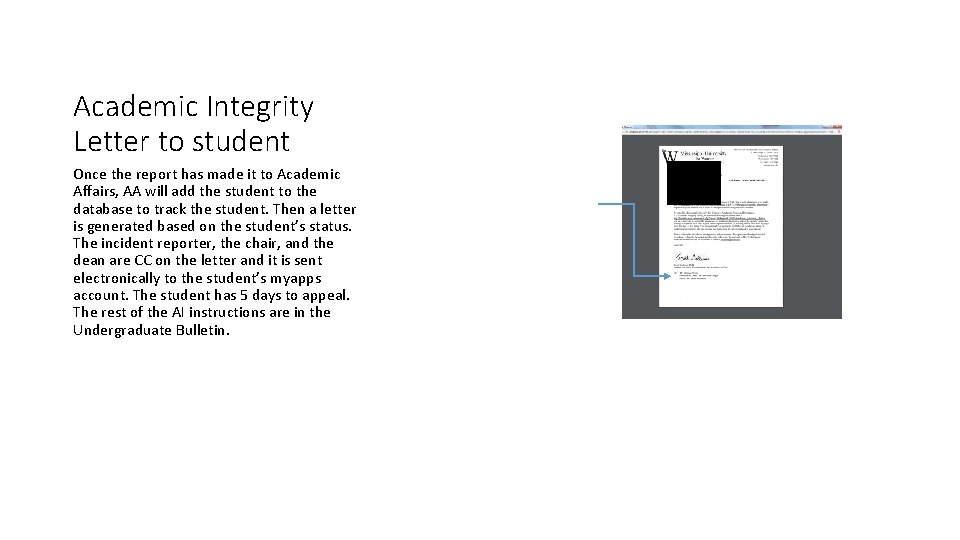
Academic Integrity Letter to student Once the report has made it to Academic Affairs, AA will add the student to the database to track the student. Then a letter is generated based on the student’s status. The incident reporter, the chair, and the dean are CC on the letter and it is sent electronically to the student’s myapps account. The student has 5 days to appeal. The rest of the AI instructions are in the Undergraduate Bulletin.