
Using Macs and Unix Outline n n Switch
- Slides: 24
Using Macs and Unix
Outline n n Switch 101: Switching from a PC to a Mac: Introduction to Unix
Exercises n n n Run Safari (or Chrome or Firefox) Run Microsoft Word or Powerpoint Find a pdf file containing the word “CMACS” and open it What program was used to open it? Look at all the open programs and activate the Word program Put the Rule. Bender application icon in the Dock
Mac OS X: A Geek with a Pretty (Inter)Face
Mac OS X: A Geek with a Pretty (Inter)Face
Mac OS X: A Geek with a Pretty (Inter)Face
Mac OS X: A Geek with a Pretty (Inter)Face
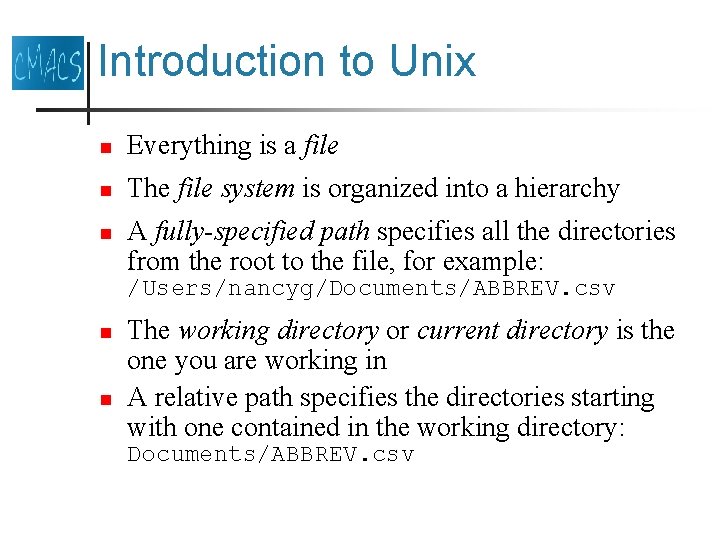
Introduction to Unix n Everything is a file n The file system is organized into a hierarchy n A fully-specified path specifies all the directories from the root to the file, for example: /Users/nancyg/Documents/ABBREV. csv n n The working directory or current directory is the one you are working in A relative path specifies the directories starting with one contained in the working directory: Documents/ABBREV. csv
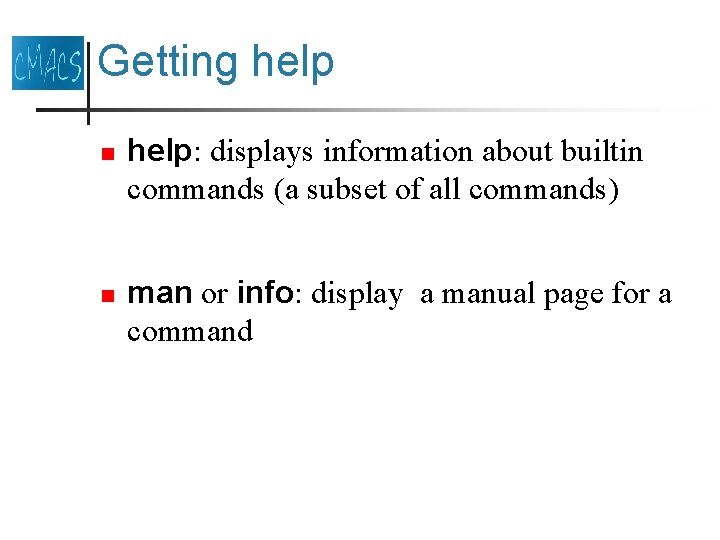
Getting help n n help: displays information about builtin commands (a subset of all commands) man or info: display a manual page for a command
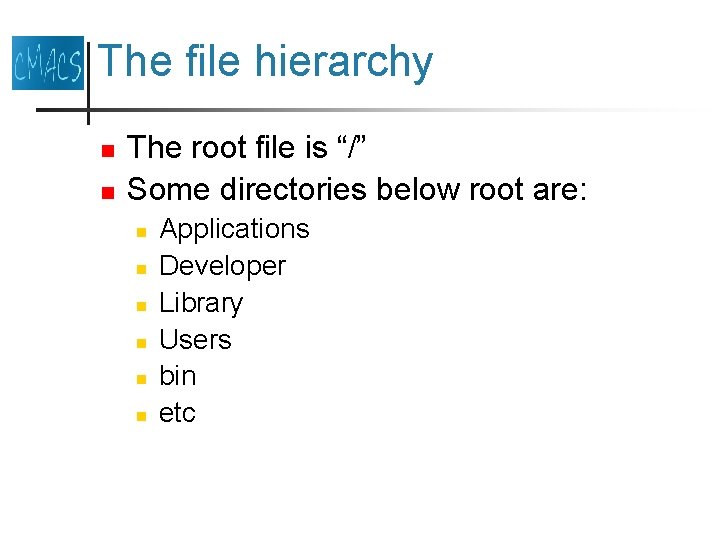
The file hierarchy n n The root file is “/” Some directories below root are: n n n Applications Developer Library Users bin etc
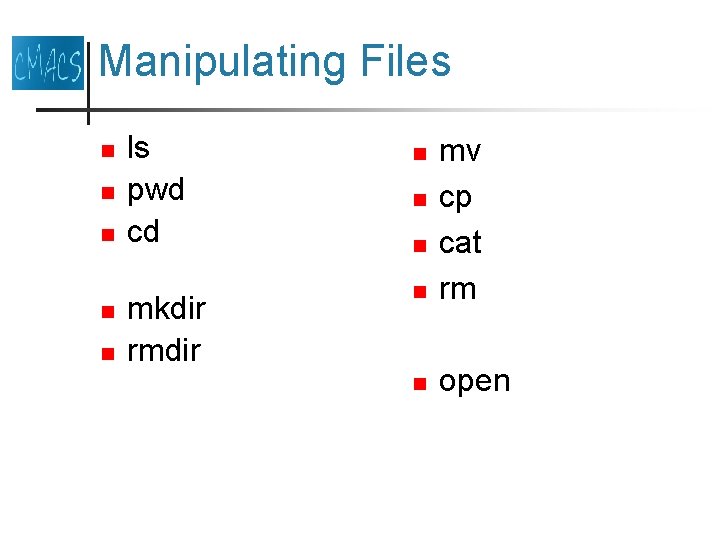
Manipulating Files n n n ls pwd cd mkdir rmdir n mv cp cat rm n open n
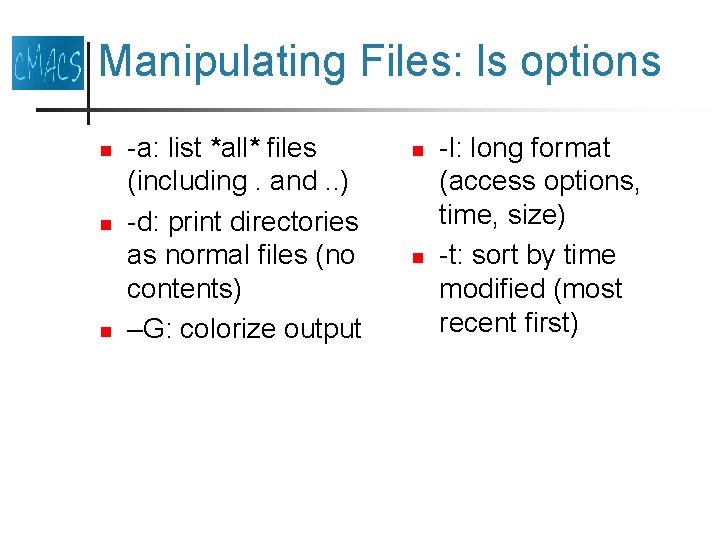
Manipulating Files: ls options n n n -a: list *all* files (including. and. . ) -d: print directories as normal files (no contents) –G: colorize output n n -l: long format (access options, time, size) -t: sort by time modified (most recent first)
Exercises n Use man to learn about ls, cd, pwd n n n What directories are contained in the root directory (“/”) What non-directory files are contained in the root directory? What is your home directory? What directories are contained in your home directory? Use man to learn about mkdir, rmdir n n Create a subdirectory of your home directory Create a subdirectory of the subdirectory
Exercises n Use man to learn about mv, cp, cat, rm n n n Create a file containing your name in your home directory Create a subdirectory of your home directory Copy the file to the subdirectory Remove the original file Move the copy back to the home directory
Exercises n Use man to learn about “open” n Run Safari by opening the appropriate file
Inspecting and Changing Files n n n more less cat n Editors n nano vi emacs
Exercises n Use man to learn about more, less, cat n n Try using more, less, and cat to look at files. What are the differences? Use man to learn about nano n Create a file containing a brief description of your favorite Unix command save it in your home directory as <command>. txt
The Shell n Every Unix system runs a “shell” to interpret your commands n n n Commands can be entered from a terminal or The shell can be directed to read a file containing commands (“. <filename>”) Mac OS X uses “bash” (Bourne-again shell) by default
The Shell n Types of commands: n n Built-in shell commands (shell programming) Unix programs (e. g. , ls, mv, etc. ) Scripts (executable user files) Shell variables n n n set export echo
The Shell n n n Start-up script: . bash_profile Sets important variables PATH: determines where the shell looks for commands
Exercises n Type “set” to see variables n n HOME PATH
Keyboard Shortcuts n n Auto-completion: Tab and double Tab Command history: Up and down arrows Cancel: ^C End of input: ^D
Programs and executables n File permissions: n n n Write: w Read: r Execute: x
Final Exercises n n n Start Rule. Bender Run a bngl file Open the output using the “System Editor” Open Excel and find the output files to open. Navigate to the results directory using a Unix terminal window