
Using Linux with ARM Tutorial 3 Why use
- Slides: 80
Using Linux with ARM Tutorial #3
Why use an Operating System? USB Device Drivers - Keyboard, Mouse, Bluetooth Internet Stack - Easily start using the Ethernet port Multi-threaded Applications 2
But Maybe an Operating System is Overkill If only limited OS features are required Use ARM Semihosting 3
Hands-on Session Learn about Semihosting functions 4
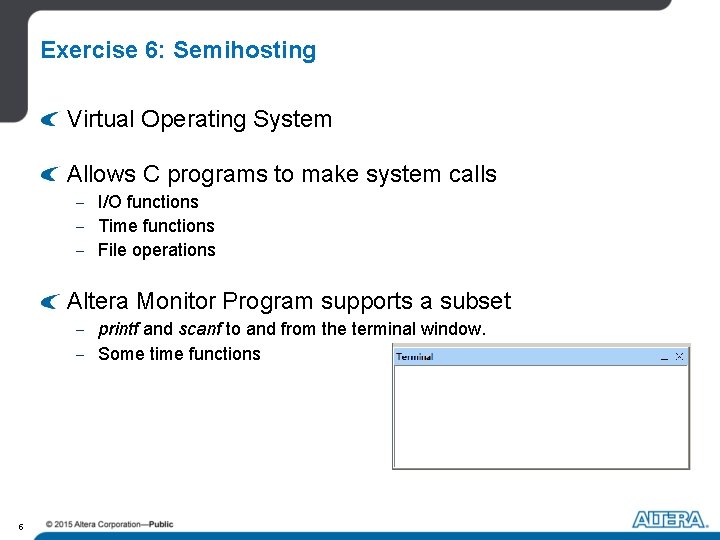
Exercise 6: Semihosting Virtual Operating System Allows C programs to make system calls - I/O functions - Time functions - File operations Altera Monitor Program supports a subset - printf and scanf to and from the terminal window. - Some time functions 5
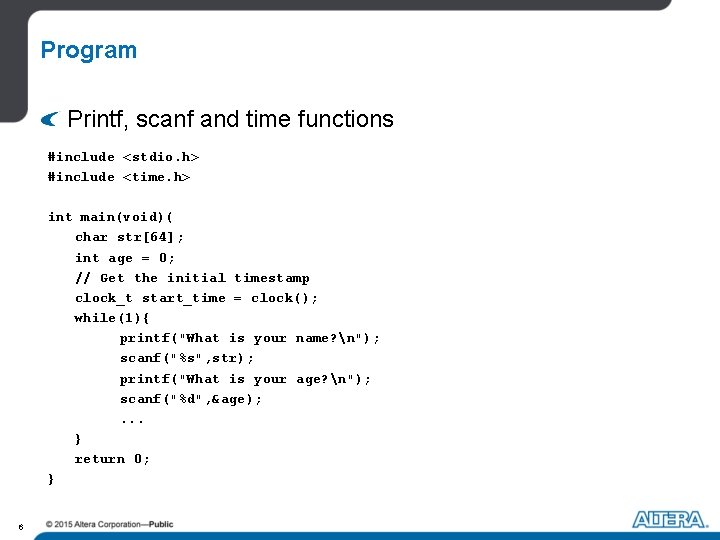
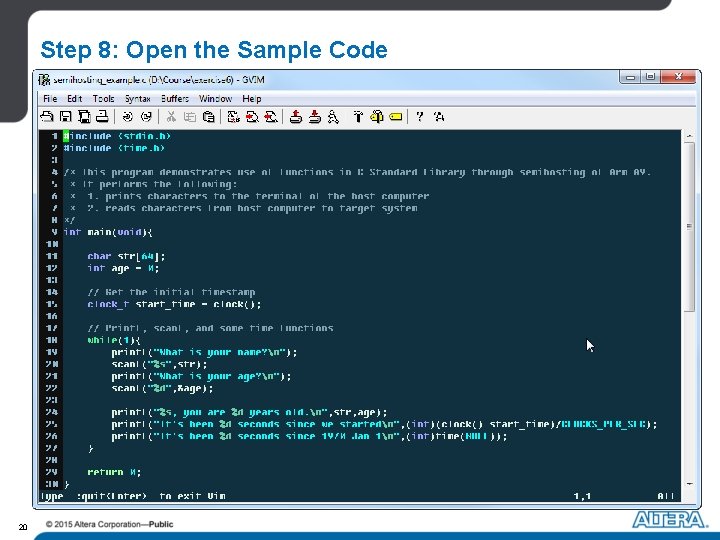
Program Printf, scanf and time functions #include <stdio. h> #include <time. h> int main(void)( char str[64]; int age = 0; // Get the initial timestamp clock_t start_time = clock(); while(1){ printf("What is your name? n"); scanf("%s", str); printf("What is your age? n"); scanf("%d", &age); . . . } return 0; } 6
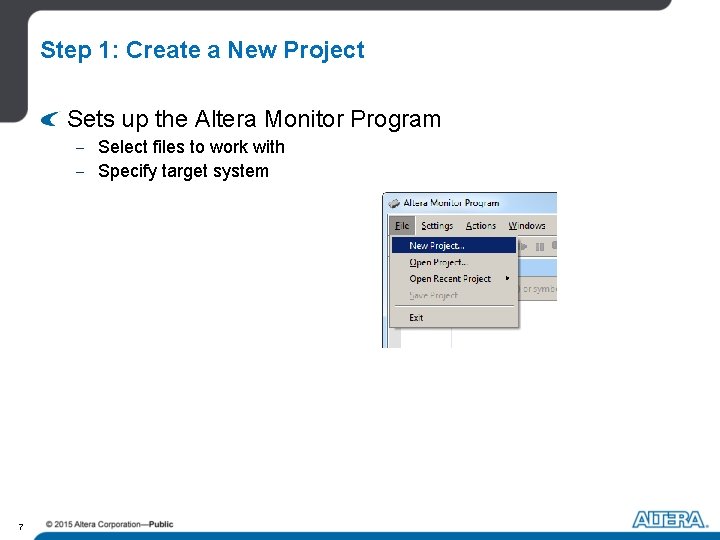
Step 1: Create a New Project Sets up the Altera Monitor Program - Select files to work with - Specify target system 7
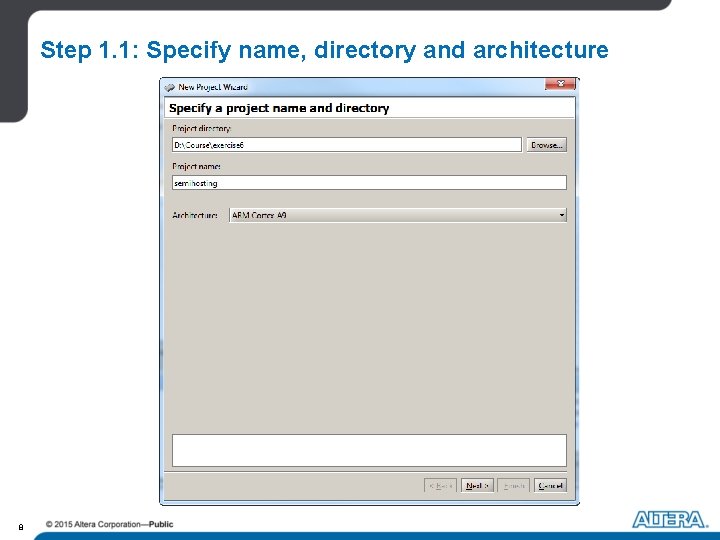
Step 1. 1: Specify name, directory and architecture 8
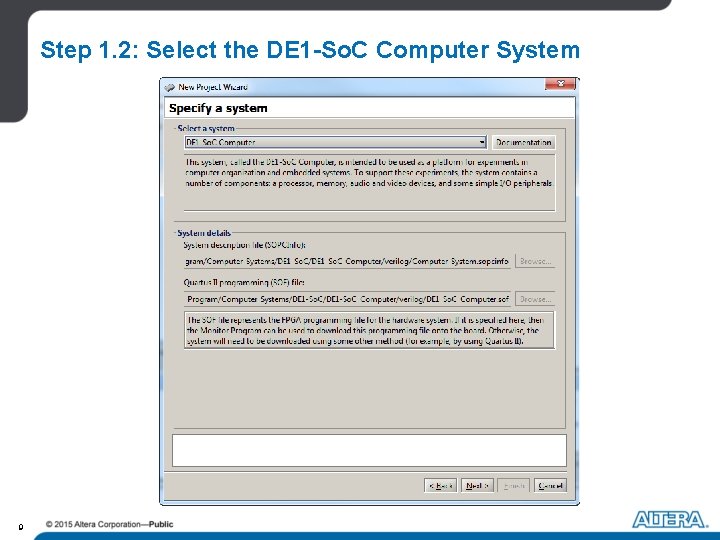
Step 1. 2: Select the DE 1 -So. C Computer System 9
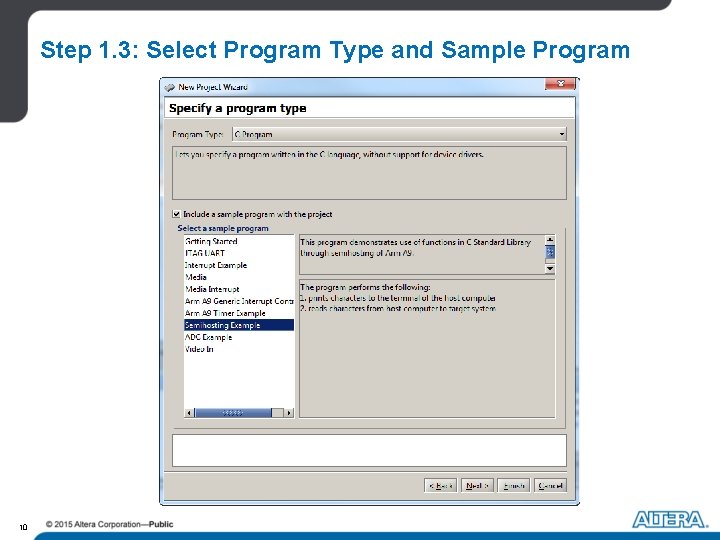
Step 1. 3: Select Program Type and Sample Program 10
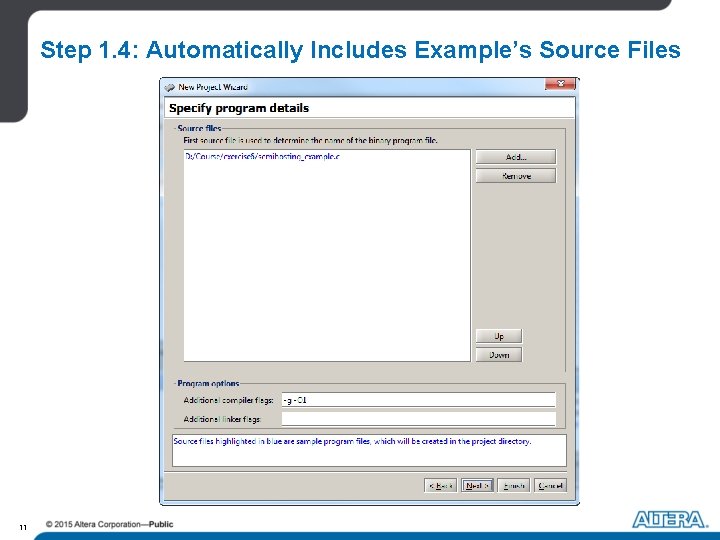
Step 1. 4: Automatically Includes Example’s Source Files 11
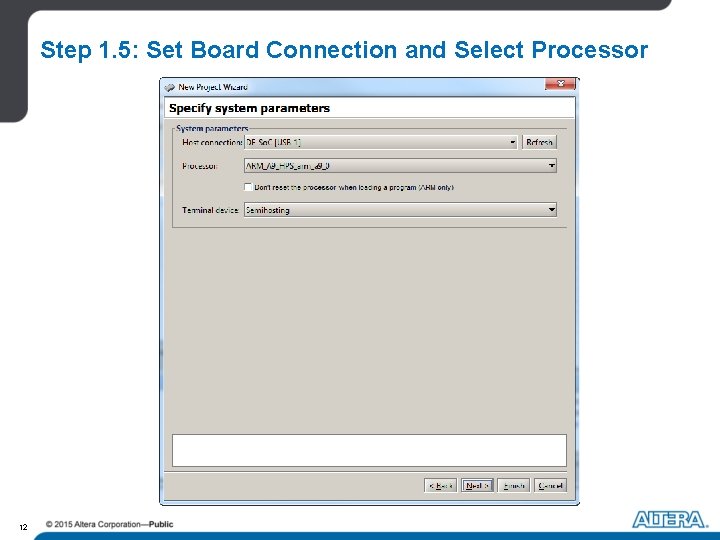
Step 1. 5: Set Board Connection and Select Processor 12
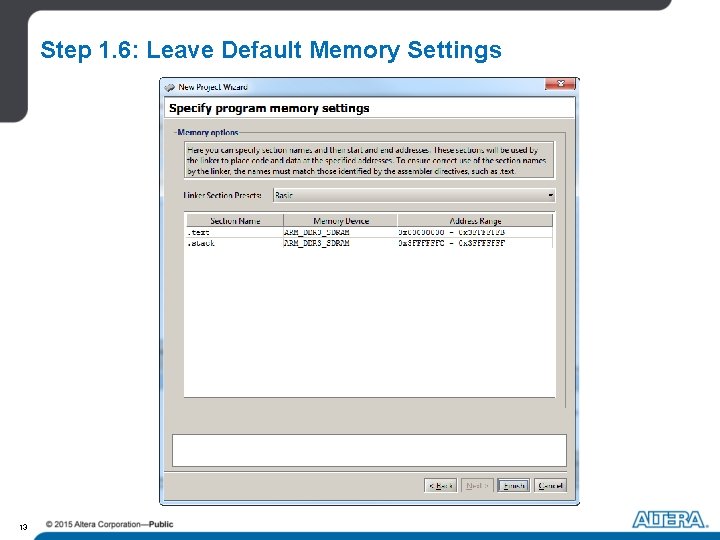
Step 1. 6: Leave Default Memory Settings 13
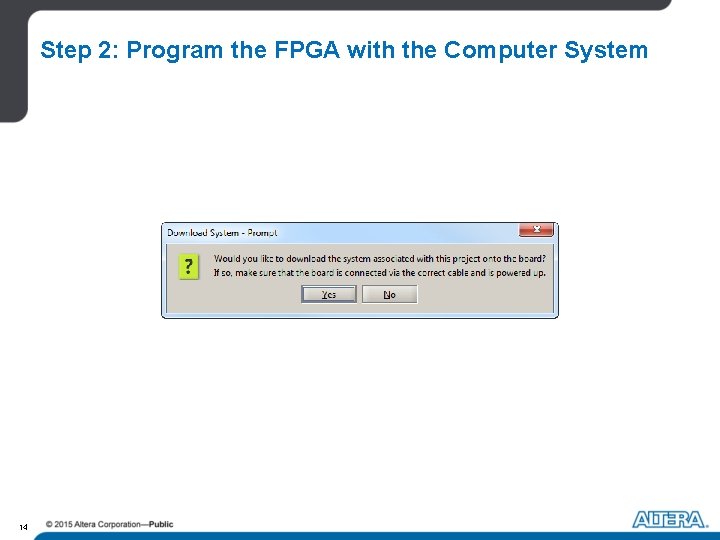
Step 2: Program the FPGA with the Computer System 14
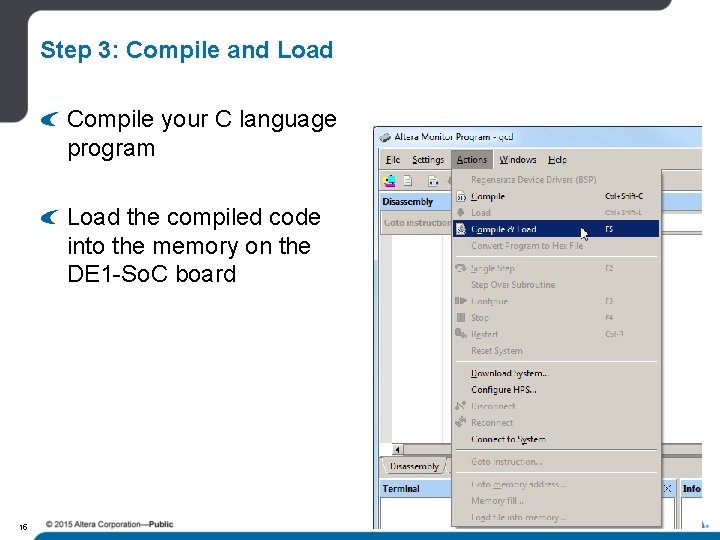
Step 3: Compile and Load Compile your C language program Load the compiled code into the memory on the DE 1 -So. C board 15
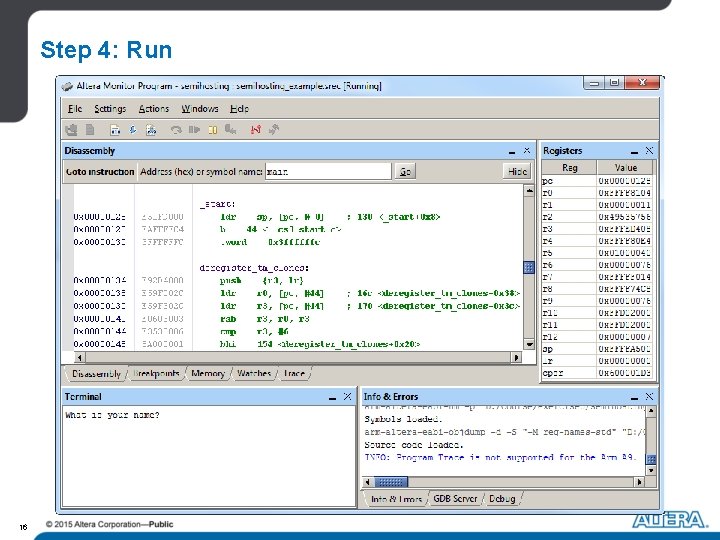
Step 4: Run 16
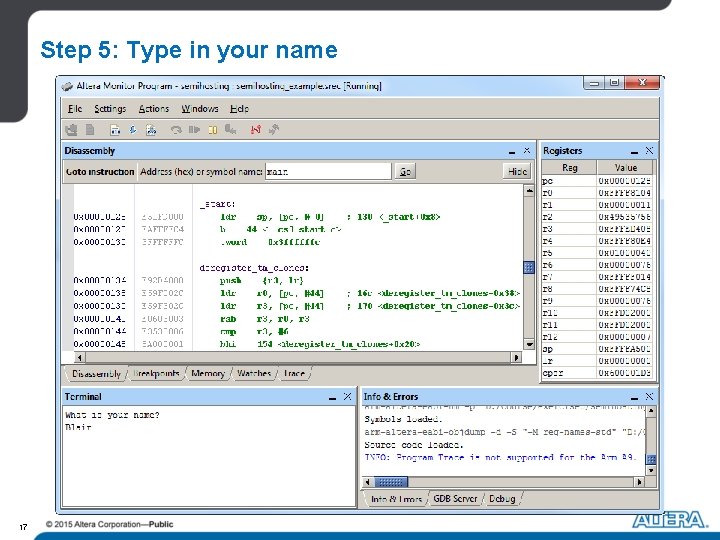
Step 5: Type in your name 17
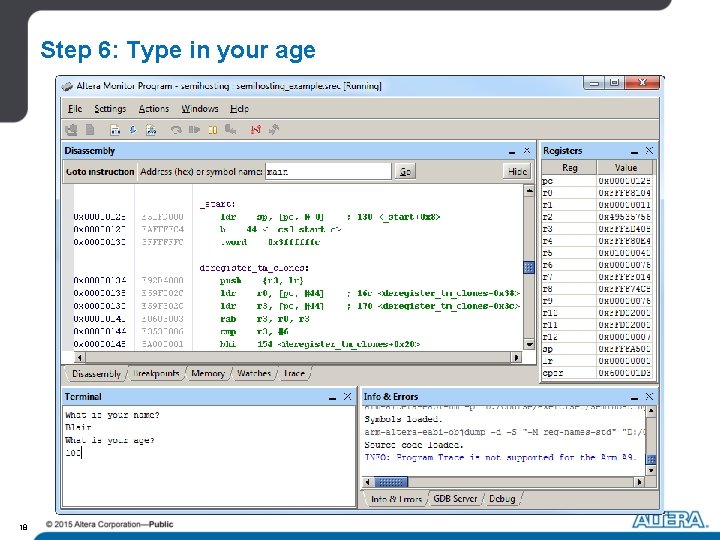
Step 6: Type in your age 18
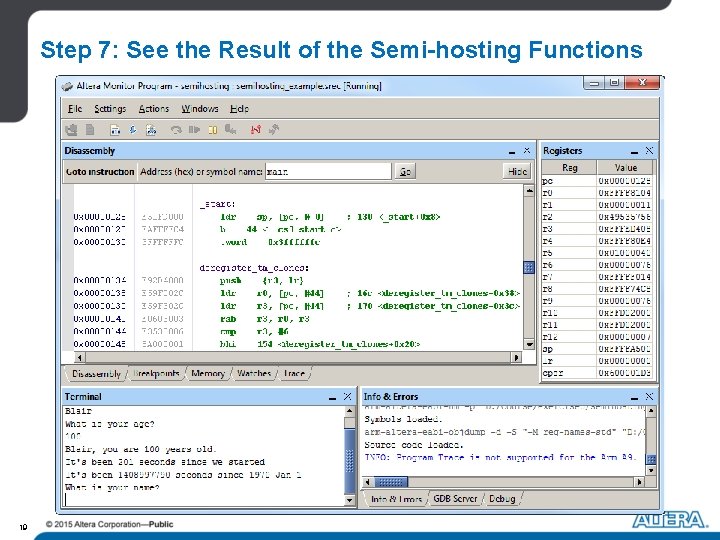
Step 7: See the Result of the Semi-hosting Functions 19
Step 8: Open the Sample Code 20
Hands-on Session Please read the instructions at - “/exercise 6/instructions. pdf” 21
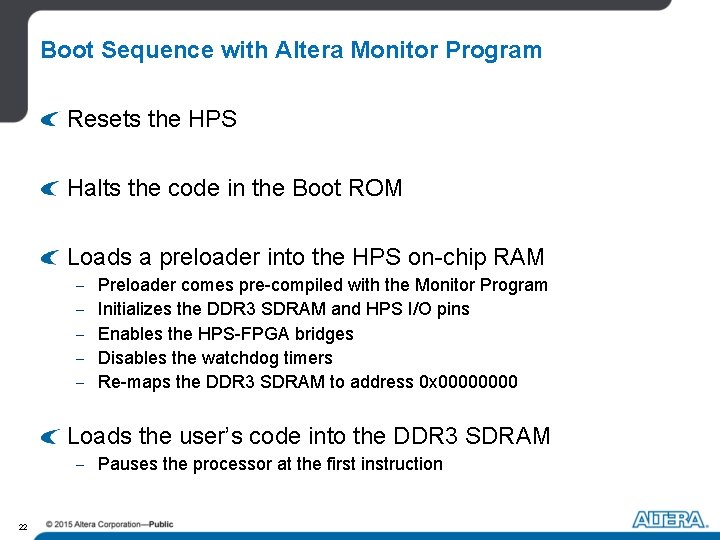
Boot Sequence with Altera Monitor Program Resets the HPS Halts the code in the Boot ROM Loads a preloader into the HPS on-chip RAM - Preloader comes pre-compiled with the Monitor Program Initializes the DDR 3 SDRAM and HPS I/O pins Enables the HPS-FPGA bridges Disables the watchdog timers Re-maps the DDR 3 SDRAM to address 0 x 0000 Loads the user’s code into the DDR 3 SDRAM - Pauses the processor at the first instruction 22
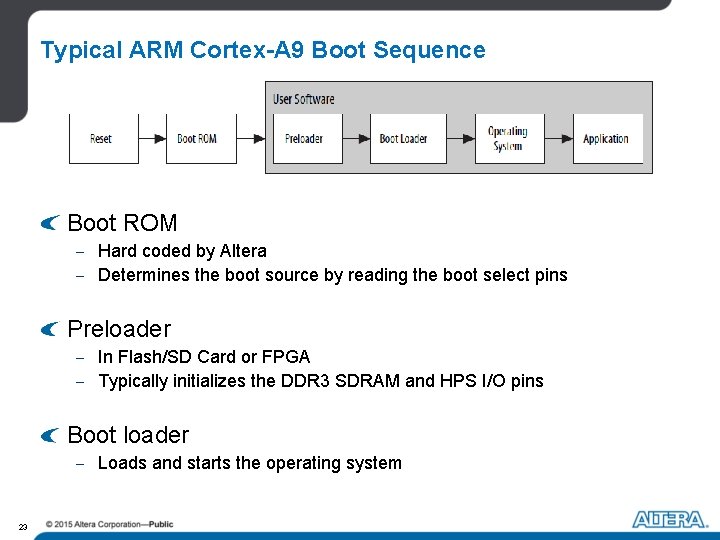
Typical ARM Cortex-A 9 Boot Sequence Boot ROM - Hard coded by Altera - Determines the boot source by reading the boot select pins Preloader - In Flash/SD Card or FPGA - Typically initializes the DDR 3 SDRAM and HPS I/O pins Boot loader - Loads and starts the operating system 23
Linux SD Card Images We provide premade SD Card Images - Preloader, Boot Loader, Linux (Kernel + Distro) - FPGA related drivers - Automatically programs FPGA with prebuilt system We have: - Command-line - GUI (Ubuntu) 24
Hands-on Session Boot Linux Connect to Linux via USB-to-UART and Putty Compile and run a simple program 25
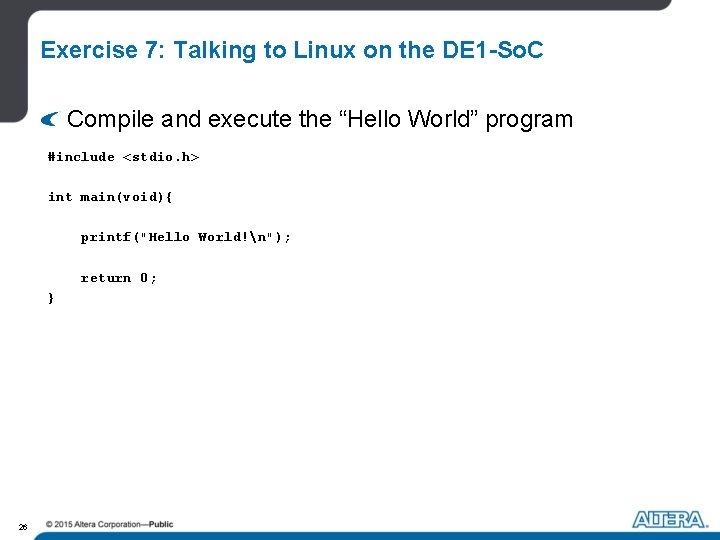
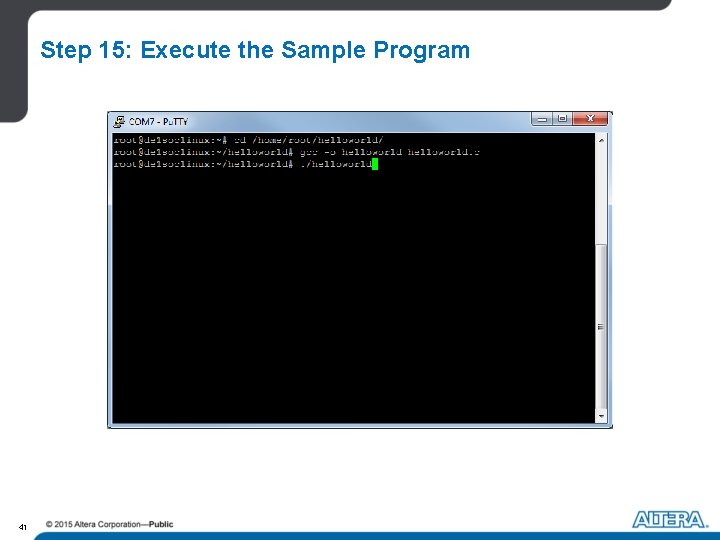
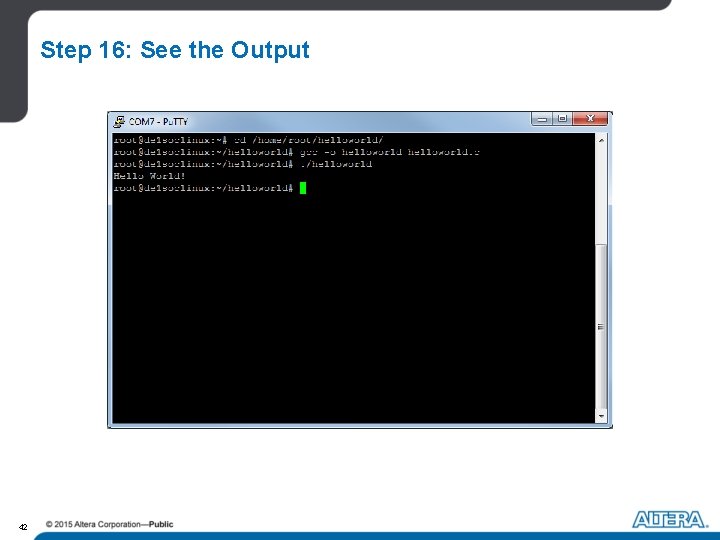
Exercise 7: Talking to Linux on the DE 1 -So. C Compile and execute the “Hello World” program #include <stdio. h> int main(void){ printf("Hello World!n"); return 0; } 26
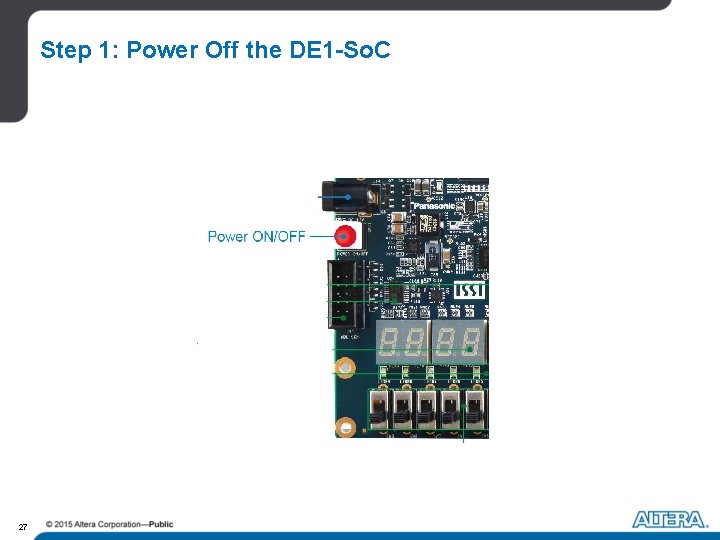
Step 1: Power Off the DE 1 -So. C 27
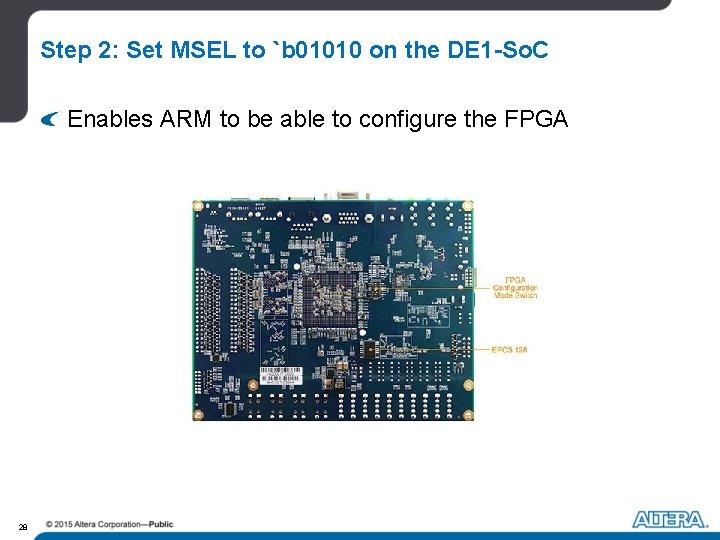
Step 2: Set MSEL to `b 01010 on the DE 1 -So. C Enables ARM to be able to configure the FPGA 28
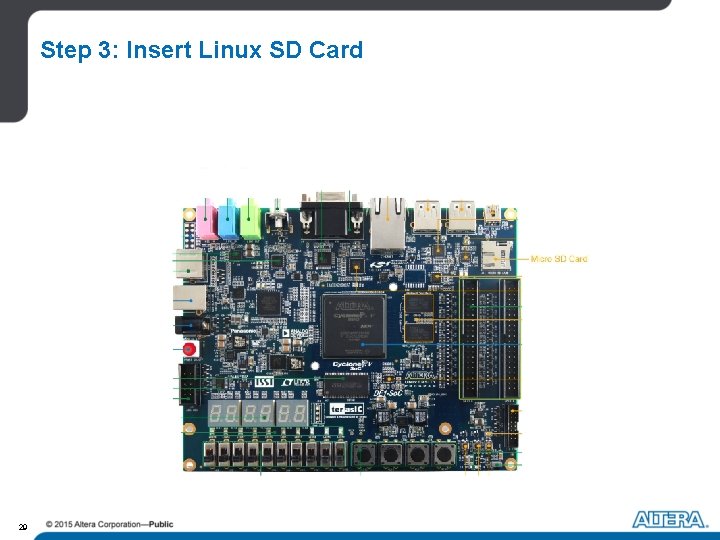
Step 3: Insert Linux SD Card 29
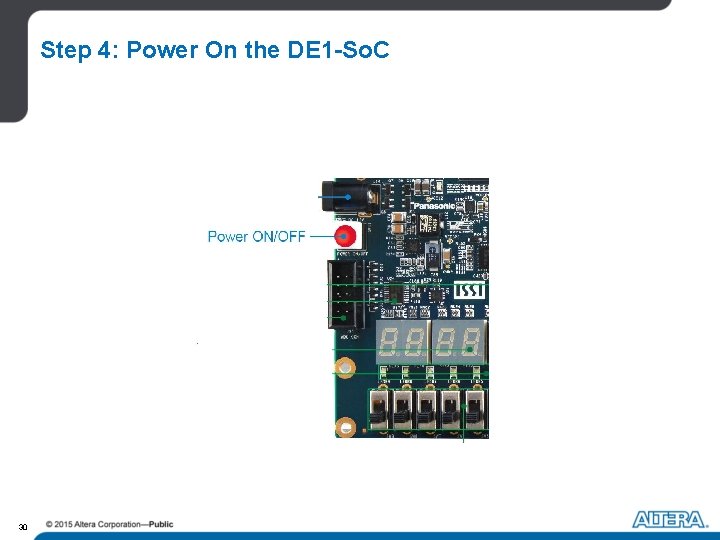
Step 4: Power On the DE 1 -So. C 30
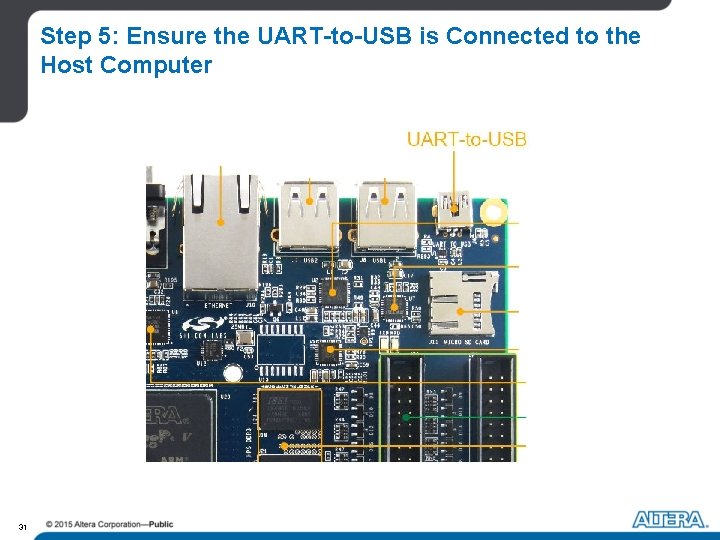
Step 5: Ensure the UART-to-USB is Connected to the Host Computer 31
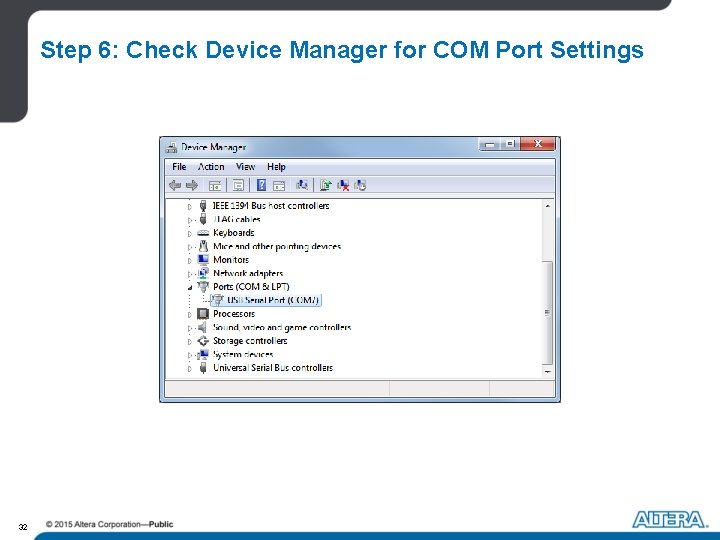
Step 6: Check Device Manager for COM Port Settings 32
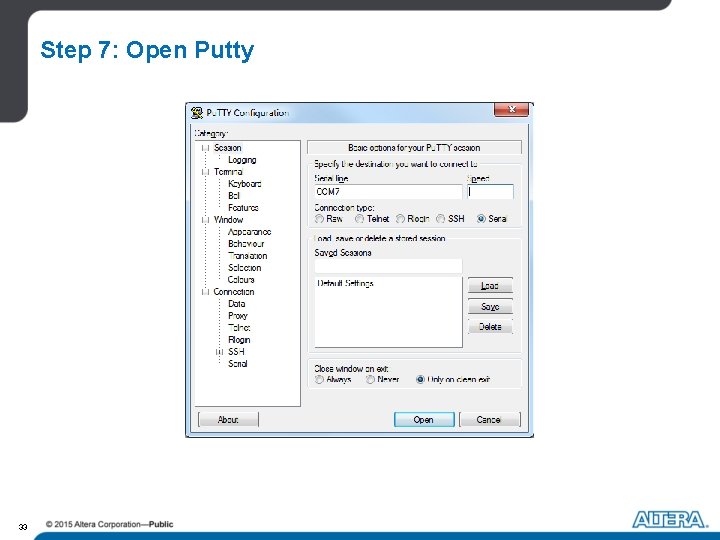
Step 7: Open Putty 33
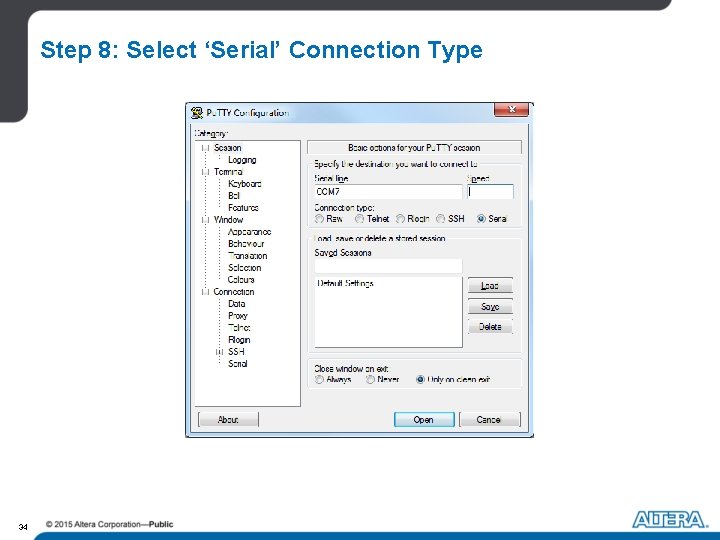
Step 8: Select ‘Serial’ Connection Type 34
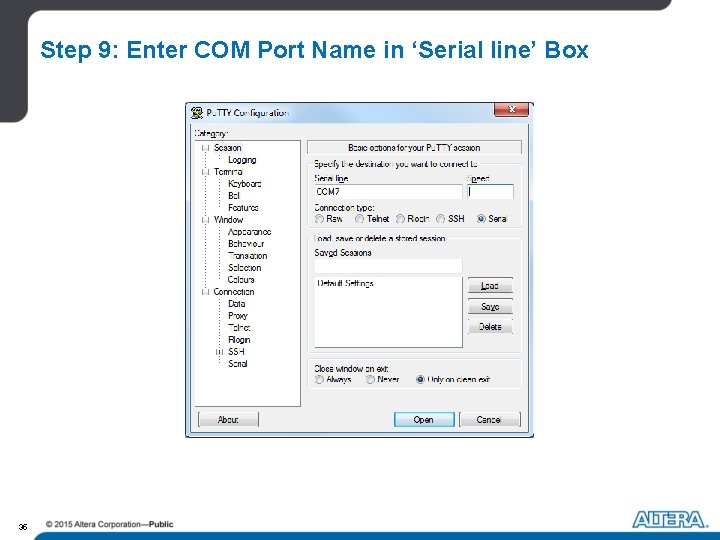
Step 9: Enter COM Port Name in ‘Serial line’ Box 35
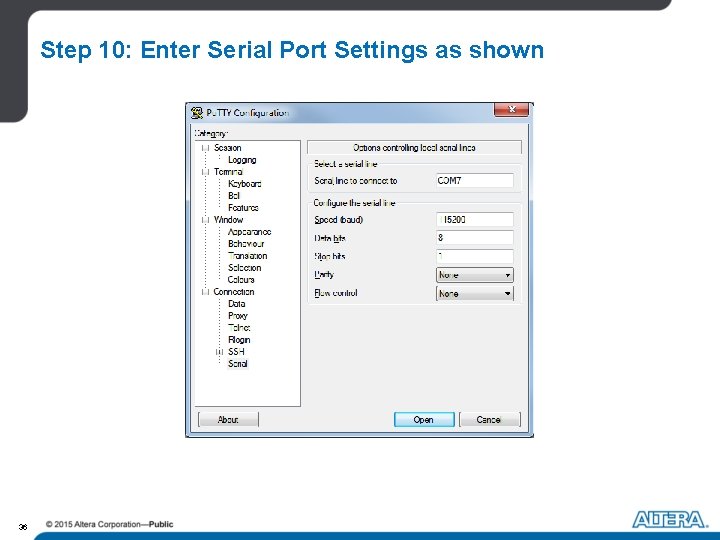
Step 10: Enter Serial Port Settings as shown 36
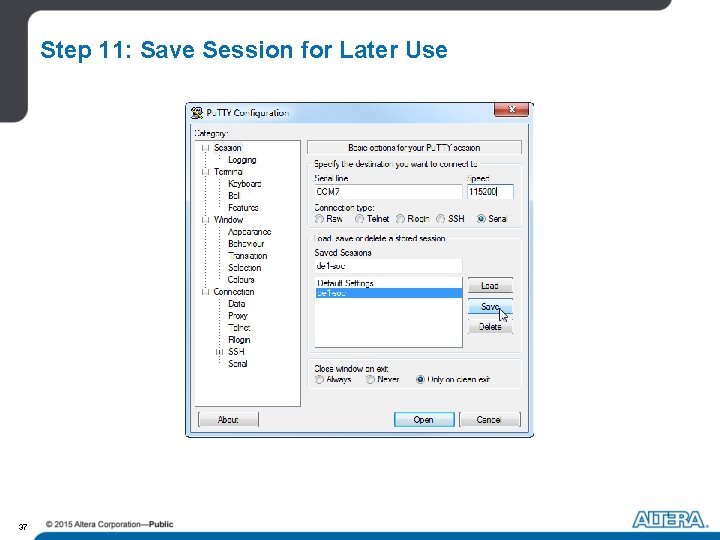
Step 11: Save Session for Later Use 37
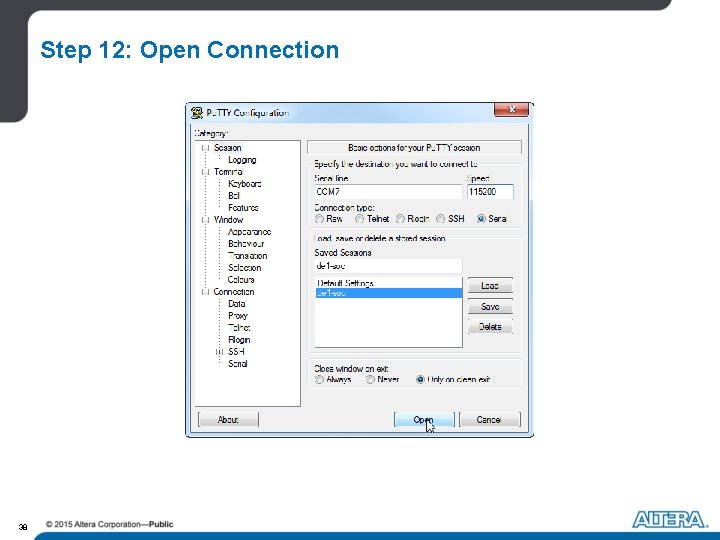
Step 12: Open Connection 38
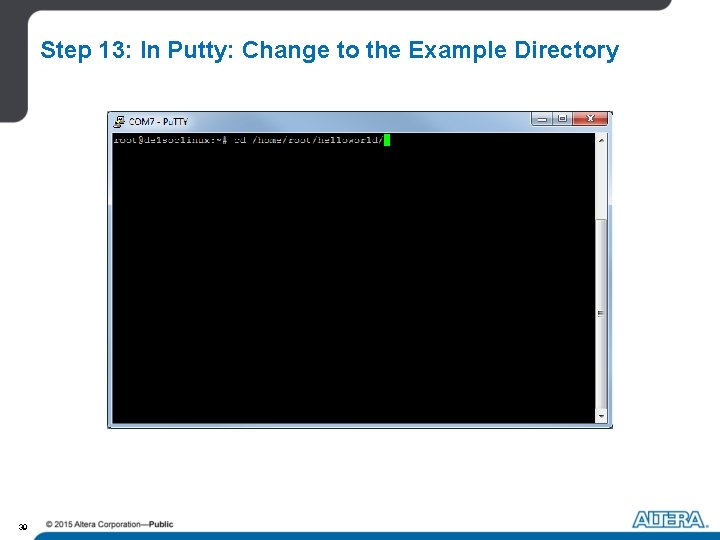
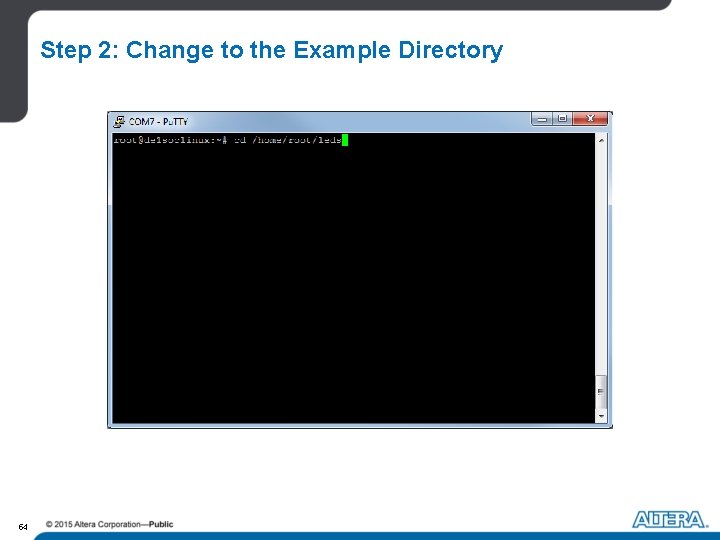
Step 13: In Putty: Change to the Example Directory 39
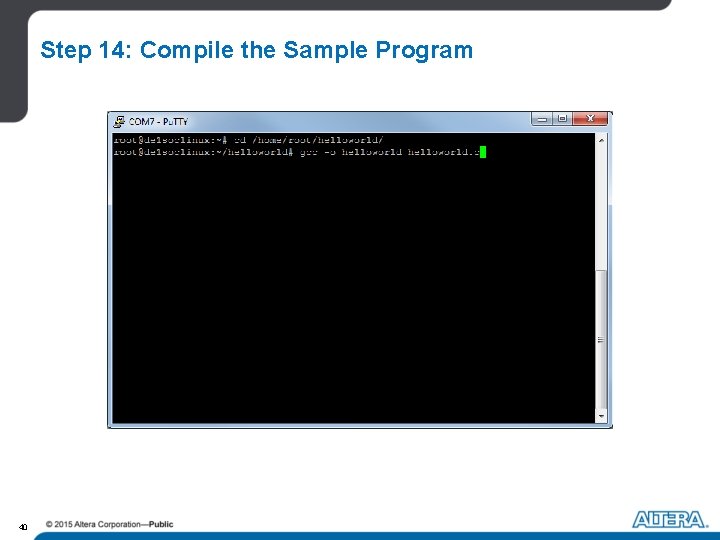
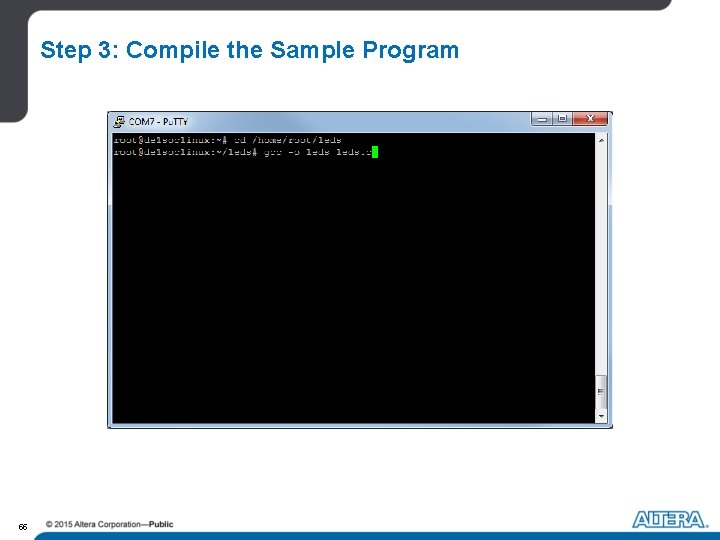
Step 14: Compile the Sample Program 40
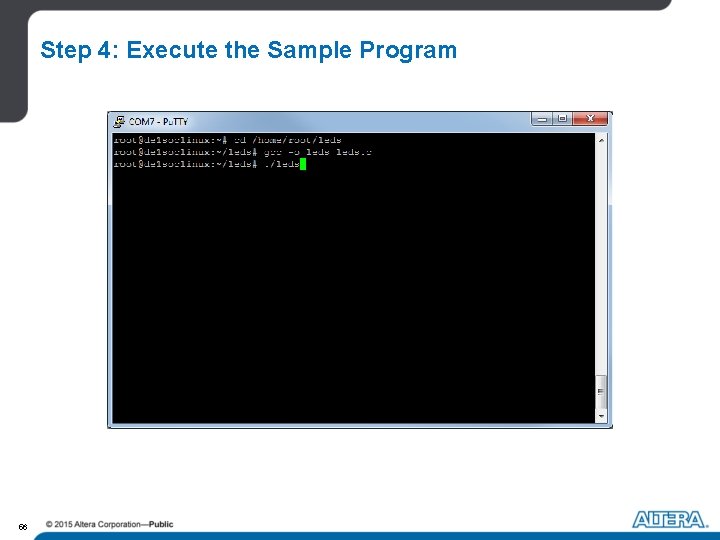
Step 15: Execute the Sample Program 41
Step 16: See the Output 42
Hands-on Session Please read the instructions at - “/exercise 7/instructions. pdf” 43
What if We Want to Communicate with the FPGA? 44
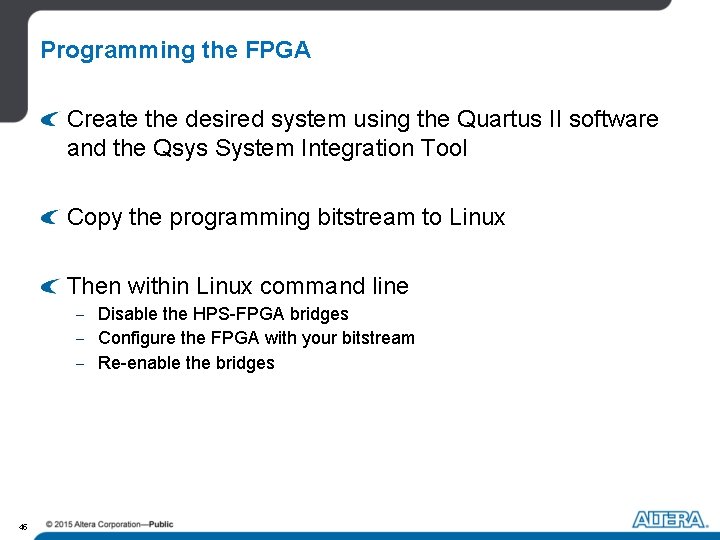
Programming the FPGA Create the desired system using the Quartus II software and the Qsys System Integration Tool Copy the programming bitstream to Linux Then within Linux command line - Disable the HPS-FPGA bridges - Configure the FPGA with your bitstream - Re-enable the bridges 45
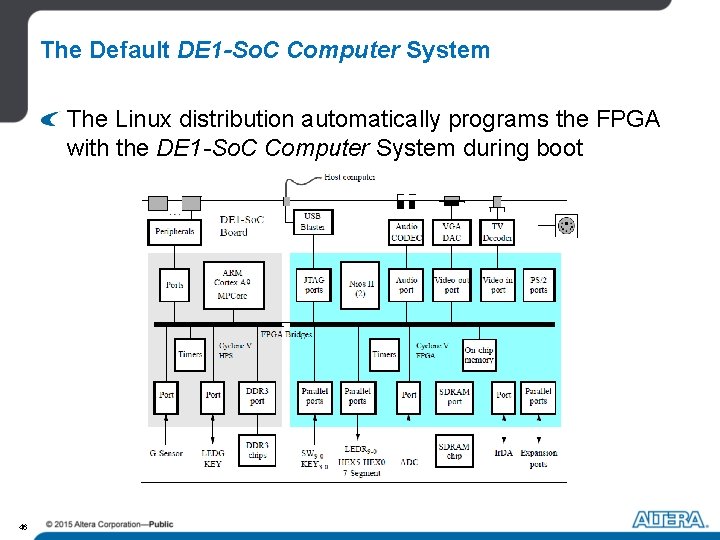
The Default DE 1 -So. C Computer System The Linux distribution automatically programs the FPGA with the DE 1 -So. C Computer System during boot 46
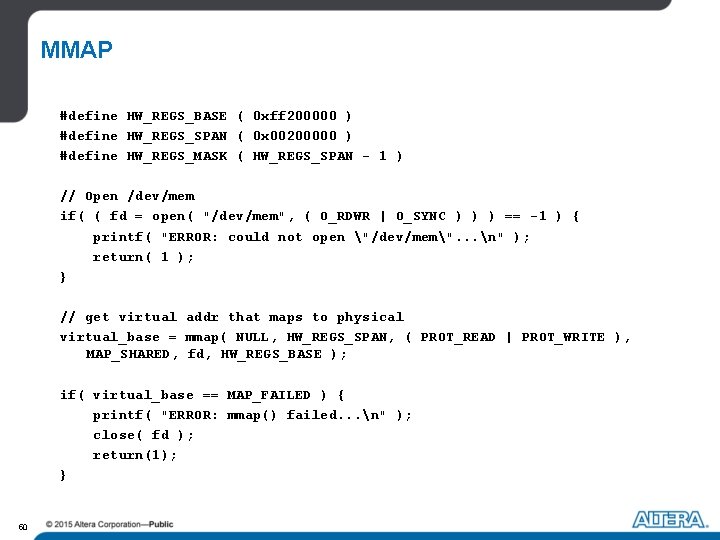
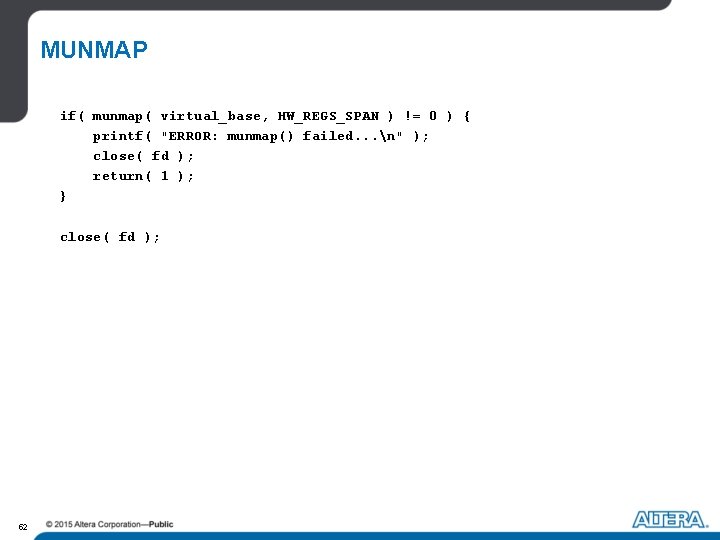
Virtual Addresses vs Physical Addresses Linux creates a virtual address space for programs FPGA peripheral are given physical addresses in Qsys Linux provides the function ‘mmap’ to map virtual address space to physical addresses - ‘munmap’ un-maps addresses 47
Hands-on Session Communicate with FPGA peripheral within Linux 48
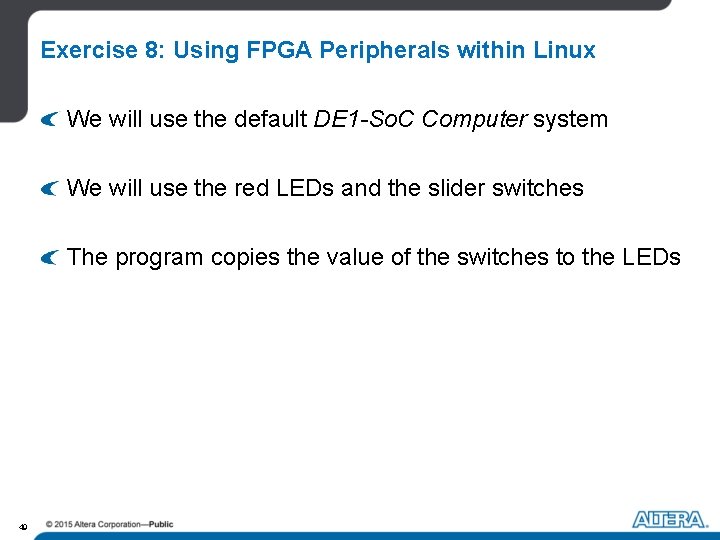
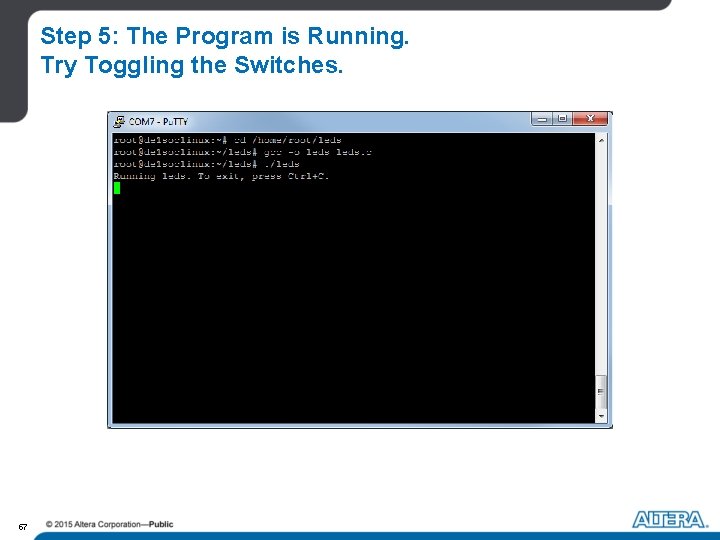
Exercise 8: Using FPGA Peripherals within Linux We will use the default DE 1 -So. C Computer system We will use the red LEDs and the slider switches The program copies the value of the switches to the LEDs 49
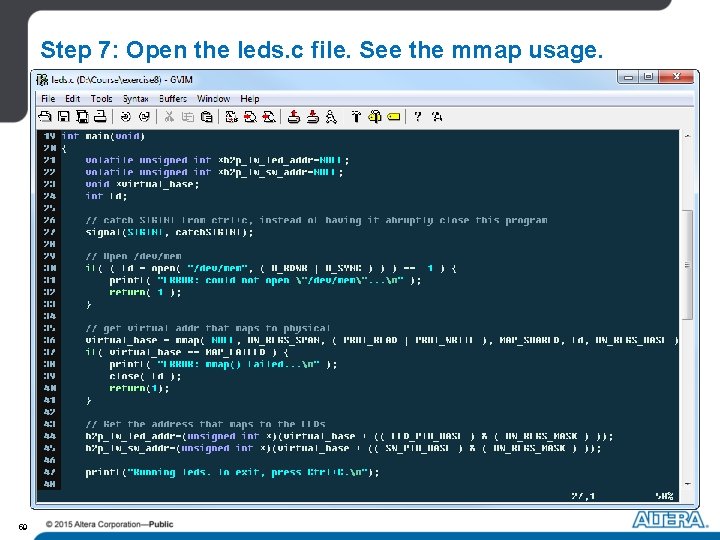
MMAP #define HW_REGS_BASE ( 0 xff 200000 ) #define HW_REGS_SPAN ( 0 x 00200000 ) #define HW_REGS_MASK ( HW_REGS_SPAN - 1 ) // Open /dev/mem if( ( fd = open( "/dev/mem", ( O_RDWR | O_SYNC ) ) ) == -1 ) { printf( "ERROR: could not open "/dev/mem". . . n" ); return( 1 ); } // get virtual addr that maps to physical virtual_base = mmap( NULL, HW_REGS_SPAN, ( PROT_READ | PROT_WRITE ), MAP_SHARED, fd, HW_REGS_BASE ); if( virtual_base == MAP_FAILED ) { printf( "ERROR: mmap() failed. . . n" ); close( fd ); return(1); } 50
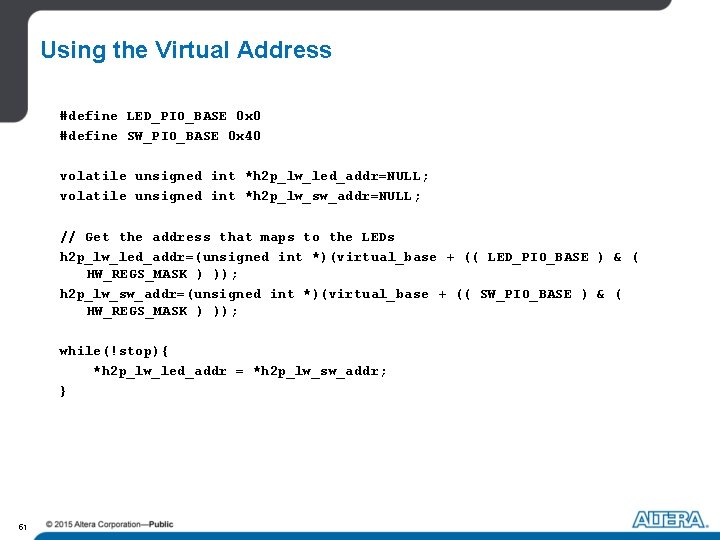
Using the Virtual Address #define LED_PIO_BASE 0 x 0 #define SW_PIO_BASE 0 x 40 volatile unsigned int *h 2 p_lw_led_addr=NULL; volatile unsigned int *h 2 p_lw_sw_addr=NULL; // Get the address that maps to the LEDs h 2 p_lw_led_addr=(unsigned int *)(virtual_base + (( LED_PIO_BASE ) & ( HW_REGS_MASK ) )); h 2 p_lw_sw_addr=(unsigned int *)(virtual_base + (( SW_PIO_BASE ) & ( HW_REGS_MASK ) )); while(!stop){ *h 2 p_lw_led_addr = *h 2 p_lw_sw_addr; } 51
MUNMAP if( munmap( virtual_base, HW_REGS_SPAN ) != 0 ) { printf( "ERROR: munmap() failed. . . n" ); close( fd ); return( 1 ); } close( fd ); 52
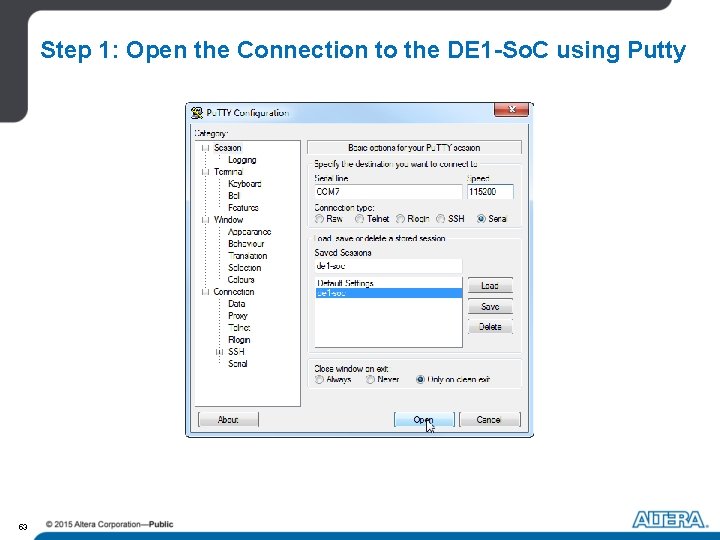
Step 1: Open the Connection to the DE 1 -So. C using Putty 53
Step 2: Change to the Example Directory 54
Step 3: Compile the Sample Program 55
Step 4: Execute the Sample Program 56
Step 5: The Program is Running. Try Toggling the Switches. 57
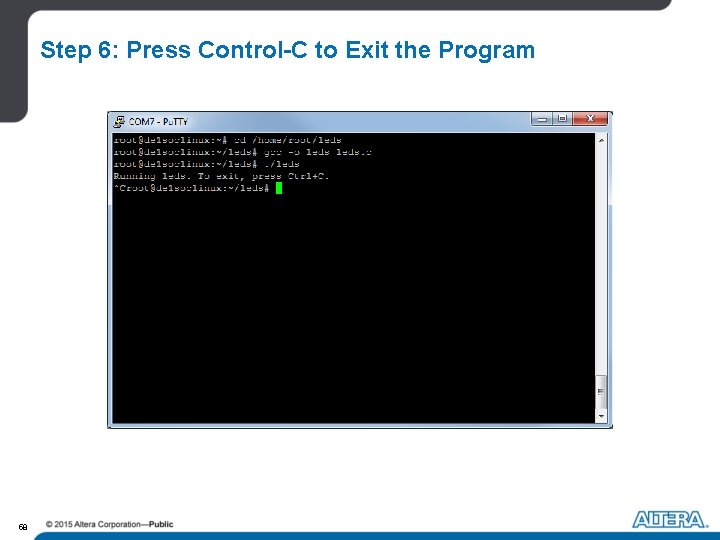
Step 6: Press Control-C to Exit the Program 58
Step 7: Open the leds. c file. See the mmap usage. 59
Hands-on Session Please read the instructions at - “/exercise 8/instructions. pdf” 60
Handling Interrupts from FPGA Peripherals This requires a Linux device driver - A. Modify the Linux kernel - B. Write a kernel module Kernel modules can be loaded at run-time - Easily register interrupt handler using library functions 61
Kernel Modules Initialization - Sets up the module upon loading Interrupt handling (optional) Exit routine - Clears used resources upon unloading 62
Hands-on Session Create a Linux device driver 63
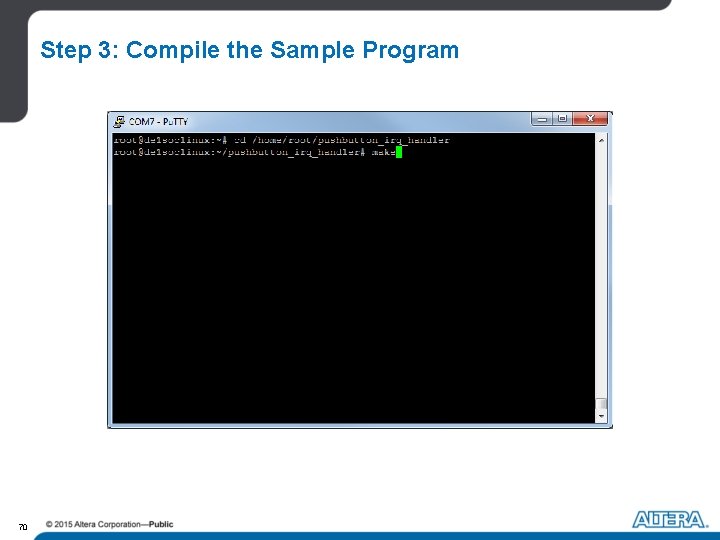
Exercise 8: Creating a Linux Device Driver We will use the red LEDs and pushbuttons The program increments the value displayed on the LEDs when a pushbutton is pressed 64
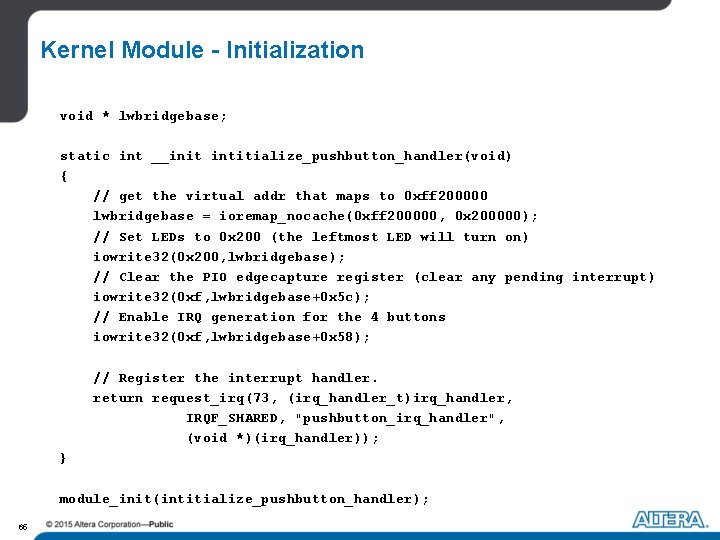
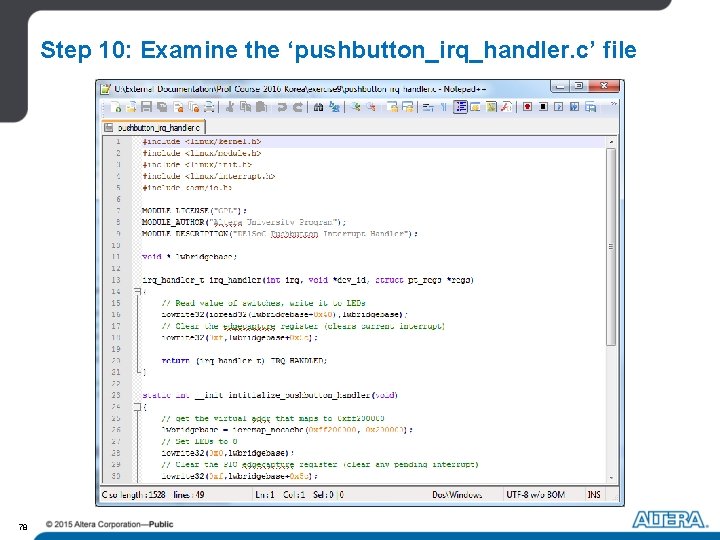
Kernel Module - Initialization void * lwbridgebase; static int __init intitialize_pushbutton_handler(void) { // get the virtual addr that maps to 0 xff 200000 lwbridgebase = ioremap_nocache(0 xff 200000, 0 x 200000); // Set LEDs to 0 x 200 (the leftmost LED will turn on) iowrite 32(0 x 200, lwbridgebase); // Clear the PIO edgecapture register (clear any pending interrupt) iowrite 32(0 xf, lwbridgebase+0 x 5 c); // Enable IRQ generation for the 4 buttons iowrite 32(0 xf, lwbridgebase+0 x 58); // Register the interrupt handler. return request_irq(73, (irq_handler_t)irq_handler, IRQF_SHARED, "pushbutton_irq_handler", (void *)(irq_handler)); } module_init(intitialize_pushbutton_handler); 65
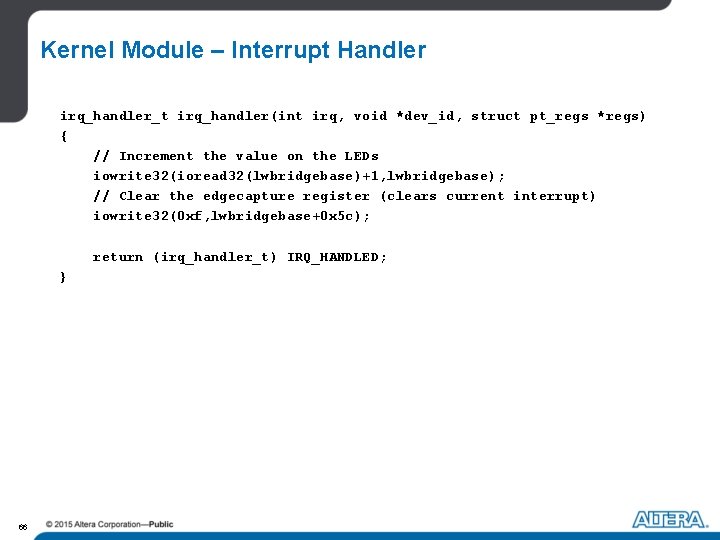
Kernel Module – Interrupt Handler irq_handler_t irq_handler(int irq, void *dev_id, struct pt_regs *regs) { // Increment the value on the LEDs iowrite 32(ioread 32(lwbridgebase)+1, lwbridgebase); // Clear the edgecapture register (clears current interrupt) iowrite 32(0 xf, lwbridgebase+0 x 5 c); return (irq_handler_t) IRQ_HANDLED; } 66
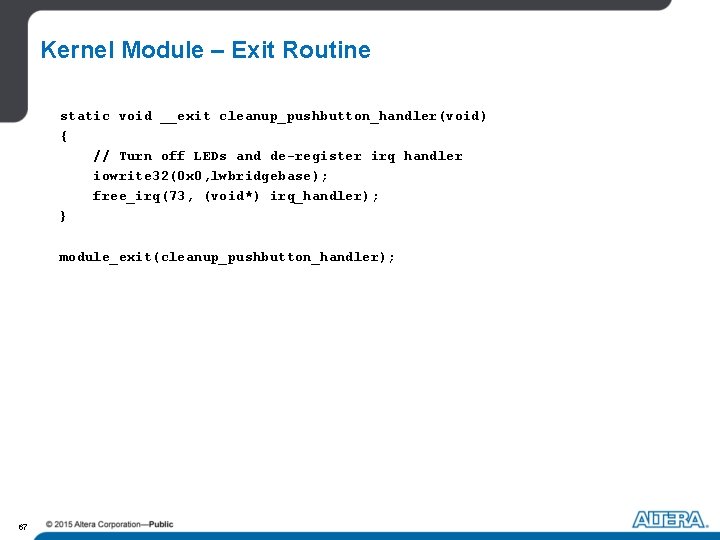
Kernel Module – Exit Routine static void __exit cleanup_pushbutton_handler(void) { // Turn off LEDs and de-register irq handler iowrite 32(0 x 0, lwbridgebase); free_irq(73, (void*) irq_handler); } module_exit(cleanup_pushbutton_handler); 67
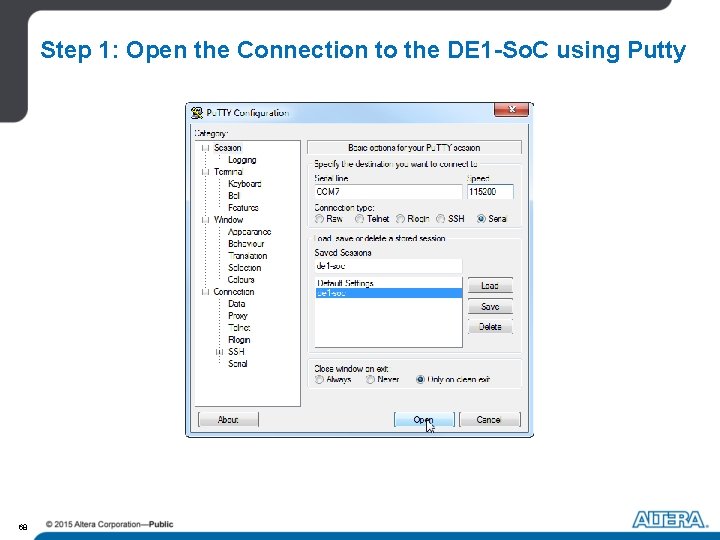
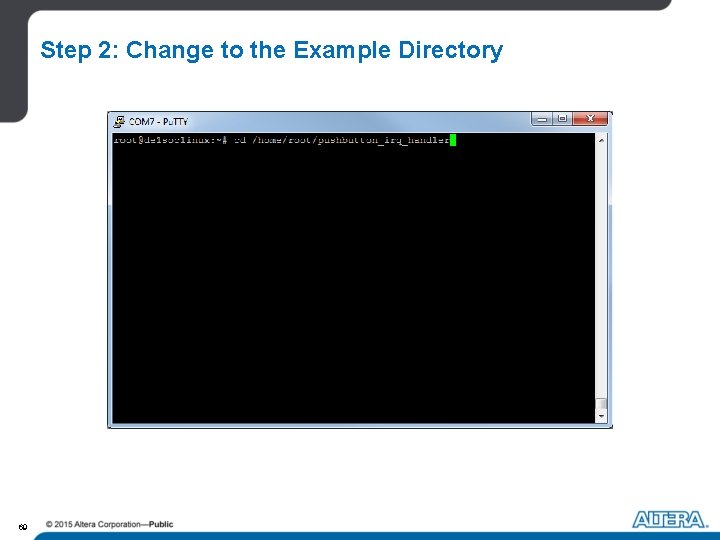
Step 1: Open the Connection to the DE 1 -So. C using Putty 68
Step 2: Change to the Example Directory 69
Step 3: Compile the Sample Program 70
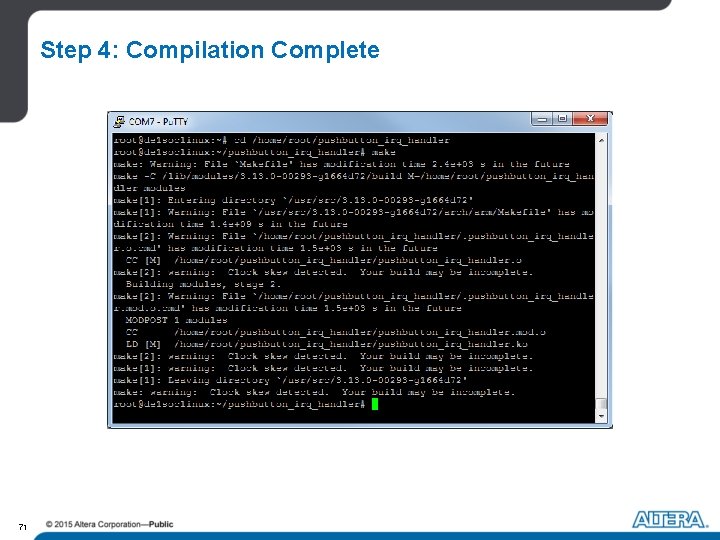
Step 4: Compilation Complete 71
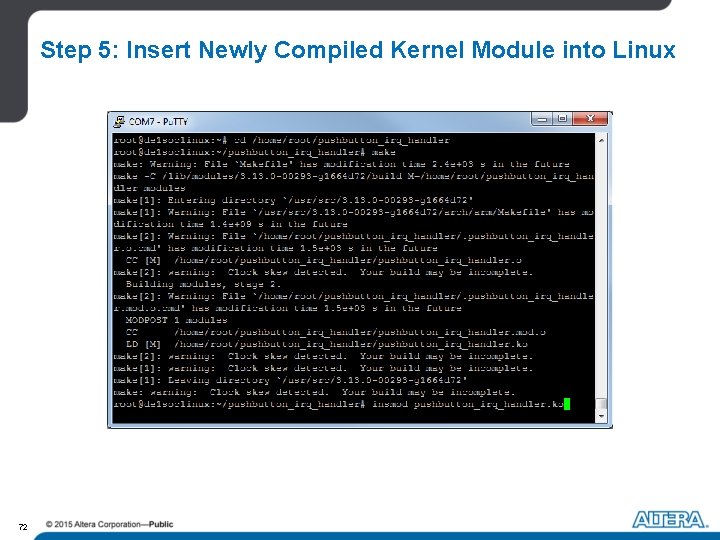
Step 5: Insert Newly Compiled Kernel Module into Linux 72
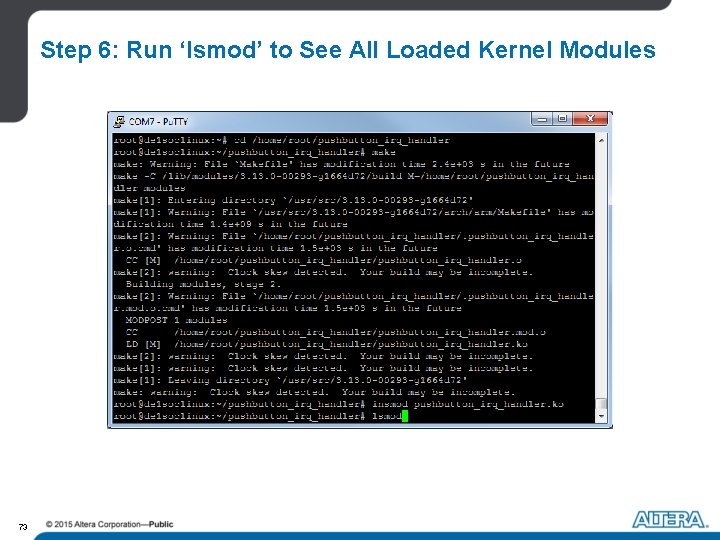
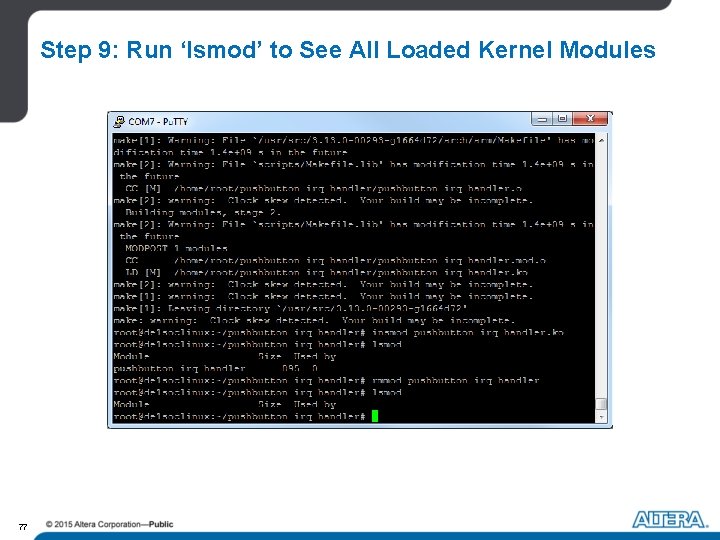
Step 6: Run ‘lsmod’ to See All Loaded Kernel Modules 73
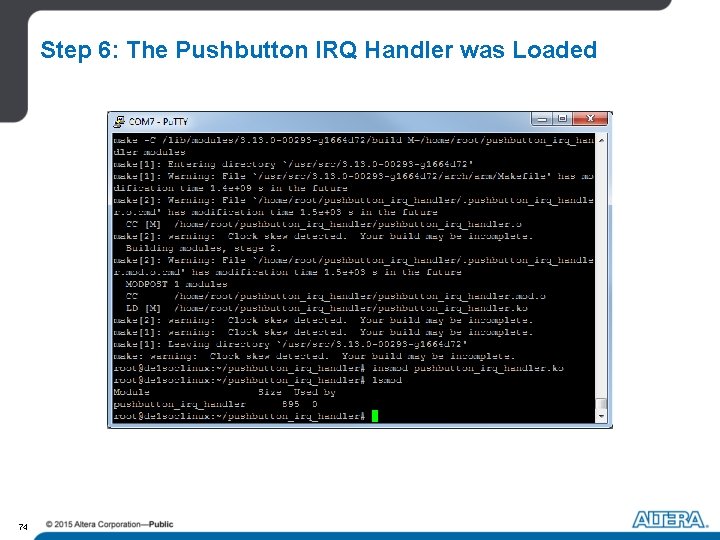
Step 6: The Pushbutton IRQ Handler was Loaded 74
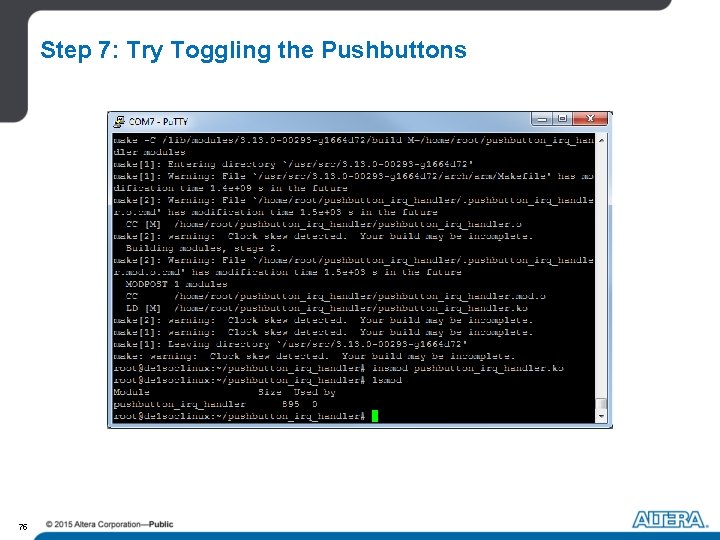
Step 7: Try Toggling the Pushbuttons 75
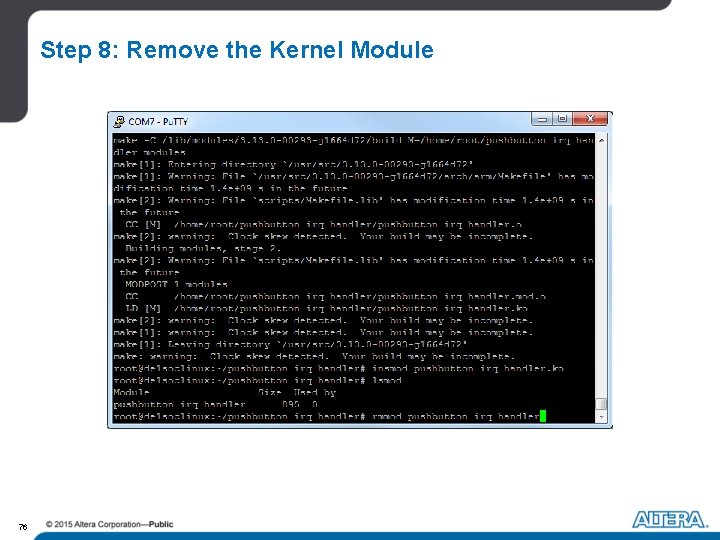
Step 8: Remove the Kernel Module 76
Step 9: Run ‘lsmod’ to See All Loaded Kernel Modules 77
Step 10: Examine the ‘pushbutton_irq_handler. c’ file 78
Hands-on Session Please read the instructions at - “/exercise 9/instructions. pdf” 79
Summary #4 What did we learn? - Using semi-hosting ARM Cortex-A 9 Boot Sequence How to run the Linux operating system How to communicate between the HPS and FPGA under Linux How to create a kernel module Where did we go from here? - Tutorials: Using Linux on the DE 1 -So. C Using Terminals with DE-Series Boards - SD Card images Linux for the DE 1 -So. C - Tons of Linux documentation online - http: //university. altera. com 80