
Using Linux Commands Lab 3 Using the Shell
Using Linux Commands Lab 3

Using the Shell in Linux Commands Syntax ØOptions: could be added to the commands to change their behavior (-a , -la , --help) ØArgument: is an extra piece of information (ex. : a file name) Ø Environment variables : where the shell stores information that may be useful to the user’s shell session. Examples of environment variables include $SHELL (which identifies the shell you are using )and$PS 1 (which defines your shell prompt) Meta characters: that have special meaning to the shell • (>) used to direct the output of a command to a file. • ( | ) pipe the output to another command.
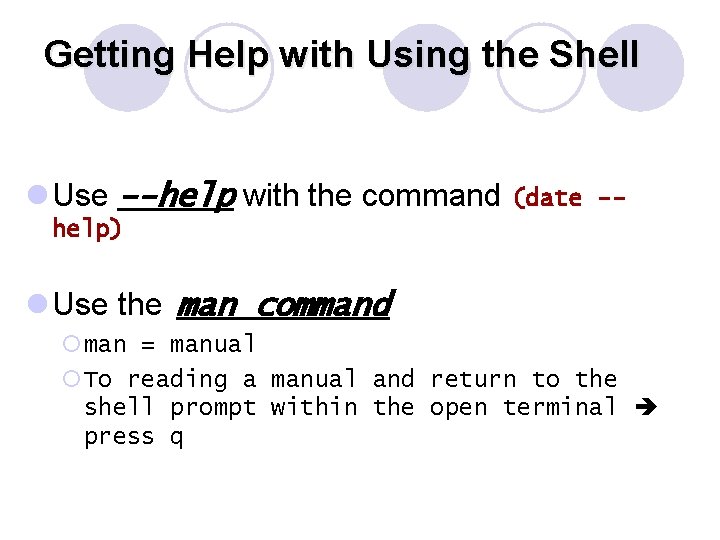
Getting Help with Using the Shell l Use --help with the command (date -- help) l Use the man command ¡man = manual ¡To reading a manual and return to the shell prompt within the open terminal press q
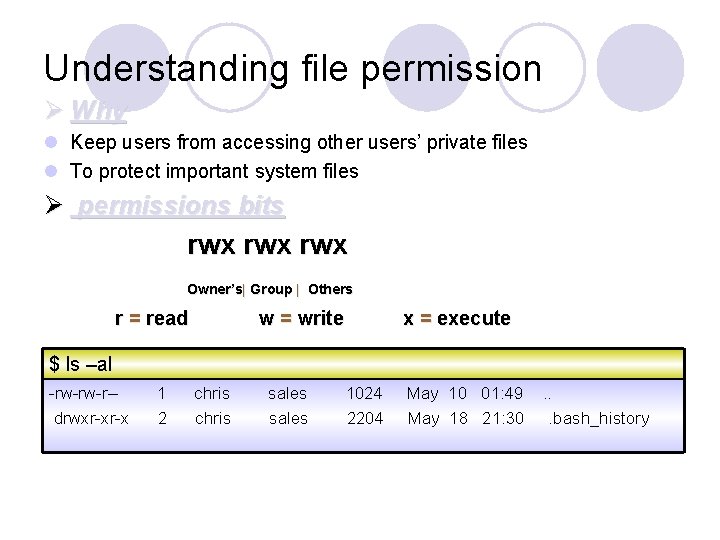
Understanding file permission Ø Why l Keep users from accessing other users’ private files l To protect important system files Ø permissions bits rwx rwx Owner’s| Group | Others r = read w = write x = execute $ ls –al -rw-rw-r-drwxr-xr-x 1 2 chris sales 1024 2204 May 10 01: 49 May 18 21: 30 . . . bash_history
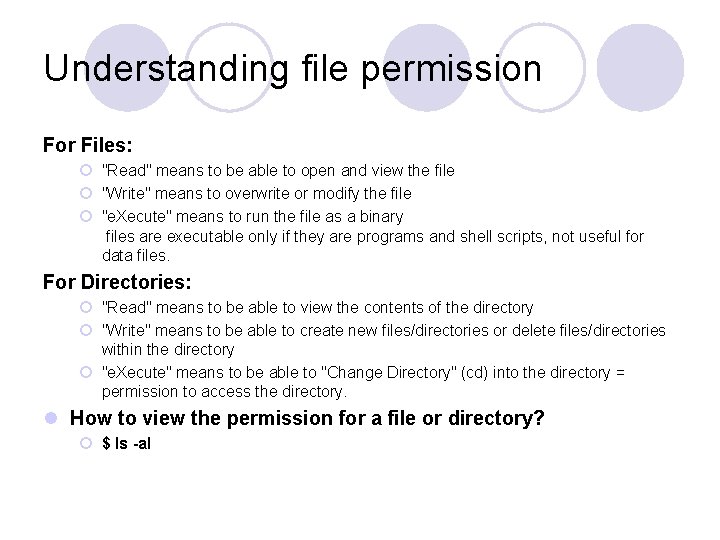
Understanding file permission For Files: ¡ "Read" means to be able to open and view the file ¡ "Write" means to overwrite or modify the file ¡ "e. Xecute" means to run the file as a binary files are executable only if they are programs and shell scripts, not useful for data files. For Directories: ¡ "Read" means to be able to view the contents of the directory ¡ "Write" means to be able to create new files/directories or delete files/directories within the directory ¡ "e. Xecute" means to be able to "Change Directory" (cd) into the directory = permission to access the directory. l How to view the permission for a file or directory? ¡ $ ls -al
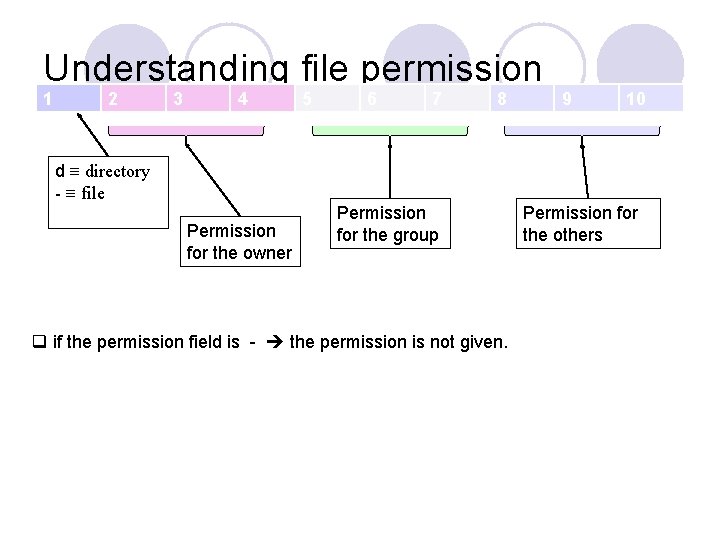
Understanding file permission 1 2 3 4 5 6 7 8 9 10 d ≡ directory - ≡ file Permission for the owner Permission for the group q if the permission field is - the permission is not given. Permission for the others
Understanding file permission l Only the owner of a file can change its permission. l How to set file permission? ¡ Use the command chmod(change file mode bits). l chmod has two notations: ¡ Numeric(octal) notation. ¡ Symbolic notation.
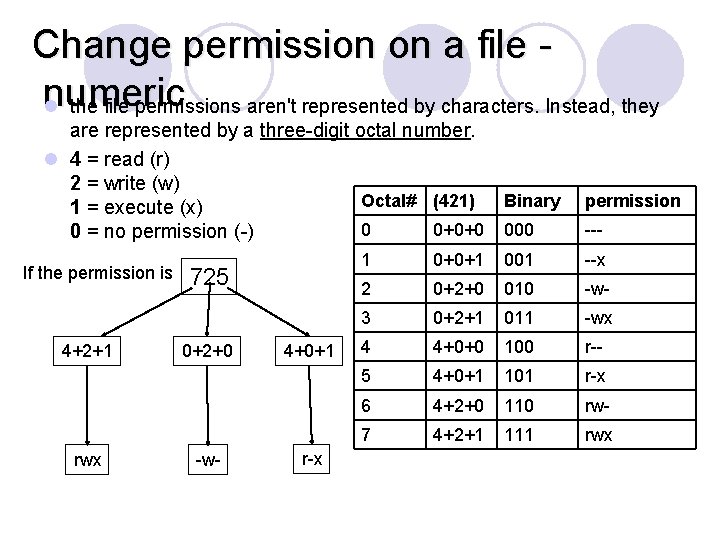
Change permission on a file numeric l the file permissions aren't represented by characters. Instead, they are represented by a three-digit octal number. l 4 = read (r) 2 = write (w) Octal# (421) 1 = execute (x) 0 0+0+0 0 = no permission (-) If the permission is 4+2+1 rwx 725 0+2+0 -w- 4+0+1 r-x Binary permission 000 --- 1 0+0+1 001 --x 2 0+2+0 010 -w- 3 0+2+1 011 -wx 4 4+0+0 100 r-- 5 4+0+1 101 r-x 6 4+2+0 110 rw- 7 4+2+1 111 rwx
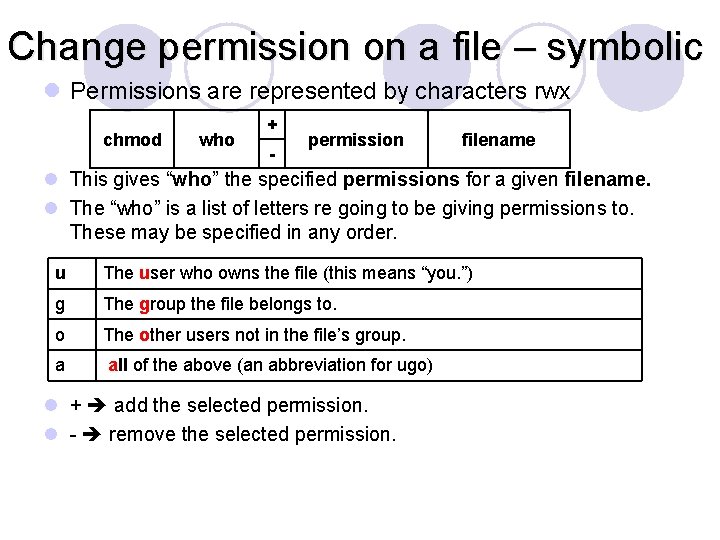
Change permission on a file – symbolic l Permissions are represented by characters rwx chmod who + - permission filename l This gives “who” the specified permissions for a given filename. l The “who” is a list of letters re going to be giving permissions to. These may be specified in any order. u The user who owns the file (this means “you. ”) g The group the file belongs to. o The other users not in the file’s group. a all of the above (an abbreviation for ugo) l + add the selected permission. l - remove the selected permission.
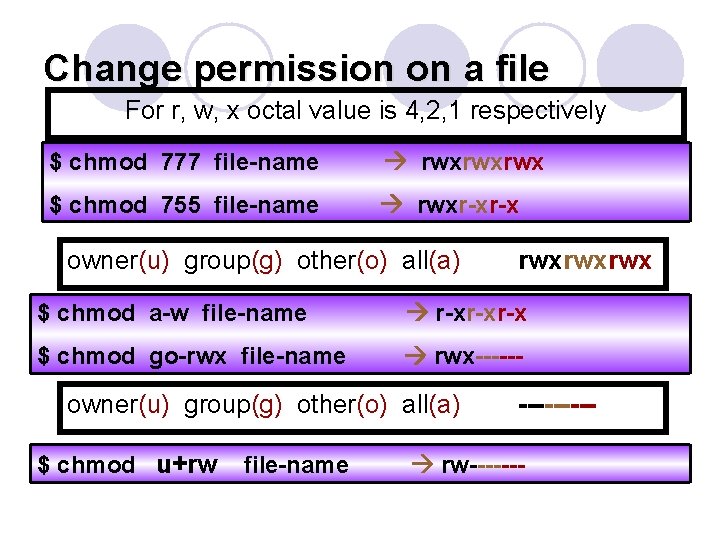
Change permission on a file For r, w, x octal value is 4, 2, 1 respectively $ chmod 777 file-name rwxrwxrwx $ chmod 755 file-name rwxr-xr-x owner(u) group(g) other(o) all(a) rwxrwxrwx $ chmod a-w file-name r-xr-xr-x $ chmod go-rwx file-name rwx------ owner(u) group(g) other(o) all(a) $ chmod u+rw file-name ----- rw-------
Creating files and directories l Use the command mkdir to create a new directory to the current working directory. l $ mkdir directory. Name 11

Creating files and directories 1. Go to your home directory. Type cd. 2. 3. Make sure that you got to your home directory, type pwd Create a new directory called test in your home directory: $ mkdir test 4. Check the permissions of the directory by typing: $ ls –ld test drwxr-xr-x 5. 2 chris sales 1024 May 18 21: 30 test Suppose that you want to prevent everyone else from using or viewing the files in this directory: $ chmod 700 test 6. Make the test directory your current directory : $ cd test 12
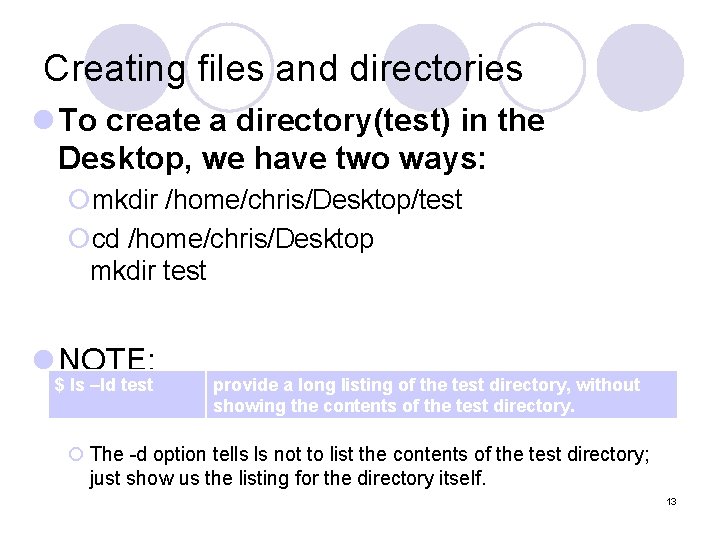
Creating files and directories l To create a directory(test) in the Desktop, we have two ways: ¡mkdir /home/chris/Desktop/test ¡cd /home/chris/Desktop mkdir test l NOTE: $ ls –ld test provide a long listing of the test directory, without showing the contents of the test directory. ¡ The -d option tells ls not to list the contents of the test directory; just show us the listing for the directory itself. 13
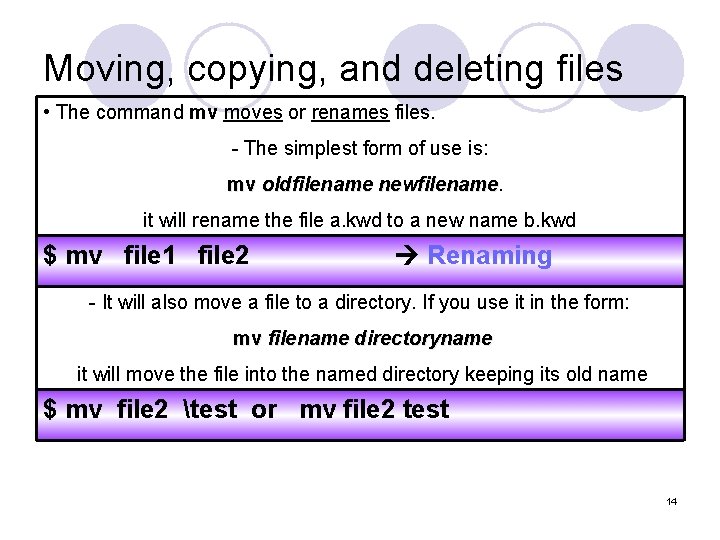
Moving, copying, and deleting files • The command mv moves or renames files. - The simplest form of use is: mv oldfilename newfilename it will rename the file a. kwd to a new name b. kwd $ mv file 1 file 2 Renaming - It will also move a file to a directory. If you use it in the form: mv filename directoryname it will move the file into the named directory keeping its old name $ mv file 2 test or mv file 2 test 14
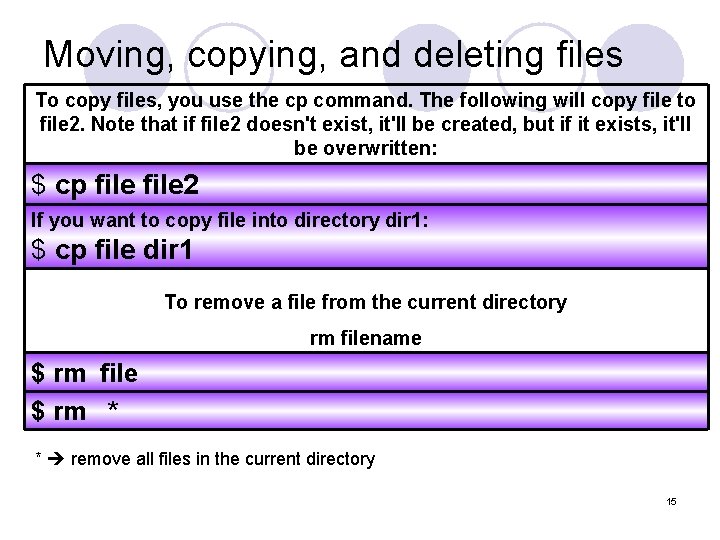
Moving, copying, and deleting files To copy files, you use the cp command. The following will copy file to file 2. Note that if file 2 doesn't exist, it'll be created, but if it exists, it'll be overwritten: $ cp file 2 If you want to copy file into directory dir 1: $ cp file dir 1 To remove a file from the current directory rm filename $ rm file $ rm * * remove all files in the current directory 15
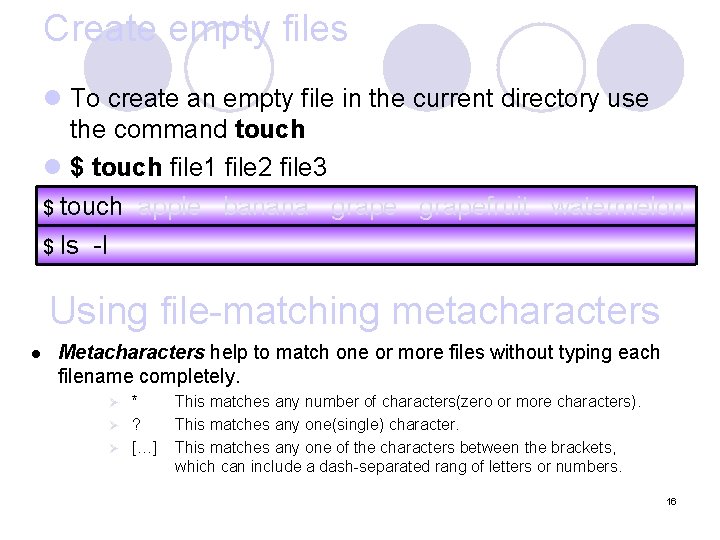
Create empty files l To create an empty file in the current directory use the command touch l $ touch file 1 file 2 file 3 $ touch apple banana grapefruit watermelon $ ls -l Using file-matching metacharacters l Metacharacters help to match one or more files without typing each filename completely. Ø Ø Ø * ? […] This matches any number of characters(zero or more characters). This matches any one(single) character. This matches any one of the characters between the brackets, which can include a dash-separated rang of letters or numbers. 16
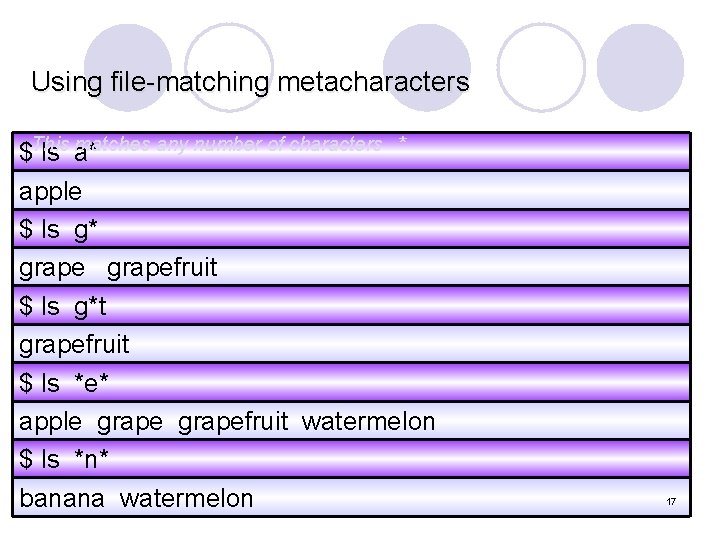
Using file-matching metacharacters matches any number of characters * $This ls a* apple $ ls g* grapefruit $ ls g*t grapefruit $ ls *e* apple grapefruit watermelon $ ls *n* banana watermelon 17
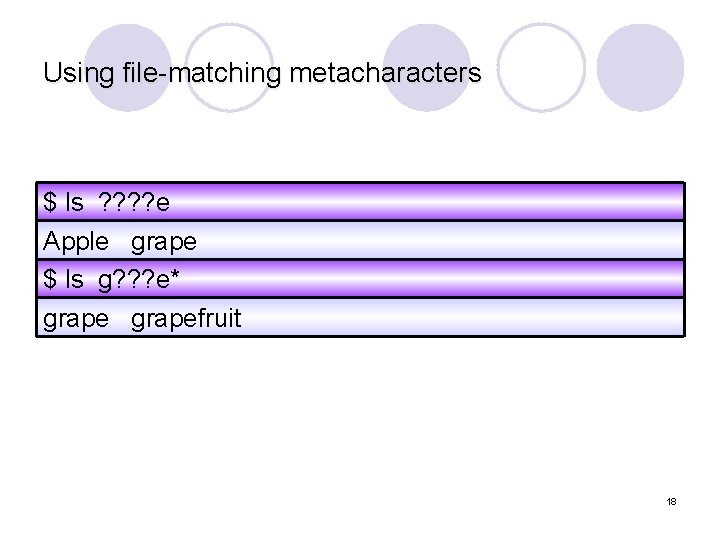
Using file-matching metacharacters $This ls matches ? ? e any one(single) character? Apple grape $ ls g? ? ? e* grapefruit 18
![Using file-matching metacharacters This matches any one of the characters between the brackets […]](http://slidetodoc.com/presentation_image_h2/30b6cf0810001d887f6d922fcf22d521/image-19.jpg "Using file-matching metacharacters This matches any one of the characters between the brackets […]")
Using file-matching metacharacters This matches any one of the characters between the brackets […] $ ls [abw]* apple banana watermelon $ ls [agw] * [ne] apple grape watermelon $ ls [a-g] * apple banana grapefruit 19
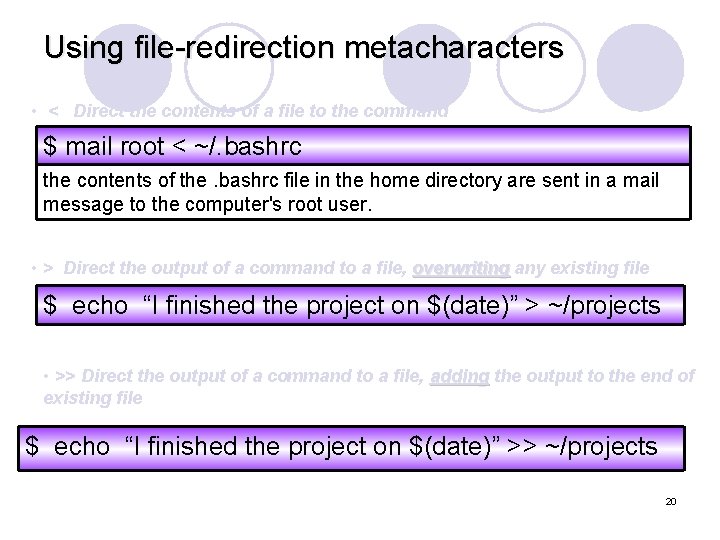
Using file-redirection metacharacters • < Direct the contents of a file to the command $ mail root < ~/. bashrc the contents of the. bashrc file in the home directory are sent in a mail message to the computer's root user. • > Direct the output of a command to a file, overwriting any existing file $ echo “I finished the project on $(date)” > ~/projects • >> Direct the output of a command to a file, adding the output to the end of existing file $ echo “I finished the project on $(date)” >> ~/projects 20
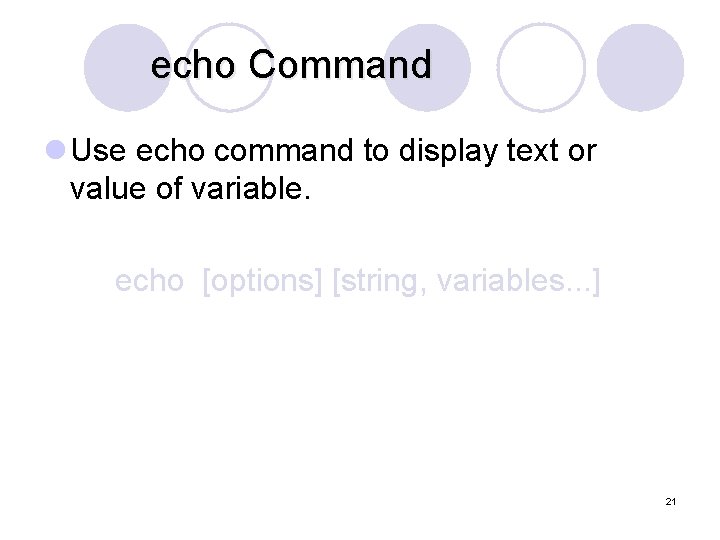
echo Command l Use echo command to display text or value of variable. echo [options] [string, variables. . . ] 21
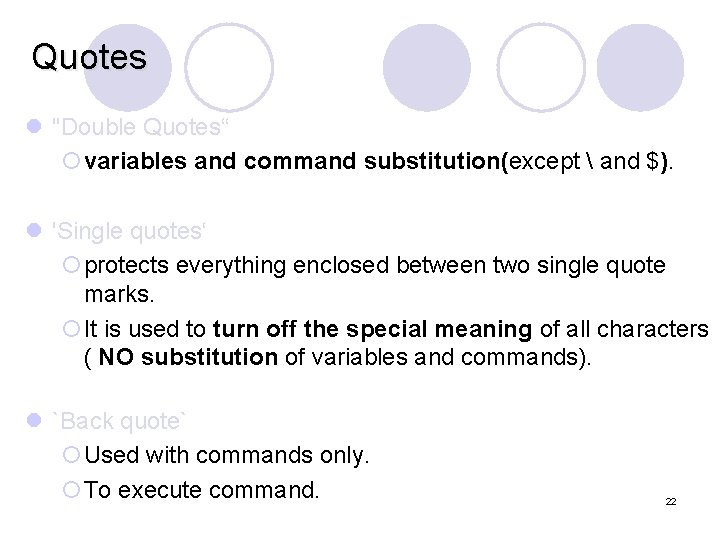
Quotes l "Double Quotes“ ¡variables and command substitution(except and $). l 'Single quotes‘ ¡protects everything enclosed between two single quote marks. ¡It is used to turn off the special meaning of all characters ( NO substitution of variables and commands). l `Back quote` ¡Used with commands only. ¡To execute command. 22
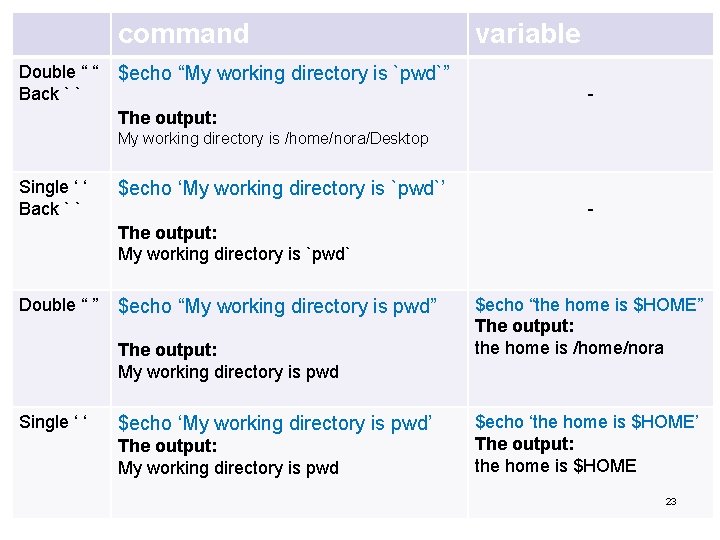
command Double “ “ Back ` ` $echo “My working directory is `pwd`” variable - The output: My working directory is /home/nora/Desktop Single ‘ ‘ Back ` ` $echo ‘My working directory is `pwd`’ - The output: My working directory is `pwd` Double “ ” $echo “My working directory is pwd” The output: My working directory is pwd Single ‘ ‘ $echo ‘My working directory is pwd’ The output: My working directory is pwd $echo “the home is $HOME” The output: the home is /home/nora $echo ‘the home is $HOME’ The output: the home is $HOME 23
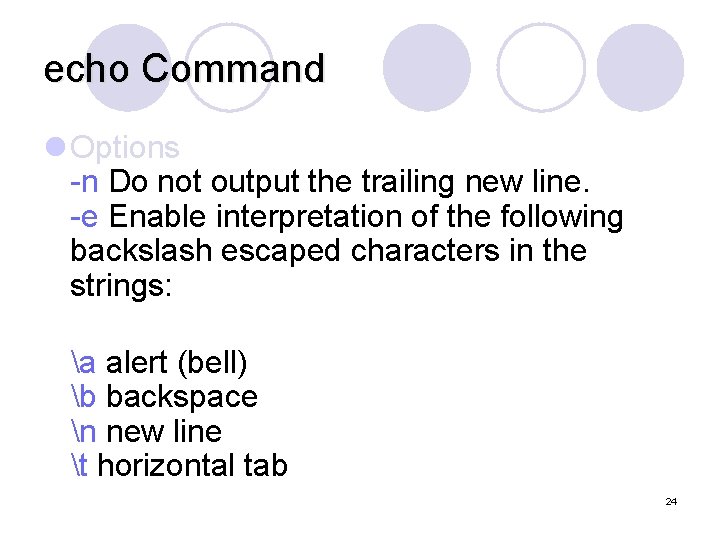
echo Command l Options -n Do not output the trailing new line. -e Enable interpretation of the following backslash escaped characters in the strings: a alert (bell) b backspace n new line t horizontal tab 24
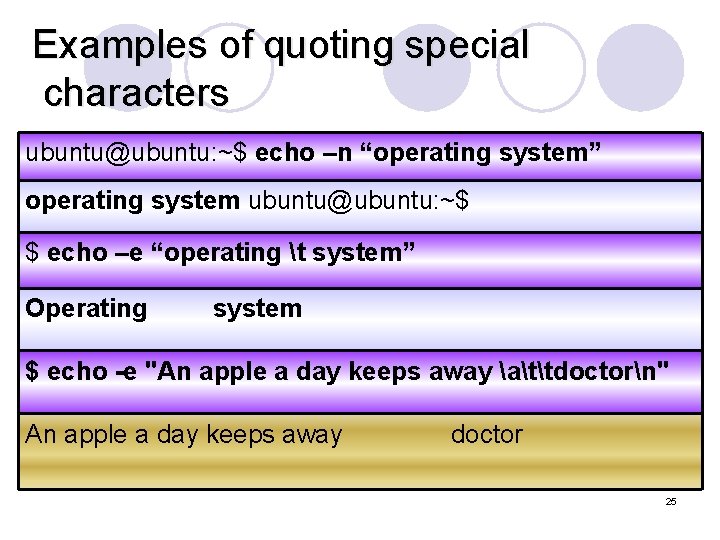
Examples of quoting special characters ubuntu@ubuntu: ~$ echo –n “operating system” operating system ubuntu@ubuntu: ~$ $ echo –e “operating t system” Operating system $ echo -e "An apple a day keeps away attdoctorn" An apple a day keeps away doctor 25
References http: //www. podgrid. org/linux-bible-page 109. html 26
- Slides: 26