
USING LAYERS IN PHOTOSHOP ELEMENTS 8 WHY USE
- Slides: 12
USING LAYERS IN PHOTOSHOP ELEMENTS 8
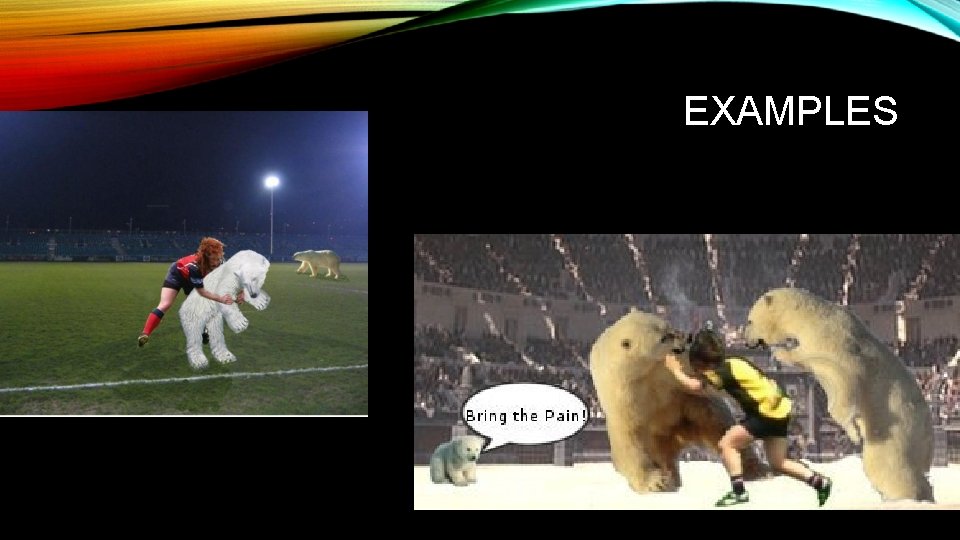
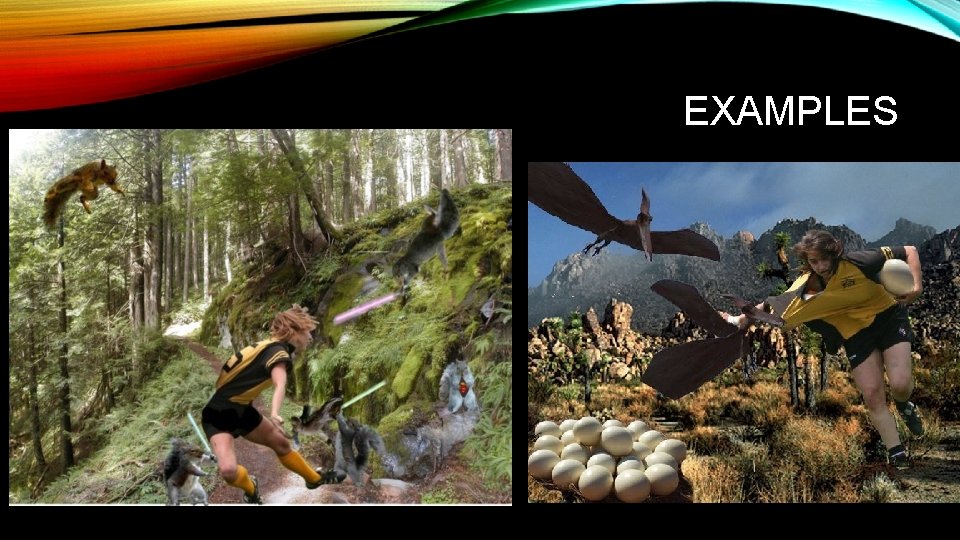
WHY USE LAYERS? • Layers allow you to overlap different images to create a new image. • You can use this to put an image on to a different background. • Layers can also be used to create neat effects on top or behind another photo, more to come on this!
EXAMPLES
EXAMPLES
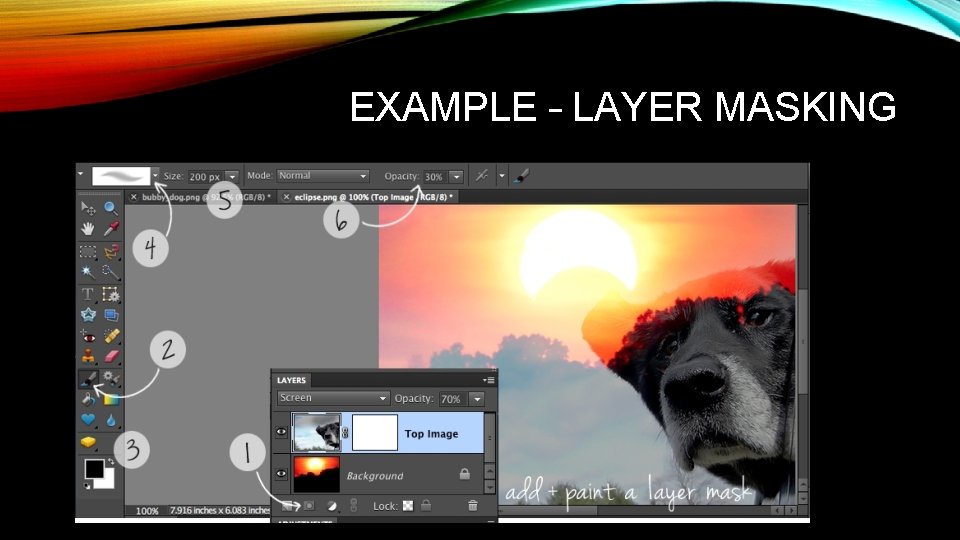
EXAMPLE – LAYER MASKING
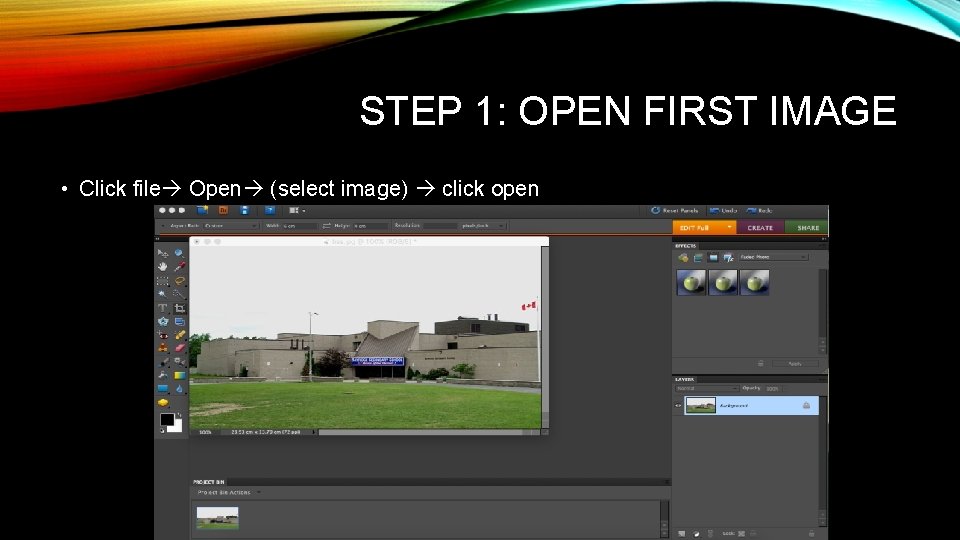
STEP 1: OPEN FIRST IMAGE • Click file Open (select image) click open
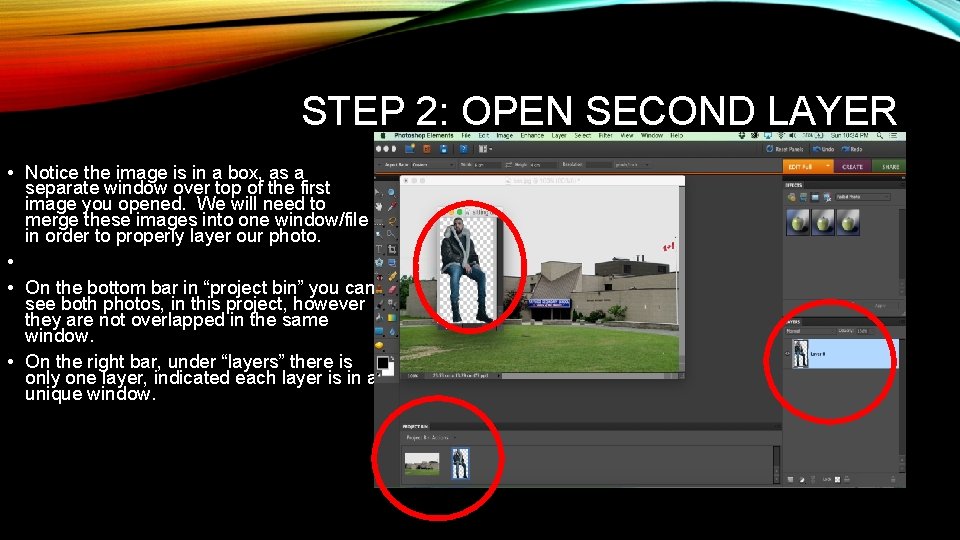
STEP 2: OPEN SECOND LAYER • Notice the image is in a box, as a separate window over top of the first image you opened. We will need to merge these images into one window/file in order to properly layer our photo. • • On the bottom bar in “project bin” you can see both photos, in this project, however they are not overlapped in the same window. • On the right bar, under “layers” there is only one layer, indicated each layer is in a unique window.
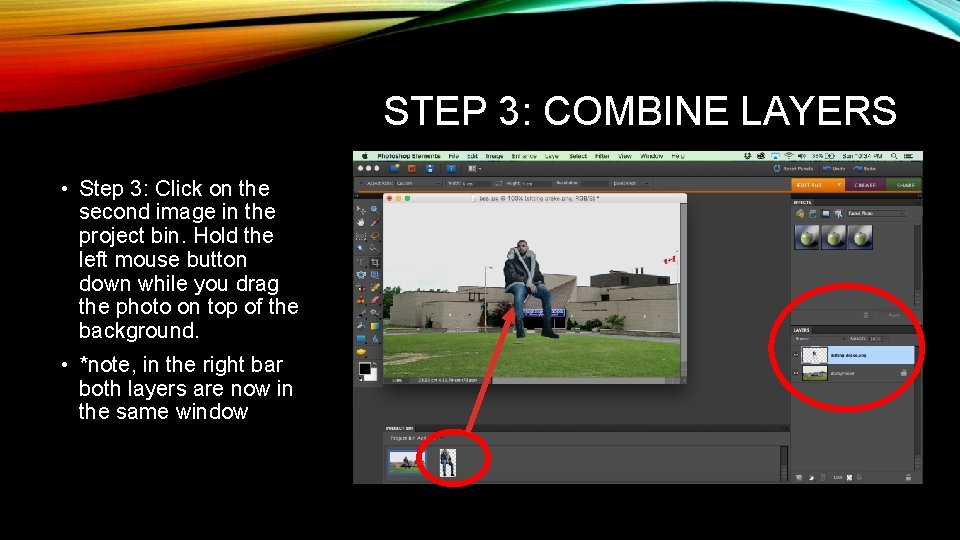
STEP 3: COMBINE LAYERS • Step 3: Click on the second image in the project bin. Hold the left mouse button down while you drag the photo on top of the background. • *note, in the right bar both layers are now in the same window
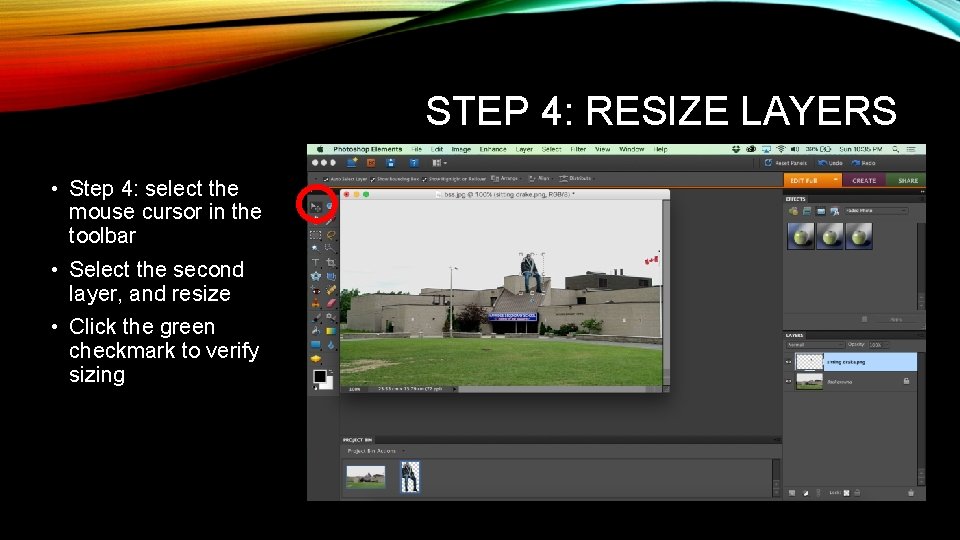
STEP 4: RESIZE LAYERS • Step 4: select the mouse cursor in the toolbar • Select the second layer, and resize • Click the green checkmark to verify sizing
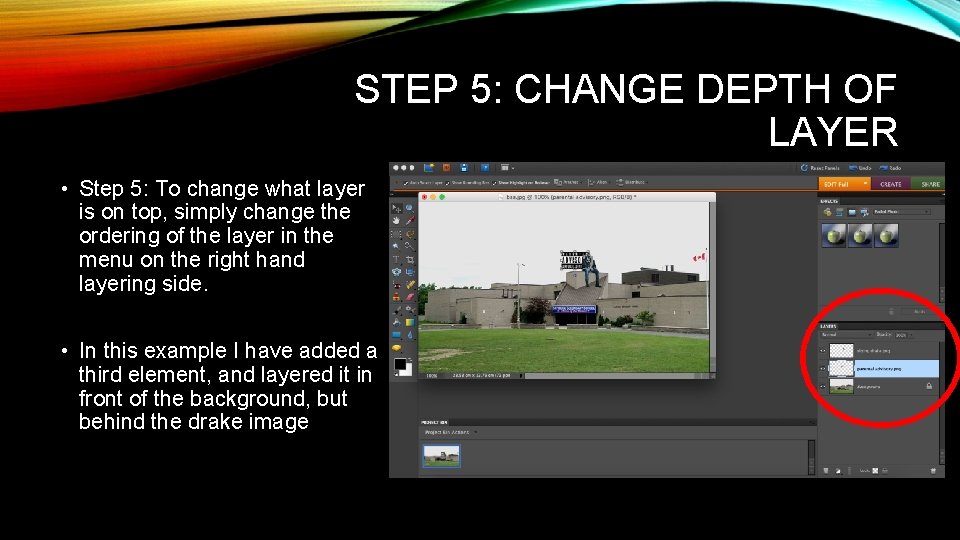
STEP 5: CHANGE DEPTH OF LAYER • Step 5: To change what layer is on top, simply change the ordering of the layer in the menu on the right hand layering side. • In this example I have added a third element, and layered it in front of the background, but behind the drake image
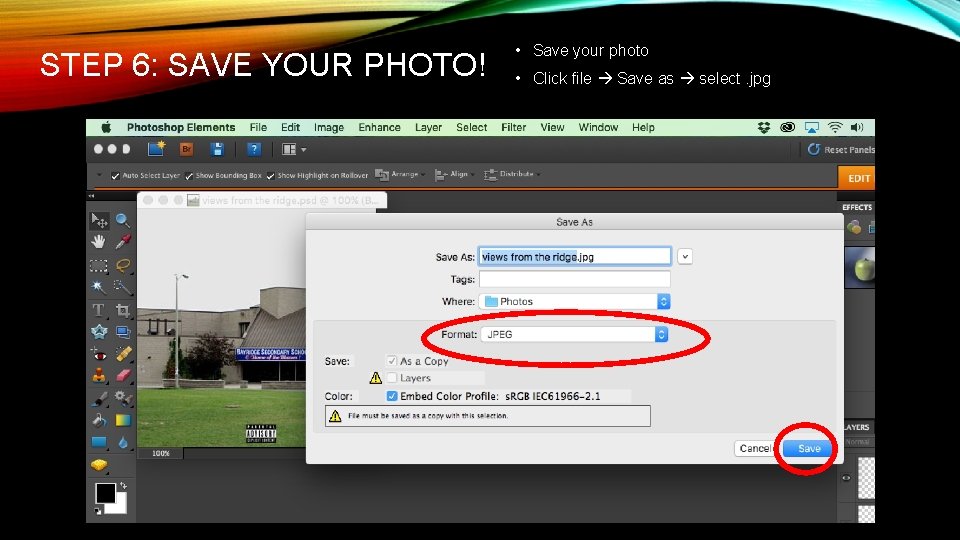
STEP 6: SAVE YOUR PHOTO! • Save your photo • Click file Save as select. jpg
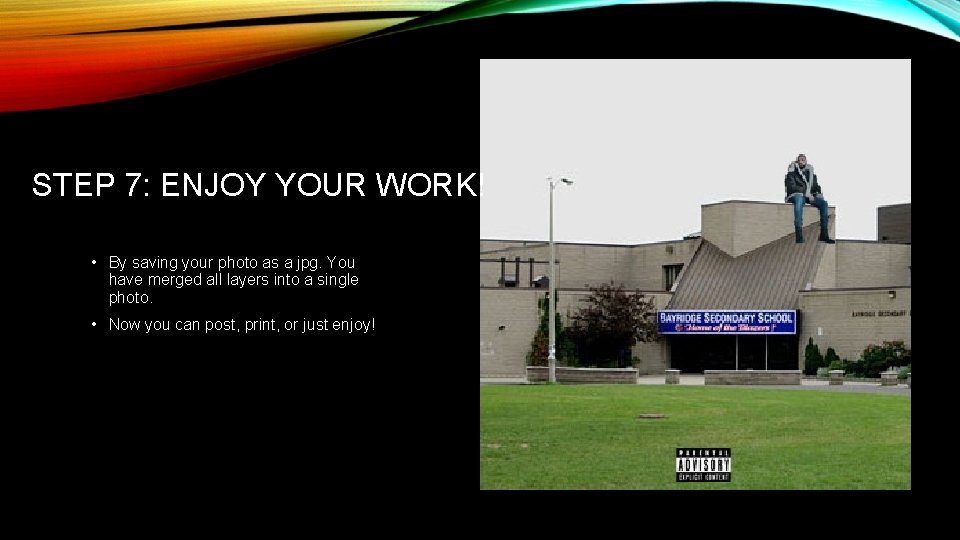
STEP 7: ENJOY YOUR WORK! • By saving your photo as a jpg. You have merged all layers into a single photo. • Now you can post, print, or just enjoy!