
Using Last Pass Let Last Pass do the
- Slides: 27
Using Last. Pass
Let Last. Pass do the Work for You! Great password management is impossible w/o a great tool Auto-fill (hands-free login) will save you approximately one hour per month You will never feel the frustration of a forgotten password again Strong passwords help keep corporate data safe and secure
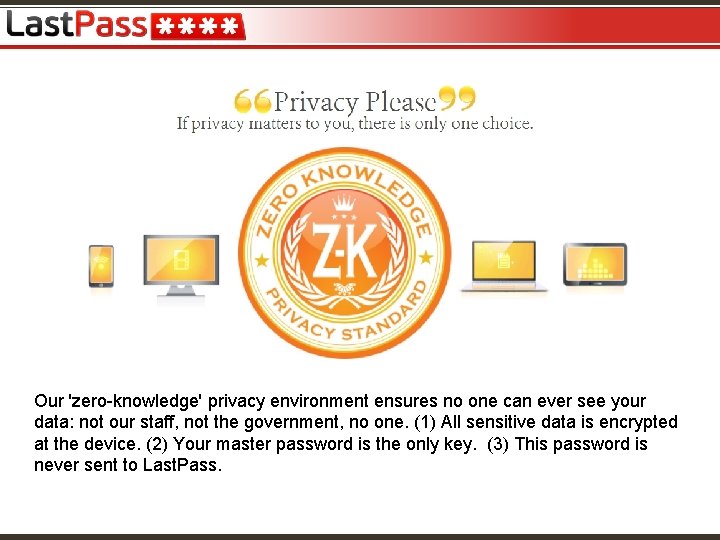
Our 'zero-knowledge' privacy environment ensures no one can ever see your data: not our staff, not the government, no one. (1) All sensitive data is encrypted at the device. (2) Your master password is the only key. (3) This password is never sent to Last. Pass.
I Last. Pass We encourage you to use your Last. Pass Enterprise account strictly for professional data. If you love Last. Pass and would like to store personal data, please create a separate, free Last. Pass account. Create a new account: https: //lastpass. com/create_account. php Once you have created your account, you can “Link Personal Account”. Linking the accounts will allow you to access your personal data and logins when using your Enterprise account. To link your accounts: Login with your work credentials at: www. lastpass. com Click the ‘Link Personal Account’ icon on the left, and follow the prompts.
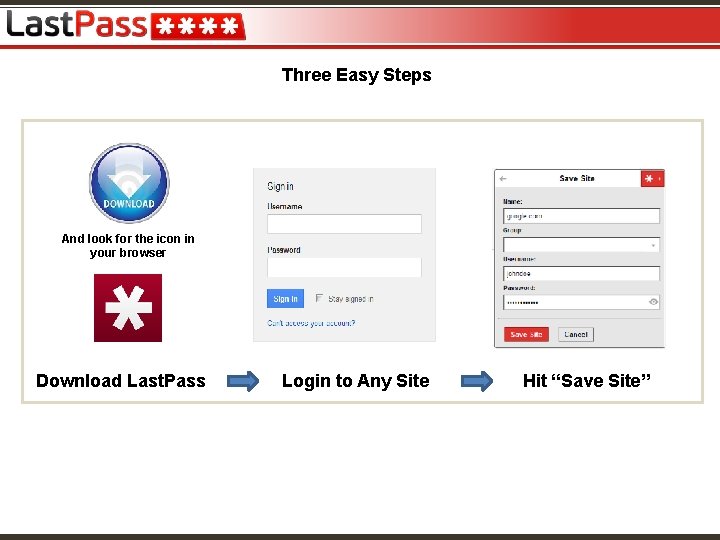
Three Easy Steps And look for the icon in your browser Download Last. Pass Login to Any Site Hit “Save Site”
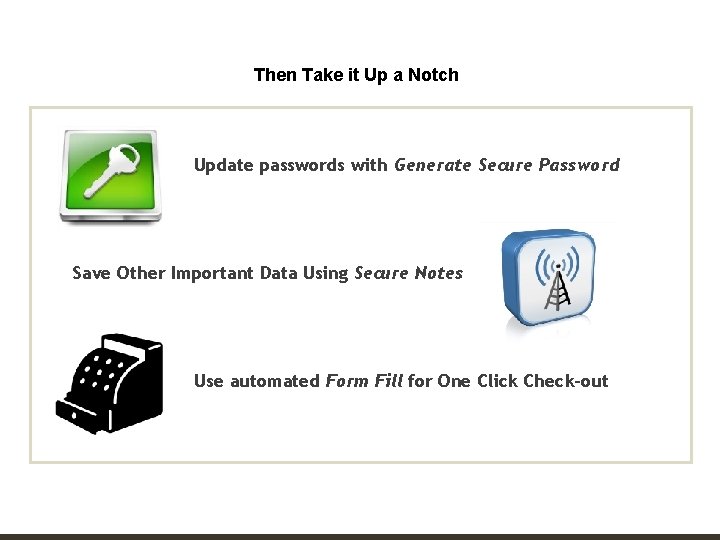
CONFIDENTIAL Then Take it Up a Notch Update passwords with Generate Secure Password Save Other Important Data Using Secure Notes Use automated Form Fill for One Click Check-out
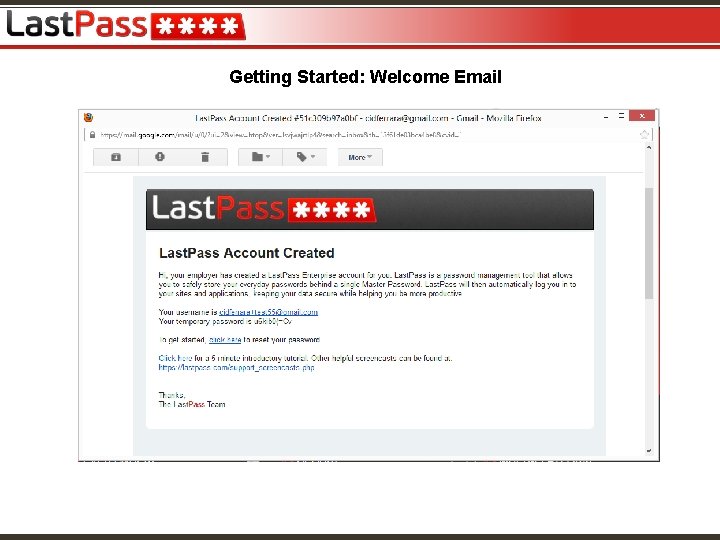
Getting Started: Welcome Email
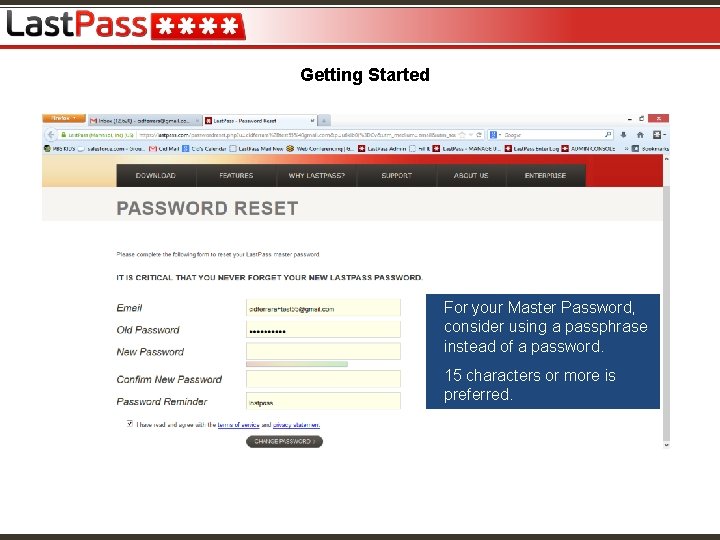
Getting Started For your Master Password, consider using a passphrase instead of a password. 15 characters or more is preferred.
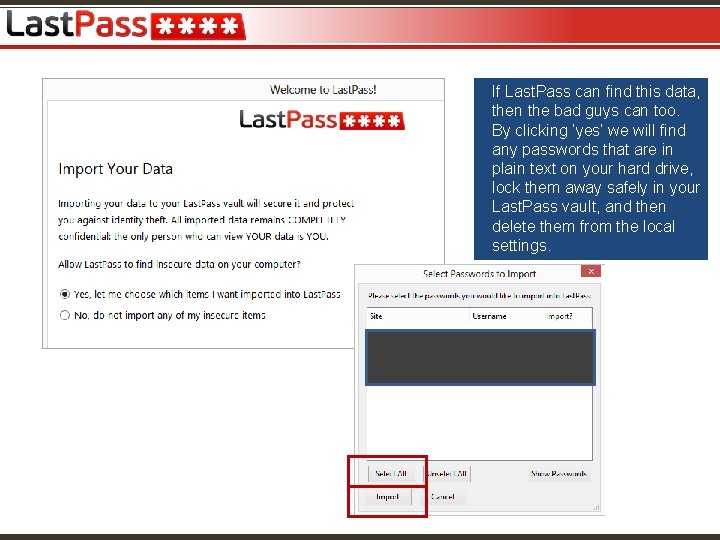
If Last. Pass can find this data, then the bad guys can too. By clicking ‘yes’ we will find any passwords that are in plain text on your hard drive, lock them away safely in your Last. Pass vault, and then delete them from the local settings.
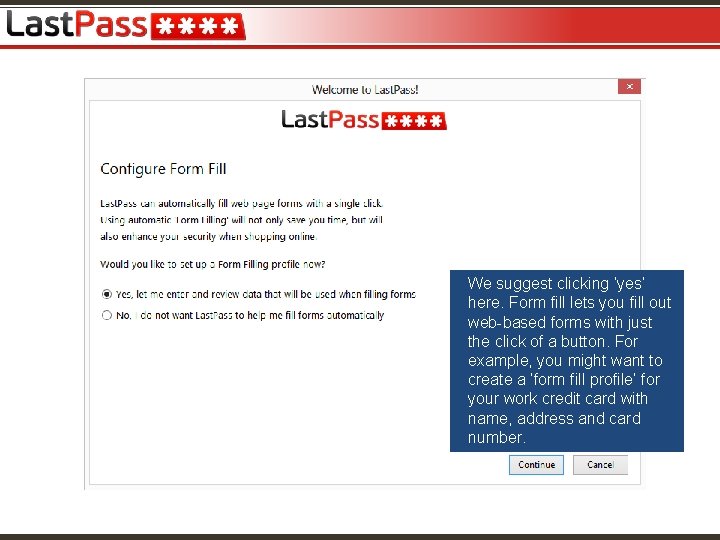
We suggest clicking ‘yes’ here. Form fill lets you fill out web-based forms with just the click of a button. For example, you might want to create a ‘form fill profile’ for your work credit card with name, address and card number.
Getting Started
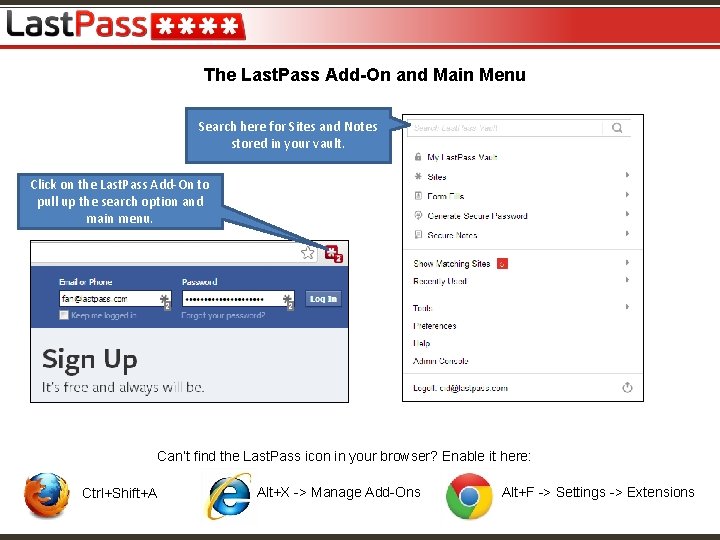
The Last. Pass Add-On and Main Menu Search here for Sites and Notes stored in your vault. Click on the Last. Pass Add-On to pull up the search option and main menu. Can’t find the Last. Pass icon in your browser? Enable it here: Ctrl+Shift+A Alt+X -> Manage Add-Ons Alt+F -> Settings -> Extensions
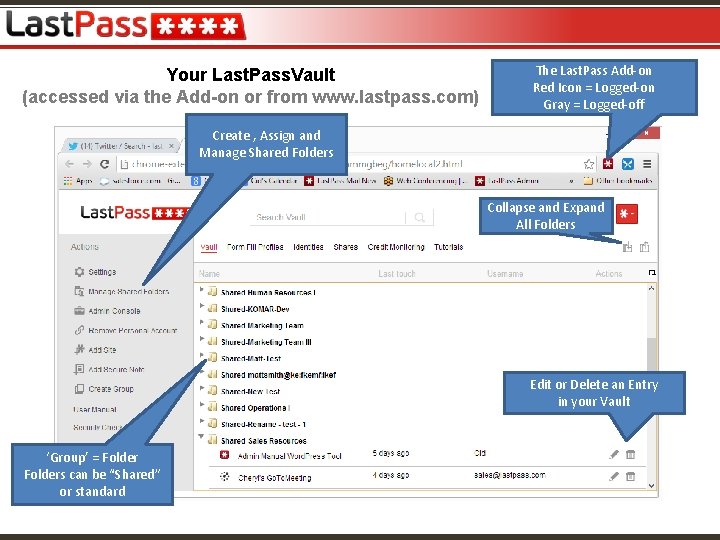
Your Last. Pass. Vault (accessed via the Add-on or from www. lastpass. com) The Last. Pass Add-on Red Icon = Logged-on Gray = Logged-off Create , Assign and Manage Shared Folders Collapse and Expand All Folders Edit or Delete an Entry in your Vault ‘Group’ = Folders can be “Shared” or standard
Importing Data Last. Pass makes it easy. Import from over 20 different password managers/file types. Import secure notes, server credentials and site data. File each entry appropriately using ‘groups’. For more info visit: https: //enterprise. lastpass. com/getting-started/importing-existing-data-into-lastpass/
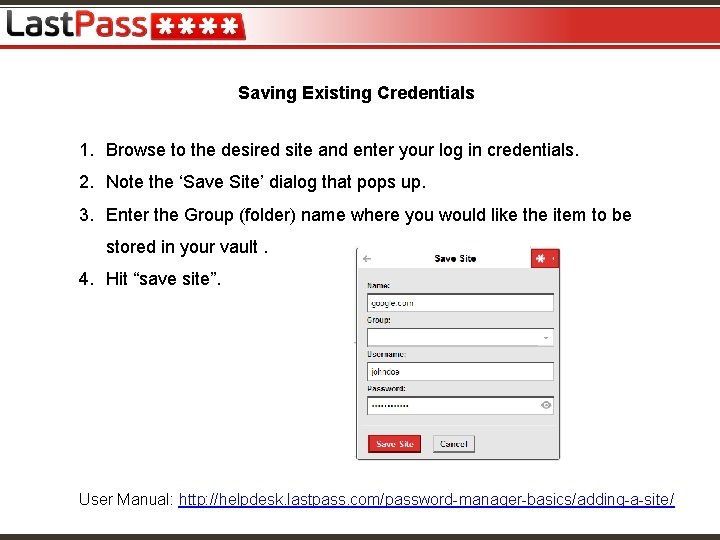
Saving Existing Credentials 1. Browse to the desired site and enter your log in credentials. 2. Note the ‘Save Site’ dialog that pops up. 3. Enter the Group (folder) name where you would like the item to be stored in your vault. 4. Hit “save site”. User Manual: http: //helpdesk. lastpass. com/password-manager-basics/adding-a-site/
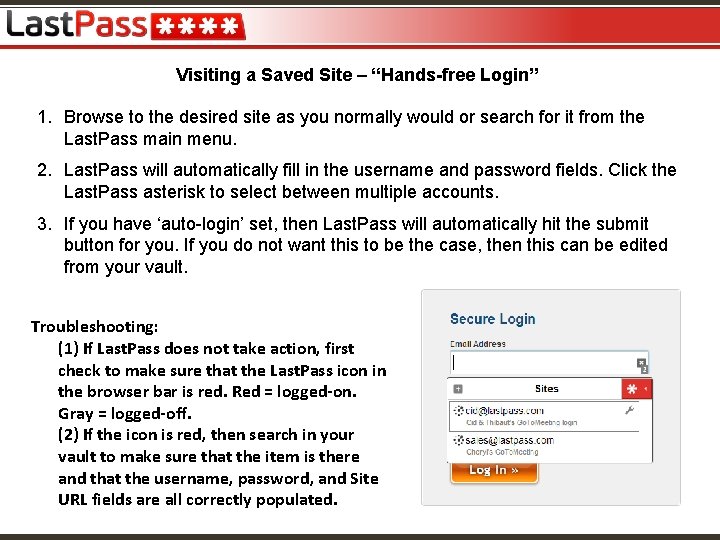
Visiting a Saved Site – “Hands-free Login” 1. Browse to the desired site as you normally would or search for it from the Last. Pass main menu. 2. Last. Pass will automatically fill in the username and password fields. Click the Last. Pass asterisk to select between multiple accounts. 3. If you have ‘auto-login’ set, then Last. Pass will automatically hit the submit button for you. If you do not want this to be the case, then this can be edited from your vault. Troubleshooting: (1) If Last. Pass does not take action, first check to make sure that the Last. Pass icon in the browser bar is red. Red = logged-on. Gray = logged-off. (2) If the icon is red, then search in your vault to make sure that the item is there and that the username, password, and Site URL fields are all correctly populated.
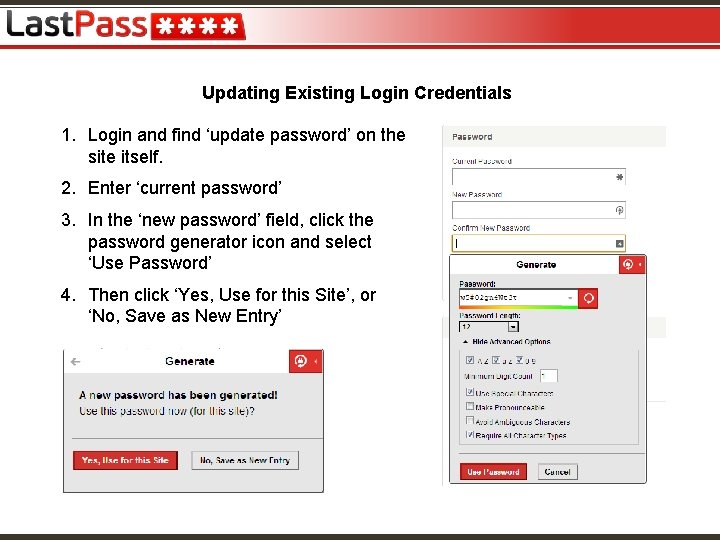
Updating Existing Login Credentials 1. Login and find ‘update password’ on the site itself. 2. Enter ‘current password’ 3. In the ‘new password’ field, click the password generator icon and select ‘Use Password’ 4. Then click ‘Yes, Use for this Site’, or ‘No, Save as New Entry’
Tips and Tricks 1. Always edit/update and store credentials at the Site, never in the Last. Pass vault. 2. If a site is not logging you in properly: 1. Go to your vault -> edit. 2. Verify username and password fields. 3. Copy and paste the username and password into the login screen manually. 4. If this does not work, then it is likely that incorrect information was stored in Last. Pass. 3. If Last. Pass is taking you to the wrong page from the site entry in your vault: surf to the login screen of the site, copy the full URL, click on the plug-in -> my Last. Pass vault -> ‘edit’ next to the site in question -> paste the copied URL into the URL space. 4. If all else fails, write down the password, delete the entry from your vault, and start over.
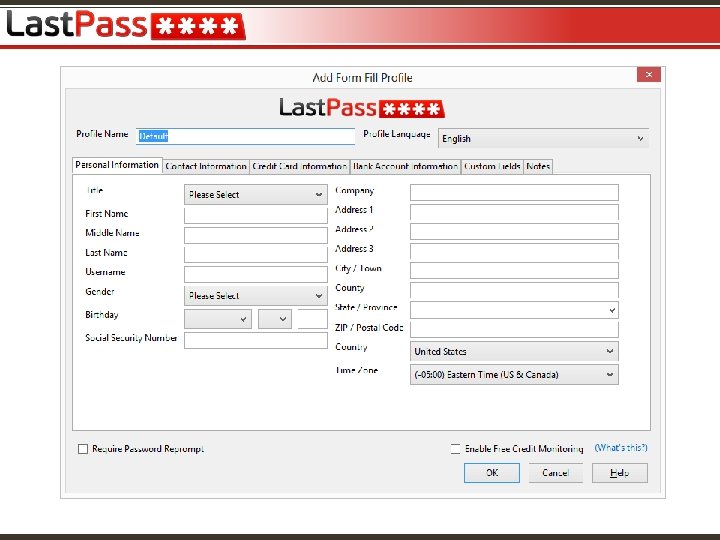
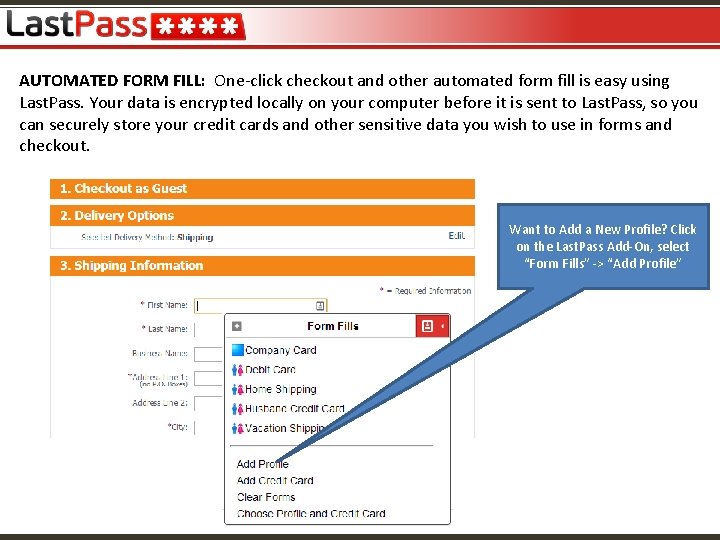
AUTOMATED FORM FILL: One-click checkout and other automated form fill is easy using Last. Pass. Your data is encrypted locally on your computer before it is sent to Last. Pass, so you can securely store your credit cards and other sensitive data you wish to use in forms and checkout. Want to Add a New Profile? Click on the Last. Pass Add-On, select “Form Fills” -> “Add Profile”
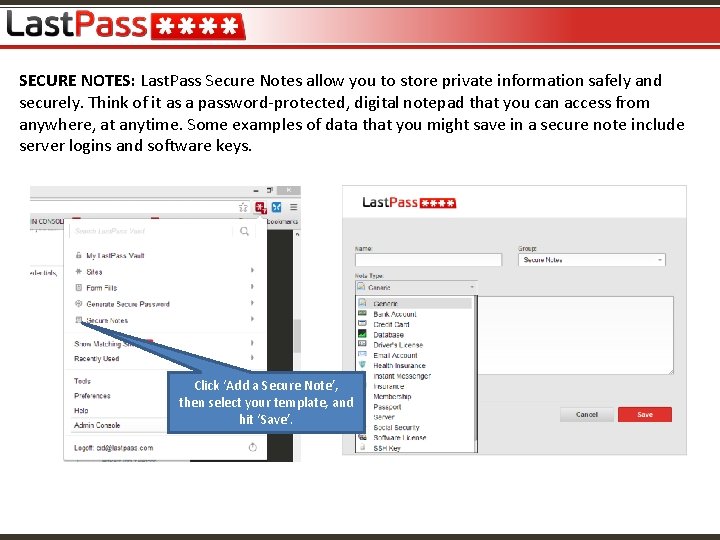
SECURE NOTES: Last. Pass Secure Notes allow you to store private information safely and securely. Think of it as a password-protected, digital notepad that you can access from anywhere, at anytime. Some examples of data that you might save in a secure note include server logins and software keys. Click ‘Add a Secure Note’, then select your template, and hit ‘Save’.
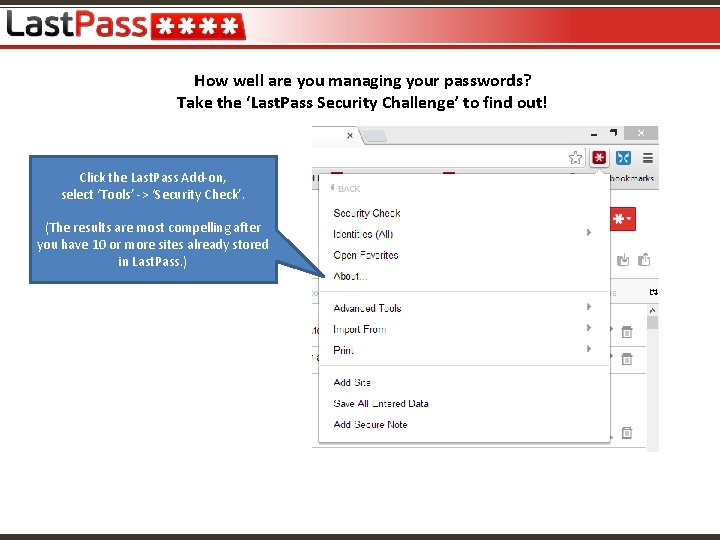
How well are you managing your passwords? Take the ‘Last. Pass Security Challenge’ to find out! Click the Last. Pass Add-on, select ‘Tools’ -> ‘Security Check’. (The results are most compelling after you have 10 or more sites already stored in Last. Pass. )
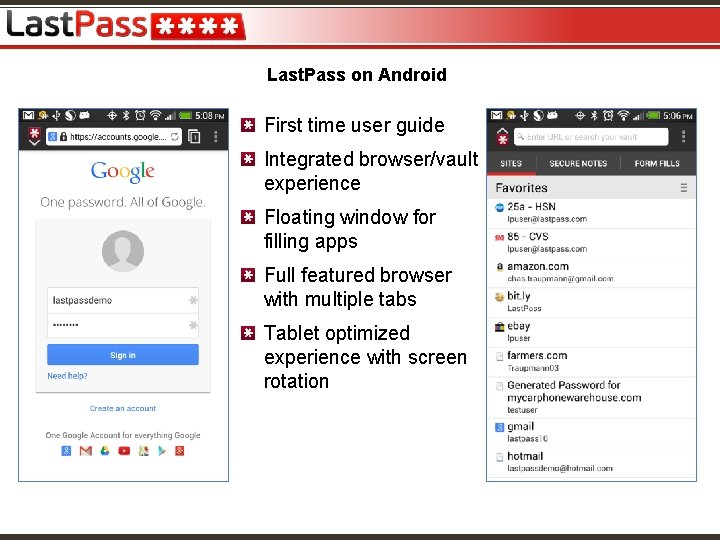
Last. Pass on Android First time user guide Integrated browser/vault experience Floating window for filling apps Full featured browser with multiple tabs Tablet optimized experience with screen rotation
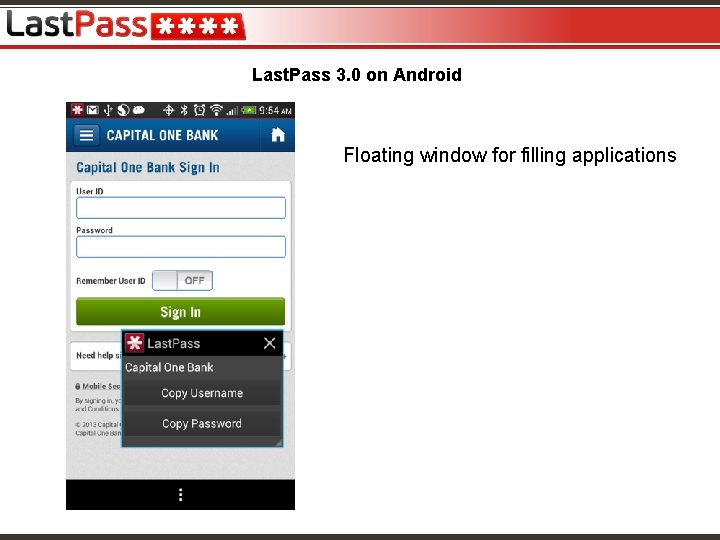
Last. Pass 3. 0 on Android Floating window for filling applications
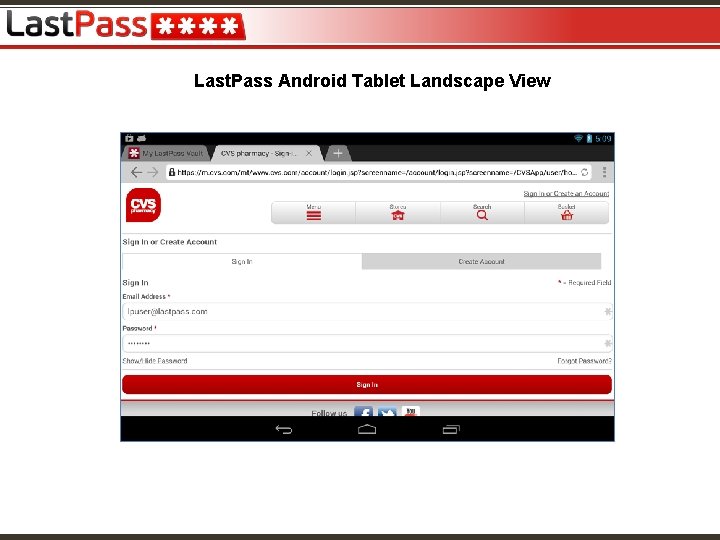
Last. Pass Android Tablet Landscape View
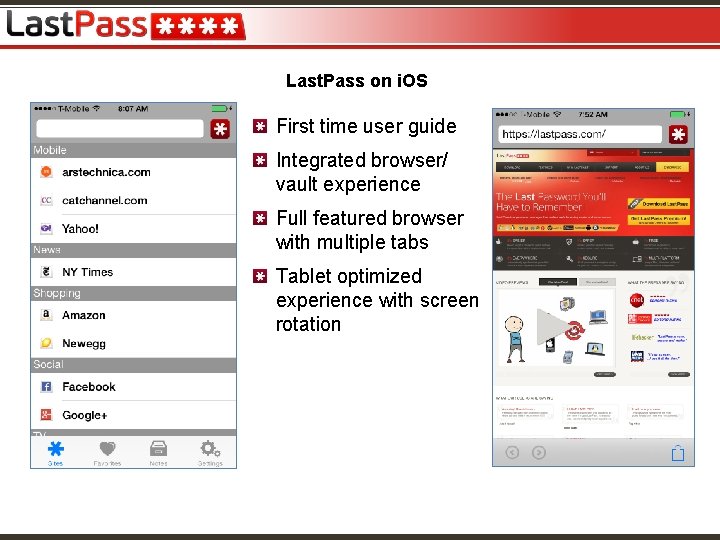
Last. Pass on i. OS First time user guide Integrated browser/ vault experience Full featured browser with multiple tabs Tablet optimized experience with screen rotation
Resources Last. Pass FAQs: lastpass. com/support Last. Pass Screencasts: https: //lastpass. com/support_screencasts. php Last. Pass End User Manual: https: //helpdesk. lastpass. com/