
Using Google Slides to Design Effective Presentations By
Using Google Slides to Design Effective Presentations By: Brett Byron for Speech I classes THE CAIN PROJECT
How to Access Google Slides • • Log into your Gmail Click Go to Drive. Click New > Select Google Slides. 2

Getting Started 3
Getting Started: Tips • • Create a slide show with storyboards, not a script Use the slide show. . . to select important topics and issues — to organize content — to create a hierarchy — 4
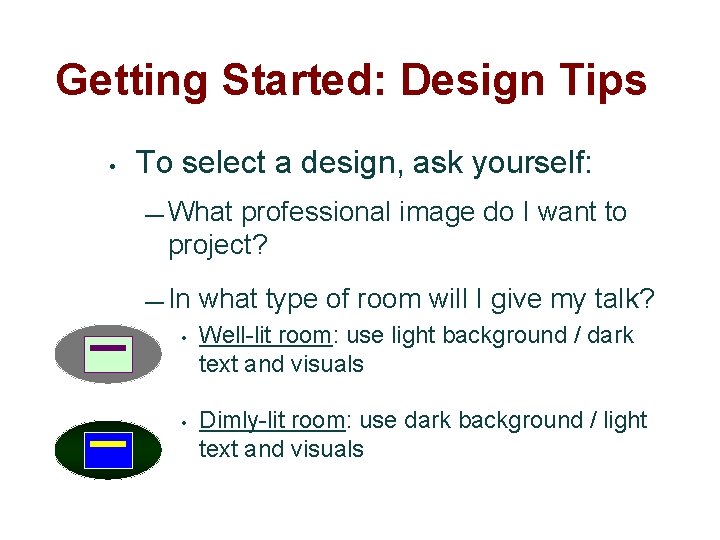
Getting Started: Design Tips • To select a design, ask yourself: — What professional image do I want to project? — In what type of room will I give my talk? • Well-lit room: use light background / dark text and visuals • Dimly-lit room: use dark background / light text and visuals 5
Getting Started: Design • Set up “Slide Master” — Design • the “look” of your slide show Choose appropriate template — Select pre-designed, color coordinated presentation templates • Choose “slide layouts” for slides — Select from 23 “themes” under “SLIDE” menu to build your show 6
Project a Clear Font • Serif: easy to read in printed documents — Times • New Roman, Palatino, Verdana Sans serif: easy to see projected across the room — Arial, Helvetica, Geneva 7

Displaying Text 8
Displaying Text: Tips • Your audience. . . — Skims each slide — Looks for critical points, not details — Needs help reading/seeing text • So you. . . Use only essential info — Guide their eyes with hierarchy, color — Use big, legible fonts and framing blank space — 9
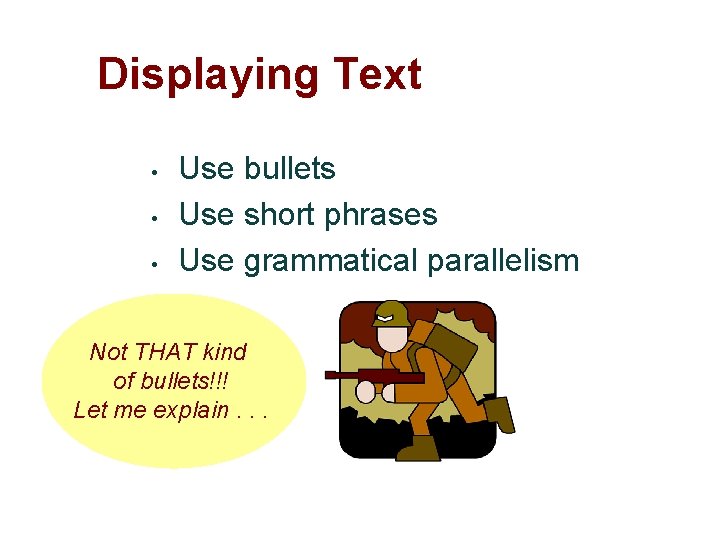
Displaying Text • • • Use bullets Use short phrases Use grammatical parallelism Not THAT kind of bullets!!! a Let me explain. . . 10
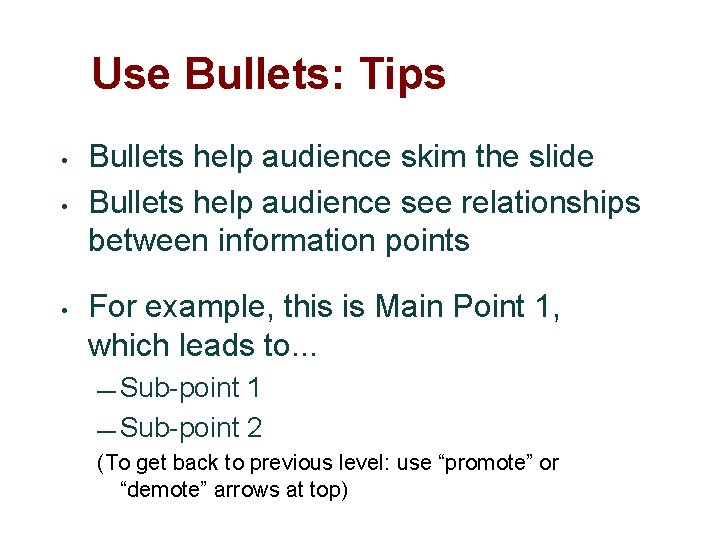
Use Bullets: Tips • • • Bullets help audience skim the slide Bullets help audience see relationships between information points For example, this is Main Point 1, which leads to. . . — Sub-point 1 — Sub-point 2 (To get back to previous level: use “promote” or “demote” arrows at top) 11
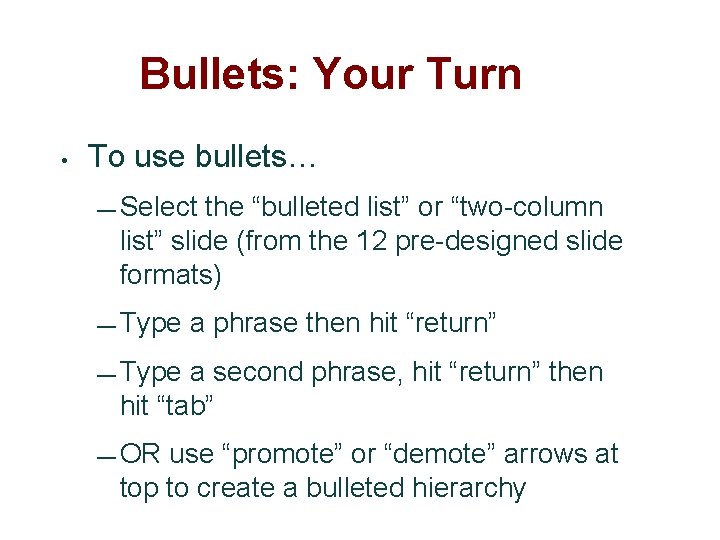
Bullets: Your Turn • To use bullets… — Select the “bulleted list” or “two-column list” slide (from the 12 pre-designed slide formats) — Type a phrase then hit “return” — Type a second phrase, hit “return” then hit “tab” — OR use “promote” or “demote” arrows at top to create a bulleted hierarchy 12
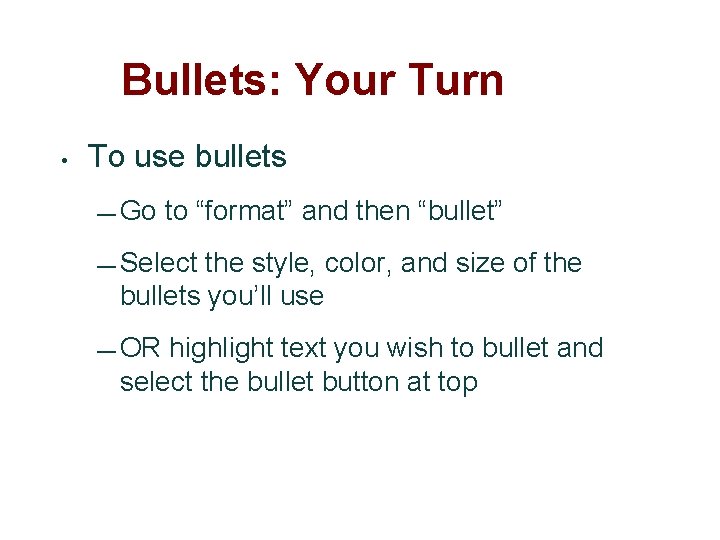
Bullets: Your Turn • To use bullets — Go to “format” and then “bullet” — Select the style, color, and size of the bullets you’ll use — OR highlight text you wish to bullet and select the bullet button at top 13
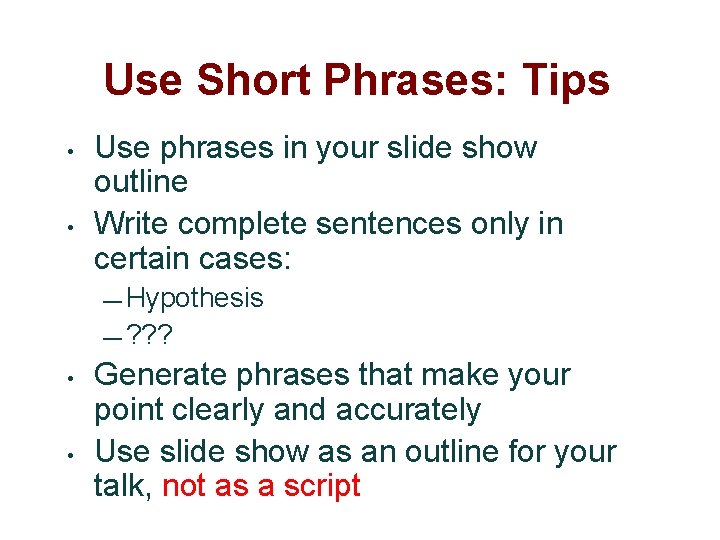
Use Short Phrases: Tips • • Use phrases in your slide show outline Write complete sentences only in certain cases: — Hypothesis — ? ? ? • • Generate phrases that make your point clearly and accurately Use slide show as an outline for your talk, not as a script 14
Use Parallelism • • Make text easy for your audience to skim by creating phrases / sentences that are grammatically parallel Create parallel text by making items in a list the same grammatical form 15
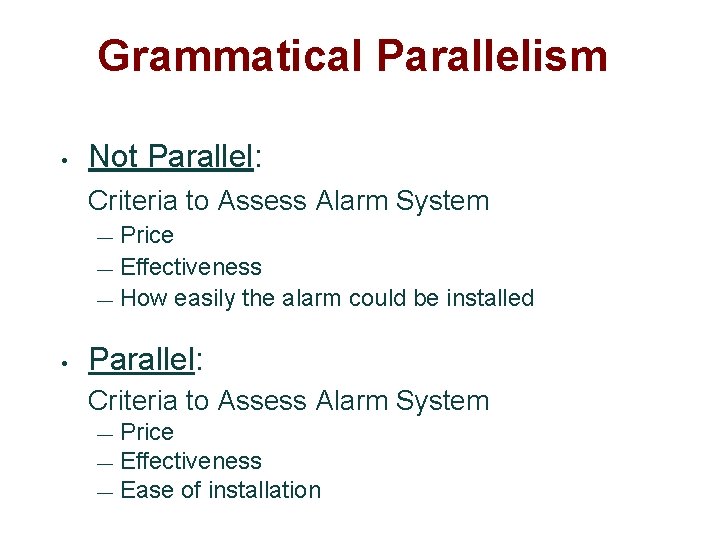
Grammatical Parallelism • Not Parallel: Criteria to Assess Alarm System Price — Effectiveness — How easily the alarm could be installed — • Parallel: Criteria to Assess Alarm System Price — Effectiveness — Ease of installation — 16
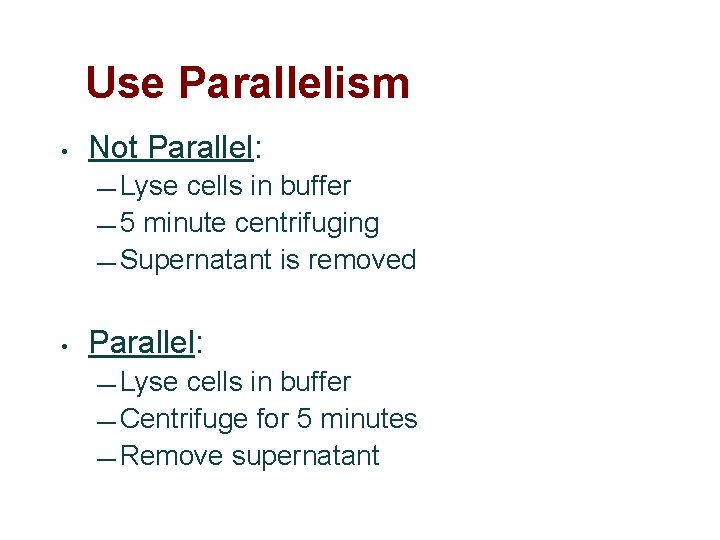
Use Parallelism • Not Parallel: — Lyse cells in buffer — 5 minute centrifuging — Supernatant is removed • Parallel: — Lyse cells in buffer — Centrifuge for 5 minutes — Remove supernatant 17
New Professional Standard: 5 x 5 Rule • • Adapted in 2015 Rule states “No more than 5 bullets per slide and no more than 5 words per bullet. ” — Exceptions • are as follows: Direct Quotations 18
Displaying Visuals 19
Displaying Visuals: Tips • Select visuals purposefully — What visuals illustrate a point? Make a claim? Help to prove an argument? • Design easy-to-read visuals — Are the visuals easy to read by all members of your audience? • Draw attention to aspects of visuals — How will you draw attention to certain features of the visual? 20
Displaying Visuals • Insert needed visuals • Use color • Resize appropriately • Draw attention That was purely gratuitous! 21
Insert Visuals • • Insert images using “Insert” then “Image” Decide whether the image you wish to insert is already uploaded or from a “file” (on phone, flash drive, and/or on hard drive) 22
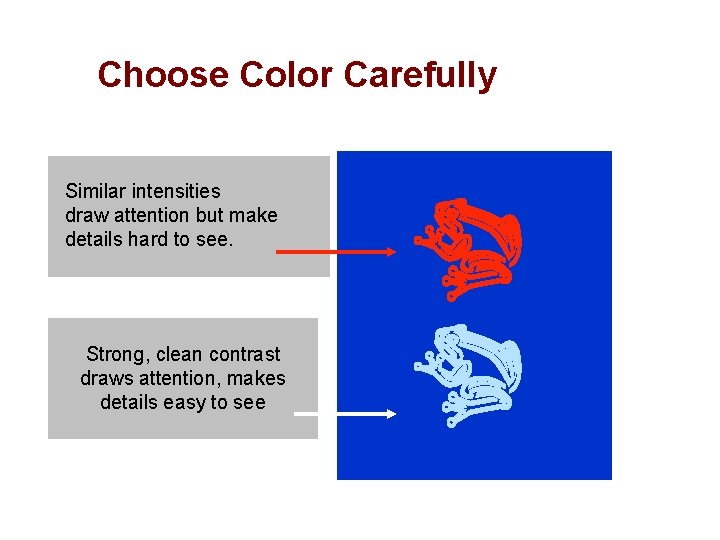
Choose Color Carefully Similar intensities draw attention but make details hard to see. Strong, clean contrast draws attention, makes details easy to see 23
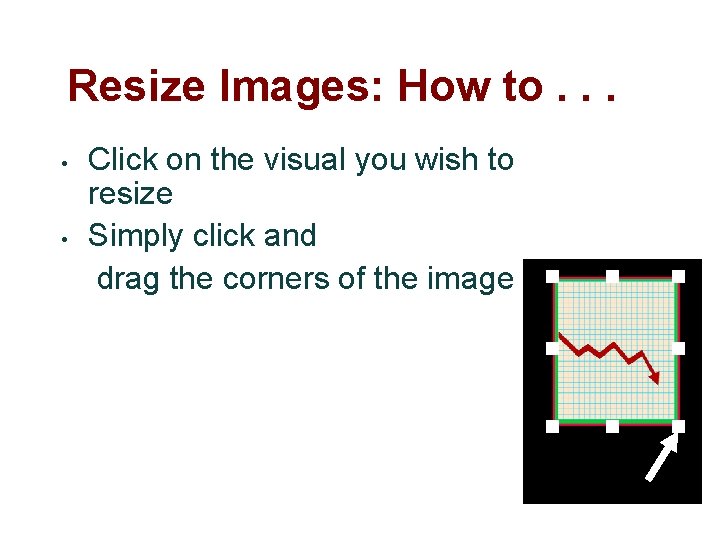
Resize Images: How to. . . • • Click on the visual you wish to resize Simply click and drag the corners of the image 24
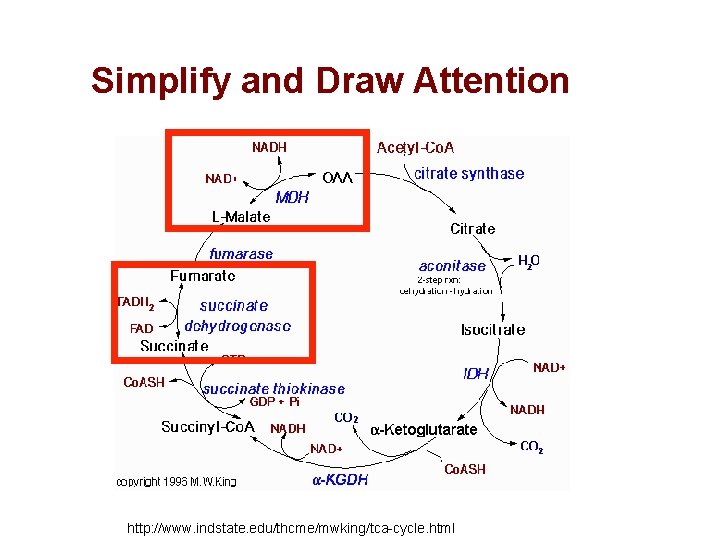
Simplify and Draw Attention 25 http: //www. indstate. edu/thcme/mwking/tca-cycle. html

26

Animating 27
Animating: Tips • • Custom animation allows you to animate text, visuals, or line work Custom animation should be used purposefully (and sparingly!) — Animating should help audience comprehend your message — Don’t animate solely for aesthetic purposes 28

Presenting 29
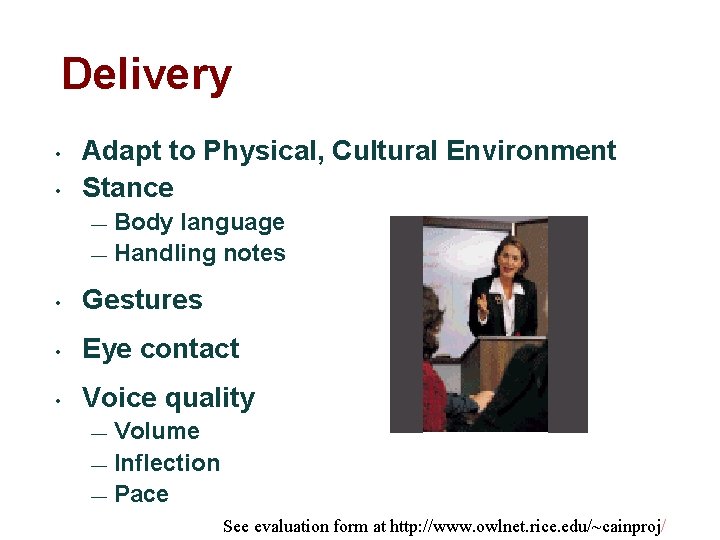
Delivery • • Adapt to Physical, Cultural Environment Stance Body language — Handling notes — • Gestures • Eye contact • Voice quality Volume — Inflection — Pace — See evaluation form at http: //www. owlnet. rice. edu/~cainproj/ 30
Handling questions • LISTEN • Repeat or rephrase • Watch body language • Don’t bluff 31
Prepare & practice! 32
- Slides: 32