
Using General Ledger Interfaces The File Maintenance and





- Slides: 45
Using General Ledger Interfaces The File Maintenance and Procedures to successfully use the General Ledger Interfaces Jim Simunek, CPIM Jim. Simunek@cistech. net 11/10/2020 GL Interfaces 1
Overview • File Maintenance – System Tailoring – Application Interfaces – Rules – Priorities • Work Instructions – Assigning Accounts – Editing Assigned Accounts – Creating Ledger Entries 11/10/2020 GL Interfaces 2
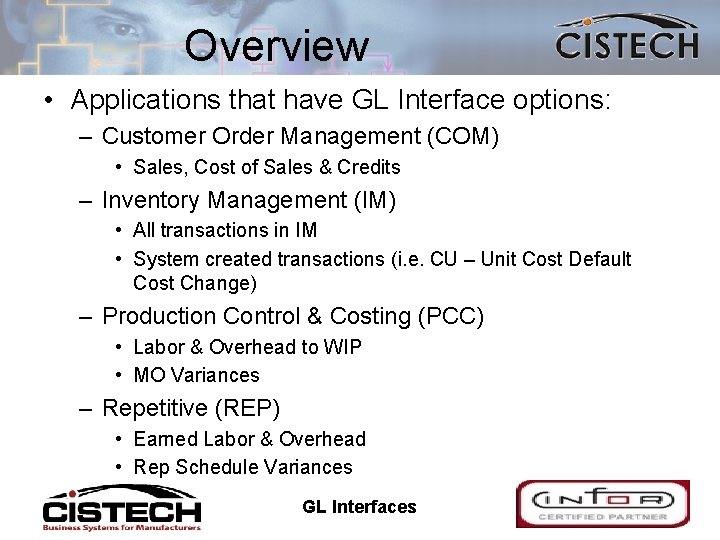
Overview • Applications that have GL Interface options: – Customer Order Management (COM) • Sales, Cost of Sales & Credits – Inventory Management (IM) • All transactions in IM • System created transactions (i. e. CU – Unit Cost Default Cost Change) – Production Control & Costing (PCC) • Labor & Overhead to WIP • MO Variances – Repetitive (REP) • Earned Labor & Overhead • Rep Schedule Variances 11/10/2020 GL Interfaces 3
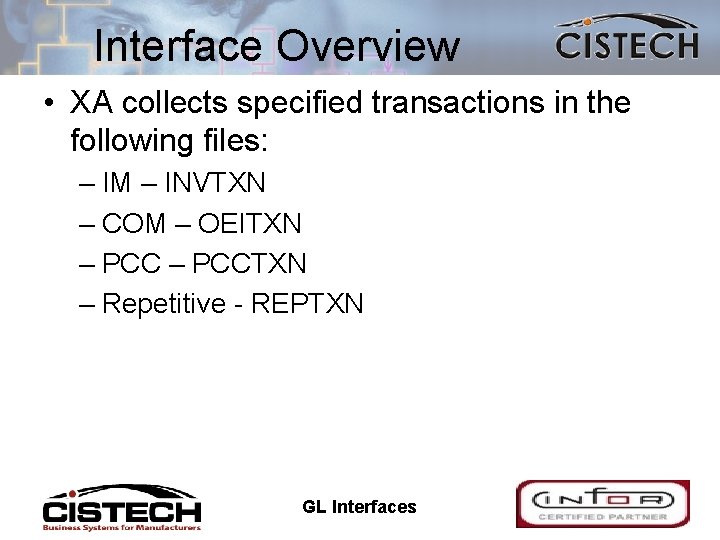
Interface Overview • XA collects specified transactions in the following files: – IM – INVTXN – COM – OEITXN – PCCTXN – Repetitive - REPTXN 11/10/2020 GL Interfaces 4
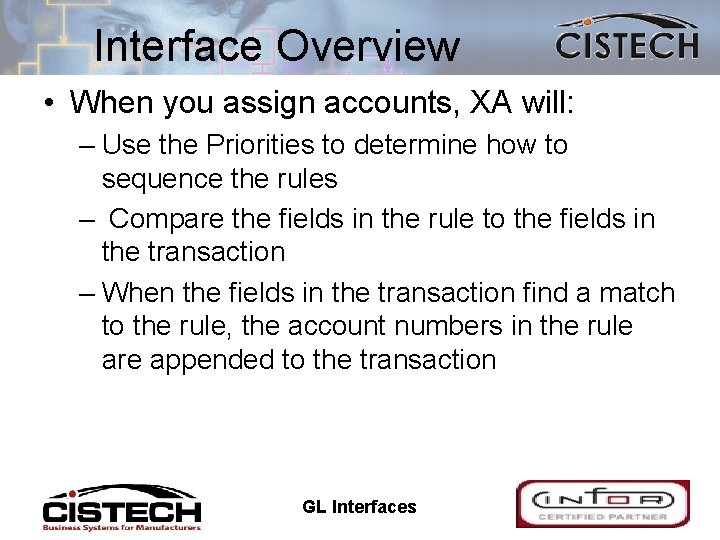
Interface Overview • When you assign accounts, XA will: – Use the Priorities to determine how to sequence the rules – Compare the fields in the rule to the fields in the transaction – When the fields in the transaction find a match to the rule, the account numbers in the rule are appended to the transaction 11/10/2020 GL Interfaces 5
Interface Overview • Creating Journal Entries – Only transactions with assigned accounts will be used to create Journal Entries – Depending on the Application Interfaces, Journal Entries will be either ignored (use Print & Clear at month end for a report to back up the manually entered JE) or recognized by the General Ledger – Journal Entries can be either summarized by account or a separate entry for each transaction 11/10/2020 GL Interfaces 6
Covered in Future Sessions • Individual transactions and the accounts to use for the rules • T accounts 11/10/2020 GL Interfaces 7
Questions? 11/10/2020 GL Interfaces 8
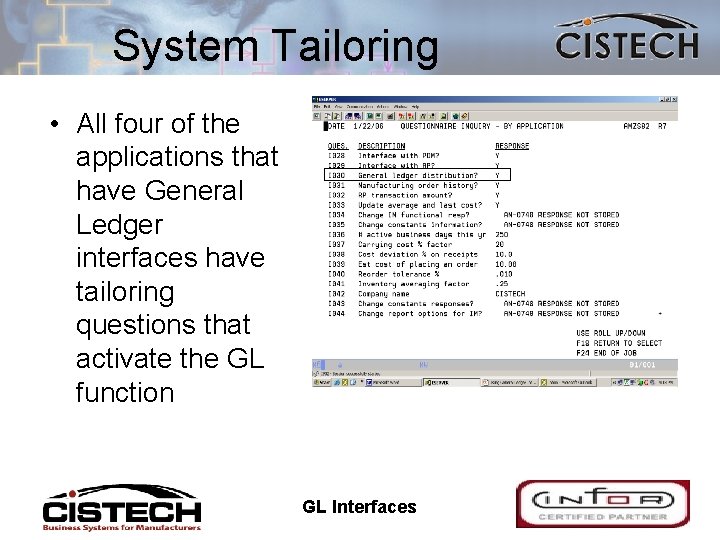
System Tailoring • All four of the applications that have General Ledger interfaces have tailoring questions that activate the GL function 11/10/2020 GL Interfaces 9
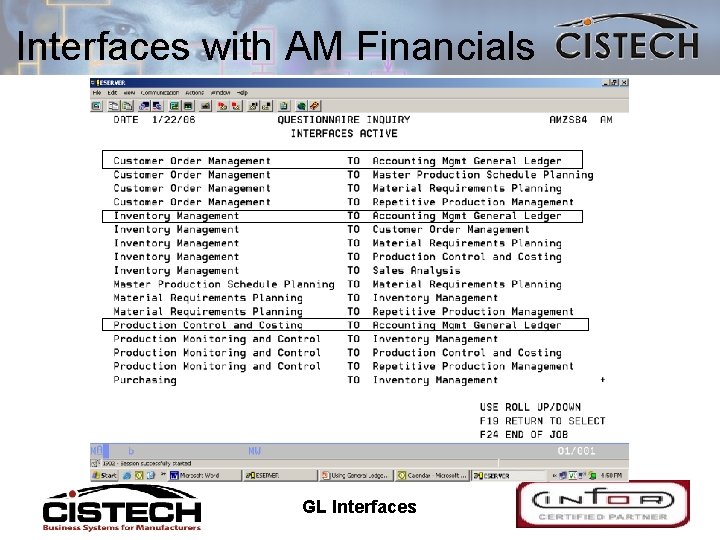
Application Interfaces • Separate from the Tailoring questions, Application Interfaces serve as a “firewall” that either allows the ledger to recognize the Journal Entry or ignore the entry • If you want XA to create the JE but want the ledger to ignore it: – Tailor for GL Distribution but DO NOT activate the interface to the GL application (AM Financials only) • If you want XA to create the JE and have the ledger use the entry: – Tailor for GL Distribution and activate the interface 11/10/2020 GL Interfaces 10
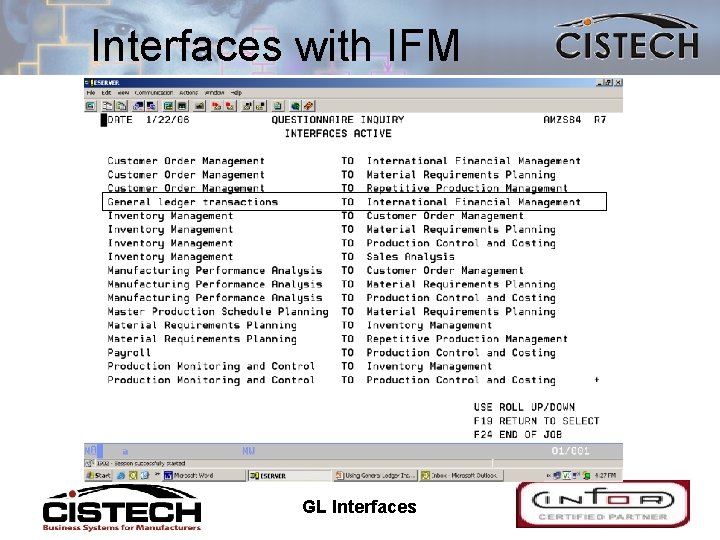
Interfaces with IFM 11/10/2020 GL Interfaces 11
Interfaces with AM Financials 11/10/2020 GL Interfaces 12
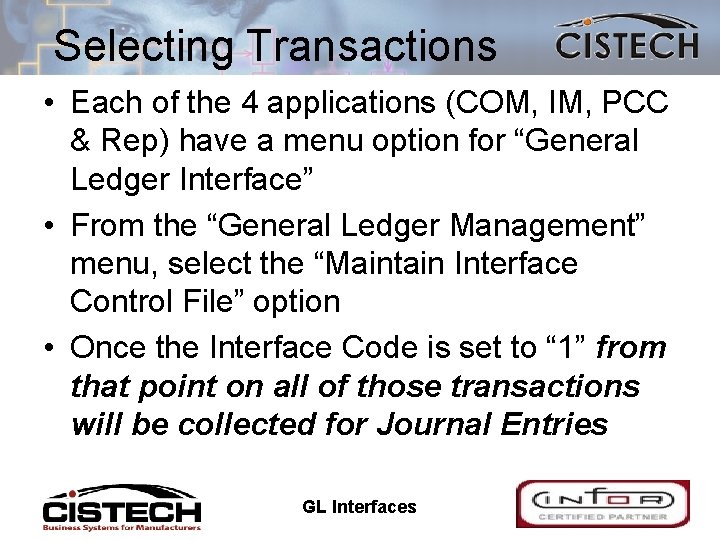
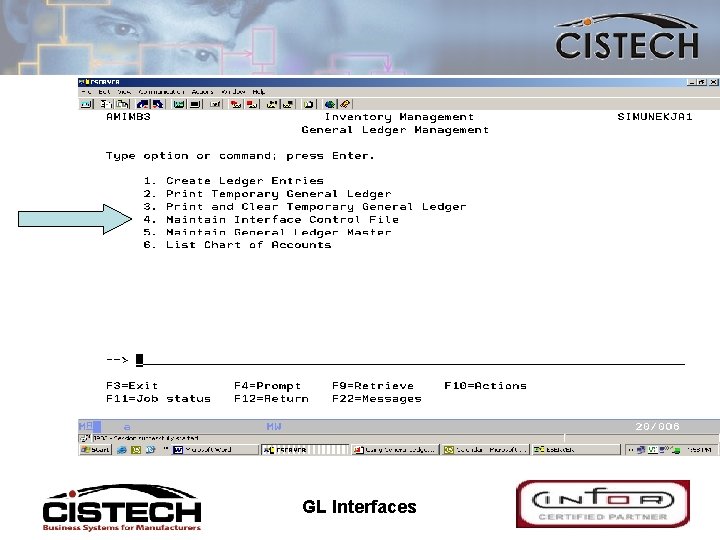
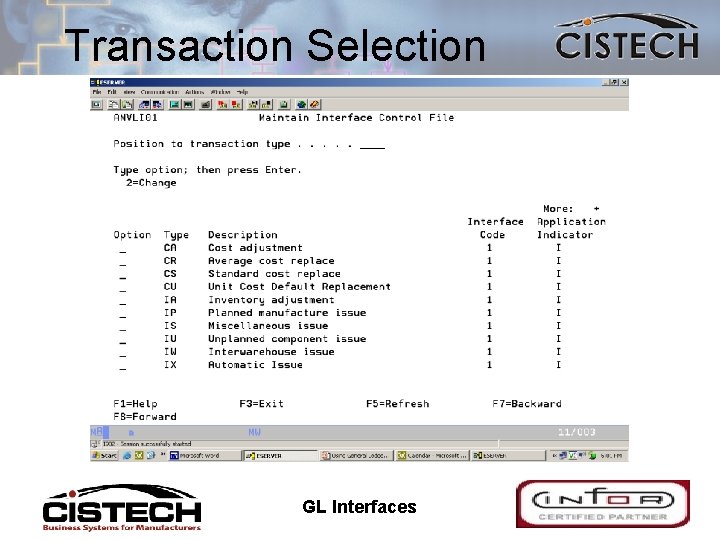
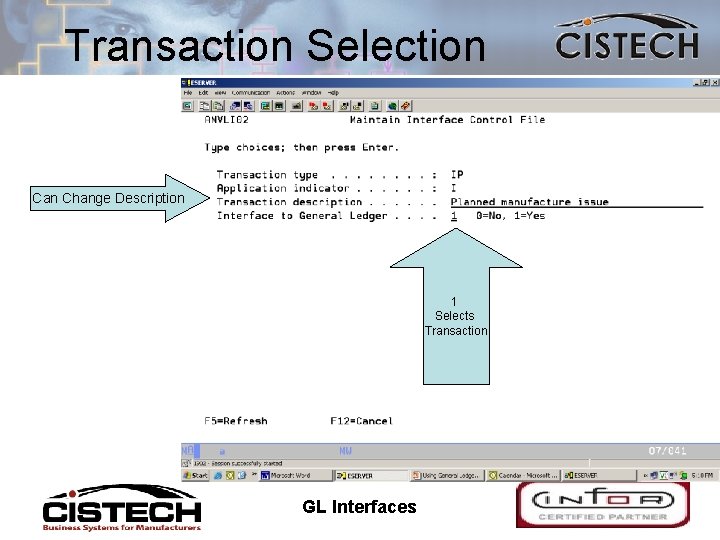
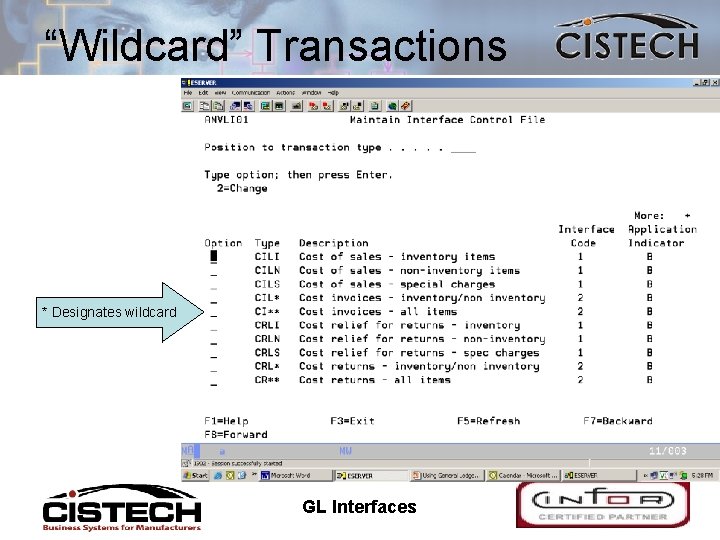
Selecting Transactions • Each of the 4 applications (COM, IM, PCC & Rep) have a menu option for “General Ledger Interface” • From the “General Ledger Management” menu, select the “Maintain Interface Control File” option • Once the Interface Code is set to “ 1” from that point on all of those transactions will be collected for Journal Entries 11/10/2020 GL Interfaces 13
11/10/2020 GL Interfaces 14
Transaction Selection 11/10/2020 GL Interfaces 15
Transaction Selection Can Change Description 1 Selects Transaction 11/10/2020 GL Interfaces 16
“Wildcard” Transactions * Designates wildcard 11/10/2020 GL Interfaces 17
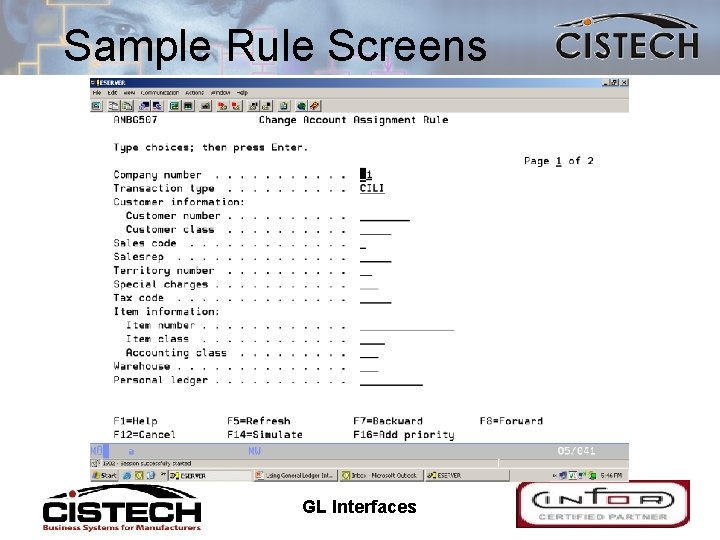
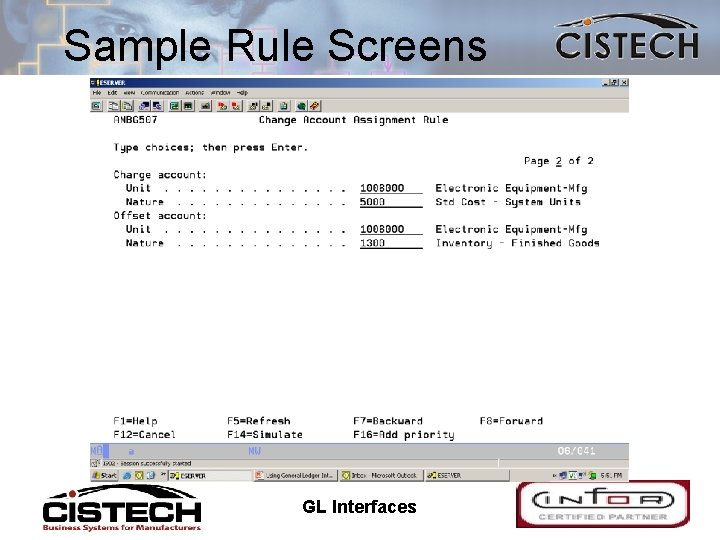
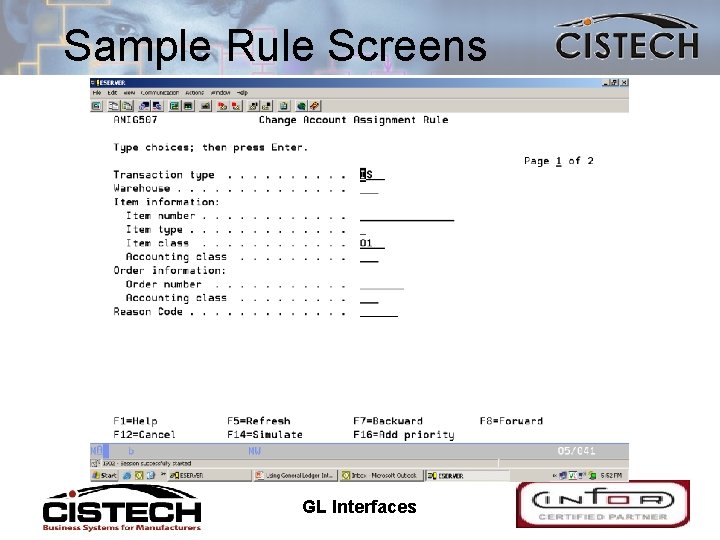
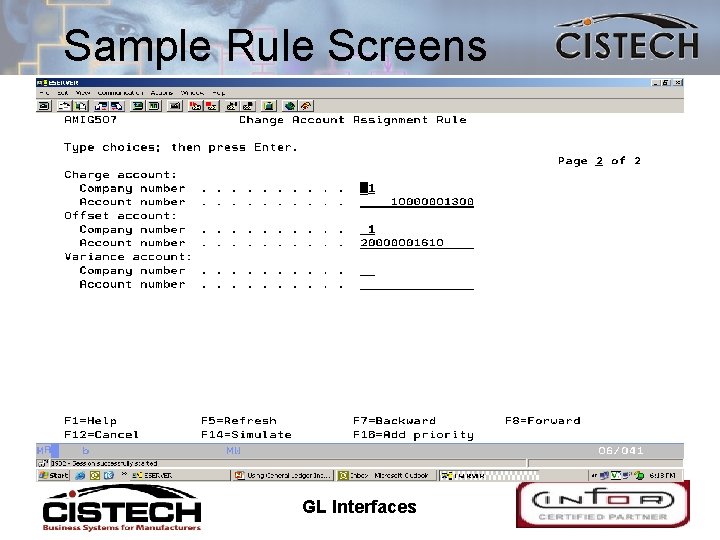
Rules • Rules: – Hold the values for the fields that will be compared to the transaction – Hold the General Ledger Account numbers for assignment (Charge, Offset and, possibly, Variance) – See the XA manuals for account descriptions for each transaction/account number 11/10/2020 GL Interfaces 18
Charge, Offset, Variance • The rules are taking a one sided transaction (taking an item out of inventory) and creating 2 (and sometimes 3 Journal Entries • Charge, Offset and Variance can be either a debit or a credit • Use the tables in the XA Reference Manuals to see account description to use in each rule 11/10/2020 GL Interfaces 19
Sample Rule Screens 11/10/2020 GL Interfaces 20
Sample Rule Screens 11/10/2020 GL Interfaces 21
Sample Rule Screens 11/10/2020 GL Interfaces 22
Sample Rule Screens 11/10/2020 GL Interfaces 23
Priorities • Priorities determine the sequence to test the rule against the transaction • The first rule that has a match between the values in the rule and the values in the transaction is the rule that XA will use to assign the accounts 11/10/2020 GL Interfaces 24
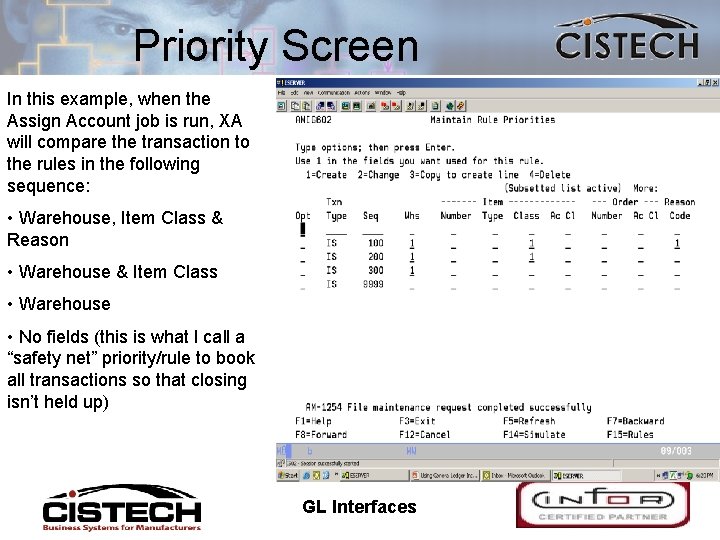
Priority Screen In this example, when the Assign Account job is run, XA will compare the transaction to the rules in the following sequence: • Warehouse, Item Class & Reason • Warehouse & Item Class • Warehouse • No fields (this is what I call a “safety net” priority/rule to book all transactions so that closing isn’t held up) 11/10/2020 GL Interfaces 25
This ends the file maintenance section… Questions? Let’s move on to Work Instructions for using the Interfaces 11/10/2020 GL Interfaces 26
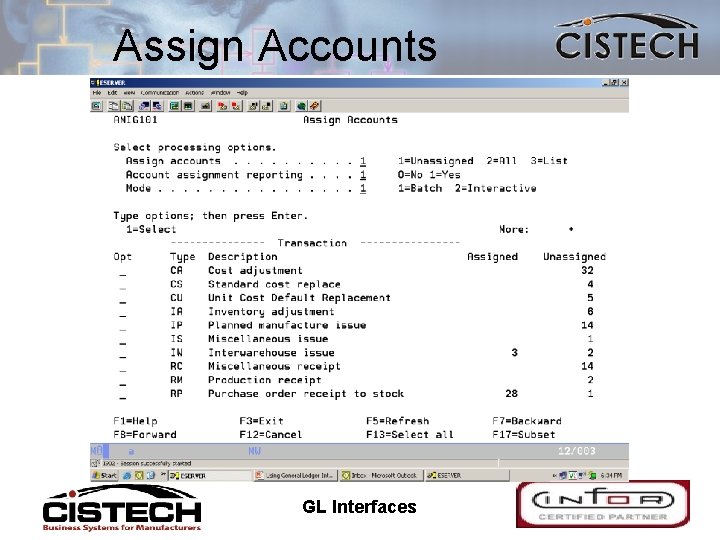
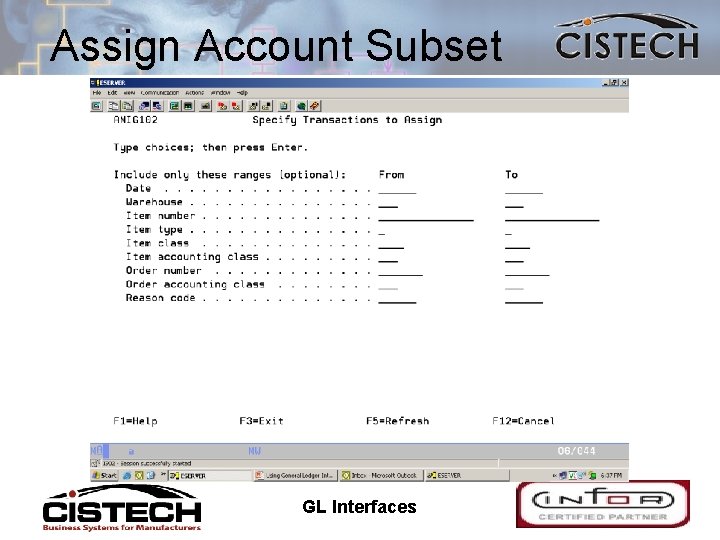
Assigning Accounts • Assigning accounts leaves the transactions in the xxx. TXN files but adds the account numbers to the transactions • If the account numbers are incorrect, they can be changed manually or correct the rule and reassign the accounts • Accounts can be assigned any time throughout the month • Use F 17 (Subset) to limit the transactions to be assigned – NOTE: if Sub-setting by IM Period Close number make sure that all activity in COM, Rep & PCC is completed prior to closing IM 11/10/2020 GL Interfaces 27
Assigning Accounts • Accounts can be assigned to only the transactions that have not had an account number assigned or to all transactions • Assignment can be done with a job running through the job queue or interactively • Individual transactions can be selected for assignment 11/10/2020 GL Interfaces 28
Assign Accounts 11/10/2020 GL Interfaces 29
Assign Account Subset 11/10/2020 GL Interfaces 30
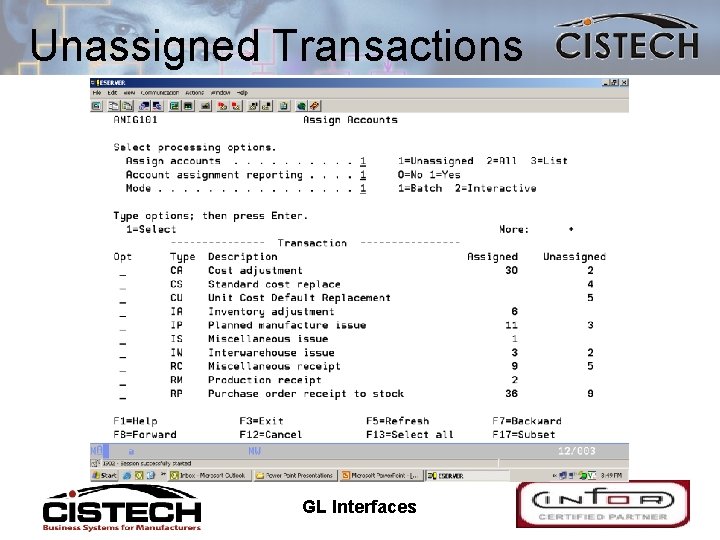
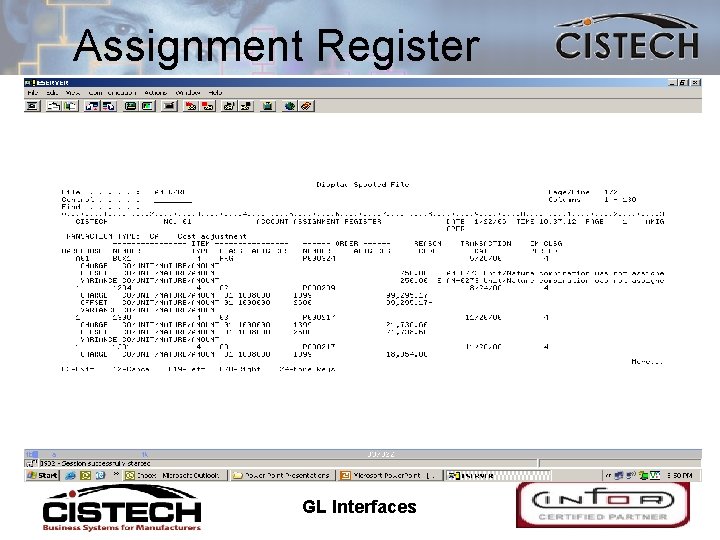
Un-assigned Transactions • If there are transactions that did not have accounts assigned then check the Assignment Register Report to see the transaction/error • Correct/create a rule that will assign accounts to the un-assigned transactions 11/10/2020 GL Interfaces 31
Unassigned Transactions 11/10/2020 GL Interfaces 32
Assignment Register 11/10/2020 GL Interfaces 33
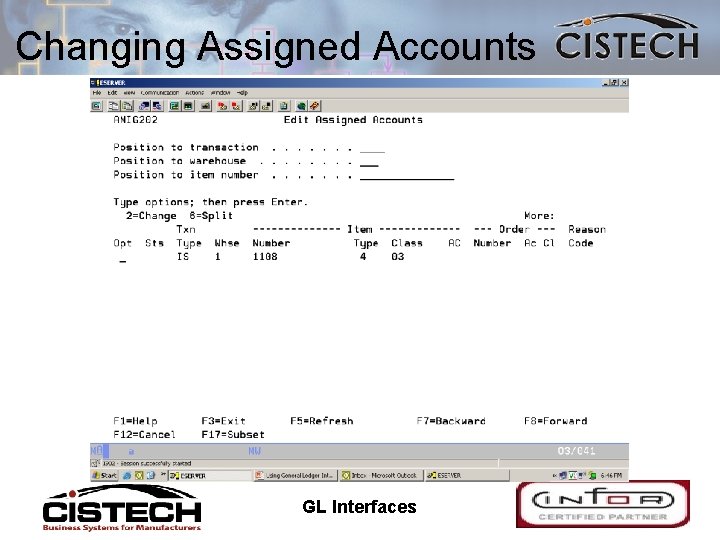
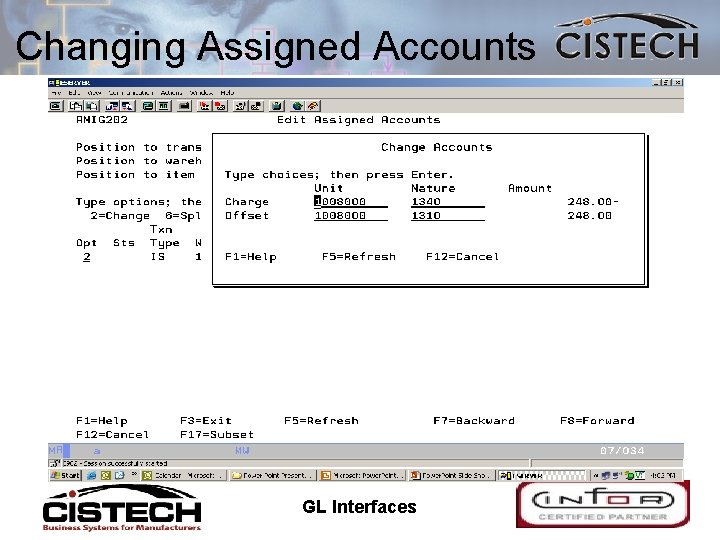
Changing Assigned Accounts • The “Edit Assigned Accounts” menu option allows the accountant to either change account numbers or split one account into several 11/10/2020 GL Interfaces 34
Changing Assigned Accounts 11/10/2020 GL Interfaces 35
Changing Assigned Accounts 11/10/2020 GL Interfaces 36
Questions? 11/10/2020 GL Interfaces 37
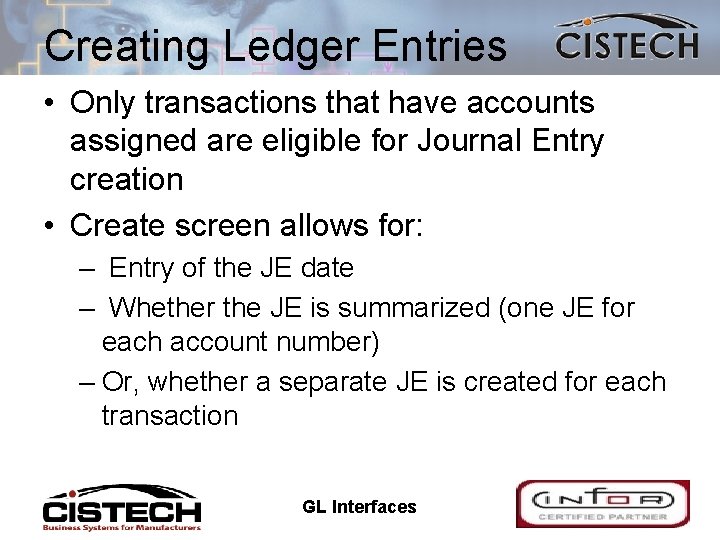
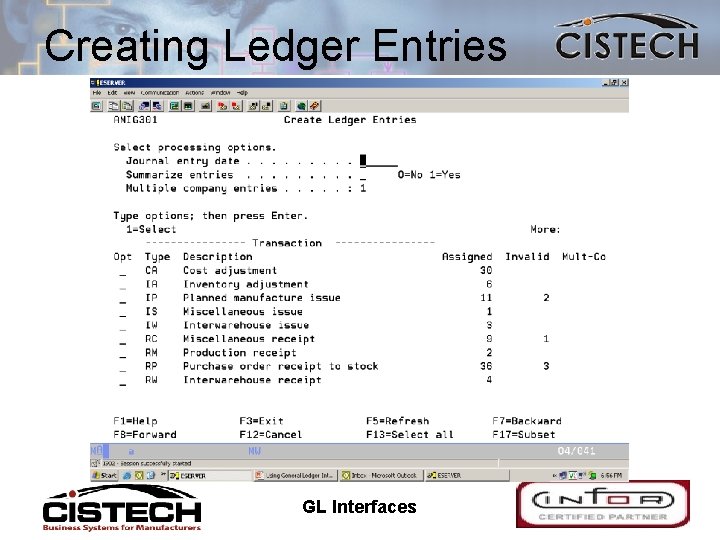
Creating Ledger Entries • Only transactions that have accounts assigned are eligible for Journal Entry creation • Create screen allows for: – Entry of the JE date – Whether the JE is summarized (one JE for each account number) – Or, whether a separate JE is created for each transaction 11/10/2020 GL Interfaces 38
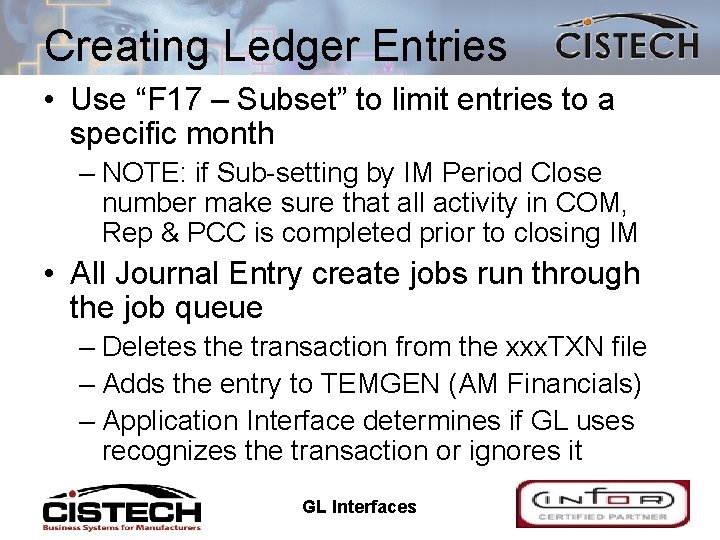
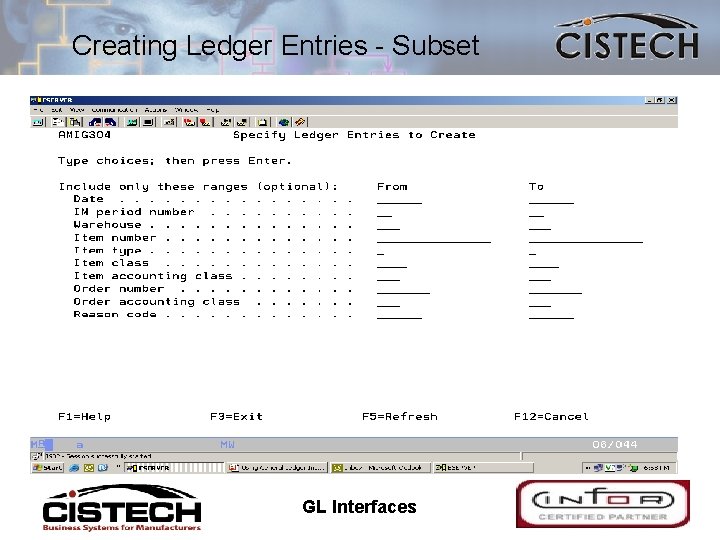
Creating Ledger Entries • Use “F 17 – Subset” to limit entries to a specific month – NOTE: if Sub-setting by IM Period Close number make sure that all activity in COM, Rep & PCC is completed prior to closing IM • All Journal Entry create jobs run through the job queue – Deletes the transaction from the xxx. TXN file – Adds the entry to TEMGEN (AM Financials) – Application Interface determines if GL uses recognizes the transaction or ignores it 11/10/2020 GL Interfaces 39
Creating Ledger Entries 11/10/2020 GL Interfaces 40
Creating Ledger Entries - Subset 11/10/2020 GL Interfaces 41
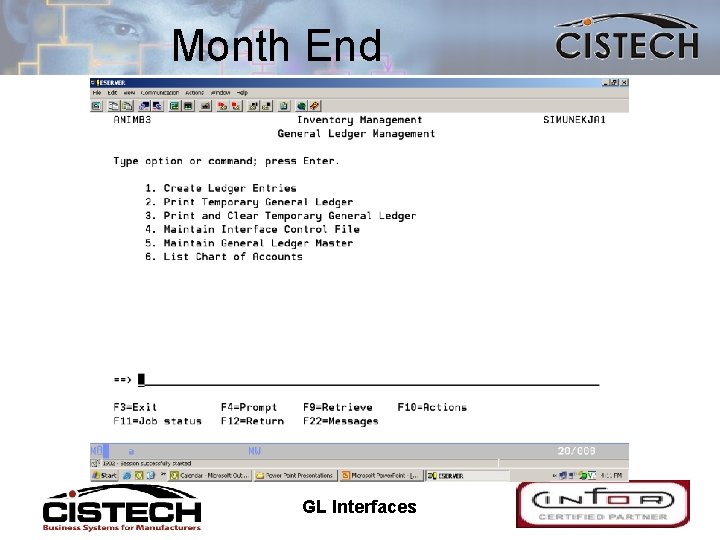
Month End • Each application has an option to print the “Temporary General Ledger” • If the Application Interface to the General Ledger is not activated, then run the “Print and Clear Temporary General Ledger” to: – Get a report to use as a backup to a manual journal entry – Delete the entry from the TEMGEN file 11/10/2020 GL Interfaces 42
Month End 11/10/2020 GL Interfaces 43
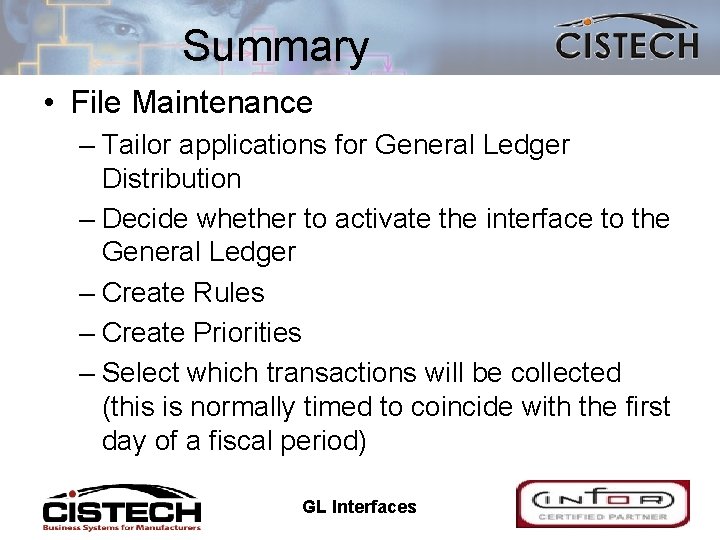
Summary • File Maintenance – Tailor applications for General Ledger Distribution – Decide whether to activate the interface to the General Ledger – Create Rules – Create Priorities – Select which transactions will be collected (this is normally timed to coincide with the first day of a fiscal period) 11/10/2020 GL Interfaces 44
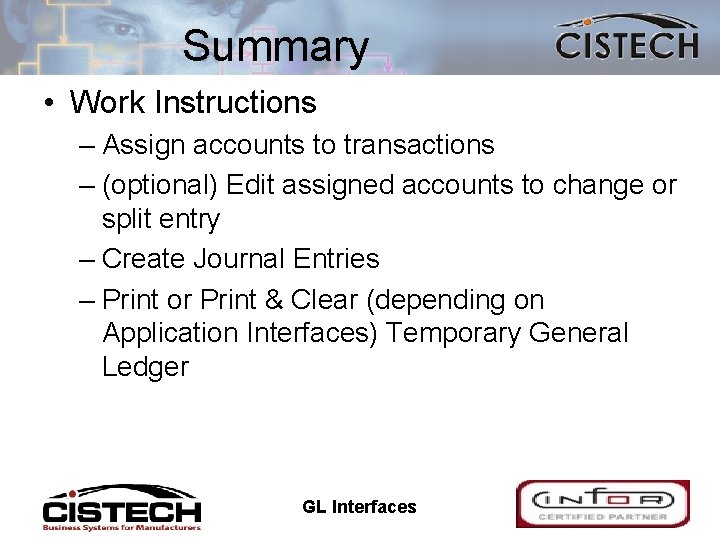
Summary • Work Instructions – Assign accounts to transactions – (optional) Edit assigned accounts to change or split entry – Create Journal Entries – Print or Print & Clear (depending on Application Interfaces) Temporary General Ledger 11/10/2020 GL Interfaces 45