
Using ExcelVBA to Speedup Daily Data Processing An
Using Excel/VBA to Speed-up Daily Data Processing An Introduction to VBA
An Introduction to VBA - Agenda What is VBA What is Object How to Record Macro VBA Editor Window Example 1 VBA Fundamental Create User Defined Functions (Example 2) Work with Workbook & Worksheet I/O with External Data Files (Example 3) Capture Built-in Event (Example 4)
An Introduction to VBA - What is VBA o An abbreviation for Visual Basic for Applications o Official name is "Visual Basic, Applications Edition. " o VBA is Microsoft's common application programming (macro) language for Word, Excel, Access, etc. o Also being implemented in other Microsoft applications such as Visio and is at least partially implemented in some other applications such as Auto. CAD. . . o VBA and VB have a lot in common, but they are different. VB is a programming language that lets you create standalone executable programs.
An Introduction to VBA - What Can You Do With VBA o Write Macros to Automate Labor-Intensive and Repetitive Tasks o Create User-Defined Functions to Achieve Complicated Functionality o Create Standard Windows Menu/Tool Bars for Interface o Interact with Other Windows Programs (like Matlab) o I/O with External Files o Database Operation ….
An Introduction to VBA - VBA- Object Based Programming Language o C++, Java, etc. are OOP (Object Oriented Programming) Language o VBA is an Object Based Programming Language o What is Object?
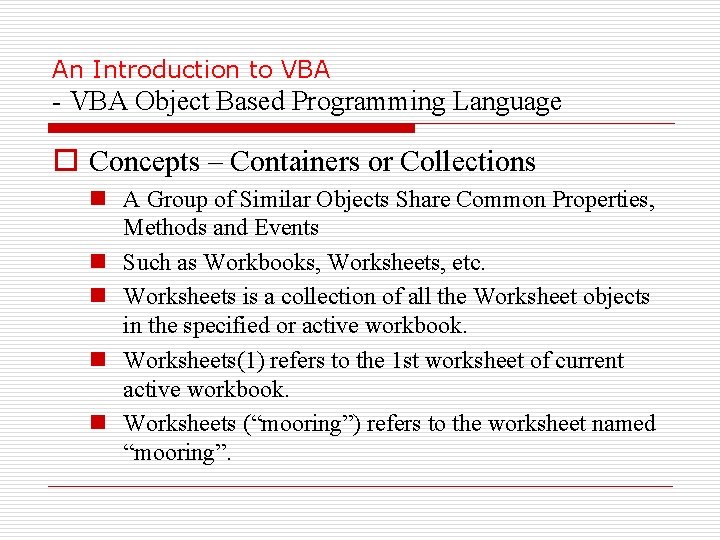
An Introduction to VBA - VBA Object Based Programming Language o Concepts – Containers or Collections n A Group of Similar Objects Share Common Properties, Methods and Events n Such as Workbooks, Worksheets, etc. n Worksheets is a collection of all the Worksheet objects in the specified or active workbook. n Worksheets(1) refers to the 1 st worksheet of current active workbook. n Worksheets (“mooring”) refers to the worksheet named “mooring”.
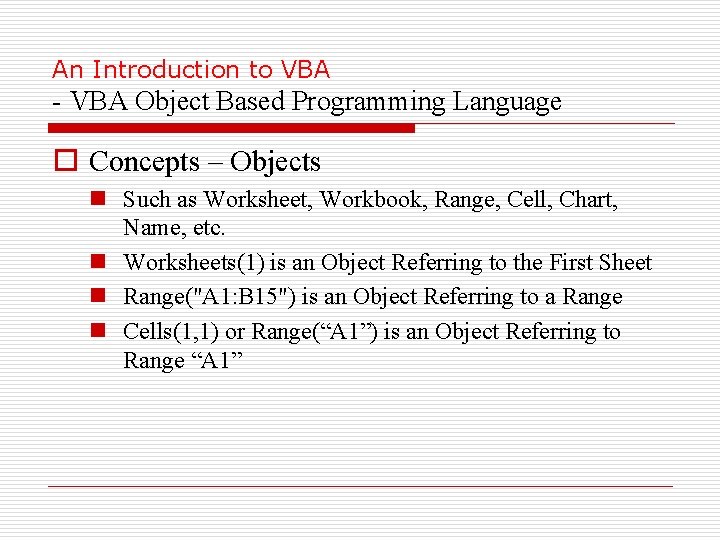
An Introduction to VBA - VBA Object Based Programming Language o Concepts – Objects n Such as Worksheet, Workbook, Range, Cell, Chart, Name, etc. n Worksheets(1) is an Object Referring to the First Sheet n Range("A 1: B 15") is an Object Referring to a Range n Cells(1, 1) or Range(“A 1”) is an Object Referring to Range “A 1”
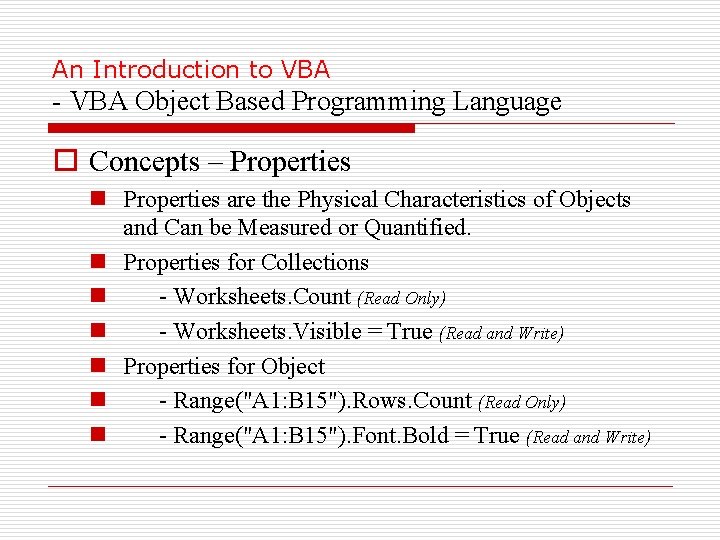
An Introduction to VBA - VBA Object Based Programming Language o Concepts – Properties n Properties are the Physical Characteristics of Objects and Can be Measured or Quantified. n Properties for Collections n - Worksheets. Count (Read Only) n - Worksheets. Visible = True (Read and Write) n Properties for Object n - Range("A 1: B 15"). Rows. Count (Read Only) n - Range("A 1: B 15"). Font. Bold = True (Read and Write)
An Introduction to VBA - VBA Object Based Programming Language o Concepts – Methods n Methods are the Actions that Can be Performed by Objects or on Objects n Methods for Collections n - Worksheets. Add n - Worksheets. Delete n Methods for Objects n - Range("A 1: B 15"). Clear. Contents n - Active. Cell. Copy
An Introduction to VBA - VBA Object Based Programming Language o Concepts – Events n Objects Can Respond to Events, Such as Mouse Click, Double Click on a Cell, Active a Worksheet, Open/Close/Save a Workbook, etc. n Worksheet Events – o Such as Activate, Deactivate, Change, Selection Change, Before Double Click, etc. n Workbook Eventso Such as Activate, Deactivate, Open, Before Close, Before Saving, Before Print, New Sheet.

An Introduction to VBA - VBA Object Based Programming Language o Concepts – Referring To n Use brackets () to refer to member object o Worksheets(“mooring”) n Use dot. to refer to child object or object’s properties and methods o Worksheets(“mooring”). Range(“A 1: B 3”). Font. Bold
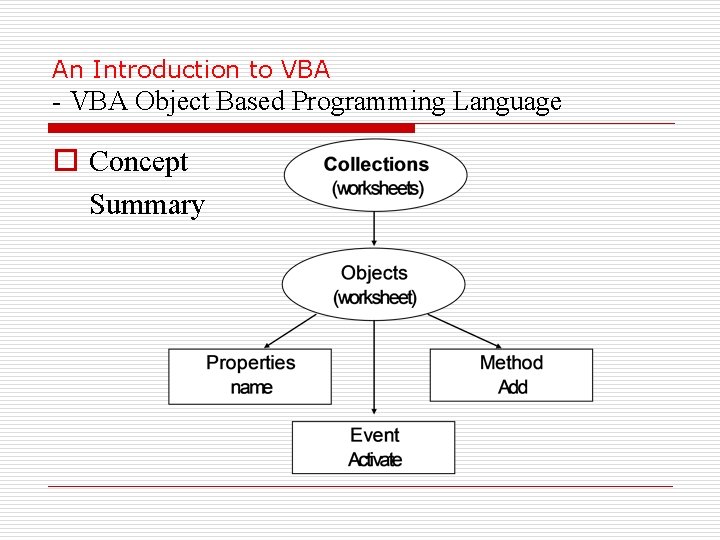
An Introduction to VBA - VBA Object Based Programming Language o Concept Summary
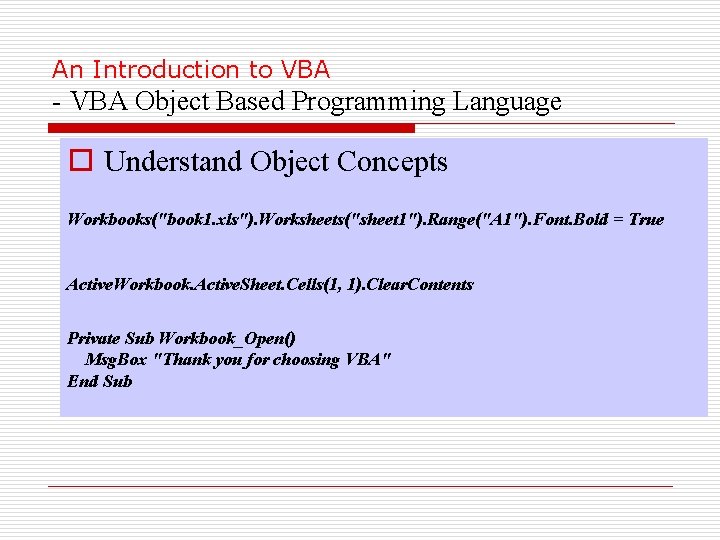
An Introduction to VBA - VBA Object Based Programming Language o Understand Object Concepts Workbooks("book 1. xls"). Worksheets("sheet 1"). Range("A 1"). Font. Bold = True Active. Workbook. Active. Sheet. Cells(1, 1). Clear. Contents Private Sub Workbook_Open() Msg. Box "Thank you for choosing VBA" End Sub
An Introduction to VBA - VBA Object Based Programming Language o Quiz 1 n Which of the following is not a valid Excel object o o i) Active. Workbook ii) Active. Sheet iii) Active. Cell iv) Active. Range A) None B) i C) iii D) iv
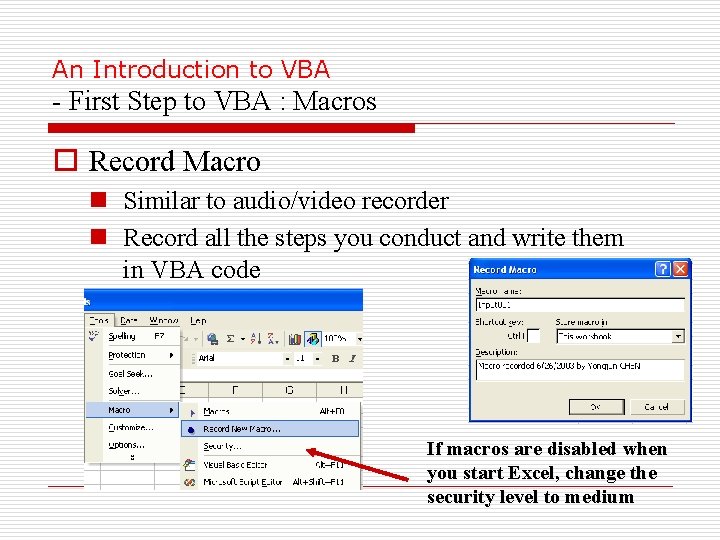
An Introduction to VBA - First Step to VBA : Macros o Record Macro n Similar to audio/video recorder n Record all the steps you conduct and write them in VBA code If macros are disabled when you start Excel, change the security level to medium
An Introduction to VBA - First Step to VBA : Macros o Assign Macro to An Event n Normally User Run Macros from VBA Edit Window – Unnecessary n User Can Assign Macro to An Event, Normally a Button Click Event n Easy to Execute and Easy to Remember n Give a Good Name for The Button and Click the Button to Run the Macro
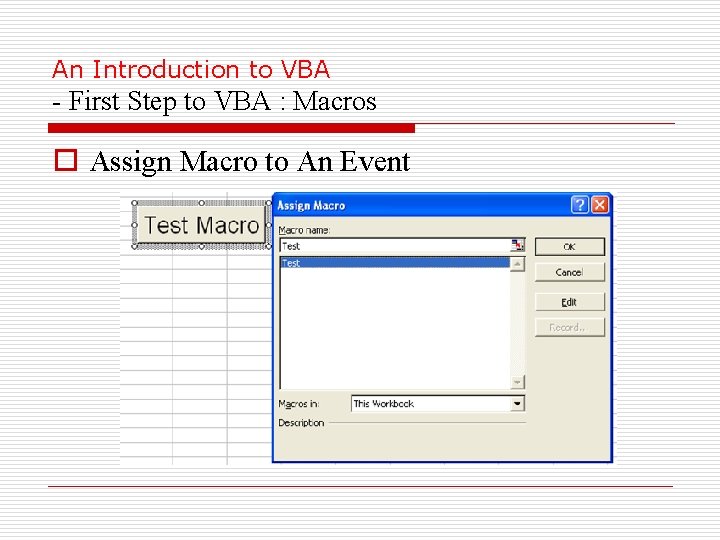
An Introduction to VBA - First Step to VBA : Macros o Assign Macro to An Event
An Introduction to VBA - Second Step to VBA : Edit Macro o VBA Editor Window n Press Alt+F 11 to Activate VBA Window n Or Go to Menu Tools>Macros>Visual Basic Editor n n Project Explore Window Properties Window Code Window Tools>Options>Docking Window
An Introduction to VBA - Second Step to VBA : Edit Macro o VBA Editor Window n Use Tools/Options to Enable Auto Syntax Check, Auto List Members, etc. n Use Tools/Properties to Protect Your Code with Password – You Must Remember the Password n Insert Module, Procedure, Form
An Introduction to VBA - Second Step to VBA : Edit Macro o Sample n n Record Macro See Demo Understand Macro Modify Macro Assign Macro to Button Click Event

An Introduction to VBA - Second Step to VBA : Edit Macro o Understand VBA Editor Window Project window Shows files, sheets and modules Property window Show properties of active object and let user to modify the properties Auto list member Auto list data / parameter Code window VBA codes are here.
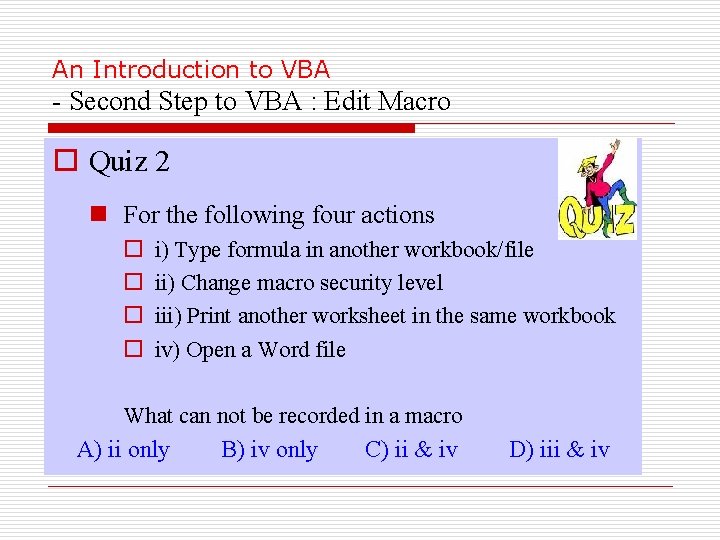
An Introduction to VBA - Second Step to VBA : Edit Macro o Quiz 2 n For the following four actions o o i) Type formula in another workbook/file ii) Change macro security level iii) Print another worksheet in the same workbook iv) Open a Word file What can not be recorded in a macro A) ii only B) iv only C) ii & iv D) iii & iv
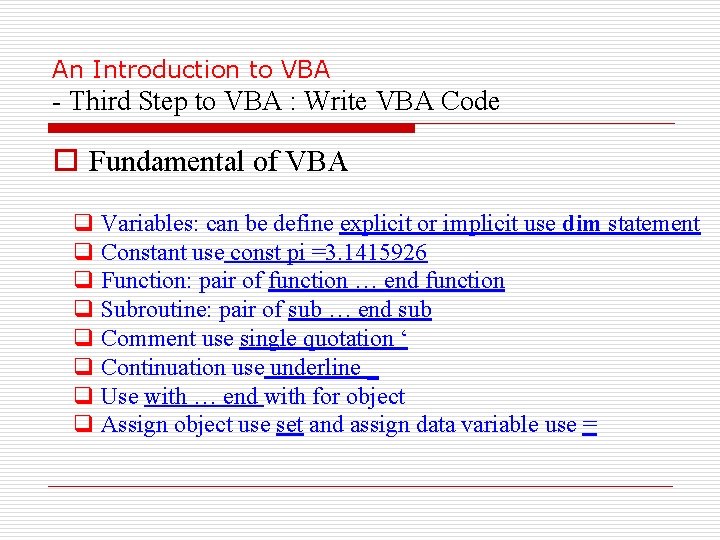
An Introduction to VBA - Third Step to VBA : Write VBA Code o Fundamental of VBA q Variables: can be define explicit or implicit use dim statement q Constant use const pi =3. 1415926 q Function: pair of function … end function q Subroutine: pair of sub … end sub q Comment use single quotation ‘ q Continuation use underline _ q Use with … end with for object q Assign object use set and assign data variable use =
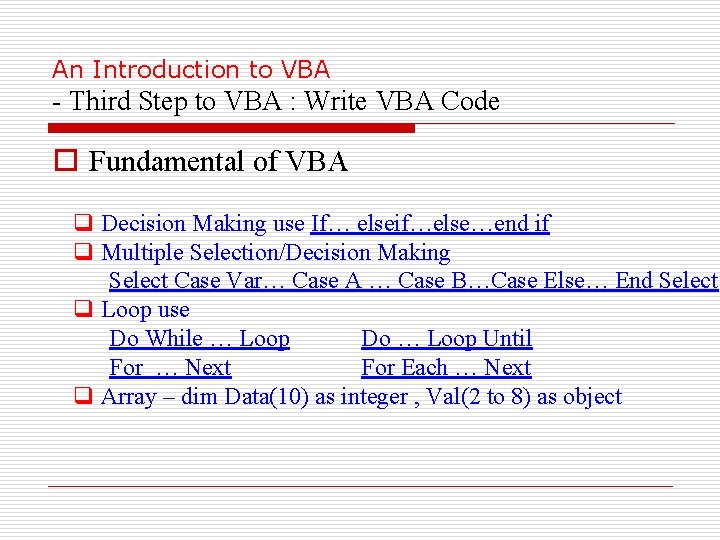
An Introduction to VBA - Third Step to VBA : Write VBA Code o Fundamental of VBA q Decision Making use If… elseif…else…end if q Multiple Selection/Decision Making Select Case Var… Case A … Case B…Case Else… End Select q Loop use Do While … Loop Do … Loop Until For … Next For Each … Next q Array – dim Data(10) as integer , Val(2 to 8) as object
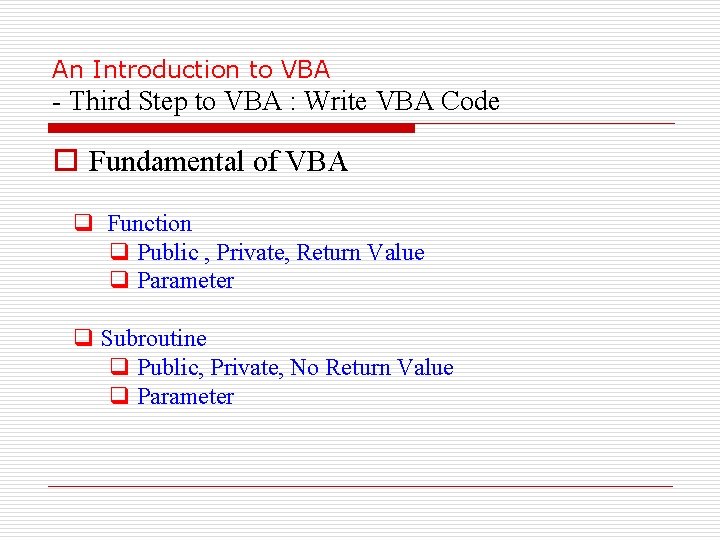
An Introduction to VBA - Third Step to VBA : Write VBA Code o Fundamental of VBA q Function q Public , Private, Return Value q Parameter q Subroutine q Public, Private, No Return Value q Parameter

An Introduction to VBA - Third Step to VBA : Write VBA Code o Understand Code Worksheets("sheet 1"). Activate Range("A 1: A 10"). Clear. Contents 1) Make sheet 1 active 2) For i = 1 To 10 Range("A" & i) = i ^ 2 3) Next Range("A 1: A 10"). Font. Bold = True For Each cl In Range("A 1: A 10") If cl. Value < 25 Or cl. Value > 75 Then 4) cl. Font. Italic = True Else cl. Font. Underline = True 5) End If Next Msgbox “All done” Clear range A 1: A 10 Type 1, 4, 9, … 100 in to range A 1, A 2, … A 10 Set font to bold for all cells in the range Make cell italic if the cell’s value is <25 or >75, otherwise underline 6) Display message “All done”
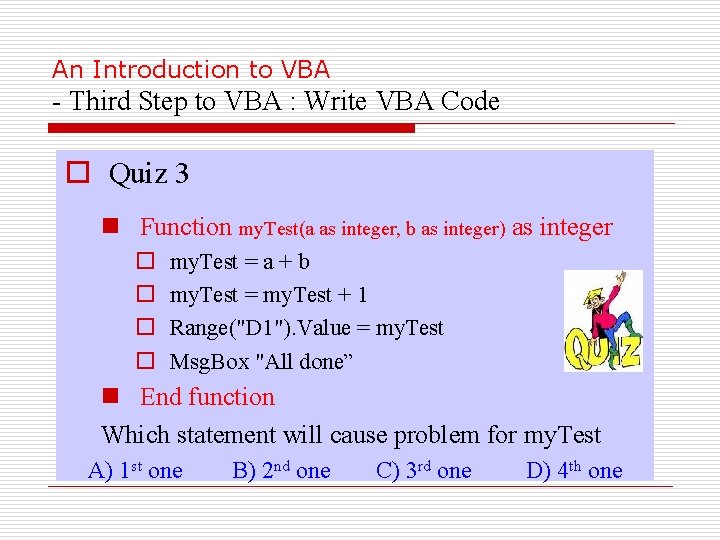
An Introduction to VBA - Third Step to VBA : Write VBA Code o Quiz 3 n Function my. Test(a as integer, b as integer) as integer o o my. Test = a + b my. Test = my. Test + 1 Range("D 1"). Value = my. Test Msg. Box "All done” n End function Which statement will cause problem for my. Test A) 1 st one B) 2 nd one C) 3 rd one D) 4 th one
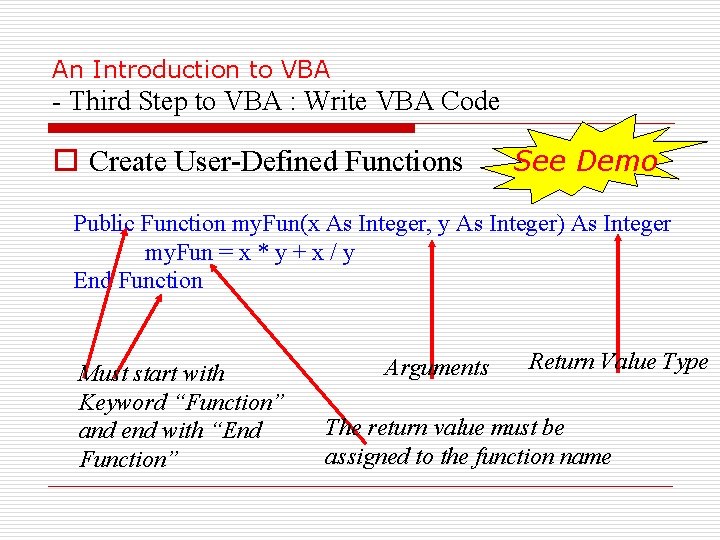
An Introduction to VBA - Third Step to VBA : Write VBA Code o Create User-Defined Functions See Demo Public Function my. Fun(x As Integer, y As Integer) As Integer my. Fun = x * y + x / y End Function Must start with Keyword “Function” and end with “End Function” Arguments Return Value Type The return value must be assigned to the function name
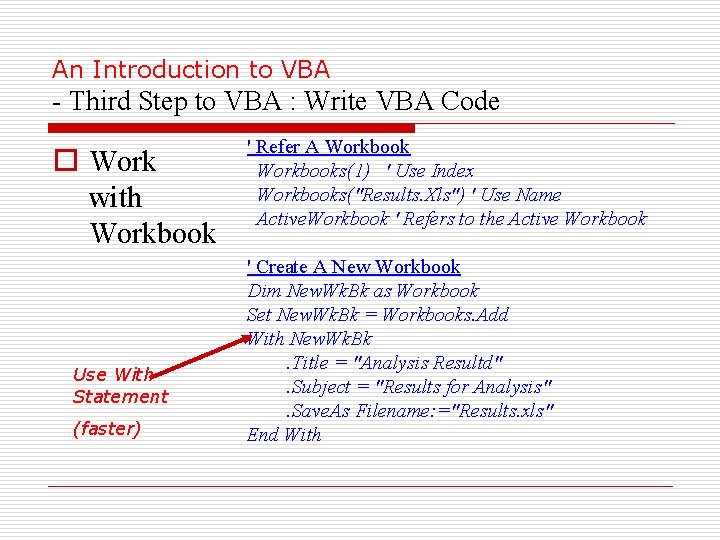
An Introduction to VBA - Third Step to VBA : Write VBA Code o Work with Workbook Use With Statement (faster) ' Refer A Workbooks(1) ' Use Index Workbooks("Results. Xls") ' Use Name Active. Workbook ' Refers to the Active Workbook ' Create A New Workbook Dim New. Wk. Bk as Workbook Set New. Wk. Bk = Workbooks. Add With New. Wk. Bk. Title = "Analysis Resultd". Subject = "Results for Analysis". Save. As Filename: ="Results. xls" End With
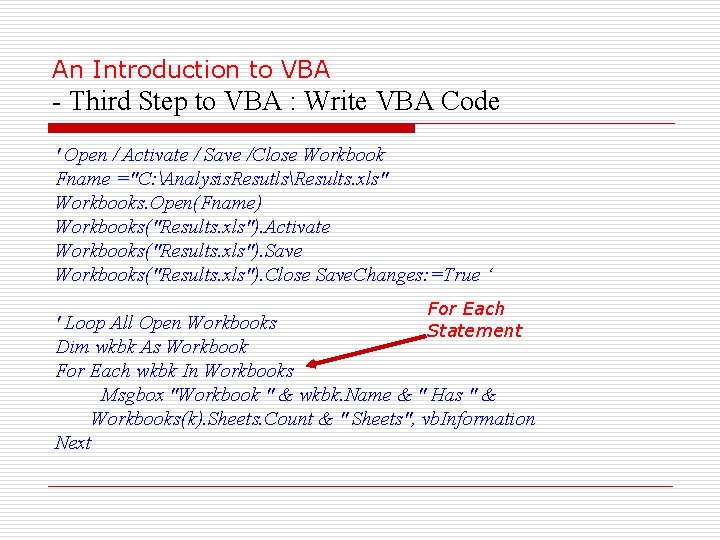
An Introduction to VBA - Third Step to VBA : Write VBA Code ' Open / Activate / Save /Close Workbook Fname ="C: Analysis. ResutlsResults. xls" Workbooks. Open(Fname) Workbooks("Results. xls"). Activate Workbooks("Results. xls"). Save Workbooks("Results. xls"). Close Save. Changes: =True ‘ For Each Statement ' Loop All Open Workbooks Dim wkbk As Workbook For Each wkbk In Workbooks Msgbox "Workbook " & wkbk. Name & " Has " & Workbooks(k). Sheets. Count & " Sheets", vb. Information Next
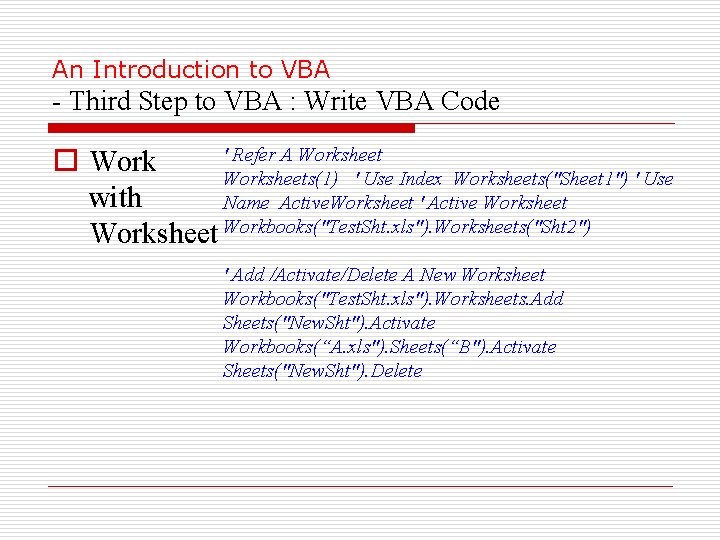
An Introduction to VBA - Third Step to VBA : Write VBA Code ' Refer A Worksheet o Worksheets(1) ' Use Index Worksheets("Sheet 1") ' Use with Name Active. Worksheet ' Active Worksheet Workbooks("Test. Sht. xls"). Worksheets("Sht 2") ' Add /Activate/Delete A New Worksheet Workbooks("Test. Sht. xls"). Worksheets. Add Sheets("New. Sht"). Activate Workbooks(“A. xls"). Sheets(“B"). Activate Sheets("New. Sht"). Delete
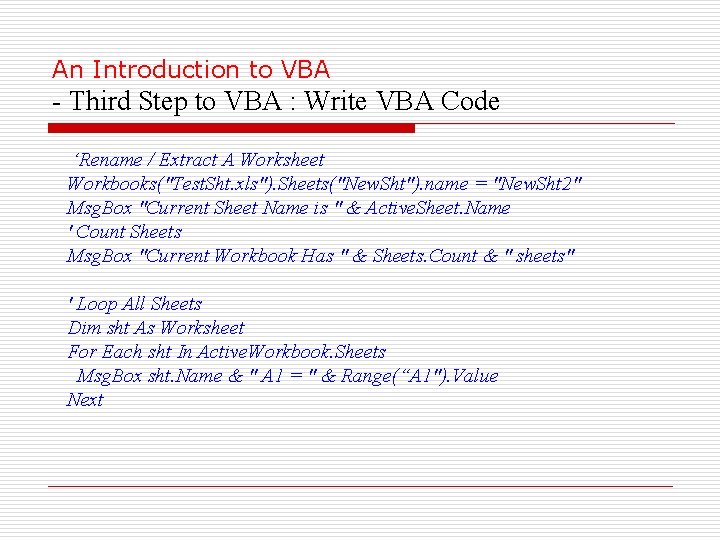
An Introduction to VBA - Third Step to VBA : Write VBA Code ‘Rename / Extract A Worksheet Workbooks("Test. Sht. xls"). Sheets("New. Sht"). name = "New. Sht 2" Msg. Box "Current Sheet Name is " & Active. Sheet. Name ' Count Sheets Msg. Box "Current Workbook Has " & Sheets. Count & " sheets" ' Loop All Sheets Dim sht As Worksheet For Each sht In Active. Workbook. Sheets Msg. Box sht. Name & " A 1 = " & Range(“A 1"). Value Next
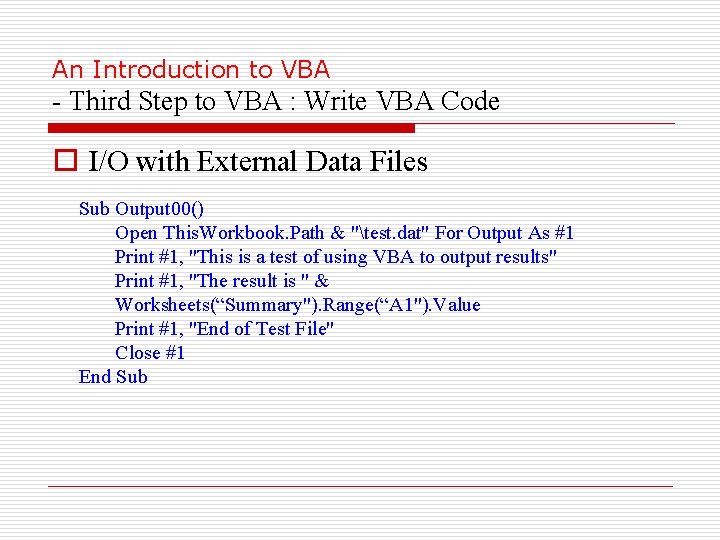
An Introduction to VBA - Third Step to VBA : Write VBA Code o I/O with External Data Files Sub Output 00() Open This. Workbook. Path & "test. dat" For Output As #1 Print #1, "This is a test of using VBA to output results" Print #1, "The result is " & Worksheets(“Summary"). Range(“A 1"). Value Print #1, "End of Test File" Close #1 End Sub
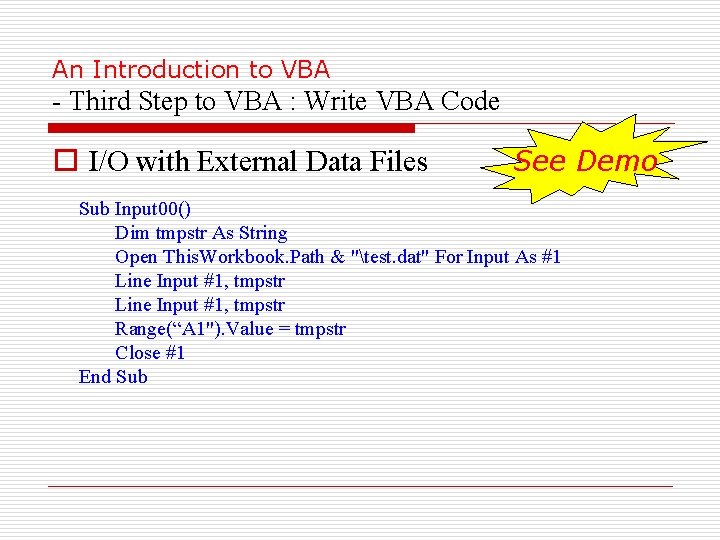
An Introduction to VBA - Third Step to VBA : Write VBA Code o I/O with External Data Files See Demo Sub Input 00() Dim tmpstr As String Open This. Workbook. Path & "test. dat" For Input As #1 Line Input #1, tmpstr Range(“A 1"). Value = tmpstr Close #1 End Sub
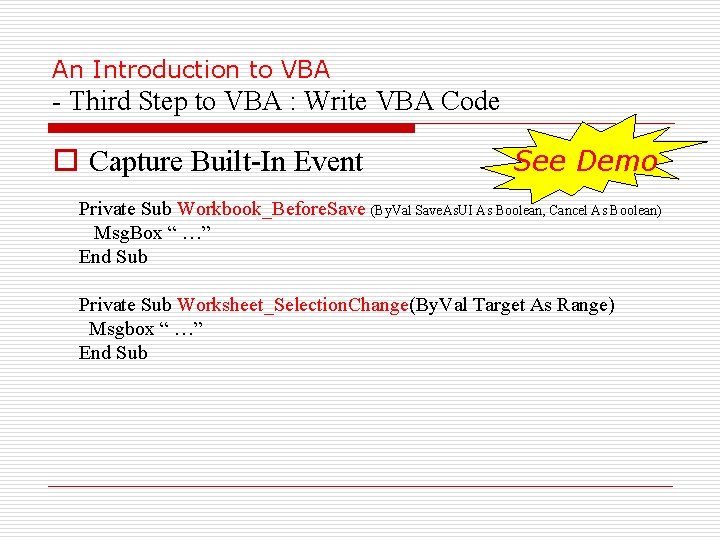
An Introduction to VBA - Third Step to VBA : Write VBA Code o Capture Built-In Event See Demo Private Sub Workbook_Before. Save (By. Val Save. As. UI As Boolean, Cancel As Boolean) Msg. Box “ …” End Sub Private Sub Worksheet_Selection. Change(By. Val Target As Range) Msgbox “ …” End Sub
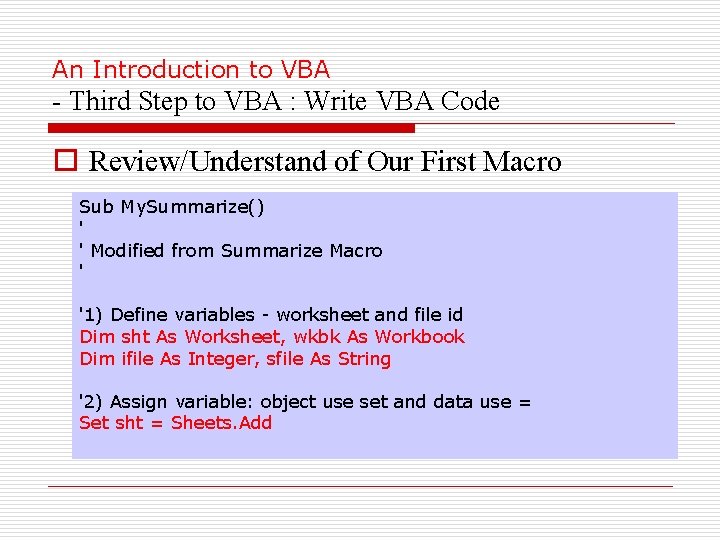
An Introduction to VBA - Third Step to VBA : Write VBA Code o Review/Understand of Our First Macro Sub My. Summarize() ' ' Modified from Summarize Macro ' '1) Define variables - worksheet and file id Dim sht As Worksheet, wkbk As Workbook Dim ifile As Integer, sfile As String '2) Assign variable: object use set and data use = Set sht = Sheets. Add
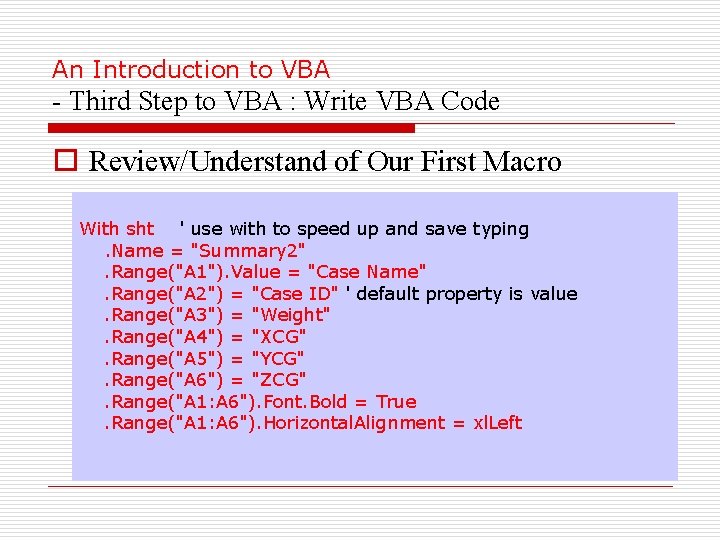
An Introduction to VBA - Third Step to VBA : Write VBA Code o Review/Understand of Our First Macro With sht ' use with to speed up and save typing. Name = "Summary 2". Range("A 1"). Value = "Case Name". Range("A 2") = "Case ID" ' default property is value. Range("A 3") = "Weight". Range("A 4") = "XCG". Range("A 5") = "YCG". Range("A 6") = "ZCG". Range("A 1: A 6"). Font. Bold = True. Range("A 1: A 6"). Horizontal. Alignment = xl. Left
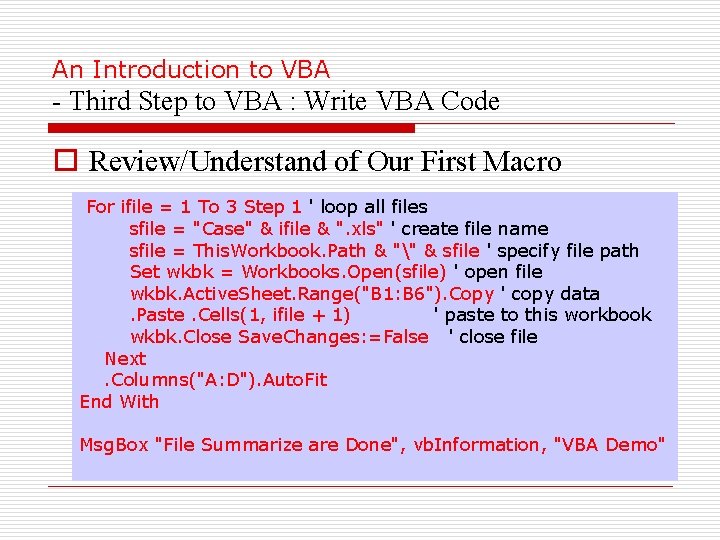
An Introduction to VBA - Third Step to VBA : Write VBA Code o Review/Understand of Our First Macro For ifile = 1 To 3 Step 1 ' loop all files sfile = "Case" & ifile & ". xls" ' create file name sfile = This. Workbook. Path & "" & sfile ' specify file path Set wkbk = Workbooks. Open(sfile) ' open file wkbk. Active. Sheet. Range("B 1: B 6"). Copy ' copy data. Paste. Cells(1, ifile + 1) ' paste to this workbook wkbk. Close Save. Changes: =False ' close file Next. Columns("A: D"). Auto. Fit End With Msg. Box "File Summarize are Done", vb. Information, "VBA Demo"

An Introduction to VBA - Learning via Practice & Ask Questions / Comments Where to get help: Use F 1 key in VBA editor (like type keyword msgbox to search help) Microsoft Users Excel Programming Discussion www. microsoft. com/office/community/enus/default. mspx? dg=microsoft. public. excel. programming&lang=en&cr=US http: //www. excelforum. com/
- Slides: 39