
Using Excel for creating and improving archive catalogues










![Data Types [“number format”]](https://slidetodoc.com/presentation_image_h2/f650792c04020cf3b15f903a7be72cdb/image-22.jpg "Data Types [“number format”]")
![Data Types [“number format”] Data Types: How • Set the type before entering data:](https://slidetodoc.com/presentation_image_h2/f650792c04020cf3b15f903a7be72cdb/image-23.jpg "Data Types [“number format”] Data Types: How • Set the type before entering data:")


- Slides: 41
Using Excel for creating and improving archive catalogues Why and How Gillian Sheldrick Excel for Archivists Sheldrick. G@Gmail. com
Welcome and Background Gillian Sheldrick Excel for Archivists Sheldrick. G@Gmail. com
Overview SESSION 1: Discussion and Demonstration • Why use Excel: benefits and case study • How to use Excel: key techniques • Excel pitfalls SESSION 2: Excel Questions and Answers
Why Use Excel? • Benefits • Case study
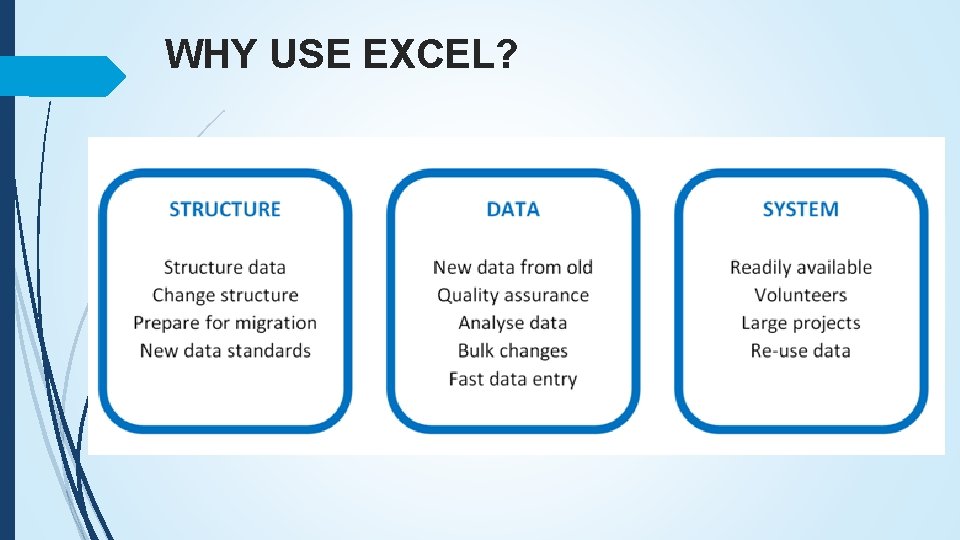
WHY USE EXCEL?
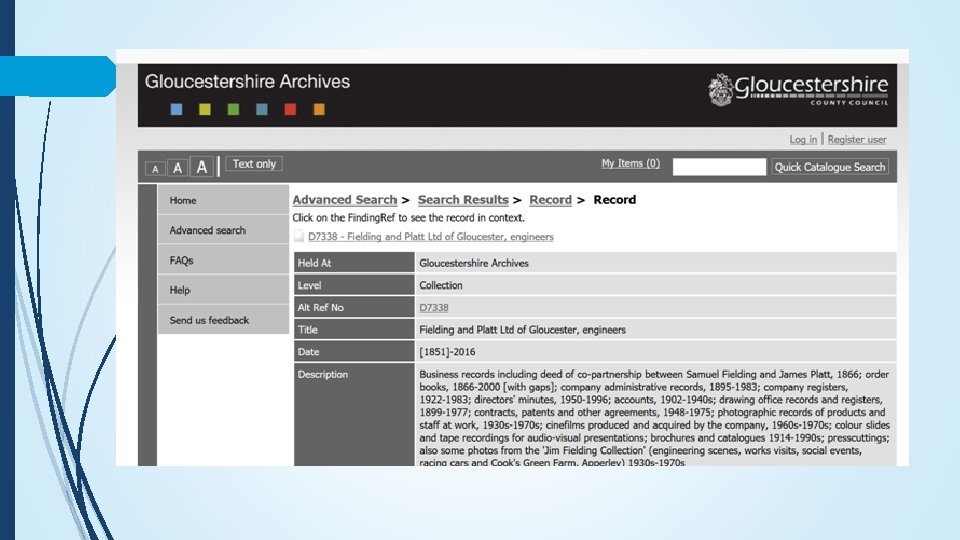
Fielding and Platt Project Gloucestershire Archives
HOW TO USE EXCEL Some Techniques
Is it Excel? • Many excellent (free) alternatives • Applicability: Microsoft Excel (2007 on)
Filtering Data
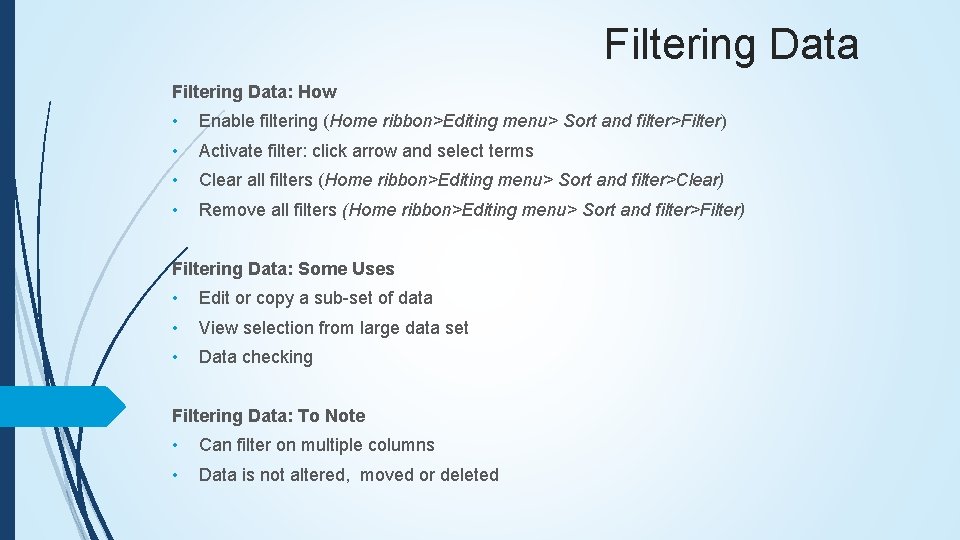
Filtering Data: How • Enable filtering (Home ribbon>Editing menu> Sort and filter>Filter) • Activate filter: click arrow and select terms • Clear all filters (Home ribbon>Editing menu> Sort and filter>Clear) • Remove all filters (Home ribbon>Editing menu> Sort and filter>Filter) Filtering Data: Some Uses • Edit or copy a sub-set of data • View selection from large data set • Data checking Filtering Data: To Note • Can filter on multiple columns • Data is not altered, moved or deleted
Sorting Data
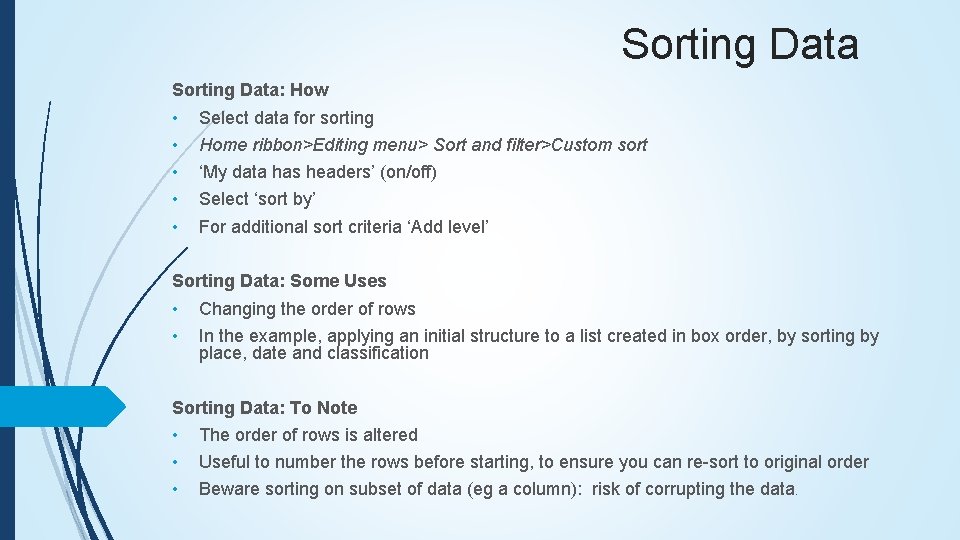
Sorting Data: How • • • Select data for sorting Home ribbon>Editing menu> Sort and filter>Custom sort ‘My data has headers’ (on/off) Select ‘sort by’ For additional sort criteria ‘Add level’ Sorting Data: Some Uses • • Changing the order of rows In the example, applying an initial structure to a list created in box order, by sorting by place, date and classification Sorting Data: To Note • • • The order of rows is altered Useful to number the rows before starting, to ensure you can re-sort to original order Beware sorting on subset of data (eg a column): risk of corrupting the data.
Subdividing Columns
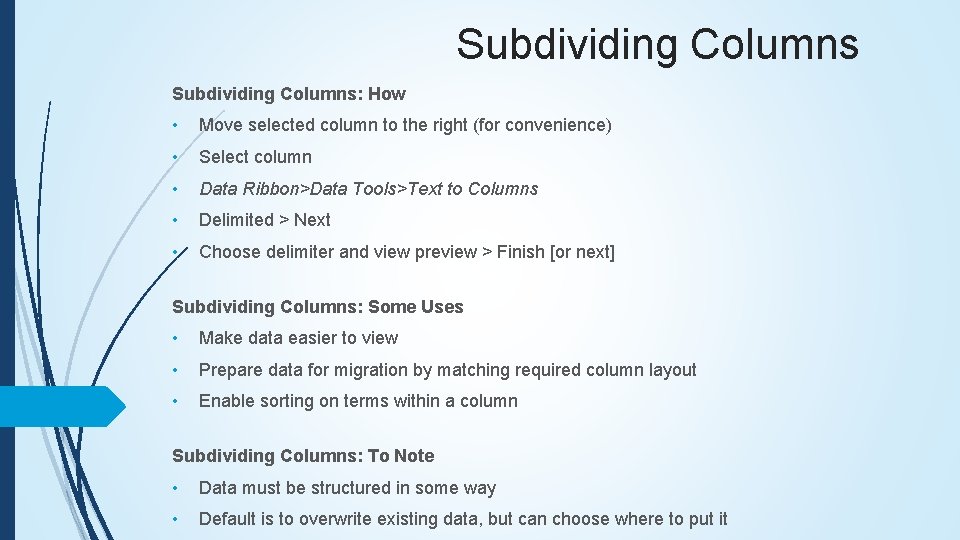
Subdividing Columns: How • Move selected column to the right (for convenience) • Select column • Data Ribbon>Data Tools>Text to Columns • Delimited > Next • Choose delimiter and view preview > Finish [or next] Subdividing Columns: Some Uses • Make data easier to view • Prepare data for migration by matching required column layout • Enable sorting on terms within a column Subdividing Columns: To Note • Data must be structured in some way • Default is to overwrite existing data, but can choose where to put it
Functions and Formulas
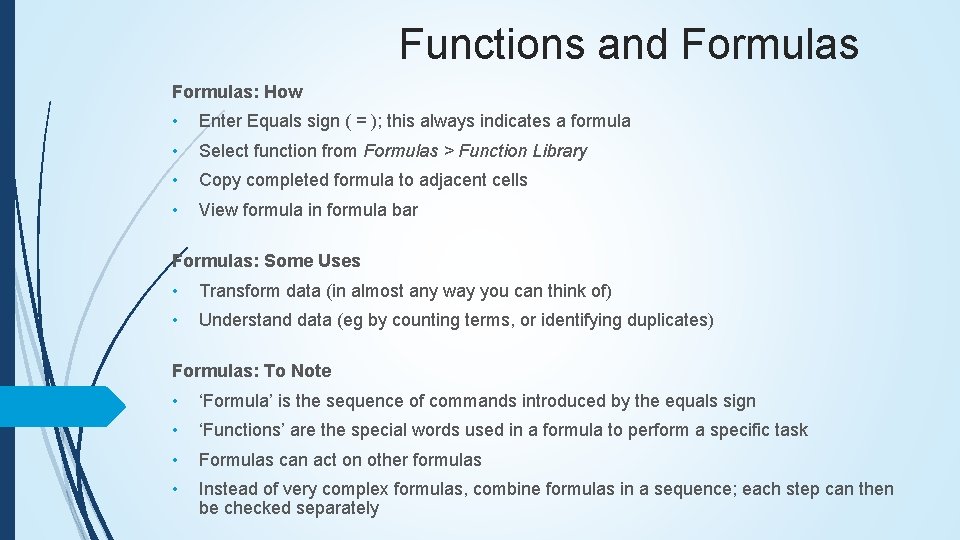
Functions and Formulas: How • Enter Equals sign ( = ); this always indicates a formula • Select function from Formulas > Function Library • Copy completed formula to adjacent cells • View formula in formula bar Formulas: Some Uses • Transform data (in almost any way you can think of) • Understand data (eg by counting terms, or identifying duplicates) Formulas: To Note • ‘Formula’ is the sequence of commands introduced by the equals sign • ‘Functions’ are the special words used in a formula to perform a specific task • Formulas can act on other formulas • Instead of very complex formulas, combine formulas in a sequence; each step can then be checked separately
Autofill
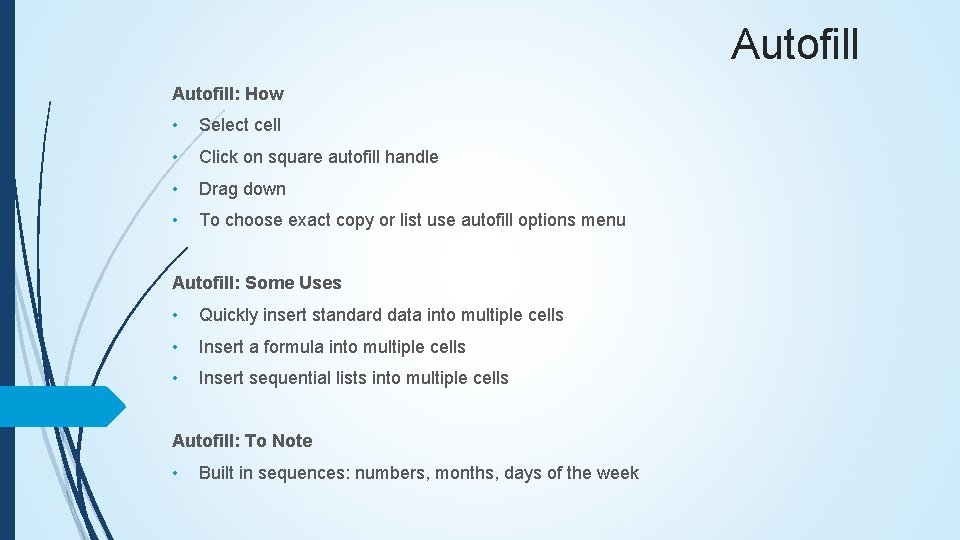
Autofill: How • Select cell • Click on square autofill handle • Drag down • To choose exact copy or list use autofill options menu Autofill: Some Uses • Quickly insert standard data into multiple cells • Insert a formula into multiple cells • Insert sequential lists into multiple cells Autofill: To Note • Built in sequences: numbers, months, days of the week
HOW TO USE EXCEL Some Pitfalls
Data Types [“number format”]
Data Types [“number format”] Data Types: How • Set the type before entering data: Home Ribbon > Number menu Data Types: To Note • Data types are persistent and hard to get rid of once associated with the data • For existing data – especially if copied from elsewhere - what the number menu displays may not be accurate • Data Type – “text” is often ‘safest’ Data Types: To Beware • Data Type = General: risk that Excel will determine what format to impose • Data Type = Number: rounds up or down; may not be what is needed • Data Type = Date: stored as days since 1900; has no effect with earlier dates
Pasting Data from Word
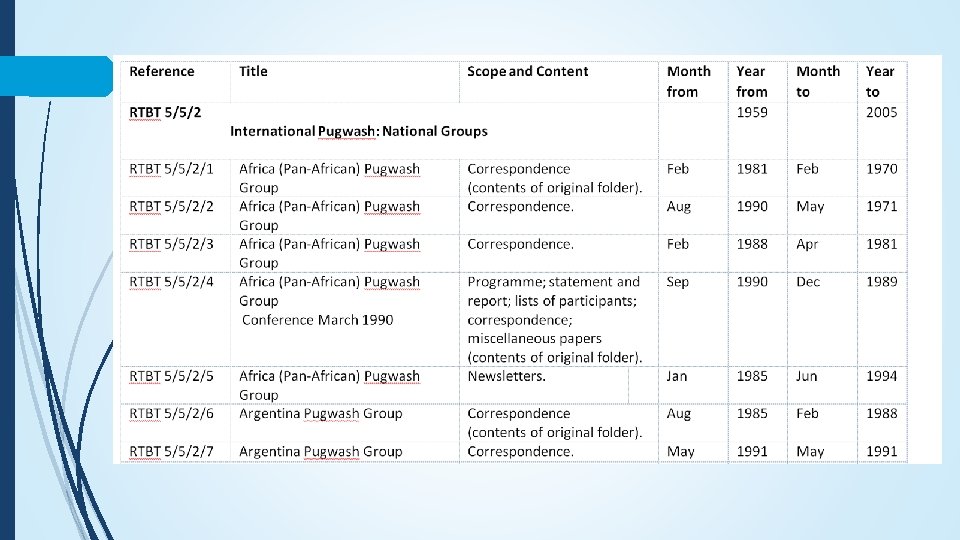
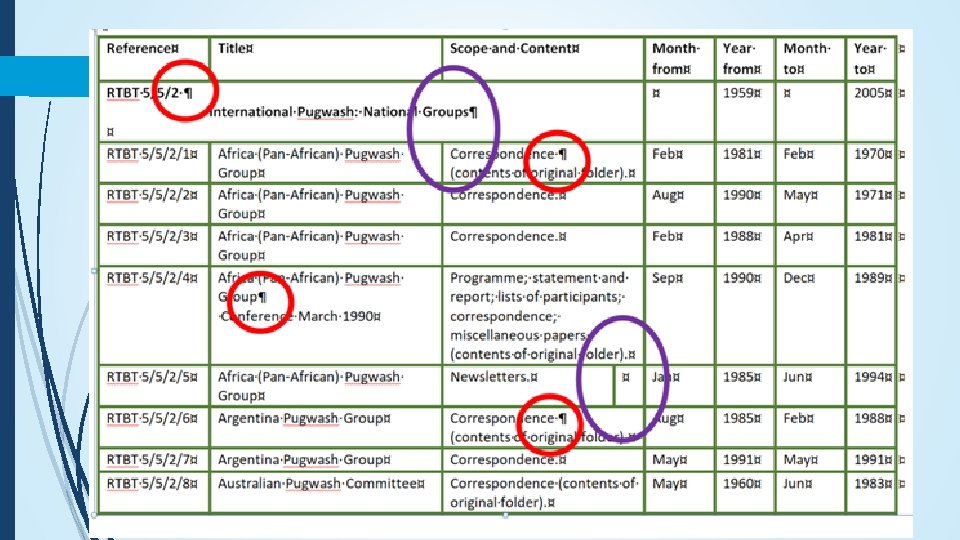
Pasting data from Word Pasting Data From Word: How • Normally best to ‘paste as text’ Pasting Data From Word: To Note Formats and Data Types will normally be copied from Word to Excel Pasting Data From Word: To Beware Before copying, check the Word document to ensure: • No merged cells • No additional columns • No new paragraphs/lines within cells
Session 1 Round-up • Why use Excel: benefits and case study • How to use Excel: key techniques • Excel pitfalls SESSION 2: Your Excel Questions
Session 2 Your Excel Questions
Your Questions • Why can’t I find my data? • Migrating from Excel into Calm • Migrating from Excel into Adlib
Why can’t I find my data?
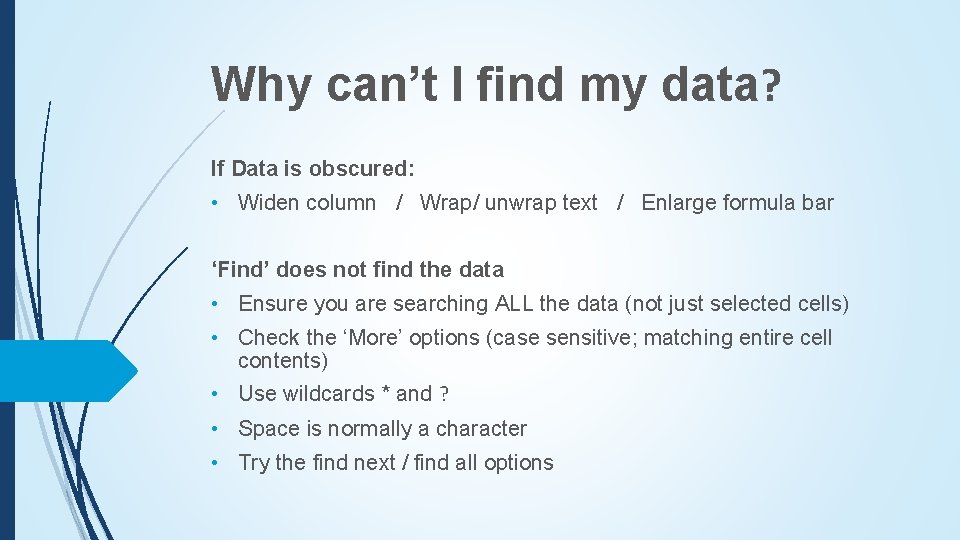
Why can’t I find my data? If Data is obscured: • Widen column / Wrap/ unwrap text / Enlarge formula bar ‘Find’ does not find the data • Ensure you are searching ALL the data (not just selected cells) • Check the ‘More’ options (case sensitive; matching entire cell contents) • Use wildcards * and ? • Space is normally a character • Try the find next / find all options
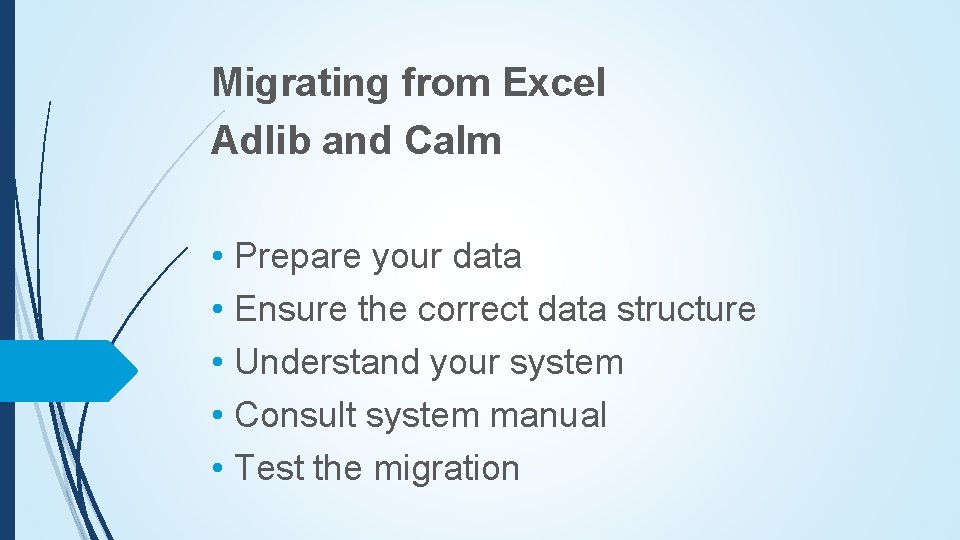
Migrating from Excel Adlib and Calm • Prepare your data • Ensure the correct data structure • Understand your system • Consult system manual • Test the migration
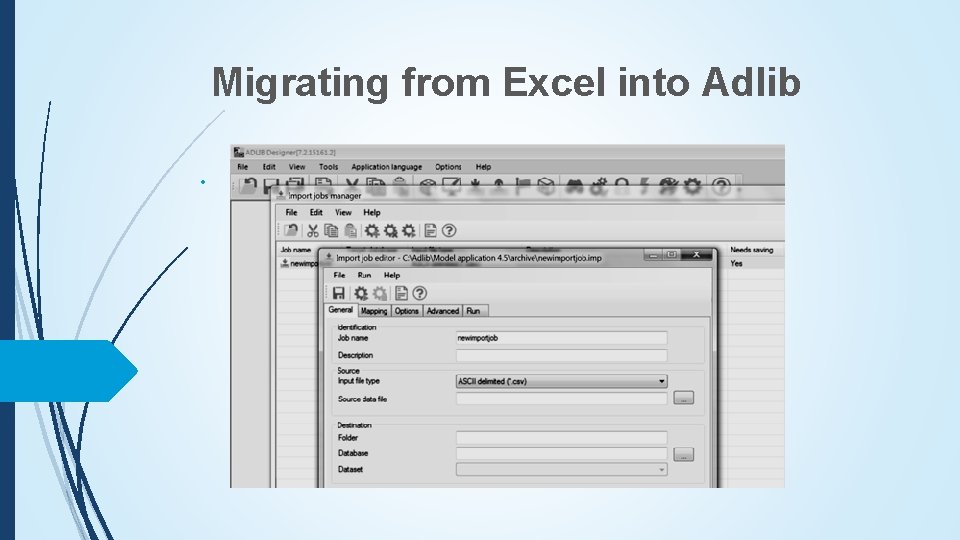
Migrating from Excel into Adlib Use CSV format • Adlib designer • Beware: Designer can delete data permanently • • Adlib Designer Help 7. 2. pdf (starting on page 510) http: //www. adlibsoft. com/support/manuals/maintenance -guides/designer-help-72
Migrating from Excel into Adlib •
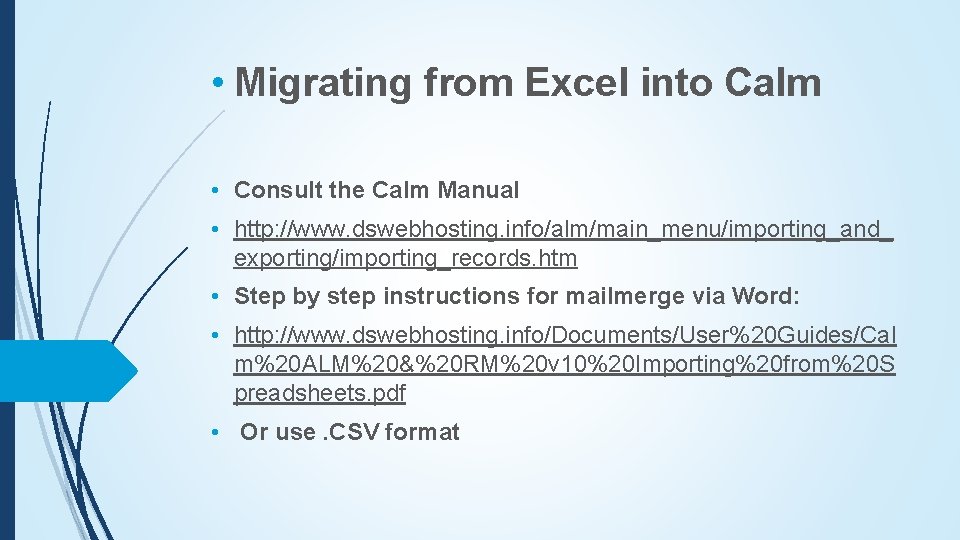
• Migrating from Excel into Calm • Consult the Calm Manual • http: //www. dswebhosting. info/alm/main_menu/importing_and_ exporting/importing_records. htm • Step by step instructions for mailmerge via Word: • http: //www. dswebhosting. info/Documents/User%20 Guides/Cal m%20 ALM%20&%20 RM%20 v 10%20 Importing%20 from%20 S preadsheets. pdf • Or use. CSV format
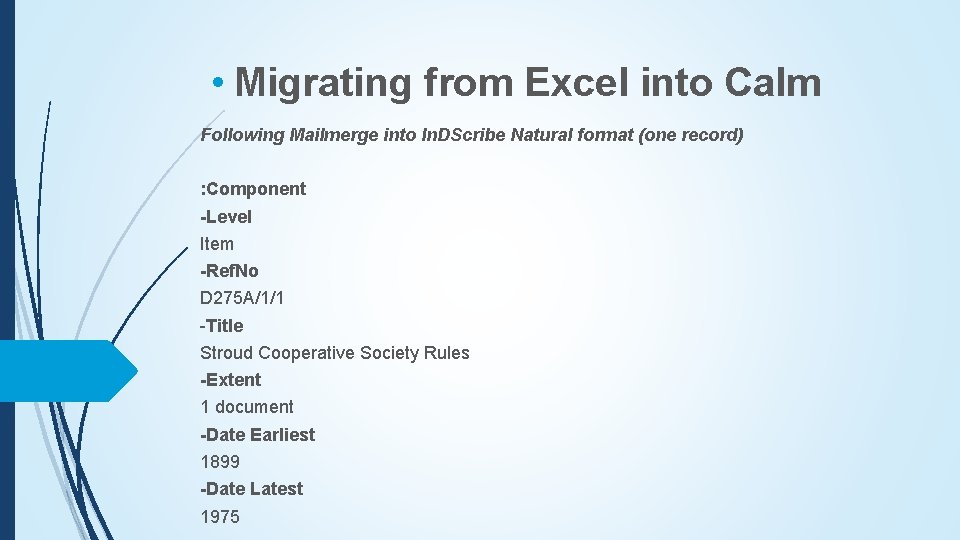
• Migrating from Excel into Calm Following Mailmerge into In. DScribe Natural format (one record) : Component -Level Item -Ref. No D 275 A/1/1 -Title Stroud Cooperative Society Rules -Extent 1 document -Date Earliest 1899 -Date Latest 1975
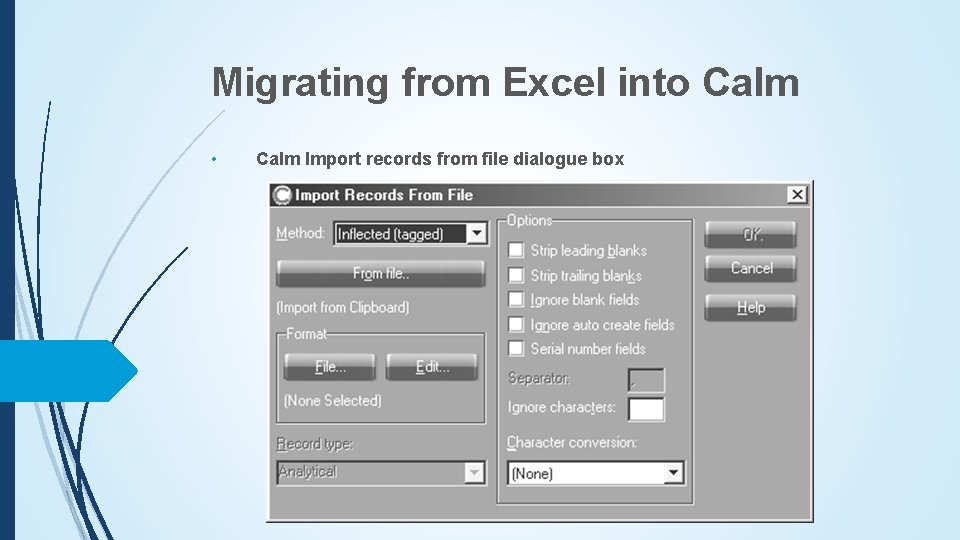
Migrating from Excel into Calm • Calm Import records from file dialogue box
Taking it further: Excel for Archivists Workshops What’s included • • Step by step notes Practical exercises Real life examples Small groups
Taking it further: Excel for Archivists Workshops What’s covered • Level 1: Key techniques including simple formulas • Level 2: Data improvement and data migration
Taking it further: Excel for Archivists Workshops Find out more Contact me at Sheldrick. G@Gmail. com