
Using Dogwood Instructor Mark Reed markreedunc edu Outline









- Slides: 51
Using Dogwood Instructor: Mark Reed markreed@unc. edu
Outline • What is a (compute) cluster? • Dogwood technical specifications Ø • • • types of nodes File spaces What does a job scheduler do? User environment (modules) and applications SLURM fundamentals a) submitting b) querying Job submit examples
What is a compute cluster?
What is a compute cluster? • Some Typical Components Ø Ø Ø Ø Compute Nodes Interconnect Shared File System Software Operating System (OS) Job Scheduler/Manager Mass Storage
Compute Cluster Advantages • fast interconnect, tightly coupled • aggregated compute resources Ø • • • can run parallel jobs to access more compute power and more memory large (scratch) file spaces installed software base scheduling and job management high availability data backup
General computing concepts • Serial computing: code that uses one compute core. • Multi-core computing: code that uses multiple cores on a single machine. Ø Ø Also referred to as “threaded” or “shared-memory” Due to heat issues, clock speeds have plateaued, you get more cores instead. • Parallel computing: code that uses more than one core Ø Ø Shared – cores all on the same host (machine) Distributed – cores can be spread across different machines; • Massively parallel: using thousands or more cores, possibly with an accelerator such as GPU or PHI
Dogwood • Geared towards HPC Ø Focus on running many core, tightly coupled, computational models • Low latency, high bandwidth switching fabric • Large Memory • SLURM job scheduler • What’s in a name? Ø The blossom of the Dogwood tree was designated as the official state flower of North Carolina in 1941.
Dogwood Nodes • Three types of nodes: Ø Ø Ø The majority (183) of the nodes are Intel Xeon processors with the Broadwell-EP microarchitecture 50 nodes of Intel Xeon Skylake 20 nodes of Intel Xeon Phi, Knight’s Landing
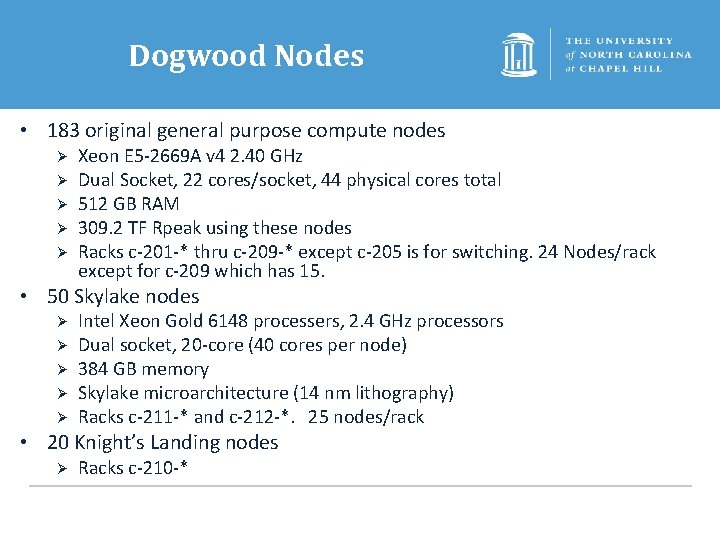
Dogwood Nodes • 183 original general purpose compute nodes Ø Ø Ø Xeon E 5 -2669 A v 4 2. 40 GHz Dual Socket, 22 cores/socket, 44 physical cores total 512 GB RAM 309. 2 TF Rpeak using these nodes Racks c-201 -* thru c-209 -* except c-205 is for switching. 24 Nodes/rack except for c-209 which has 15. • 50 Skylake nodes Ø Ø Ø Intel Xeon Gold 6148 processers, 2. 4 GHz processors Dual socket, 20 -core (40 cores per node) 384 GB memory Skylake microarchitecture (14 nm lithography) Racks c-211 -* and c-212 -*. 25 nodes/rack • 20 Knight’s Landing nodes Ø Racks c-210 -*
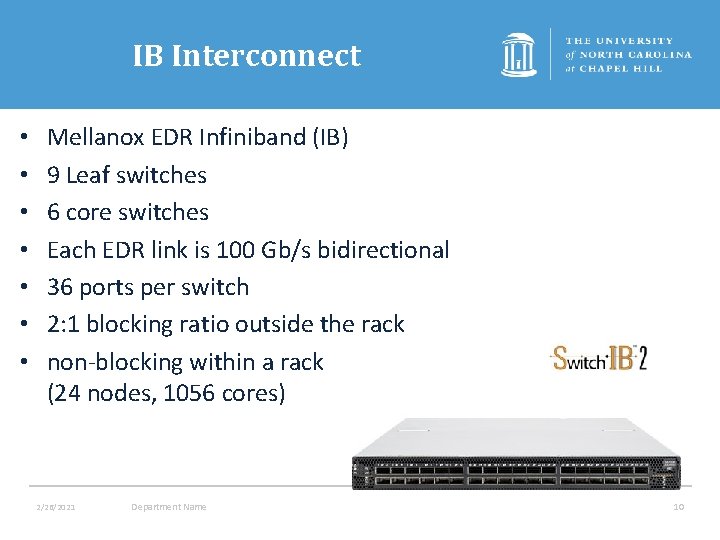
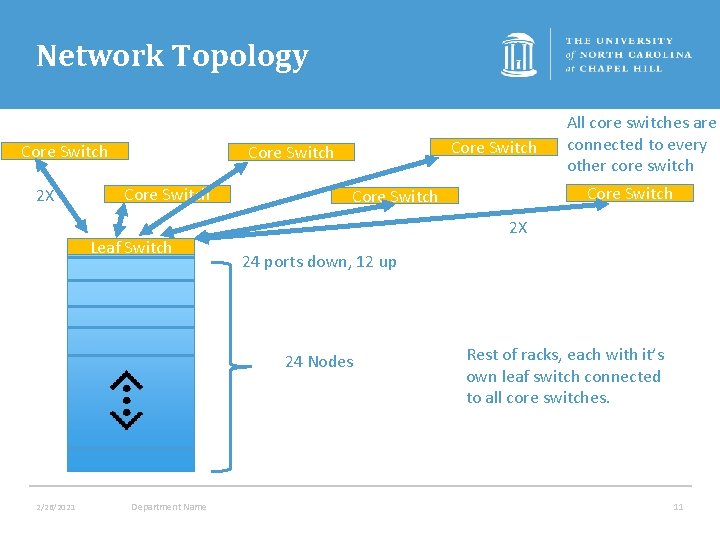
IB Interconnect • • Mellanox EDR Infiniband (IB) 9 Leaf switches 6 core switches Each EDR link is 100 Gb/s bidirectional 36 ports per switch 2: 1 blocking ratio outside the rack non-blocking within a rack (24 nodes, 1056 cores) 2/26/2021 Department Name 10
Network Topology Core Switch 2 X Core Switch Leaf Switch Department Name Core Switch 2 X 24 ports down, 12 up 24 Nodes 2/26/2021 All core switches are connected to every other core switch Rest of racks, each with it’s own leaf switch connected to all core switches. 11
File Spaces
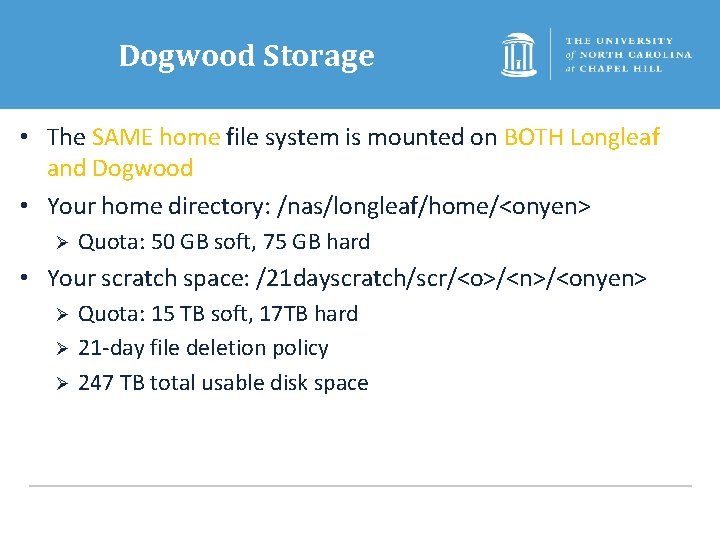
Dogwood Storage • The SAME home file system is mounted on BOTH Longleaf and Dogwood • Your home directory: /nas/longleaf/home/<onyen> Ø Quota: 50 GB soft, 75 GB hard • Your scratch space: /21 dayscratch/scr/<o>/<n>/<onyen> Ø Ø Ø Quota: 15 TB soft, 17 TB hard 21 -day file deletion policy 247 TB total usable disk space
Mass Storage • long term archival storage • access via ~/ms • looks like ordinary disk file system – data is actually stored on tape • “limitless” capacity Ø Actually 2 TB then talk to us • data is backed up • For storage only, not a work directory (i. e. don’t run jobs from here) “To infinity … and beyond” • if you have many small files, use tar or zip to - Buzz Lightyear create a single file for better performance
User Environment - modules
Modules • The user environment is managed by modules. This provides a convenient way customize your environment. Allows you to easily run your applications. • Modules modify the user environment by modifying and adding environment variables such as PATH or LD_LIBRARY_PATH • Typically you set these once and leave them Ø Optionally you can have separate named collections of modules that you load/unload • Even though the home file system is shared for DW and LL, the module system environment is not Ø LMOD uses the environment variable LMOD_SYSTEM_NAME to do this (note: it is set for you when you login)
Using Dogwood • Once on Dogwood you can use module commands to update your Dogwood environment with applications you plan to use, e. g. module add mvapich 2_2. 3 rc 1/intel_17. 2 module save • There are many module commands available for controlling your module environment: http: //help. unc. edu/help/modules-approach- to-softwaremanagement/
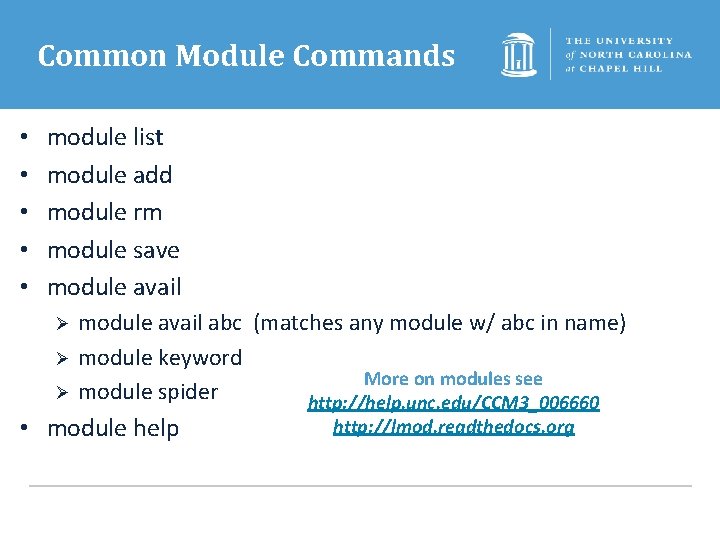
Common Module Commands • • • module list module add module rm module save module avail Ø Ø Ø module avail abc (matches any module w/ abc in name) module keyword More on modules see module spider http: //help. unc. edu/CCM 3_006660 • module help http: //lmod. readthedocs. org
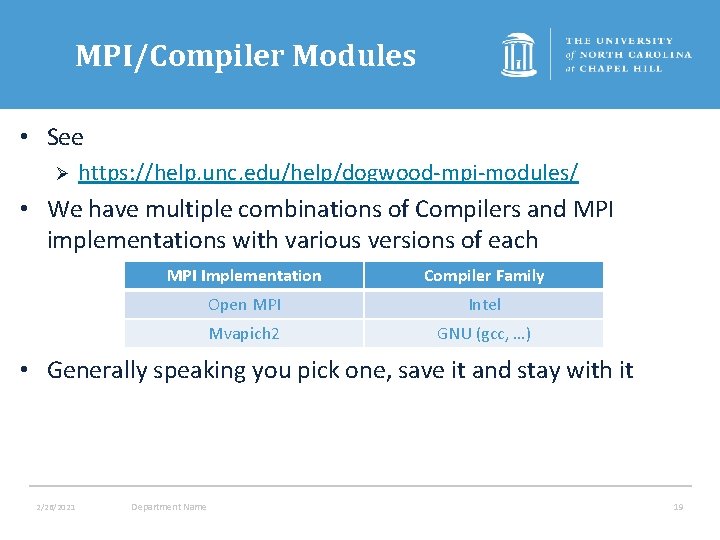
MPI/Compiler Modules • See Ø https: //help. unc. edu/help/dogwood-mpi-modules/ • We have multiple combinations of Compilers and MPI implementations with various versions of each MPI Implementation Compiler Family Open MPI Intel Mvapich 2 GNU (gcc, …) • Generally speaking you pick one, save it and stay with it 2/26/2021 Department Name 19
Compiling • Use the wrapper scripts to compile code, these do all the work of linking in the correct libraries and include files for the compiler/MPI implementation combination Ø Ø Ø mpicc mpif 90, mpif 77, mpifort mpi. CC, mpic++, mpicxx • Cross-Compiling for Skylake Ø Recommended but not required to add the flag • mtune=skylake 2/26/2021 Department Name 20
Job Scheduling and Management
What does a Job Scheduler and batch system do? • • Manage Resources allocate user tasks to resource monitor tasks process control manage input and output report status, availability, etc enforce usage policies
Job Scheduling Systems • Allocates compute nodes to job submissions based on user priority, requested resources, execution time, etc. • Many types of schedulers Ø Ø Ø Simple Linux Utility for Resource Management (SLURM) Load Sharing Facility (LSF) – Used by Killdevil IBM Load. Leveler Portable Batch System (PBS) Sun Grid Engine (SGE)
SLURM • SLURM is an open source, fault-tolerant, and highly scalable cluster management and job scheduling system for Linux clusters. • As a cluster workload manager, SLURM has three key functions. Ø Ø Ø allocates exclusive and/or non-exclusive access to resources (compute nodes) to users for some duration of time so they can perform work. provides a framework for starting, executing, and monitoring work on the set of allocated nodes arbitrates contention for resources by managing a queue of pending work https: //slurm. schedmd. com/overview. html
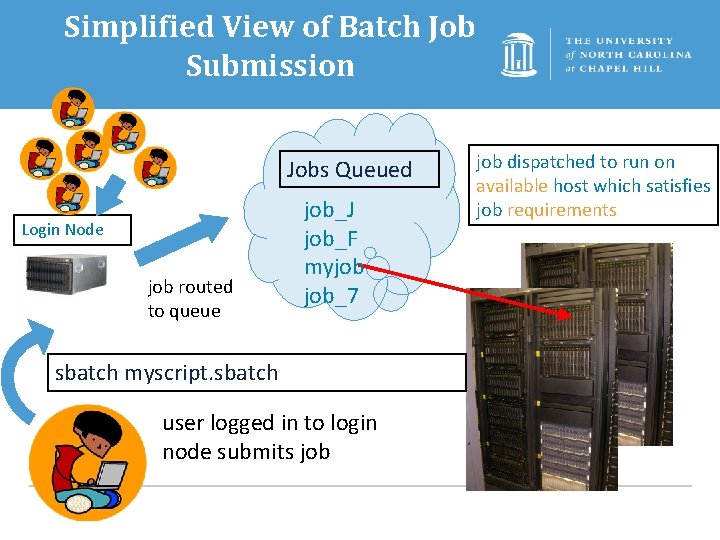
Simplified View of Batch Job Submission Jobs Queued Login Node job routed to queue job_J job_F myjob job_7 sbatch myscript. sbatch user logged in to login node submits job dispatched to run on available host which satisfies job requirements
Running Programs on Dogwood • Upon ssh-ing to Dogwood, you are on the Login node. • Programs SHOULD NOT be run on Login node. Ø Exceptions would be short running commands that don’t use much time, cores or memory • Submit programs to one of the many, many compute nodes. • Submit jobs using SLURM via the sbatch command.
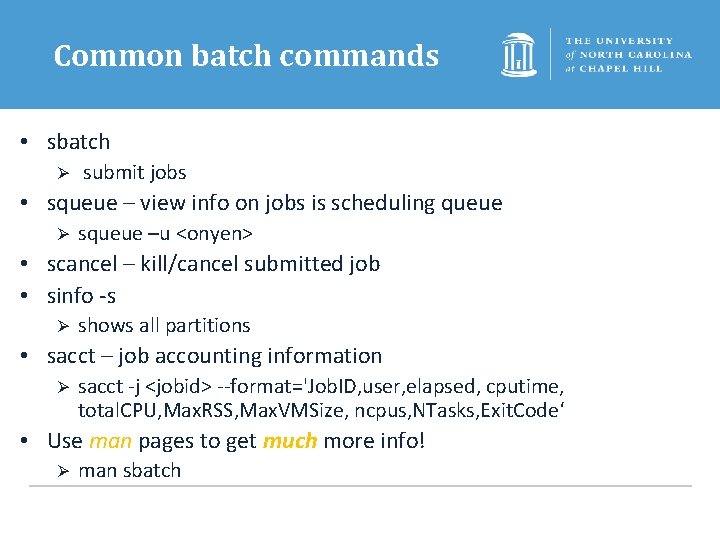
Common batch commands • sbatch Ø submit jobs • squeue – view info on jobs is scheduling queue Ø squeue –u <onyen> • scancel – kill/cancel submitted job • sinfo -s Ø shows all partitions • sacct – job accounting information Ø sacct -j <jobid> --format='Job. ID, user, elapsed, cputime, total. CPU, Max. RSS, Max. VMSize, ncpus, NTasks, Exit. Code‘ • Use man pages to get much more info! Ø man sbatch
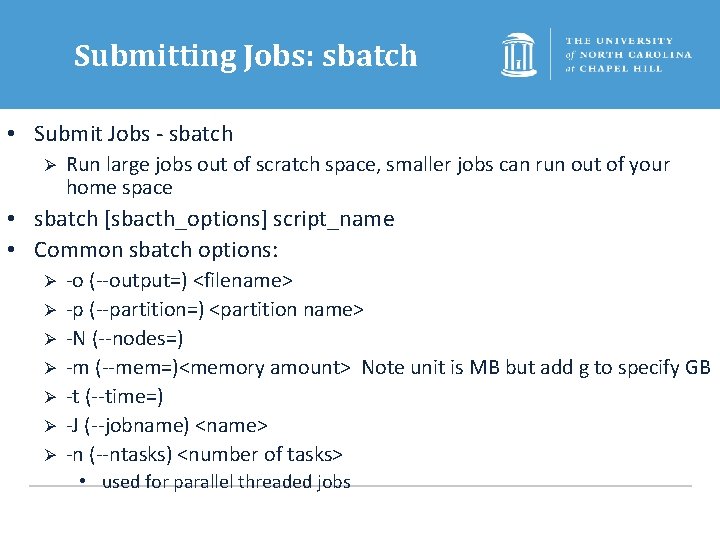
Submitting Jobs: sbatch • Submit Jobs - sbatch Ø Run large jobs out of scratch space, smaller jobs can run out of your home space • sbatch [sbacth_options] script_name • Common sbatch options: Ø Ø Ø Ø -o (--output=) <filename> -p (--partition=) <partition name> -N (--nodes=) -m (--mem=)<memory amount> Note unit is MB but add g to specify GB -t (--time=) -J (--jobname) <name> -n (--ntasks) <number of tasks> • used for parallel threaded jobs
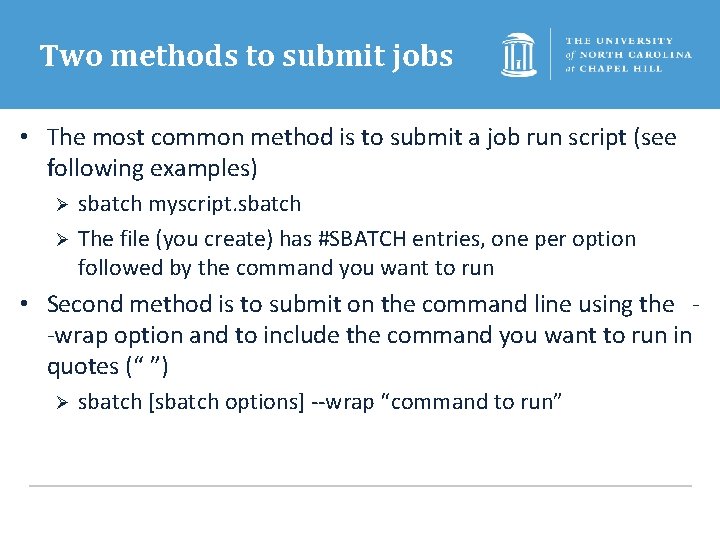
Two methods to submit jobs • The most common method is to submit a job run script (see following examples) Ø Ø sbatch myscript. sbatch The file (you create) has #SBATCH entries, one per option followed by the command you want to run • Second method is to submit on the command line using the -wrap option and to include the command you want to run in quotes (“ ”) Ø sbatch [sbatch options] --wrap “command to run”
Job Submission Examples
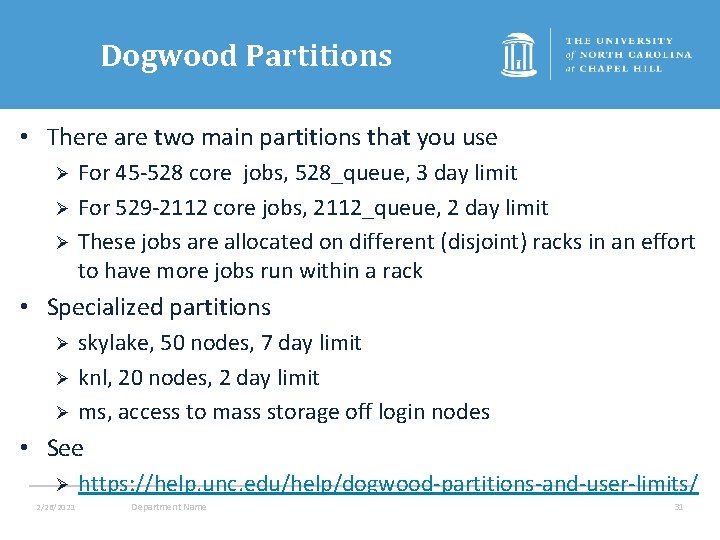
Dogwood Partitions • There are two main partitions that you use Ø Ø Ø For 45 -528 core jobs, 528_queue, 3 day limit For 529 -2112 core jobs, 2112_queue, 2 day limit These jobs are allocated on different (disjoint) racks in an effort to have more jobs run within a rack • Specialized partitions Ø Ø Ø skylake, 50 nodes, 7 day limit knl, 20 nodes, 2 day limit ms, access to mass storage off login nodes • See Ø 2/26/2021 https: //help. unc. edu/help/dogwood-partitions-and-user-limits/ Department Name 31
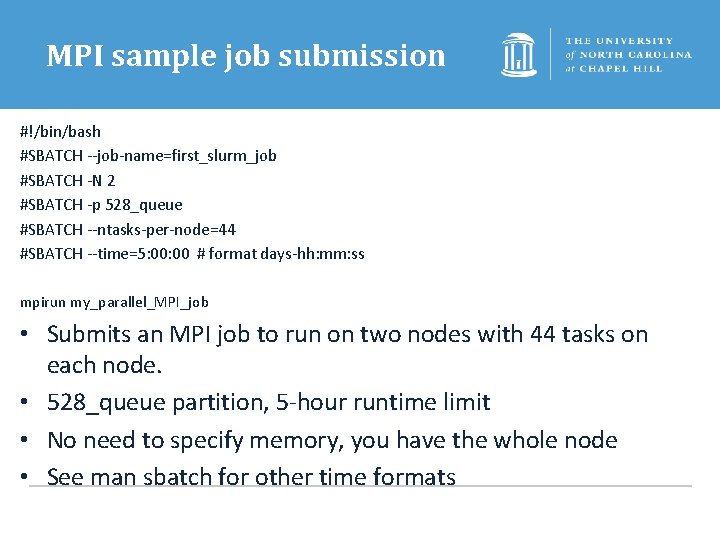
MPI sample job submission #!/bin/bash #SBATCH --job-name=first_slurm_job #SBATCH -N 2 #SBATCH -p 528_queue #SBATCH --ntasks-per-node=44 #SBATCH --time=5: 00 # format days-hh: mm: ss mpirun my_parallel_MPI_job • Submits an MPI job to run on two nodes with 44 tasks on each node. • 528_queue partition, 5 -hour runtime limit • No need to specify memory, you have the whole node • See man sbatch for other time formats
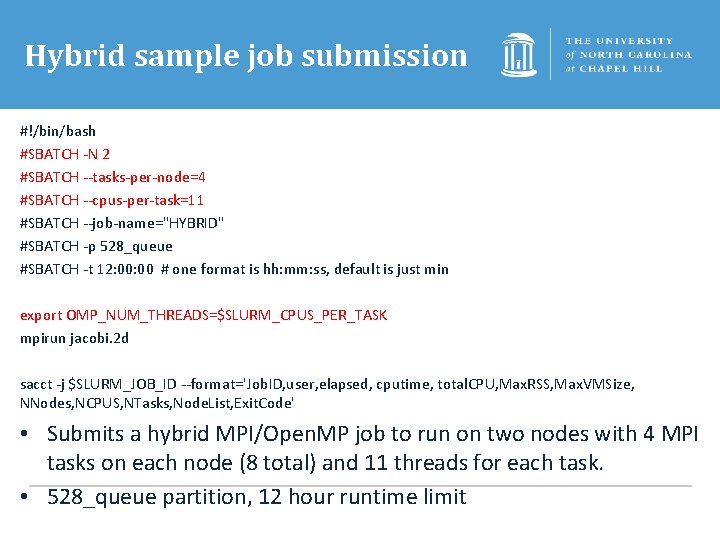
Hybrid sample job submission #!/bin/bash #SBATCH -N 2 #SBATCH --tasks-per-node=4 #SBATCH --cpus-per-task=11 #SBATCH --job-name="HYBRID" #SBATCH -p 528_queue #SBATCH -t 12: 00 # one format is hh: mm: ss, default is just min export OMP_NUM_THREADS=$SLURM_CPUS_PER_TASK mpirun jacobi. 2 d sacct -j $SLURM_JOB_ID --format='Job. ID, user, elapsed, cputime, total. CPU, Max. RSS, Max. VMSize, NNodes, NCPUS, NTasks, Node. List, Exit. Code' • Submits a hybrid MPI/Open. MP job to run on two nodes with 4 MPI tasks on each node (8 total) and 11 threads for each task. • 528_queue partition, 12 hour runtime limit
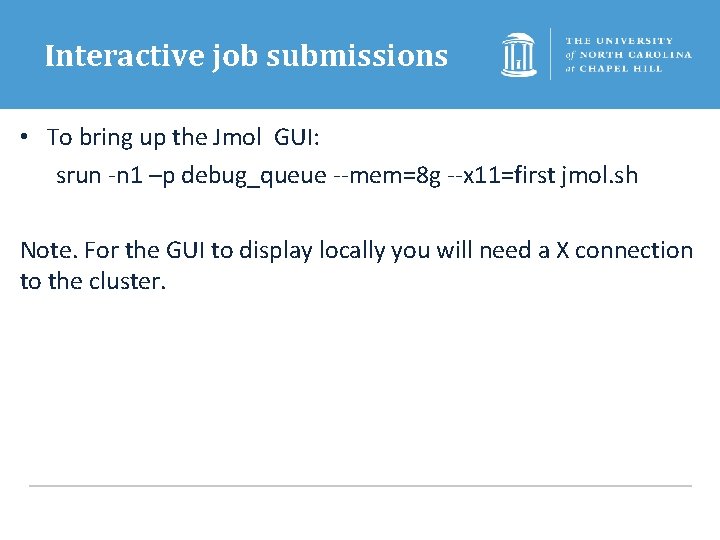
Interactive job submissions • To bring up the Jmol GUI: srun -n 1 –p debug_queue --mem=8 g --x 11=first jmol. sh Note. For the GUI to display locally you will need a X connection to the cluster.
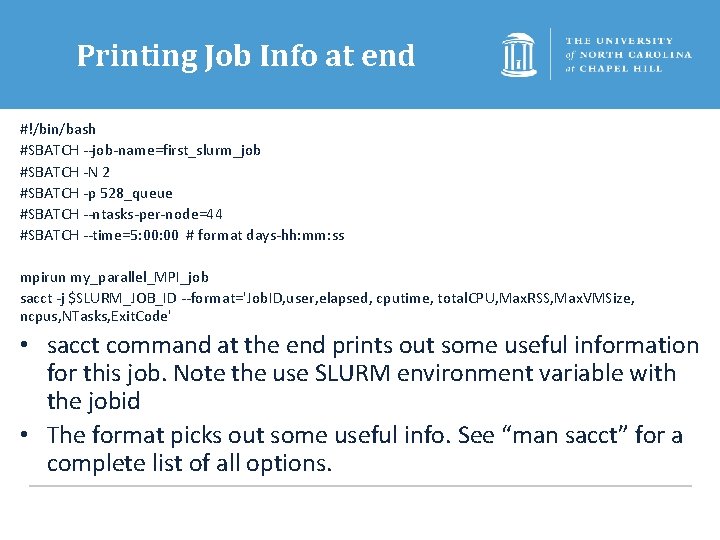
Printing Job Info at end #!/bin/bash #SBATCH --job-name=first_slurm_job #SBATCH -N 2 #SBATCH -p 528_queue #SBATCH --ntasks-per-node=44 #SBATCH --time=5: 00 # format days-hh: mm: ss mpirun my_parallel_MPI_job sacct -j $SLURM_JOB_ID --format='Job. ID, user, elapsed, cputime, total. CPU, Max. RSS, Max. VMSize, ncpus, NTasks, Exit. Code' • sacct command at the end prints out some useful information for this job. Note the use SLURM environment variable with the jobid • The format picks out some useful info. See “man sacct” for a complete list of all options.
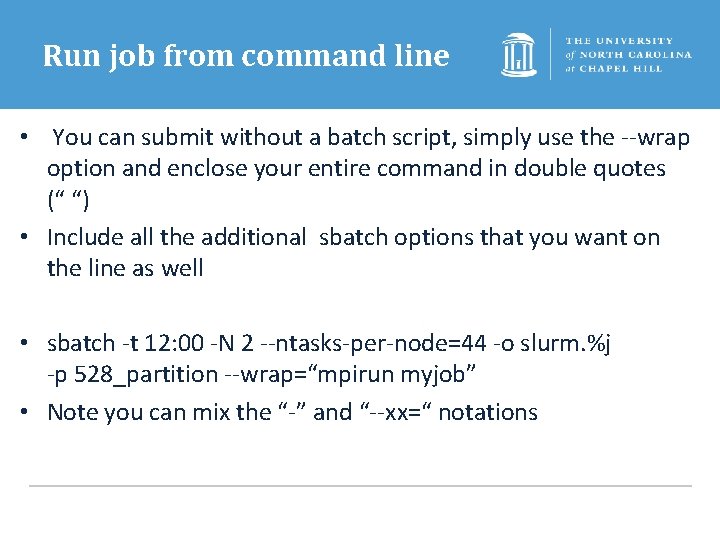
Run job from command line • You can submit without a batch script, simply use the --wrap option and enclose your entire command in double quotes (“ “) • Include all the additional sbatch options that you want on the line as well • sbatch -t 12: 00 -N 2 --ntasks-per-node=44 -o slurm. %j -p 528_partition --wrap=“mpirun myjob” • Note you can mix the “-” and “--xx=“ notations
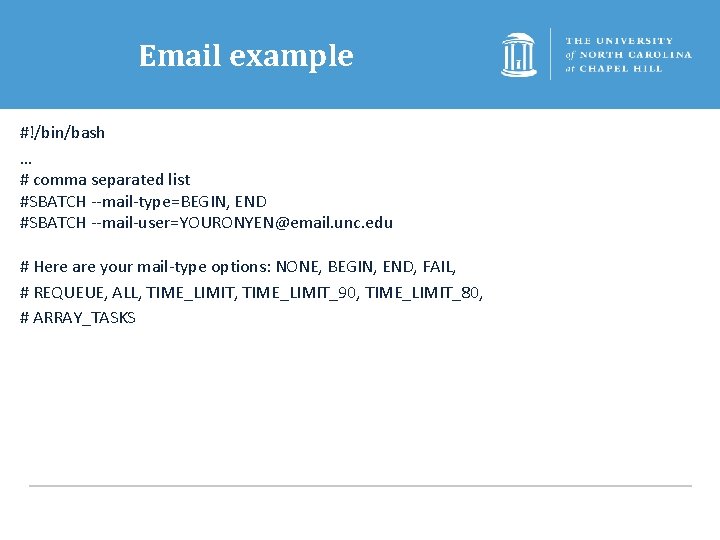
Email example #!/bin/bash … # comma separated list #SBATCH --mail-type=BEGIN, END #SBATCH --mail-user=YOURONYEN@email. unc. edu # Here are your mail-type options: NONE, BEGIN, END, FAIL, # REQUEUE, ALL, TIME_LIMIT_90, TIME_LIMIT_80, # ARRAY_TASKS
Questions and Comments? • For assistance with any of our services, please contact Research Computing Ø Ø Ø Email: research@unc. edu Phone: 919 -962 -HELP Submit help ticket at http: //help. unc. edu
Supplemental Material
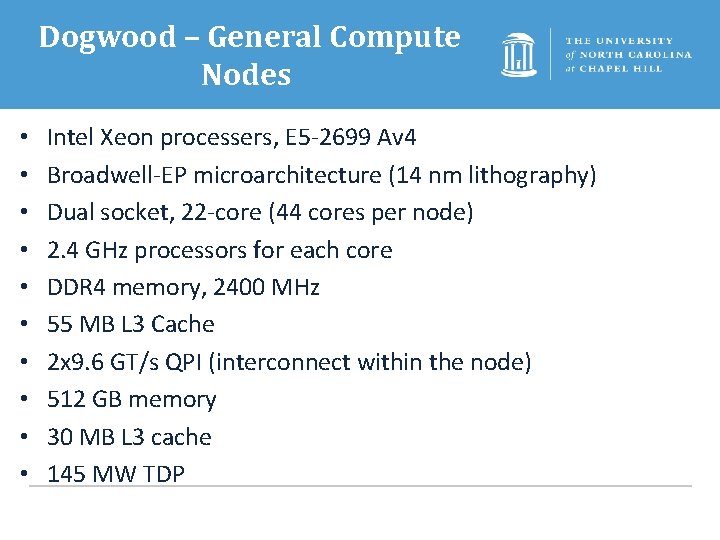
Dogwood – General Compute Nodes • • • Intel Xeon processers, E 5 -2699 Av 4 Broadwell-EP microarchitecture (14 nm lithography) Dual socket, 22 -core (44 cores per node) 2. 4 GHz processors for each core DDR 4 memory, 2400 MHz 55 MB L 3 Cache 2 x 9. 6 GT/s QPI (interconnect within the node) 512 GB memory 30 MB L 3 cache 145 MW TDP
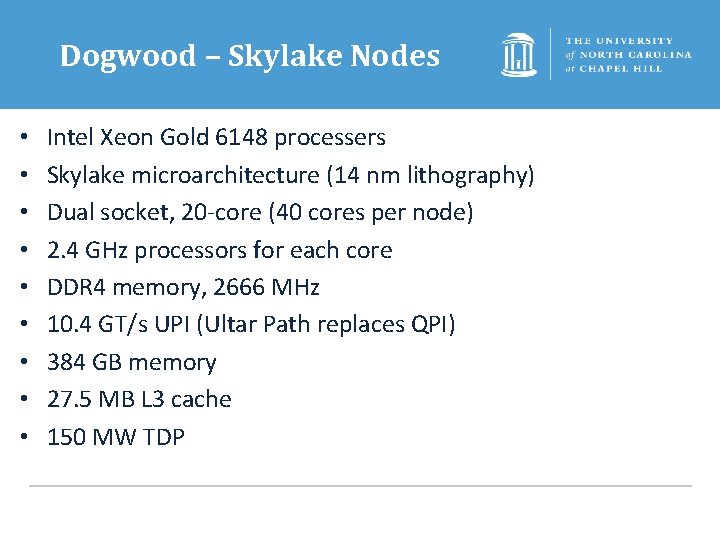
Dogwood – Skylake Nodes • • • Intel Xeon Gold 6148 processers Skylake microarchitecture (14 nm lithography) Dual socket, 20 -core (40 cores per node) 2. 4 GHz processors for each core DDR 4 memory, 2666 MHz 10. 4 GT/s UPI (Ultar Path replaces QPI) 384 GB memory 27. 5 MB L 3 cache 150 MW TDP
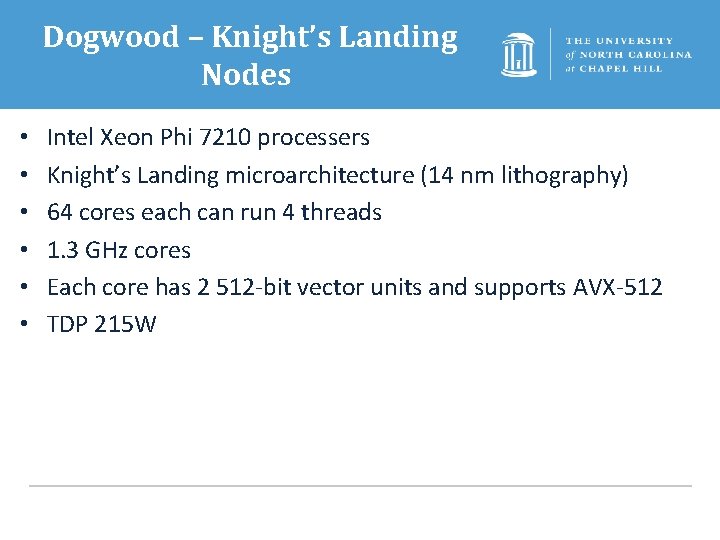
Dogwood – Knight’s Landing Nodes • • • Intel Xeon Phi 7210 processers Knight’s Landing microarchitecture (14 nm lithography) 64 cores each can run 4 threads 1. 3 GHz cores Each core has 2 512 -bit vector units and supports AVX-512 TDP 215 W
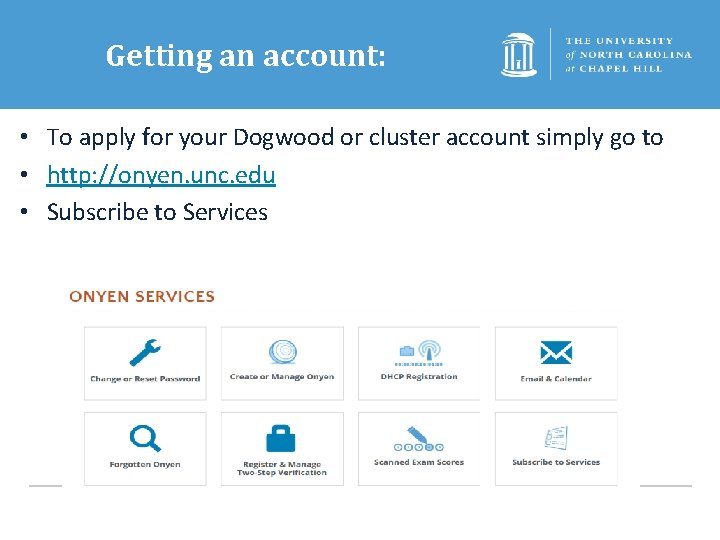
Getting an account: • To apply for your Dogwood or cluster account simply go to • http: //onyen. unc. edu • Subscribe to Services
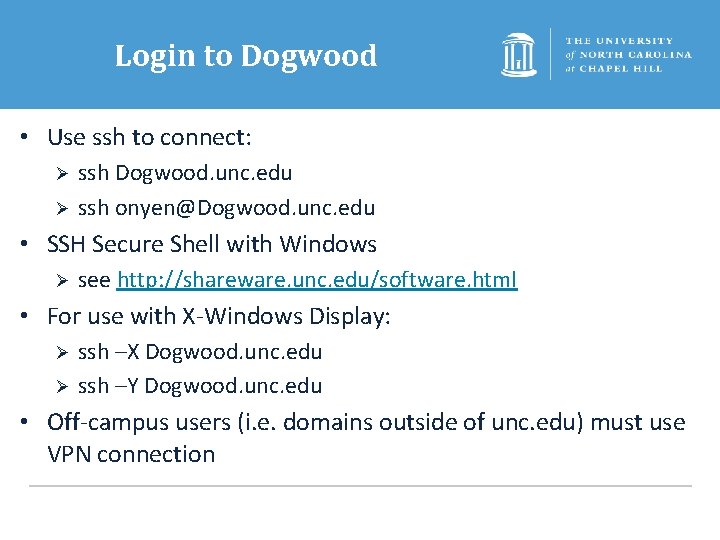
Login to Dogwood • Use ssh to connect: Ø Ø ssh Dogwood. unc. edu ssh onyen@Dogwood. unc. edu • SSH Secure Shell with Windows Ø see http: //shareware. unc. edu/software. html • For use with X-Windows Display: Ø Ø ssh –X Dogwood. unc. edu ssh –Y Dogwood. unc. edu • Off-campus users (i. e. domains outside of unc. edu) must use VPN connection
X Windows • An X windows server allows you to open a GUI from a remote machine (e. g. the cluster) onto your desktop. How you do this varies by your OS • Linux – already installed • Mac - get Xquartz which is open source Ø https: //www. xquartz. org/ • MS Windows - need an application such as X-win 32. See Ø http: //help. unc. edu/help/research-computing-application-xwin 32/
File Transfer • Different platforms have different commands and applications you can use to transfer files between your local machine and Dogwood: • Linux– scp, rsync Ø Ø scp: https: //kb. iu. edu/d/agye rsync: https: //en. wikipedia. org/wiki/Rsync • Mac- scp, Fetch Ø Fetch: http: //software. sites. unc. edu/shareware/#f • Windows- SSH Secure Shell Client, Moba. Xterm Ø Ø SSH Secure Shell Client: http: //software. sites. unc. edu/shareware/#s Moba. Xterm: https: //mobaxterm. mobatek. net/
File Transfer • Globus– good for transferring large files or large numbers of files. A client is available for Linux, Mac, and Windows. Ø Ø http: //help. unc. edu/? s=globus https: //www. globus. org/
Dogwood Links • Dogwood page with links Ø https: //its. unc. edu/rc-services/dogwood-cluster/ • Dogwood Getting Started Ø https: //help. unc. edu/help/getting-started-on-dogwood/ • SLURM examples Ø https: //help. unc. edu/help/dogwood-slurm-examples/ • Dogwood partitions Ø https: //help. unc. edu/help/dogwood-partitions-and-user-limits/
2/26/2021 Department Name