
Using ATTRIB SUBST XCOPY DOSKEY and the Text
Using ATTRIB, SUBST, XCOPY, DOSKEY, and the Text Editor Ch 7 1
Overview The purpose and function of file attributes will be explained. Ch 7 2
Overview Utility commands and programs will be used to manipulate files and subdirectories to make tasks at the command line easier to do. Ch 7 3
Overview This chapter will focus on the following commands and programs: è ATTRIB è XCOPY è DOSKEY è EDIT Ch 7 4
File Attributes and the ATTRIB Command Root directory keeps track of information about every file on a disk. Ch 7 5
File Attributes and the ATTRIB Command Each file in the directory has attributes. Ch 7 6
File Attributes and the ATTRIB Command Attributes represented by single letter: è S - System attribute è H - Hidden attribute è R - Read-only attribute è A - Archive attribute Ch 7 7
File Attributes and the ATTRIB Command NTFS file system: èHas other attributes èAt command line only attributes can change with ATTRIB command are S, H, R, and A Ch 7 8
File Attributes and the ATTRIB Command ATTRIB command: èUsed to manipulate file attributes Ch 7 9
![File Attributes and the ATTRIB Command ATTRIB command syntax: ATTRIB [+R | -R] [+A](http://slidetodoc.com/presentation_image_h/1ed841b211cced0c06b36005734580a1/image-10.jpg "File Attributes and the ATTRIB Command ATTRIB command syntax: ATTRIB [+R | -R] [+A")
File Attributes and the ATTRIB Command ATTRIB command syntax: ATTRIB [+R | -R] [+A | -A] [+S | -S] [+H | -H] [[drive: ] [path] filename] [/S [/D]] Ch 7 10
File Attributes and the ATTRIB Command Attributes most useful to set and unset: èR - Read-only èH - Hidden Ch 7 11
File Attributes and the ATTRIB Command The A attribute (archive bit) signals file has not been backed up. Ch 7 12
File Attributes and the ATTRIB Command XCOPY command can read the archive bit. Ch 7 13
File Attributes and the ATTRIB Command è File attributes can be changed from Windows Explorer. è Easier to do these tasks from command prompt. Ch 7 14
Activity—Using ATTRIB to make Files Read-Only KEY CONCEPTS: è Using + or - alters attribute è Cannot overwrite or delete readonly files è Can delete read-only files with /F parameter with DEL command Ch 7 15
Using Hidden & Archive Attributes with ATTRIB H attribute used to hide file so when DIR command is used the file name is not displayed. Ch 7 16
Using Hidden & Archive Attributes with ATTRIB Using hidden attribute allows for manipulation of files. Ch 7 17
Using Hidden & Archive Attributes with ATTRIB More difficult to perform file operations on groups of files simultaneously in Windows Explorer. Ch 7 18
Using Hidden & Archive Attributes with ATTRIB è The A attribute can flag a file as changed since the last time it was backed up. è ATTRIB command can set and unset this flag. Ch 7 19
Activity—Using the H and the A Attributes KEY CONCEPTS: è Reasons for hiding files è D, R, H, A attributes used to help manage files è Use attributes with ATTRIB and XCOPY è Space between each parameter - watch spacing of command syntax carefully Ch 7 20
Activity—Using the H and the A Attributes KEY CONCEPTS: è Rename file - keeps attributes è Copy file - does not keep attributes è Use of + and - in setting and unsetting file attributes è Eliminate/add several file attributes with one command Ch 7 21
The SUBST Command SUBST command: èExternal command èSubstitutes drive letter for path name èAlleviates keying in long path name Ch 7 22
The SUBST Command SUBST command: è Installs programs that recognize disk drive but not the subdirectory è Derives information from a drive that a program does not recognize Ch 7 23
The SUBST Command Be cautious when using SUBST with a network drive. Ch 7 24
The SUBST Command While substitution is in effect, do not use SUBST with the following commands: è è è è LABEL CHKDSK FORMAT DISKCOPY DISKCOM RECOVER FDISK Ch 7 25
![The SUBST Command SUBST command syntax: SUBST [drive 1: [drive 2: ]path] Ch 7](http://slidetodoc.com/presentation_image_h/1ed841b211cced0c06b36005734580a1/image-26.jpg "The SUBST Command SUBST command syntax: SUBST [drive 1: [drive 2: ]path] Ch 7")
The SUBST Command SUBST command syntax: SUBST [drive 1: [drive 2: ]path] Ch 7 26
The SUBST Command To undo a substitution: èSUBST drive 1: /D To see what has been substituted: èSUBST Ch 7 27
Activity—Using SUBST KEY CONCEPTS: èVirtual/logical drives èSUBST åUses logical/virtual drive letter äConceptually how networks operate åDestination - use drive letter and path äSUBST does not recognize drive letter alone as destination åWhen done - undo SUBST Ch 7 28
The XCOPY Command Drawbacks of COPY command: è Reads and copies only one file at a time è Cannot copy subdirectory structure è Copied file does not retain source file attributes Ch 7 29
The XCOPY Command XCOPY command: è External command è Copies files that exist in different subdirectories è Can specify drive as source to copy all files on drive. è Provides overwrite protection Ch 7 30
The XCOPY Command XCOPY command: è Can be specific about characteristics of files to be backed up è Faster than COPY è By default will not copy system or hidden files Ch 7 31
The XCOPY Command Advantages of command line over using Windows Explorer: è Drag and drop problems è Can perform file operations on group of files rather than one file at a time Ch 7 32
![The XCOPY Command XCOPY syntax: XCOPY source [destination] [/A | /M] [/D[ : date]]](http://slidetodoc.com/presentation_image_h/1ed841b211cced0c06b36005734580a1/image-33.jpg "The XCOPY Command XCOPY syntax: XCOPY source [destination] [/A | /M] [/D[ : date]]")
The XCOPY Command XCOPY syntax: XCOPY source [destination] [/A | /M] [/D[ : date]] [/P] [/S [/E]] [/V][/W] [/C] [/I] [/Q] [/F] [/L] [/H] [/R] [/T] [/U] [/K] [/N] [/O] [/X] [/Y] [/-Y] [/Z] [/EXCLUDE: file 1 [+file 2] [+file 3]…] Ch 7 33
Activity—Using the XCOPY Command KEY CONCEPTS: èRecreating structure on DATA disk èUses of /S, /D, and /M with XCOPY èXCOPY åDefault confirms overwrite åCan manipulate A attribute åCan copy hidden files Ch 7 34
Multiple XCOPY Parameters XCOPY command: è Performs file operations on hidden, system, and read-only files è Can manipulate files having one or more parameters è Used to accomplish tasks at command line that cannot be accomplished in GUI Ch 7 35
Multiple XCOPY Parameters Next activity will copy two files to new directory that had hidden attributes set without removing the H attribute. Ch 7 36
Activity—Using Multiple XCOPY Parameters KEY CONCEPTS: èXCOPY with H and L parameters èXCOPY with “SHRIEK” parameters èXCOPY with “SHREK” parameters èSystem attributes are hidden èChanging file attributes èATTRIB - order of parameters does not matter Ch 7 37
DOSKEY: è External, memory-resident command è Automatically loaded when Command Prompt window opened è Enhances command line editing Ch 7 38
DOSKEY è DOSKEY remains in memory only during current DOS session. è DOSKEY acts like an internal command. Ch 7 39
DOSKEY TSR (Terminal Stay Resident): è Memory resident commands è Initially works like external command è Does not release memory for duration of Command Prompt work session Ch 7 40
DOSKEY: èRecalls and edits command lines èKeeps command history èUsed to write a macro Ch 7 41
![DOSKEY syntax: DOSKEY [/REINSTALL] [/LISTSIZE=size] [/MACROS [: ALL | : exename]] [/HISTORY] [/INSERT |](http://slidetodoc.com/presentation_image_h/1ed841b211cced0c06b36005734580a1/image-42.jpg "DOSKEY syntax: DOSKEY [/REINSTALL] [/LISTSIZE=size] [/MACROS [: ALL | : exename]] [/HISTORY] [/INSERT |")
DOSKEY syntax: DOSKEY [/REINSTALL] [/LISTSIZE=size] [/MACROS [: ALL | : exename]] [/HISTORY] [/INSERT | /OVERSTRIKE] [/EXENAME=exename] [/MACROFILE=filename] [macroname=[text]] Ch 7 42
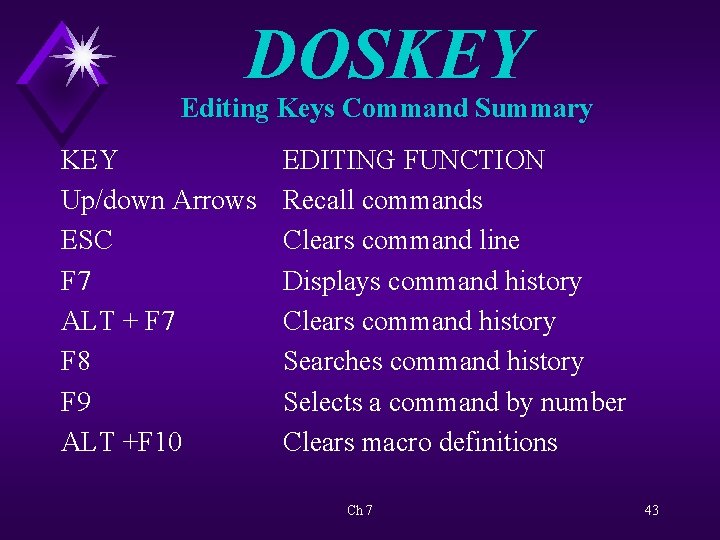
DOSKEY Editing Keys Command Summary KEY Up/down Arrows ESC F 7 ALT + F 7 F 8 F 9 ALT +F 10 EDITING FUNCTION Recall commands Clears command line Displays command history Clears command history Searches command history Selects a command by number Clears macro definitions Ch 7 43
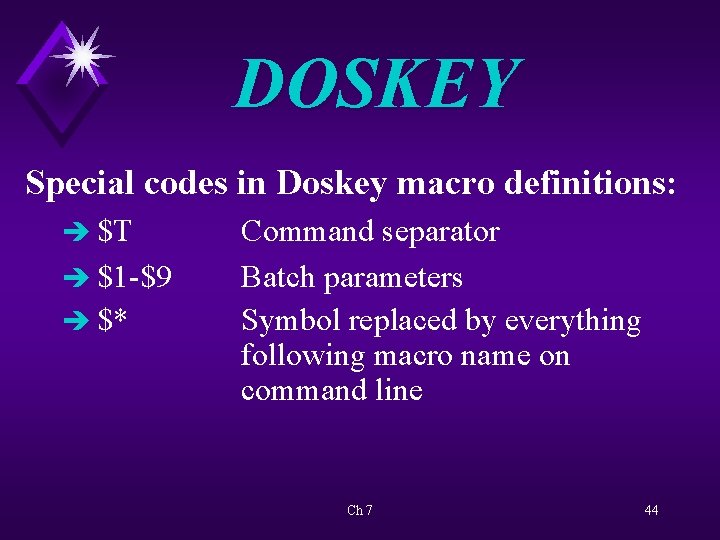
DOSKEY Special codes in Doskey macro definitions: è $T è $1 -$9 è $* Command separator Batch parameters Symbol replaced by everything following macro name on command line Ch 7 44
Activity—Using DOSKEY CONCEPTS: è Using HISTORY parameter with DOSKEY è Defining batch files and macros è How to have more than one command on a line in a Command Prompt Window è Closing Command Prompt window eliminates macros created in this window åRedirecting macros to batch file saves them Ch 7 45
The Command Prompt Text Editor Word-processing program: è Used for writing needs è Allows full flexibility in creating and editing documents è Most permit saving document as ASCII text Ch 7 46
The Command Prompt Text Editor Text or ASCII files are used to give instructions to the operating system. Ch 7 47
The Command Prompt Text Editor Text editor: èUsed to create text documents èUsed to write batch files èNot a word processor åCannot format data in document Ch 7 48
The Command Prompt Text Editor Text editors: è Every operating system has one è NOTEPAD used on desktop è EDIT used at command prompt window Ch 7 49
The Command Prompt Text Editor Edit text editor: èCommand line interface text editor èNot a word processor åCannot format data in documents åCannot manipulate environment Ch 7 50
The Command Prompt Text Editor Edit text editor menus: è Screen menu å Bar at top å Status bar at bottom è File menu å Open new or existing document å Save or print a document å Save document under new name å Exit editor Ch 7 51
The Command Prompt Text Editor Edit text editor menus: èEdit menu å Cut, copy, paste, delete selected text èSearch menu å Find a specified string of text å Repeat the Last Find å Search for specified string of text å Replace string of text with another string of text Ch 7 52
The Command Prompt Text Editor Edit text editor menus: èView menu å Split, Size, or Close Edit window èOptions menu å Change Printer Port or tab Stops å Choose Colors for Edit window Ch 7 53
The Command Prompt Text Editor Edit text editor menus: èHelp menu å Click Commands to get a list of all available Edit commands å Click About to view version information for Edit Ch 7 54
The Command Prompt Text Editor A variety of cursor movement keys and shortcuts can be used to edit a text file. Ch 7 55
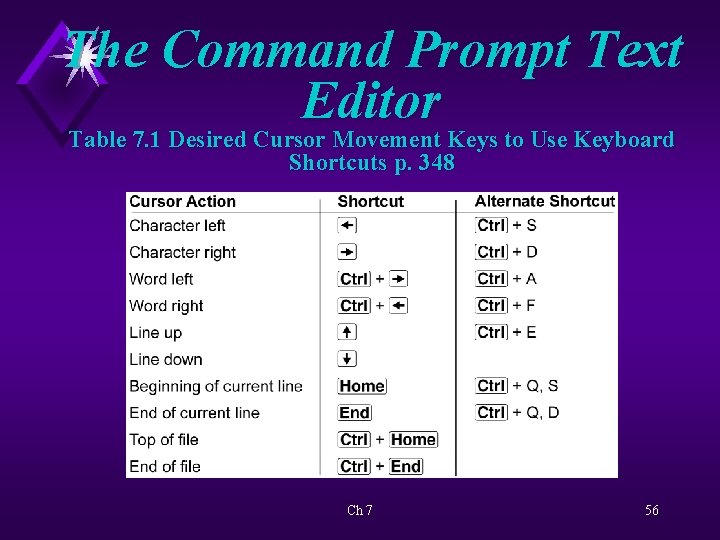
The Command Prompt Text Editor Table 7. 1 Desired Cursor Movement Keys to Use Keyboard Shortcuts p. 348 Ch 7 56
Activity—Using the Command Prompt Text Editor KEY CONCEPTS: èMaking mouse work èInsert Vs. overstrike mode å<Insert> key toggles between two modes èFull screen editing åUsing mouse and keystrokes åSelecting text Ch 7 57
Activity—Using the Command Prompt Text Editor KEY CONCEPTS: èViewing two files simultaneously èCreating macro èCreating batch files å To execute batch file - key in name Ch 7 58
Using Text Data Files Use of text editor to create data: èDesired program not available èCan import text files from many programs èWith recorder can record needed data in text file Ch 7 59
Activity - Importing a Text File KEY CONCEPTS: èImported text data into Excel èTex Import Wizard screen used to define data Ch 7 60
- Slides: 60