
Using Arc Pro GIS Part 2 Learning the


- Slides: 36
Using Arc. Pro GIS: Part 2 Learning the Basics of Arc. Pro Updated 4/17/2019
Tools demonstrated here Saving a project – how to and how not to Making a jpeg from a layout Feature and Image themes (data types) Adding an Image Theme Scale – how to insure it appears on your final map Proclib – what is it and what is required
Saving Your Project
Saving a Project A project file DOES NOT SAVE DATA A project file saves a path to data Thus when you resume work on a project the path (location must be the same as in the past)
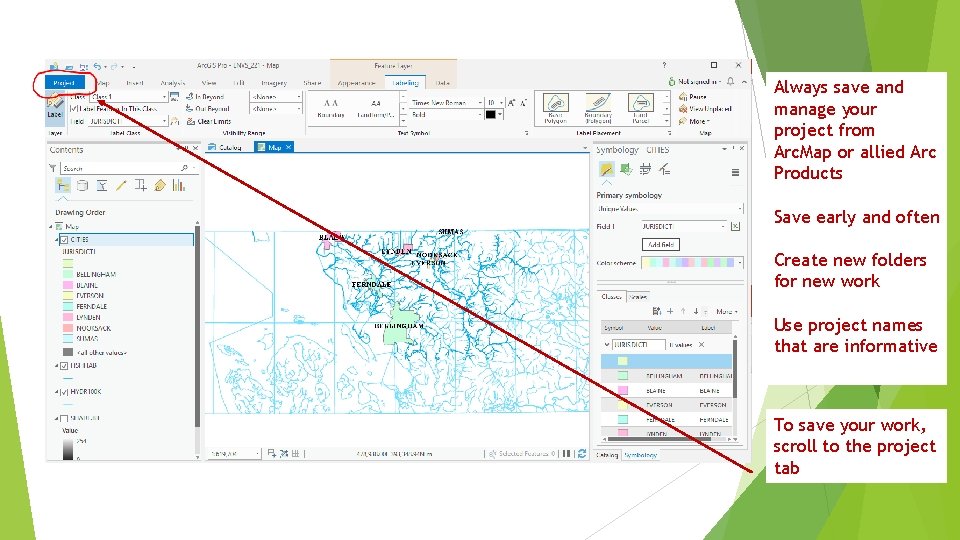
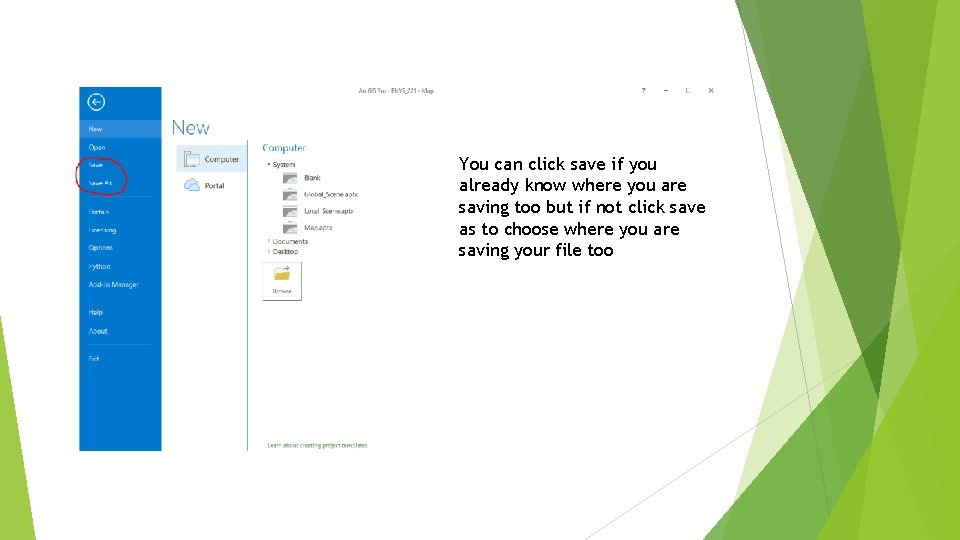
Always save and manage your project from Arc. Map or allied Arc Products Save early and often Create new folders for new work Use project names that are informative To save your work, scroll to the project tab
You can click save if you already know where you are saving too but if not click save as to choose where you are saving your file too
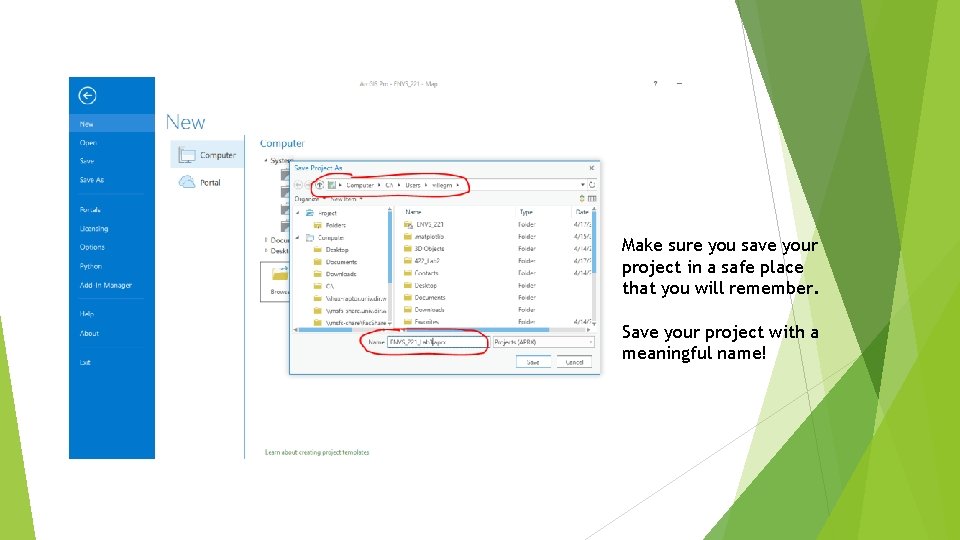
Make sure you save your project in a safe place that you will remember. Save your project with a meaningful name!
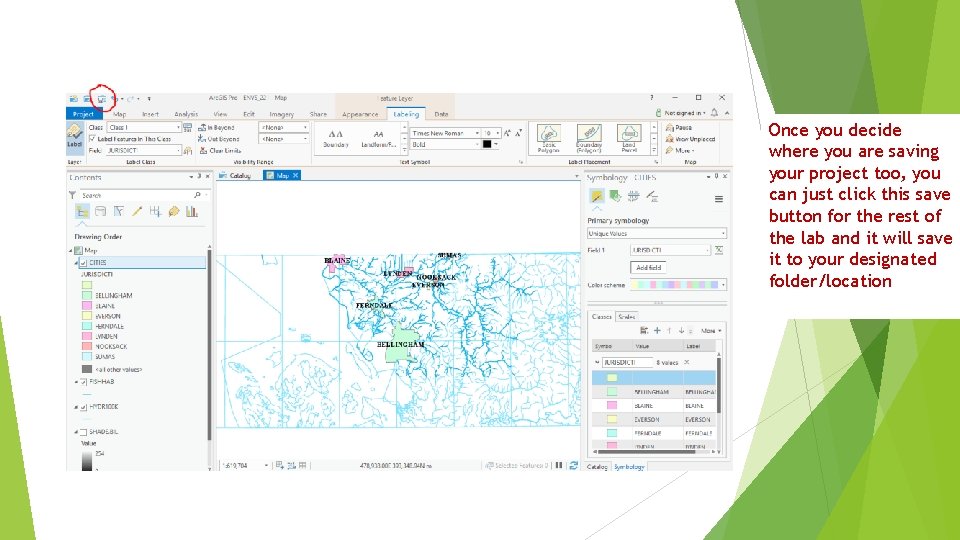
Once you decide where you are saving your project too, you can just click this save button for the rest of the lab and it will save it to your designated folder/location
There are many kinds of Arc Documents, but for the moment we will only be concerned with an “Arc. Pro document” or more simply map document Arc. GIS documents In Arc. GIS, you work with system documents and files such as: • Arc. Pro documents (. aprx) • Arc. Map documents (. mxd) • Arc. Globe documents (. 3 dd) • Layer files (. lyr) • Python scripts (. py) • AML scripts (. aml) Arc. GIS applications use a series of documents for saving work created in Arc. GIS. These documents define how maps, map elements, map layers, globe elements, and geoprocessing models are managed and used within the software. For example, a map document specifies the set of map elements contained in a map along with the map layers and their display properties used to present GIS datasets. Once you create a map document, you can use it simply by selecting the document and opening it. This will launch the Arc. Pro application for the selected map. Each Arc. GIS document is saved as a file in a disk folder.
A Arc. Pro Document (. aprx) does not save data!!! It only has pointers telling the program where the data resides, if you move the data or the map document this may mean you have to re-locate the data. (for example if you go to your home computer instead of a campus computer the data may not be available) In this class we recommend that you always work in our labs utilizing either your U drive or the J drive, this should eliminate the need to be concerned with where the data is located, because you never change locations
Saving a Project Ø I suggest getting into the practice of saving your project on your U: drive. Later in the quarter we will talk about saving elsewhere
Creating a JPEG of your Map
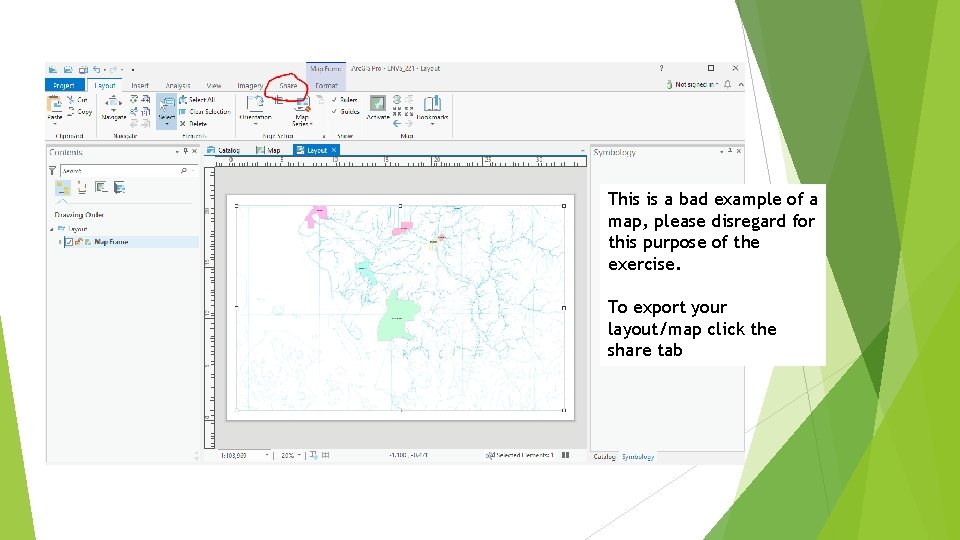
This is a bad example of a map, please disregard for this purpose of the exercise. To export your layout/map click the share tab
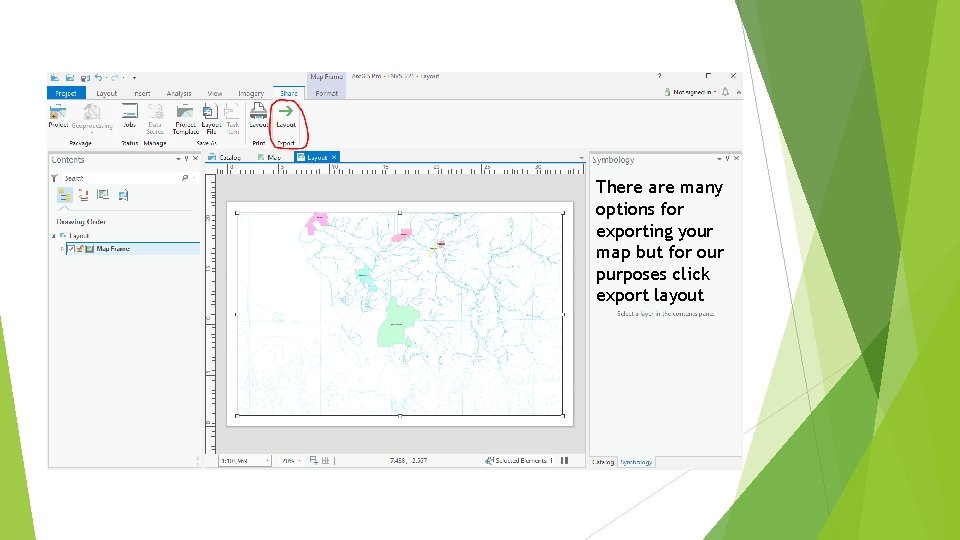
There are many options for exporting your map but for our purposes click export layout
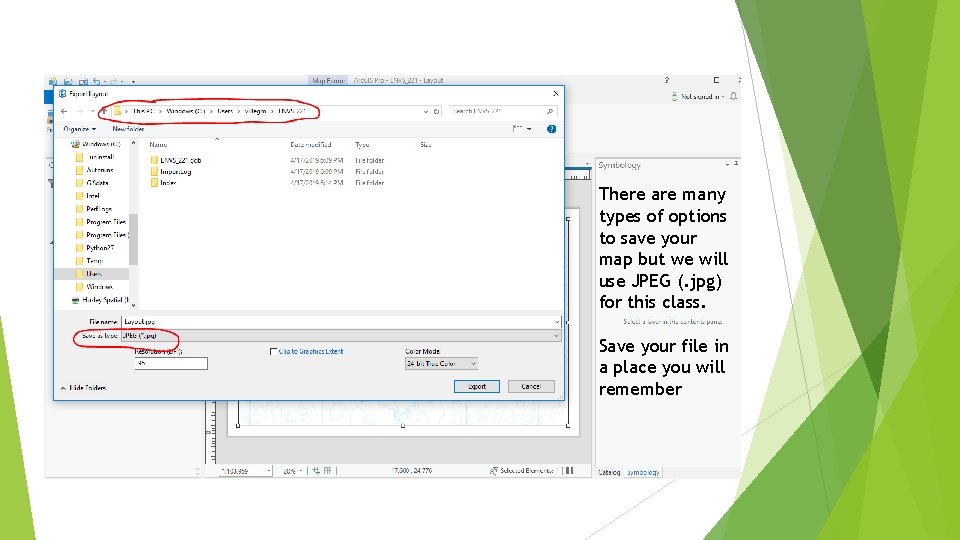
There are many types of options to save your map but we will use JPEG (. jpg) for this class. Save your file in a place you will remember
jpeg Once you have a jpeg or other image format for your map you can easily insert it into a report, power point, poster, …
Feature and Image Data
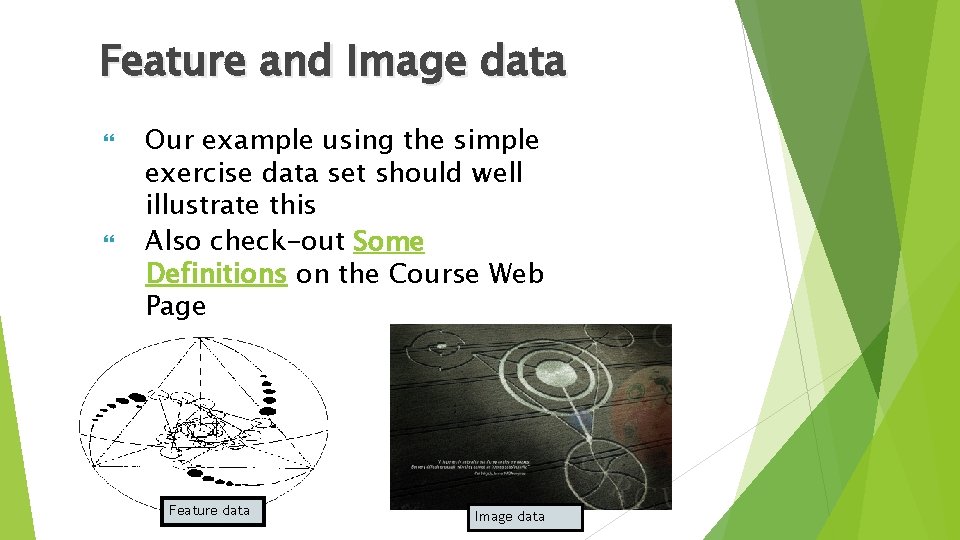
Feature and Image data Our example using the simple exercise data set should well illustrate this Also check-out Some Definitions on the Course Web Page Feature data Image data
First a refresher: How To -- Definition Building Divide text or powerpoint material into bullets Rank them by order of importance Translate these points into sentence(s) using your own words (not copy and paste with a little paraphrasing thrown in) Insert examples into the definition
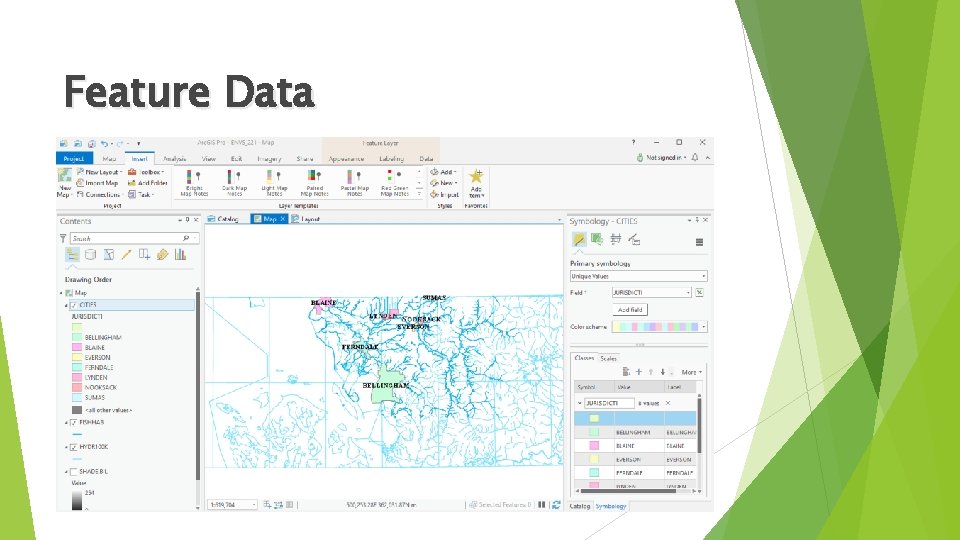
Feature Data
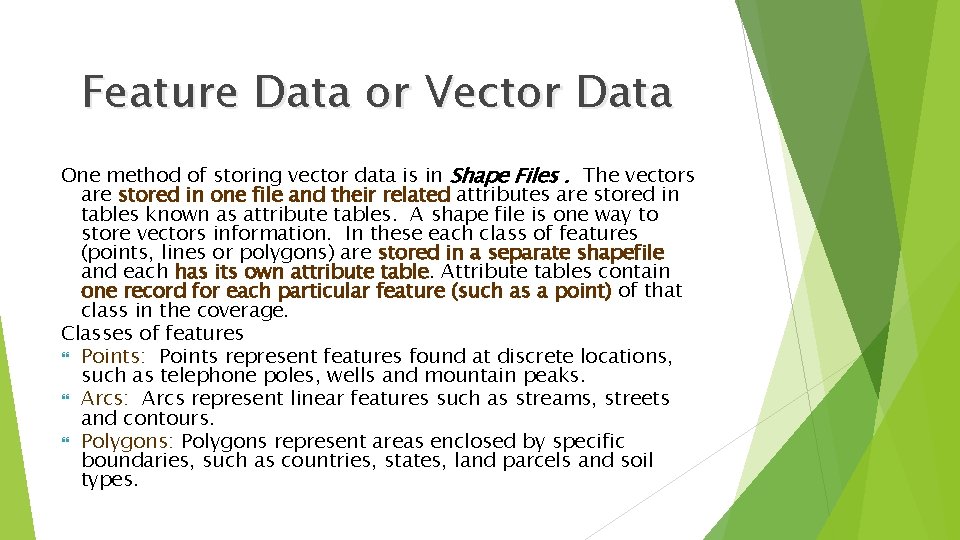
Feature Data or Vector Data One method of storing vector data is in Shape Files. The vectors are stored in one file and their related attributes are stored in tables known as attribute tables. A shape file is one way to store vectors information. In these each class of features (points, lines or polygons) are stored in a separate shapefile and each has its own attribute table. Attribute tables contain one record for each particular feature (such as a point) of that class in the coverage. Classes of features Points: Points represent features found at discrete locations, such as telephone poles, wells and mountain peaks. Arcs: Arcs represent linear features such as streams, streets and contours. Polygons: Polygons represent areas enclosed by specific boundaries, such as countries, states, land parcels and soil types.
Feature Data: Entity & Attribute
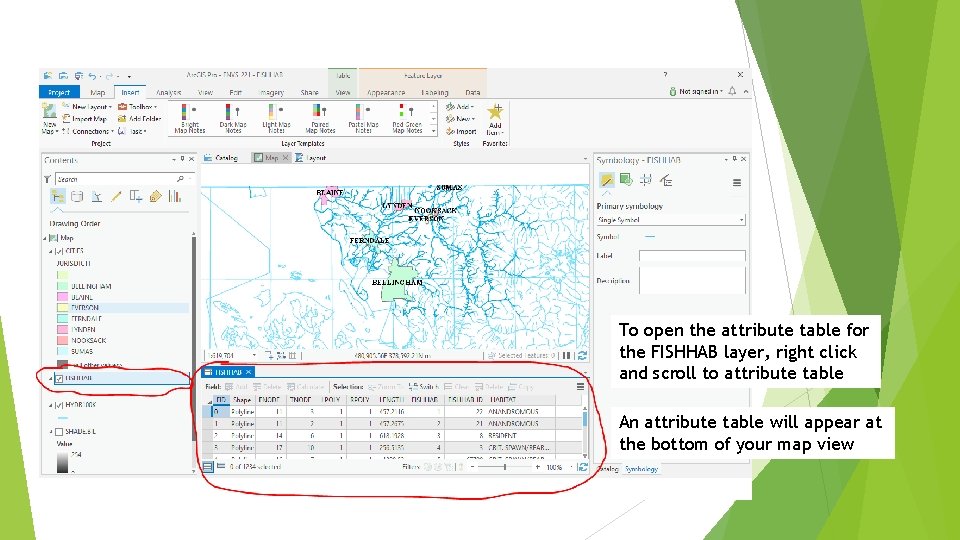
To open the attribute table for the FISHHAB layer, right click and scroll to attribute table An attribute table will appear at the bottom of your map view
Adding Image Data
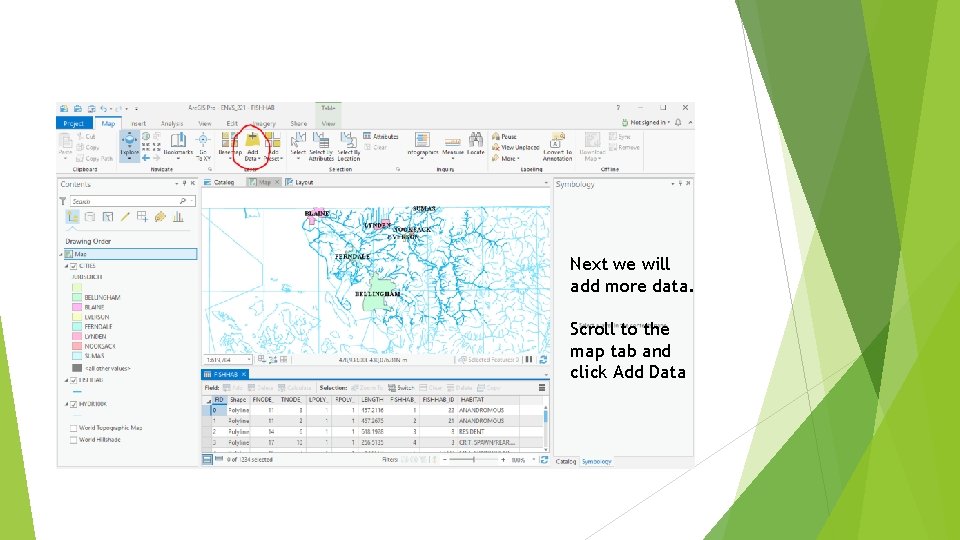
Next we will add more data. Scroll to the map tab and click Add Data
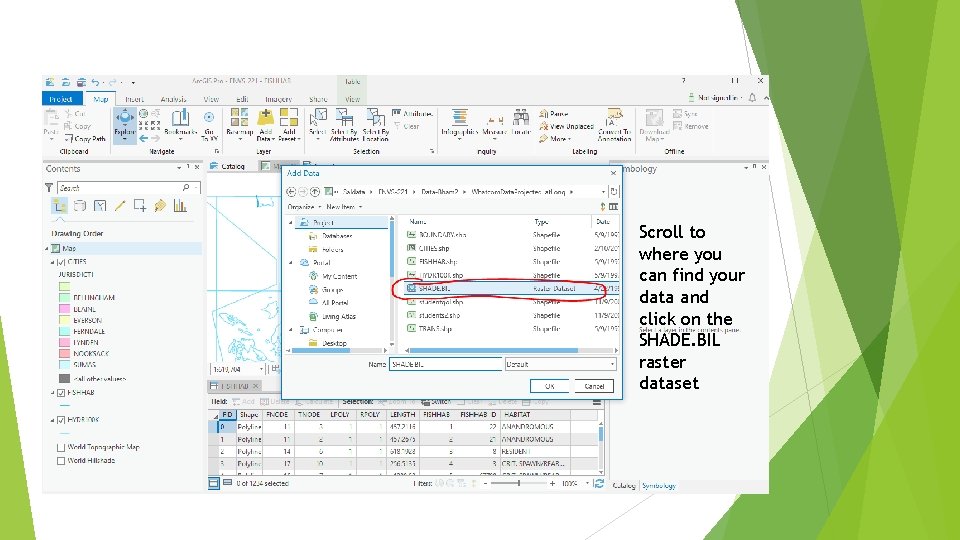
Scroll to where you can find your data and click on the SHADE. BIL raster dataset
Refresher – now may be a good time to save your work Ø Always save and manage your projects from Arc. Map or allied Arc Products Ø Save early and often Ø Create new folders for new work Ø Use project names that are informative
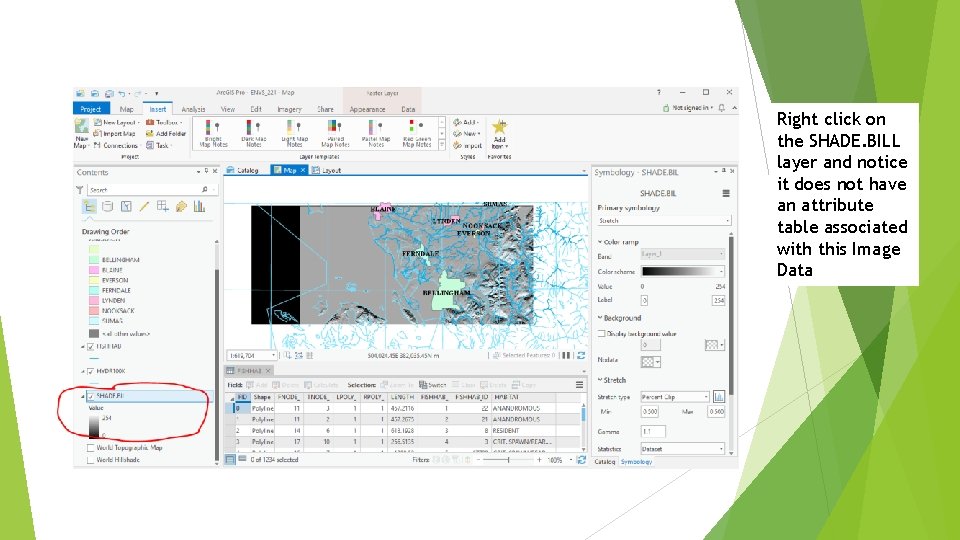
Right click on the SHADE. BILL layer and notice it does not have an attribute table associated with this Image Data
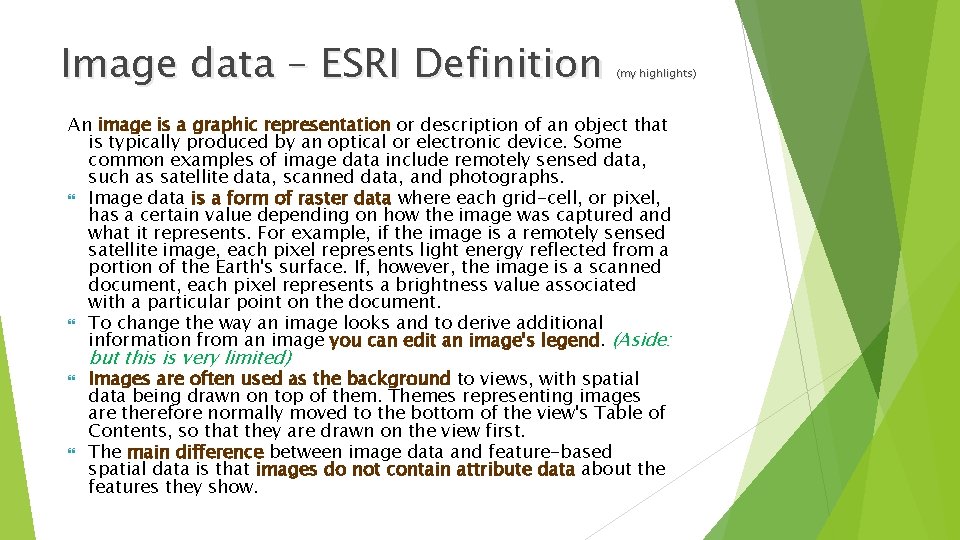
Image data – ESRI Definition (my highlights) An image is a graphic representation or description of an object that is typically produced by an optical or electronic device. Some common examples of image data include remotely sensed data, such as satellite data, scanned data, and photographs. Image data is a form of raster data where each grid-cell, or pixel, has a certain value depending on how the image was captured and what it represents. For example, if the image is a remotely sensed satellite image, each pixel represents light energy reflected from a portion of the Earth's surface. If, however, the image is a scanned document, each pixel represents a brightness value associated with a particular point on the document. To change the way an image looks and to derive additional information from an image you can edit an image's legend. (Aside: but this is very limited) Images are often used as the background to views, with spatial data being drawn on top of them. Themes representing images are therefore normally moved to the bottom of the view's Table of Contents, so that they are drawn on the view first. The main difference between image data and feature-based spatial data is that images do not contain attribute data about the features they show.
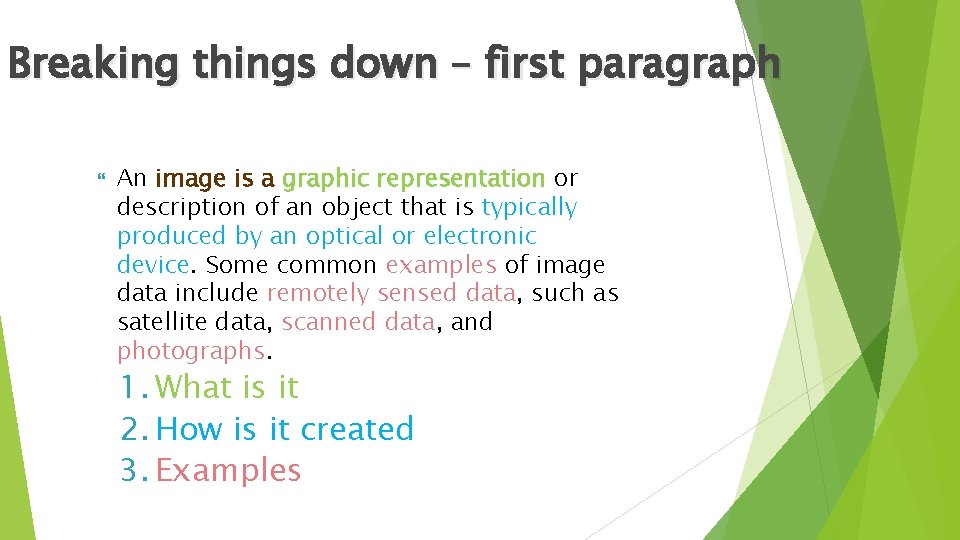
Breaking things down – first paragraph An image is a graphic representation or description of an object that is typically produced by an optical or electronic device. Some common examples of image data include remotely sensed data, such as satellite data, scanned data, and photographs. 1. What is it 2. How is it created 3. Examples
Now you do it Take a moment to build a definition for each: feature and image data
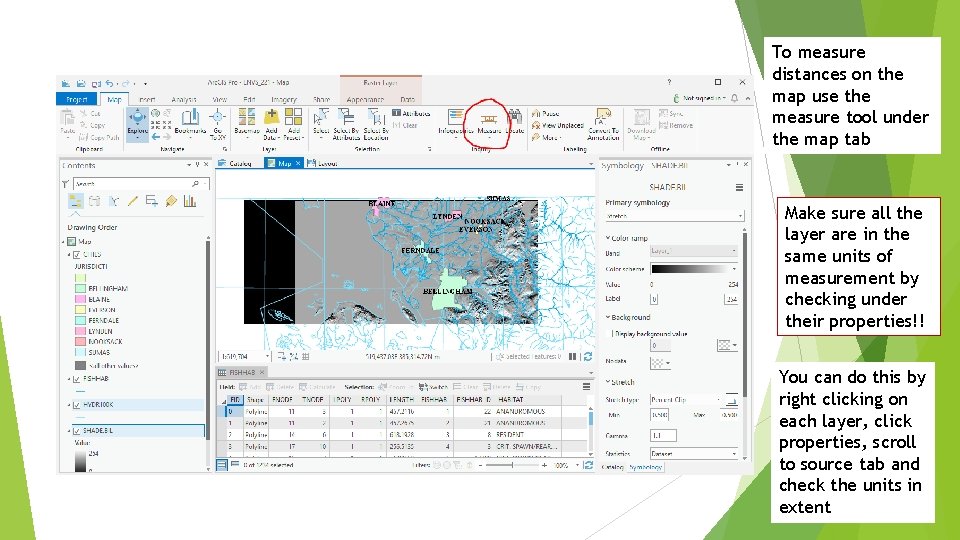
To measure distances on the map use the measure tool under the map tab Make sure all the layer are in the same units of measurement by checking under their properties!! You can do this by right clicking on each layer, click properties, scroll to source tab and check the units in extent
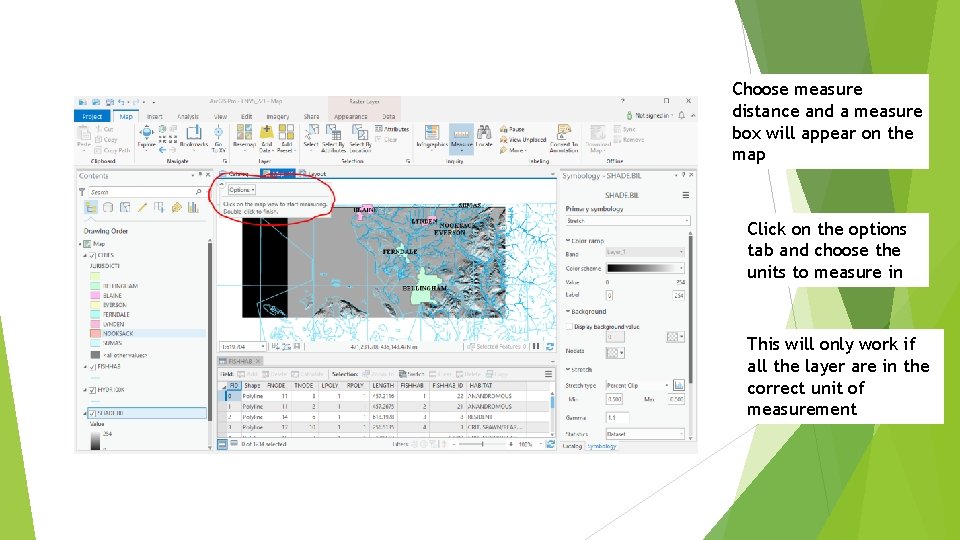
Choose measure distance and a measure box will appear on the map Click on the options tab and choose the units to measure in This will only work if all the layer are in the correct unit of measurement
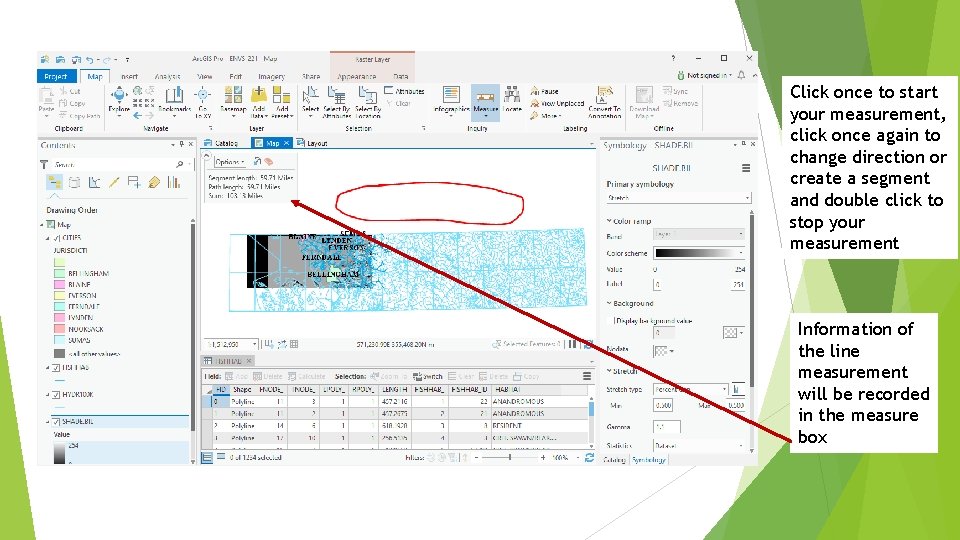
Click once to start your measurement, click once again to change direction or create a segment and double click to stop your measurement Information of the line measurement will be recorded in the measure box
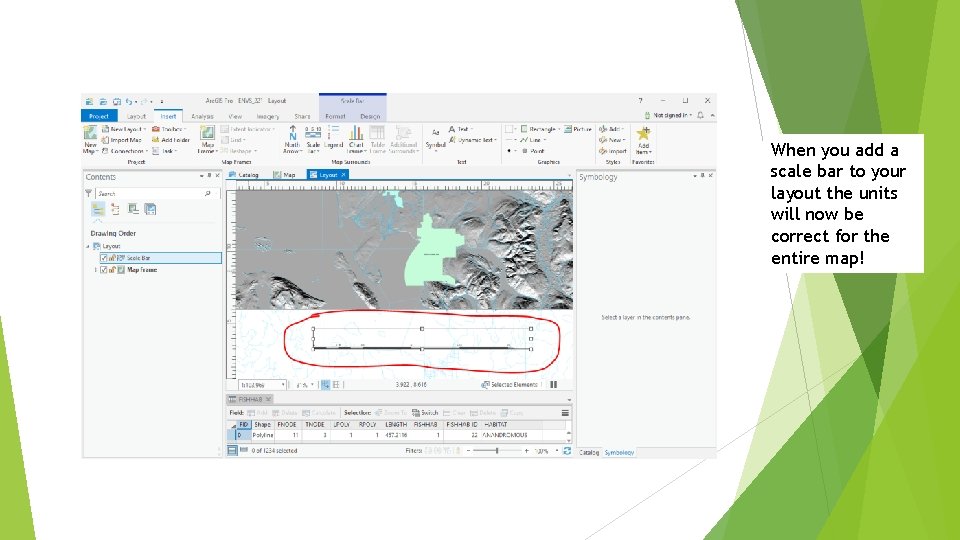
When you add a scale bar to your layout the units will now be correct for the entire map!
Additional Whatcom County Data Already Rectified Can be found at: J: GEO_dataWHATCOM_County1_ What_Co_data