
Using and Downloading a Temp Tale Ultra FNIHB
Using and Downloading a Temp. Tale Ultra FNIHB – Alberta Region December 2019
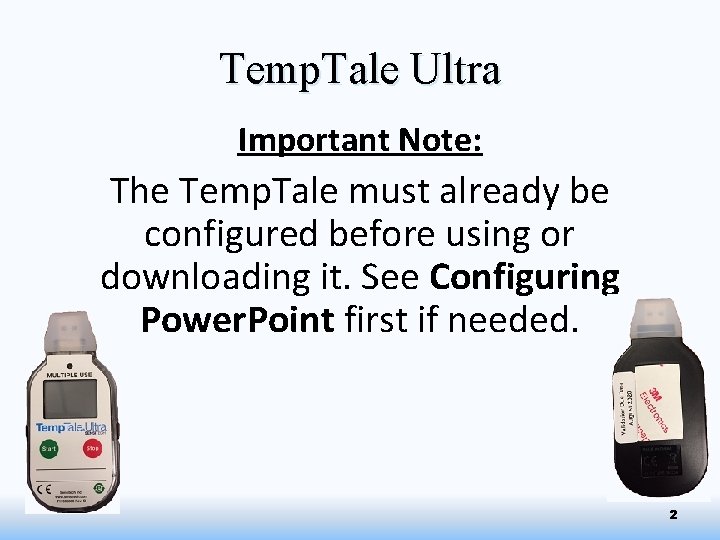
Temp. Tale Ultra Important Note: The Temp. Tale must already be configured before using or downloading it. See Configuring Power. Point first if needed. 2
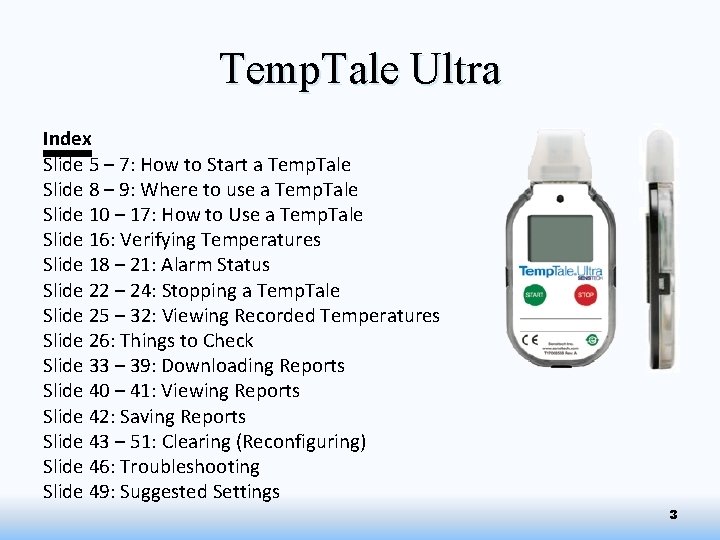
Temp. Tale Ultra Index Slide 5 – 7: How to Start a Temp. Tale Slide 8 – 9: Where to use a Temp. Tale Slide 10 – 17: How to Use a Temp. Tale Slide 16: Verifying Temperatures Slide 18 – 21: Alarm Status Slide 22 – 24: Stopping a Temp. Tale Slide 25 – 32: Viewing Recorded Temperatures Slide 26: Things to Check Slide 33 – 39: Downloading Reports Slide 40 – 41: Viewing Reports Slide 42: Saving Reports Slide 43 – 51: Clearing (Reconfiguring) Slide 46: Troubleshooting Slide 49: Suggested Settings 3

Temp. Tale Ultra Quick Summary Slide 52: Specifications (FYI) Slide 53: Display Information Slide 54: Downloading Reports Slide 55: Clearing (Reconfiguring) Additional Information Slide 57 – 59: Date Stamp Slide 60: Christmas Settings Questions? Slide 56: Who to Contact 4
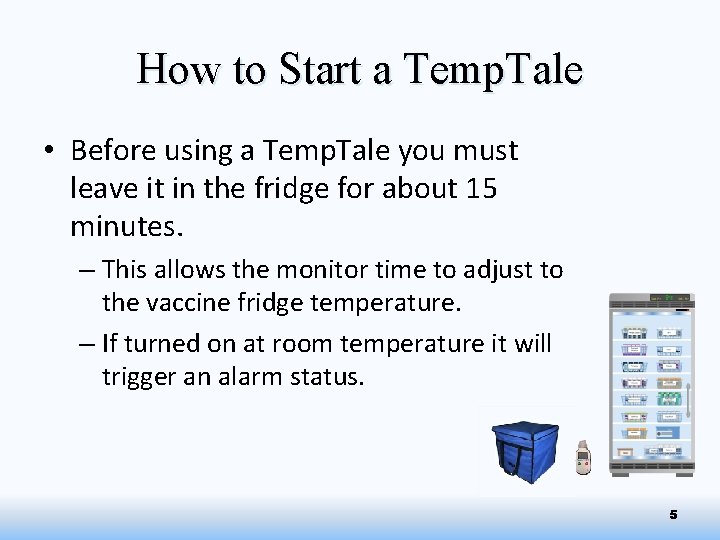
How to Start a Temp. Tale • Before using a Temp. Tale you must leave it in the fridge for about 15 minutes. – This allows the monitor time to adjust to the vaccine fridge temperature. – If turned on at room temperature it will trigger an alarm status. 5
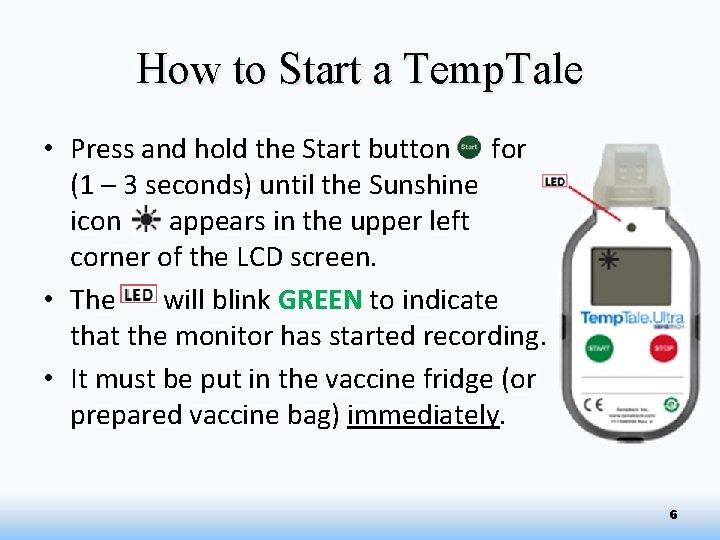
How to Start a Temp. Tale • Press and hold the Start button for (1 – 3 seconds) until the Sunshine icon appears in the upper left corner of the LCD screen. • The will blink GREEN to indicate that the monitor has started recording. • It must be put in the vaccine fridge (or prepared vaccine bag) immediately. 6
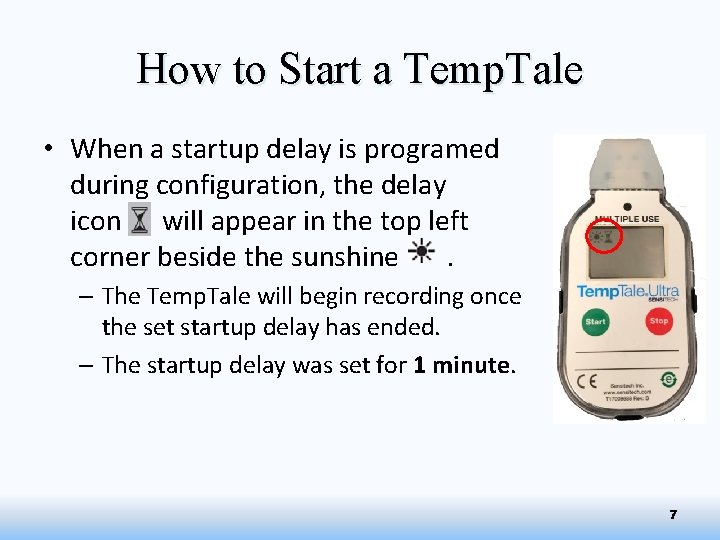
How to Start a Temp. Tale • When a startup delay is programed during configuration, the delay icon will appear in the top left corner beside the sunshine. – The Temp. Tale will begin recording once the set startup delay has ended. – The startup delay was set for 1 minute. 7
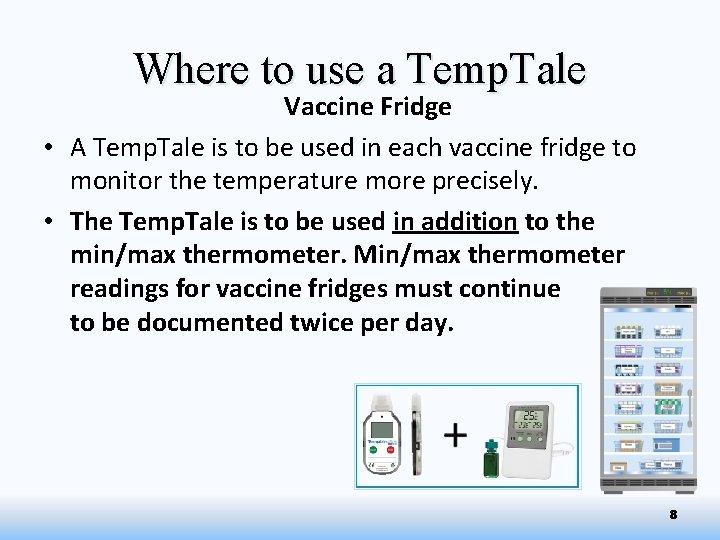
Where to use a Temp. Tale Vaccine Fridge • A Temp. Tale is to be used in each vaccine fridge to monitor the temperature more precisely. • The Temp. Tale is to be used in addition to the min/max thermometer. Min/max thermometer readings for vaccine fridges must continue to be documented twice per day. 8
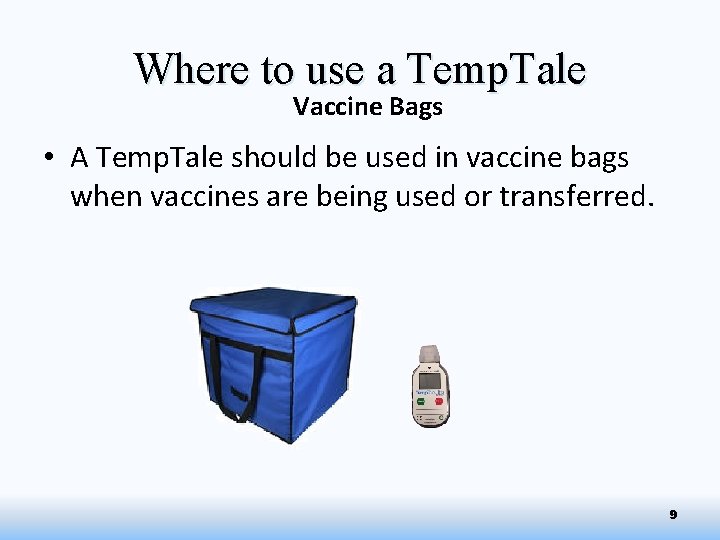
Where to use a Temp. Tale Vaccine Bags • A Temp. Tale should be used in vaccine bags when vaccines are being used or transferred. 9
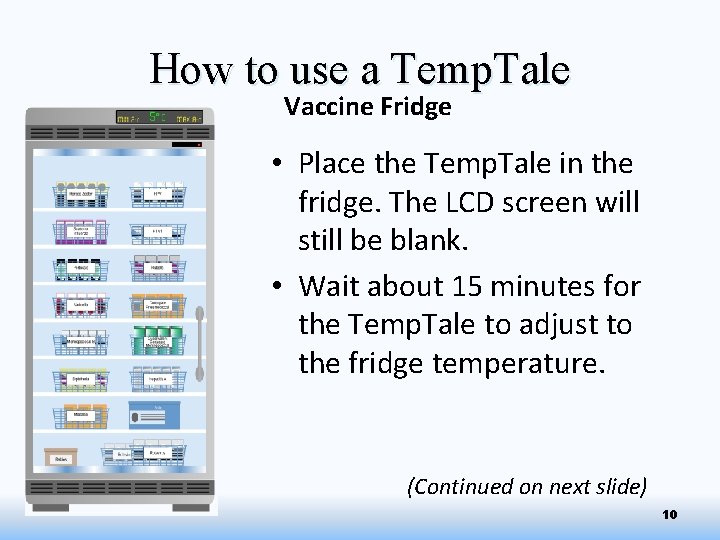
How to use a Temp. Tale Vaccine Fridge • Place the Temp. Tale in the fridge. The LCD screen will still be blank. • Wait about 15 minutes for the Temp. Tale to adjust to the fridge temperature. (Continued on next slide) 10
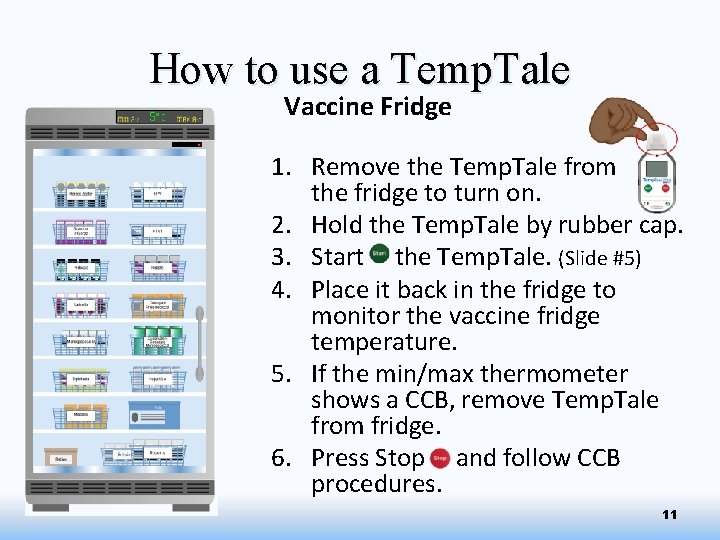
How to use a Temp. Tale Vaccine Fridge 1. Remove the Temp. Tale from the fridge to turn on. 2. Hold the Temp. Tale by rubber cap. 3. Start the Temp. Tale. (Slide #5) 4. Place it back in the fridge to monitor the vaccine fridge temperature. 5. If the min/max thermometer shows a CCB, remove Temp. Tale from fridge. 6. Press Stop and follow CCB procedures. 11
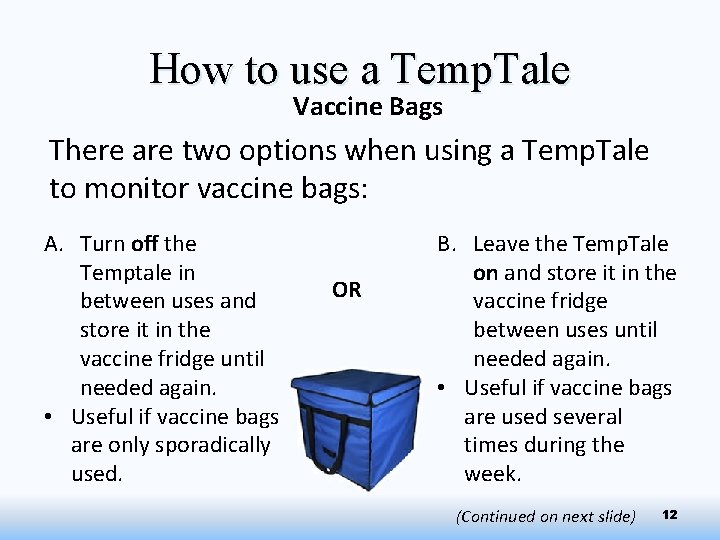
How to use a Temp. Tale Vaccine Bags There are two options when using a Temp. Tale to monitor vaccine bags: A. Turn off the Temptale in between uses and store it in the vaccine fridge until needed again. • Useful if vaccine bags are only sporadically used. OR B. Leave the Temp. Tale on and store it in the vaccine fridge between uses until needed again. • Useful if vaccine bags are used several times during the week. (Continued on next slide) 12
How to use a Temp. Tale Vaccine Bags A. If the Temptale is turned off and stored in the OR vaccine fridge until needed: - The Temp. Tale must be downloaded and cleared after each use. Start the Temp. Tale only when you are ready to use it to monitor a prepared vaccine bag. B. If the Temp. Tale is left on and stored in the vaccine fridge between uses: - The Temp. Tale will be need to be downloaded weekly. Date stamp the Temp. Tale each time it is moved from fridge-tobag and visa versa. Ensure transfers are immediate. Hold at the rubber cap. How to Date Stamp on Slide # 57. 13
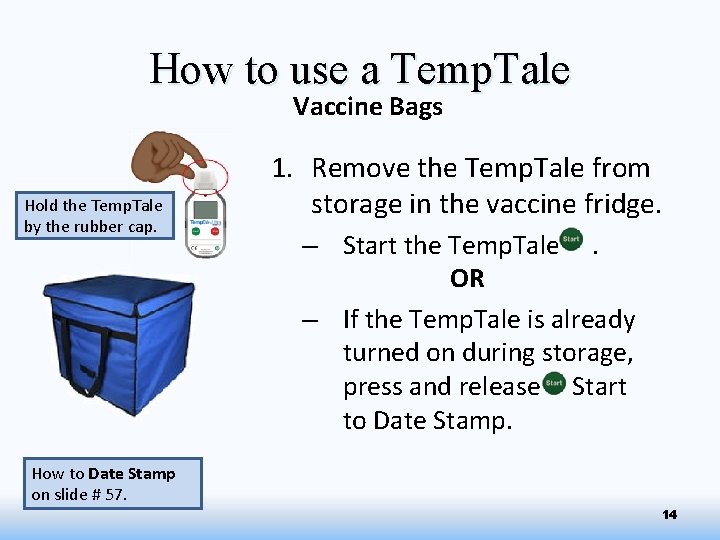
How to use a Temp. Tale Vaccine Bags Hold the Temp. Tale by the rubber cap. 1. Remove the Temp. Tale from storage in the vaccine fridge. – Start the Temp. Tale. OR – If the Temp. Tale is already turned on during storage, press and release Start to Date Stamp. How to Date Stamp on slide # 57. 14
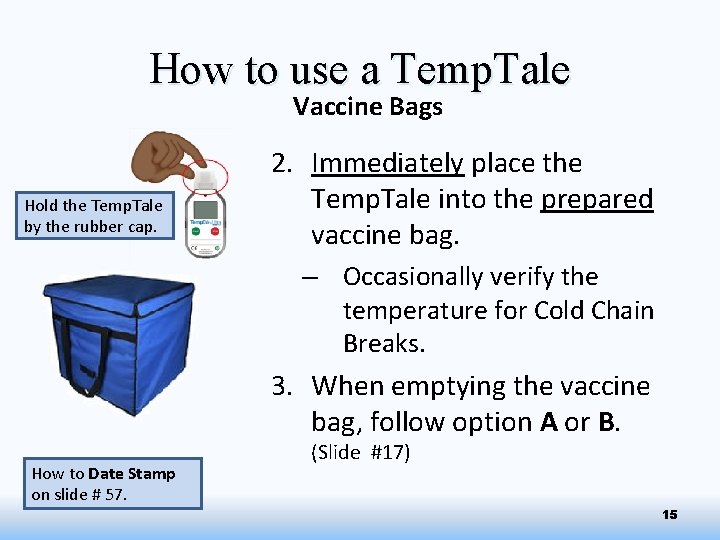
How to use a Temp. Tale Vaccine Bags Hold the Temp. Tale by the rubber cap. 2. Immediately place the Temp. Tale into the prepared vaccine bag. – Occasionally verify the temperature for Cold Chain Breaks. 3. When emptying the vaccine bag, follow option A or B. How to Date Stamp on slide # 57. (Slide #17) 15
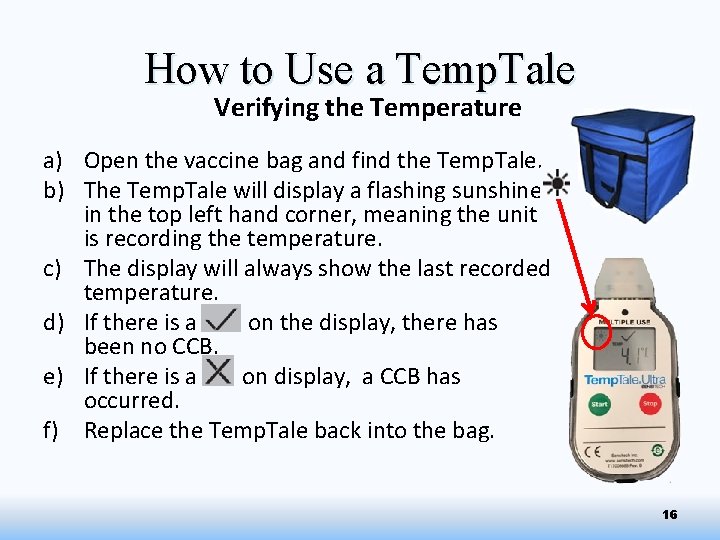
How to Use a Temp. Tale Verifying the Temperature a) Open the vaccine bag and find the Temp. Tale. b) The Temp. Tale will display a flashing sunshine in the top left hand corner, meaning the unit is recording the temperature. c) The display will always show the last recorded temperature. d) If there is a on the display, there has been no CCB. e) If there is a on display, a CCB has occurred. f) Replace the Temp. Tale back into the bag. 16
How to use a Temp. Tale Vaccine Bag When emptying the vaccine bag, remove the Temp. Tale and either: q Stop the Temp. Tale. (Slide #22) q Check Alarm Status. (Slide #19) q View Recorded Temperatures. (Slide #27) q Download Recording and Clear the Temp. Tale. (Slide #35) q Store in the vaccine fridge until the next use. OR Leave the Temp. Tale running. Hold the Temp. Tale by the rubber cap. Immediately Date Stamp. (Slide #57) Quickly check the Alarm Status to make sure there was no cold chain break (Slide #19) • If there is a on the display, there has been no CCB. Return to the vaccine fridge immediately. • If there is a on the display, a CCB has occurred. Stop the Temp. Tale and follow CCB procedures. (Slide #20) q Store in vaccine fridge until the next use. q q 17
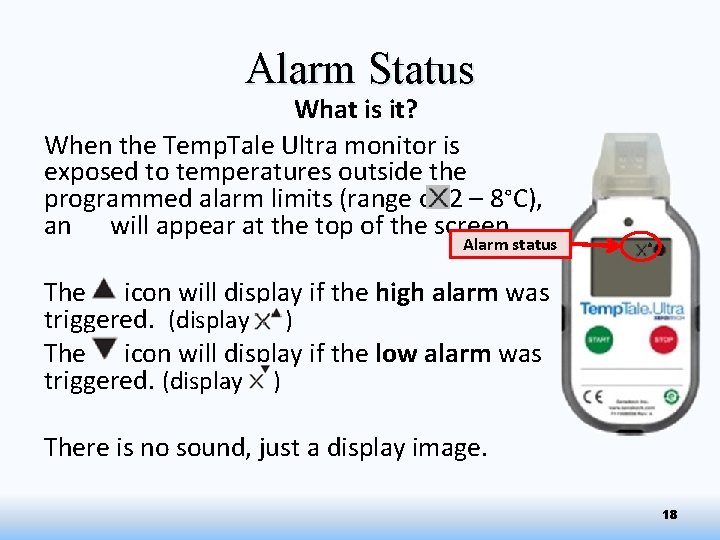
Alarm Status What is it? When the Temp. Tale Ultra monitor is exposed to temperatures outside the programmed alarm limits (range of 2 – 8°C), an will appear at the top of the screen. Alarm status The icon will display if the high alarm was triggered. (display ) The icon will display if the low alarm was triggered. (display ) There is no sound, just a display image. 18
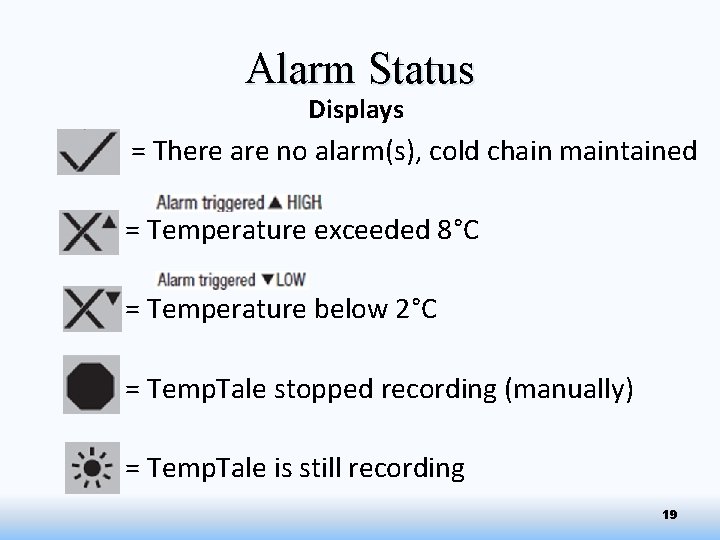
Alarm Status Displays = There are no alarm(s), cold chain maintained = Temperature exceeded 8°C = Temperature below 2°C = Temp. Tale stopped recording (manually) = Temp. Tale is still recording 19
Alarm Status If a Temp. Tale Indicates an Alarm Status: • The vaccines should be quarantined. – Ensure the product is placed in a cold chain fridge or vaccine bag as soon as possible. Follow cold chain break procedures. • Complete a “CCB Report. ” • Wait for recommendations on the viability of the vaccine. 20
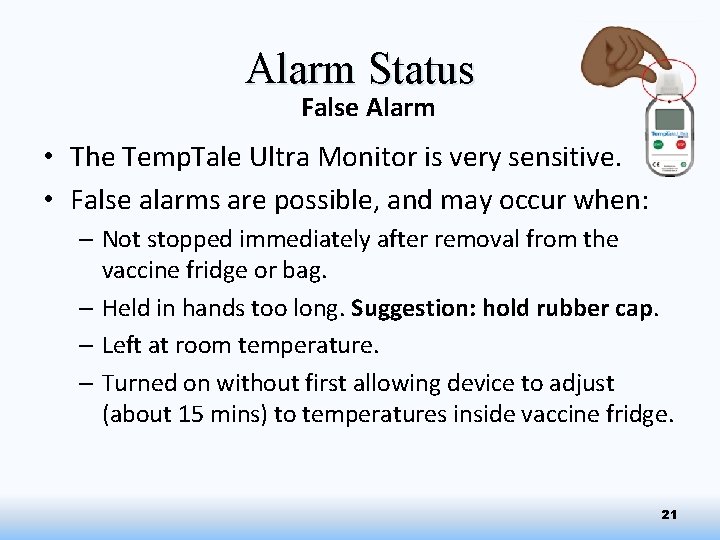
Alarm Status False Alarm • The Temp. Tale Ultra Monitor is very sensitive. • False alarms are possible, and may occur when: – Not stopped immediately after removal from the vaccine fridge or bag. – Held in hands too long. Suggestion: hold rubber cap. – Left at room temperature. – Turned on without first allowing device to adjust (about 15 mins) to temperatures inside vaccine fridge. 21
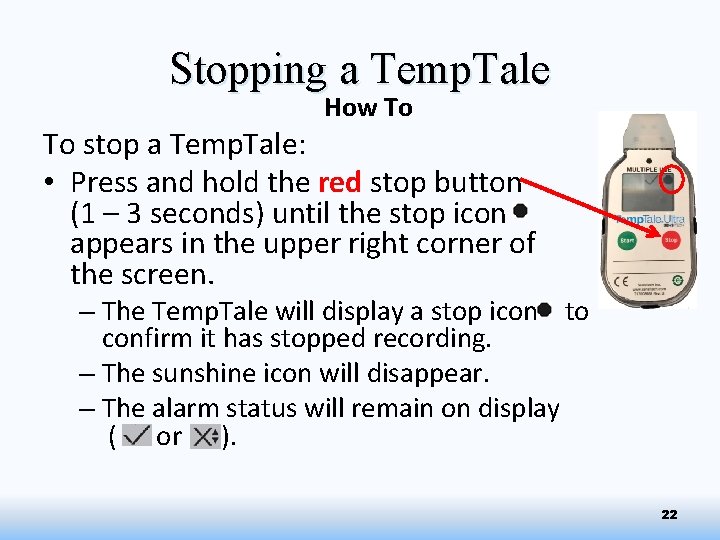
Stopping a Temp. Tale How To To stop a Temp. Tale: • Press and hold the red stop button (1 – 3 seconds) until the stop icon appears in the upper right corner of the screen. – The Temp. Tale will display a stop icon to confirm it has stopped recording. – The sunshine icon will disappear. – The alarm status will remain on display ( or ). 22
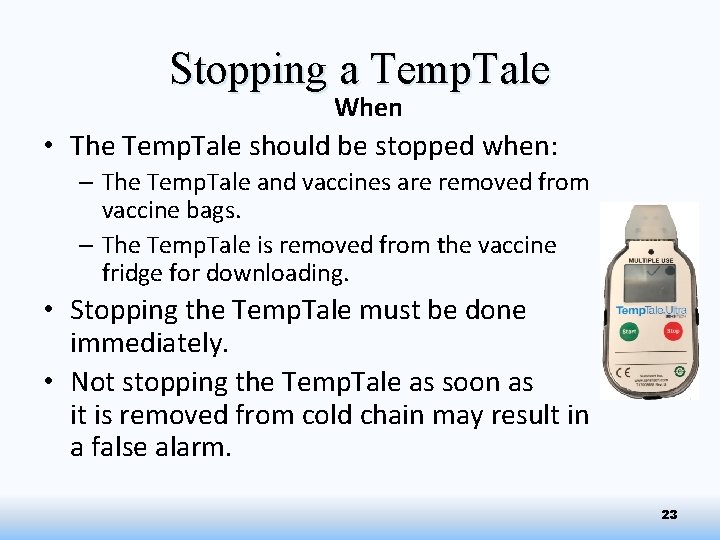
Stopping a Temp. Tale When • The Temp. Tale should be stopped when: – The Temp. Tale and vaccines are removed from vaccine bags. – The Temp. Tale is removed from the vaccine fridge for downloading. • Stopping the Temp. Tale must be done immediately. • Not stopping the Temp. Tale as soon as it is removed from cold chain may result in a false alarm. 23
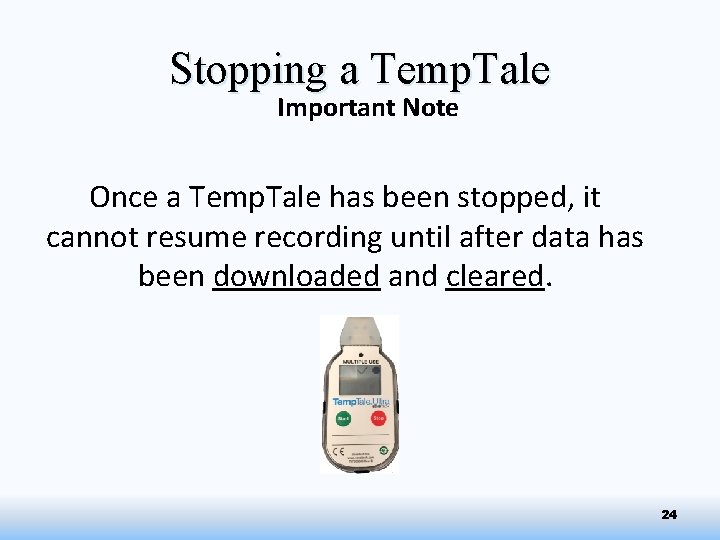
Stopping a Temp. Tale Important Note Once a Temp. Tale has been stopped, it cannot resume recording until after data has been downloaded and cleared. 24
Viewing Recorded Temperatures Viewing the average, high, and low temperatures With the Temp. Tale stopped: a) Press the Start button temperatures. to view the recorded - The recorded data will appear in a series of five windows, cycling to the next reading each time you press the start button. - You can press the start button as many times as necessary to record all of the data. b) If the temperatures were below 2°C or above 8°C, a Cold Chain Break (CCB) has occurred. 25
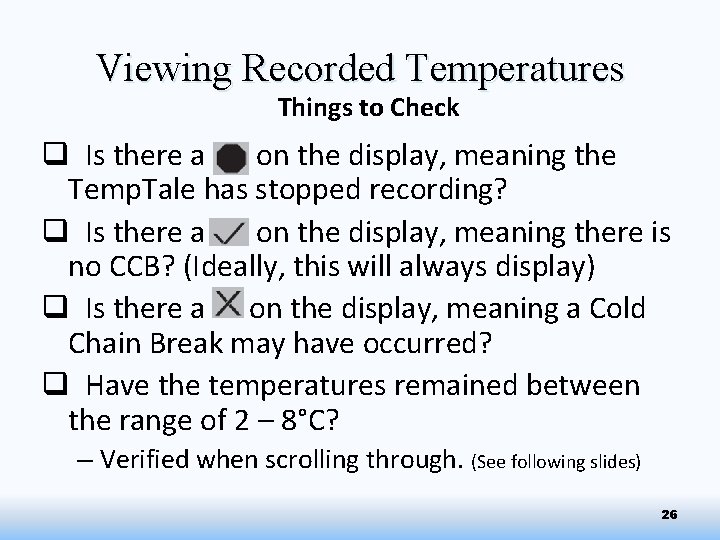
Viewing Recorded Temperatures Things to Check q Is there a on the display, meaning the Temp. Tale has stopped recording? q Is there a on the display, meaning there is no CCB? (Ideally, this will always display) q Is there a on the display, meaning a Cold Chain Break may have occurred? q Have the temperatures remained between the range of 2 – 8°C? – Verified when scrolling through. (See following slides) 26
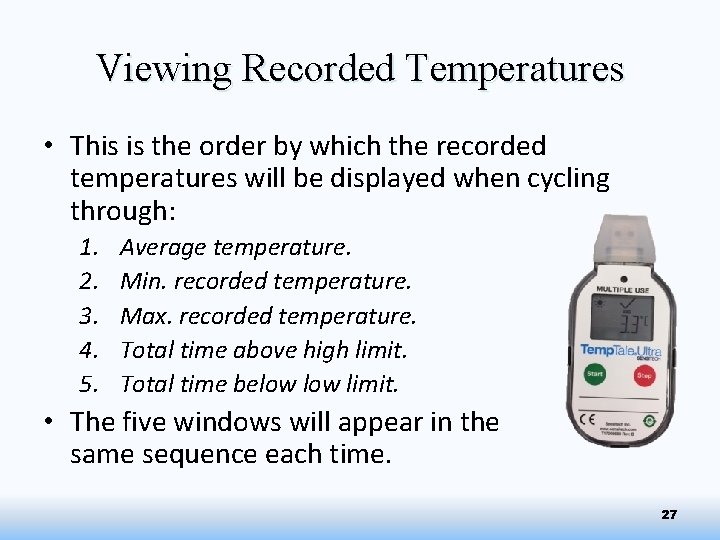
Viewing Recorded Temperatures • This is the order by which the recorded temperatures will be displayed when cycling through: 1. 2. 3. 4. 5. Average temperature. Min. recorded temperature. Max. recorded temperature. Total time above high limit. Total time below limit. • The five windows will appear in the same sequence each time. 27
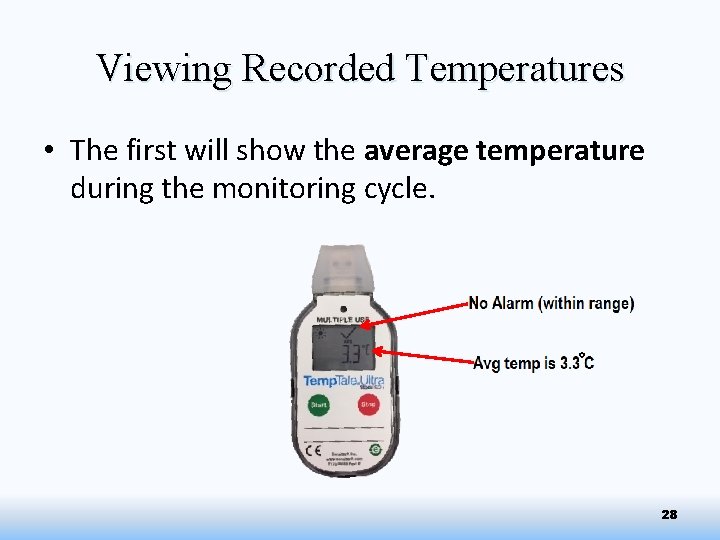
Viewing Recorded Temperatures • The first will show the average temperature during the monitoring cycle. 28
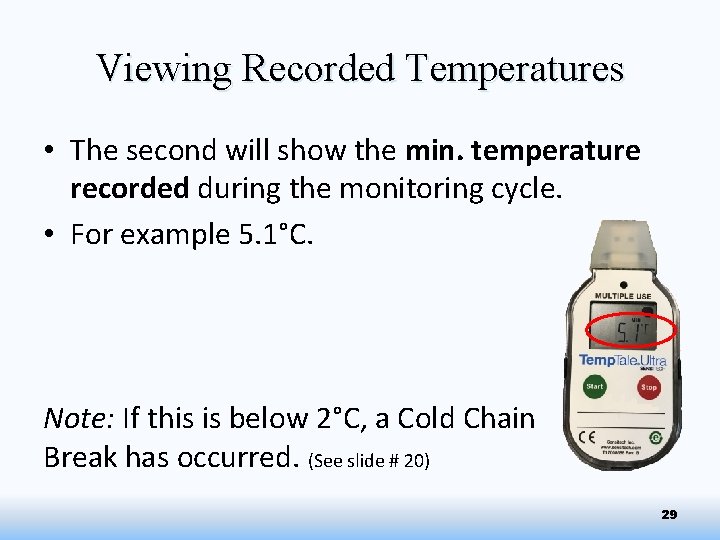
Viewing Recorded Temperatures • The second will show the min. temperature recorded during the monitoring cycle. • For example 5. 1°C. Note: If this is below 2°C, a Cold Chain Break has occurred. (See slide # 20) 29
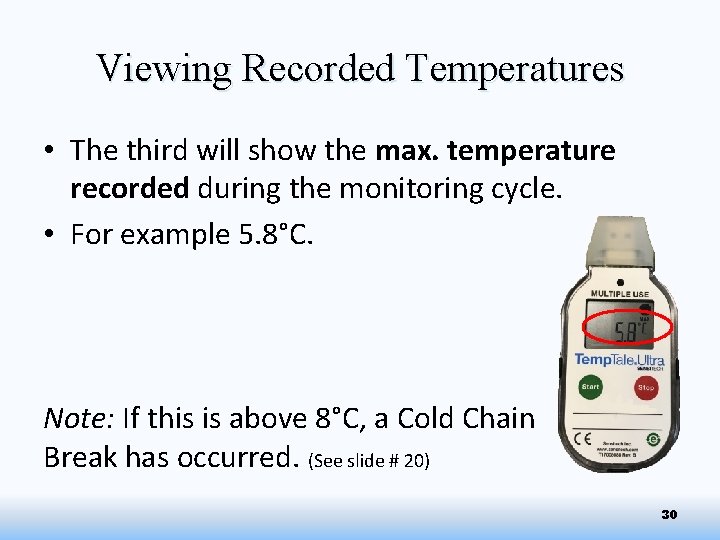
Viewing Recorded Temperatures • The third will show the max. temperature recorded during the monitoring cycle. • For example 5. 8°C. Note: If this is above 8°C, a Cold Chain Break has occurred. (See slide # 20) 30
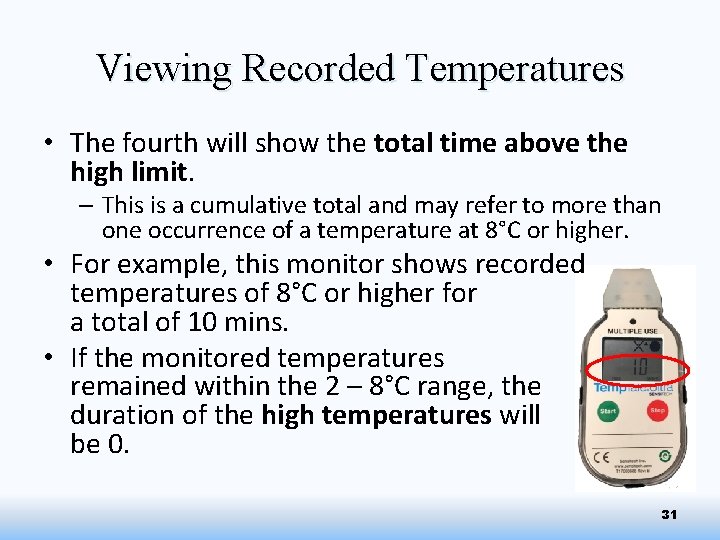
Viewing Recorded Temperatures • The fourth will show the total time above the high limit. – This is a cumulative total and may refer to more than one occurrence of a temperature at 8°C or higher. • For example, this monitor shows recorded temperatures of 8°C or higher for a total of 10 mins. • If the monitored temperatures remained within the 2 – 8°C range, the duration of the high temperatures will be 0. 31
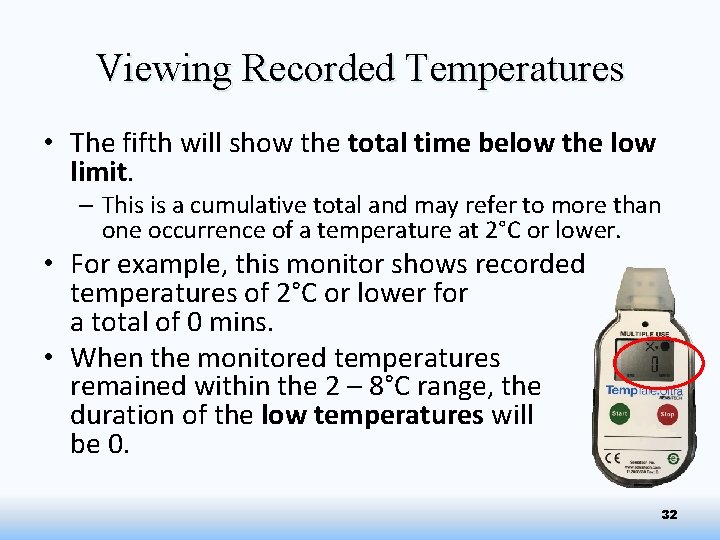
Viewing Recorded Temperatures • The fifth will show the total time below the low limit. – This is a cumulative total and may refer to more than one occurrence of a temperature at 2°C or lower. • For example, this monitor shows recorded temperatures of 2°C or lower for a total of 0 mins. • When the monitored temperatures remained within the 2 – 8°C range, the duration of the low temperatures will be 0. 32
Downloading Reports Downloading and Clearing • Temperature recordings from the Temp. Tale must be downloaded and cleared (reconfigured) weekly, or after each use, to free up storage space. • If the Temp. Tale is not cleared, it will stop recording. 33
Downloading Reports When should this be done? • Weekly for vaccine fridge Temp. Tales. – To download data and free up storage space. • Anytime there is a CCB. – To review CCB details. • Every time the Temp. Tale is stopped. – To download data and reconfigure. 34
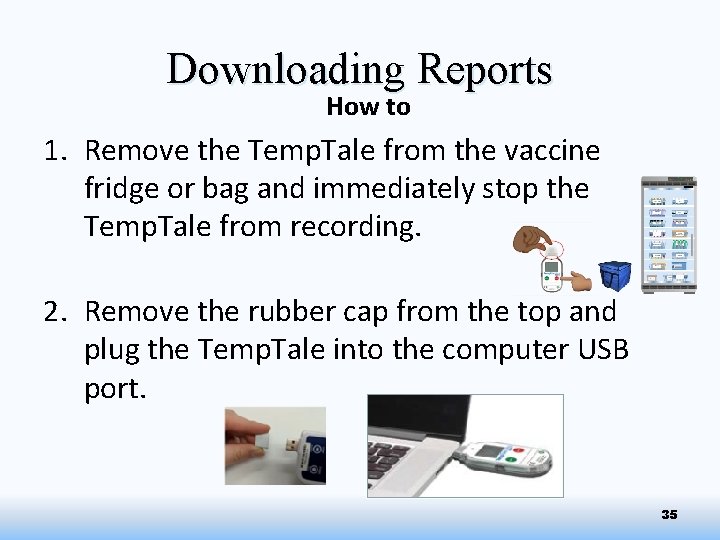
Downloading Reports How to 1. Remove the Temp. Tale from the vaccine fridge or bag and immediately stop the Temp. Tale from recording. 2. Remove the rubber cap from the top and plug the Temp. Tale into the computer USB port. 35
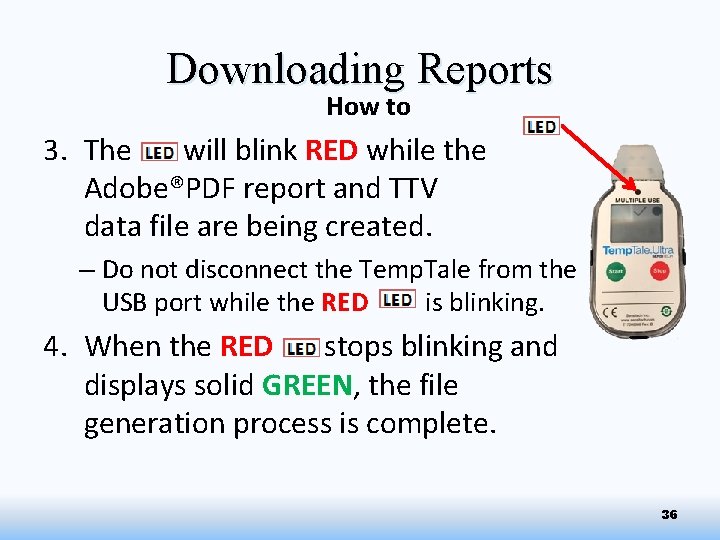
Downloading Reports How to 3. The will blink RED while the Adobe®PDF report and TTV data file are being created. – Do not disconnect the Temp. Tale from the USB port while the RED is blinking. 4. When the RED stops blinking and displays solid GREEN, the file generation process is complete. 36
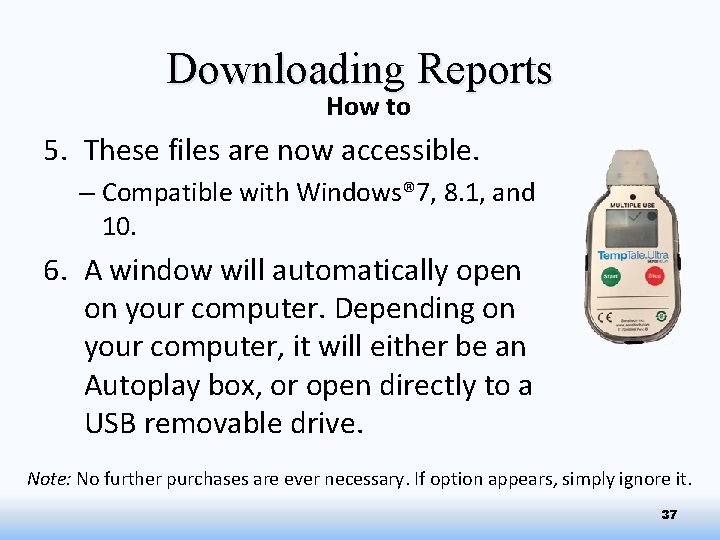
Downloading Reports How to 5. These files are now accessible. – Compatible with Windows® 7, 8. 1, and 10. 6. A window will automatically open on your computer. Depending on your computer, it will either be an Autoplay box, or open directly to a USB removable drive. Note: No further purchases are ever necessary. If option appears, simply ignore it. 37
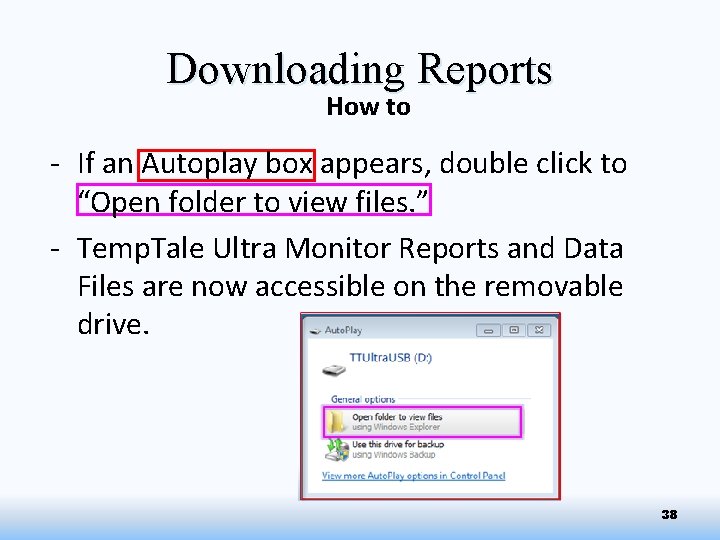
Downloading Reports How to - If an Autoplay box appears, double click to “Open folder to view files. ” - Temp. Tale Ultra Monitor Reports and Data Files are now accessible on the removable drive. 38
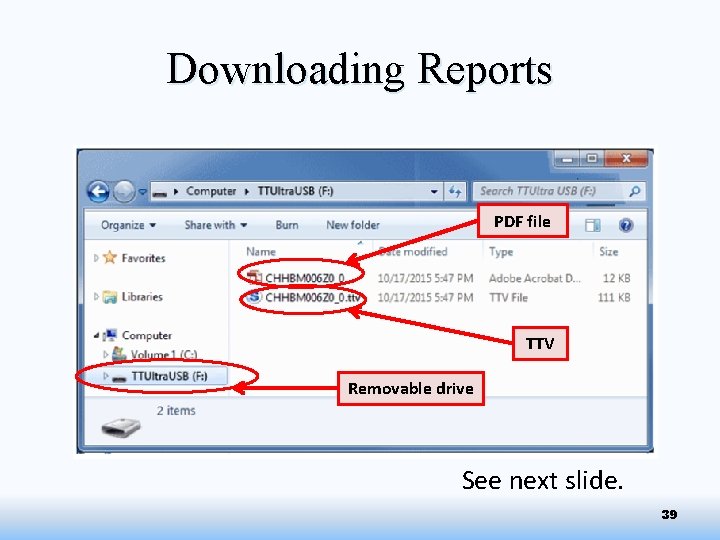
Downloading Reports PDF file TTV Removable drive See next slide. 39
Viewing Reports How to • If the computer has Adobe®PDF compatible reader software installed: – Double-click the PDF file icon PDF file. (Image on next slide) to open and view the • If the computer has Sensitech’s Temp. Tale Manager® Desktop Software installed (8. 0 or higher): – Double-click the TTV file icon to open and view: monitor configuration information, summary statistics, and time-temperature data graph. 40
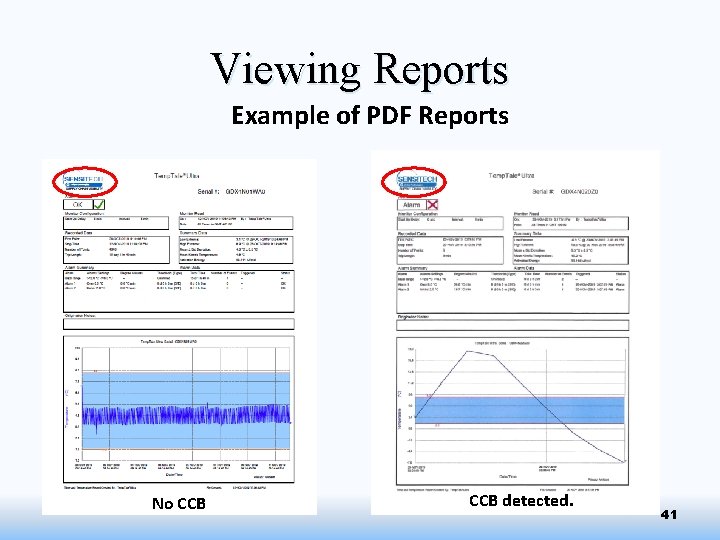
Viewing Reports Example of PDF Reports No CCB detected. 41
Save all Reports According to Alberta Health’s: Alberta Vaccine Storage and Handling Policy for Provincially Funded Vaccines: • Cold chain monitoring reports must be saved for one year, regardless of CCB status. You may choose to: – Save the digital report(s) to a file on your computer. OR – Save a paper copy of the report(s) by printing the PDF and placing it in a binder. • After one year you may delete or recycle the saved reports. 42
Clearing (Reconfiguring) Ensure you have downloaded or saved data, as reconfiguring the Temp. Tale will erase it! • Temp. Tales must be reconfigured: – On a weekly basis for vaccine fridges. – Anytime a CCB occurs. – Anytime the monitor has been stopped. • Reconfiguring a Temp. Tale monitor clears the recorded temperatures. If not cleared regularly, the monitor will become full and have no memory space for new recordings. 43
Clearing (Reconfiguring) • To clear (reconfigure) a Temp. Tale, either: – Double click the TTV file icon on your computer desktop. OR – Double click the TTV icon from the window that automatically appears when the Temp. Tale is plugged in to the computer USB port. • This will open Sensitech’s Temp. Tale Manager Desktop (TTMD) Software for reconfiguration. 44
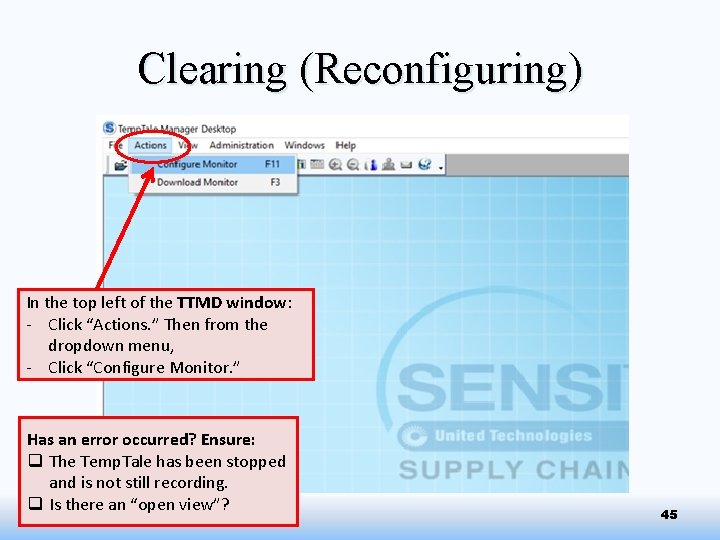
Clearing (Reconfiguring) In the top left of the TTMD window: - Click “Actions. ” Then from the dropdown menu, - Click “Configure Monitor. ” Has an error occurred? Ensure: q The Temp. Tale has been stopped and is not still recording. q Is there an “open view”? 45
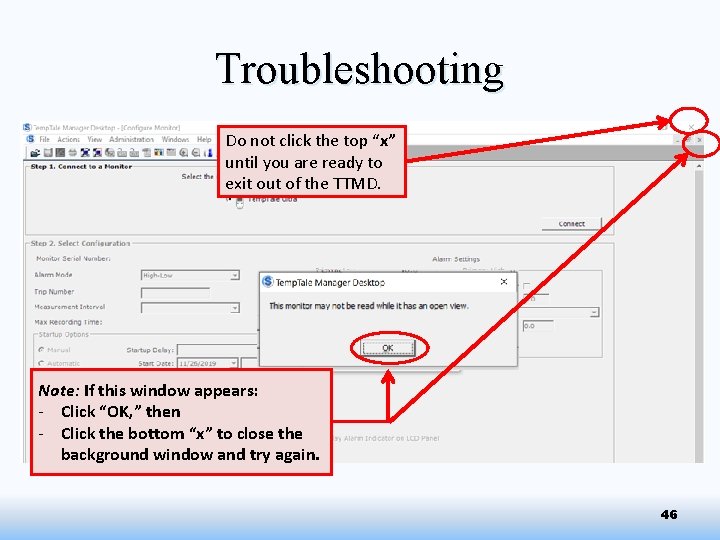
Troubleshooting Do not click the top “x” until you are ready to exit out of the TTMD. Note: If this window appears: - Click “OK, ” then - Click the bottom “x” to close the background window and try again. 46
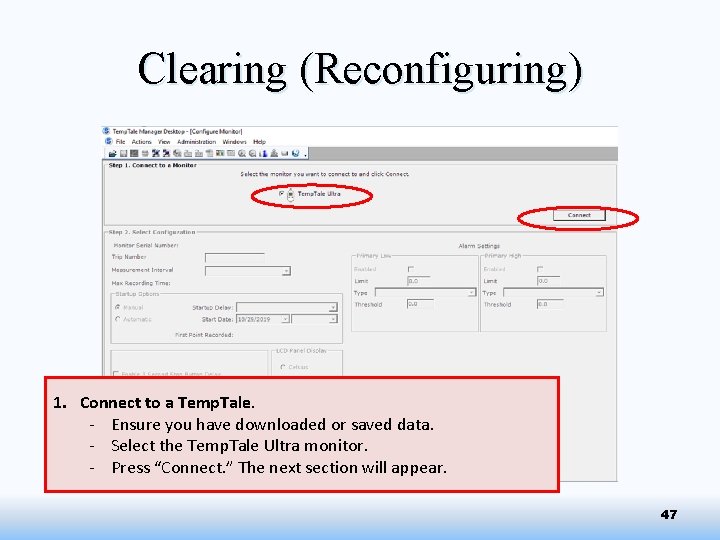
Clearing (Reconfiguring) 1. Connect to a Temp. Tale. - Ensure you have downloaded or saved data. - Select the Temp. Tale Ultra monitor. - Press “Connect. ” The next section will appear. 47
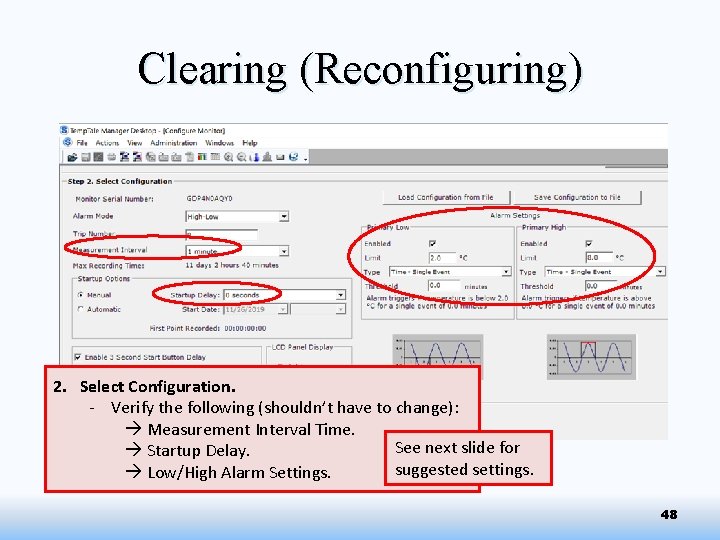
Clearing (Reconfiguring) 2. Select Configuration. - Verify the following (shouldn’t have to change): à Measurement Interval Time. See next slide for à Startup Delay. suggested settings. à Low/High Alarm Settings. 48
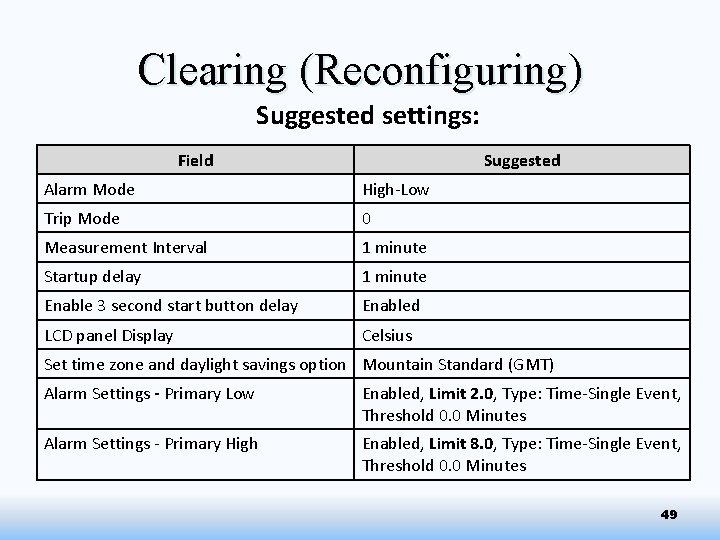
Clearing (Reconfiguring) Suggested settings: Field Suggested Alarm Mode High-Low Trip Mode 0 Measurement Interval 1 minute Startup delay 1 minute Enable 3 second start button delay Enabled LCD panel Display Celsius Set time zone and daylight savings option Mountain Standard (GMT) Alarm Settings - Primary Low Enabled, Limit 2. 0, Type: Time-Single Event, Threshold 0. 0 Minutes Alarm Settings - Primary High Enabled, Limit 8. 0, Type: Time-Single Event, Threshold 0. 0 Minutes 49
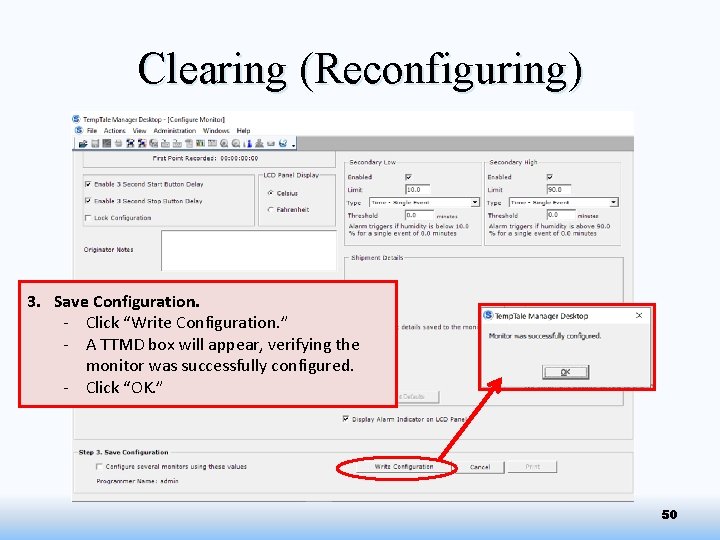
Clearing (Reconfiguring) 3. Save Configuration. - Click “Write Configuration. ” - A TTMD box will appear, verifying the monitor was successfully configured. - Click “OK. ” 50
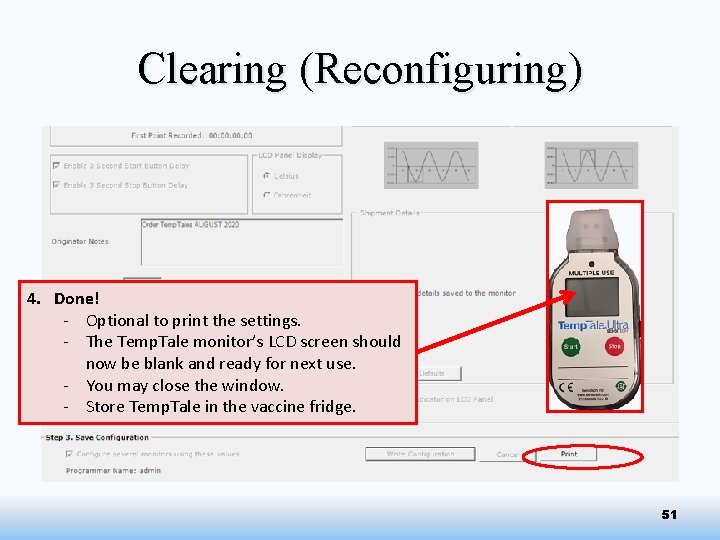
Clearing (Reconfiguring) 4. Done! - Optional to print the settings. - The Temp. Tale monitor’s LCD screen should now be blank and ready for next use. - You may close the window. - Store Temp. Tale in the vaccine fridge. 51
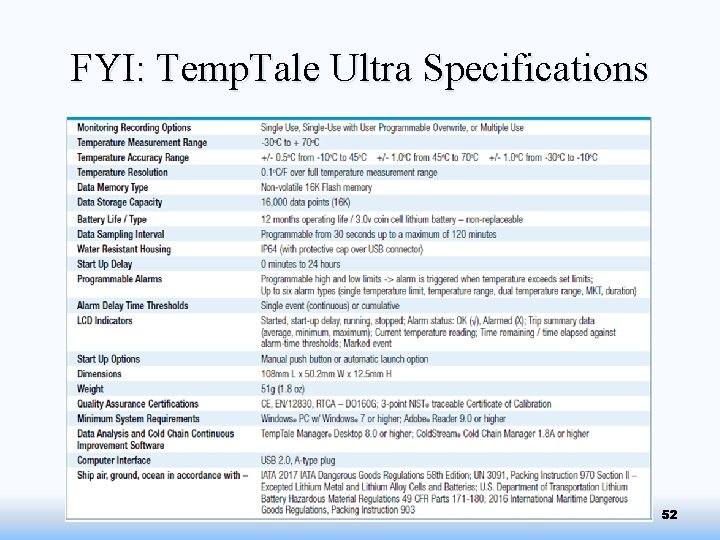
FYI: Temp. Tale Ultra Specifications 52
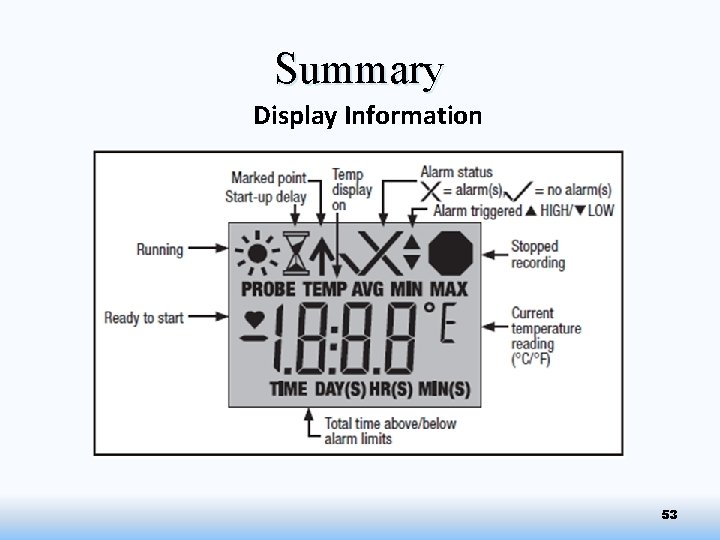
Summary Display Information 53
Downloading Reports Summary q Make sure the Temp. Tale is stopped. q Remove rubber cap and plug the Temp. Tale into a computer. q Reports (PDF and datafile) will be created automatically. q GREEN indicates report generation is complete. q Reports are now accessible on a removable drive. q Save report. 54
Clearing (Reconfiguring) a Temp. Tale Summary Ensure you have downloaded or saved data, as reconfiguring will erase it! q Plug Temp. Tale into the computer. q Open Sensitech’s TT Manager Desktop (TTMD) Software q Select Configuration. § Review: Intervals, Start Delay, Low and High Alarms. q Save Configuration. q Done. Temp. Tale LCD screen will be blank and ready for next use. Store in the vaccine fridge. 55
Temp. Tale Ultra Please call Brent (780 -495 -8903) or Christina (780 -495 -5439) if you have any questions. 56
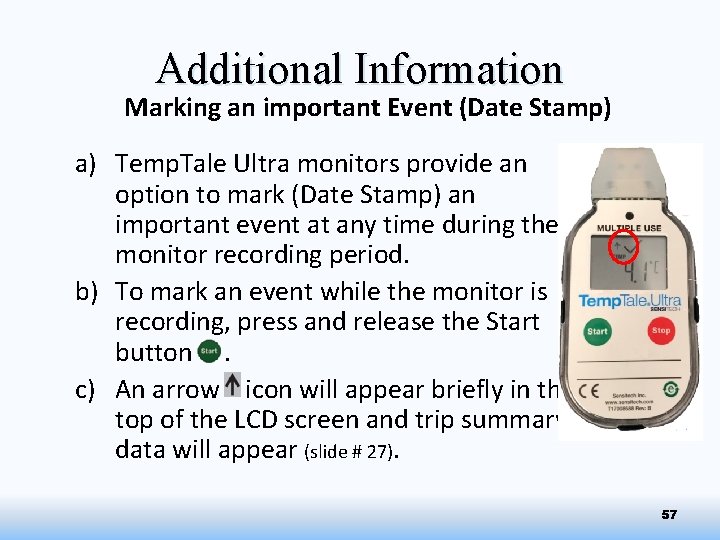
Additional Information Marking an important Event (Date Stamp) a) Temp. Tale Ultra monitors provide an option to mark (Date Stamp) an important event at any time during the monitor recording period. b) To mark an event while the monitor is recording, press and release the Start button. c) An arrow icon will appear briefly in the top of the LCD screen and trip summary data will appear (slide # 27). 57
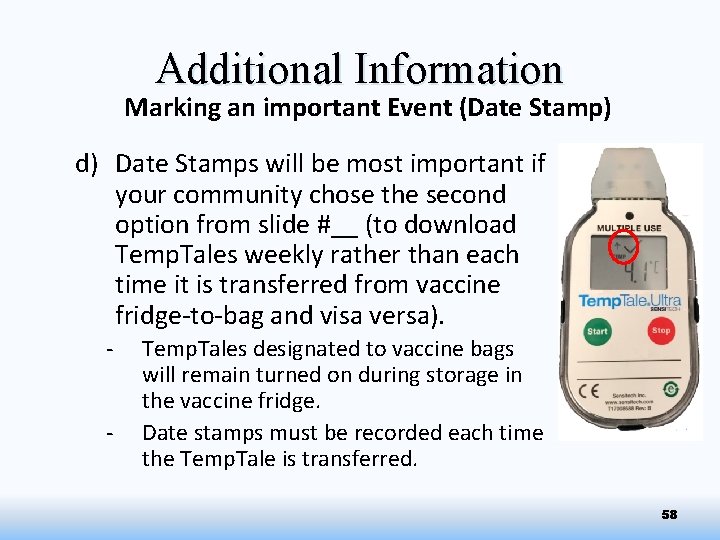
Additional Information Marking an important Event (Date Stamp) d) Date Stamps will be most important if your community chose the second option from slide #__ (to download Temp. Tales weekly rather than each time it is transferred from vaccine fridge-to-bag and visa versa). - Temp. Tales designated to vaccine bags will remain turned on during storage in the vaccine fridge. Date stamps must be recorded each time the Temp. Tale is transferred. 58
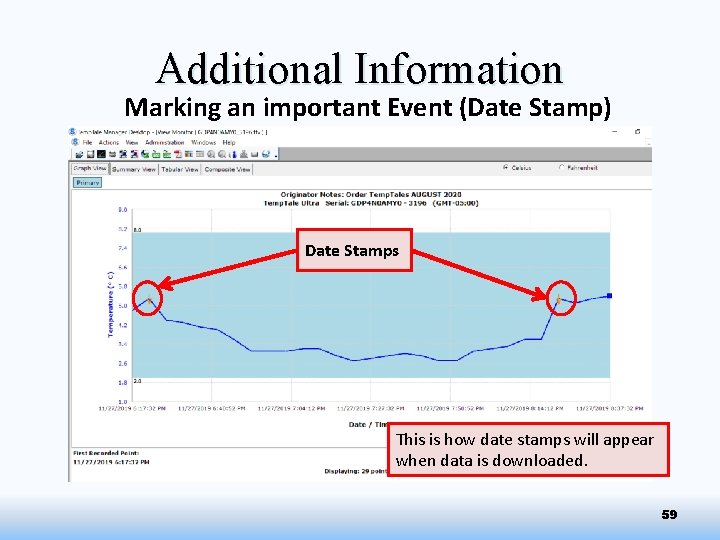
Additional Information Marking an important Event (Date Stamp) Date Stamps This is how date stamps will appear when data is downloaded. 59
Additional Information Christmas Settings If the Temp. Tale will not be downloaded weekly over the Christmas holidays: • Change the “Measurement Interval” to 3 mins on the last day the health centre is open. (Slide #48) • This will make sure the Temp. Tale doesn’t run out of storage space. • More information can be found in the Configuring Power. Point if needed. Letter [F] • Change the Measurement Interval back to 1 min after the Christmas break. • The min/max thermometer temperatures should still be documented for the vaccine fridge over Christmas. 60
- Slides: 60