
Using Alma Analytics with the Tableau Web Data

Using Alma Analytics with the Tableau Web Data Connector Yoel Kortick Senior Librarian https: //cdn. pixabay. com/photo/2016/04/04/14/12/monitor-1307227_960_720. jpg http: //www. slideteam. net/wp/wp-content/uploads/2015/11/Using-Images-and-Icons-to-Create-Awesome-Agenda-Slides. 1. png © 2016 Ex Libris | Confidential & Proprietary
Agenda Introduction The three necessary elements The Tableau Web Data Connector Editing the report appearance in Tableau Updating Data in a Saved Workbook text 6 © 2016 Ex Libris | Confidential & Proprietary 2
Introduction • The Tableau Web Data Connector allows the user to build connections to data from different sources. • In this manner an Alma institution can use the Tableau Web Data Connector to combine data from Alma Analytics and one or more additional sources. • For more information see Use the new Web Data Connector to reach any data © 2016 Ex Libris | Confidential & Proprietary 3
Introduction • In order to facilitate creating the connection from Tableau to Alma Analytics, Ex Libris has built a Web Page which can be “plugged in” to the Tableau Web Data Connector. • After pointing to this web page from the Tableau Web Data Connector it’s as simple as merely entering your API Key and the relevant path of your report into the designated fields. • No additional configuration is required. © 2016 Ex Libris | Confidential & Proprietary 4
Agenda Introduction The three necessary elements The Tableau Web Data Connector Editing the report appearance in Tableau Updating Data in a Saved Workbook text 6 © 2016 Ex Libris | Confidential & Proprietary 5
The three necessary elements 1. The URL of the Ex Libris web page 2. The path and name of the Alma Analytics report 3. The API key which allows accessing Alma Analytics reports for your institution © 2016 Ex Libris | Confidential & Proprietary 6
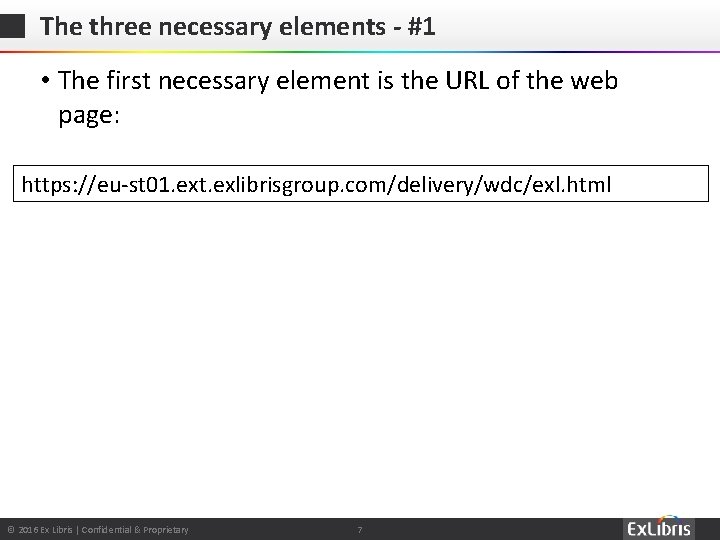
The three necessary elements - #1 • The first necessary element is the URL of the web page: https: //eu-st 01. ext. exlibrisgroup. com/delivery/wdc/exl. html © 2016 Ex Libris | Confidential & Proprietary 7
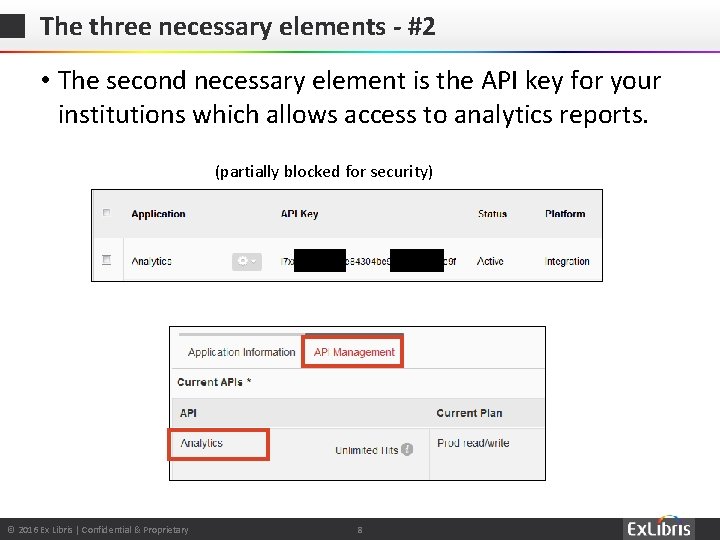
The three necessary elements - #2 • The second necessary element is the API key for your institutions which allows access to analytics reports. (partially blocked for security) © 2016 Ex Libris | Confidential & Proprietary 8
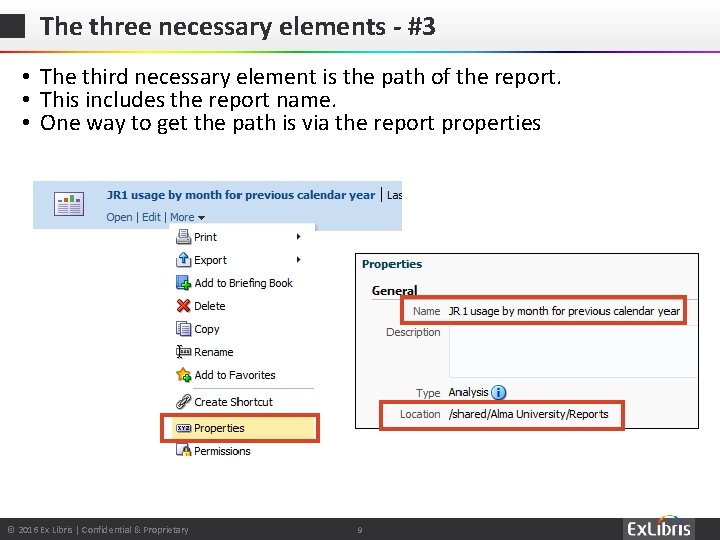
The three necessary elements - #3 • The third necessary element is the path of the report. • This includes the report name. • One way to get the path is via the report properties © 2016 Ex Libris | Confidential & Proprietary 9
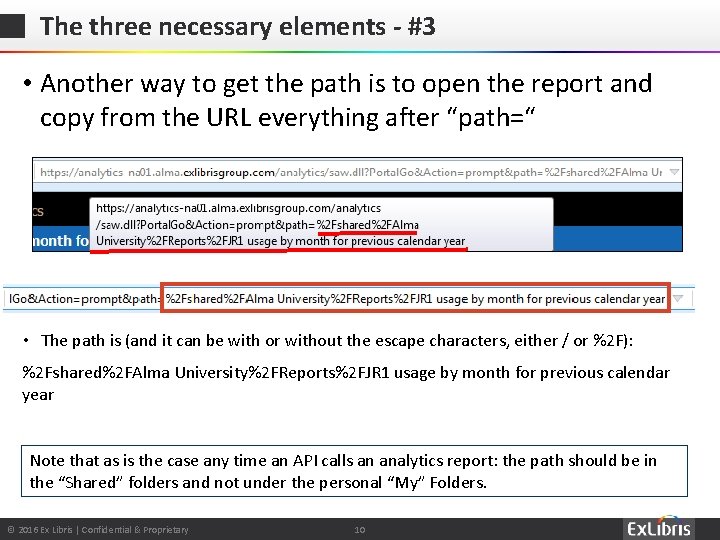
The three necessary elements - #3 • Another way to get the path is to open the report and copy from the URL everything after “path=“ • The path is (and it can be with or without the escape characters, either / or %2 F): %2 Fshared%2 FAlma University%2 FReports%2 FJR 1 usage by month for previous calendar year Note that as is the case any time an API calls an analytics report: the path should be in the “Shared” folders and not under the personal “My” Folders. © 2016 Ex Libris | Confidential & Proprietary 10
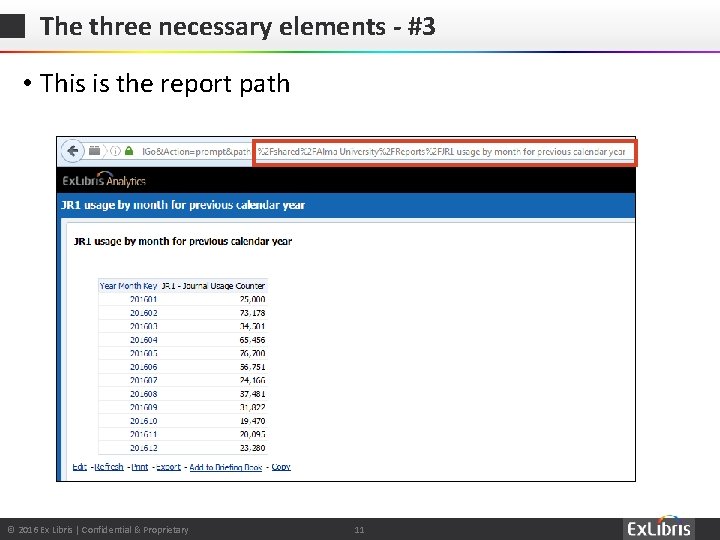
The three necessary elements - #3 • This is the report path © 2016 Ex Libris | Confidential & Proprietary 11
Agenda Introduction The three necessary elements The Tableau Web Data Connector Editing the report appearance in Tableau Updating Data in a Saved Workbook text 6 © 2016 Ex Libris | Confidential & Proprietary 12
The Tableau Web Data Connector • We will assume that Tableau is installed on your PC. • Here we are using Tableau 10. 1 © 2016 Ex Libris | Confidential & Proprietary 13
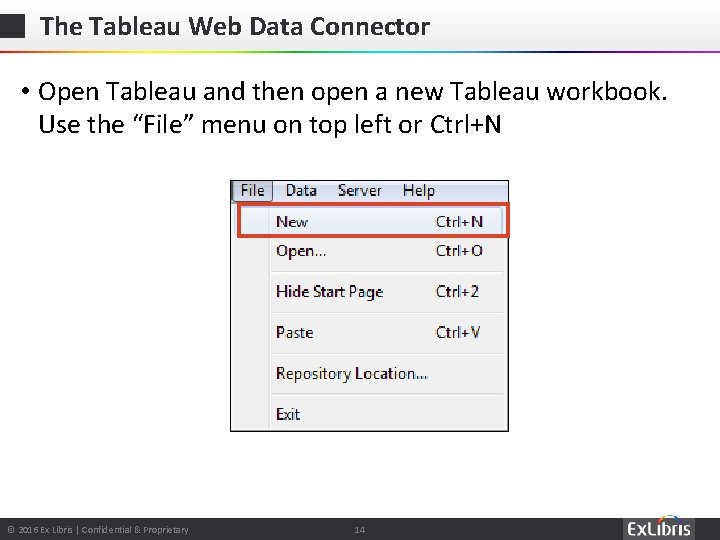
The Tableau Web Data Connector • Open Tableau and then open a new Tableau workbook. Use the “File” menu on top left or Ctrl+N © 2016 Ex Libris | Confidential & Proprietary 14
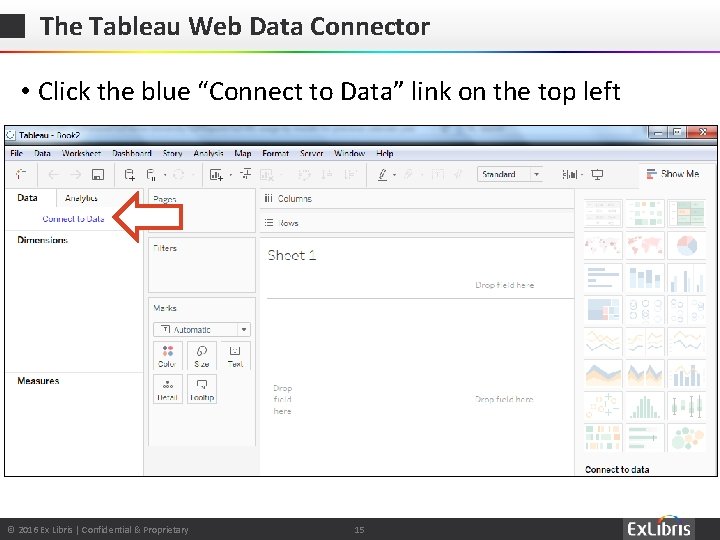
The Tableau Web Data Connector • Click the blue “Connect to Data” link on the top left © 2016 Ex Libris | Confidential & Proprietary 15
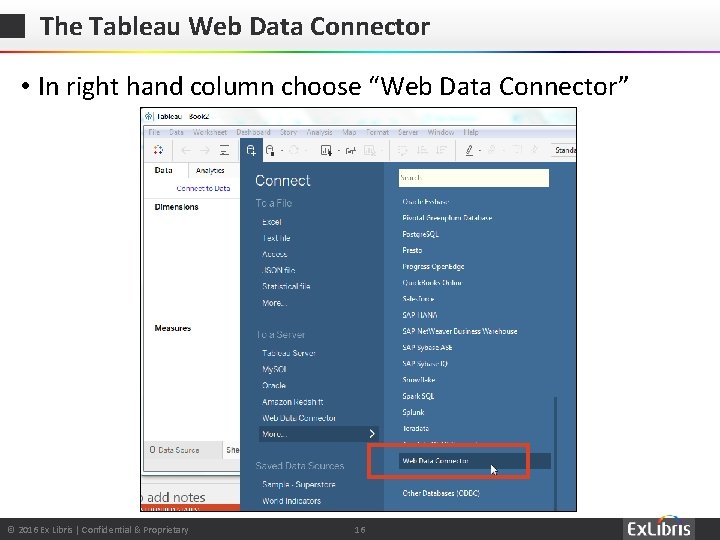
The Tableau Web Data Connector • In right hand column choose “Web Data Connector” © 2016 Ex Libris | Confidential & Proprietary 16
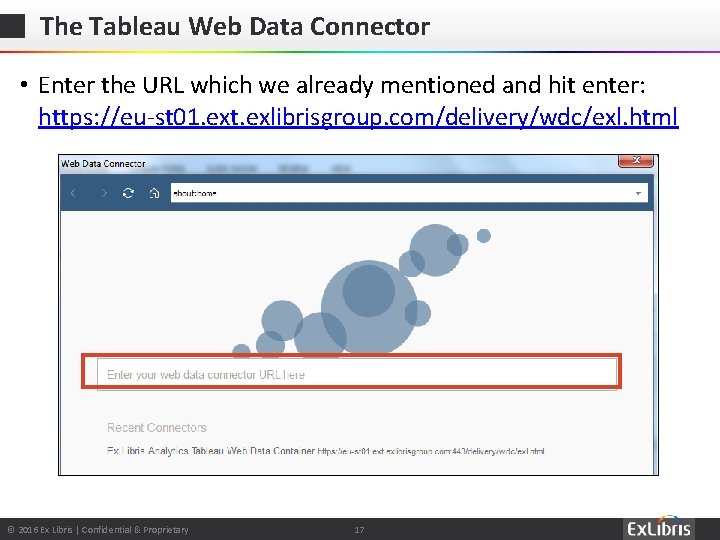
The Tableau Web Data Connector • Enter the URL which we already mentioned and hit enter: https: //eu-st 01. ext. exlibrisgroup. com/delivery/wdc/exl. html © 2016 Ex Libris | Confidential & Proprietary 17
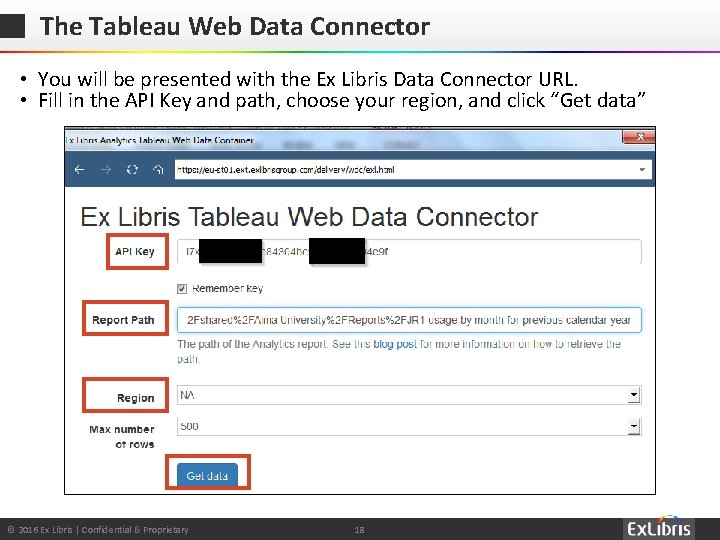
The Tableau Web Data Connector • You will be presented with the Ex Libris Data Connector URL. • Fill in the API Key and path, choose your region, and click “Get data” © 2016 Ex Libris | Confidential & Proprietary 18
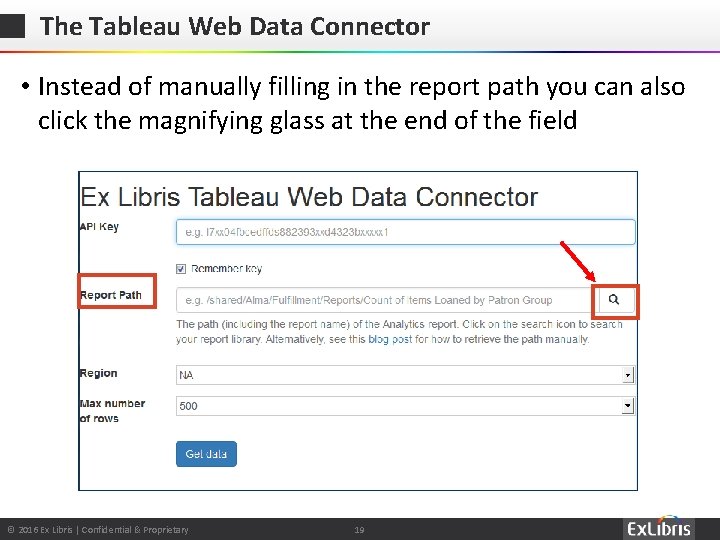
The Tableau Web Data Connector • Instead of manually filling in the report path you can also click the magnifying glass at the end of the field © 2016 Ex Libris | Confidential & Proprietary 19
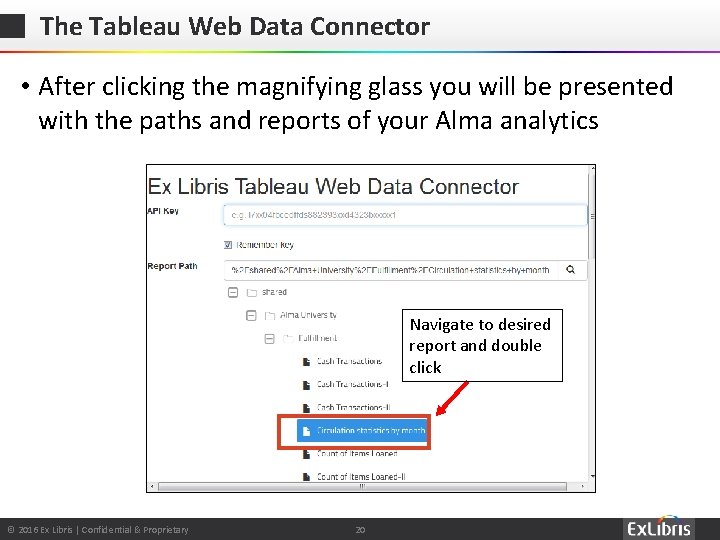
The Tableau Web Data Connector • After clicking the magnifying glass you will be presented with the paths and reports of your Alma analytics Navigate to desired report and double click © 2016 Ex Libris | Confidential & Proprietary 20
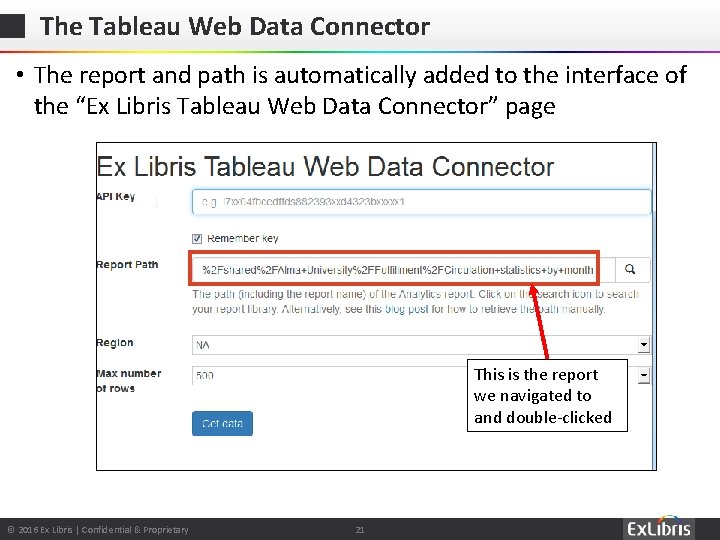
The Tableau Web Data Connector • The report and path is automatically added to the interface of the “Ex Libris Tableau Web Data Connector” page This is the report we navigated to and double-clicked © 2016 Ex Libris | Confidential & Proprietary 21
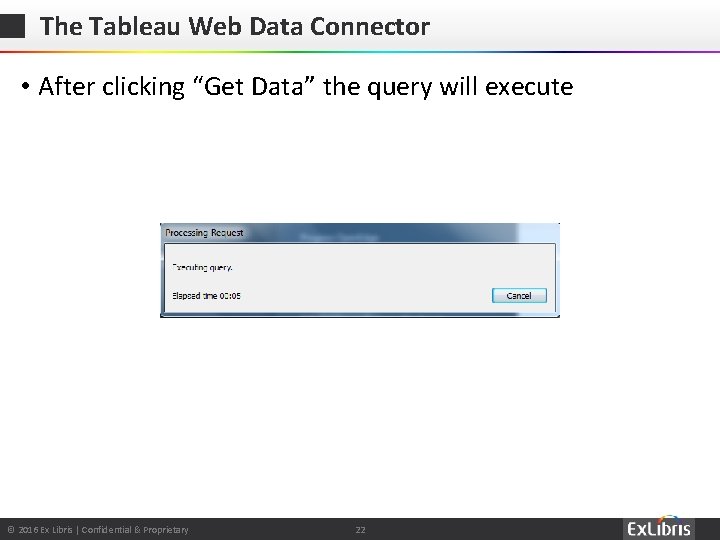
The Tableau Web Data Connector • After clicking “Get Data” the query will execute © 2016 Ex Libris | Confidential & Proprietary 22
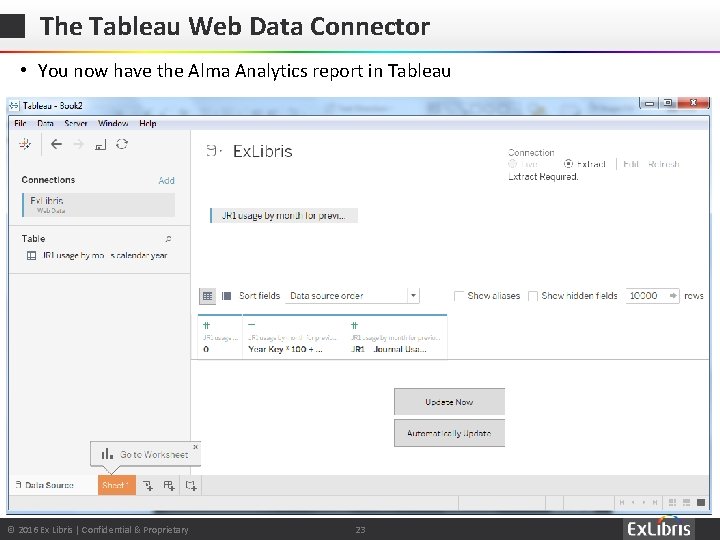
The Tableau Web Data Connector • You now have the Alma Analytics report in Tableau © 2016 Ex Libris | Confidential & Proprietary 23
Agenda Introduction The three necessary elements The Tableau Web Data Connector Editing the report appearance in Tableau Updating Data in a Saved Workbook text 6 © 2016 Ex Libris | Confidential & Proprietary 24
Editing the report appearance in Tableau – Example 1 • We will now do as follows after retrieving report “JR 1 usage by month - for previous calendar year” 1. Click update now to see the actual data (not mandatory but will ensure you are on the right track) 2. Open a new sheet or use existing sheet on bottom left 3. Put the year key on the top in the "columns" section 4. Change the Year Key to a dimension 5. Put the JR 1 Journal usage on the top in the "Rows" 6. See the default line graph we receive 7. Choose a different presentation such as an area chart © 2016 Ex Libris | Confidential & Proprietary 25
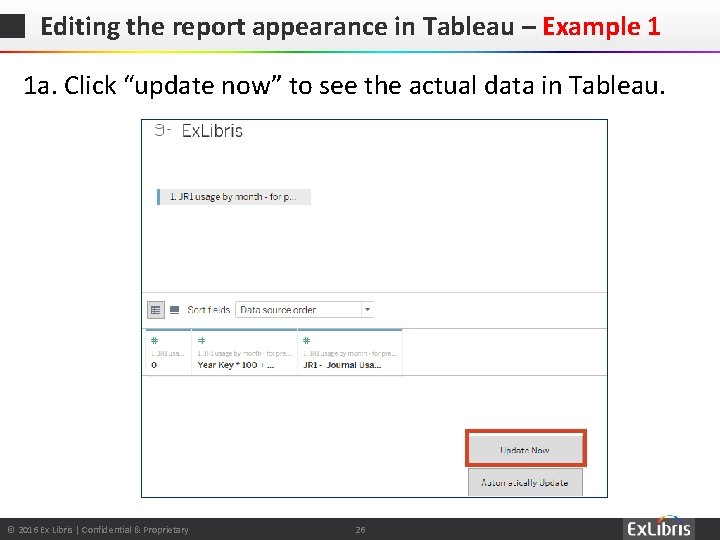
Editing the report appearance in Tableau – Example 1 1 a. Click “update now” to see the actual data in Tableau. © 2016 Ex Libris | Confidential & Proprietary 26
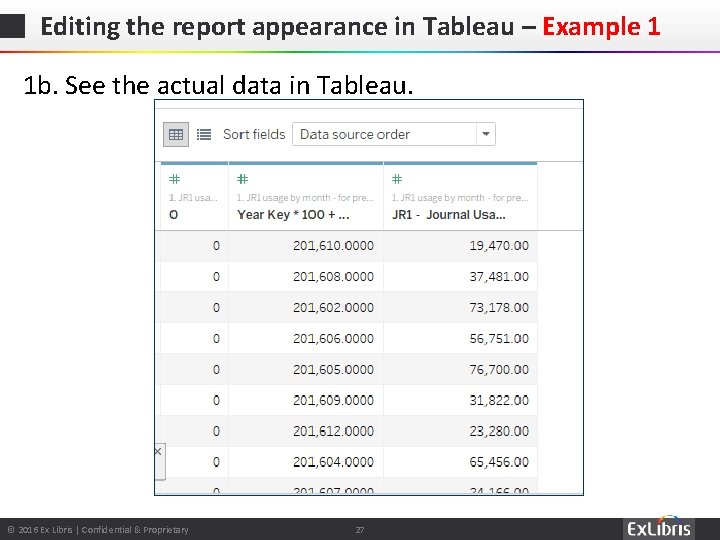
Editing the report appearance in Tableau – Example 1 1 b. See the actual data in Tableau. © 2016 Ex Libris | Confidential & Proprietary 27
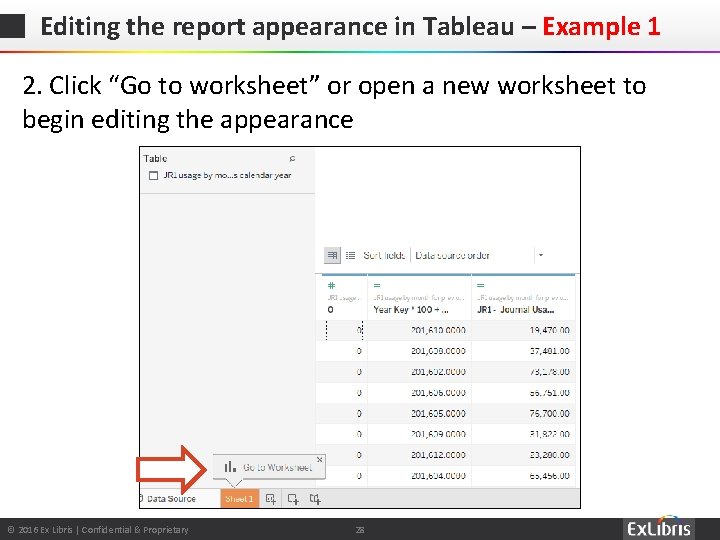
Editing the report appearance in Tableau – Example 1 2. Click “Go to worksheet” or open a new worksheet to begin editing the appearance © 2016 Ex Libris | Confidential & Proprietary 28
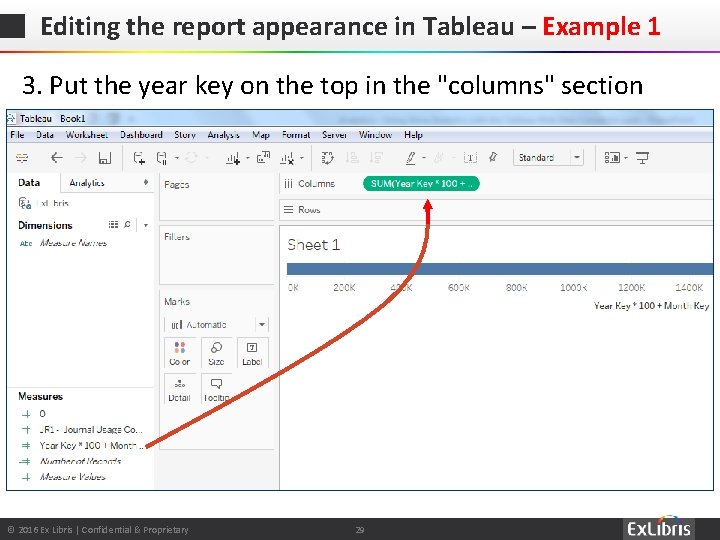
Editing the report appearance in Tableau – Example 1 3. Put the year key on the top in the "columns" section © 2016 Ex Libris | Confidential & Proprietary 29
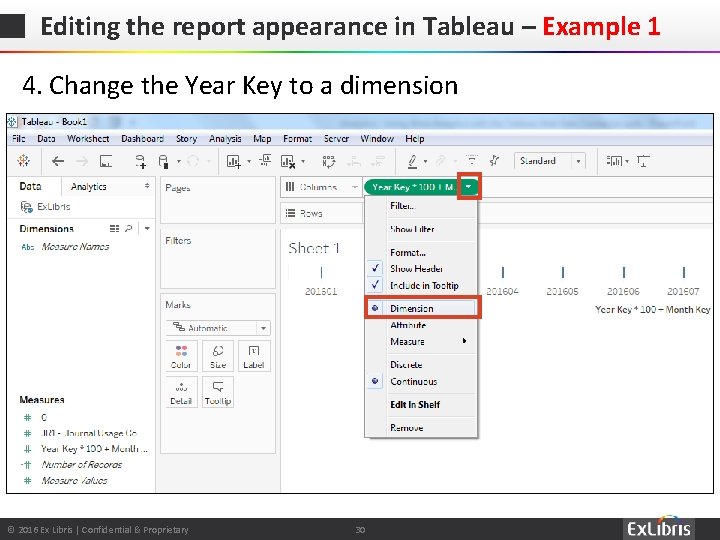
Editing the report appearance in Tableau – Example 1 4. Change the Year Key to a dimension © 2016 Ex Libris | Confidential & Proprietary 30
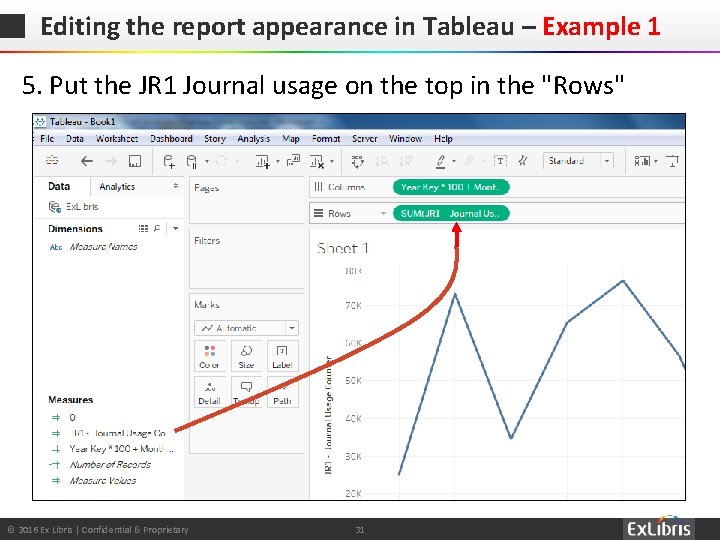
Editing the report appearance in Tableau – Example 1 5. Put the JR 1 Journal usage on the top in the "Rows" © 2016 Ex Libris | Confidential & Proprietary 31
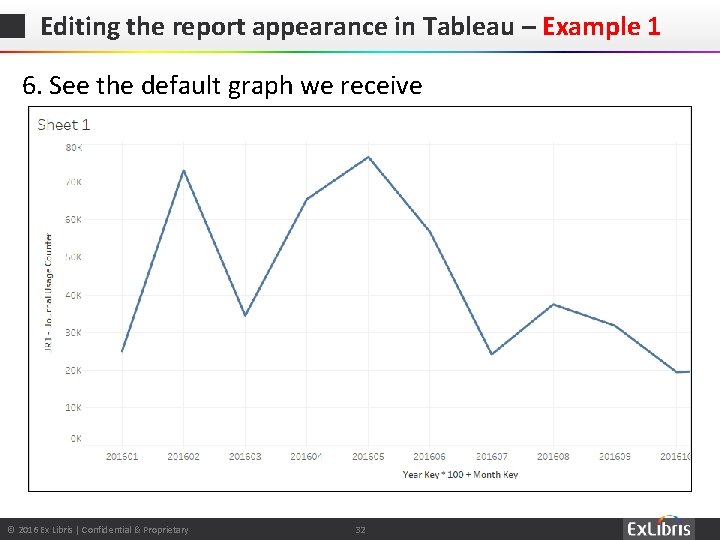
Editing the report appearance in Tableau – Example 1 6. See the default graph we receive © 2016 Ex Libris | Confidential & Proprietary 32
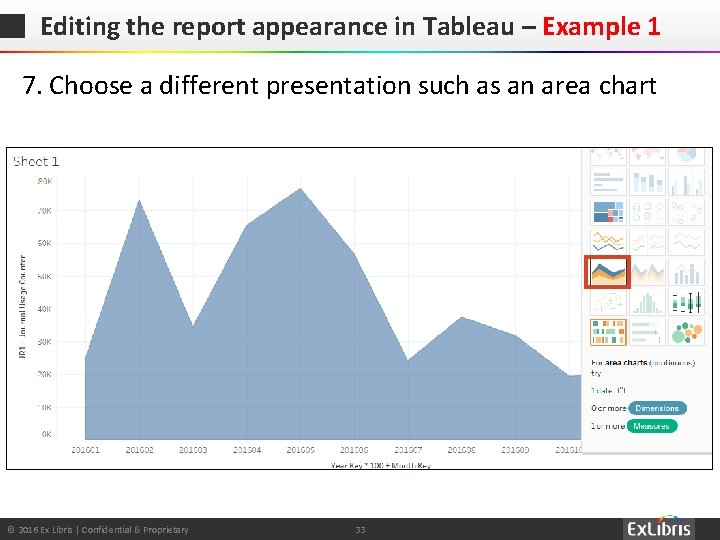
Editing the report appearance in Tableau – Example 1 7. Choose a different presentation such as an area chart © 2016 Ex Libris | Confidential & Proprietary 33
Editing the report appearance in Tableau – Example 2 • We will now do as follows after retrieving report “ 2. Ten least expensive titles for previous calendar year” 1. Click update now to see the actual data 2. Open a new sheet or use existing sheet on bottom left 3. Put the LEFT(Title, 150) field on the top in the "columns" section 4. Put the Cost per Use measure on the top in the "Rows" (as Sum) 5. See the default line graph we receive 6. Choose a different presentation such as a text table 7. Rename ‘LEFT(Title, 150)’ to ‘Title’ 8. Change the Cost Per Use to currency © 2016 Ex Libris | Confidential & Proprietary 34
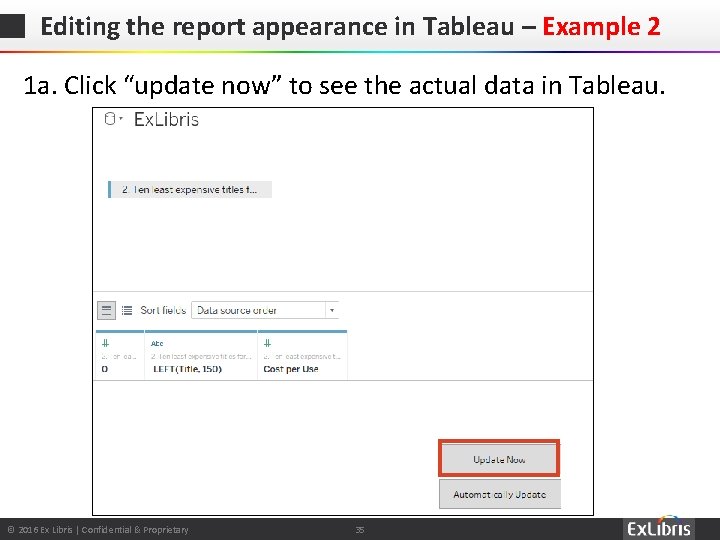
Editing the report appearance in Tableau – Example 2 1 a. Click “update now” to see the actual data in Tableau. © 2016 Ex Libris | Confidential & Proprietary 35
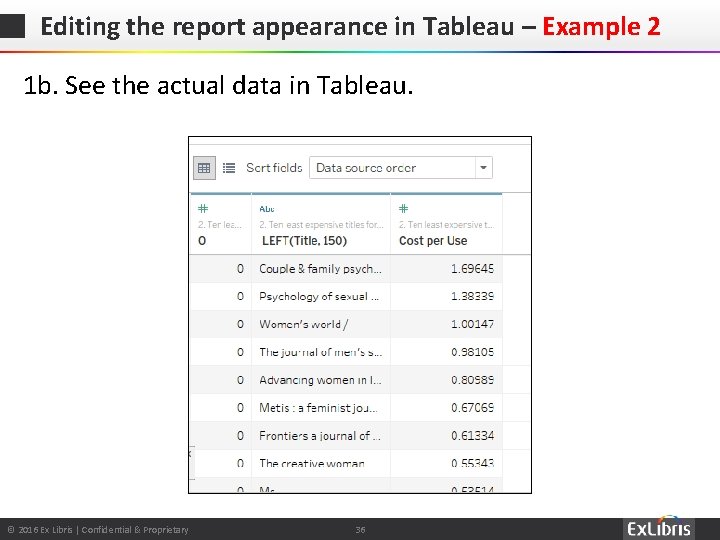
Editing the report appearance in Tableau – Example 2 1 b. See the actual data in Tableau. © 2016 Ex Libris | Confidential & Proprietary 36
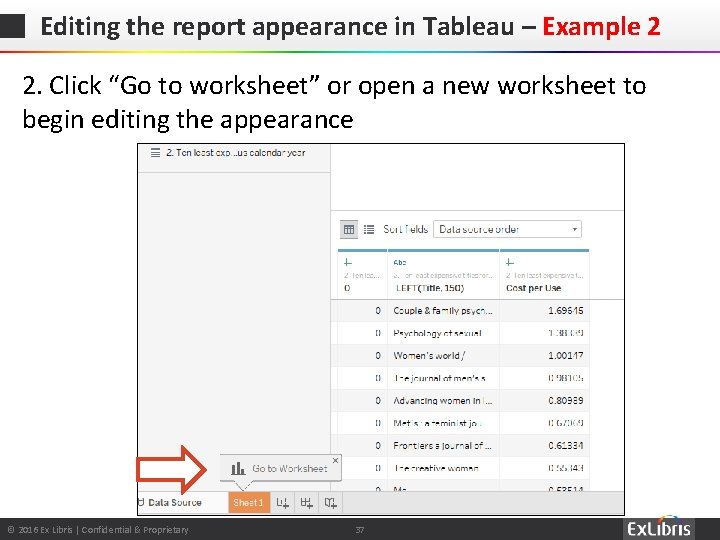
Editing the report appearance in Tableau – Example 2 2. Click “Go to worksheet” or open a new worksheet to begin editing the appearance © 2016 Ex Libris | Confidential & Proprietary 37
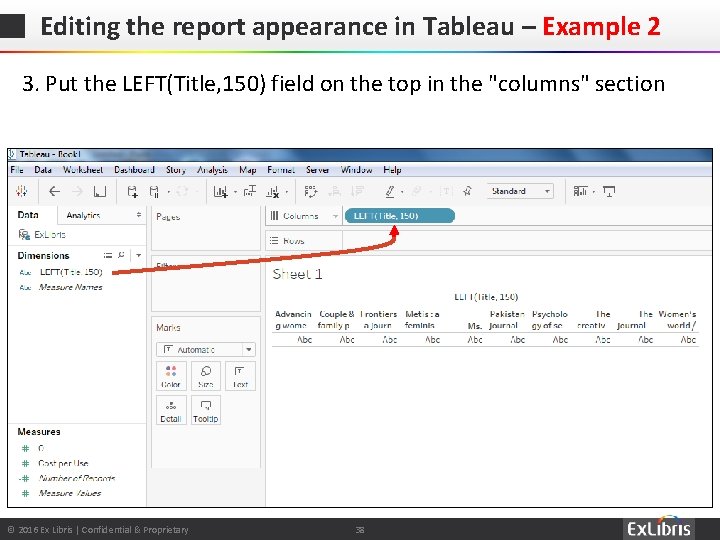
Editing the report appearance in Tableau – Example 2 3. Put the LEFT(Title, 150) field on the top in the "columns" section © 2016 Ex Libris | Confidential & Proprietary 38
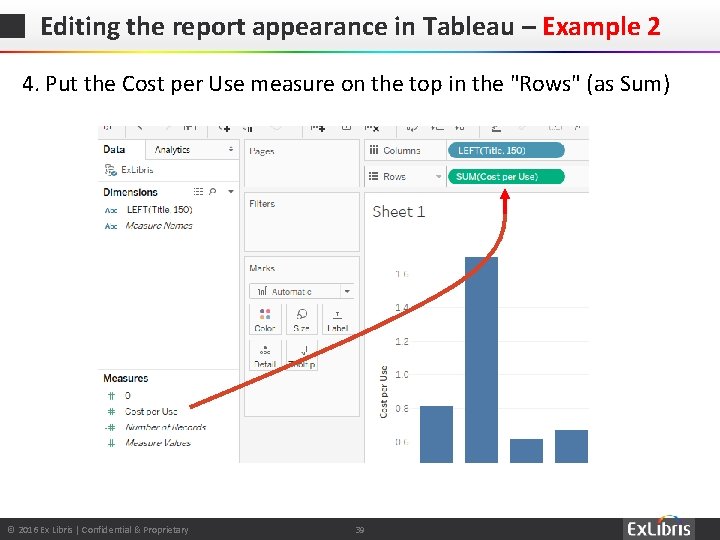
Editing the report appearance in Tableau – Example 2 4. Put the Cost per Use measure on the top in the "Rows" (as Sum) © 2016 Ex Libris | Confidential & Proprietary 39
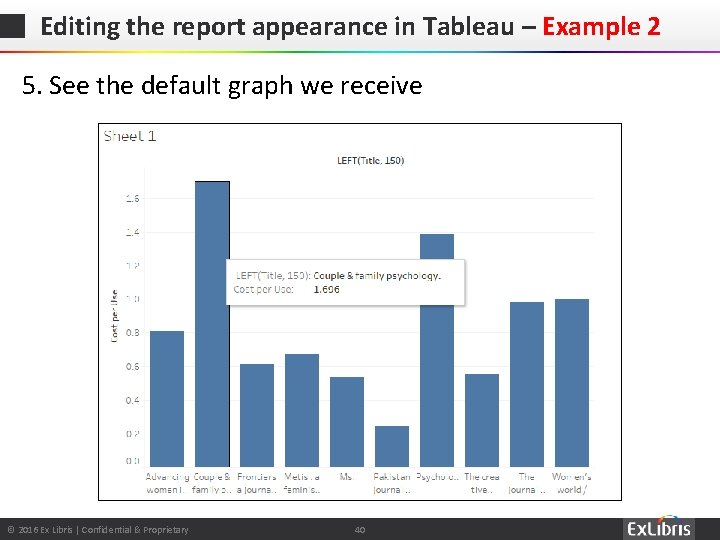
Editing the report appearance in Tableau – Example 2 5. See the default graph we receive © 2016 Ex Libris | Confidential & Proprietary 40
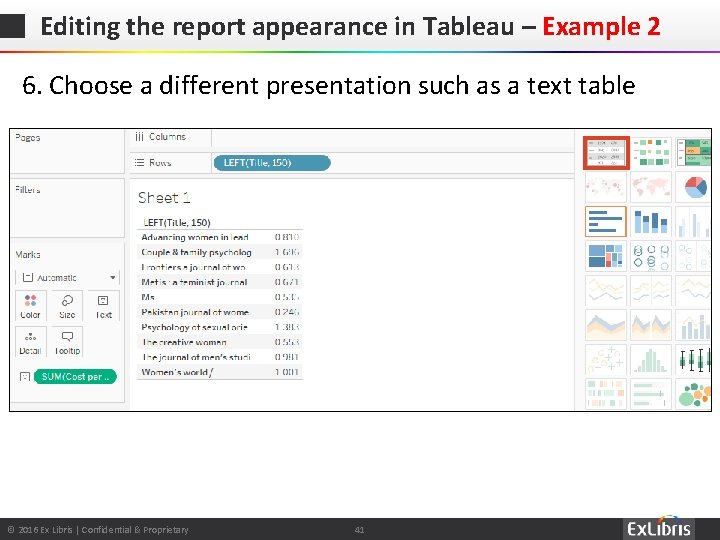
Editing the report appearance in Tableau – Example 2 6. Choose a different presentation such as a text table © 2016 Ex Libris | Confidential & Proprietary 41
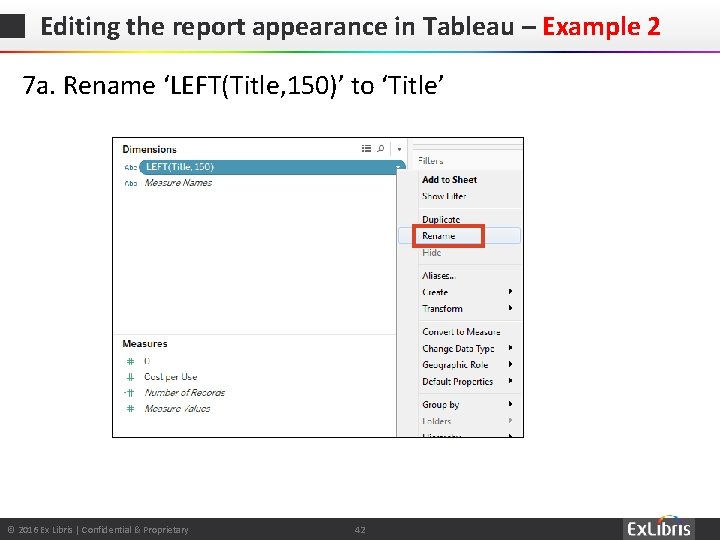
Editing the report appearance in Tableau – Example 2 7 a. Rename ‘LEFT(Title, 150)’ to ‘Title’ © 2016 Ex Libris | Confidential & Proprietary 42
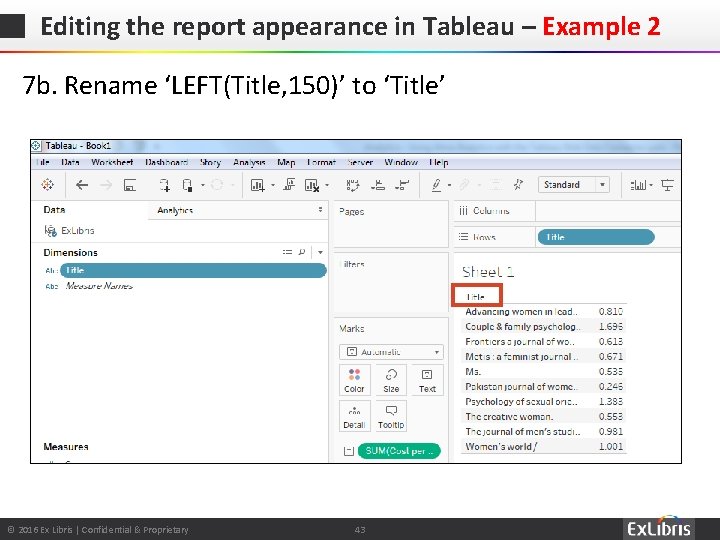
Editing the report appearance in Tableau – Example 2 7 b. Rename ‘LEFT(Title, 150)’ to ‘Title’ © 2016 Ex Libris | Confidential & Proprietary 43
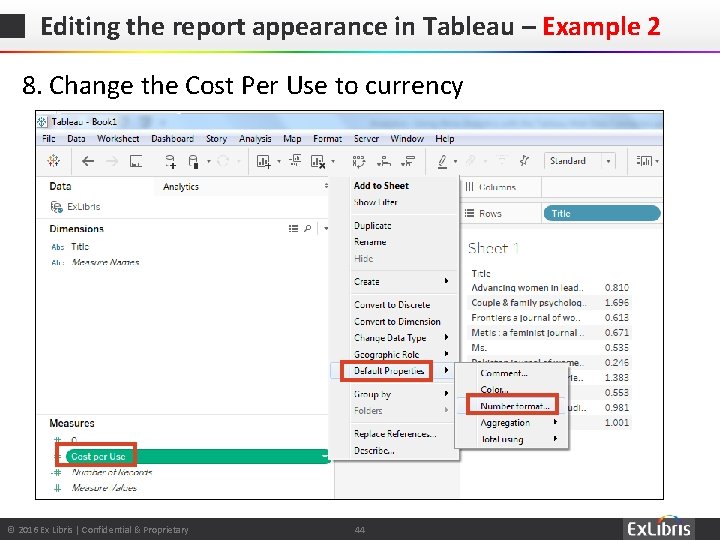
Editing the report appearance in Tableau – Example 2 8. Change the Cost Per Use to currency © 2016 Ex Libris | Confidential & Proprietary 44
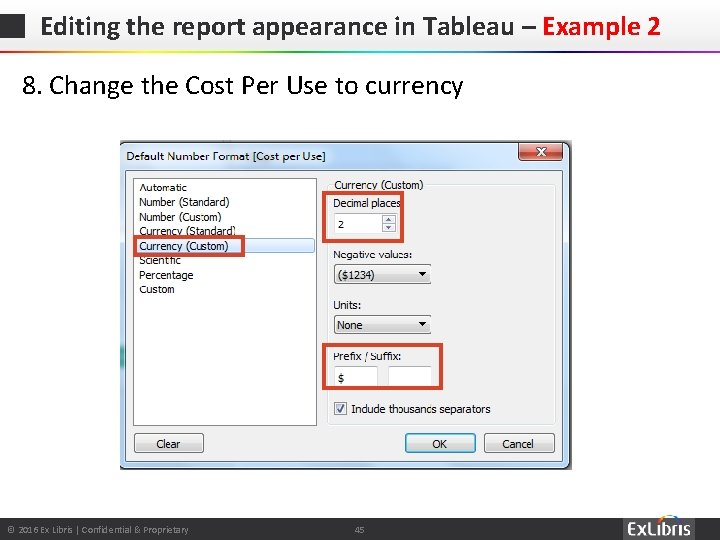
Editing the report appearance in Tableau – Example 2 8. Change the Cost Per Use to currency © 2016 Ex Libris | Confidential & Proprietary 45

Editing the report appearance in Tableau – Example 2 8. Change the Cost Per Use to currency © 2016 Ex Libris | Confidential & Proprietary 46
Agenda Introduction The three necessary elements The Tableau Web Data Connector Editing the report appearance in Tableau Updating Data in a Saved Workbook text 6 © 2016 Ex Libris | Confidential & Proprietary 47
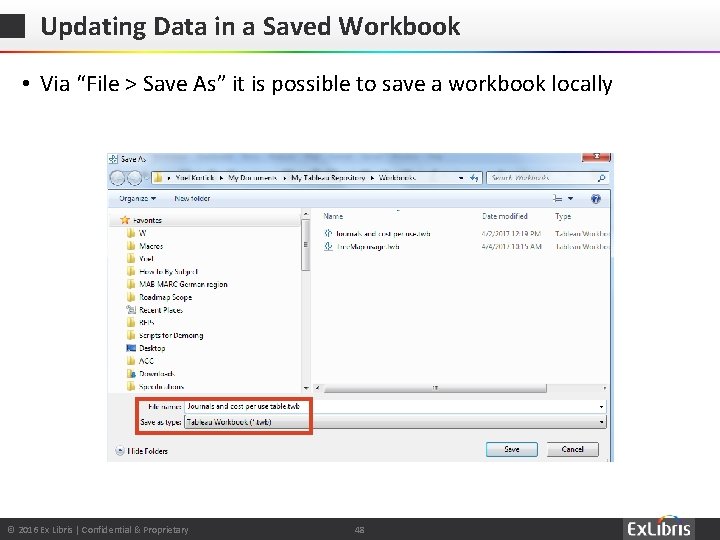
Updating Data in a Saved Workbook • Via “File > Save As” it is possible to save a workbook locally © 2016 Ex Libris | Confidential & Proprietary 48
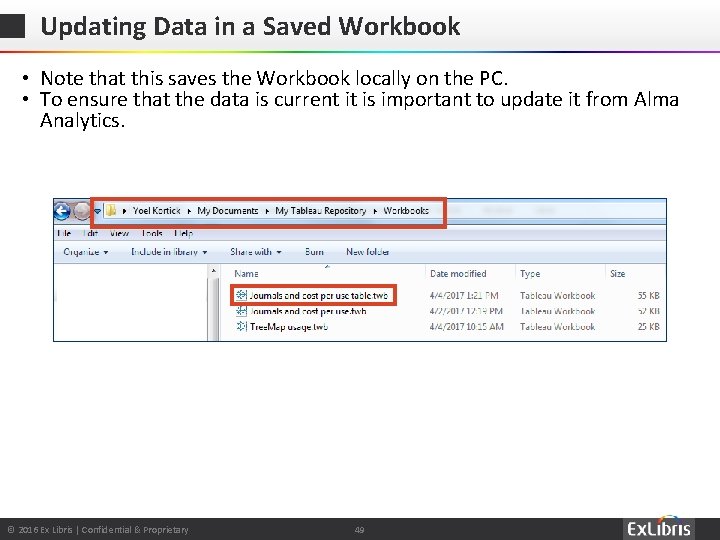
Updating Data in a Saved Workbook • Note that this saves the Workbook locally on the PC. • To ensure that the data is current it is important to update it from Alma Analytics. © 2016 Ex Libris | Confidential & Proprietary 49
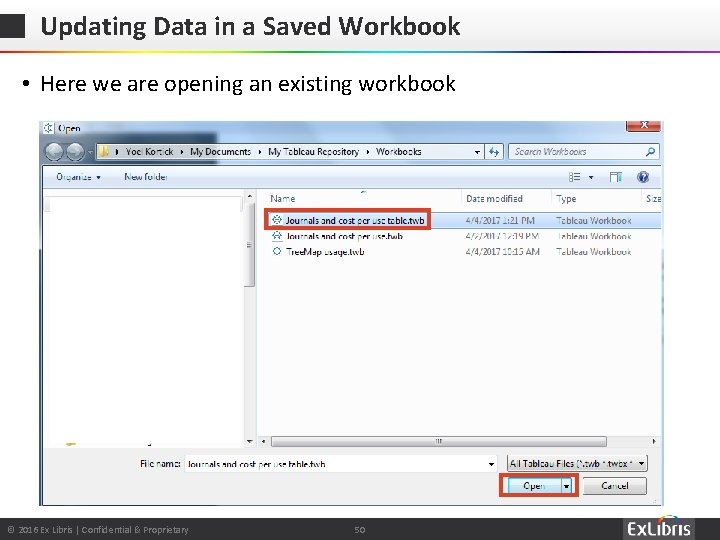
Updating Data in a Saved Workbook • Here we are opening an existing workbook © 2016 Ex Libris | Confidential & Proprietary 50
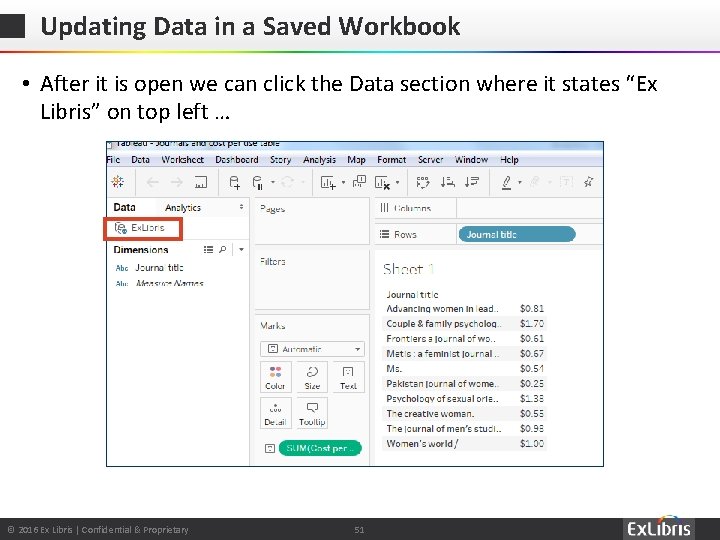
Updating Data in a Saved Workbook • After it is open we can click the Data section where it states “Ex Libris” on top left … © 2016 Ex Libris | Confidential & Proprietary 51
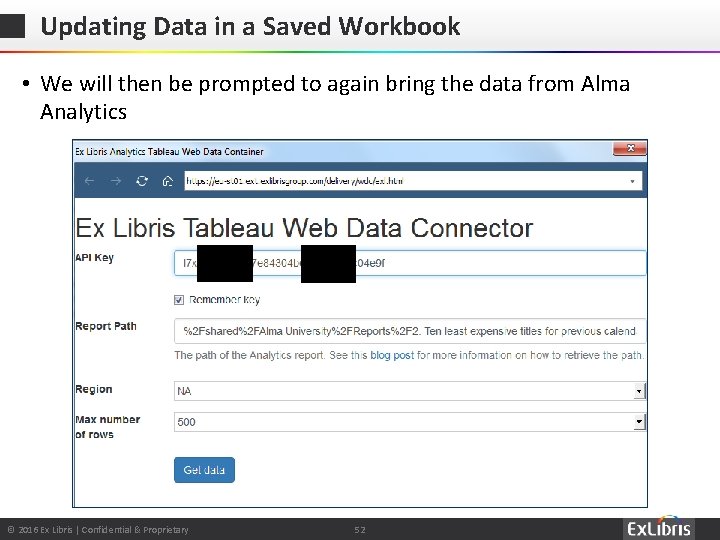
Updating Data in a Saved Workbook • We will then be prompted to again bring the data from Alma Analytics © 2016 Ex Libris | Confidential & Proprietary 52
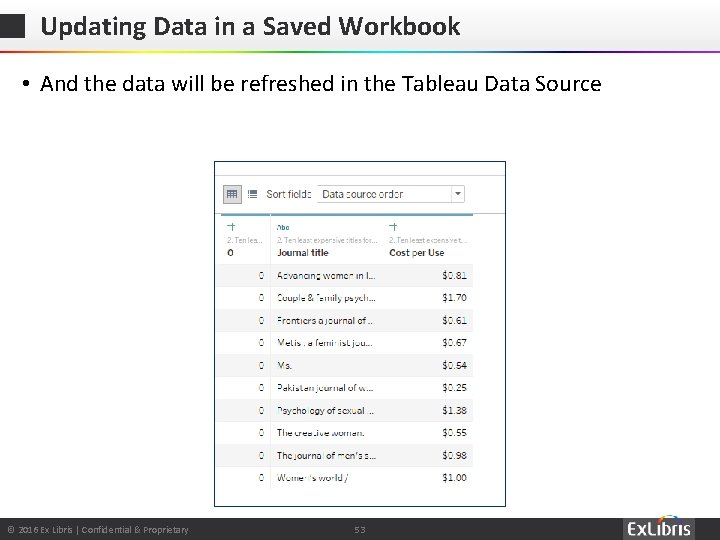
Updating Data in a Saved Workbook • And the data will be refreshed in the Tableau Data Source © 2016 Ex Libris | Confidential & Proprietary 53
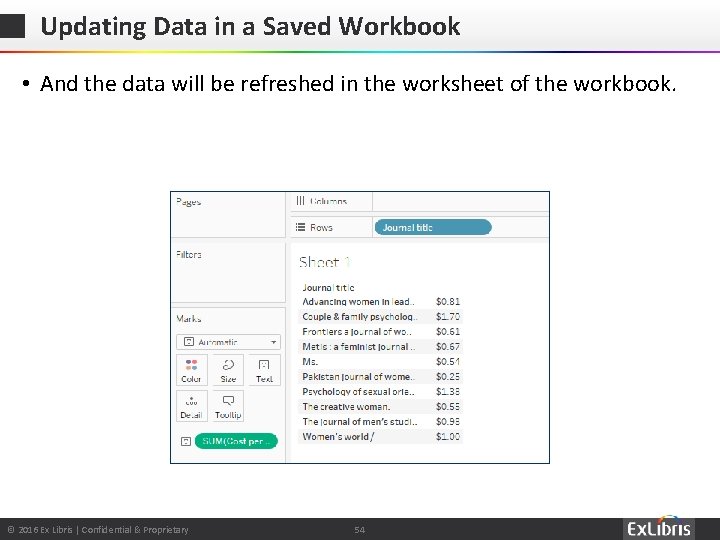
Updating Data in a Saved Workbook • And the data will be refreshed in the worksheet of the workbook. © 2016 Ex Libris | Confidential & Proprietary 54

Thank You https: //cdn. pixabay. com/photo/2016/04/04/14/12/monitor-1307227_960_720. jpg © 2016 Ex Libris | Confidential & Proprietary
- Slides: 55