
Using a record as a temporary template A

- Slides: 4
Using a record as a temporary template - A version of “copy” cataloging 1. Highlight the record you want to copy (make it blue!) How? Click the record in the LIST format. You can not copy an “open” record. 2. Click on RECORD. Scroll down to DUPLICATE. Click and let go. 3. Now you have 2 identical records. OPEN one up and make the changes needed to represent the 2 nd item properly.
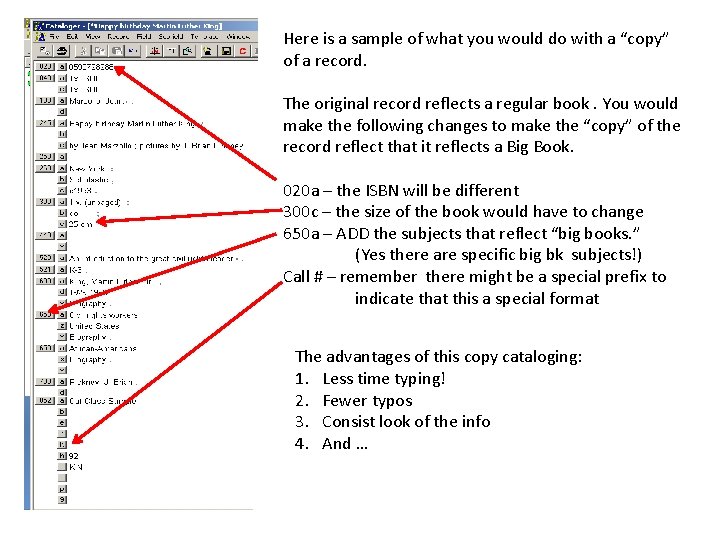
Here is a sample of what you would do with a “copy” of a record. The original record reflects a regular book. You would make the following changes to make the “copy” of the record reflect that it reflects a Big Book. 020 a – the ISBN will be different 300 c – the size of the book would have to change 650 a – ADD the subjects that reflect “big books. ” (Yes there are specific big bk subjects!) Call # – remember there might be a special prefix to indicate that this a special format The advantages of this copy cataloging: 1. Less time typing! 2. Fewer typos 3. Consist look of the info 4. And …
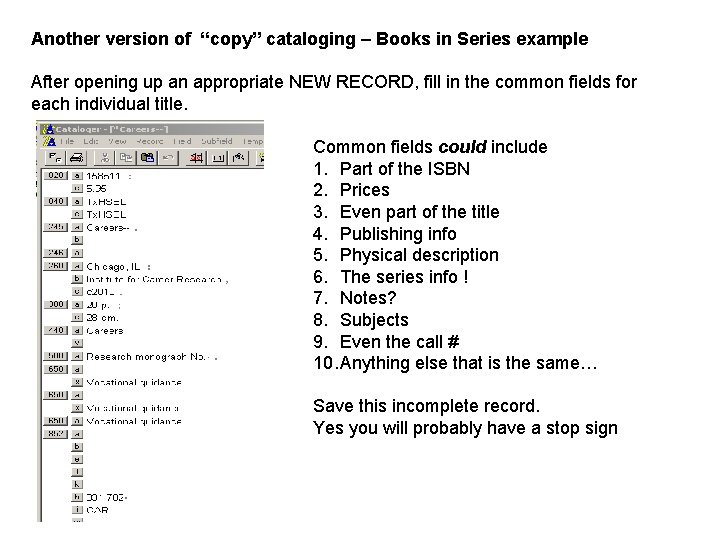
Another version of “copy” cataloging – Books in Series example After opening up an appropriate NEW RECORD, fill in the common fields for each individual title. Common fields could include 1. Part of the ISBN 2. Prices 3. Even part of the title 4. Publishing info 5. Physical description 6. The series info ! 7. Notes? 8. Subjects 9. Even the call # 10. Anything else that is the same… Save this incomplete record. Yes you will probably have a stop sign
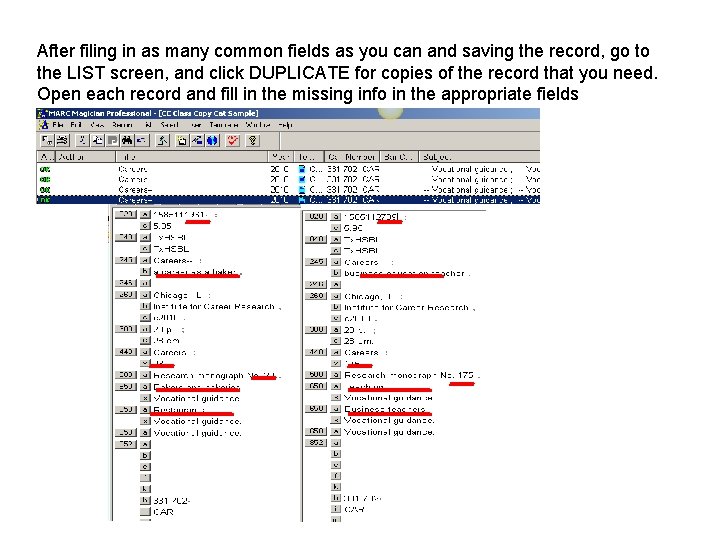
After filing in as many common fields as you can and saving the record, go to the LIST screen, and click DUPLICATE for copies of the record that you need. Open each record and fill in the missing info in the appropriate fields