
USF Research Integrity Compliance e IRB System Training
USF Research Integrity & Compliance e. IRB System Training 10/15/2018
What is ARC? Ø ARC (Applications for Research Compliance) • Electronic system which houses e. IRB, e. IACUC and e. COI applications Ø ARC is used by: • Study Teams to create and submit research related applications • Staff to facilitate the review of study applications • Reviewers to review the applications Ø Users gain access by registering for an ARC account
ARC Registration Ø To access and use ARC, you must register at https: //arc. research. usf. edu/prod Ø Complete all the fields on the registration form Ø Your Username and Password will be e-mailed to you Ø USF Personnel can login using their Net. ID
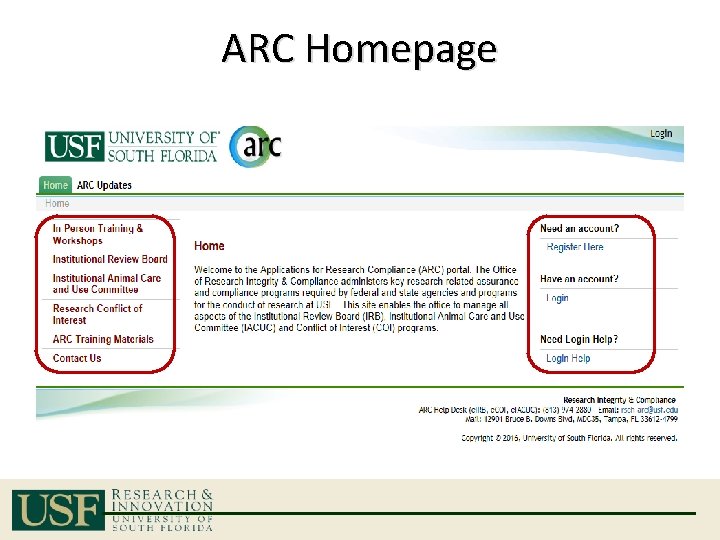
ARC Homepage
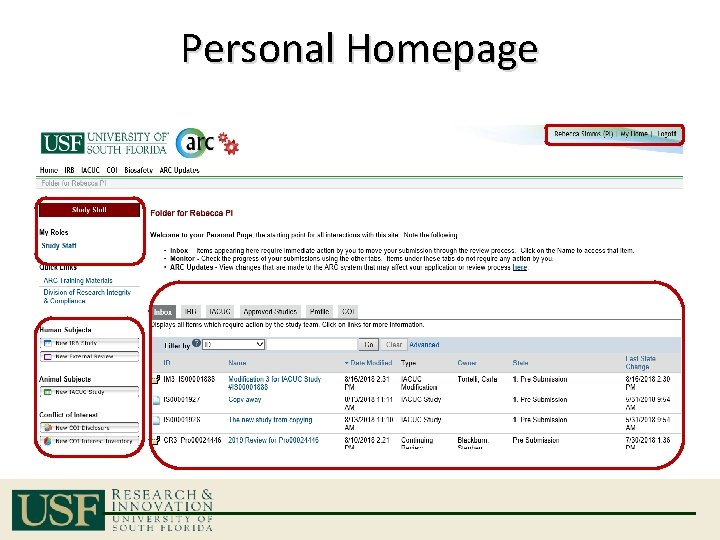
Personal Homepage
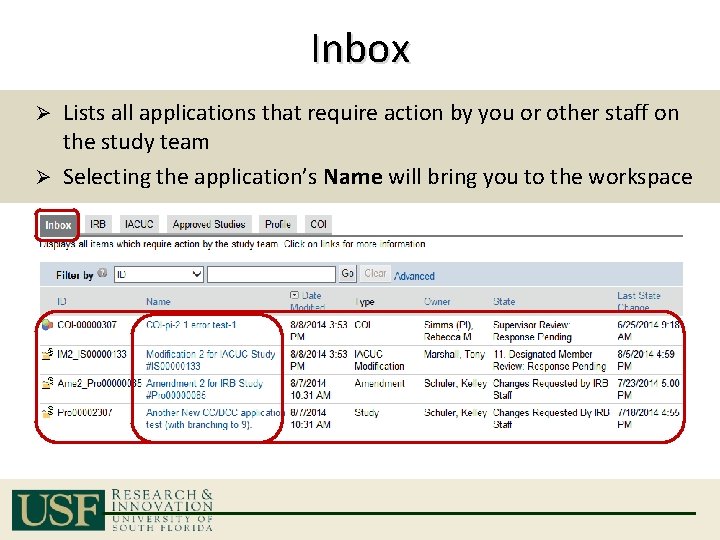
Inbox Lists all applications that require action by you or other staff on the study team Ø Selecting the application’s Name will bring you to the workspace Ø
Starting a New Study 1) Create the New Study 2) Complete the Smartform 3) Use Activities to Submit for Review All Applications follow the same basic submission process
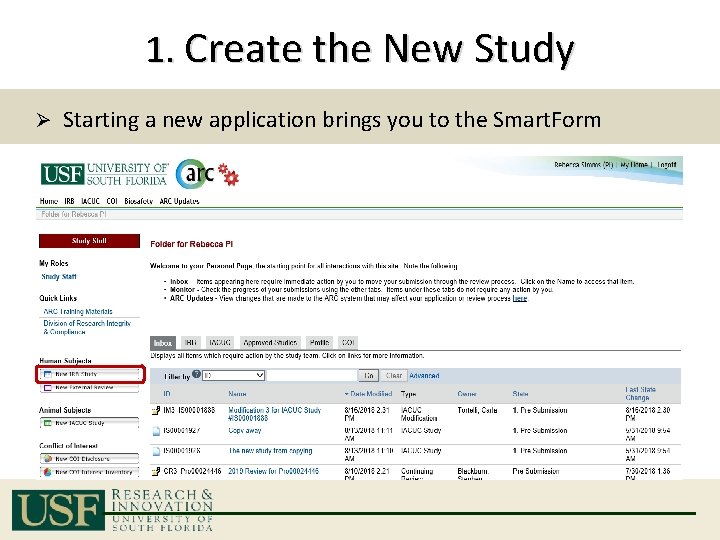
1. Create the New Study Ø Starting a new application brings you to the Smart. Form
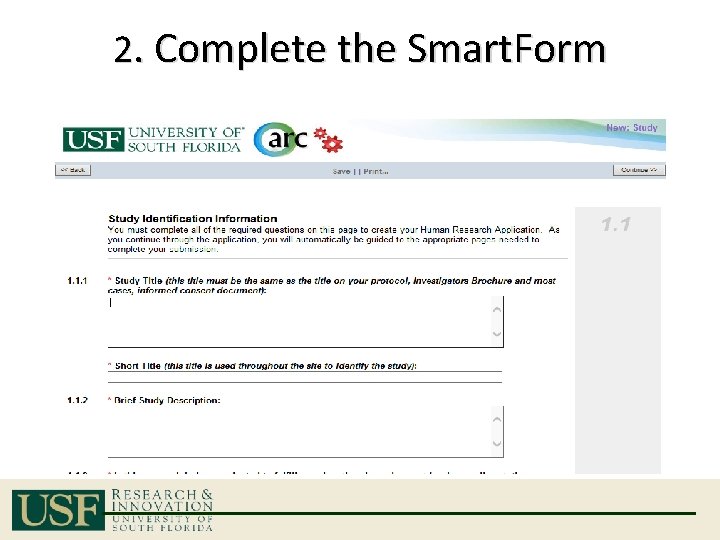
2. Complete the Smart. Form
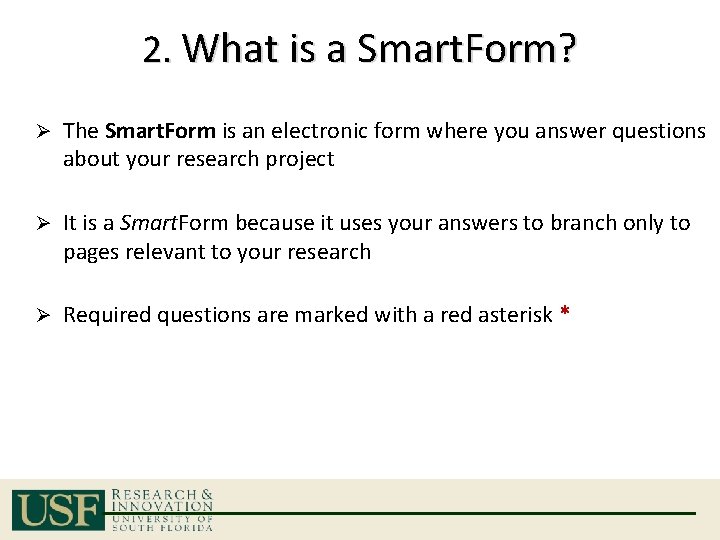
2. What is a Smart. Form? Ø The Smart. Form is an electronic form where you answer questions about your research project Ø It is a Smart. Form because it uses your answers to branch only to pages relevant to your research Ø Required questions are marked with a red asterisk *
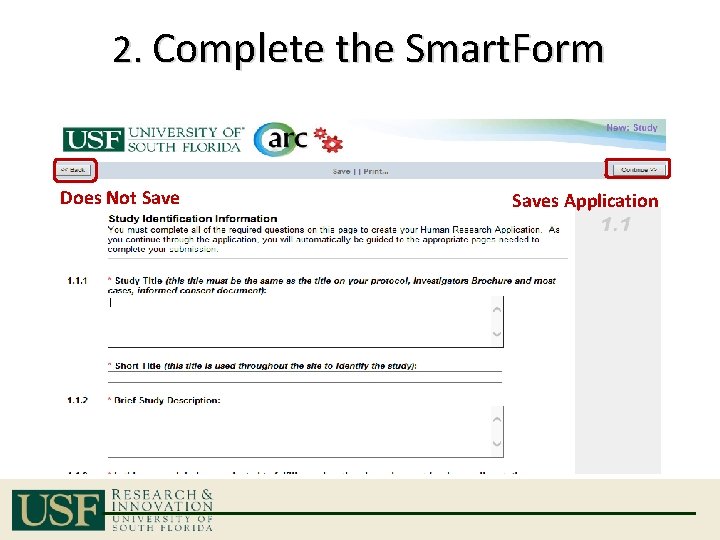
2. Complete the Smart. Form Does Not Saves Application
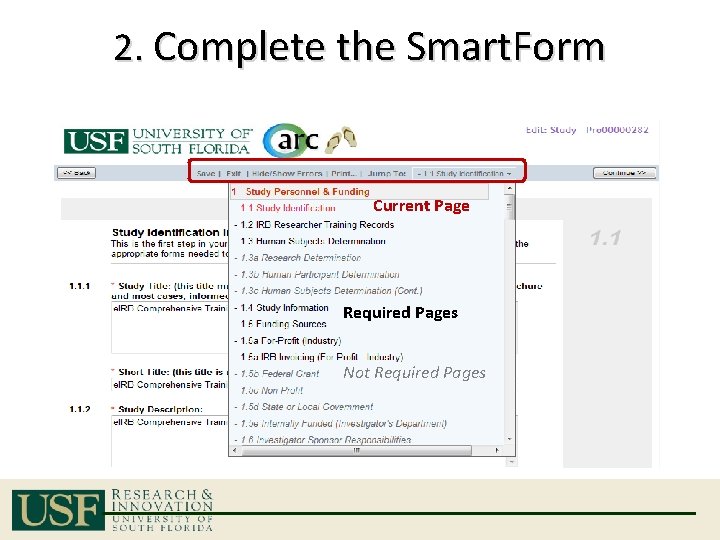
2. Complete the Smart. Form Current Page Required Pages Not Required Pages
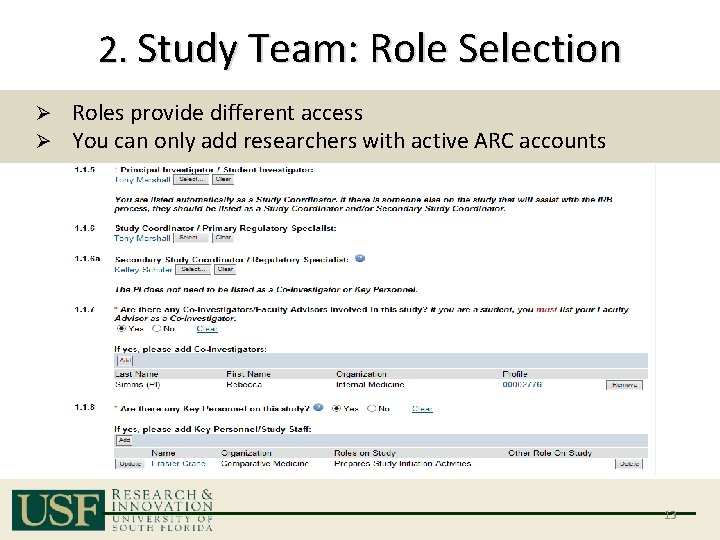
2. Study Team: Role Selection Ø Ø Roles provide different access You can only add researchers with active ARC accounts 13
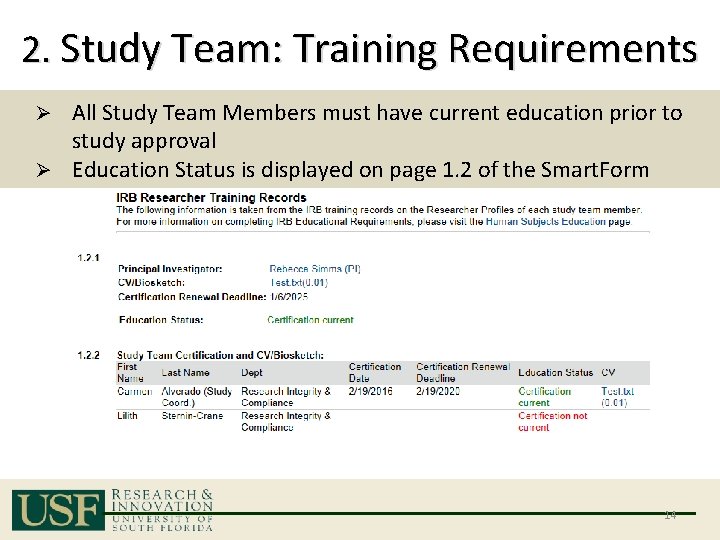
2. Study Team: Training Requirements All Study Team Members must have current education prior to study approval Ø Education Status is displayed on page 1. 2 of the Smart. Form Ø 14
2. Study Team: Training Requirements Ø Fulfilled by completing a valid course with the CITI Program • Register at https: //www. citiprogram. org • Courses completed after April 1, 2015 are valid for 3 years Ø Most researchers should complete either: • Biomedical Investigators and Key Personnel; or • Social/Behavioral Investigators and Key Personnel Ø Additional valid courses detailed on the ARC Homepage Note: The Responsible Conduct of Research is not valid for IRB certification. 15
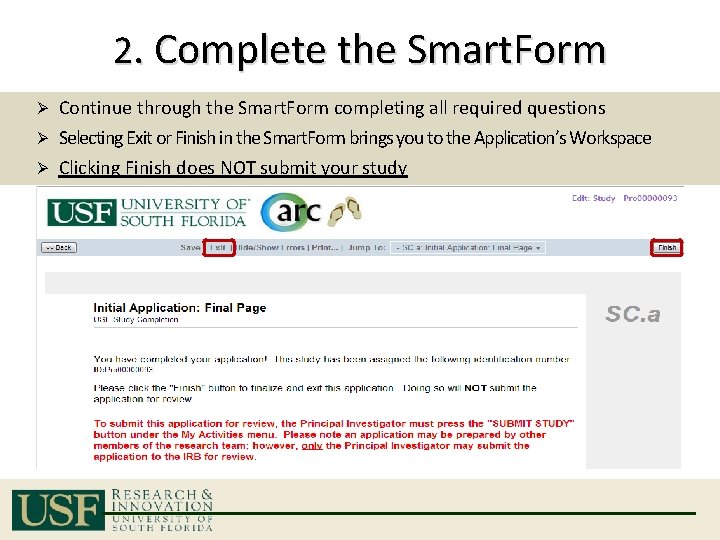
2. Complete the Smart. Form Ø Continue through the Smart. Form completing all required questions Selecting Exit or Finish in the Smart. Form brings you to the Application’s Workspace Ø Clicking Finish does NOT submit your study Ø
3. Submit the Study Ø An incomplete Smart. Form cannot be submitted Ø An unsubmitted Study will not be reviewed Ø The Study’s Workspace provides access to the Activity necessary to submit Ø Only the PI can submit the Study for Initial Review • Subsequent submissions can be completed by the Study coordinator(s)
3. Study’s Workspace The Workspace is your study’s homepage The Workspace provides access to: • The Smart. Form and status information • Documents including Approval Letters and Stamped Consent Forms • Activities to move the study forward in the review process Access the Study’s Workspace by selecting: 1. Exit or Finish in the Smart. Form 2. The name of the Study from your homepage or IRB Studies menu 3. The link in an ARC email notification
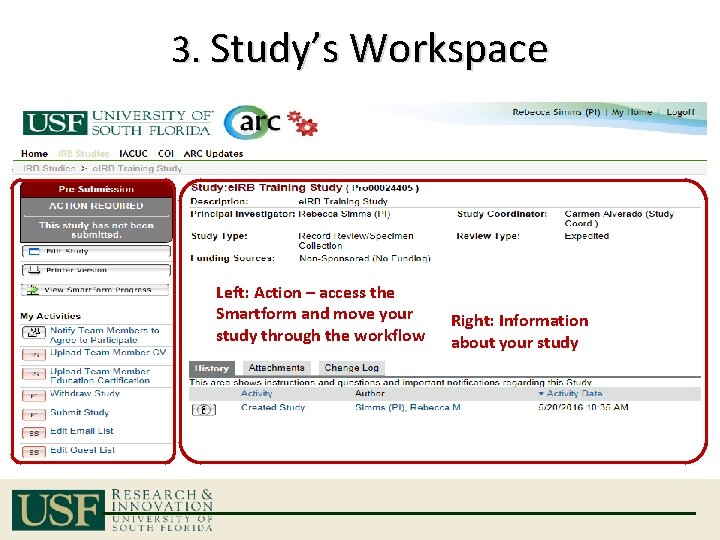
3. Study’s Workspace Left: Action – access the Smartform and move your study through the workflow Right: Information about your study
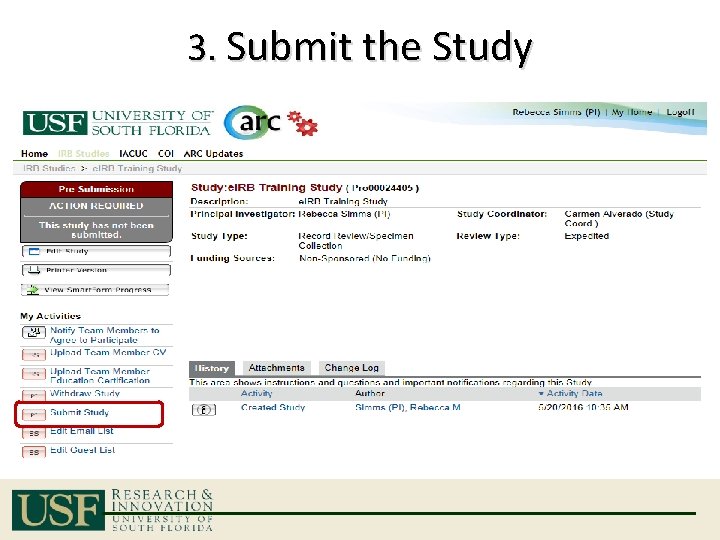
3. Submit the Study
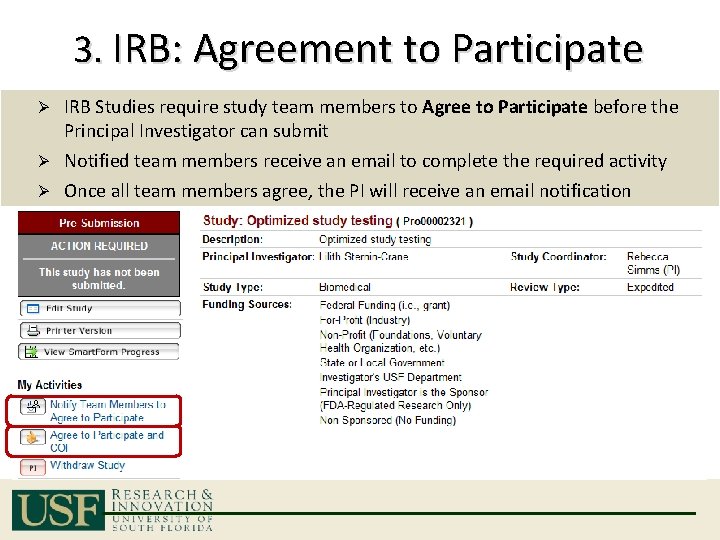
3. IRB: Agreement to Participate IRB Studies require study team members to Agree to Participate before the Principal Investigator can submit Ø Notified team members receive an email to complete the required activity Ø Once all team members agree, the PI will receive an email notification Ø
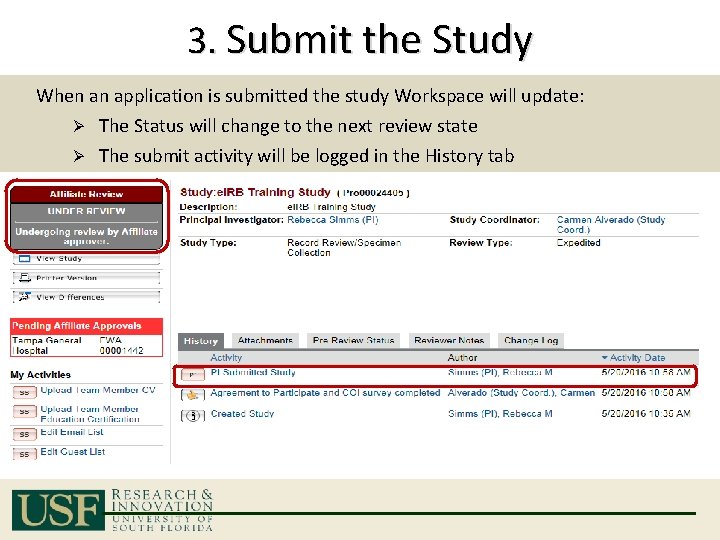
3. Submit the Study When an application is submitted the study Workspace will update: The Status will change to the next review state Ø The submit activity will be logged in the History tab Ø
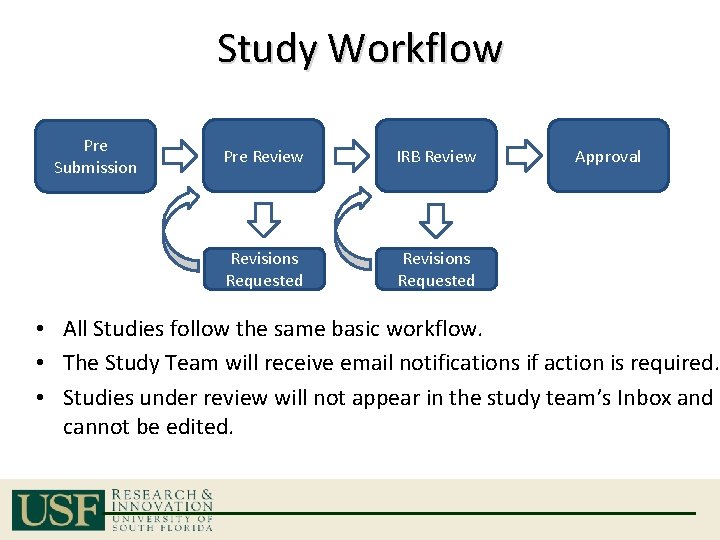
Study Workflow Pre Submission Pre Review IRB Review Revisions Requested Approval • All Studies follow the same basic workflow. • The Study Team will receive email notifications if action is required. • Studies under review will not appear in the study team’s Inbox and cannot be edited.
Requested Revisions Ø Reviewers may request revisions or additional information via Reviewer Notes. Ø The study team will receive an email and the application will be back in their Inbox Ø Study teams respond to revisions by: 1. Correcting the Smart. Form 2. Responding to the Reviewer Note 3. Submitting back for review
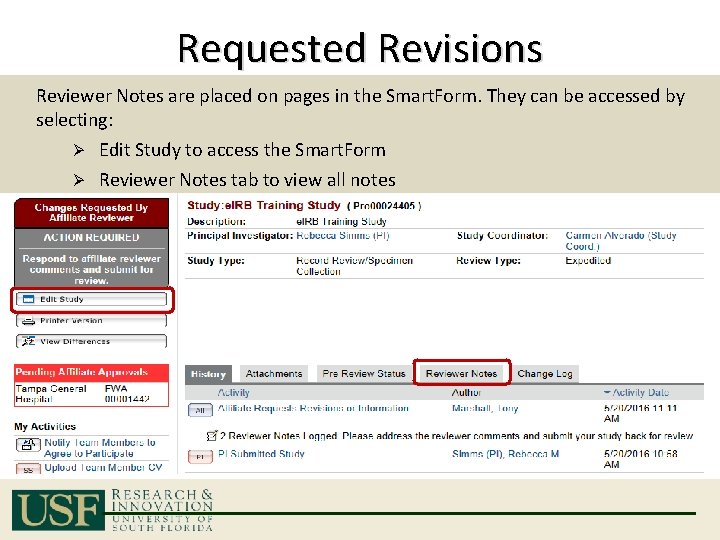
Requested Revisions Reviewer Notes are placed on pages in the Smart. Form. They can be accessed by selecting: Ø Edit Study to access the Smart. Form Ø Reviewer Notes tab to view all notes
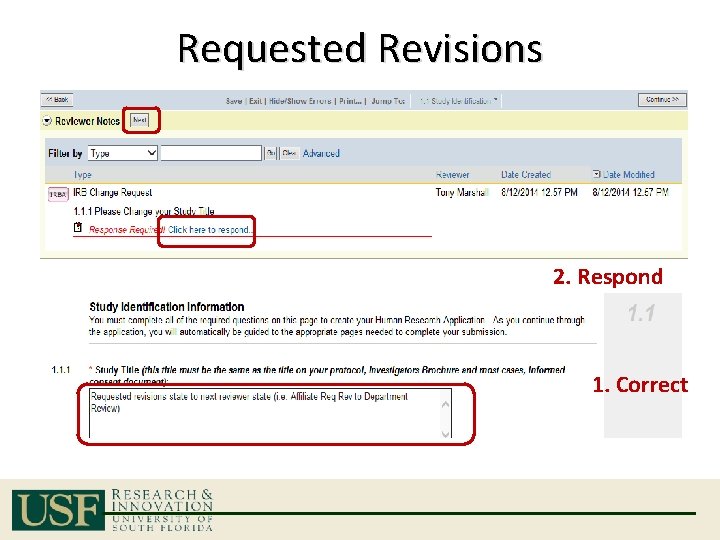
Requested Revisions 2. Respond 1. Correct
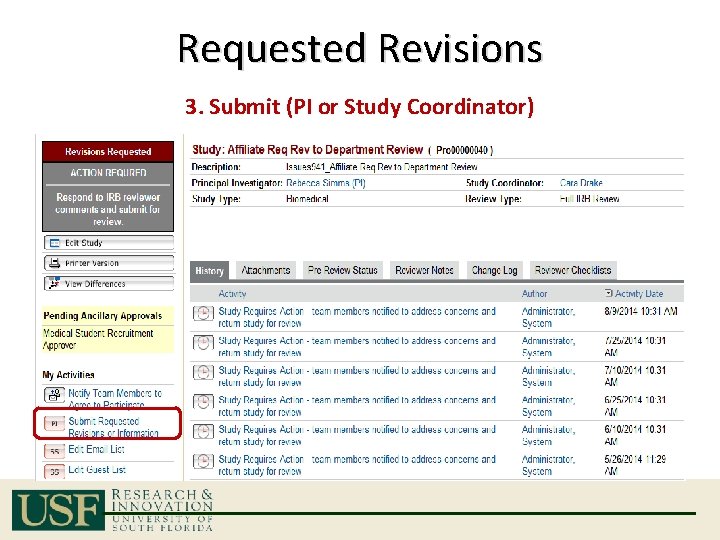
Requested Revisions 3. Submit (PI or Study Coordinator)
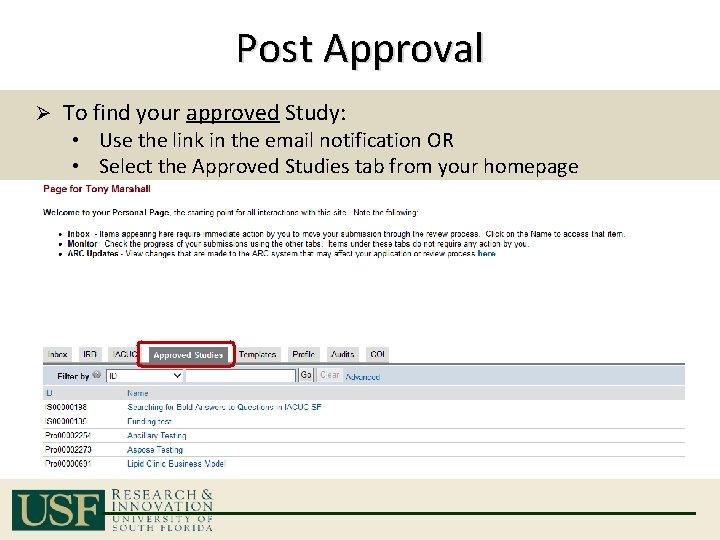
Post Approval Ø To find your approved Study: • Use the link in the email notification OR • Select the Approved Studies tab from your homepage
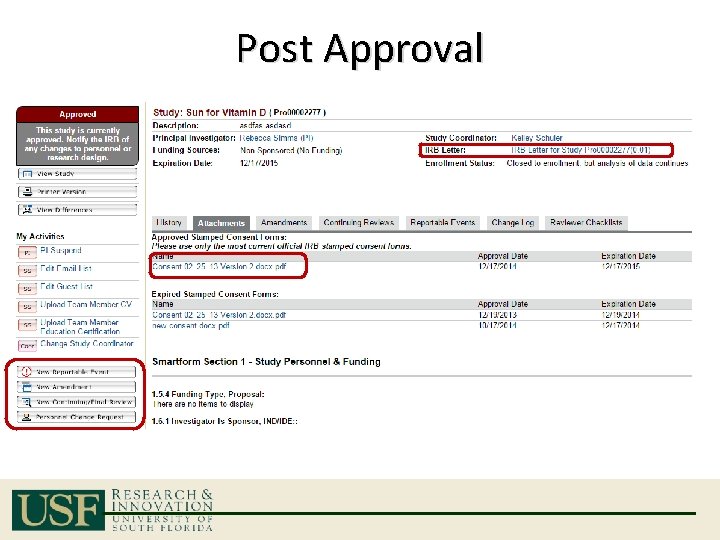
Post Approval
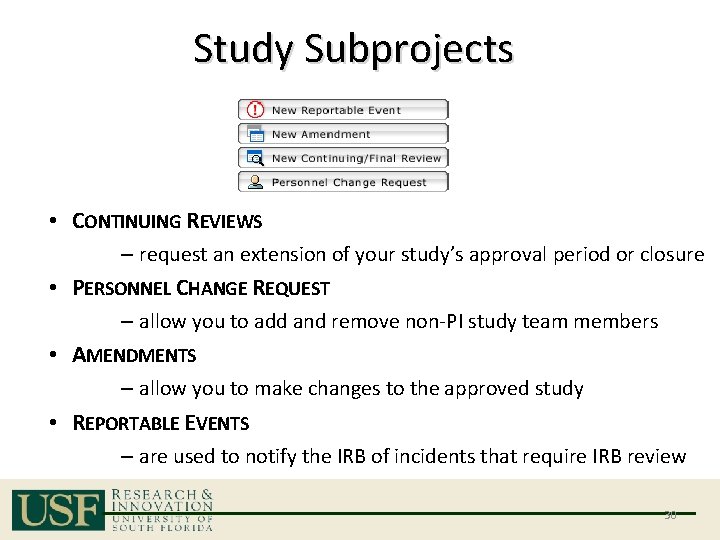
Study Subprojects • CONTINUING REVIEWS – request an extension of your study’s approval period or closure • PERSONNEL CHANGE REQUEST – allow you to add and remove non-PI study team members • AMENDMENTS – allow you to make changes to the approved study • REPORTABLE EVENTS – are used to notify the IRB of incidents that require IRB review 30
Post Approval: Subprojects Ø Subprojects follow the same process as the initial study • Create the Application • Complete the Smart. Form • Submit for Review Ø Each subproject has its own workspace Ø Subprojects that require your attention will show up in your Inbox
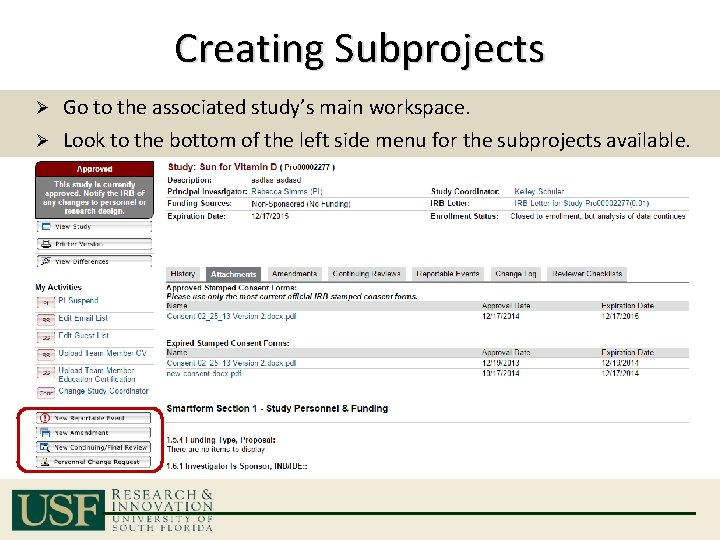
Creating Subprojects Go to the associated study’s main workspace. Ø Look to the bottom of the left side menu for the subprojects available. Ø
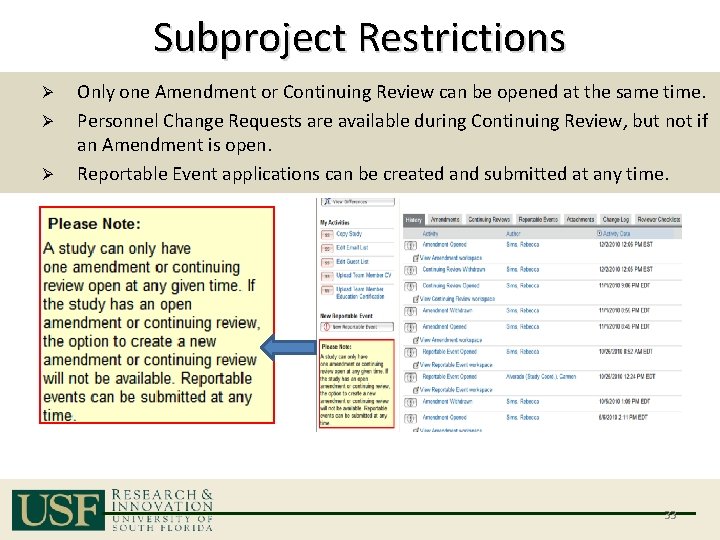
Subproject Restrictions Ø Ø Ø Only one Amendment or Continuing Review can be opened at the same time. Personnel Change Requests are available during Continuing Review, but not if an Amendment is open. Reportable Event applications can be created and submitted at any time. 33
Continuing Reviews (CR) Ø Reminder notices are sent out automatically at 60, 45, and 30 days from study expiration. Ø Only non-PI study team changes can be made during the continuing review (using Personnel Change Request). Ø Tip: Ensure that the IRB education requirements are up to date for all study team members. • You can use the Upload Team Member Education Certification activity at any time to upload certificates. 34
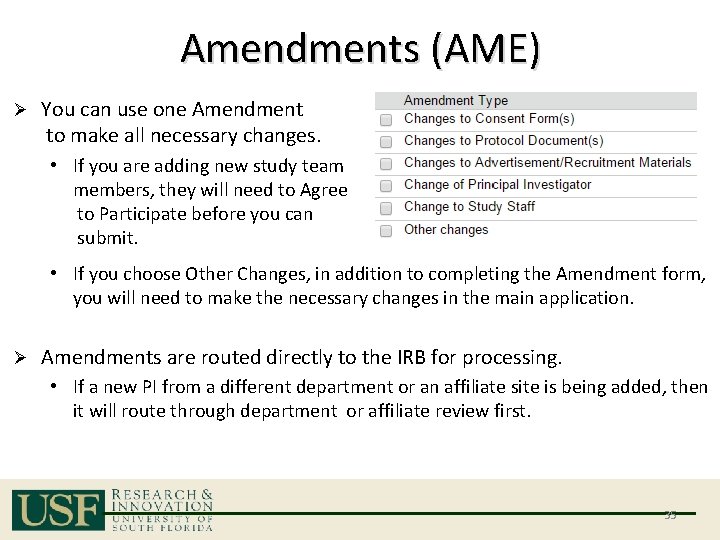
Amendments (AME) Ø You can use one Amendment to make all necessary changes. • If you are adding new study team members, they will need to Agree to Participate before you can submit. • If you choose Other Changes, in addition to completing the Amendment form, you will need to make the necessary changes in the main application. Ø Amendments are routed directly to the IRB for processing. • If a new PI from a different department or an affiliate site is being added, then it will route through department or affiliate review first. 35
Personnel Change Requests (PCR) Ø A simplified process to change non-PI personnel. Ø Uses a streamlined form and review process Ø Can be created while a Continuing Review is outstanding. Ø Prior to submission: • All study team member must have current IRB Certification • All new team members must agree to participate Ø Approval is documented in an email to the study team. 36
Reportable Events (RE) Reportable Events can be created at any time after approval Ø Multiple REs can be open at the same time Ø Submission Types: • Unanticipated Problem • Data Safety Monitoring Report • Protocol Violation/Deviation • Breach of Confidentiality • Noncompliance • Other Ø 37
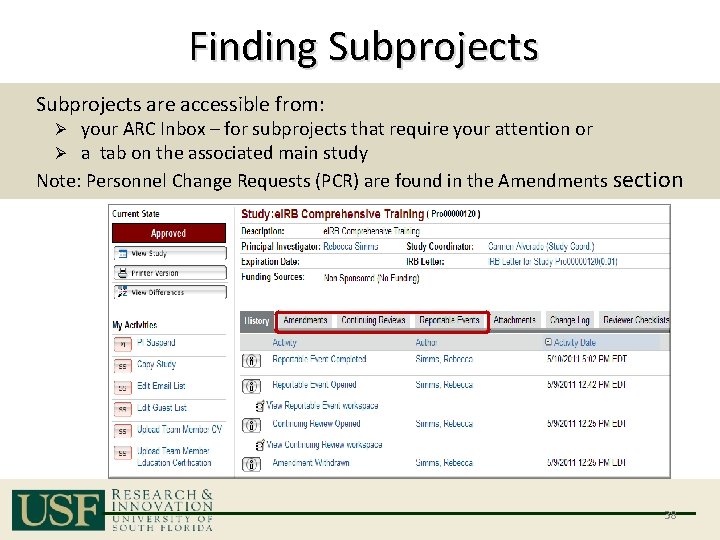
Finding Subprojects are accessible from: your ARC Inbox – for subprojects that require your attention or a tab on the associated main study Note: Personnel Change Requests (PCR) are found in the Amendments section Ø Ø 38
TIPS & TRICKS 39
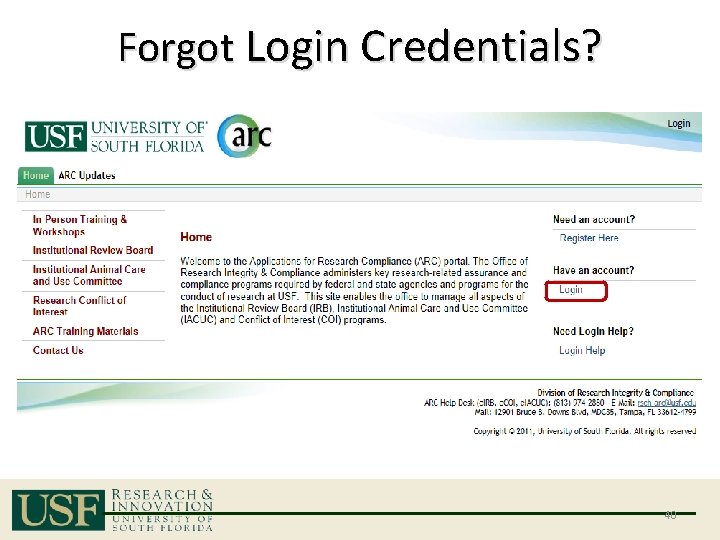
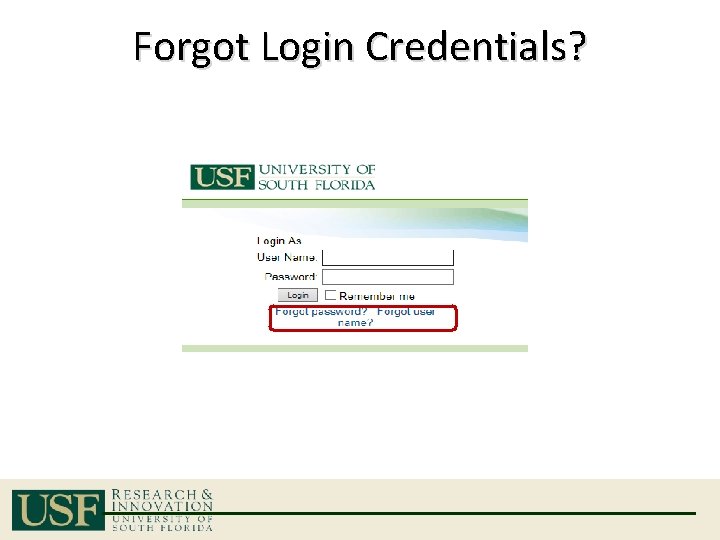
Forgot Login Credentials? 40
Forgot Login Credentials?
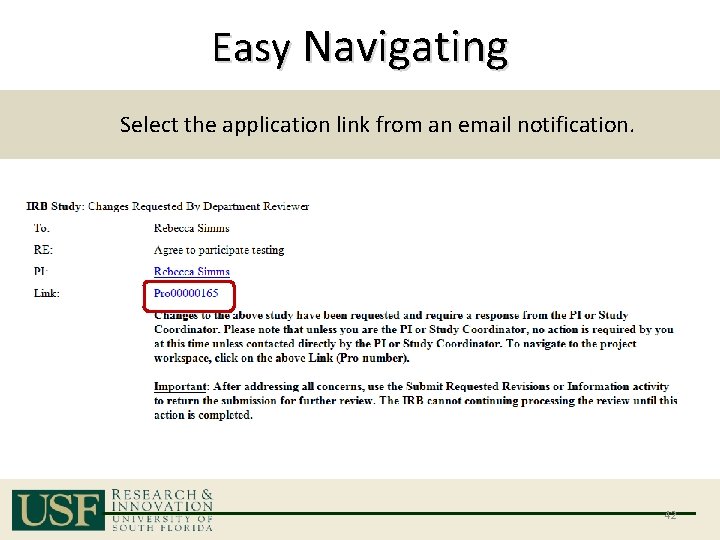
Easy Navigating Select the application link from an email notification. 42
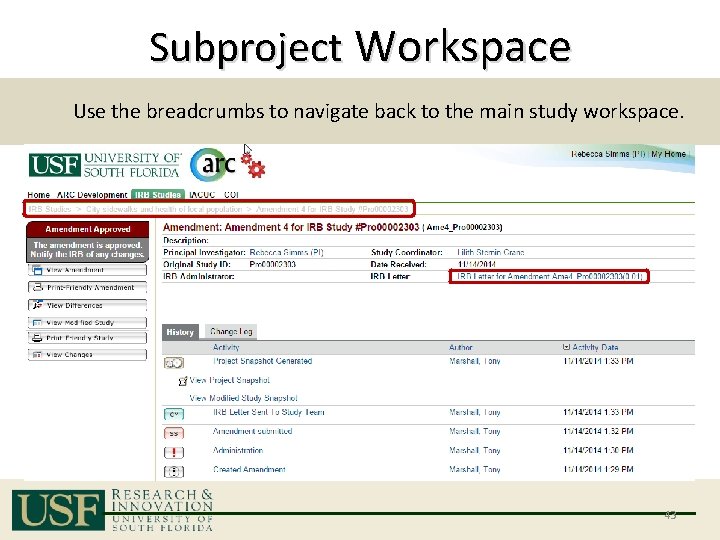
Subproject Workspace Use the breadcrumbs to navigate back to the main study workspace. 43
Important Tips Ø All applications must be: 1. Created 2. Completed (Smart. Form) 3. Submitted (Activity) Ø If an application is in your Inbox, it still requires your attention. Ø Actions Look to the left side menu Ø Remember to Save: • Save or Continue saves your changes • Back and Exit do not save 44
Contact Information • Access to ARC – Official regulatory site: https: //arc. research. usf. edu/Prod – Need Help? Contact the ARC Help Desk: – 813 -974 -2880 between 8 AM - 5 PM Monday through Friday • Access to training – Demo Site for training and practice: https: //arcdev. research. usf. edu/Sandbox Login: pi Password: 1234 – Need to schedule a training? Contact the IRB Office at (813) 974 -5638 45
- Slides: 45