
Users Guide for RealTime Online Lecture Software ZOOM


- Slides: 18
User’s Guide for Real-Time Online Lecture Software – ZOOM solution For Students PC version 1. 2 2020. 3. 13.
목 차 PART 2 Preparation Entering e. TL Install ZOOM To Take the online lecture Major Functions of the ZOOM FAQ Helpdesk
What is a ZOOM and how does it work? q A software for the real-time Online Lecture q Enter e. TL to access the Online Lecture q Students can join a lecture without log-in process by just putting their basic information like their names.
PART 1 q Entering e. TL
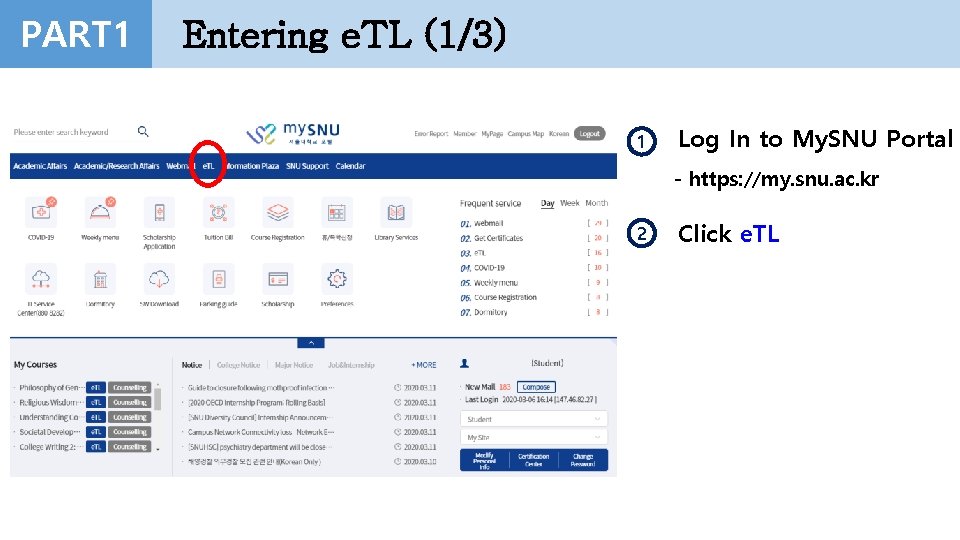
PART 1 Entering e. TL (1/3) 1 Log In to My. SNU Portal - https: //my. snu. ac. kr 2 Click e. TL
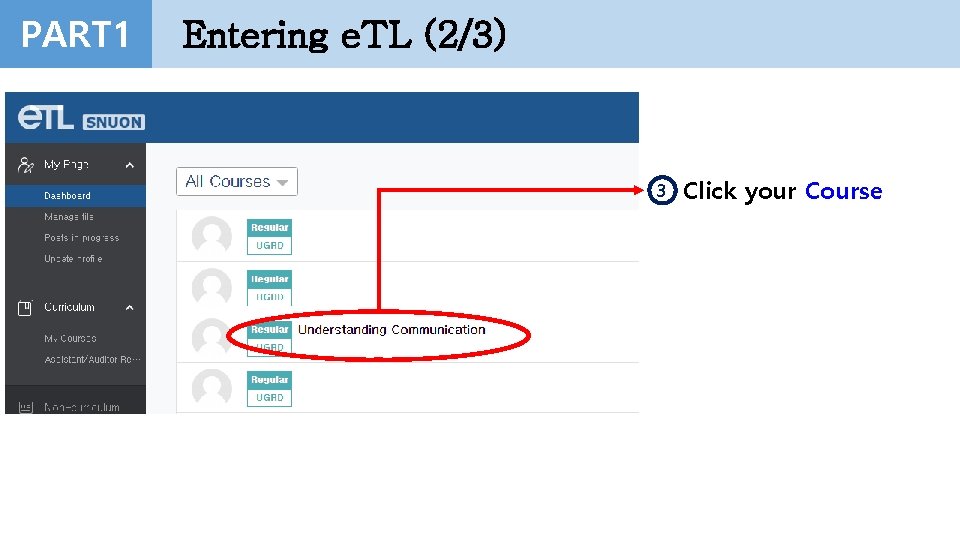
PART 1 Entering e. TL (2/3) 3 Click your Course
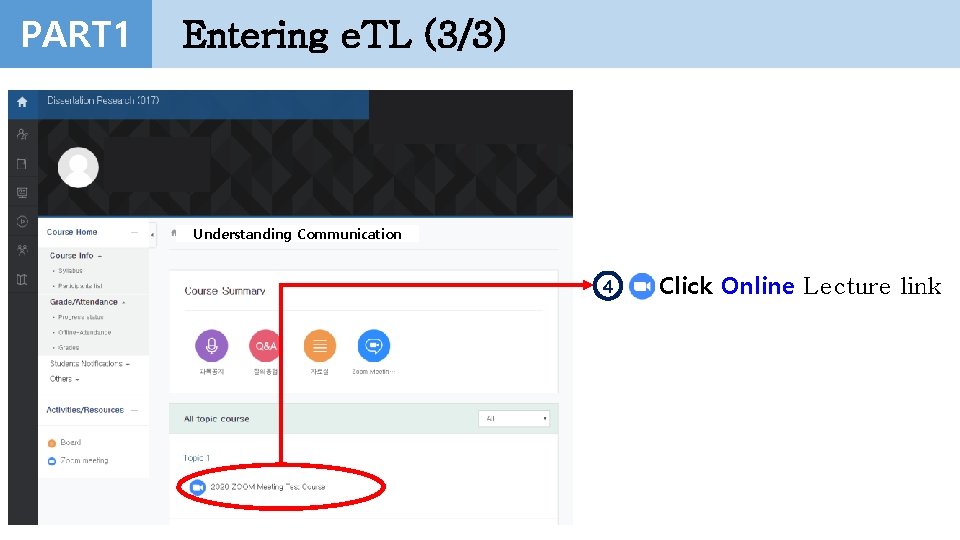
PART 1 Entering e. TL (3/3) Understanding Communication 4 Click Online Lecture link
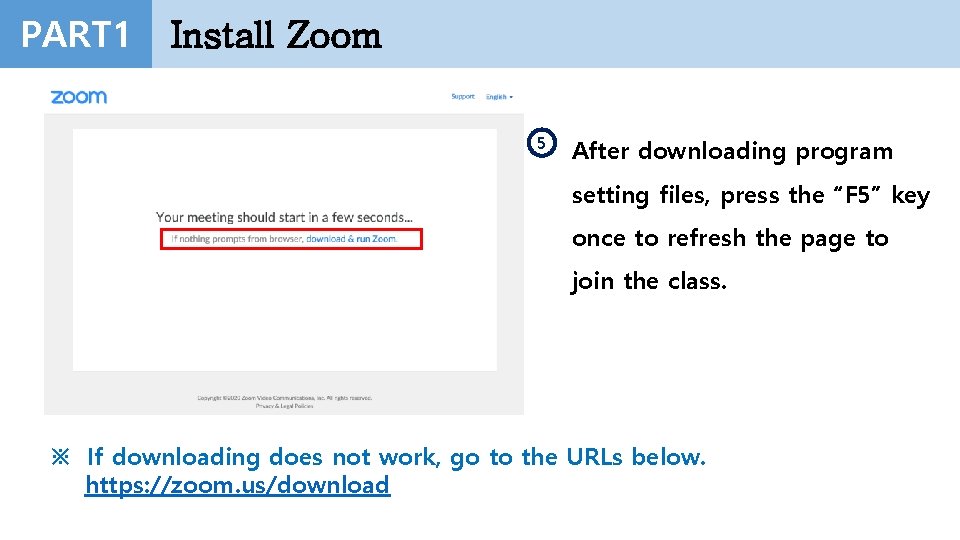
PART 1 Install Zoom 5 After downloading program setting files, press the “F 5” key once to refresh the page to join the class. ※ If downloading does not work, go to the URLs below. https: //zoom. us/download
PART 2 q Taking the Online Lecture
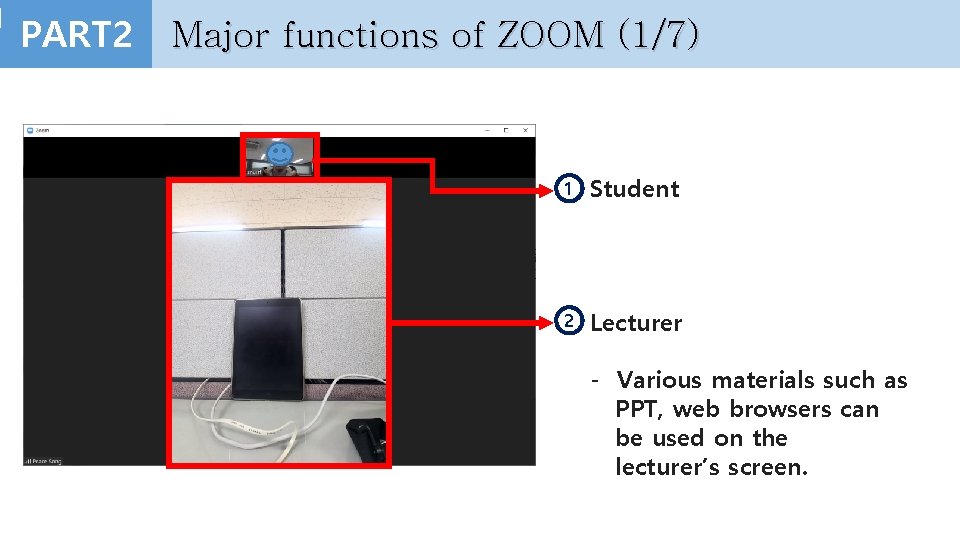
PART 2 Major functions of ZOOM (1/7) 1 Student 2 Lecturer - Various materials such as PPT, web browsers can be used on the lecturer’s screen.
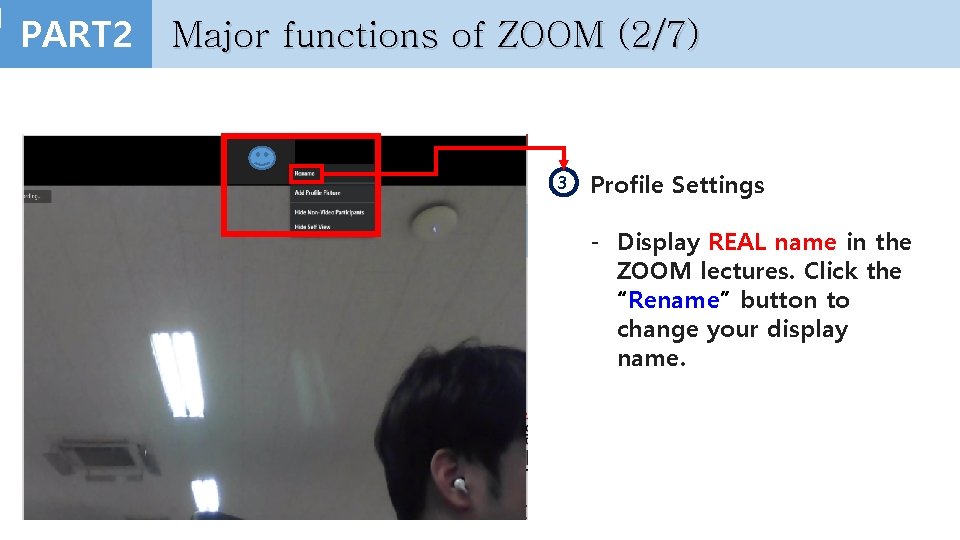
PART 2 Major functions of ZOOM (2/7) 3 Profile Settings - Display REAL name in the ZOOM lectures. Click the “Rename” button to change your display name.
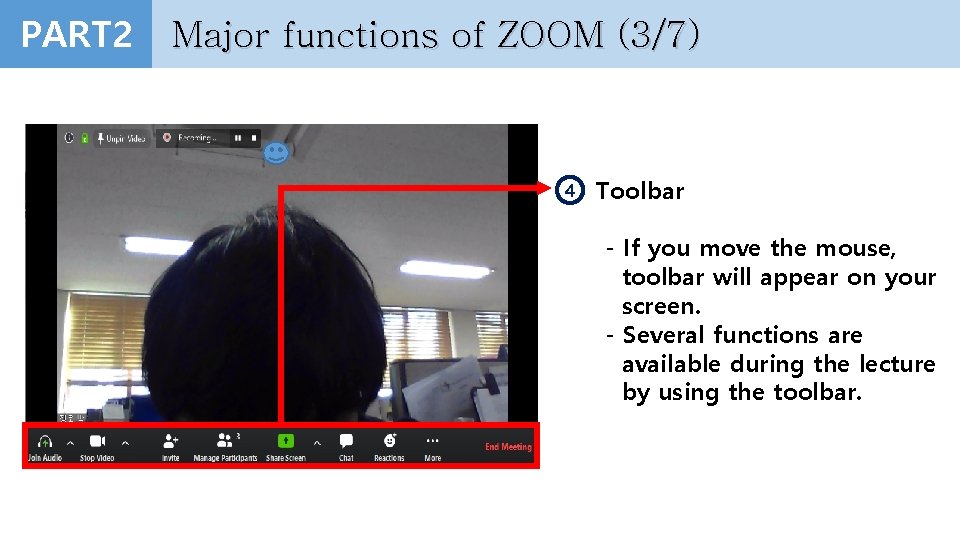
PART 2 Major functions of ZOOM (3/7) 4 Toolbar - If you move the mouse, toolbar will appear on your screen. - Several functions are available during the lecture by using the toolbar.
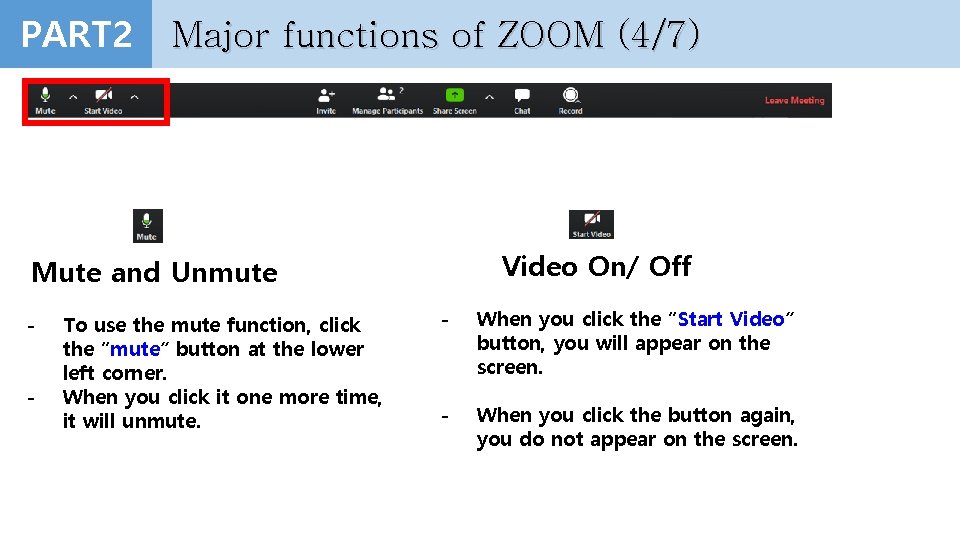
PART 2 Major functions of ZOOM (4/7) Video On/ Off Mute and Unmute - To use the mute function, click the “mute” button at the lower left corner. When you click it one more time, it will unmute. - When you click the “Start Video” button, you will appear on the screen. - When you click the button again, you do not appear on the screen.
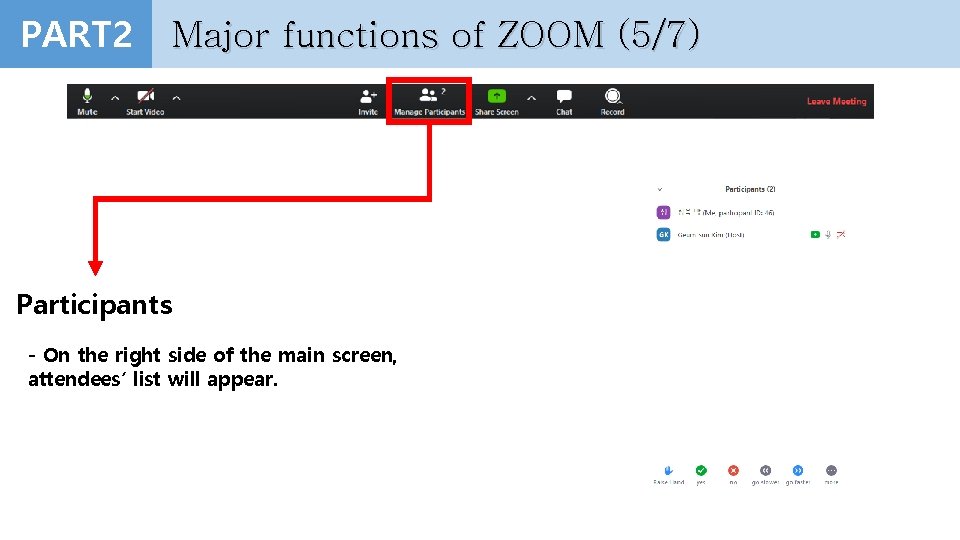
PART 2 Major functions of ZOOM (5/7) Participants - On the right side of the main screen, attendees’ list will appear.
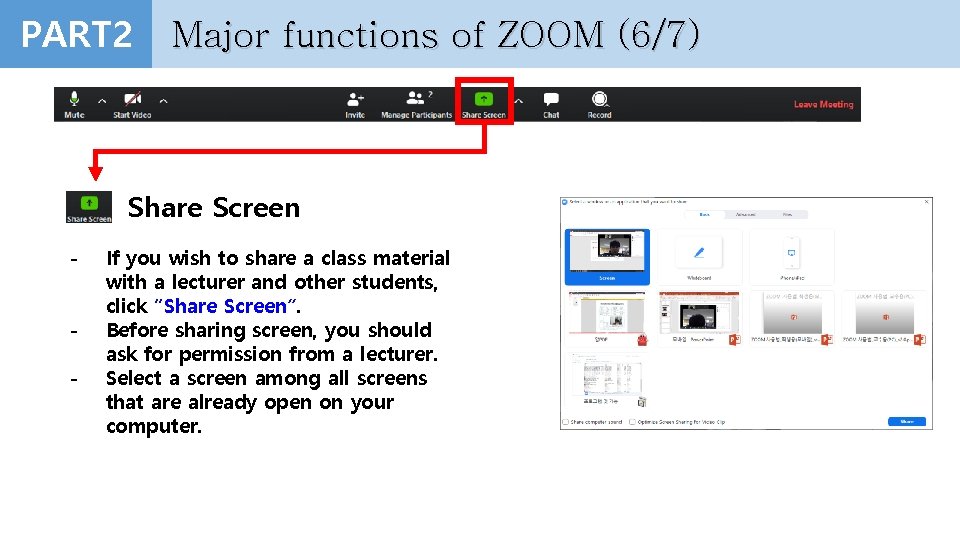
PART 2 Major functions of ZOOM (6/7) Share Screen - If you wish to share a class material with a lecturer and other students, click “Share Screen”. Before sharing screen, you should ask for permission from a lecturer. Select a screen among all screens that are already open on your computer.
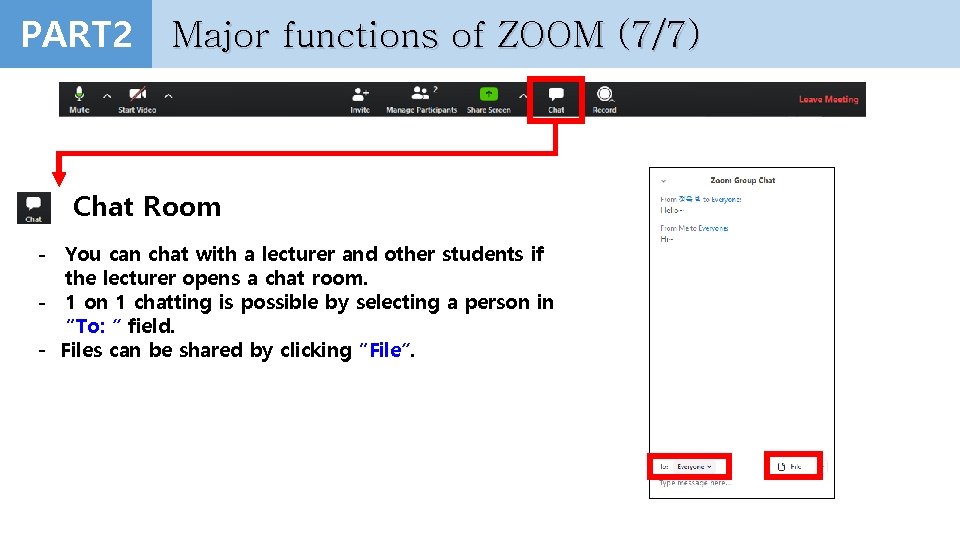
PART 2 Major functions of ZOOM (7/7) Chat Room - You can chat with a lecturer and other students if the lecturer opens a chat room. - 1 on 1 chatting is possible by selecting a person in “To: ” field. - Files can be shared by clicking “File”.
Helpdesk
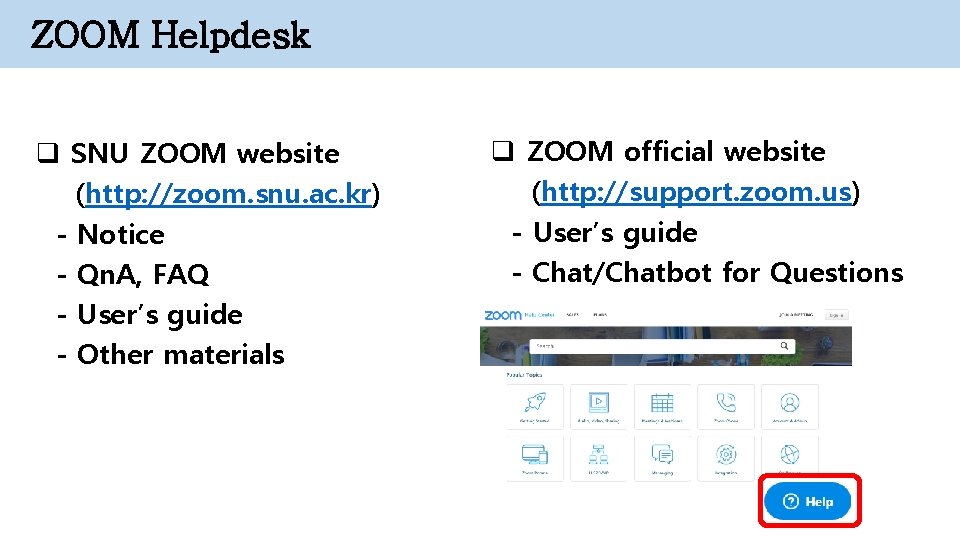
ZOOM Helpdesk q SNU ZOOM website (http: //zoom. snu. ac. kr) - Notice - Qn. A, FAQ - User’s guide - Other materials q ZOOM official website (http: //support. zoom. us) - User’s guide - Chat/Chatbot for Questions