
User Interface Screen Elements Chapter 3 Components of
- Slides: 17
User Interface Screen Elements Chapter 3
Components of a Screen An Activity displays the user interface of your application May contain widgets such as buttons, labels, textboxes, etc. UI is defined in XML file located in the res/layout folder During runtime, XML UI is loaded by the on. Create() method handler in an Activity class • During compilation, each element in the SML file is compiled into an Android GUI class • UI may be dynamically built during runtime using code • A layout is associated with an Activity which sets the main. xml layout by default set. Content. View(R. layout. main); • •
Views and View. Groups • Activity contains views and View. Groups • View is a widget that has an appearance on screen • Examples: buttons, labels, textboxes • android. view. View • One or move views can be grouped together into a View. Group • View. Group provides the layout in which you can order the appearance & sequence of views • Examples: Linear. Layout, Frame. Layout, Absolute. Layout, Table. Layout, Relative. Layout, Scroll. View • android. view. View. Group
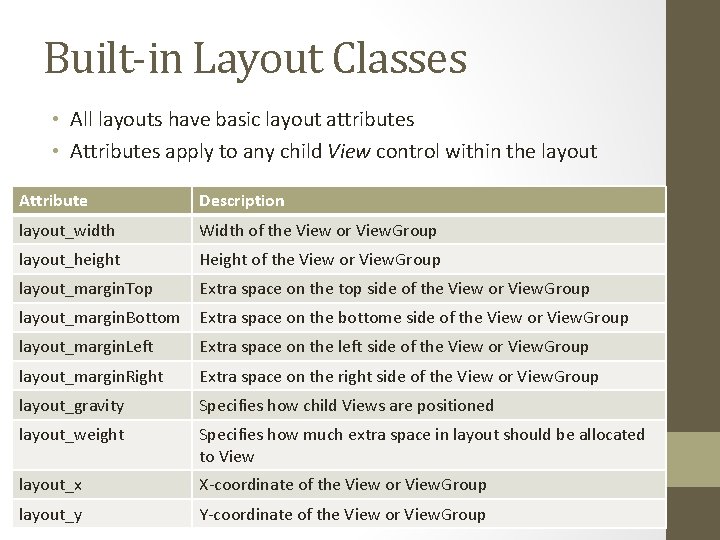
Built-in Layout Classes • All layouts have basic layout attributes • Attributes apply to any child View control within the layout Attribute Description layout_width Width of the View or View. Group layout_height Height of the View or View. Group layout_margin. Top Extra space on the top side of the View or View. Group layout_margin. Bottom Extra space on the bottome side of the View or View. Group layout_margin. Left Extra space on the left side of the View or View. Group layout_margin. Right Extra space on the right side of the View or View. Group layout_gravity Specifies how child Views are positioned layout_weight Specifies how much extra space in layout should be allocated to View layout_x X-coordinate of the View or View. Group layout_y Y-coordinate of the View or View. Group
Built-in Layout Classes • Linear. Layout • Organizes its child View controls in a single row or a single column depending on the orientation attribute, horizontal or vertical • Default orientation layout is horizontal • Good layout method for creating forms
Units of Measure • dp = Density_independent pixel. • 1 dp = one pixel on a 160 dpi screen • Recommended unit of measure in layout • 160 dpi screen is baseline density assumed by Android • sp = Scale-independent pixel. • Similar to dp • Recommended for specifying font sizes • pt = Point. • Point is defined to be 1/72 of an inch • Based on physical screen size • px = Pixel. • Corresponds to pixels on screen • This unit is not recommended; may not render correctly on devices with a different screen resolution
Screen Size • Page 109, Figure 3 -1 • Nexus S • • 4 -inch screen diagonally Screen width 2. 04 inches Resolution is 480 (w) X 800 (h) pixels 480 pixels spread across 2. 04 inches (w) = pixel density of ~235 dots per inch (dpi) • Android defines and recognizes 4 screen densities: • • Low density (ldpi) – 120 dpi Medium density (mdpi) – 160 dpi High density (hdpi) – 240 dpi Extra High density (xhdpi) – 320 dpi
Screen Size • Using dp unit ensures that your views are always displayed in the right proportion regardless of the screen density • Android automatically scales the size of the view depending on the density of the screen
Built-in Layout Classes • Absolute. Layout • Enables you to specify the exact location of its children • Use android_layout_x android_layout_y attributes • Has been deprecated since Android 1. 5 • Avoid using it as it is not guaranteed to be supported in future versions of Android
Built-in Layout Classes • Table. Layout • Organizes children into rows and columns • Organize individual control within each row using a Table. Row element • Place items in the Table. Row in columns in the order they are added • Specify column numbers (zero based) otherwise control is put in the next column to the right • layout_column=“ 2” • Columns scale to the size of the largest View of that column
Built-in Layout Classes • Relative. Layout • Specify where the child view controls are in relation to each other • Can set a child View to be positioned above or below or to the left or to the right referred to by a unique identifier • Can align child View controls relative to one another or the parent layout edges
Built-in Layout Classes • Frame. Layout • Designed to display a stack of child View items
Built-in Layout Classes • Grid. Layout • • Organizes children inside a grid Layout grid is dynamically created Child control can span rows and columns Introduced in Android 4. 0 (API Level 14)
Android Controls • android. widget • Controls typically refer to a class with this package • Classes to draw most common objects including Image. View, Frame. Layout, Edit. Text, and Button classes • Controls used to build layout resource file • To access controls programmatically, must use unique identifier specified using android: id attribute • Access control with the find. View. By. Id( ) method Text. View tv = (Text. View)find. View. By. Id(R. id. Text. View 01);
Android Layout • Special control in android. widget package called a layout • Layout is a View object Container for organizing other controls (children) Determine how and where on the screen to draw controls Specific rules for drawing controls for each layout control Linear. Layout draws its child controls in a single horizontal row or a single vertical column • Table. Layout displays each child control in tabular format, specifically rows and columns • •
Adapting to Display Orientation • Android supports two screen orientations: • Portrait • Landscape • When display orientation of device changes, current activity is automatically redrawn in new orientation • on. Create() is fired when display orientation is changed • Current Activity is destroyed and then recreated • Two techniques to handle changes in screen orientation: • Anchoring – anchor your view to four edges of the screen • Resizing & repositioning – resize each and every view according to current screen orientation
Persisting State Information during Changes • Screen orientation changes destroys an Activity & recreates it • When Activity is recreated, current state may be lost • When Activity is killed, it will fire one or both methods: • on. Pause() – fired whenever Activity is killed or pushed into background • on. Save. Instance. State() – is fired when an Activity is being unloaded from stack because there is no need to restore its state later • Used to preserve state of an Activity so it can be restored later • Bundle object = argument you can use to save your Activity’s state