
User Interface Design Principles User Interface Design Well
- Slides: 38
User Interface Design Principles
User Interface Design • We’ll focus on website design, but the same concepts apply to standalone applications too • What makes a good web site? – Similar to, but differences from printed medium – Hyperlinks! – Attempt to make web page “Free Standing” • Someone may link to it, or print it
Same Questions as Print • Who is talking? Is it an individual or an institution? • What is the content about? – Titles, Headers – Consider bookmarks • When? – Old CS Page (ulp) • Where on your site are you currently located? – Navigational aids or pointers to the main page may be appropriate. – Button Bars
Every page should have • • Informative title Creator’s identity Creation or revision date At least one link back to home • These basic elements will get you 90% of the way to an understandable interface
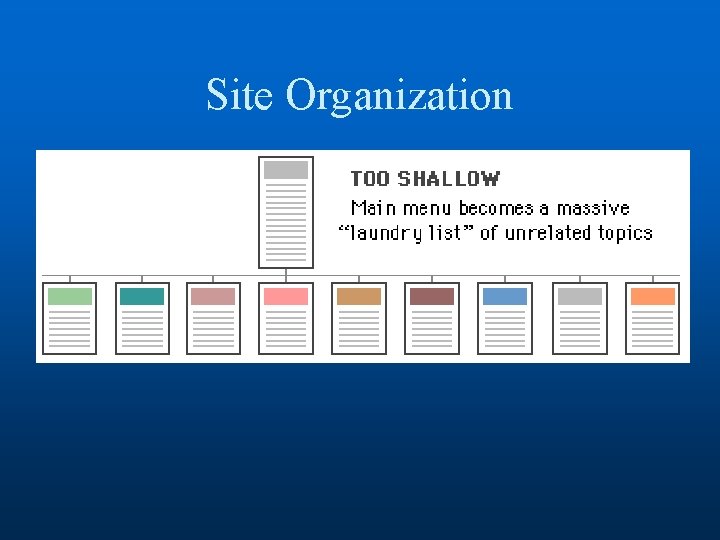
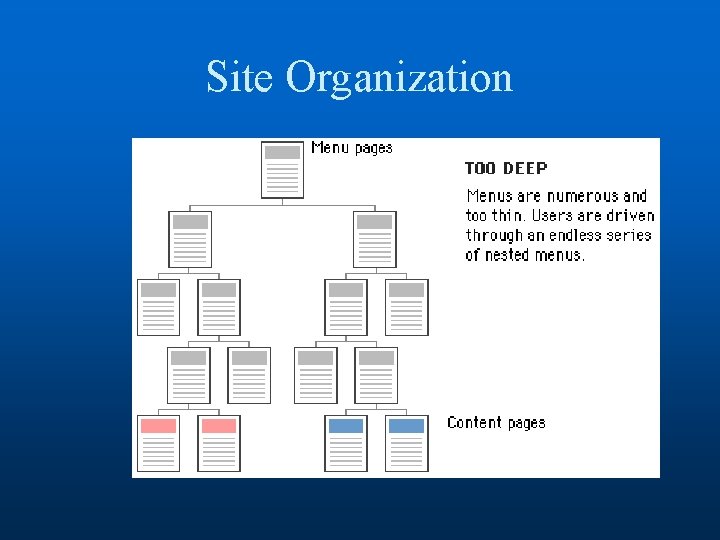
Interface Design Tips • Build Navigational aids. – – Navigation bars, frames Critical for giving user a sense of where they are Must provide context, e. g. bar with page headers User shouldn’t have to go “back” to figure this out • Avoid dead-end pages • Keep download time short – Frustration after 10 seconds • Reduce clicking – Users prefer menus with at least 5 -7 links – Prefer dense screen with many choices over deep path with few choices
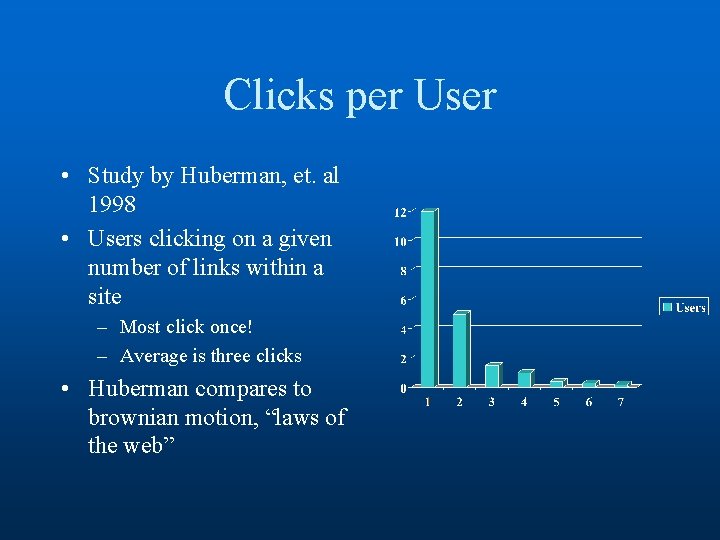
Clicks per User • Study by Huberman, et. al 1998 • Users clicking on a given number of links within a site – Most click once! – Average is three clicks • Huberman compares to brownian motion, “laws of the web”
Interface Design Tips • Consistency! – E. g. , keep “home” button in the same place – Simplicity often appreciated • Offer feedback • Design for the disabled – ALT tags • E. g. , modem user might disable graphics – Use elements as designed • E. g. don’t use blank GIF as a spacer
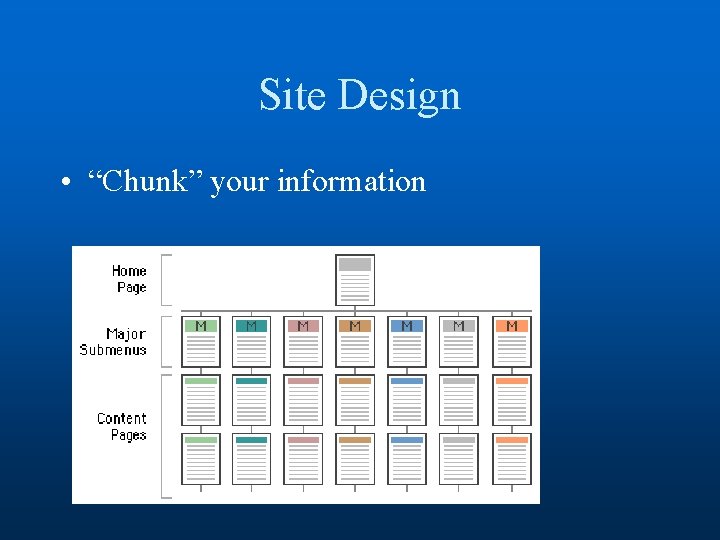
Organizing Information • Divide your content into logical units • Establish a hierarchy of importance among the units • Use the hierarchy to structure relations among units • Build a site that closely follows your information structure • Analyze the functional and aesthetic success of your system
Chunk your Info • Chunking – Short chunks of information that fit on a screen – Few users read long passages of text on screen – Discrete chunks lend themselves to a link – Supports a uniformat
Site Design • “Chunk” your information
Site Organization
Site Organization
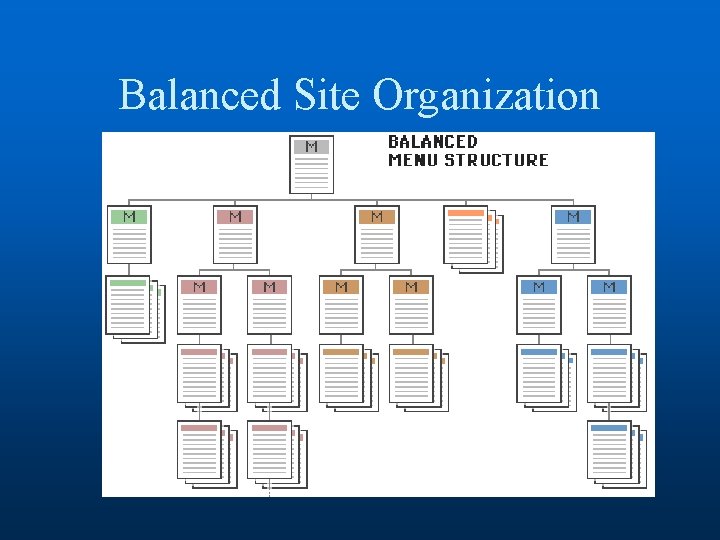
Balanced Site Organization
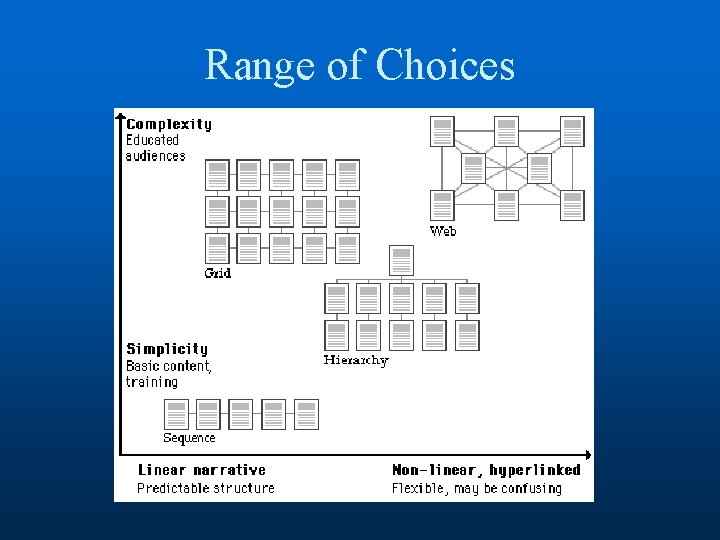
Range of Choices
Case Study • Time is Money -- redesign at Sun • Average employee views 12 intranet pages per day • Could save 5 minutes per week per employee by redesigning the site • $10 million/year in “lost” time
Design Considerations • Graphics vs. Text menus, or both • Animations (e. g. shockwave), older browsers, web TV won't view them • "Whats New" feature - must be maintained, can help repeat visitors • FAQ page • Site Cover - splashy graphics or animation to draw users in. For others, an annoying click that needs to be bypassed.
User Centered Design • Build from your users and work your way up! – Ethnographic studies – User interviews – Beta test studies – Focus groups – Readjustment to meet user needs
Page Design • Don’t dumb-down the readers -- just design to their needs – short, fast, easy access • Guide the user – Left to right, top to bottom – design appropriately to guide user to the next element – Headlines at the top – Don’t forget whitespace
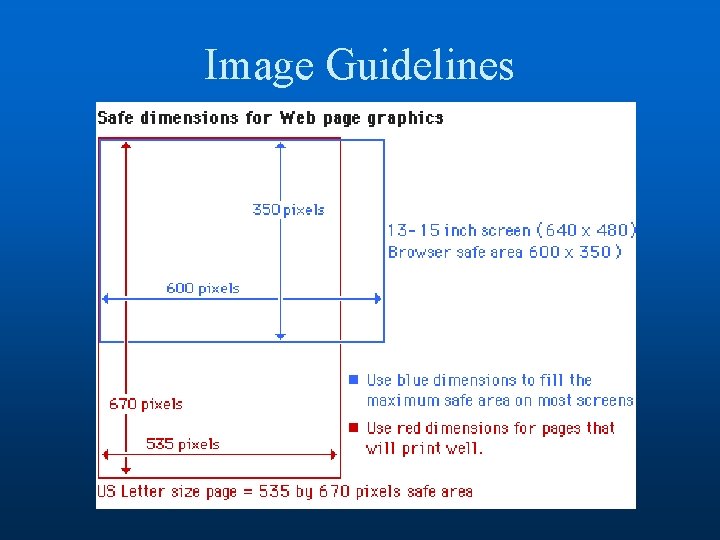
Page Design • Avoid too-fancy graphics (unless experienced) • Label icons • Combine navigation bar with logo/graphics, use consistently! • Remember that the screen is small • Graphics or Forms too large: Layout more than 600 pixels wide may not properly render on a single page.
Image Guidelines
Page Design Guidelines Grid Layout
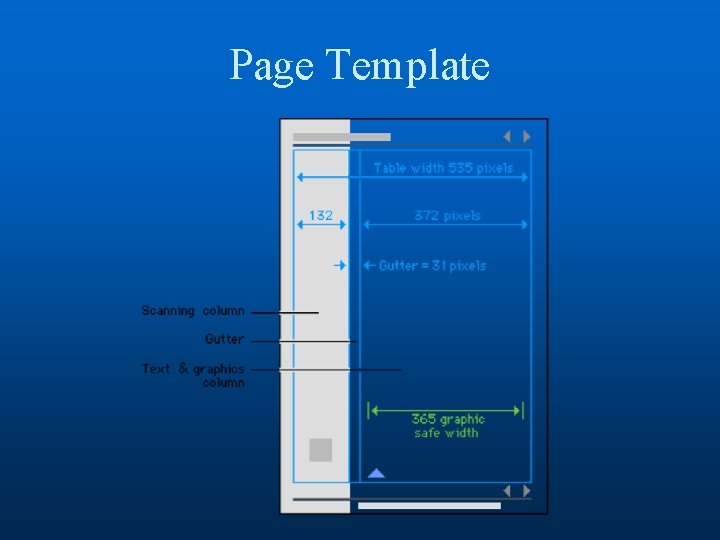
Page Template
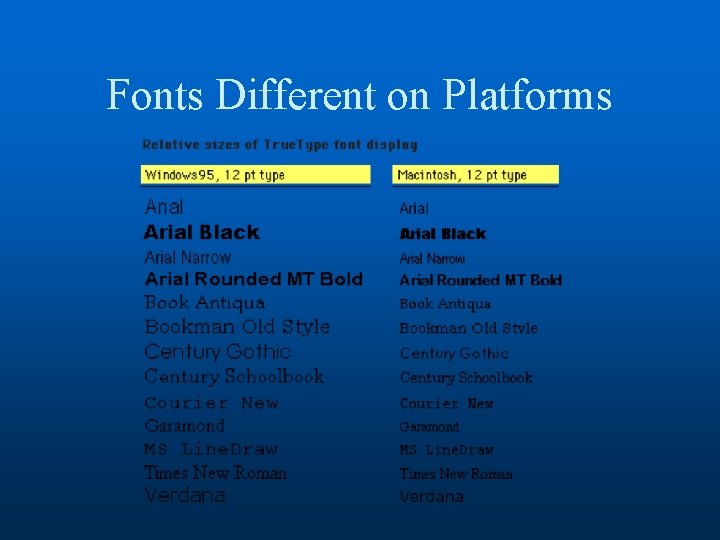
Fonts Different on Platforms
Page Guidelines • Consider tables without borders to control text layout • Caution with frames!
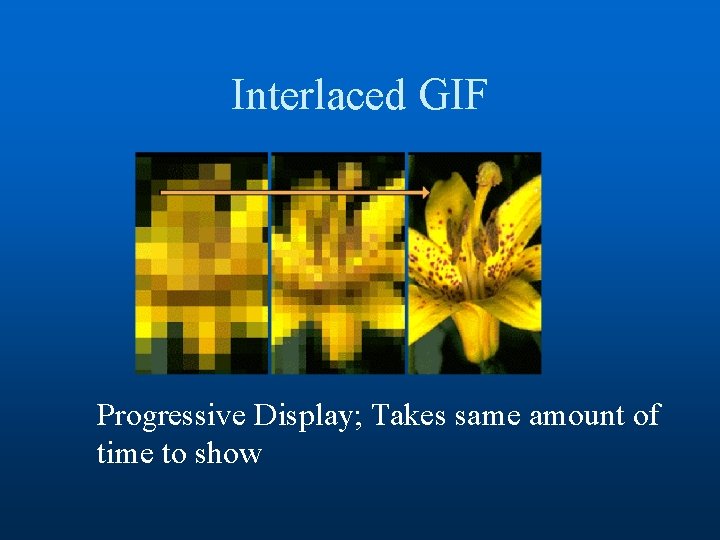
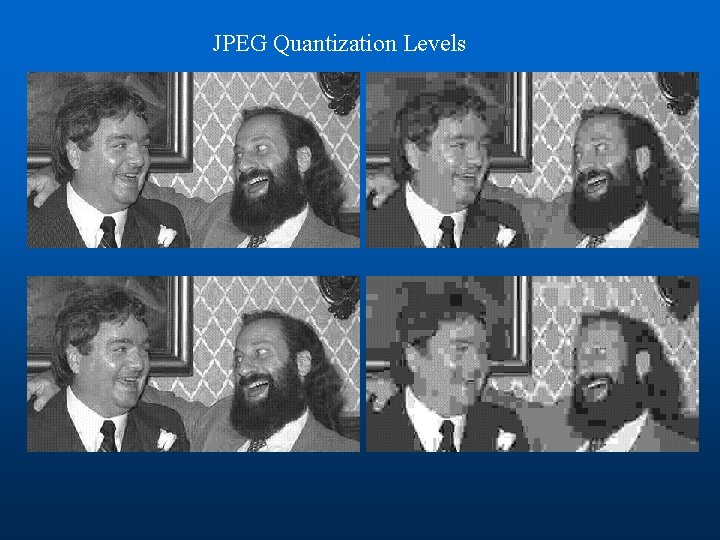
Graphics • If high bandwidth available, use it! • Guidelines – 28. 8 kbps modem sends about 3. 5 Kb/second – 35 Kb graphic could take 10 seconds alone • Formats – GIF • Consider interlaced to show progress • Caution on animated GIF’s – JPEG • Generally better for photography • Designer can choose quantization and hence image size/quality
Interlaced GIF Progressive Display; Takes same amount of time to show
JPEG Quantization Levels
Optimizing Graphics • Consider a custom palette. You can have a finer palette of colors at your disposal than the general palette. • To reduce the size of your graphics, consider reducing the number of colors. You can experiment with smaller color palettes and see the results.
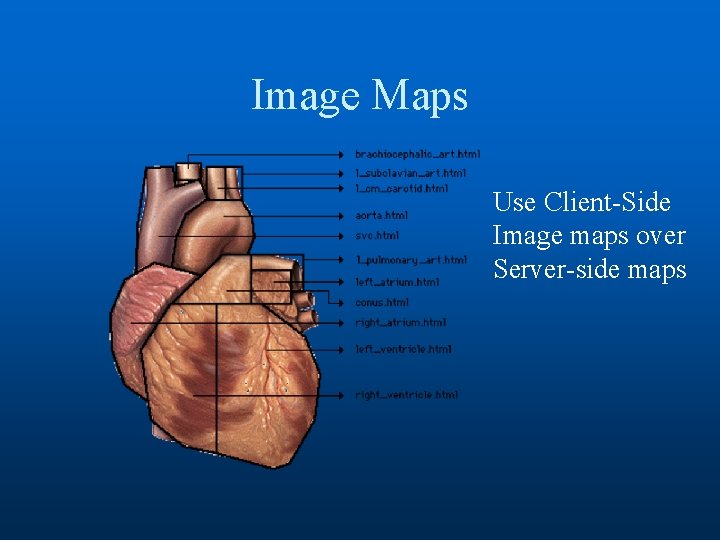
Image Maps Use Client-Side Image maps over Server-side maps
Digital Audio and Video • Use at your best discretion!
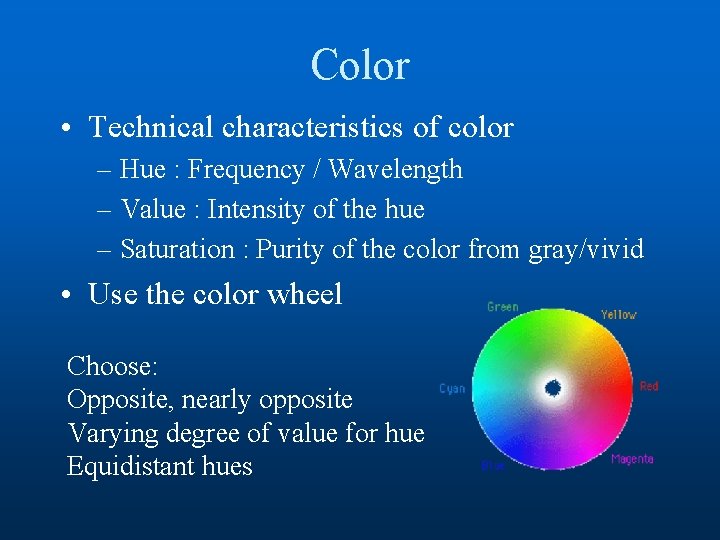
Color • Technical characteristics of color – Hue : Frequency / Wavelength – Value : Intensity of the hue – Saturation : Purity of the color from gray/vivid • Use the color wheel Choose: Opposite, nearly opposite Varying degree of value for hue Equidistant hues
Uses of Color • • • Call attention to specific data or information Identify elements of structure and processes Portray natural objects realistically Depict the logical structure of ideas and processes Portray time and progress Increase appeal, memorability, and comprehensibility • Reduce errors of legibility or interpretation • Increase the number of dimensions for coding data
Pitfalls of Color • May cause problems for color deficient vision (8% of Caucasian males) • May cause visual fatigue with strong colors • May contribute to visual confusion if too complex • May have negative cultural or historical associations – E. g. , using black in master/slave controller diagram • May exhibit confusing cross-disciplinary or cultural connotations – E. g. , Red in Chinese = Warm/Happy, America = Hot/Flashy
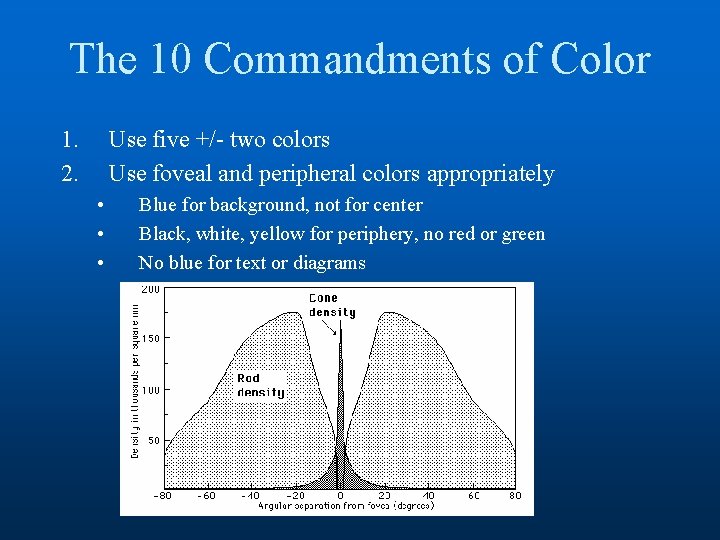
The 10 Commandments of Color 1. 2. Use five +/- two colors Use foveal and peripheral colors appropriately • • • Blue for background, not for center Black, white, yellow for periphery, no red or green No blue for text or diagrams
The 10 Commandments of Color 3. Minimum shift in color/size • • Light text on dark background for dark environment Dark text on light background for light environment 4. High-chroma, spectrally extreme colors may create illusions of shadows/after-images • Bright blue/green 5. Use familiar, consistent color coding • • • Red – stop, danger, hot, fire. Yellow – Caution, slow Green – go, okay, safe. Blue – Cold, water, death Warm colors – Action, response Cool colors – stats, background, distance Gray, white – neutral Context-dependent
The 10 Commandments of Color 6. Use the same color for grouping related elements. 7. Color to your audience – – – Men prefer blue to red, women red to blue Men prefer orange to yellow, women yellow to orange Young prefer bright, old prefer sober/restrained colors 8. Use high-value, high-chroma colors to attract attention. • • Bright red better / faster than yellow, orange Older viewers have easier time with bright
The 10 Commandments of Color 9. Use redundant coding of shape, as well as color, if possible. The more cues to remember an object, the better. 10. Use color to enhance black-and-white information. – People remember better with color – Different emotional reaction – People do not learn any better or faster with color
Evaluating Your UI • User Testing – Focus Group – Ask users to perform a task, watch sequence of steps taken – Time users on specific tasks • E. g. , shopping for a specific item