
Use of Wiki for online collaboration How to
Use of ‘Wiki’ for online collaboration How to use Wiki: tutorial
What is ‘Wiki’ • Wiki is considered as an efficient web 2. 0 tool for collaborative work in online learning environment. It is used collaboratively by multiple users. • Students can use wikis to create a set of documents that reflect the shared knowledge of the learning group. • Wikis can also be used to facilitate the dissemination of information, to enable the exchange of ideas and to facilitate group interaction. • A well known wiki is Wikipedia an online collaborative encyclopedia, where anybody can edit and update the site content as they see fit.
What is ‘Wiki’ cont’d • Wikis are being successfully used for online group work/projects. • For online group work/projects (collaboration), we can utilize wiki for planning, sharing and consultation, among the group members. • Wiki allow collaborative page editing, formatting, adding pictures, videos and linking. • Wiki have a complete history and audit trail for each page. • Most importantly, working in wiki does not require specialized ‘IT’ skills, it is as simple as working in ‘Microsoft word’.
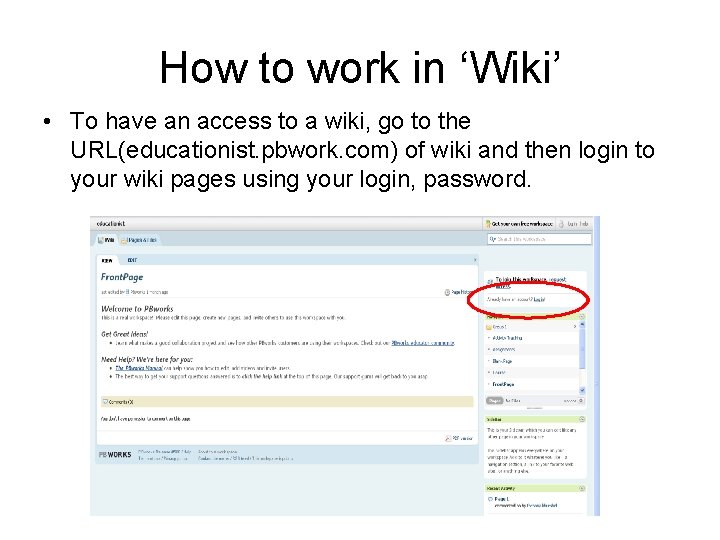
How to work in ‘Wiki’ • To have an access to a wiki, go to the URL(educationist. pbwork. com) of wiki and then login to your wiki pages using your login, password.
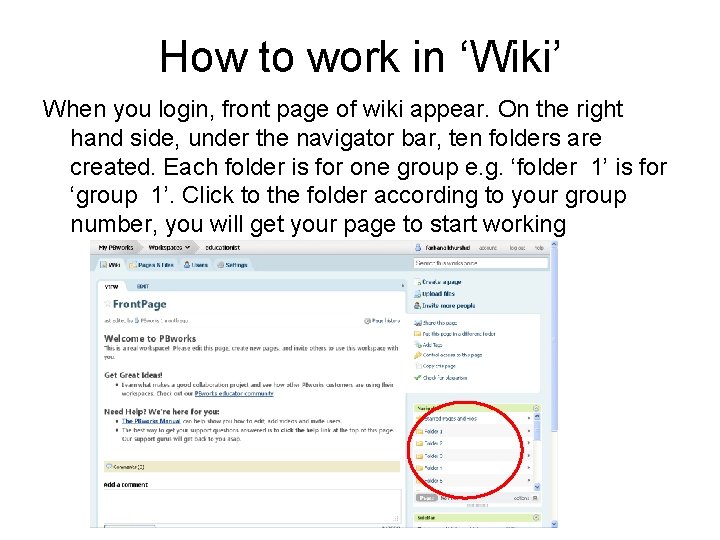
How to work in ‘Wiki’ When you login, front page of wiki appear. On the right hand side, under the navigator bar, ten folders are created. Each folder is for one group e. g. ‘folder 1’ is for ‘group 1’. Click to the folder according to your group number, you will get your page to start working
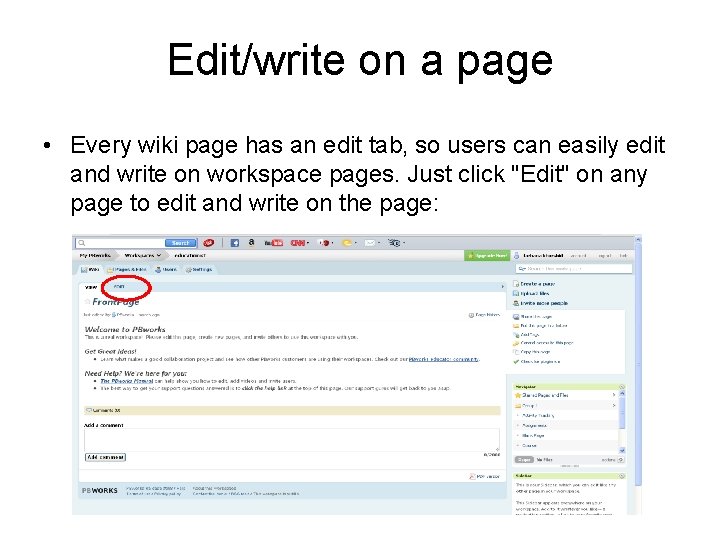
Edit/write on a page • Every wiki page has an edit tab, so users can easily edit and write on workspace pages. Just click "Edit" on any page to edit and write on the page:
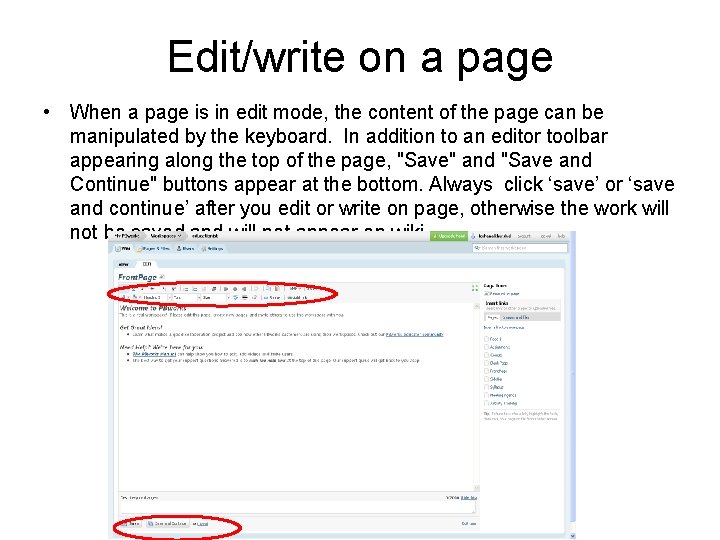
Edit/write on a page • When a page is in edit mode, the content of the page can be manipulated by the keyboard. In addition to an editor toolbar appearing along the top of the page, "Save" and "Save and Continue" buttons appear at the bottom. Always click ‘save’ or ‘save and continue’ after you edit or write on page, otherwise the work will not be saved and will not appear on wiki.
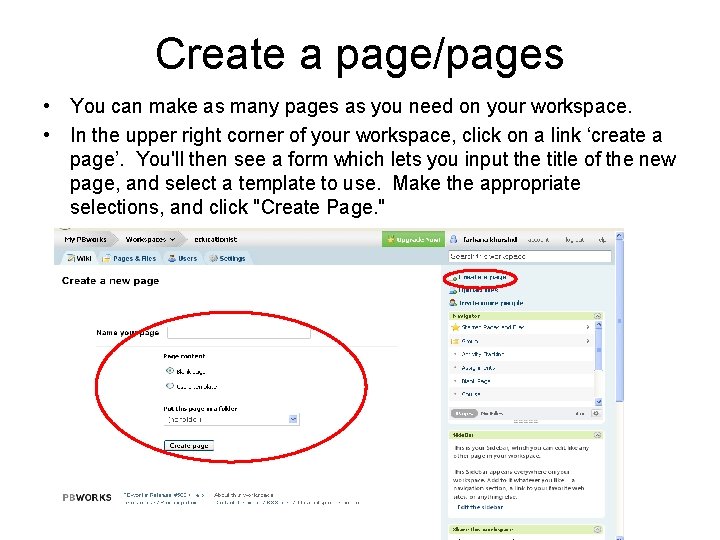
Create a page/pages • You can make as many pages as you need on your workspace. • In the upper right corner of your workspace, click on a link ‘create a page’. You'll then see a form which lets you input the title of the new page, and select a template to use. Make the appropriate selections, and click "Create Page. "
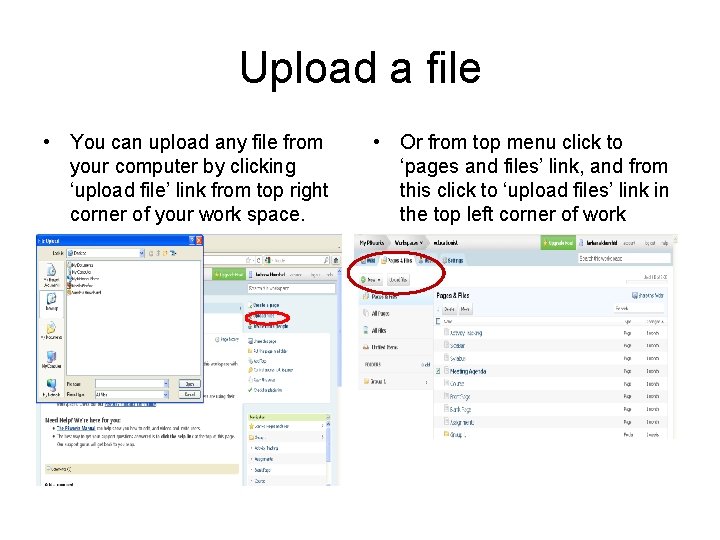
Upload a file • You can upload any file from your computer by clicking ‘upload file’ link from top right corner of your work space. • Or from top menu click to ‘pages and files’ link, and from this click to ‘upload files’ link in the top left corner of work space.
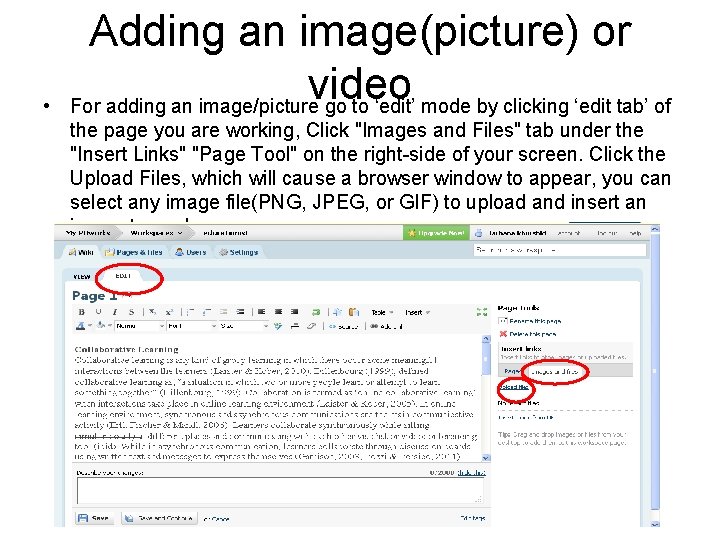
• Adding an image(picture) or video For adding an image/picture go to ‘edit’ mode by clicking ‘edit tab’ of the page you are working, Click "Images and Files" tab under the "Insert Links" "Page Tool" on the right-side of your screen. Click the Upload Files, which will cause a browser window to appear, you can select any image file(PNG, JPEG, or GIF) to upload and insert an image to workspace.
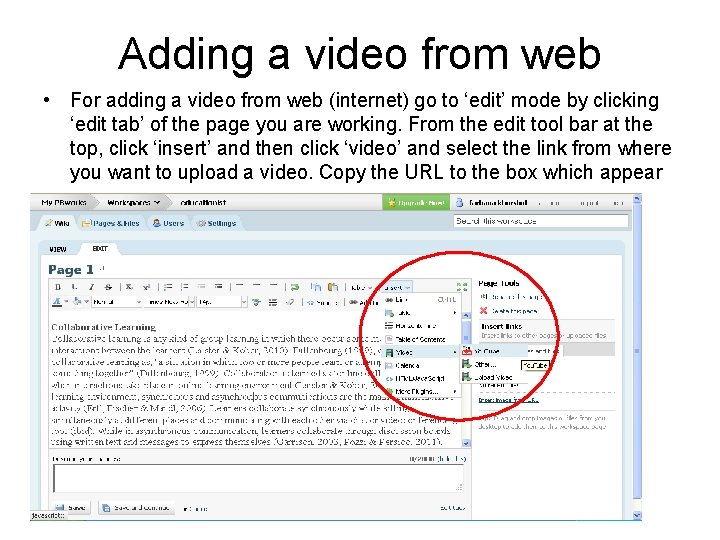
Adding a video from web • For adding a video from web (internet) go to ‘edit’ mode by clicking ‘edit tab’ of the page you are working. From the edit tool bar at the top, click ‘insert’ and then click ‘video’ and select the link from where you want to upload a video. Copy the URL to the box which appear on screen.
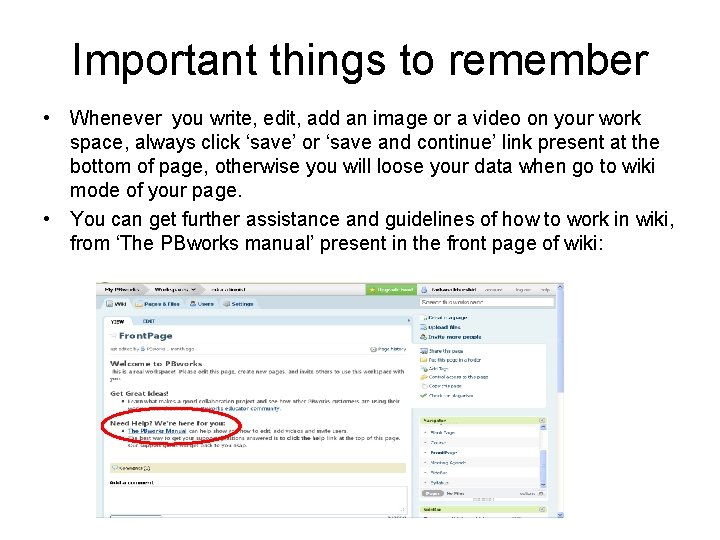
Important things to remember • Whenever you write, edit, add an image or a video on your work space, always click ‘save’ or ‘save and continue’ link present at the bottom of page, otherwise you will loose your data when go to wiki mode of your page. • You can get further assistance and guidelines of how to work in wiki, from ‘The PBworks manual’ present in the front page of wiki:
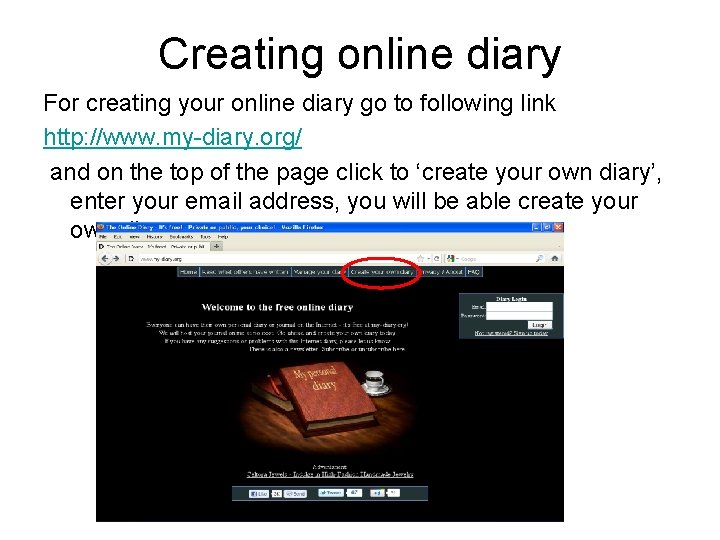
Creating online diary For creating your online diary go to following link http: //www. my-diary. org/ and on the top of the page click to ‘create your own diary’, enter your email address, you will be able create your own diary

Good Luck
- Slides: 14