
USDA UPS Billing Center Setup and PCard Payment
USDA UPS Billing Center Setup and P-Card Payment Process March, 2011
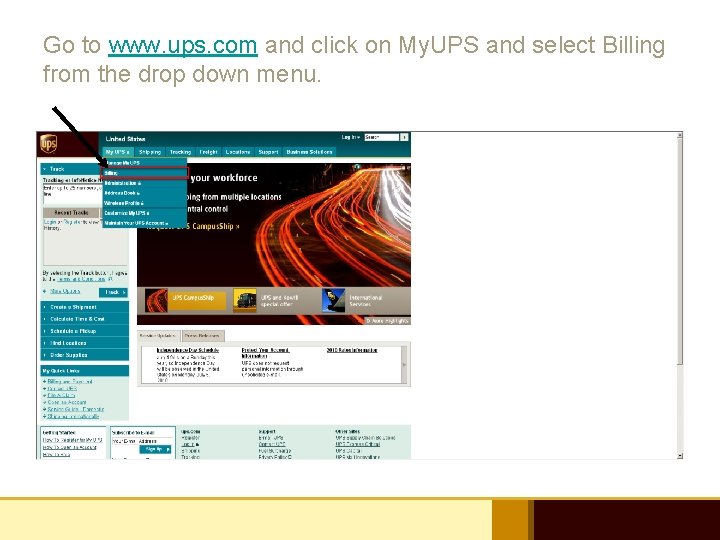
Go to www. ups. com and click on My. UPS and select Billing from the drop down menu.
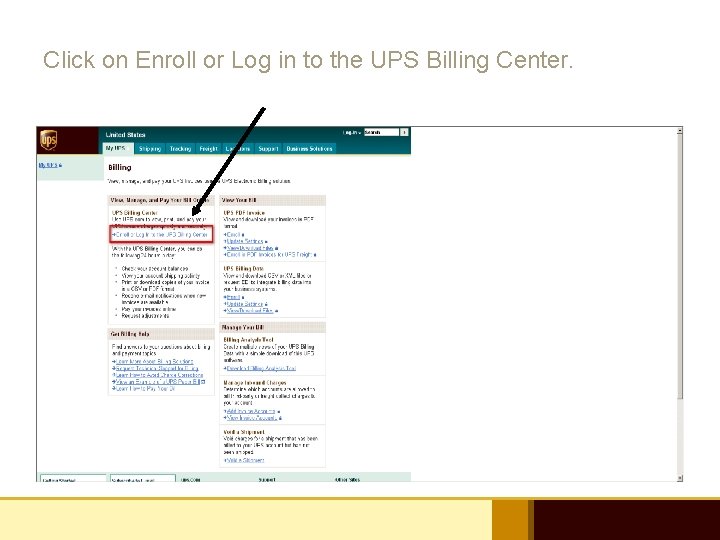
Click on Enroll or Log in to the UPS Billing Center.
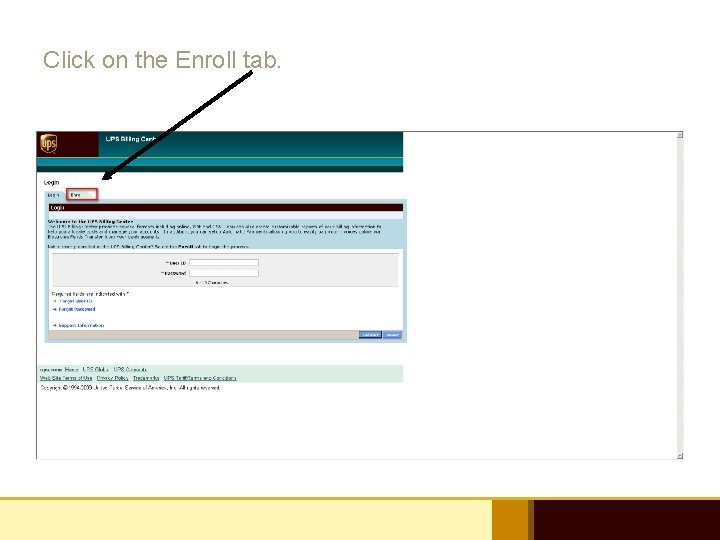
Click on the Enroll tab.
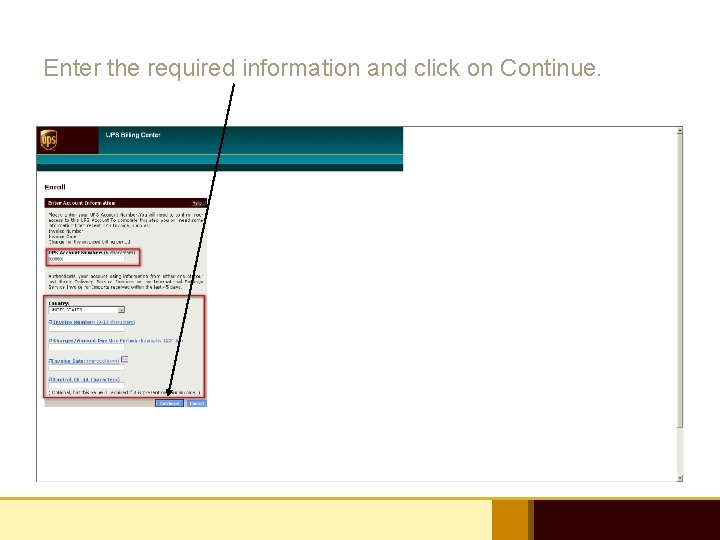
Enter the required information and click on Continue.
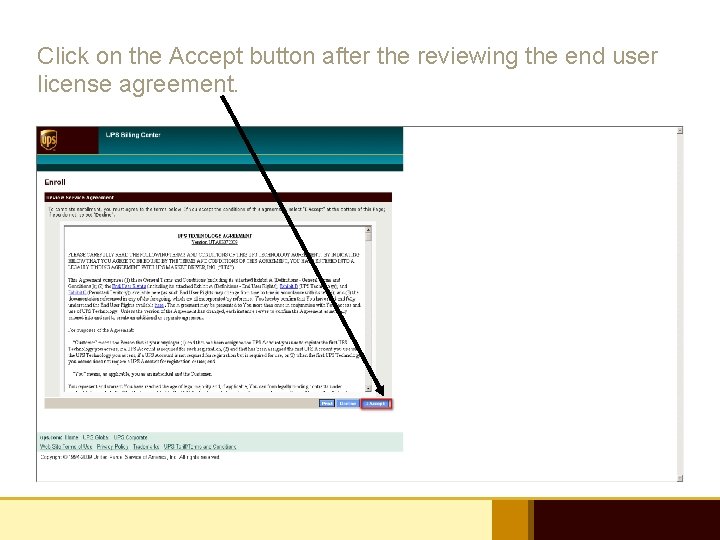
Click on the Accept button after the reviewing the end user license agreement.
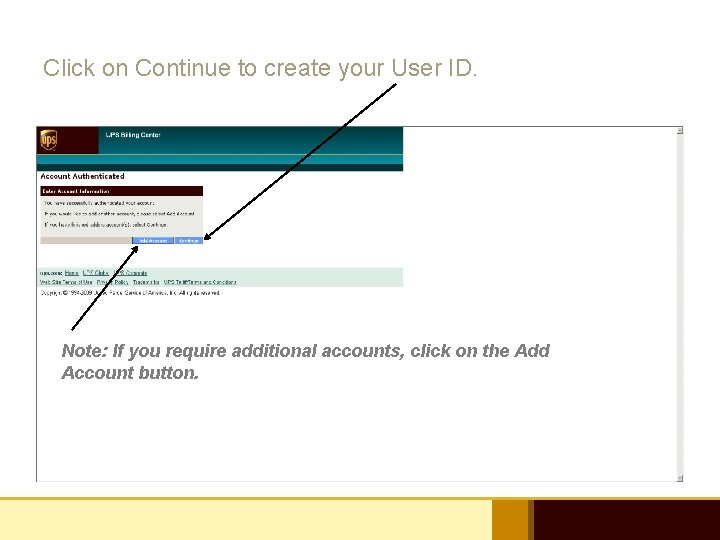
Click on Continue to create your User ID. Note: If you require additional accounts, click on the Add Account button.
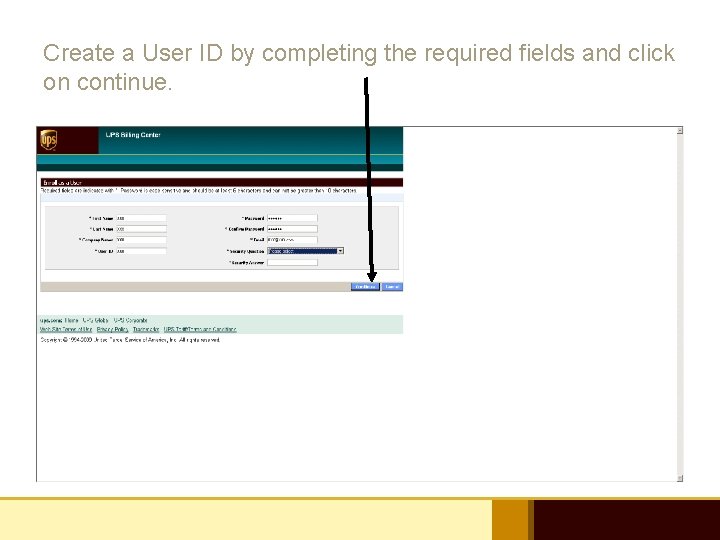
Create a User ID by completing the required fields and click on continue.
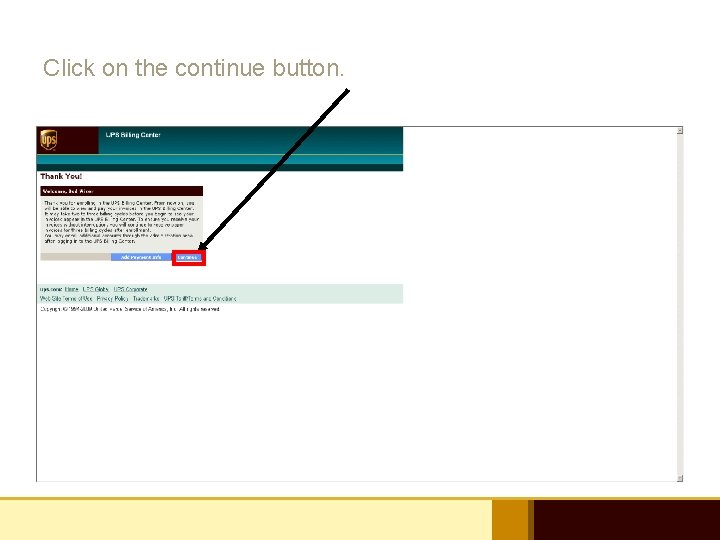
Click on the continue button.
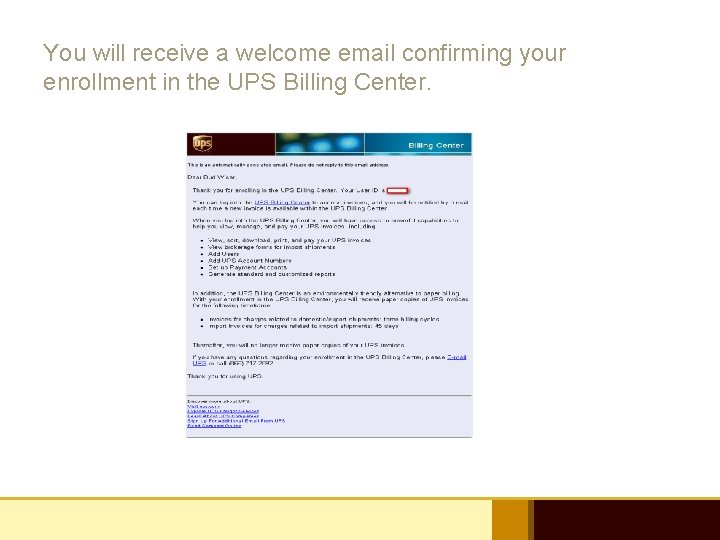
You will receive a welcome email confirming your enrollment in the UPS Billing Center.
Setting Up P-Card Payment Process Note: Only invoices going forward will show in the Billing Center once you register.
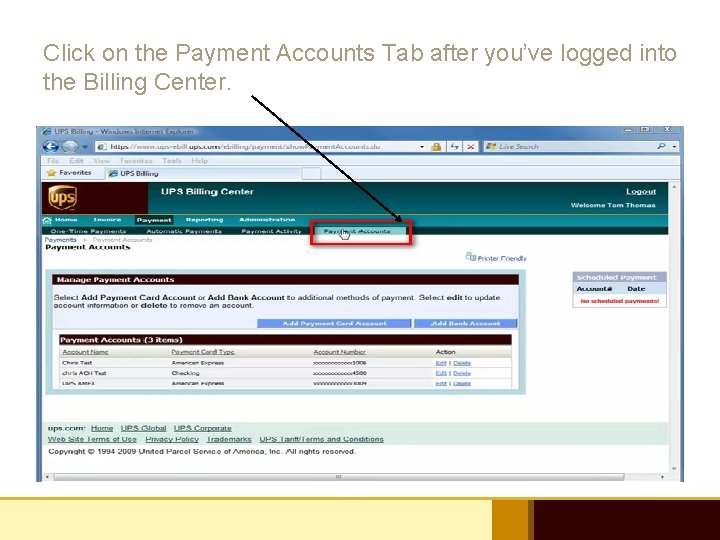
Click on the Payment Accounts Tab after you’ve logged into the Billing Center.
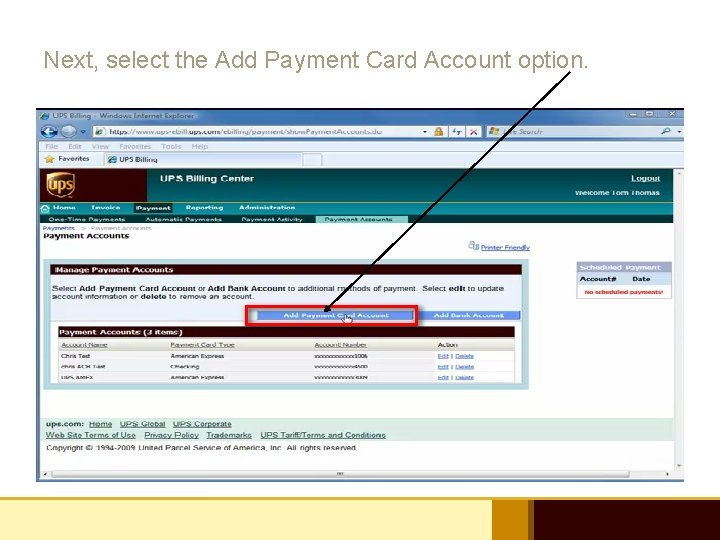
Next, select the Add Payment Card Account option.
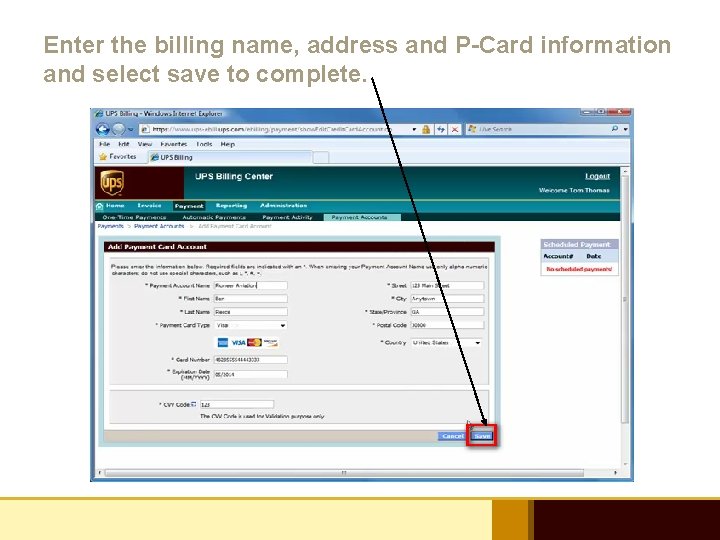
Enter the billing name, address and P-Card information and select save to complete.
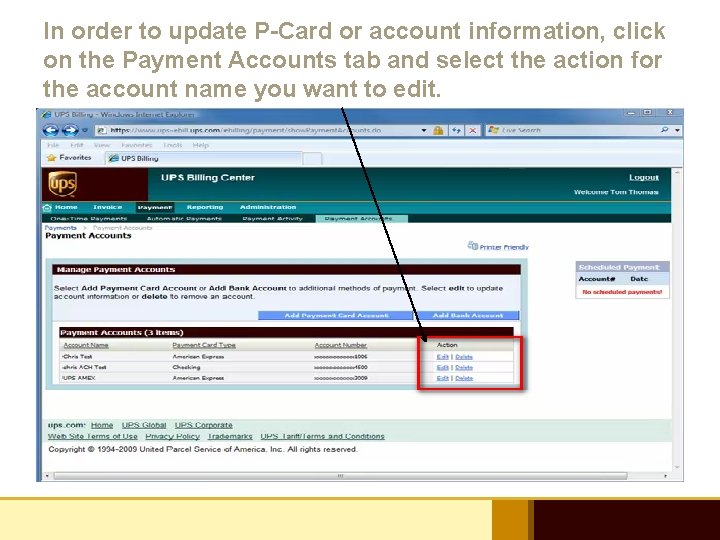
In order to update P-Card or account information, click on the Payment Accounts tab and select the action for the account name you want to edit.
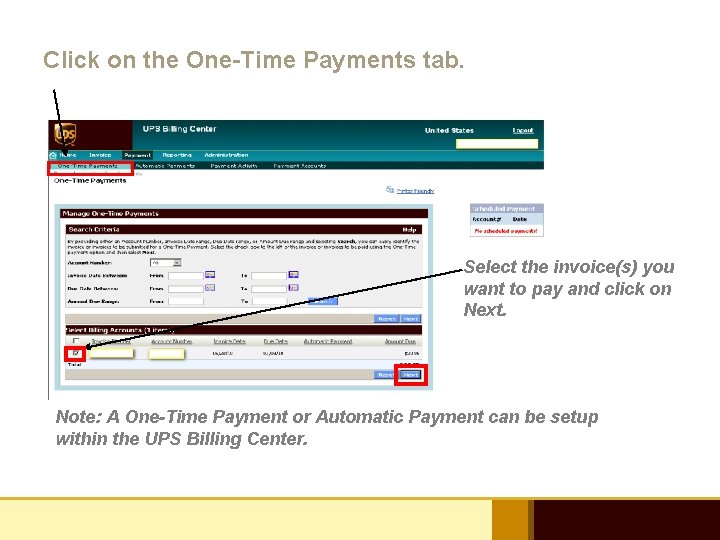
Click on the One-Time Payments tab. Select the invoice(s) you want to pay and click on Next. Note: A One-Time Payment or Automatic Payment can be setup within the UPS Billing Center.
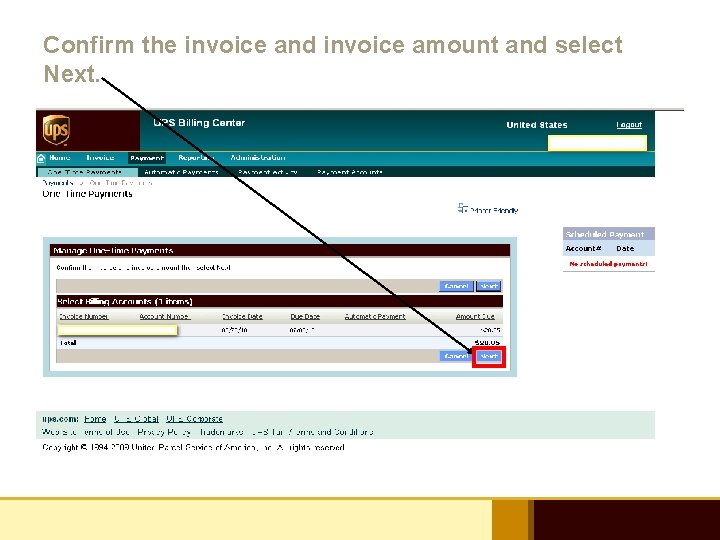
Confirm the invoice and invoice amount and select Next.
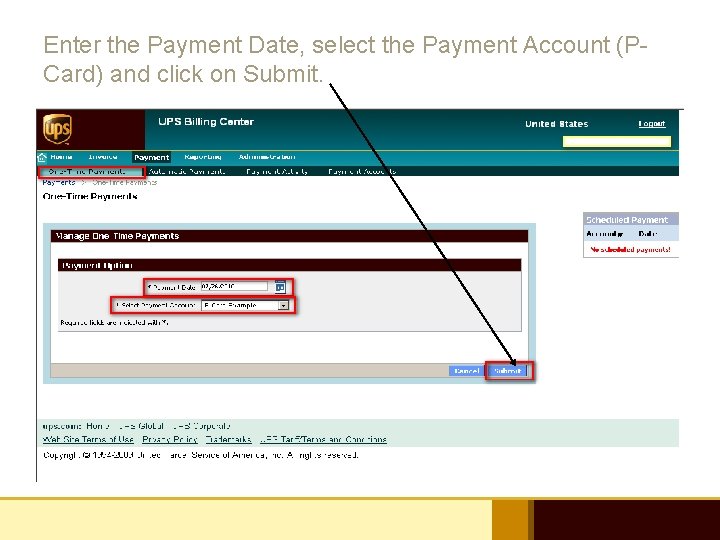
Enter the Payment Date, select the Payment Account (PCard) and click on Submit.
UPS Billing Center Support § § Help Desk: 1 -866 -717 -2692 Tutorial Site: Click here to access the Billing Tutorial http: //www. completeview. ups. com/GSA/ap ps/Rates. Transit. Times. Billing. aspx
- Slides: 19