
Updating the INCOG Regional Traffic Counts Web Map

Updating the INCOG Regional Traffic Counts Web Map Ty Simmons OKSCAUG Conference September 17, 2019

About INCOG is a voluntary association of local and tribal governments in the Tulsa Metropolitan Area in Northeast Oklahoma • Land Use Planning • Transportation • Community & Economic Development • Environmental Quality • Public Safety • Older Adults • GIS and Mapping Photo by Tom Gilbert, Tulsa World

INCOG Region
Overview • Traffic Count Compilation Process • Evolution of the Traffic Count Map – from paper to digital • Traffic Count Woes • Converting Traffic Count Points to “Zones” for use in Street. Light • Street. Light AADT Analysis • Creating the New AADT Web Map

Traffic Count Compilation Process
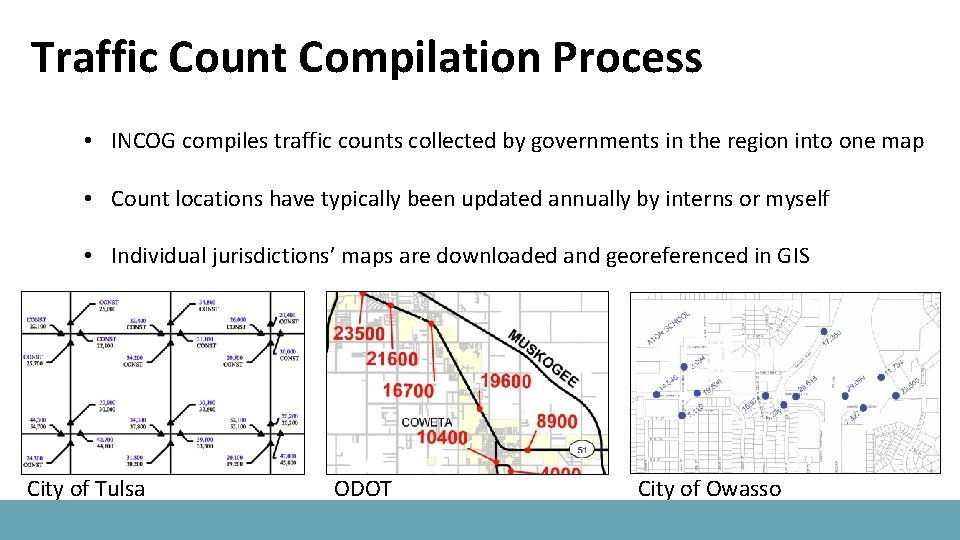
Traffic Count Compilation Process • INCOG compiles traffic counts collected by governments in the region into one map • Count locations have typically been updated annually by interns or myself • Individual jurisdictions’ maps are downloaded and georeferenced in GIS City of Tulsa ODOT City of Owasso
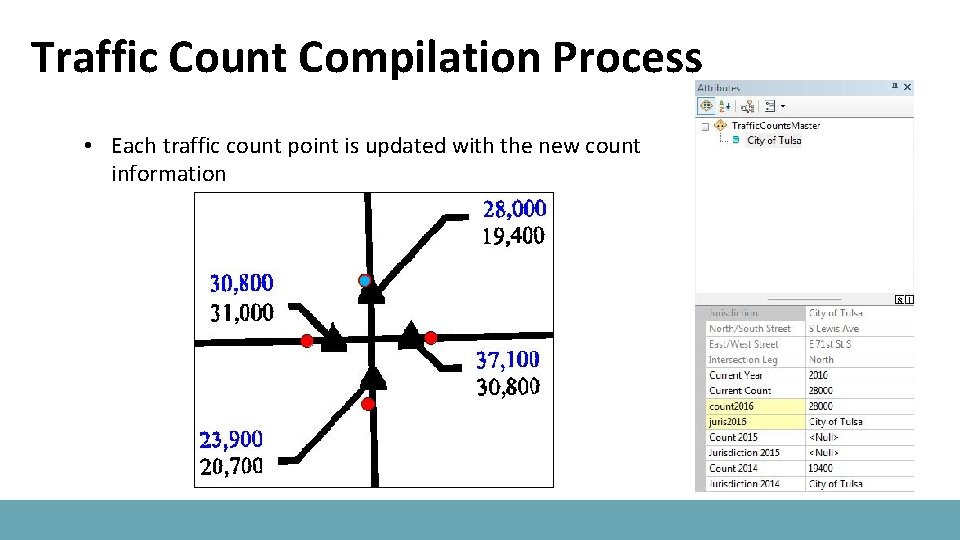
Traffic Count Compilation Process • Each traffic count point is updated with the new count information
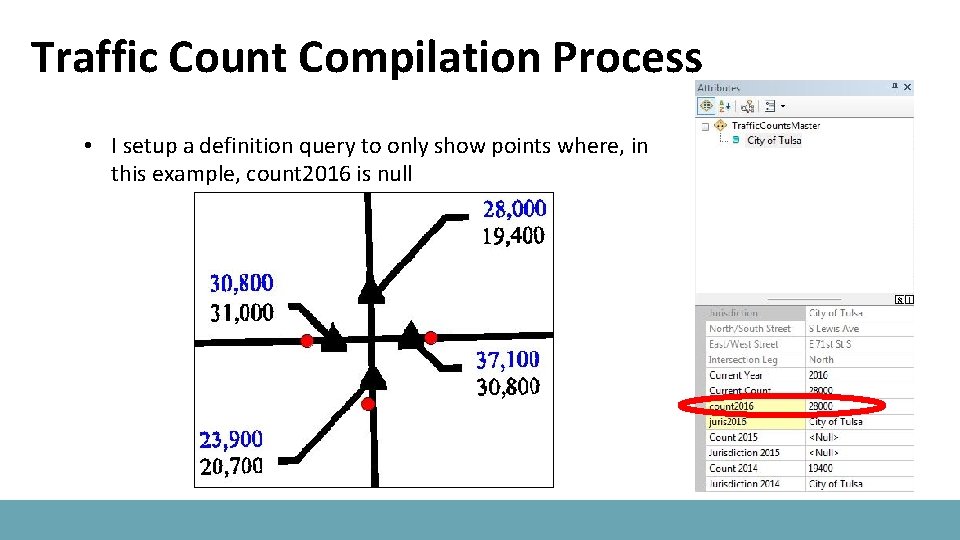
Traffic Count Compilation Process • I setup a definition query to only show points where, in this example, count 2016 is null

Evolution of the Traffic Count Map
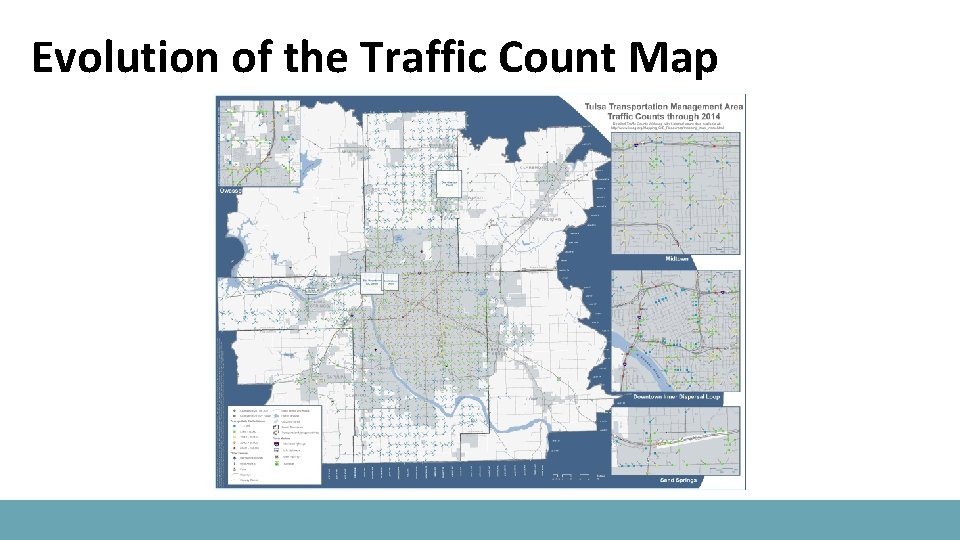
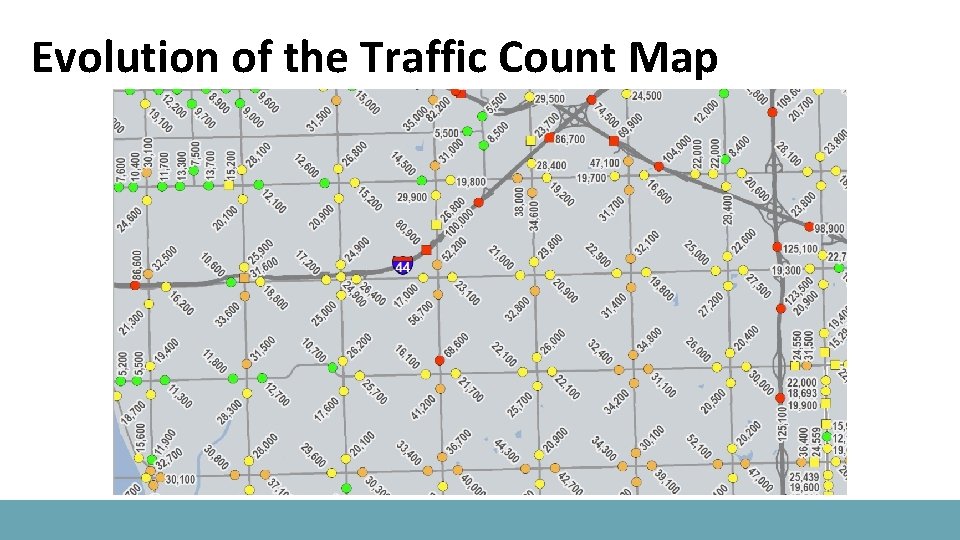
Evolution of the Traffic Count Map • Prior to 2014, these count locations were compiled in a large plot paper map • Creating and maintaining the paper map was quite laborious • The traffic counts attribute table contained a rotation field for labeling • Each of the 2, 500 plus count locations had a rotation value, so it would properly label on the map • There were also 4 insets to display areas where count locations were really clustered
Evolution of the Traffic Count Map
Evolution of the Traffic Count Map
Evolution of the Traffic Count Map • In 2014, we transitioned from paper to an Arc. GIS Online web map app • Initially, labeling was not an option in AGOL. . . Remember those days? • To compensate for that, I experimented with annotations and tile services • I accidentally burned through over 500 credits while doing so! • I then discovered you could do tiling locally without having to use credits
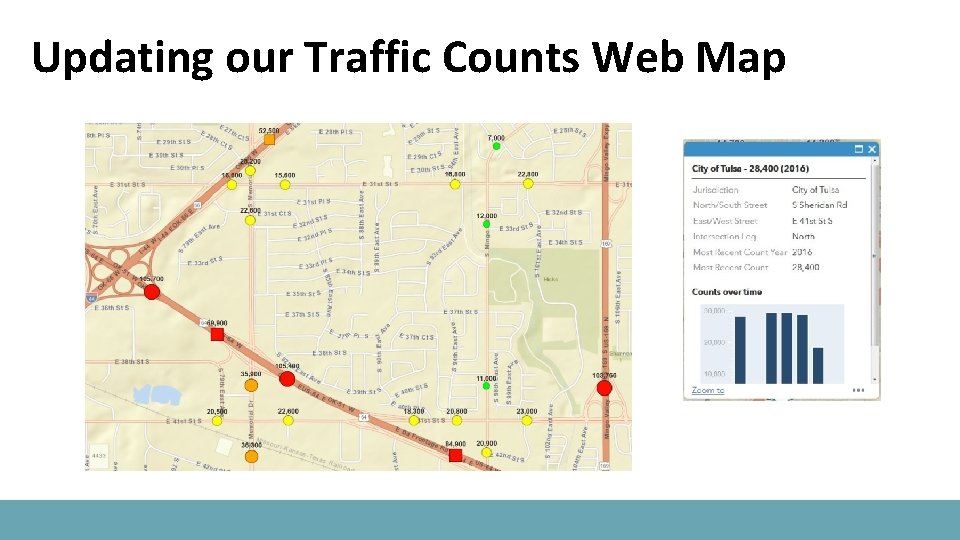
Updating our Traffic Counts Web Map

Traffic Count Woes
Traffic Count Woes • Unfortunately, many local governments no longer collect traffic counts • 42% of the 2, 500 plus count locations have counts older than 2012 • No traffic count data has been collected by the following jurisdiction since 2010: • Sand Springs • No traffic count data has been collected by the following jurisdictions since 2011: • Claremore • Sapulpa • Tulsa County
Traffic Count Woes • No traffic count data has been collected by the following jurisdictions ever (to my knowledge, anyway): • Bixby • Collinsville • Glenpool • Jenks • Skiatook • Sperry • Tulsa County used to collect counts within these cities’ corporate limits • The remaining jurisdictions seem to be moving to an as needed basis for collecting counts
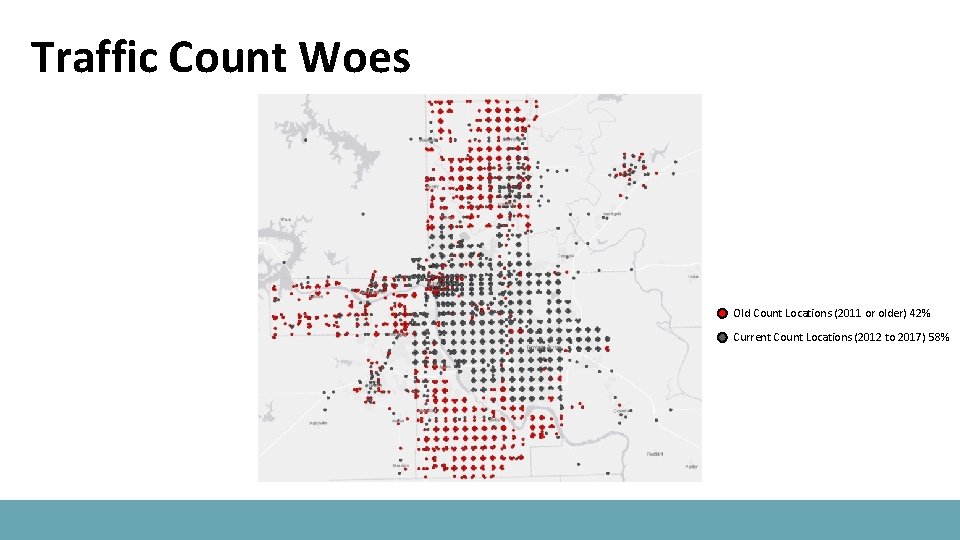
Traffic Count Woes Old Count Locations (2011 or older) 42% Current Count Locations (2012 to 2017) 58%

Converting Traffic Count Points to “Zones”
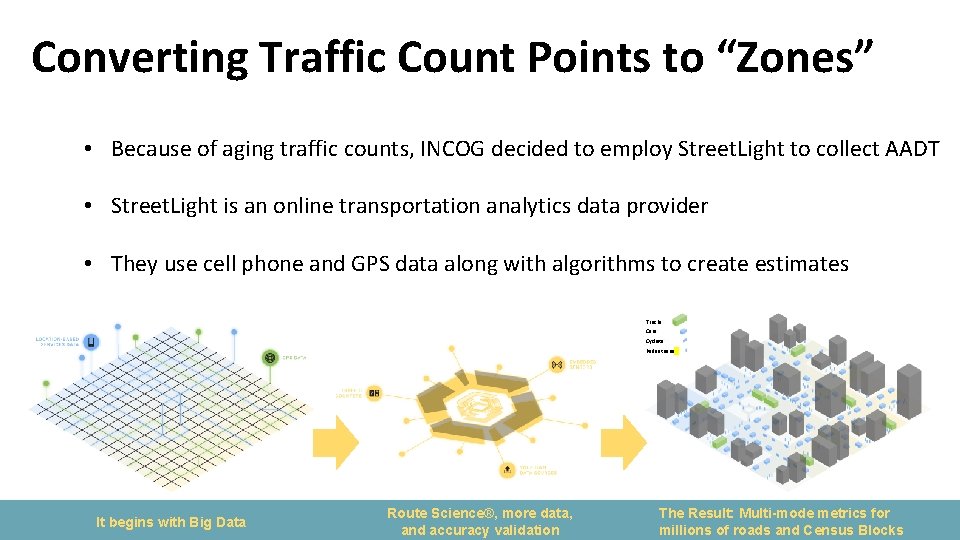
Converting Traffic Count Points to “Zones” • Because of aging traffic counts, INCOG decided to employ Street. Light to collect AADT • Street. Light is an online transportation analytics data provider • They use cell phone and GPS data along with algorithms to create estimates Trucks Cars Cyclists Pedestrians It begins with Big Data Route Science®, more data, and accuracy validation The Result: Multi-mode metrics for millions of roads and Census Blocks
Converting Traffic Count Points to “Zones” • Street. Light uses rectangular polygons called zones for their analysis • How do we bring our traffic count point data into Street. Light? • Initially, the idea was to draw zones in Street. Light. Split the task up among many • But, there are over 2, 500 count locations in the region. . . Yikes! • Surly this can be done in GIS. . . Street. Light enables shapefile uploads, afterall
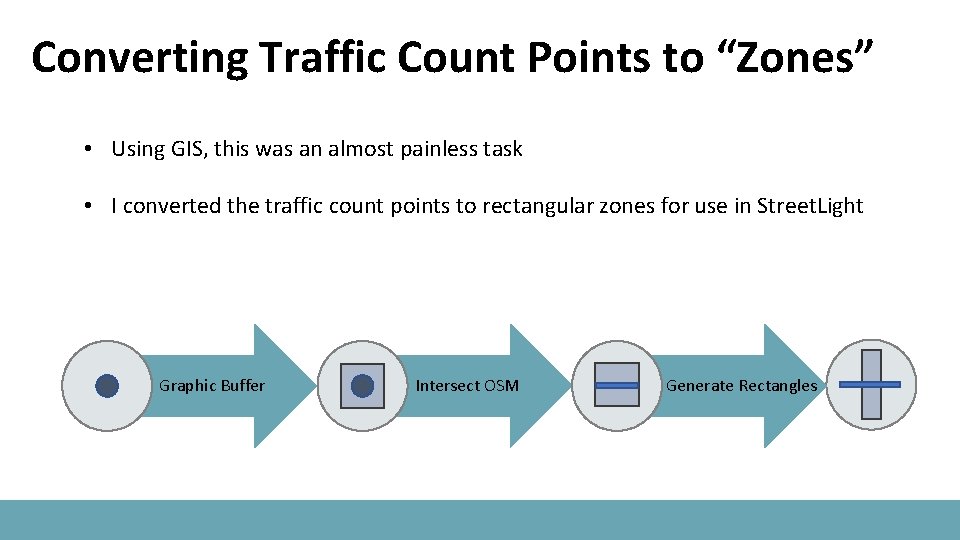
Converting Traffic Count Points to “Zones” • Using GIS, this was an almost painless task • I converted the traffic count points to rectangular zones for use in Street. Light Graphic Buffer Intersect OSM Generate Rectangles
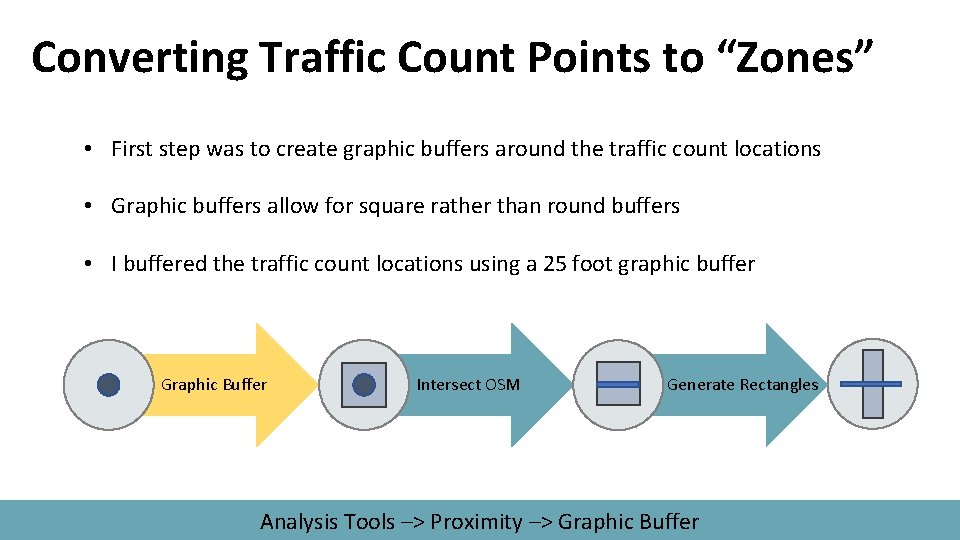
Converting Traffic Count Points to “Zones” • First step was to create graphic buffers around the traffic count locations • Graphic buffers allow for square rather than round buffers • I buffered the traffic count locations using a 25 foot graphic buffer Graphic Buffer Intersect OSM Generate Rectangles Analysis Tools –> Proximity –> Graphic Buffer
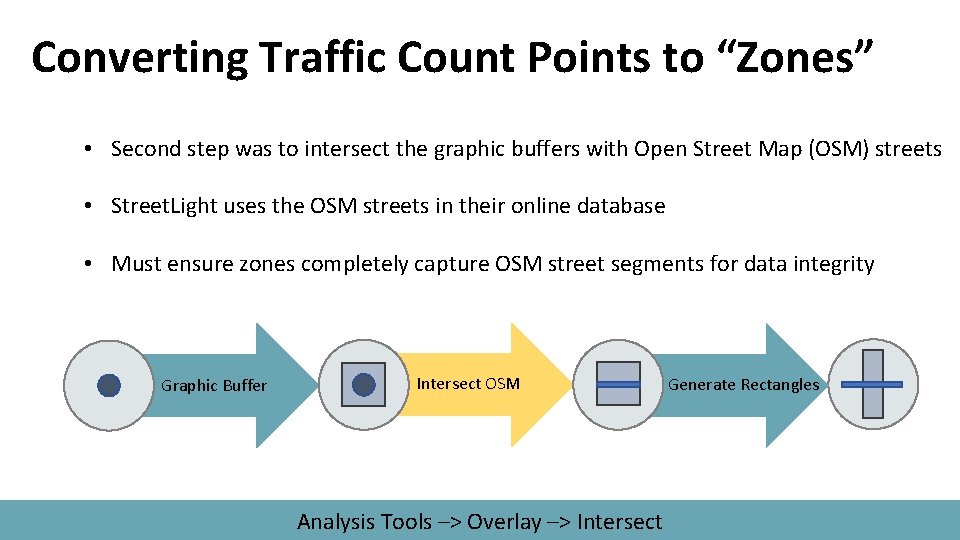
Converting Traffic Count Points to “Zones” • Second step was to intersect the graphic buffers with Open Street Map (OSM) streets • Street. Light uses the OSM streets in their online database • Must ensure zones completely capture OSM street segments for data integrity Graphic Buffer Intersect OSM Analysis Tools –> Overlay –> Intersect Generate Rectangles
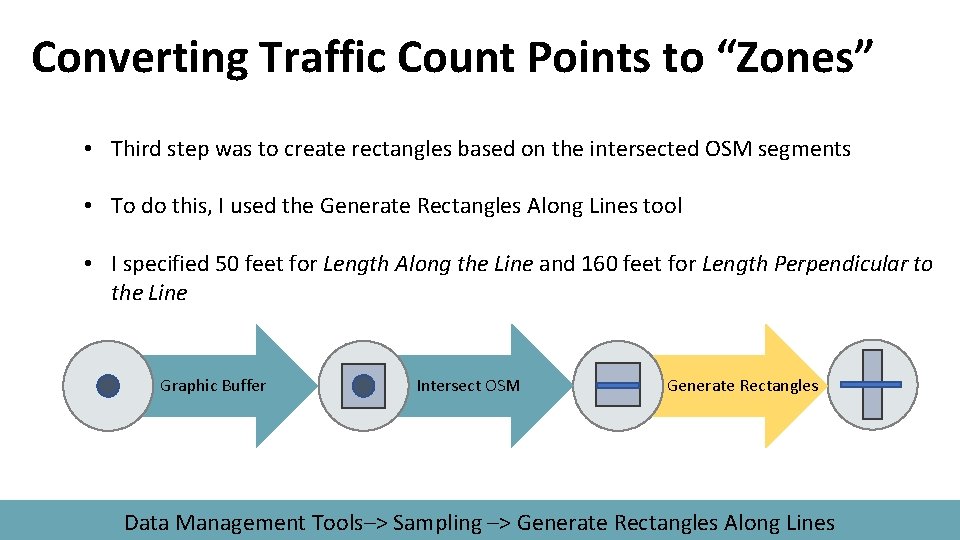
Converting Traffic Count Points to “Zones” • Third step was to create rectangles based on the intersected OSM segments • To do this, I used the Generate Rectangles Along Lines tool • I specified 50 feet for Length Along the Line and 160 feet for Length Perpendicular to the Line Graphic Buffer Intersect OSM Generate Rectangles Data Management Tools–> Sampling –> Generate Rectangles Along Lines

Street. Light AADT Analysis
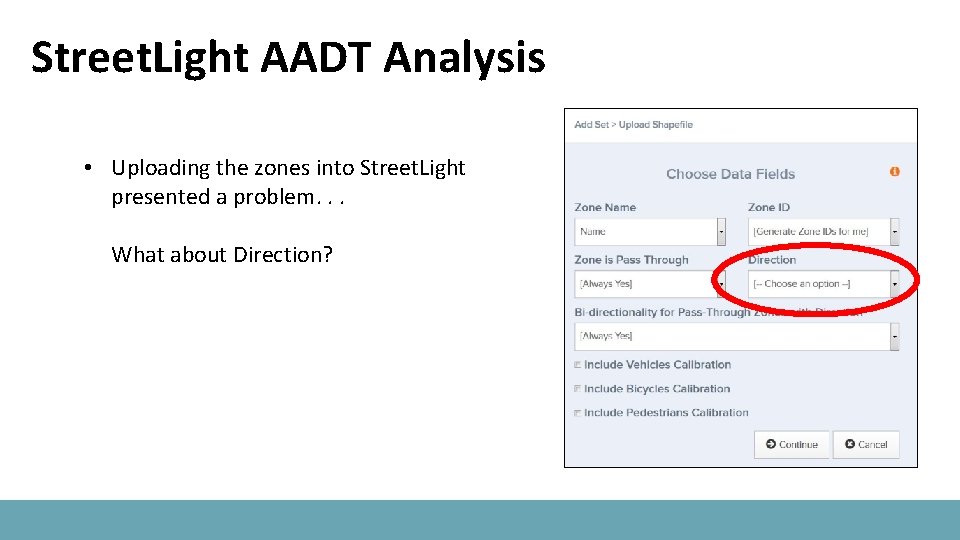
Street. Light AADT Analysis • Uploading the zones into Street. Light presented a problem. . . What about Direction?
Street. Light AADT Analysis • I thought direction was not really that important • Street. Light uses Open Street Map, so shouldn’t be a problem • I updated the zones shapefile with a direction attribute based on the zone name
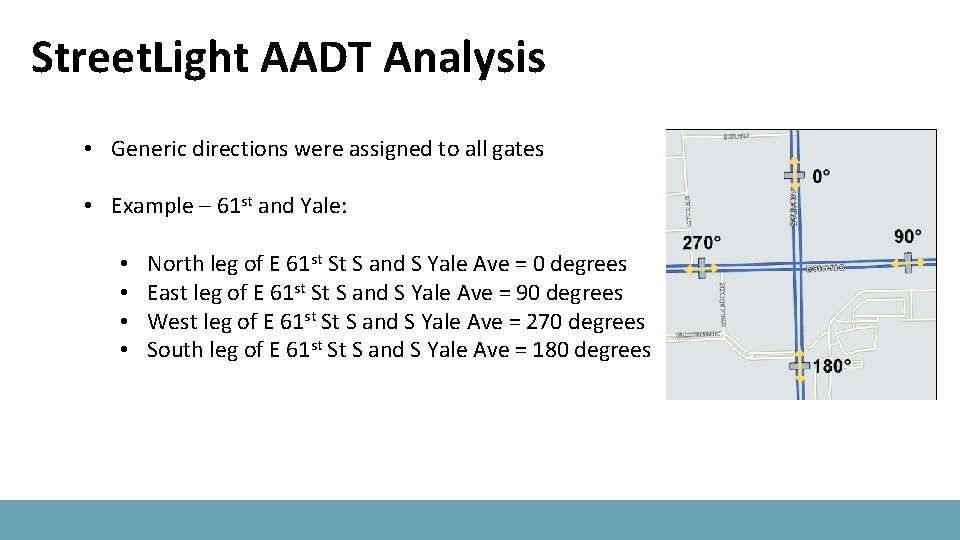
Street. Light AADT Analysis • Generic directions were assigned to all gates • Example – 61 st and Yale: • • North leg of E 61 st St S and S Yale Ave = 0 degrees East leg of E 61 st St S and S Yale Ave = 90 degrees West leg of E 61 st St S and S Yale Ave = 270 degrees South leg of E 61 st St S and S Yale Ave = 180 degrees
Street. Light AADT Analysis • With directions assigned, the zones were uploaded into Street. Light and an AADT analysis was run • Results were analyzed by our transportation modeler to compare against existing traffic count data • Any locations with a greater than 50% difference were flagged
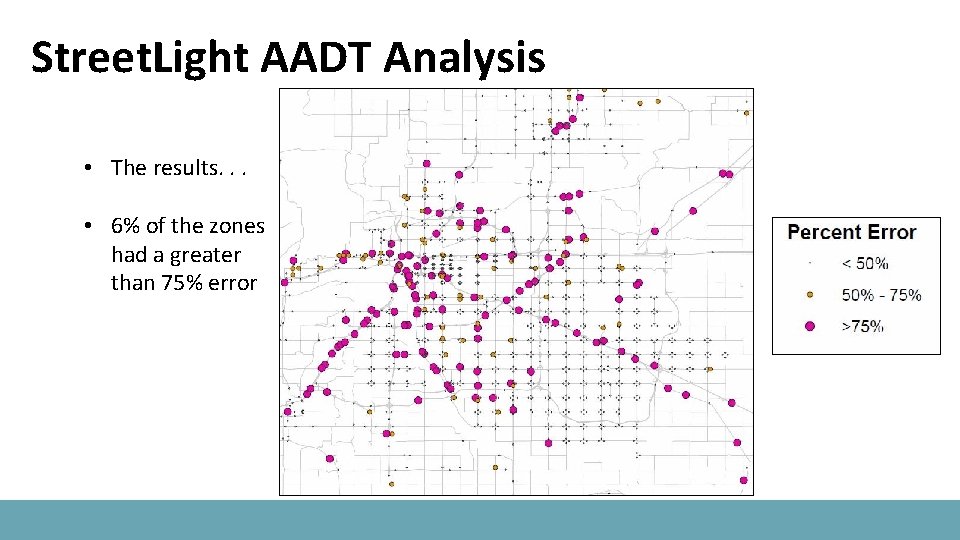
Street. Light AADT Analysis • The results. . . • 6% of the zones had a greater than 75% error
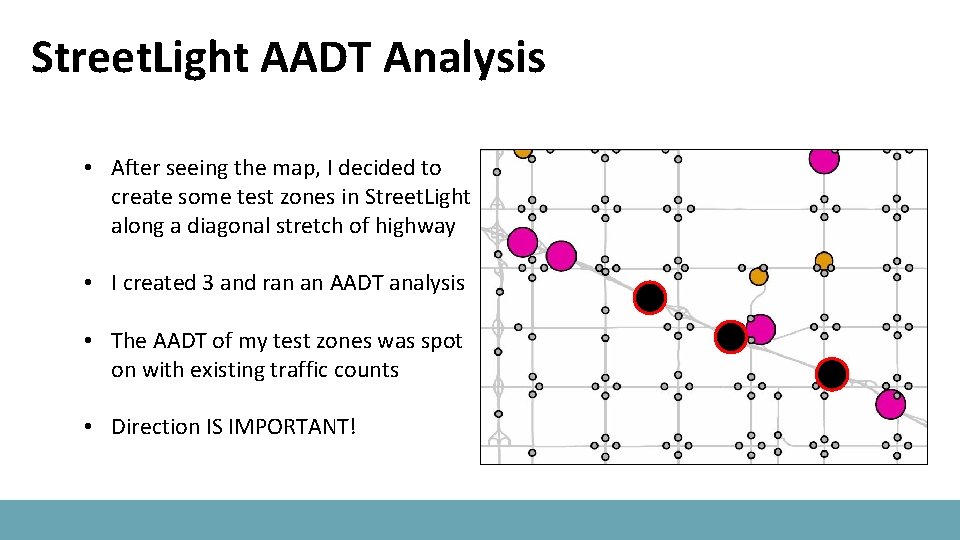
Street. Light AADT Analysis • After seeing the map, I decided to create some test zones in Street. Light along a diagonal stretch of highway • I created 3 and ran an AADT analysis • The AADT of my test zones was spot on with existing traffic counts • Direction IS IMPORTANT!
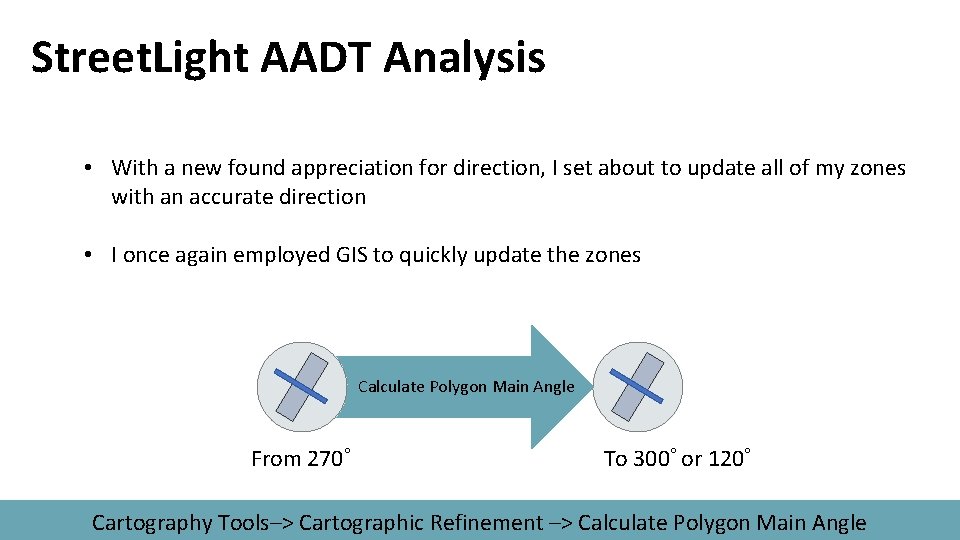
Street. Light AADT Analysis • With a new found appreciation for direction, I set about to update all of my zones with an accurate direction • I once again employed GIS to quickly update the zones Calculate Polygon Main Angle From 270◦ To 300◦ or 120◦ Cartography Tools–> Cartographic Refinement –> Calculate Polygon Main Angle
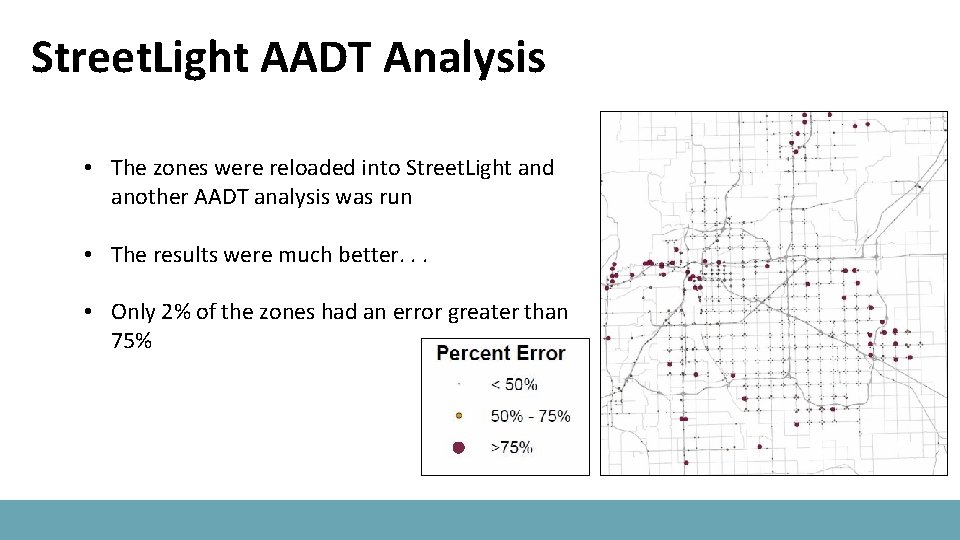
Street. Light AADT Analysis • The zones were reloaded into Street. Light and another AADT analysis was run • The results were much better. . . • Only 2% of the zones had an error greater than 75%

Creating the New AADT Web Map
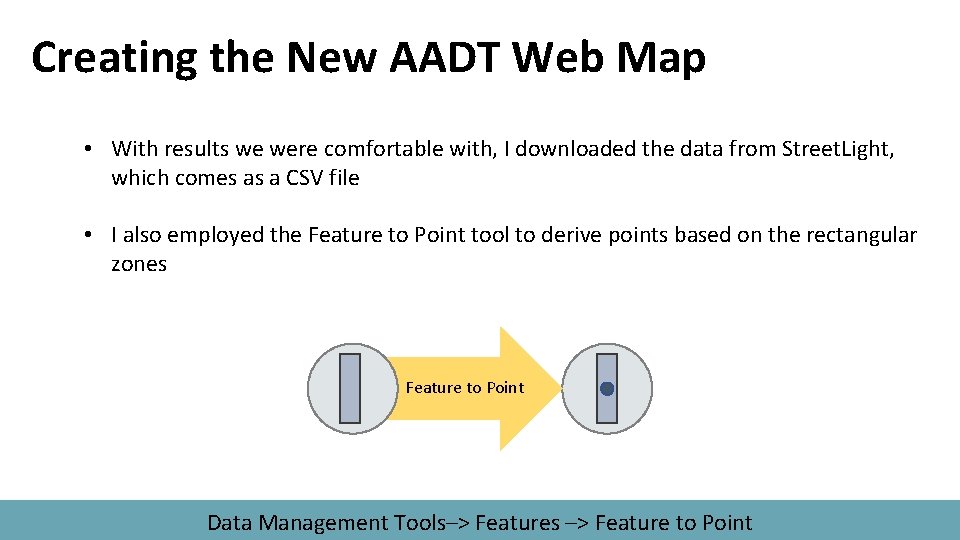
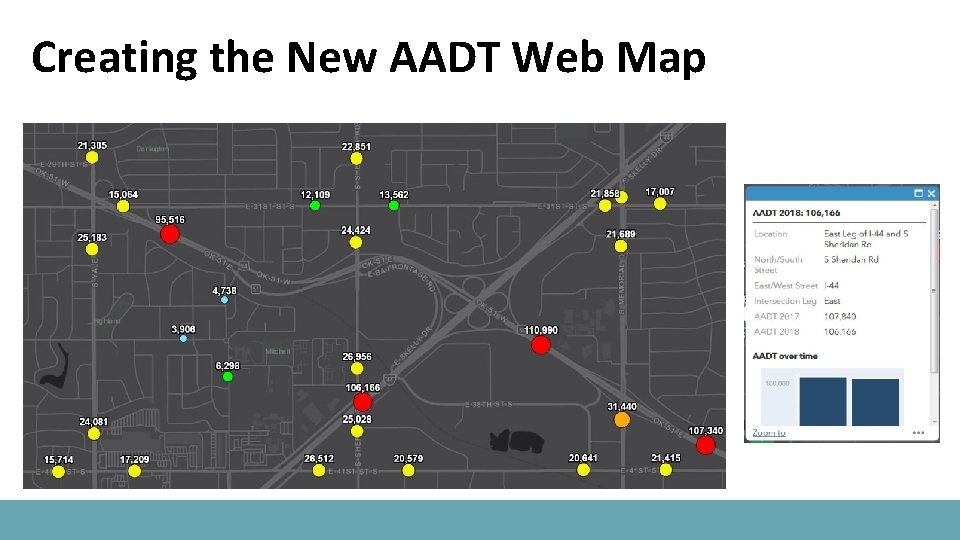
Creating the New AADT Web Map • With results we were comfortable with, I downloaded the data from Street. Light, which comes as a CSV file • I also employed the Feature to Point tool to derive points based on the rectangular zones Feature to Point Data Management Tools–> Features –> Feature to Point
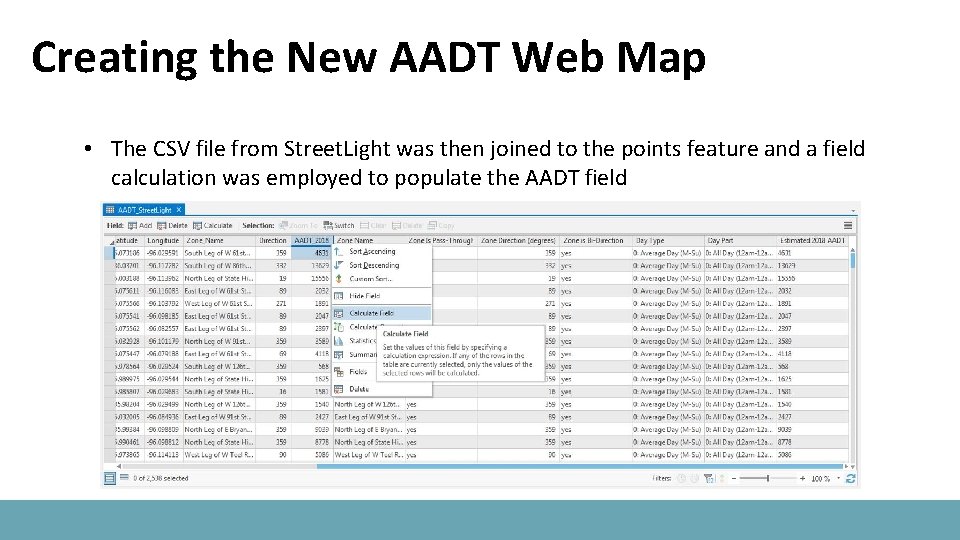
Creating the New AADT Web Map • The CSV file from Street. Light was then joined to the points feature and a field calculation was employed to populate the AADT field
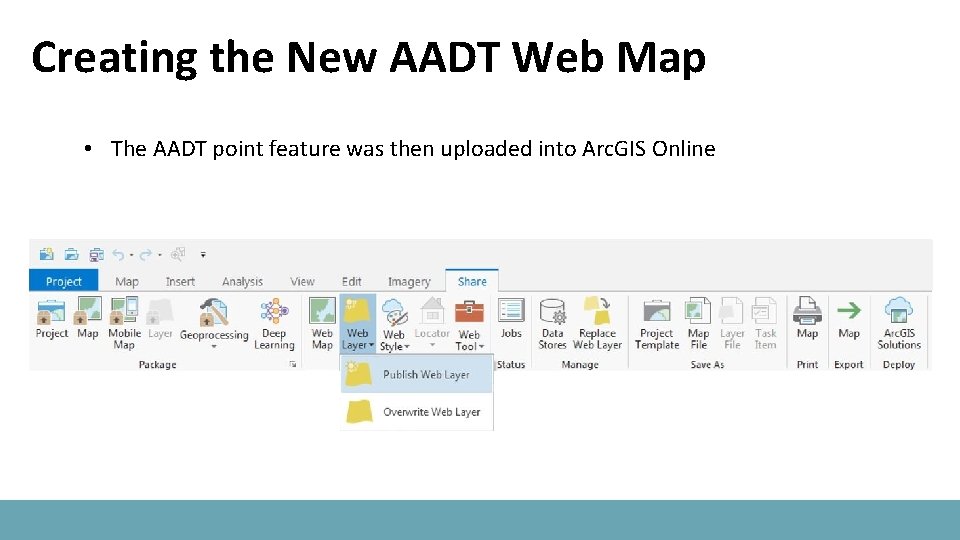
Creating the New AADT Web Map • The AADT point feature was then uploaded into Arc. GIS Online
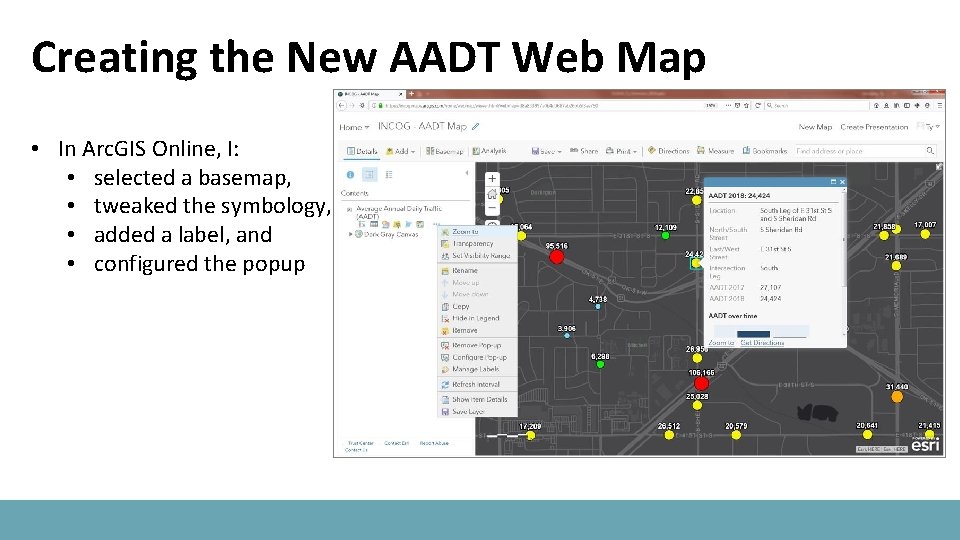
Creating the New AADT Web Map • In Arc. GIS Online, I: • selected a basemap, • tweaked the symbology, • added a label, and • configured the popup
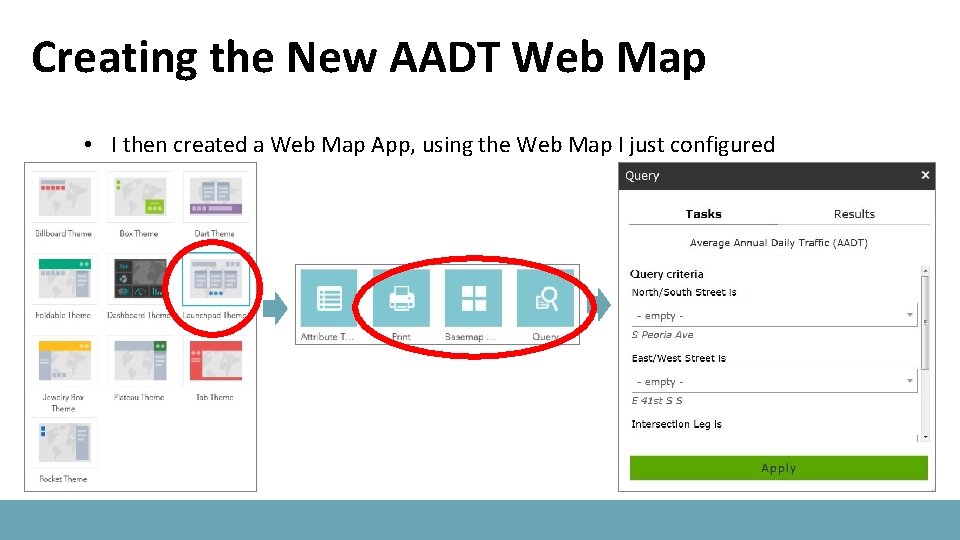
Creating the New AADT Web Map • I then created a Web Map App, using the Web Map I just configured
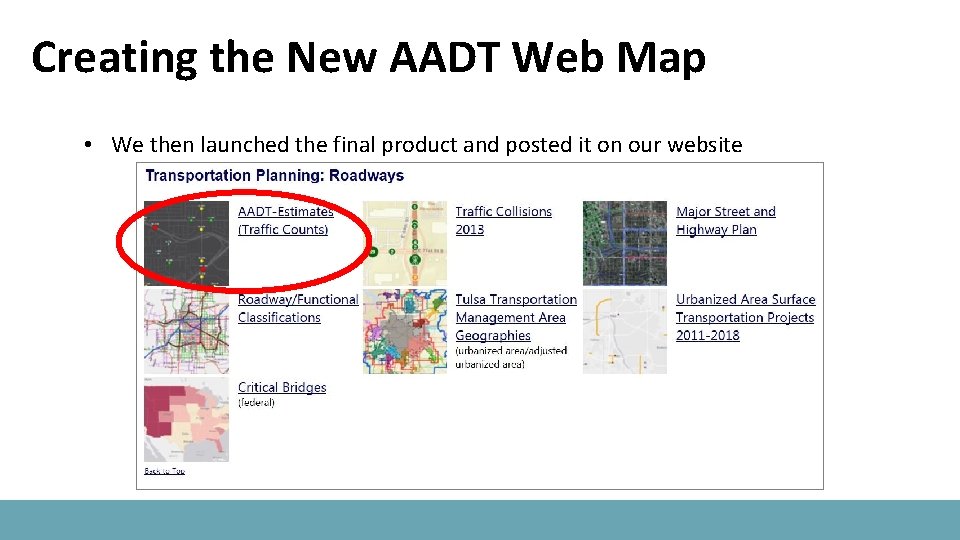
Creating the New AADT Web Map • We then launched the final product and posted it on our website
Creating the New AADT Web Map

Questions?

Ty Simmons – Principal GIS Analyst tsimmons@incog. org
- Slides: 44