
Unix Editors ee ed ex vim and Compilersg

![ed l Starting the ed Editor ¡ $ ed [ filename ] l [](https://slidetodoc.com/presentation_image_h2/4f4979e8d4e7078e416749a93e565014/image-3.jpg "ed l Starting the ed Editor ¡ $ ed [ filename ] l [")
![vi l Starting the VI Editor ¡ $ vi [ filename ] l After](https://slidetodoc.com/presentation_image_h2/4f4979e8d4e7078e416749a93e565014/image-5.jpg "vi l Starting the VI Editor ¡ $ vi [ filename ] l After")
![Type Commands l [count] command ¡command – most commands are one character long ¡count](https://slidetodoc.com/presentation_image_h2/4f4979e8d4e7078e416749a93e565014/image-7.jpg "Type Commands l [count] command ¡command – most commands are one character long ¡count")
- Slides: 16
Unix Editors (ee, ed, ex, vim) and Compilers(g 77, gcc) Speaker: Li-Wen Chen Date: 2011 -07 -19 1
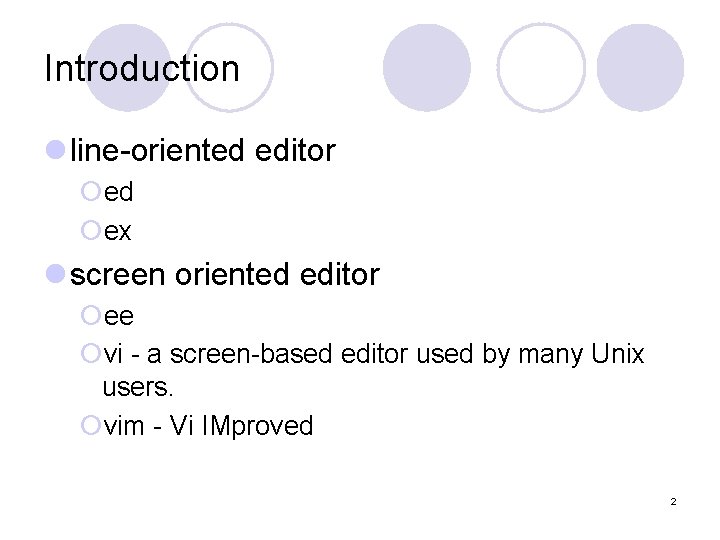
Introduction l line-oriented editor ¡ed ¡ex l screen oriented editor ¡ee ¡vi - a screen-based editor used by many Unix users. ¡vim - Vi IMproved 2
ed l Starting the ed Editor ¡ $ ed [ filename ] l [ ] means it is optional l After entering, ed is in command mode. ¡ command mode l allows the entry of commands to manipulate text l a – (append) go to input mode ¡ input mode l puts anything typed on the keyboard into the current file l. – terminate input mode l Commands about quit ed ¡ w – write (save file) ¡ q - quit 3
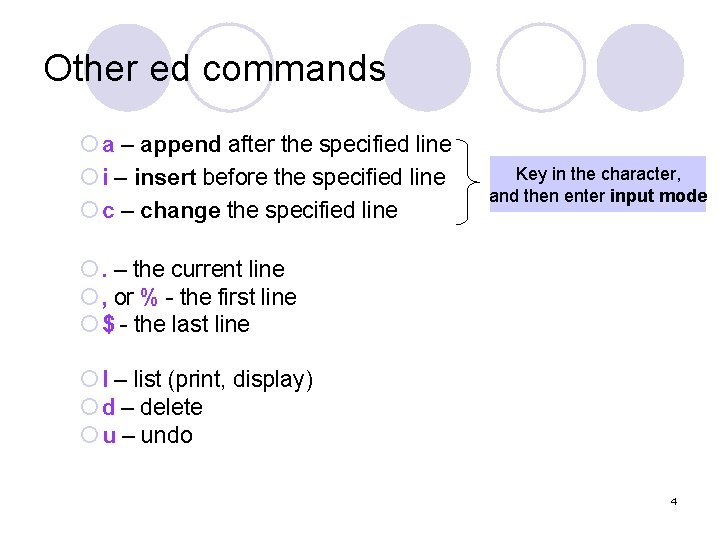
Other ed commands ¡ a – append after the specified line ¡ i – insert before the specified line ¡ c – change the specified line Key in the character, and then enter input mode ¡. – the current line ¡ , or % - the first line ¡ $ - the last line ¡ l – list (print, display) ¡ d – delete ¡ u – undo 4
vi l Starting the VI Editor ¡ $ vi [ filename ] l After entering ¡ command mode l allows the entry of commands to manipulate text l i – (insert) go to insert mode ¡ insert mode l puts anything typed on the keyboard into the current file l Esc – go to command mode l Commands about quit vi ¡ : q – quit the vi editor ¡ : w – write (save file) ¡ : wq or ZZ – write and quit ¡ : q! – force vi to quit 5
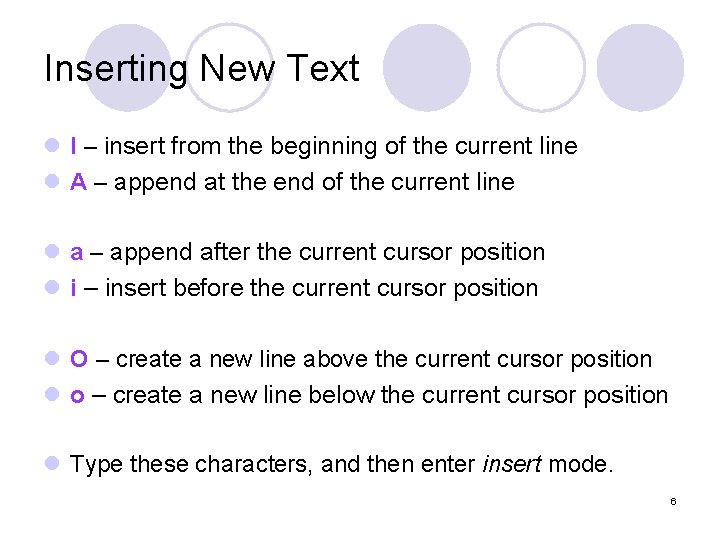
Inserting New Text l I – insert from the beginning of the current line l A – append at the end of the current line l a – append after the current cursor position l i – insert before the current cursor position l O – create a new line above the current cursor position l o – create a new line below the current cursor position l Type these characters, and then enter insert mode. 6
Type Commands l [count] command ¡command – most commands are one character long ¡count – a number, any character from 1 to 9 l Ex: 10 x ¡x – delete a characters under the cursor ¡ 10 x – delete 10 characters at a time 7
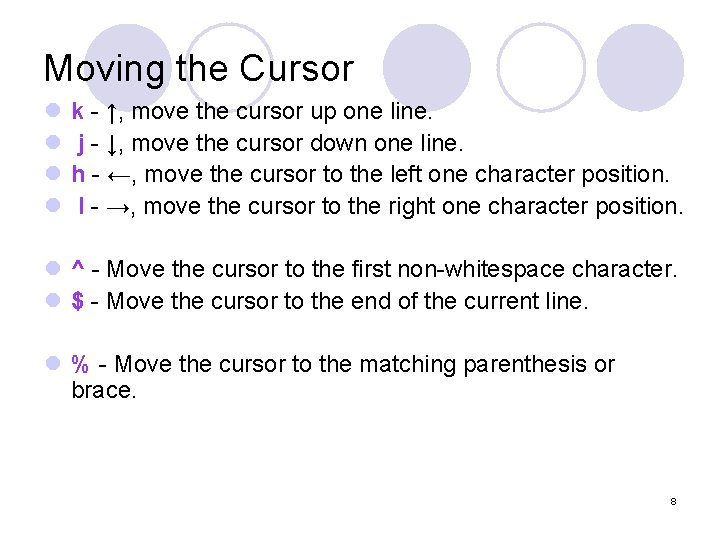
Moving the Cursor l l k - ↑, move the cursor up one line. j - ↓, move the cursor down one line. h - ←, move the cursor to the left one character position. l - →, move the cursor to the right one character position. l ^ - Move the cursor to the first non-whitespace character. l $ - Move the cursor to the end of the current line. l % - Move the cursor to the matching parenthesis or brace. 8
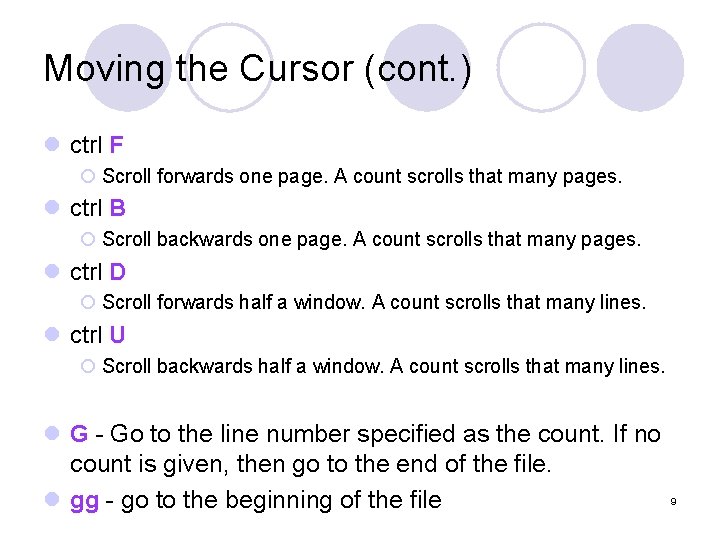
Moving the Cursor (cont. ) l ctrl F ¡ Scroll forwards one page. A count scrolls that many pages. l ctrl B ¡ Scroll backwards one page. A count scrolls that many pages. l ctrl D ¡ Scroll forwards half a window. A count scrolls that many lines. l ctrl U ¡ Scroll backwards half a window. A count scrolls that many lines. l G - Go to the line number specified as the count. If no count is given, then go to the end of the file. l gg - go to the beginning of the file 9
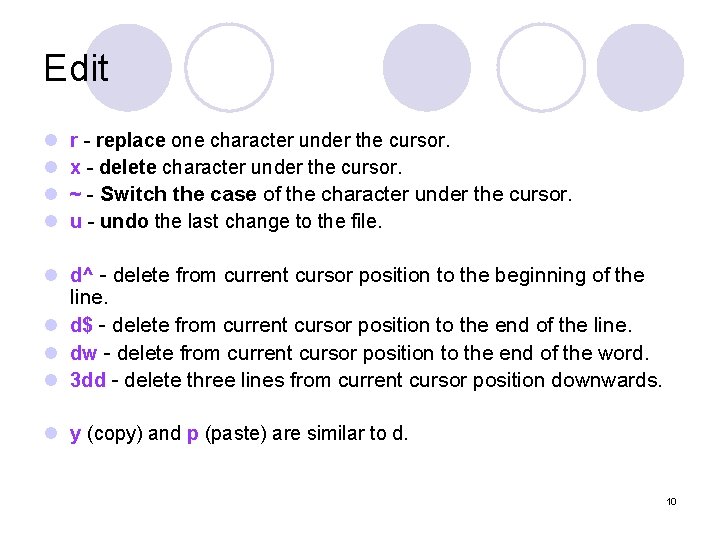
Edit l l r - replace one character under the cursor. x - delete character under the cursor. ~ - Switch the case of the character under the cursor. u - undo the last change to the file. l d^ - delete from current cursor position to the beginning of the line. l d$ - delete from current cursor position to the end of the line. l dw - delete from current cursor position to the end of the word. l 3 dd - delete three lines from current cursor position downwards. l y (copy) and p (paste) are similar to d. 10
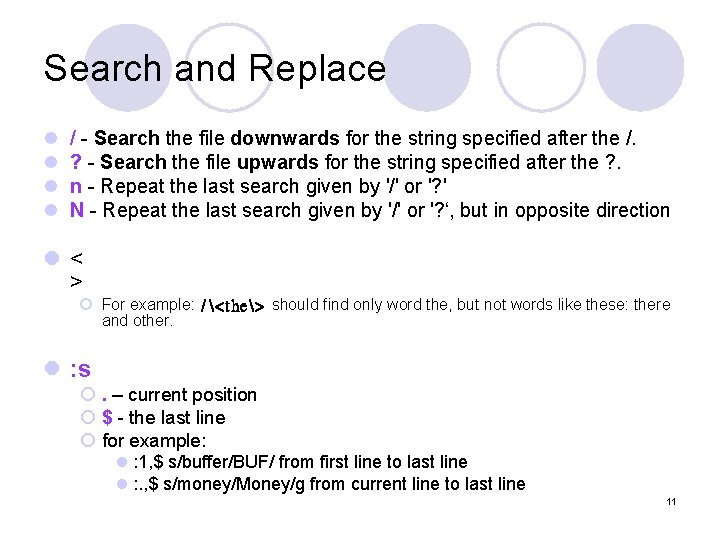
Search and Replace l l / - Search the file downwards for the string specified after the /. ? - Search the file upwards for the string specified after the ? . n - Repeat the last search given by '/' or '? ' N - Repeat the last search given by '/' or '? ‘, but in opposite direction l< > ¡ For example: /<the> should find only word the, but not words like these: there and other. l : s ¡. – current position ¡ $ - the last line ¡ for example: l : 1, $ s/buffer/BUF/ from first line to last line l : . , $ s/money/Money/g from current line to last line 11
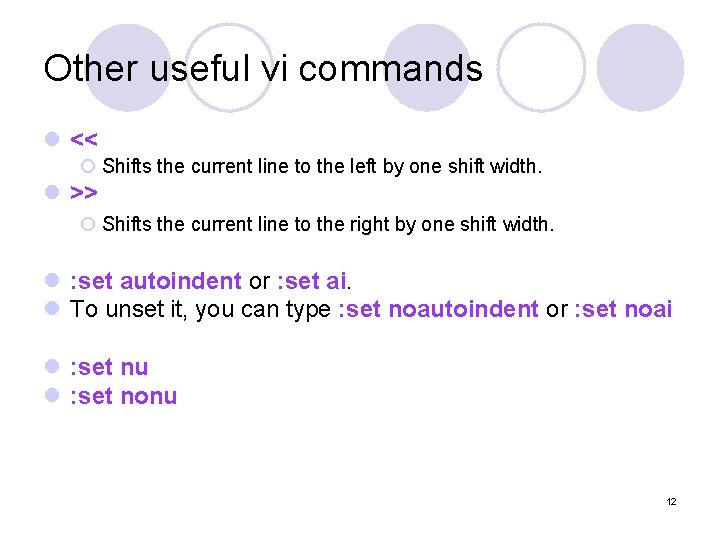
Other useful vi commands l << ¡ Shifts the current line to the left by one shift width. l >> ¡ Shifts the current line to the right by one shift width. l : set autoindent or : set ai. l To unset it, you can type : set noautoindent or : set noai l : set nu l : set nonu 12
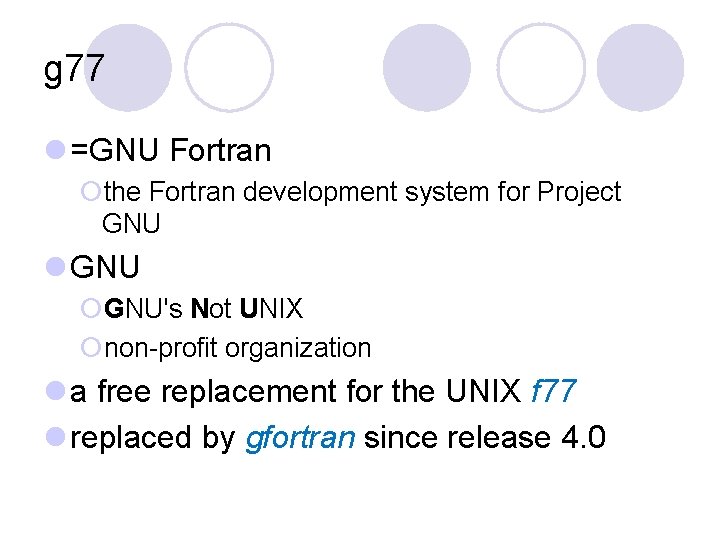
g 77 l =GNU Fortran ¡the Fortran development system for Project GNU l GNU ¡GNU's Not UNIX ¡non-profit organization l a free replacement for the UNIX f 77 l replaced by gfortran since release 4. 0
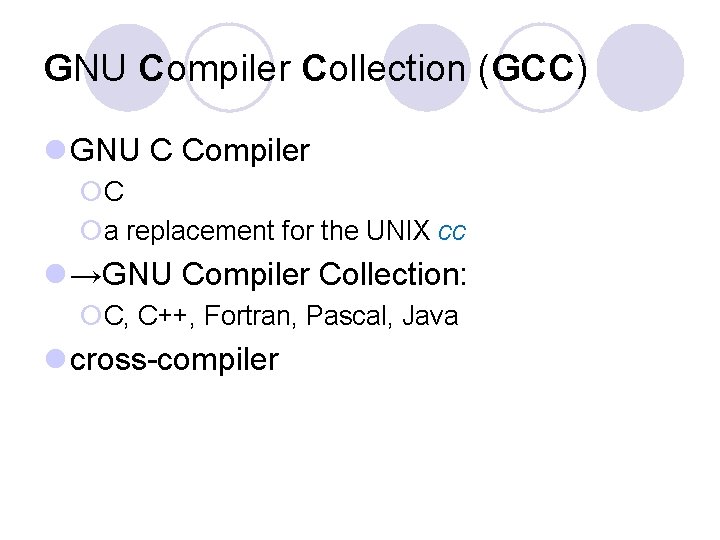
GNU Compiler Collection (GCC) l GNU C Compiler ¡C ¡a replacement for the UNIX cc l →GNU Compiler Collection: ¡C, C++, Fortran, Pascal, Java l cross-compiler
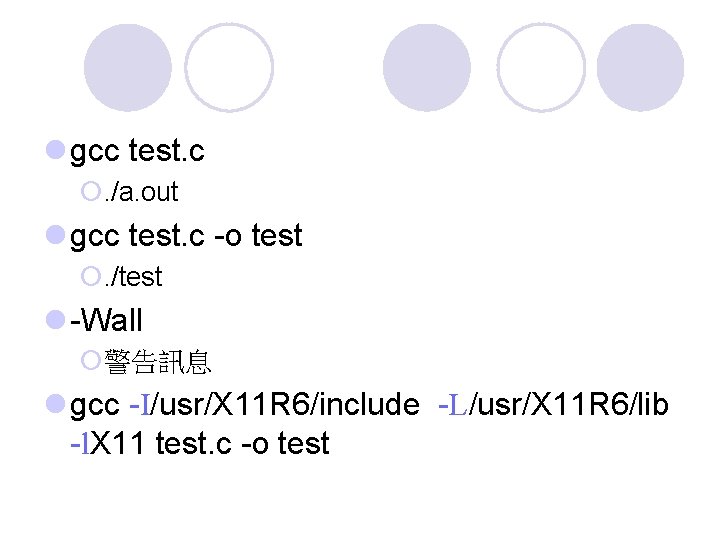
l gcc test. c ¡. /a. out l gcc test. c -o test ¡. /test l -Wall ¡警告訊息 l gcc -I/usr/X 11 R 6/include -L/usr/X 11 R 6/lib -l. X 11 test. c -o test
Reference l $man ed l Mastering the VI editor l GNU Fortran 77 (g 77) Legacy Site 16