
Unix Basics Unix Basics Unix directories Important Unix
Unix Basics
Unix Basics Unix directories § Important Unix file commands § File and Directory Access Rights through Permission Settings § Using chmod to change permissions § Systems Programming: Unix Basics 2
Unix File Structure § Hierarchical file system – Starts at root, denoted “/”. – Abstraction is to navigate through the Unix directory structure relative to the current “working” directory. – Slashes separate directory levels. – File names cannot have blanks and lowercase is preferred {case-sensitive}. – Extensions are just conventions to the file system, but NOT to compilers! Systems Programming: Unix Basics 3
Unix File Notation. = the current directory . . = the parent directory ~ = my home directory (i. e. , the current directory when I login) File name wild cards ? = any one character * = any zero or more characters Systems Programming: Unix Basics 4
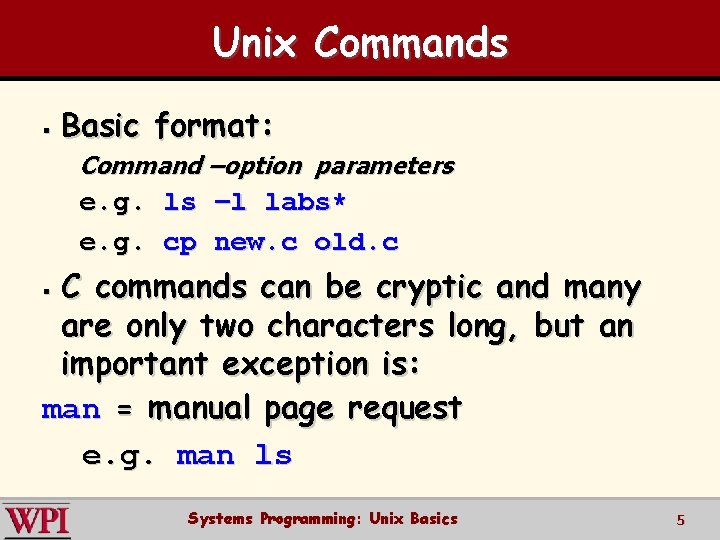
Unix Commands § Basic format: Command –option parameters e. g. ls –l labs* e. g. cp new. c old. c C commands can be cryptic and many are only two characters long, but an important exception is: man = manual page request e. g. man ls § Systems Programming: Unix Basics 5
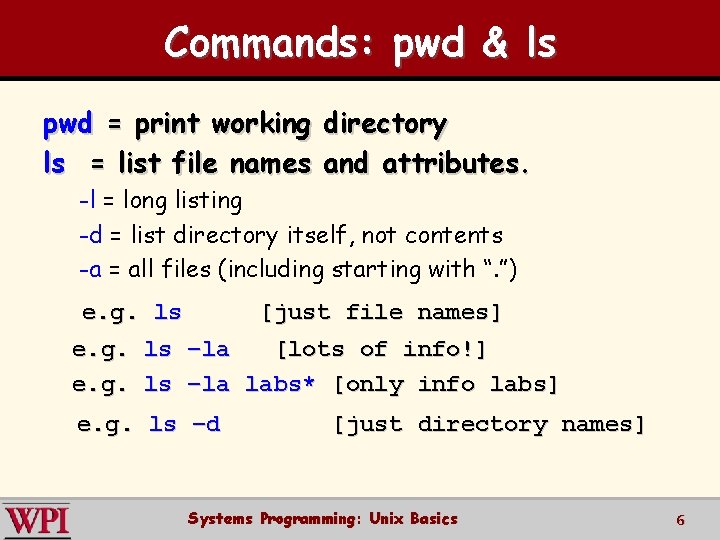
Commands: pwd & ls pwd = print working directory ls = list file names and attributes. -l = long listing -d = list directory itself, not contents -a = all files (including starting with “. ”) e. g. ls [just file names] e. g. ls –la [lots of info!] e. g. ls –la labs* [only info labs] e. g. ls –d [just directory names] Systems Programming: Unix Basics 6
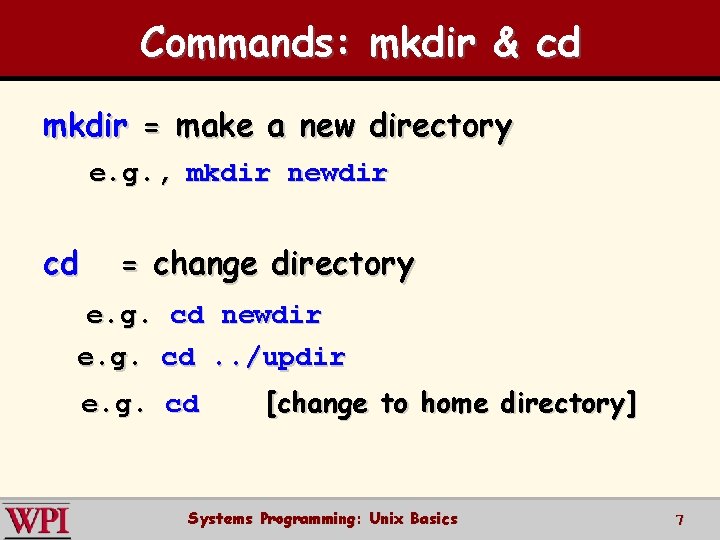
Commands: mkdir & cd mkdir = make a new directory e. g. , mkdir newdir cd = change directory e. g. cd newdir e. g. cd. . /updir e. g. cd [change to home directory] Systems Programming: Unix Basics 7
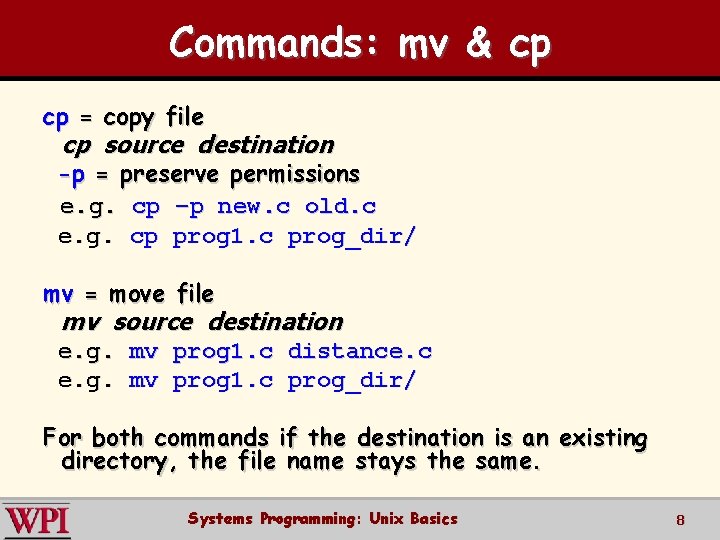
Commands: mv & cp cp = copy file cp source destination -p = preserve permissions e. g. cp –p new. c old. c e. g. cp prog 1. c prog_dir/ mv = move file mv source destination e. g. mv prog 1. c distance. c e. g. mv prog 1. c prog_dir/ For both commands if the destination is an existing directory, the file name stays the same. Systems Programming: Unix Basics 8
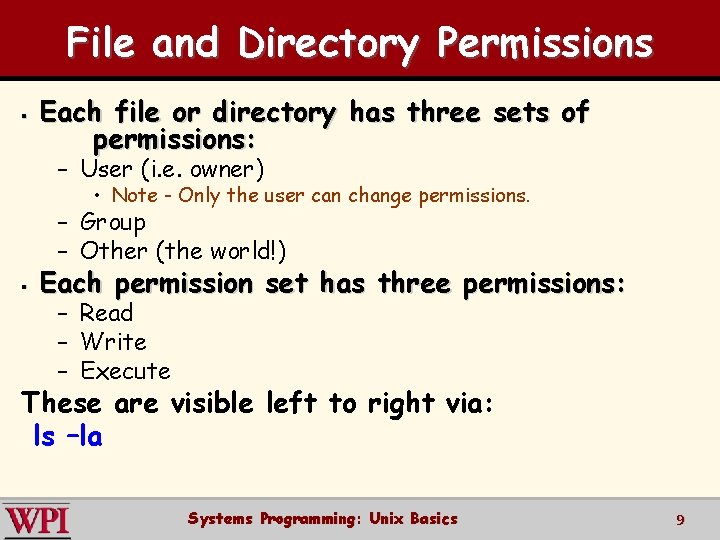
File and Directory Permissions § Each file or directory has three sets of permissions: – User (i. e. owner) • Note - Only the user can change permissions. – Group – Other (the world!) § Each permission set has three permissions: – Read – Write – Execute These are visible left to right via: ls –la Systems Programming: Unix Basics 9
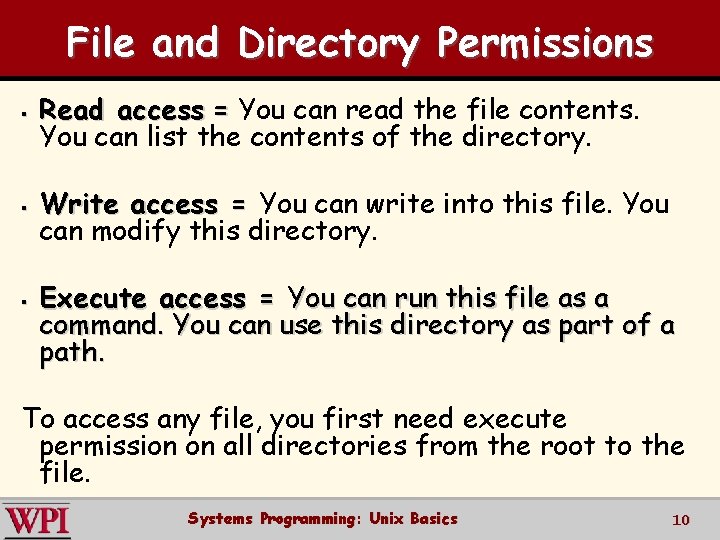
File and Directory Permissions § Read access = You can read the file contents. You can list the contents of the directory. § Write access = You can write into this file. You can modify this directory. § Execute access = You can run this file as a command. You can use this directory as part of a path. To access any file, you first need execute permission on all directories from the root to the file. Systems Programming: Unix Basics 10
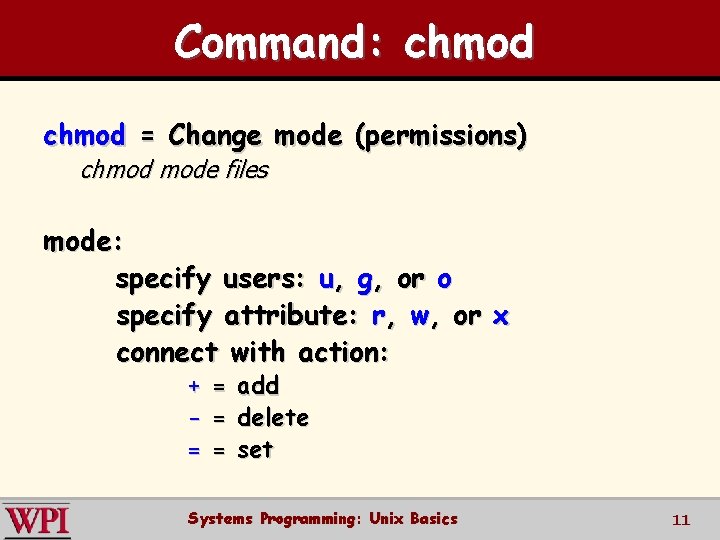
Command: chmod = Change mode (permissions) chmod mode files mode: specify users: u, g, or o specify attribute: r, w, or x connect with action: + = add - = delete = = set Systems Programming: Unix Basics 11
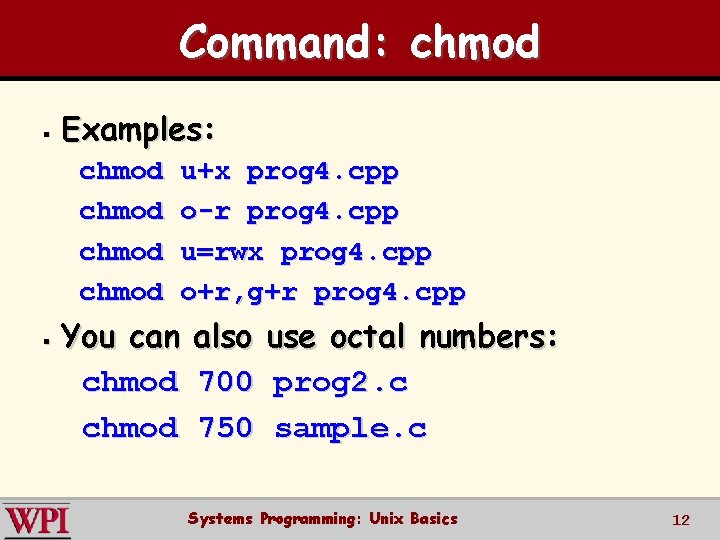
Command: chmod § Examples: chmod § u+x prog 4. cpp o-r prog 4. cpp u=rwx prog 4. cpp o+r, g+r prog 4. cpp You can chmod also 700 750 use octal numbers: prog 2. c sample. c Systems Programming: Unix Basics 12
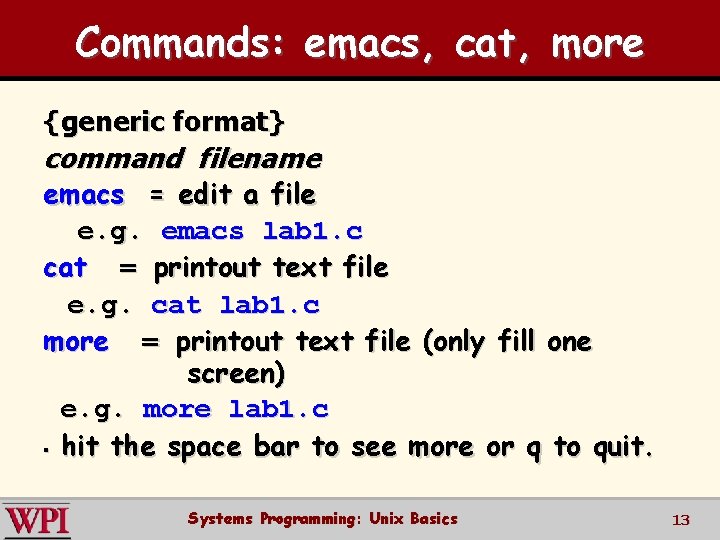
Commands: emacs, cat, more {generic format} command filename emacs = edit a file e. g. emacs lab 1. c cat = printout text file e. g. cat lab 1. c more = printout text file (only fill one screen) e. g. more lab 1. c § hit the space bar to see more or q to quit. Systems Programming: Unix Basics 13
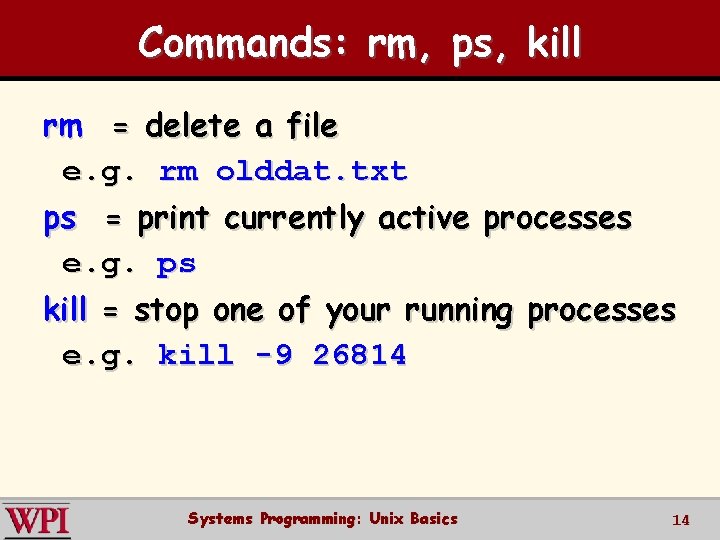
Commands: rm, ps, kill rm = delete a file e. g. rm olddat. txt ps = print currently active processes e. g. ps kill = stop one of your running processes e. g. kill -9 26814 Systems Programming: Unix Basics 14
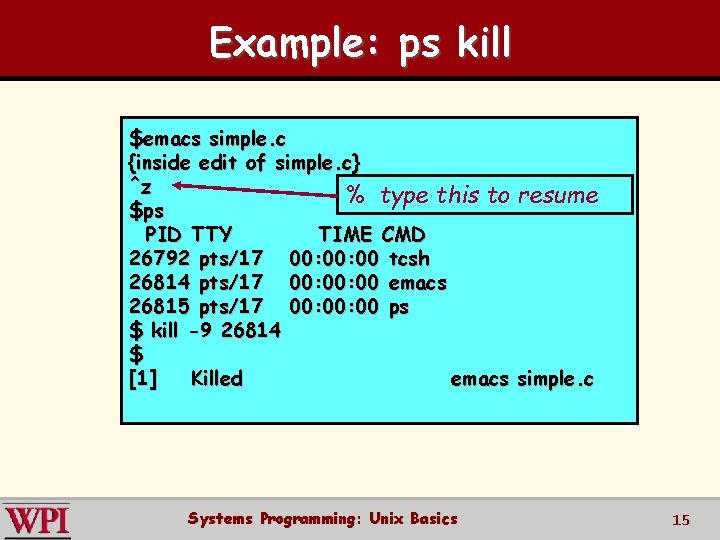
Example: ps kill $emacs simple. c {inside edit of simple. c} ^z % type this to resume $ps PID TTY TIME CMD 26792 pts/17 00: 00 tcsh 26814 pts/17 00: 00 emacs 26815 pts/17 00: 00 ps $ kill -9 26814 $ [1] Killed emacs simple. c Systems Programming: Unix Basics 15
- Slides: 15