
Unit 7 Lesson 8 Project Make a Library
Unit 7 - Lesson 8 Project - Make a Library Part 1
Unit 7 Lesson 8 - Warm Up Prompt: Think back over all the different apps you've built this year. What blocks do you wish already came with App Lab to help you build those apps?
Unit 7 Lesson 8 - Activity Project - Make a Library ● Read the project description ● Review what you'll submit, steps of the project, and rubric
Unit 7 Lesson 8 - Activity Step 1 - Brainstorm a theme for your library. ● What kind of blocks do you want to add to App Lab? ● What situations do you want to make easier?
Unit 7 Lesson 8 - Activity Step 2 - Design ● Choose 2 or more functions you'd like to build. ● At least one needs a parameter, return, loop, and if-statement ● Fill in step 2 of the Project Guide
Unit 7 Lesson 8 - Activity Step 3 - Build Use the rest of your time today to build out the functions you designed.
Unit 7 - Lesson 9 Project - Make a Library Part 2
Unit 7 Lesson 9 - Warm Up Two ways to test your library 1. Write tests! 2. Have a classmate try it out
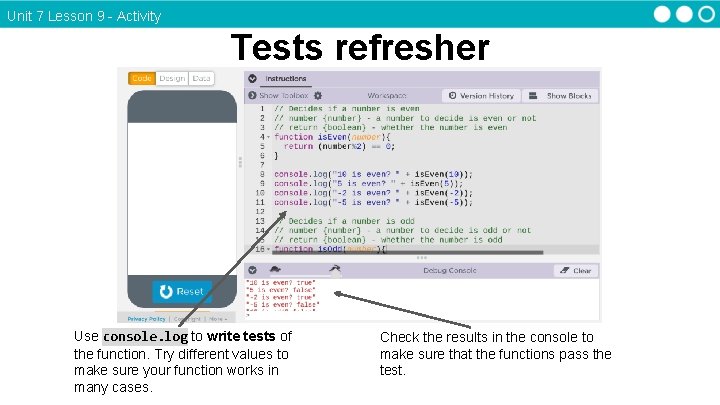
Unit 7 Lesson 9 - Activity Tests refresher Use console. log to write tests of the function. Try different values to make sure your function works in many cases. Check the results in the console to make sure that the functions pass the test.
Unit 7 Lesson 9 - Activity Step 4 - Test ● As your program today, add tests to your functions to make sure they're working as you expect ● Keep writing your library
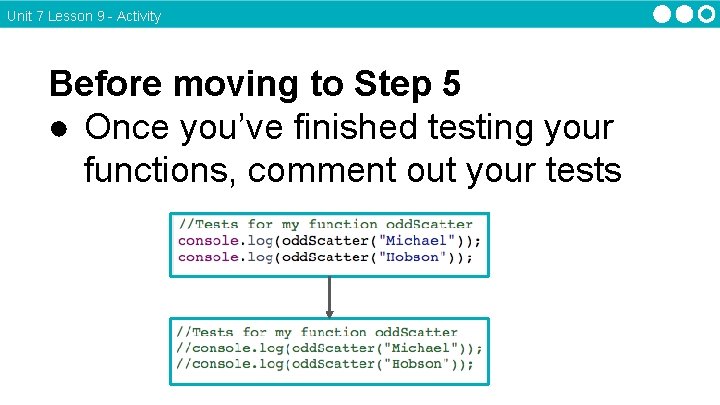
Unit 7 Lesson 9 - Activity Before moving to Step 5 ● Once you’ve finished testing your functions, comment out your tests
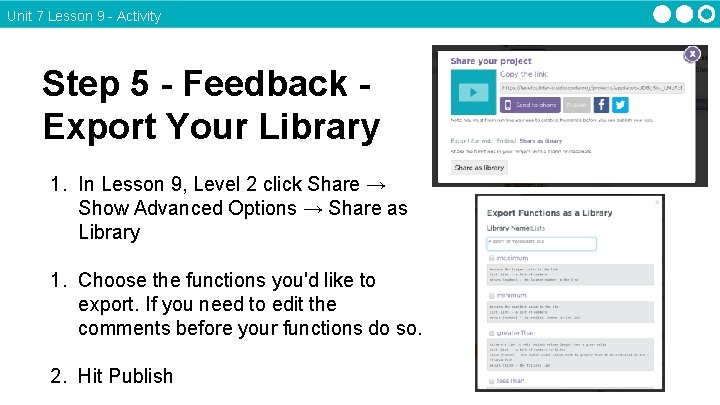
Unit 7 Lesson 9 - Activity Step 5 - Feedback Export Your Library 1. In Lesson 9, Level 2 click Share → Show Advanced Options → Share as Library 1. Choose the functions you'd like to export. If you need to edit the comments before your functions do so. 2. Hit Publish
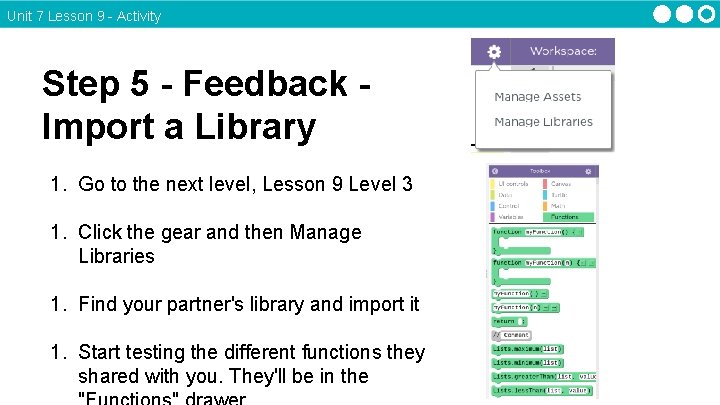
Unit 7 Lesson 9 - Activity Step 5 - Feedback Import a Library 1. Go to the next level, Lesson 9 Level 3 1. Click the gear and then Manage Libraries 1. Find your partner's library and import it 1. Start testing the different functions they shared with you. They'll be in the
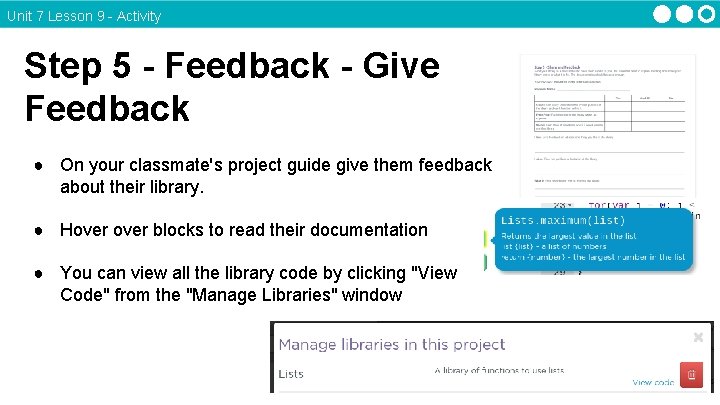
Unit 7 Lesson 9 - Activity Step 5 - Feedback - Give Feedback ● On your classmate's project guide give them feedback about their library. ● Hover blocks to read their documentation ● You can view all the library code by clicking "View Code" from the "Manage Libraries" window
Unit 7 Lesson 9 - Activity Step 6 - Improve ● If you have time continue working on improving your library based on your feedback and testing from today
Unit 7 - Lesson 10 Project - Make a Library Part 3
Unit 7 Lesson 10 - Activity Step 7 - Acknowledge Collaborators ● Fill in the table acknowledging the source of any code your partner wrote or that you got from another source
Unit 7 Lesson 10 - Activity Step 8 - Free Response ● Complete the free response questions about one of the functions in your project ● If you have more time keep working on your library and check the Scoring Guidelines to make sure you're ready to submit.
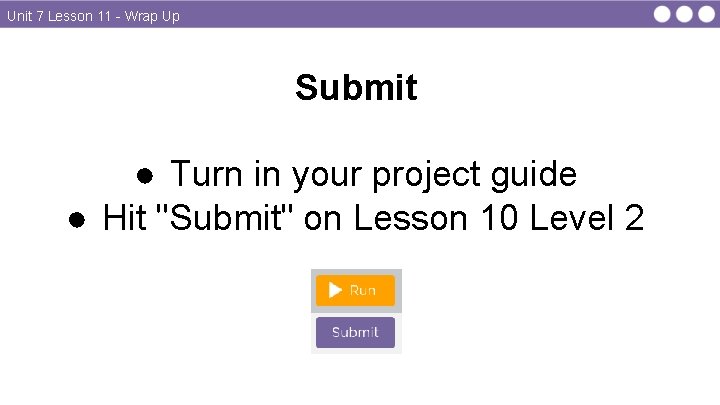
Unit 7 Lesson 11 - Wrap Up Submit ● Turn in your project guide ● Hit "Submit" on Lesson 10 Level 2
- Slides: 28