
UNIT 7 DTP AO 3 DEVELOPING THE DOCUMENTS
- Slides: 9
UNIT 7: DTP AO 3: DEVELOPING THE DOCUMENTS Create your Documents
UNIT 7: DTP AO 3: DEVELOPING THE DOCUMENTS Develop your Documents You must create your documents using DTP software, by following the designs created in AO 1 and the templates created in AO 2.
Text UNIT 7: DTP AO 3: DEVELOPING THE DOCUMENTS You must show evidence of the following ways of using text within your documents: • Entering text directly • Embellishments • Linking text boxes • Importing text • Using Text Editor • Effective use of styles
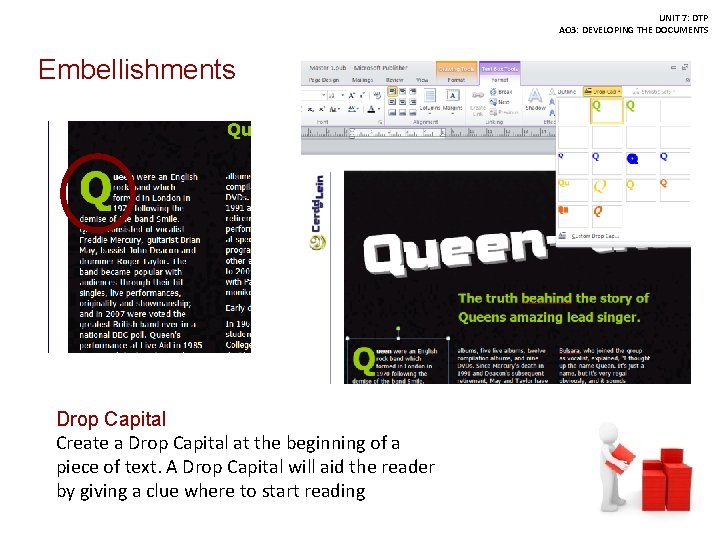
UNIT 7: DTP AO 3: DEVELOPING THE DOCUMENTS Embellishments Drop Capital Create a Drop Capital at the beginning of a piece of text. A Drop Capital will aid the reader by giving a clue where to start reading
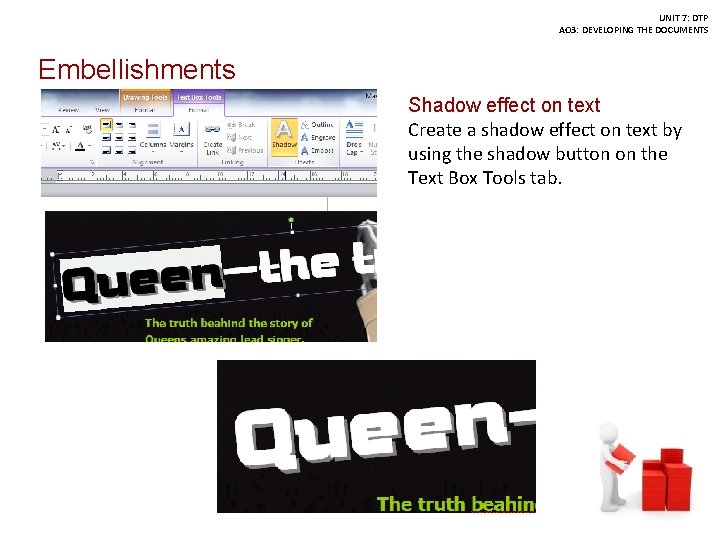
UNIT 7: DTP AO 3: DEVELOPING THE DOCUMENTS Embellishments Shadow effect on text Create a shadow effect on text by using the shadow button on the Text Box Tools tab.
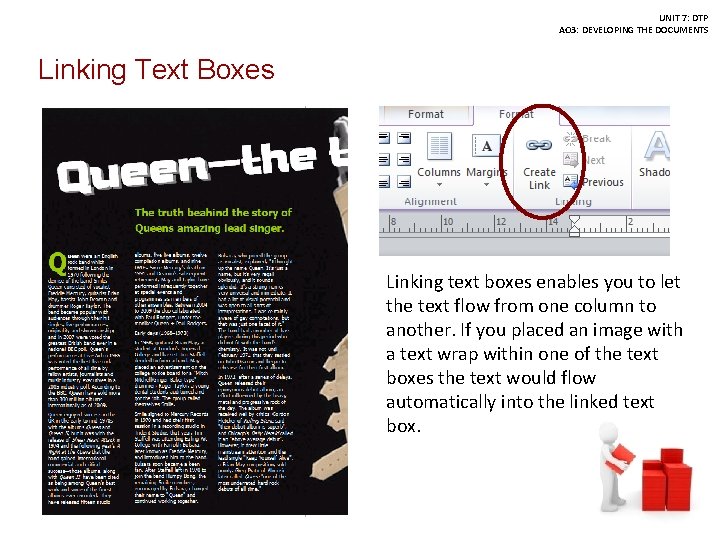
UNIT 7: DTP AO 3: DEVELOPING THE DOCUMENTS Linking Text Boxes Linking text boxes enables you to let the text flow from one column to another. If you placed an image with a text wrap within one of the text boxes the text would flow automatically into the linked text box.
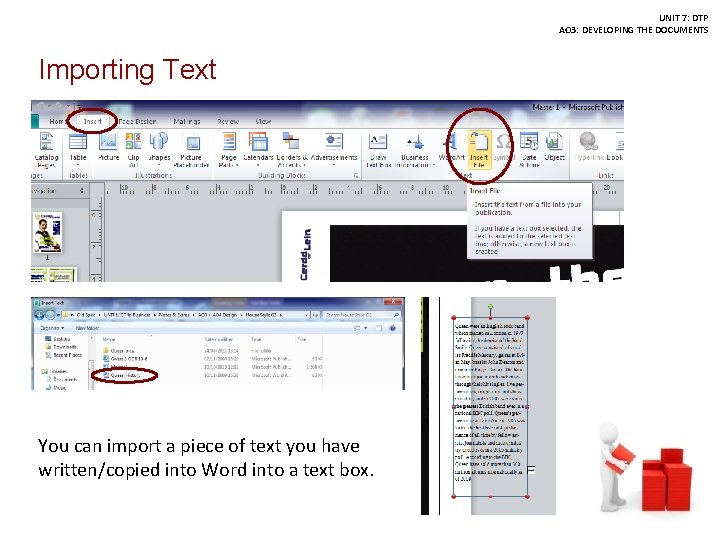
UNIT 7: DTP AO 3: DEVELOPING THE DOCUMENTS Importing Text You can import a piece of text you have written/copied into Word into a text box.
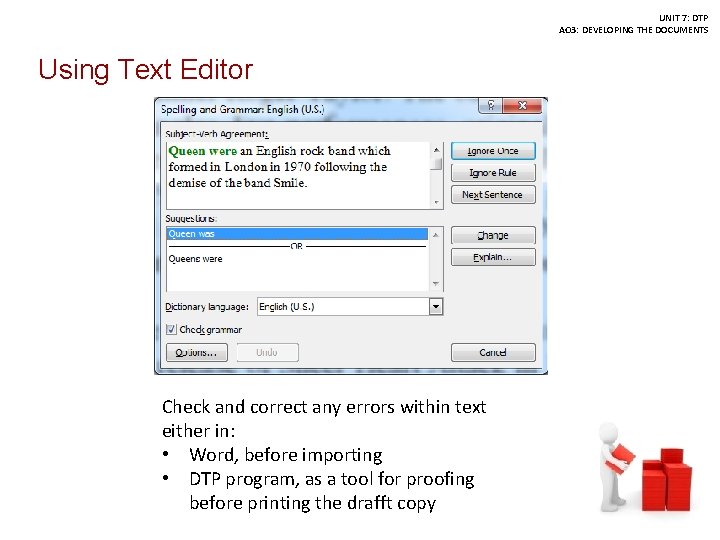
UNIT 7: DTP AO 3: DEVELOPING THE DOCUMENTS Using Text Editor Check and correct any errors within text either in: • Word, before importing • DTP program, as a tool for proofing before printing the drafft copy
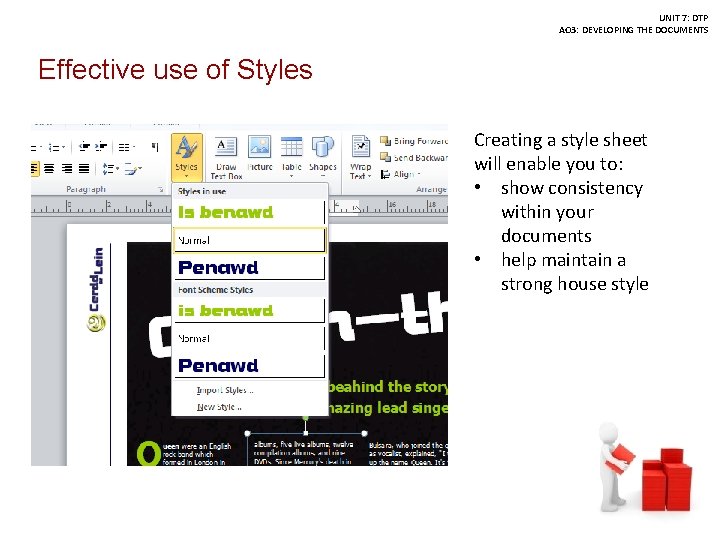
UNIT 7: DTP AO 3: DEVELOPING THE DOCUMENTS Effective use of Styles Creating a style sheet will enable you to: • show consistency within your documents • help maintain a strong house style