
UNIT 4 Auto CAD Drawing Commands Objectives Be
UNIT 4: Auto. CAD Drawing Commands Objectives: Be able to identify, describe and/or apply… Assignments/Quizzes/Tests 4 -1 2 D Polylines 4 -2 Auto. CAD Tools Auto. CAD tools (Line, polyline, arcs, circles, rectangles, hatch patterns, and gradients) 4 -3 Hatch Patterns 4 -4 Gradients Methods for entering data (dynamic input, command line, or right-click menu Methods for ending and repeating a command Unit 4 Test
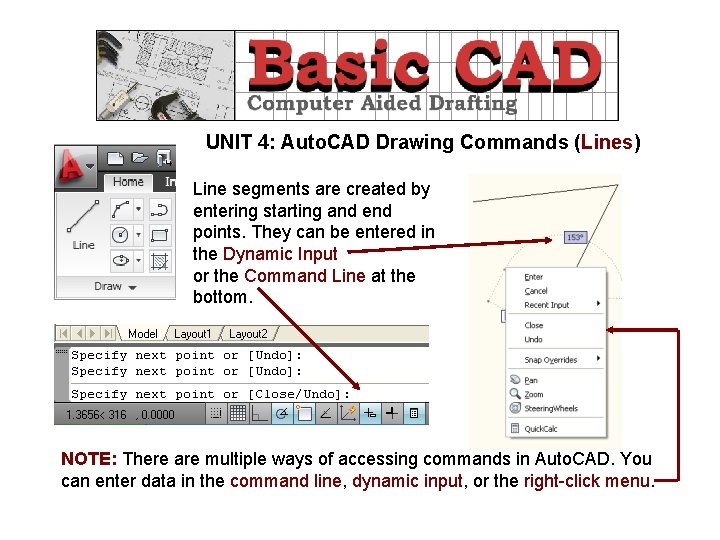
UNIT 4: Auto. CAD Drawing Commands (Lines) Line segments are created by entering starting and end points. They can be entered in the Dynamic Input or the Command Line at the bottom. NOTE: There are multiple ways of accessing commands in Auto. CAD. You can enter data in the command line, dynamic input, or the right-click menu.
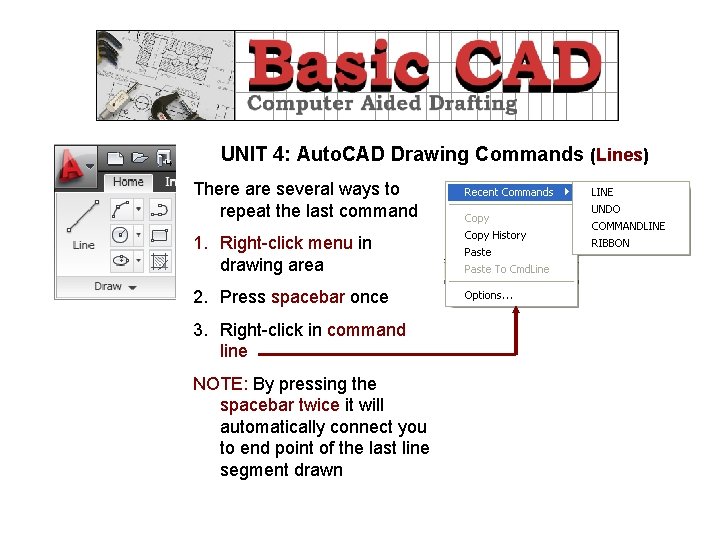
UNIT 4: Auto. CAD Drawing Commands (Lines) There are several ways to repeat the last command 1. Right-click menu in drawing area 2. Press spacebar once 3. Right-click in command line NOTE: By pressing the spacebar twice it will automatically connect you to end point of the last line segment drawn
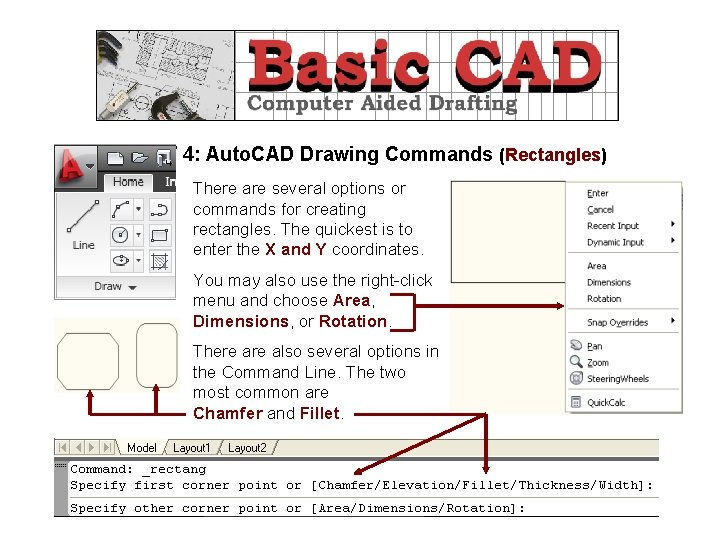
UNIT 4: Auto. CAD Drawing Commands (Rectangles) There are several options or commands for creating rectangles. The quickest is to enter the X and Y coordinates. You may also use the right-click menu and choose Area, Dimensions, or Rotation. There also several options in the Command Line. The two most common are Chamfer and Fillet.
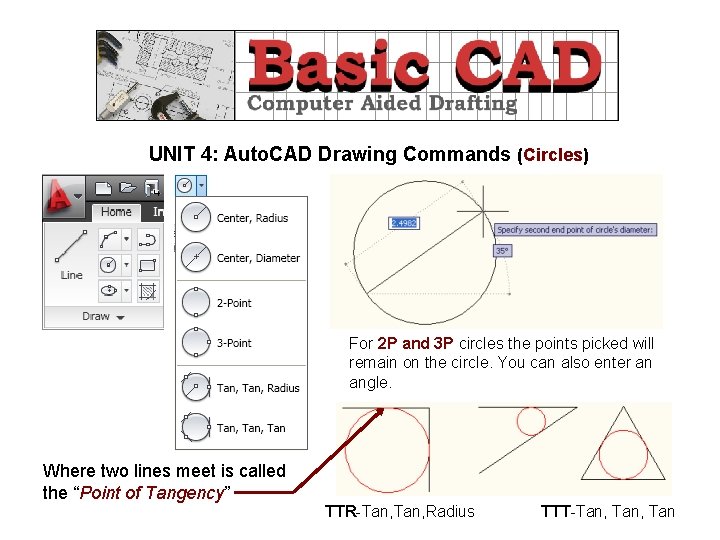
UNIT 4: Auto. CAD Drawing Commands (Circles) For 2 P and 3 P circles the points picked will remain on the circle. You can also enter an angle. Where two lines meet is called the “Point of Tangency” TTR-Tan, Radius TTT-Tan, Tan
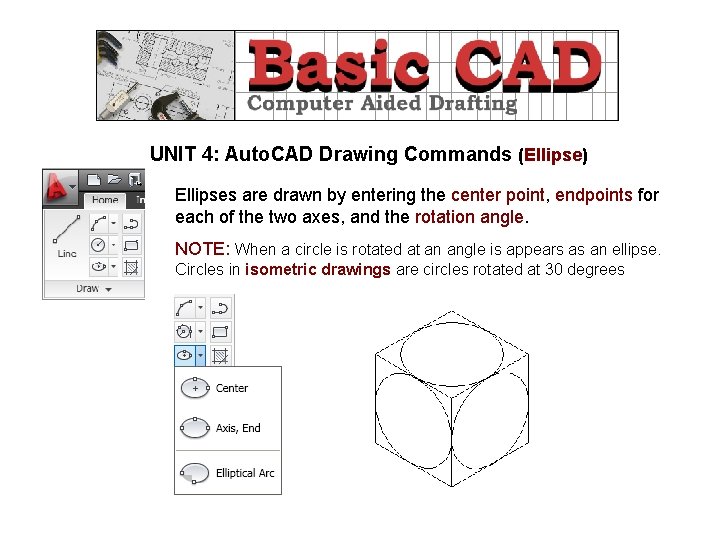
UNIT 4: Auto. CAD Drawing Commands (Ellipse) Ellipses are drawn by entering the center point, endpoints for each of the two axes, and the rotation angle. NOTE: When a circle is rotated at an angle is appears as an ellipse. Circles in isometric drawings are circles rotated at 30 degrees
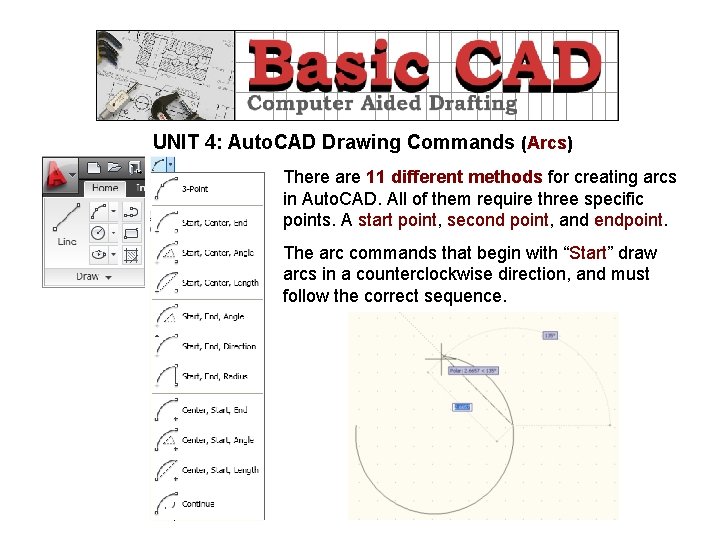
UNIT 4: Auto. CAD Drawing Commands (Arcs) There are 11 different methods for creating arcs in Auto. CAD. All of them require three specific points. A start point, second point, and endpoint. The arc commands that begin with “Start” draw arcs in a counterclockwise direction, and must follow the correct sequence.
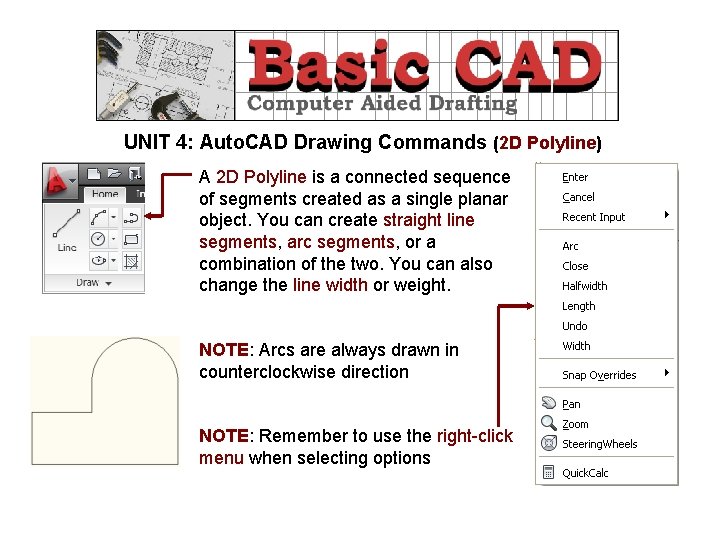
UNIT 4: Auto. CAD Drawing Commands (2 D Polyline) A 2 D Polyline is a connected sequence of segments created as a single planar object. You can create straight line segments, arc segments, or a combination of the two. You can also change the line width or weight. NOTE: Arcs are always drawn in counterclockwise direction NOTE: Remember to use the right-click menu when selecting options
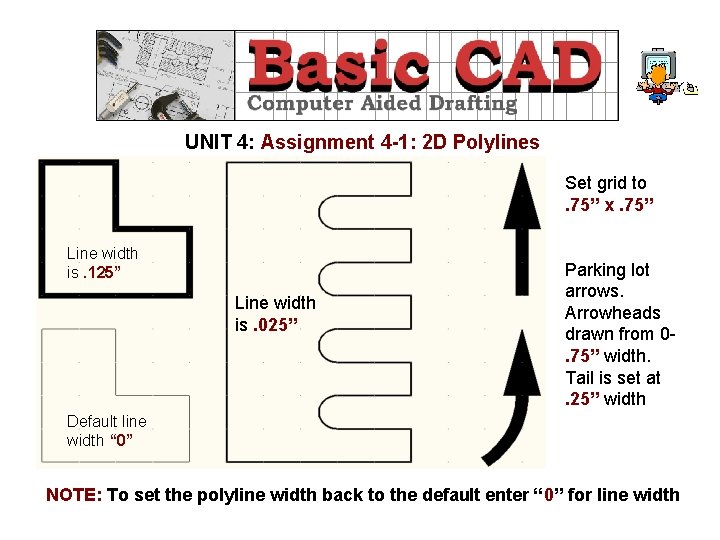
UNIT 4: Assignment 4 -1: 2 D Polylines Set grid to. 75” x. 75” Line width is. 125” Line width is. 025” Parking lot arrows. Arrowheads drawn from 0. 75” width. Tail is set at. 25” width Default line width “ 0” NOTE: To set the polyline width back to the default enter “ 0” for line width
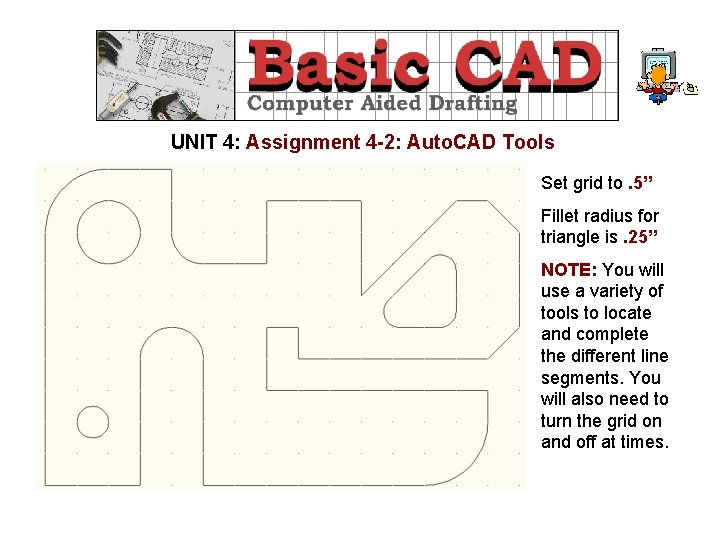
UNIT 4: Assignment 4 -2: Auto. CAD Tools Set grid to. 5” Fillet radius for triangle is. 25” NOTE: You will use a variety of tools to locate and complete the different line segments. You will also need to turn the grid on and off at times.
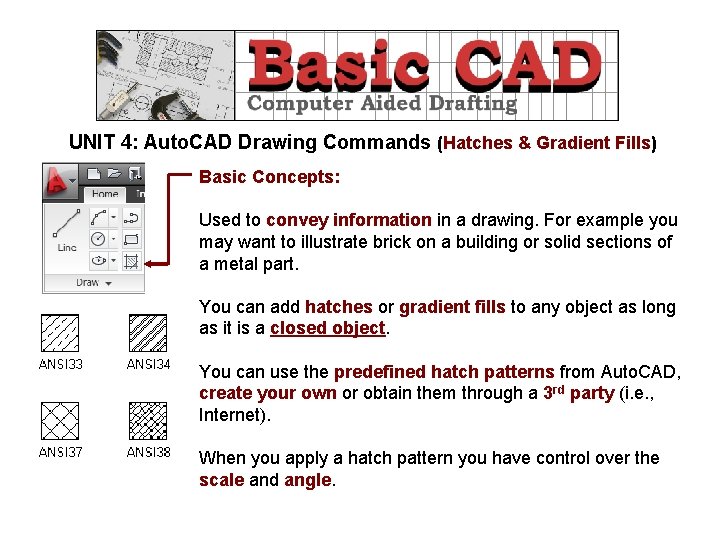
UNIT 4: Auto. CAD Drawing Commands (Hatches & Gradient Fills) Basic Concepts: Used to convey information in a drawing. For example you may want to illustrate brick on a building or solid sections of a metal part. You can add hatches or gradient fills to any object as long as it is a closed object. You can use the predefined hatch patterns from Auto. CAD, create your own or obtain them through a 3 rd party (i. e. , Internet). When you apply a hatch pattern you have control over the scale and angle.
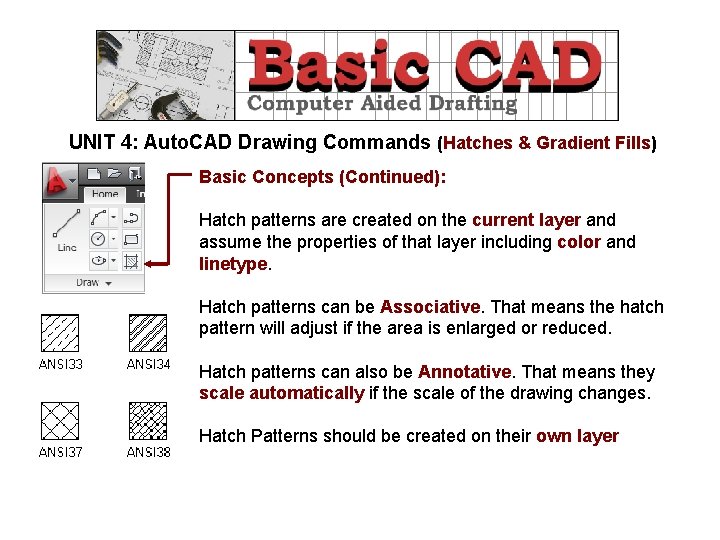
UNIT 4: Auto. CAD Drawing Commands (Hatches & Gradient Fills) Basic Concepts (Continued): Hatch patterns are created on the current layer and assume the properties of that layer including color and linetype. Hatch patterns can be Associative. That means the hatch pattern will adjust if the area is enlarged or reduced. Hatch patterns can also be Annotative. That means they scale automatically if the scale of the drawing changes. Hatch Patterns should be created on their own layer
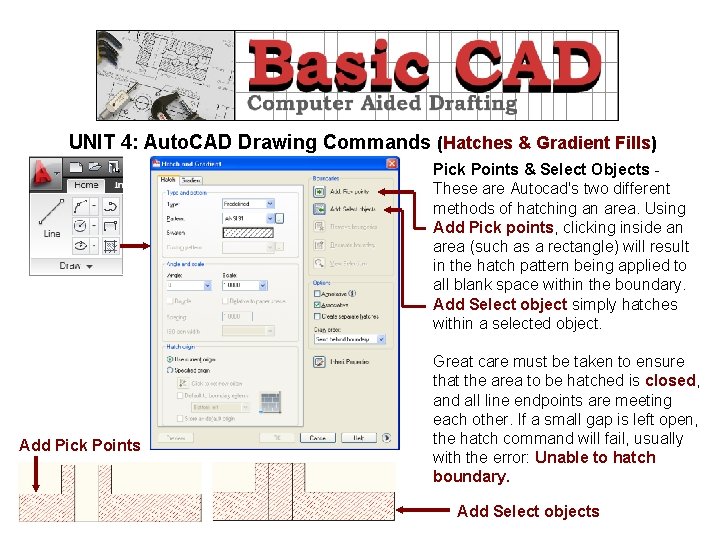
UNIT 4: Auto. CAD Drawing Commands (Hatches & Gradient Fills) Pick Points & Select Objects These are Autocad's two different methods of hatching an area. Using Add Pick points, clicking inside an area (such as a rectangle) will result in the hatch pattern being applied to all blank space within the boundary. Add Select object simply hatches within a selected object. Add Pick Points Great care must be taken to ensure that the area to be hatched is closed, and all line endpoints are meeting each other. If a small gap is left open, the hatch command will fail, usually with the error: Unable to hatch boundary. Add Select objects
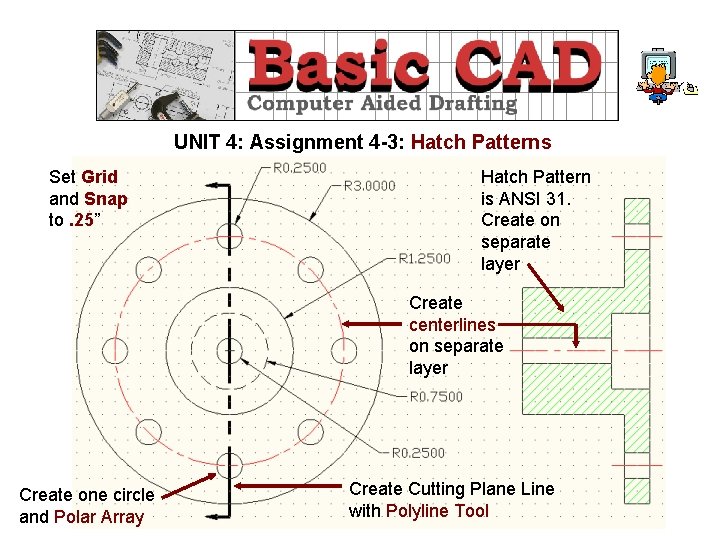
UNIT 4: Assignment 4 -3: Hatch Patterns Set Grid and Snap to. 25” Hatch Pattern is ANSI 31. Create on separate layer Create centerlines on separate layer Create one circle and Polar Array Create Cutting Plane Line with Polyline Tool
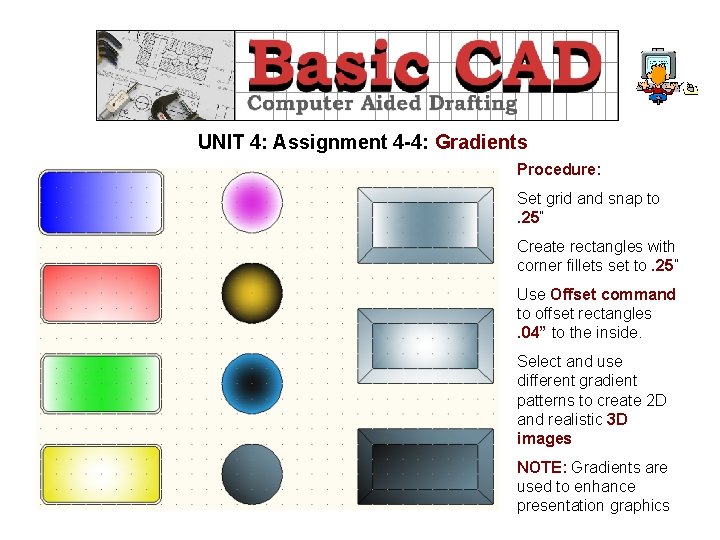
UNIT 4: Assignment 4 -4: Gradients Procedure: Set grid and snap to. 25” Create rectangles with corner fillets set to. 25” Use Offset command to offset rectangles. 04” to the inside. Select and use different gradient patterns to create 2 D and realistic 3 D images NOTE: Gradients are used to enhance presentation graphics
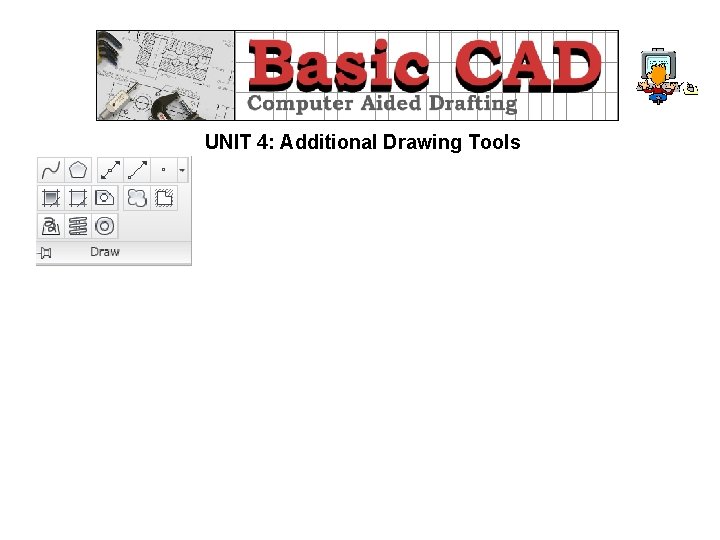
UNIT 4: Additional Drawing Tools
- Slides: 16