
Unit 3 Interpreting and Creating Process Diagrams Slides

- Slides: 55
Unit 3: Interpreting and Creating Process Diagrams Slides compiled by Drs. Zhang and Shahriar
Objectives • Describe standard ISO 5807 processing diagramming symbols and conventions • Analyze an existing ISO 5807 workflow process diagram in terms of the information that could be generated and the workflow steps that are being communicated • Create an ISO 5807 process diagram for a health care system (or system component) using correct symbols and conventions 2
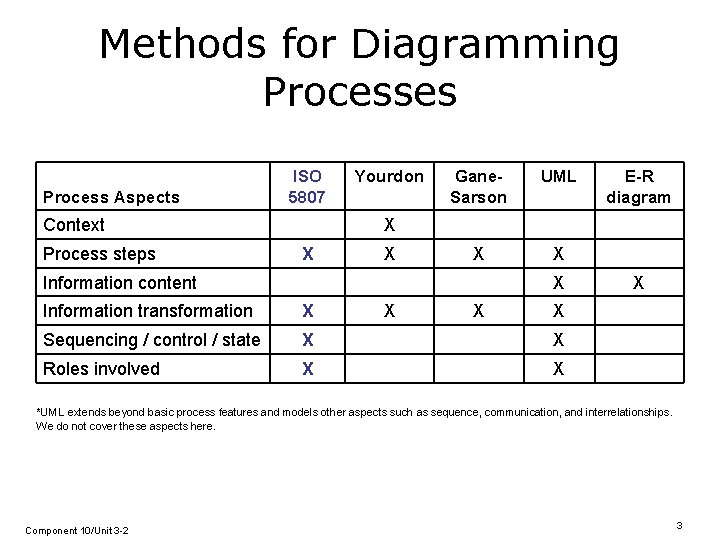
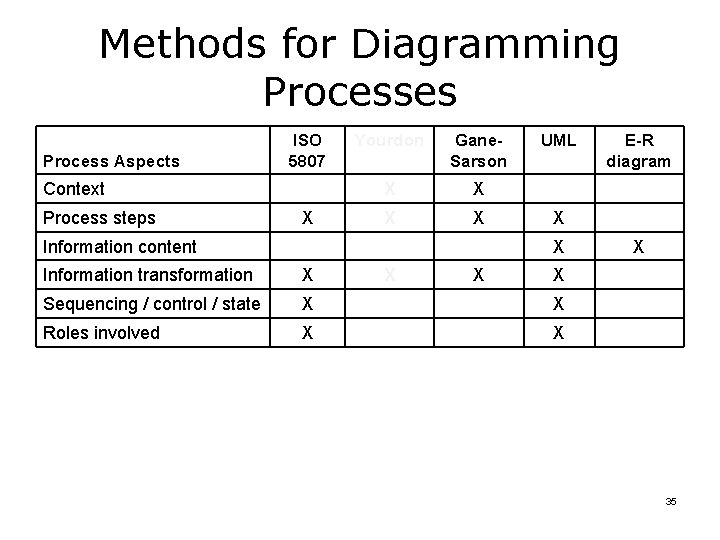
Methods for Diagramming Processes Process Aspects ISO 5807 Context Process steps Yourdon Gane. Sarson UML X X E-R diagram X X X Information content X Information transformation X X X Sequencing / control / state X X Roles involved X X *UML extends beyond basic process features and models other aspects such as sequence, communication, and interrelationships. We do not cover these aspects here. Component 10/Unit 3 -2 3
Process Mapping ISO 5807 Component 10/Unit 3 -2 Slide 4
Flowchart • A graphic depiction of the steps or activities that constitute a process • ISO standard: ISO 5807 • Specifies the standard flowchart symbols for information processing • International Organization for Standardization (ISO) “Graphical representation of the definition, analysis, or method of solution of a problem in which symbols are used to represent operations, data, flow, equipment, etc. ” 1 5
Flowchart • Constructed from standard symbols – Important to know meaning of symbols – Used to communicate processes • Many software pplications have flowcharting functionality such as Microsoft Word, Power. Point, and Visio • Functionality that is important is the standard shapes available • “Connectors” latch to the shapes • Stay attached until you detach them – Connectors facilitate editing the flowchart 6
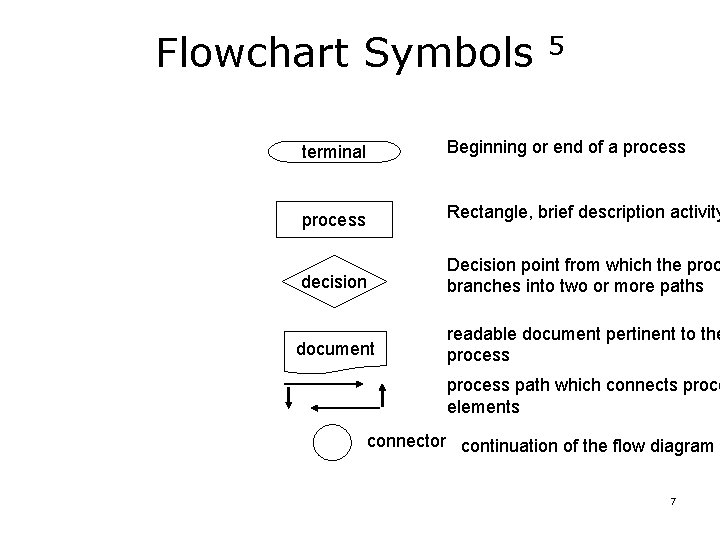
Flowchart Symbols 5 terminal Beginning or end of a process Rectangle, brief description activity decision Decision point from which the proc branches into two or more paths document readable document pertinent to the process path which connects proce elements connector continuation of the flow diagram 7
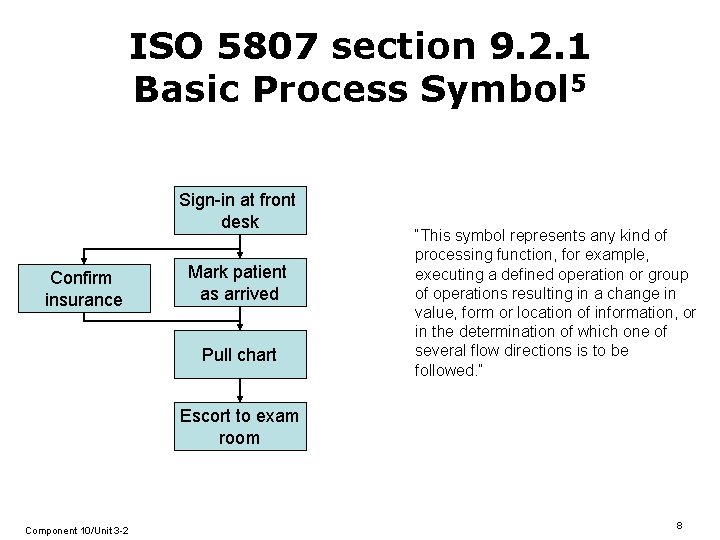
ISO 5807 section 9. 2. 1 Basic Process Symbol 5 Sign-in at front desk Confirm insurance Mark patient as arrived Pull chart “This symbol represents any kind of processing function, for example, executing a defined operation or group of operations resulting in a change in value, form or location of information, or in the determination of which one of several flow directions is to be followed. ” Escort to exam room Component 10/Unit 3 -2 8
ISO 5807 section 9. 2. 2. 4 Decision No Yes “This symbol represents a decision or switching type function having a single entry but where there may be a number of alternative exits, one and only one of which may be activated following the evaluation of conditions defined within the symbol. The appropriate results of the evaluation may be written adjacent to the lines representing the paths. ” 5 Decision symbols can show nominal decisions (yes / no), or decisions with multiple possible outcomes. Example: Decision symbol use 9
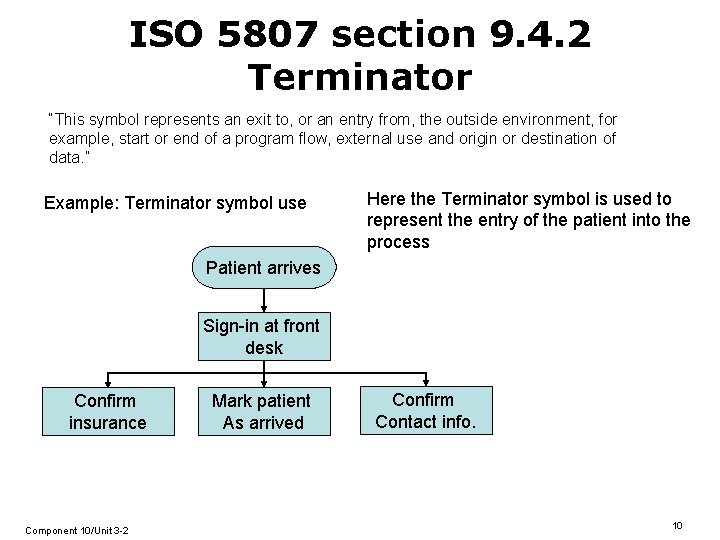
ISO 5807 section 9. 4. 2 Terminator “This symbol represents an exit to, or an entry from, the outside environment, for example, start or end of a program flow, external use and origin or destination of data. ” Example: Terminator symbol use Here the Terminator symbol is used to represent the entry of the patient into the process Patient arrives Sign-in at front desk Confirm insurance Component 10/Unit 3 -2 Mark patient As arrived Confirm Contact info. 10
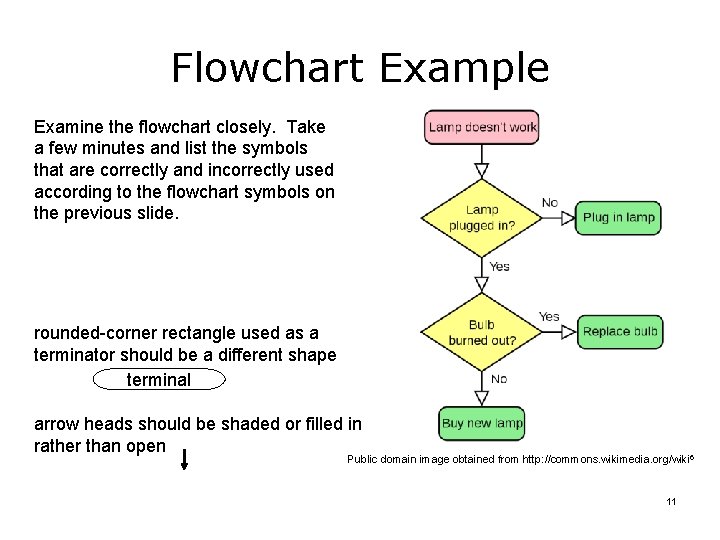
Flowchart Example Examine the flowchart closely. Take a few minutes and list the symbols that are correctly and incorrectly used according to the flowchart symbols on the previous slide. rounded-corner rectangle used as a terminator should be a different shape terminal arrow heads should be shaded or filled in rather than open Public domain image obtained from http: //commons. wikimedia. org/wiki 6 11
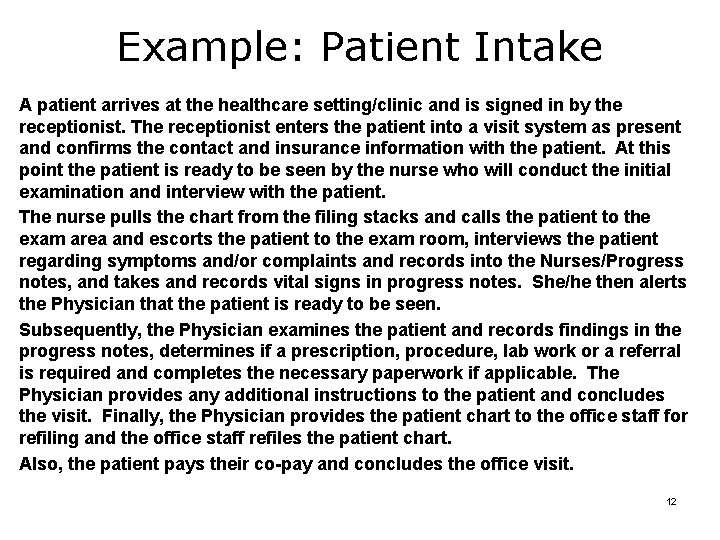
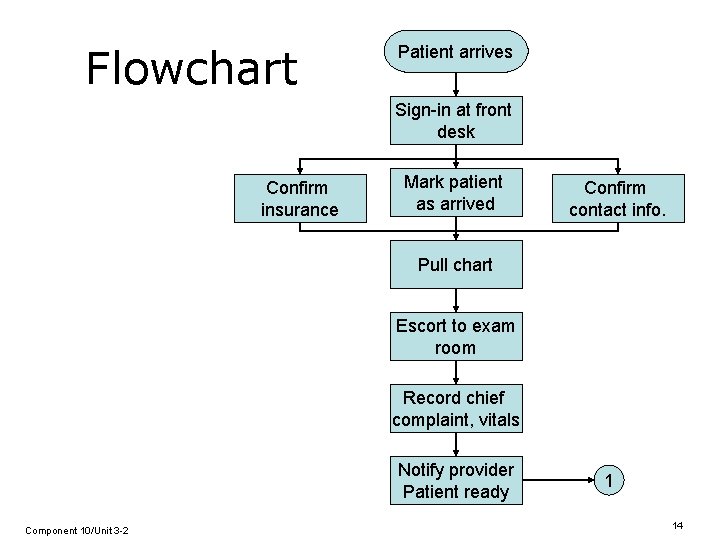
Example: Patient Intake A patient arrives at the healthcare setting/clinic and is signed in by the receptionist. The receptionist enters the patient into a visit system as present and confirms the contact and insurance information with the patient. At this point the patient is ready to be seen by the nurse who will conduct the initial examination and interview with the patient. The nurse pulls the chart from the filing stacks and calls the patient to the exam area and escorts the patient to the exam room, interviews the patient regarding symptoms and/or complaints and records into the Nurses/Progress notes, and takes and records vital signs in progress notes. She/he then alerts the Physician that the patient is ready to be seen. Subsequently, the Physician examines the patient and records findings in the progress notes, determines if a prescription, procedure, lab work or a referral is required and completes the necessary paperwork if applicable. The Physician provides any additional instructions to the patient and concludes the visit. Finally, the Physician provides the patient chart to the office staff for refiling and the office staff refiles the patient chart. Also, the patient pays their co-pay and concludes the office visit. 12
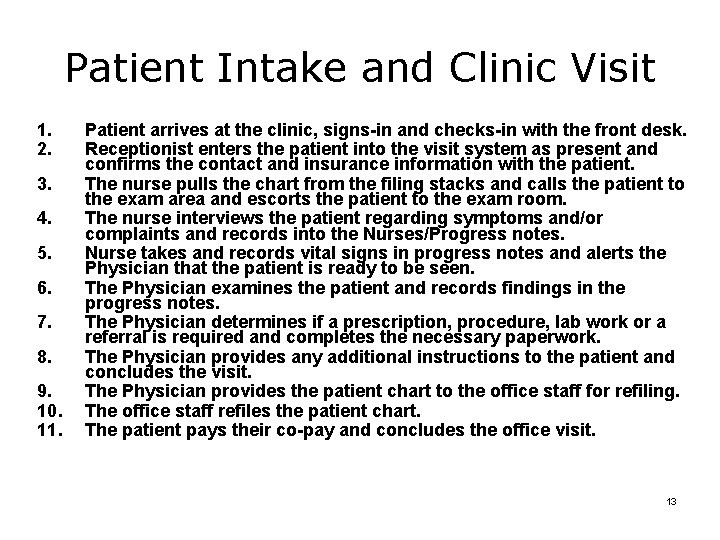
Patient Intake and Clinic Visit 1. 2. 3. 4. 5. 6. 7. 8. 9. 10. 11. Patient arrives at the clinic, signs-in and checks-in with the front desk. Receptionist enters the patient into the visit system as present and confirms the contact and insurance information with the patient. The nurse pulls the chart from the filing stacks and calls the patient to the exam area and escorts the patient to the exam room. The nurse interviews the patient regarding symptoms and/or complaints and records into the Nurses/Progress notes. Nurse takes and records vital signs in progress notes and alerts the Physician that the patient is ready to be seen. The Physician examines the patient and records findings in the progress notes. The Physician determines if a prescription, procedure, lab work or a referral is required and completes the necessary paperwork. The Physician provides any additional instructions to the patient and concludes the visit. The Physician provides the patient chart to the office staff for refiling. The office staff refiles the patient chart. The patient pays their co-pay and concludes the office visit. 13
Flowchart Patient arrives Sign-in at front desk Confirm insurance Mark patient as arrived Confirm contact info. Pull chart Escort to exam room Record chief complaint, vitals Notify provider Patient ready Component 10/Unit 3 -2 1 14
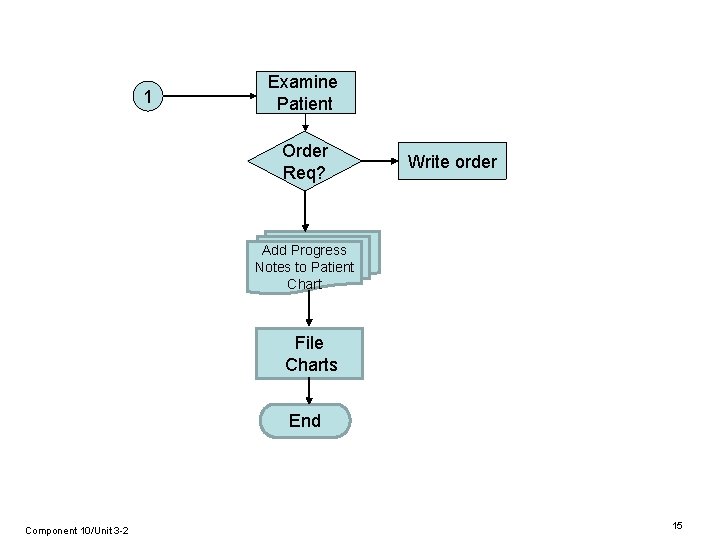
1 Examine Patient Order Req? Write order Add Progress Notes to Patient Chart File Charts End Component 10/Unit 3 -2 15
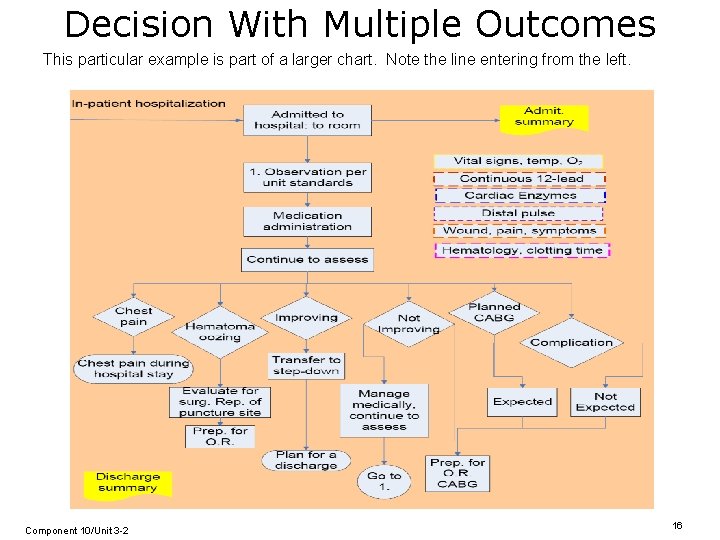
Decision With Multiple Outcomes This particular example is part of a larger chart. Note the line entering from the left. Component 10/Unit 3 -2 16
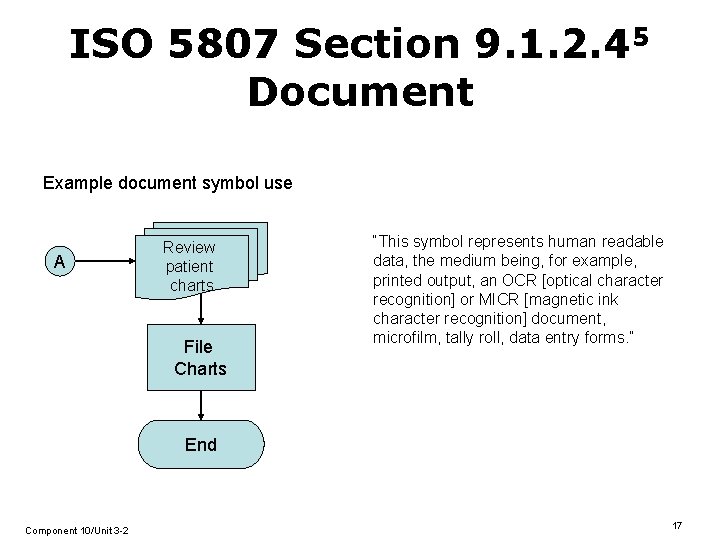
ISO 5807 Section 9. 1. 2. 45 Document Example document symbol use A Review patient charts File Charts “This symbol represents human readable data, the medium being, for example, printed output, an OCR [optical character recognition] or MICR [magnetic ink character recognition] document, microfilm, tally roll, data entry forms. ” End Component 10/Unit 3 -2 17
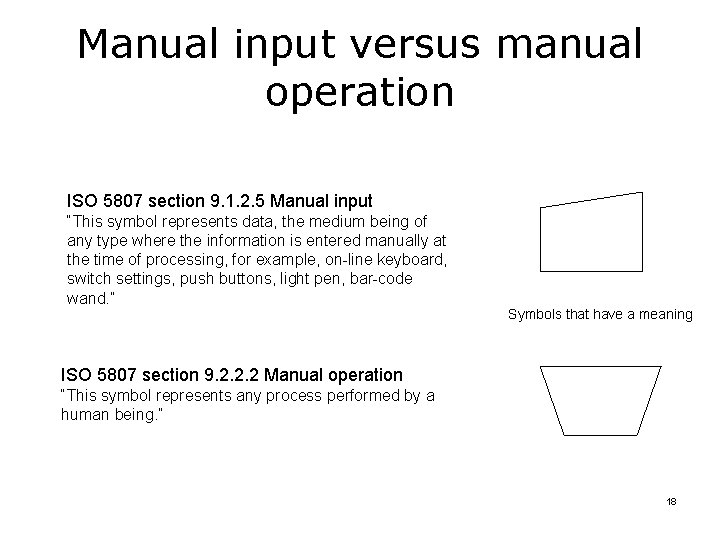
Manual input versus manual operation ISO 5807 section 9. 1. 2. 5 Manual input “This symbol represents data, the medium being of any type where the information is entered manually at the time of processing, for example, on-line keyboard, switch settings, push buttons, light pen, bar-code wand. ” Symbols that have a meaning ISO 5807 section 9. 2. 2. 2 Manual operation “This symbol represents any process performed by a human being. ” 18
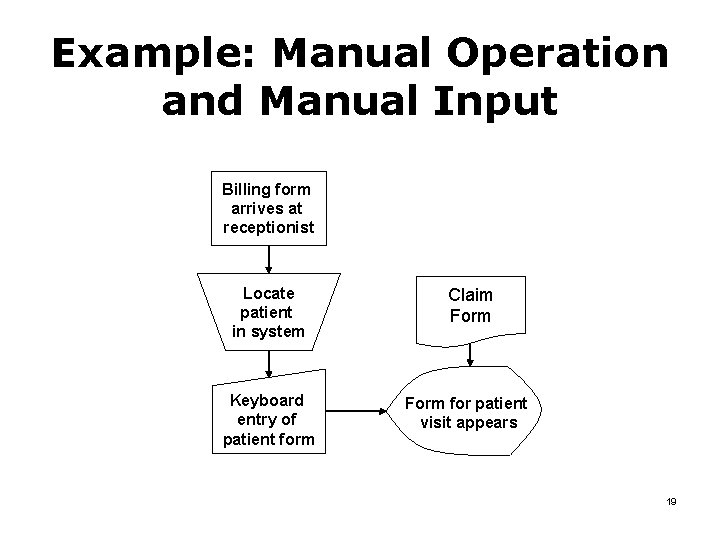
Example: Manual Operation and Manual Input Billing form arrives at receptionist Locate patient in system Claim Form Keyboard entry of patient form Form for patient visit appears 19
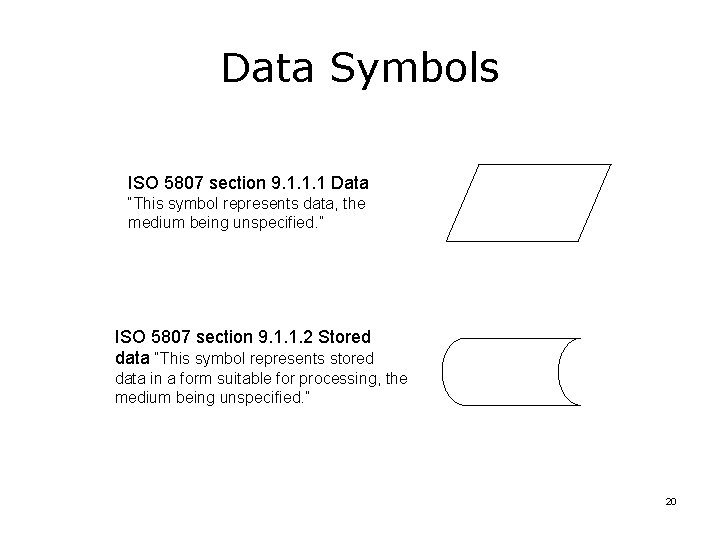
Data Symbols ISO 5807 section 9. 1. 1. 1 Data “This symbol represents data, the medium being unspecified. ” ISO 5807 section 9. 1. 1. 2 Stored data “This symbol represents stored data in a form suitable for processing, the medium being unspecified. ” 20
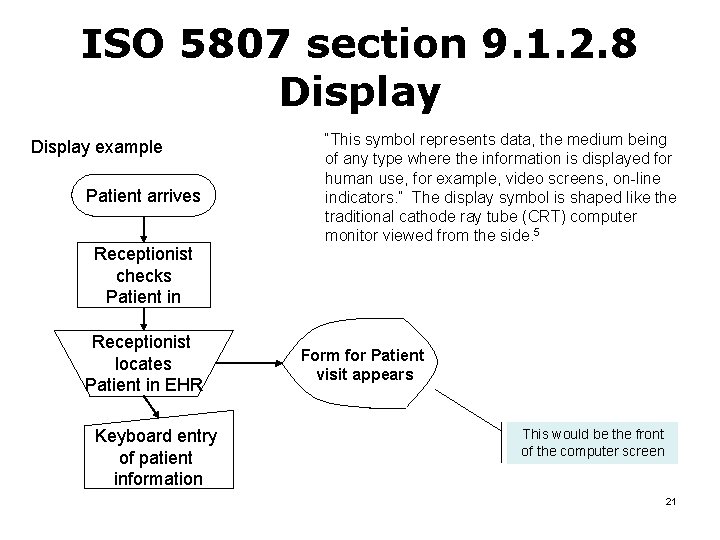
ISO 5807 section 9. 1. 2. 8 Display example Patient arrives Receptionist checks Patient in Receptionist locates Patient in EHR Keyboard entry of patient information “This symbol represents data, the medium being of any type where the information is displayed for human use, for example, video screens, on-line indicators. ” The display symbol is shaped like the traditional cathode ray tube (CRT) computer monitor viewed from the side. 5 Form for Patient visit appears This would be the front of the computer screen 21
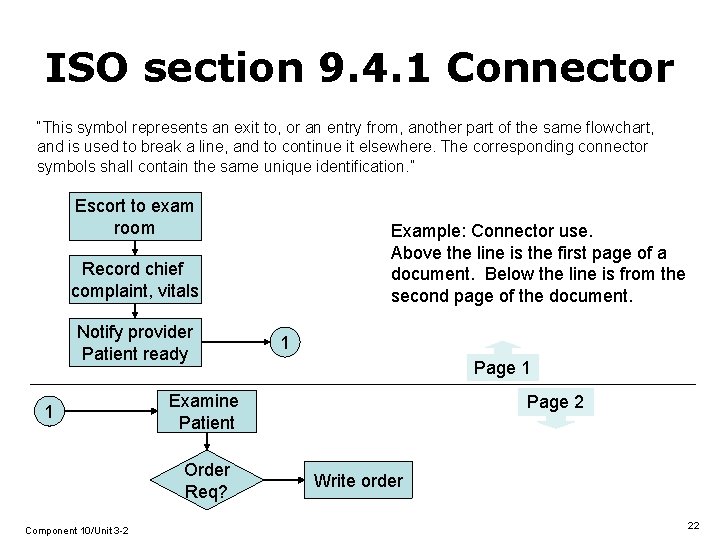
ISO section 9. 4. 1 Connector “This symbol represents an exit to, or an entry from, another part of the same flowchart, and is used to break a line, and to continue it elsewhere. The corresponding connector symbols shall contain the same unique identification. ” Escort to exam room Example: Connector use. Above the line is the first page of a document. Below the line is from the second page of the document. Record chief complaint, vitals Notify provider Patient ready 1 Page 1 Examine Patient Order Req? Component 10/Unit 3 -2 1 Page 2 Write order 22
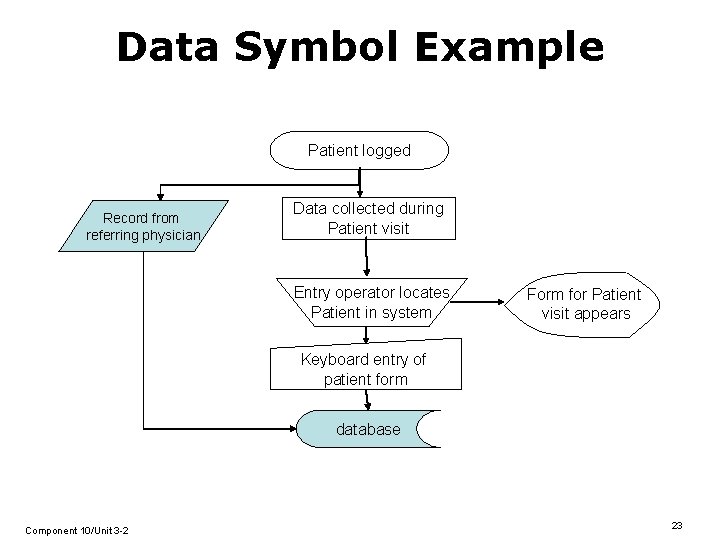
Data Symbol Example Patient logged Record from referring physician Data collected during Patient visit Entry operator locates Patient in system Form for Patient visit appears Keyboard entry of patient form database Component 10/Unit 3 -2 23
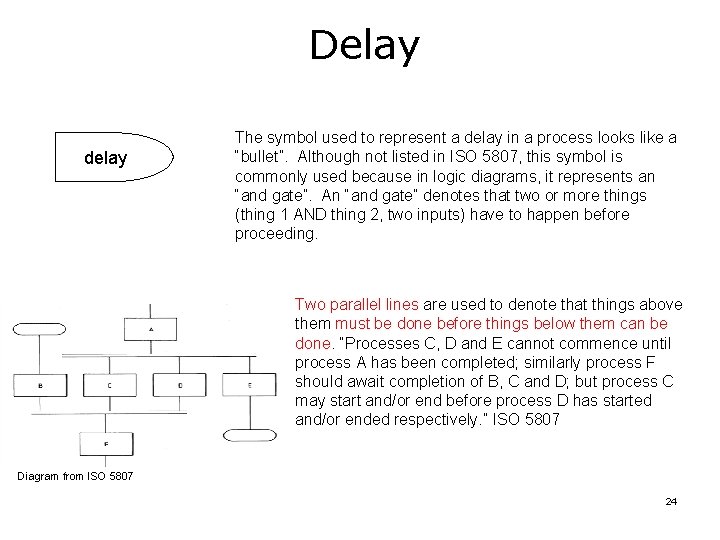
Delay delay The symbol used to represent a delay in a process looks like a “bullet”. Although not listed in ISO 5807, this symbol is commonly used because in logic diagrams, it represents an “and gate”. An “and gate” denotes that two or more things (thing 1 AND thing 2, two inputs) have to happen before proceeding. Two parallel lines are used to denote that things above them must be done before things below them can be done. “Processes C, D and E cannot commence until process A has been completed; similarly process F should await completion of B, C and D; but process C may start and/or end before process D has started and/or ended respectively. ” ISO 5807 Diagram from ISO 5807 24
Non-Symbol Flowcharting Standards This section covers: • Use of text descriptions • Detail level • Flow direction • Lines 25
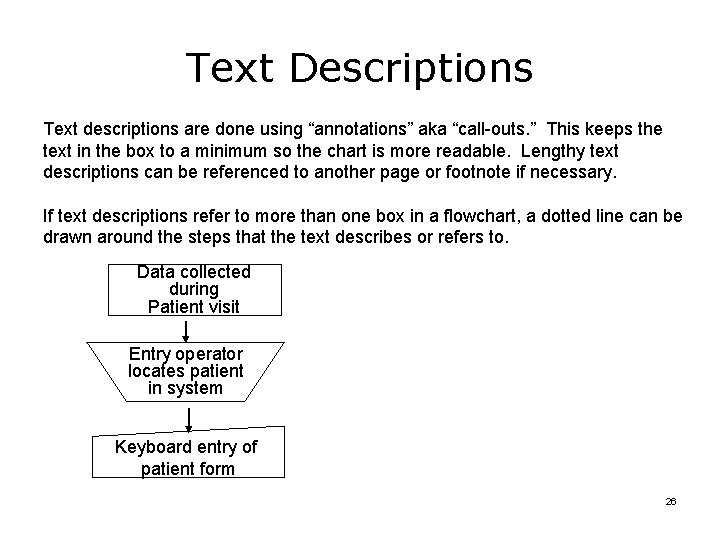
Text Descriptions Text descriptions are done using “annotations” aka “call-outs. ” This keeps the text in the box to a minimum so the chart is more readable. Lengthy text descriptions can be referenced to another page or footnote if necessary. If text descriptions refer to more than one box in a flowchart, a dotted line can be drawn around the steps that the text describes or refers to. Data collected during Patient visit Entry operator locates patient in system Keyboard entry of patient form 26
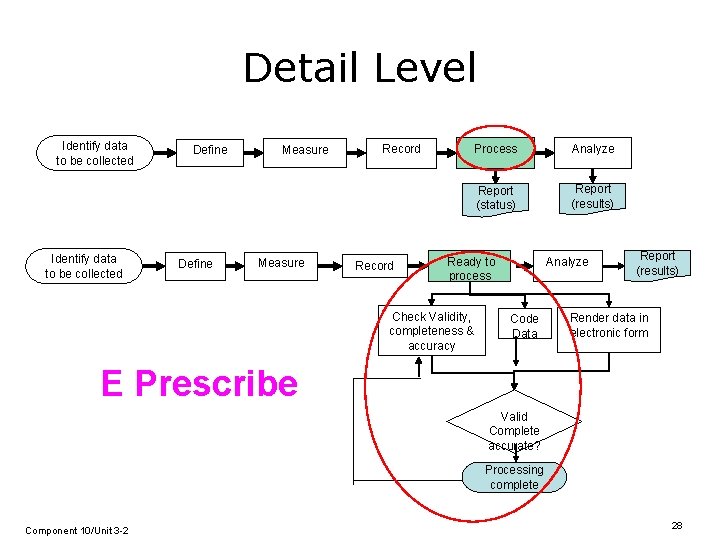
Detail Level • Items shown on the same diagram should be at the same detail level • For example, in the diagram presented in slide 24, each box represents one of the main components – This is a high level view of the process • The diagram in the following slide is an example of combining items at different detail levels on the same diagram – Combining items at different detail levels can cause confusion 27
Detail Level Identify data to be collected Define Measure Record Process Analyze Report (status) Report (results) Analyze Ready to process Check Validity, completeness & accuracy Code Data Report (results) Render data in electronic form E Prescribe Valid Complete accurate? Processing complete Component 10/Unit 3 -2 28
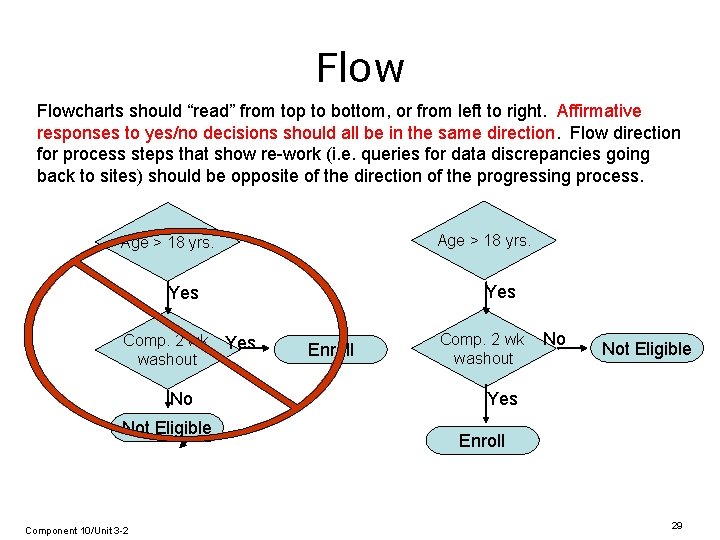
Flowcharts should “read” from top to bottom, or from left to right. Affirmative responses to yes/no decisions should all be in the same direction. Flow direction for process steps that show re-work (i. e. queries for data discrepancies going back to sites) should be opposite of the direction of the progressing process. Age > 18 yrs. Yes Comp. 2 wk washout No Not Eligible Component 10/Unit 3 -2 Yes Enroll Comp. 2 wk washout No Not Eligible Yes Enroll 29
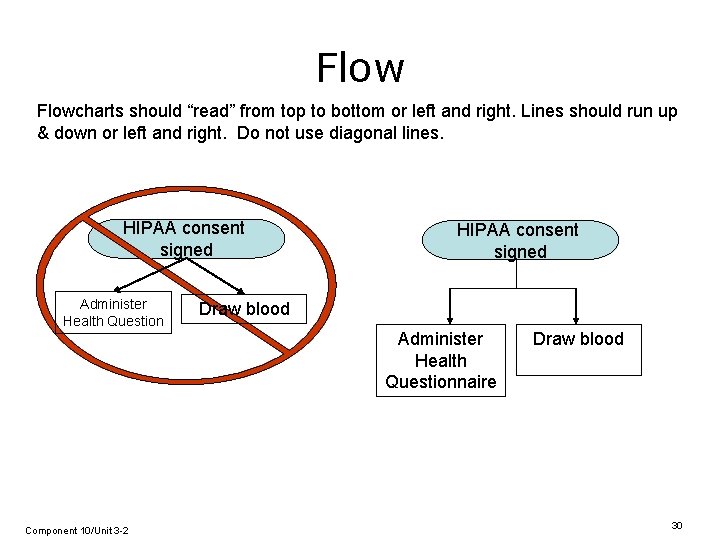
Flowcharts should “read” from top to bottom or left and right. Lines should run up & down or left and right. Do not use diagonal lines. HIPAA consent signed Administer Health Question Component 10/Unit 3 -2 HIPAA consent signed Draw blood Administer Health Questionnaire Draw blood 30
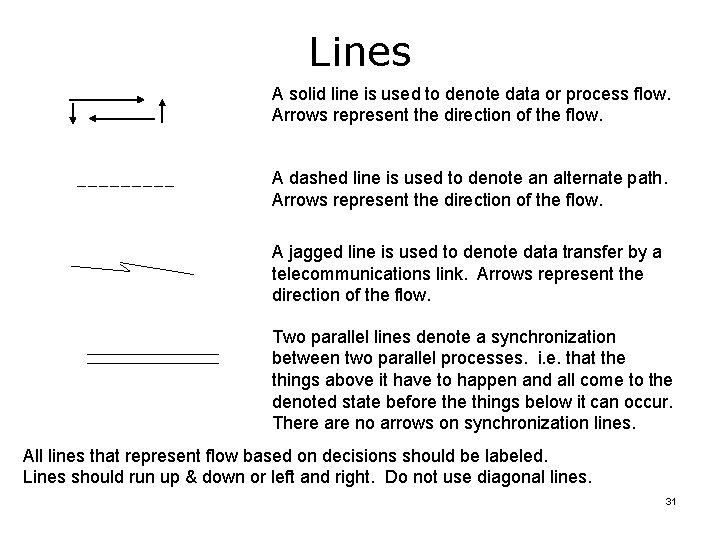
Lines A solid line is used to denote data or process flow. Arrows represent the direction of the flow. A dashed line is used to denote an alternate path. Arrows represent the direction of the flow. A jagged line is used to denote data transfer by a telecommunications link. Arrows represent the direction of the flow. Two parallel lines denote a synchronization between two parallel processes. i. e. that the things above it have to happen and all come to the denoted state before things below it can occur. There are no arrows on synchronization lines. All lines that represent flow based on decisions should be labeled. Lines should run up & down or left and right. Do not use diagonal lines. 31
Yourdon Notation for Data Flow Diagrams 32
Topics • We will discuss – – • Yourdon data flow diagram symbols and conventions Entities, processes, data stores, and data path from a data flow diagram in Yourdon notation Given a healthcare scenario, create a corresponding Yourdon data flow diagram (DFD) using correct symbols and conventions 33
Background 1 • Data flow diagrams (DFDs) provide a way to document and visualize the movement of data through a process • Yourdon notation was introduced in Edward Yourdon’s 1989 book – Modern Structured Analysis • Yourdon notation exists for three types of diagrams : – 1) Data flow diagrams – 2) State transition diagrams – 3) Entity-relationship diagrams • The most commonly used in healthcare is the data flow diagram • We will only cover data flow diagram notation here 34
Methods for Diagramming Processes Process Aspects ISO 5807 Context Process steps X Yourdon Gane. Sarson X X Information content UML X X E-R diagram Information transformation X Sequencing / control / state X X Roles involved X X 35
Use • The most popular use of Yourdon notation is to depict the context in which a process operates, i. e. , high level interactions among 1. Major process entities 2. Interactions between the process and outside entities. • Context and more detailed DFDs show – Entities – Processes (data transformations) – Data stores • Rather than procedural details • DFDs show the what – But not how 36
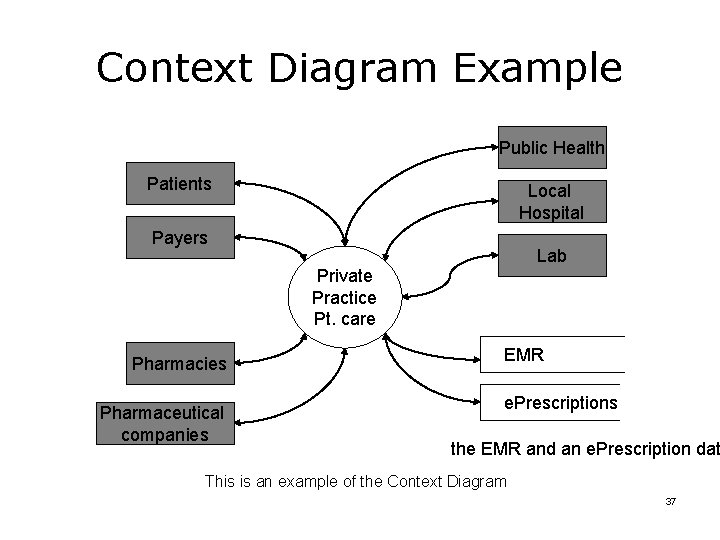
Context Diagram Example Public Health Patients Local Hospital Payers Lab Private Practice Pt. care Pharmacies Pharmaceutical companies EMR e. Prescriptions the EMR and an e. Prescription dat This is an example of the Context Diagram 37
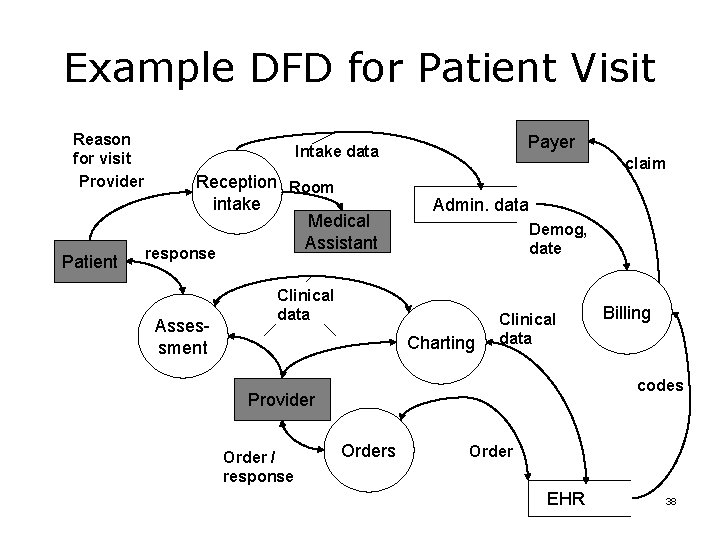
Example DFD for Patient Visit Reason for visit Provider Patient Payer Intake data Reception Room intake Medical Assistant claim Admin. data Demog, date response Assessment Clinical data Charting Clinical data codes Provider Order / response Billing Orders Order EHR 38
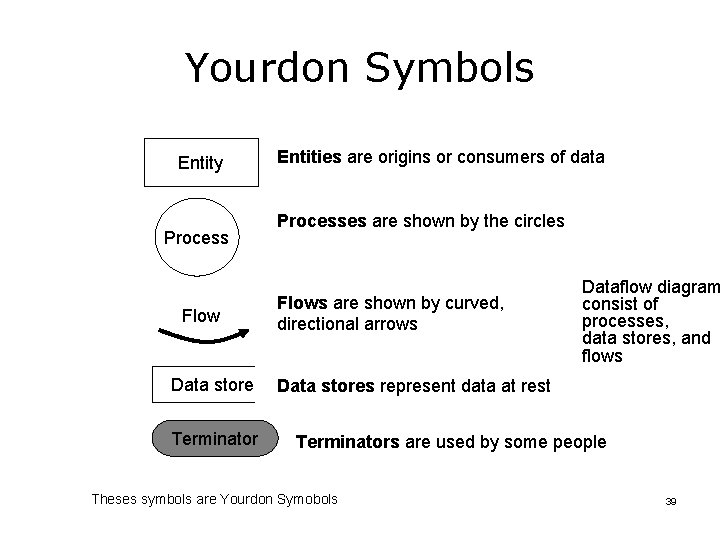
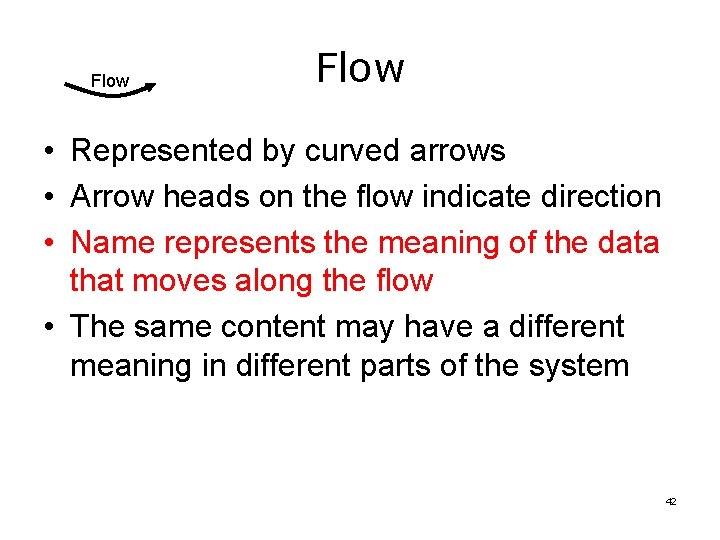
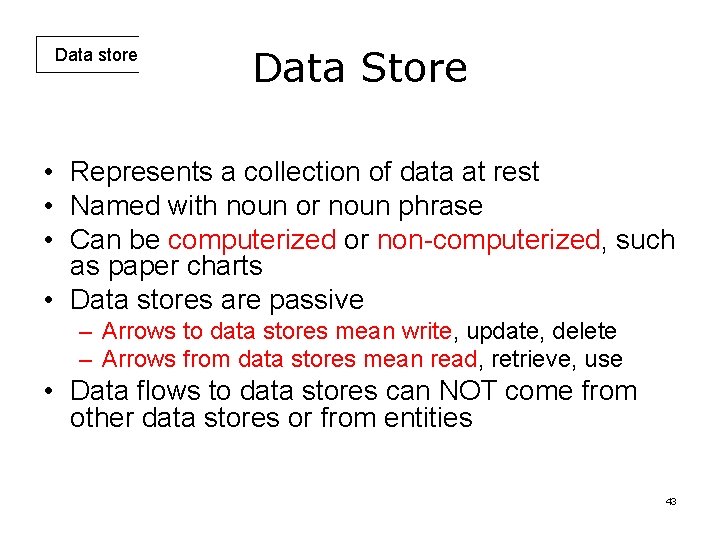
Yourdon Symbols Entity Process Flow Data store Terminator Entities are origins or consumers of data Processes are shown by the circles Flows are shown by curved, directional arrows Dataflow diagram consist of processes, data stores, and flows Data stores represent data at rest Terminators are used by some people Theses symbols are Yourdon Symobols 39
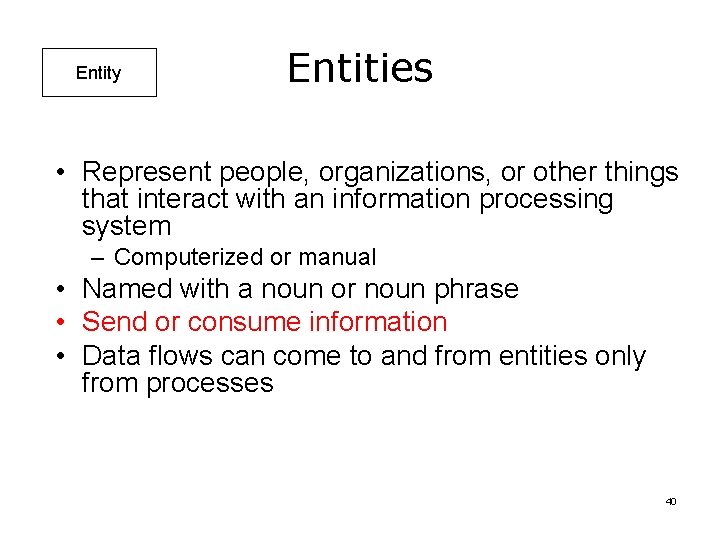
Entity Entities • Represent people, organizations, or other things that interact with an information processing system – Computerized or manual • Named with a noun or noun phrase • Send or consume information • Data flows can come to and from entities only from processes 40
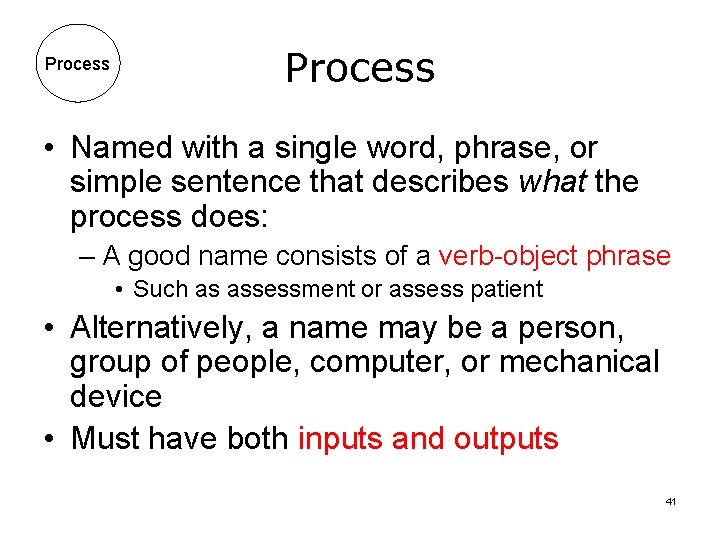
Process • Named with a single word, phrase, or simple sentence that describes what the process does: – A good name consists of a verb-object phrase • Such as assessment or assess patient • Alternatively, a name may be a person, group of people, computer, or mechanical device • Must have both inputs and outputs 41
Flow • Represented by curved arrows • Arrow heads on the flow indicate direction • Name represents the meaning of the data that moves along the flow • The same content may have a different meaning in different parts of the system 42
Data store Data Store • Represents a collection of data at rest • Named with noun or noun phrase • Can be computerized or non-computerized, such as paper charts • Data stores are passive – Arrows to data stores mean write, update, delete – Arrows from data stores mean read, retrieve, use • Data flows to data stores can NOT come from other data stores or from entities 43
Event List • In Yourdon notation, an event list accompanies a data flow diagram • An event list contains things that stimulate action from the system • For example, for prescribing: – A patient calls for a re-fill – A pharmacy calls for a re-fill – A patient presents with a problem requiring medication 44
Conventions • • Choose meaningful names for processes, flows, stores, and terminators Number the processes by placing a unique number in the circle at the top Redraw the DFD as many times as necessary until it is clear and complete Simplify DFDs – A good DFD fits on one page and is not too crowded. If additional details are needed, processes can be “exploded” on a new page – Everything on one page should be at the same detail level 45
Matters of Style • Size and shape of bubbles are up to the diagram creator and their client • Curved or straight arrows can be used. Looks neater with one or the other but not both • There is no excuse for hand-drawn diagrams today except during a white-boarding stage • Some name the processes for the role that performs them • Some use color to differentiate types of entities or flows 46
Beware of • Black holes – Processes that have inputs but no outputs • Miracles – Processes that have outputs but no inputs • Mysteries – Unlabeled flows and unlabeled processes 47
Leveled Diagrams • Are encouraged • Start with higher level (context) diagrams to understand the scope and boundaries • Decompose processes to lower levels of detail when needed • Remember the ultimate goal is an optimized clinic process not a large detailed set of diagrams 48
Guidance from Yourdon 1 “…even if our job were to ‘design the world, ’ we would have to recognize that the world is only a part of the solar system, which is part of a small, obscure galaxy, which is (ultimately) part of the universe. ” “…the first major model that you must develop as a systems analyst is one that does nothing more than define the interfaces between the system and the rest of the universe, that is, the environment. ” -Yourdon, Just Enough Structured Analysis 49
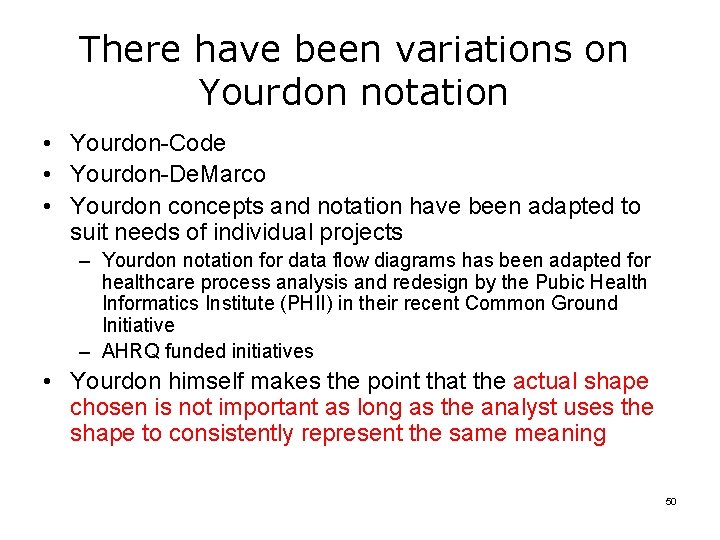
There have been variations on Yourdon notation • Yourdon-Code • Yourdon-De. Marco • Yourdon concepts and notation have been adapted to suit needs of individual projects – Yourdon notation for data flow diagrams has been adapted for healthcare process analysis and redesign by the Pubic Health Informatics Institute (PHII) in their recent Common Ground Initiative – AHRQ funded initiatives • Yourdon himself makes the point that the actual shape chosen is not important as long as the analyst uses the shape to consistently represent the same meaning 50
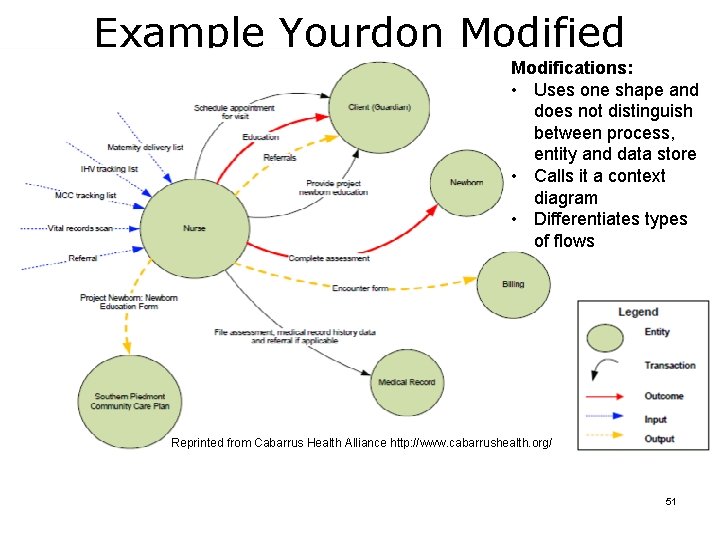
Example Yourdon Modified Modifications: • Uses one shape and does not distinguish between process, entity and data store • Calls it a context diagram • Differentiates types of flows Reprinted from Cabarrus Health Alliance http: //www. cabarrushealth. org/ 51
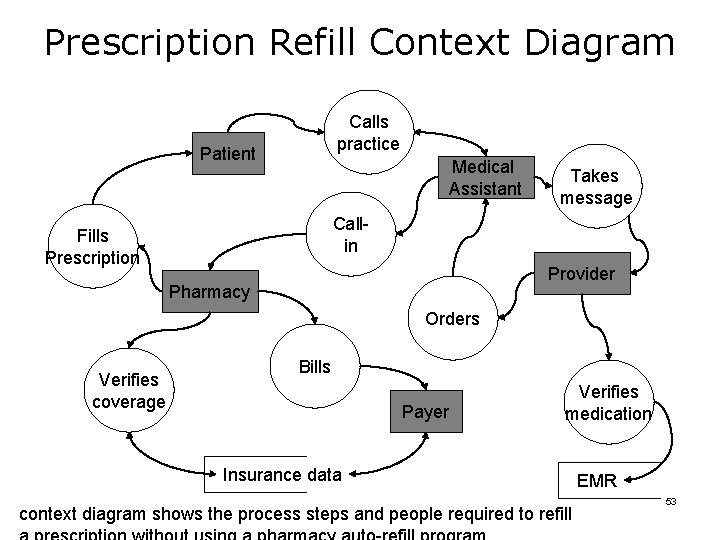
Context Diagram Example Without looking at the next slide, draw a one-page DFD for a prescription refill process at a primary care provider based on the following scenario: Mrs. Jones takes Benecar 20 mg QD for blood pressure control. She has taken this medicine for two years with good results. She does not use the “auto refill” program at her local pharmacy. Today, she called her provider, who does not use e-prescribing, and asked if the prescription could be called in to her pharmacy. 52
Prescription Refill Context Diagram Calls practice Patient Medical Assistant Takes message Callin Fills Prescription Provider Pharmacy Orders Verifies coverage Bills Payer Verifies medication Insurance data context diagram shows the process steps and people required to refill EMR 53
Maintenance • Yourdon notation is a set of symbols and conventions named for the person who developed it, Edward Yourdon • Yourdon notation has not been adopted as a standard – There is no formal maintenance organization • Individuals use and adapt it to suit their needs • For an adaptation to “still be” a context diagram, it must show entities, processes and interactions 54
Goal of Process Mapping • The ultimate goal of process mapping is to understand the current process as a means of improving it before and after the implementation of a process redesign. A graphical representation helps in the following ways: – Reveals where the sequence of tasks is crucial – Identifies bottlenecks or interruptions – Identifies opportunities (often the same as bottlenecks) – Creates solutions to relieve bottlenecks – Reanalyzes the new process – Makes efficiency improvements 55