
Unit 2 Variables and Calculations Chapter 3 Input
Unit 2 Variables and Calculations Chapter 3 Input, Variables, Constants, and Calculations © 2006 ITT Educational Services Inc. Introduction to Computer Programming: Unit 2: Chapter 3: Slide 1
Chapter 3 Topics • This chapter covers the use of text boxes to gather input from users • It also discusses the use of Ø Ø variables named constants intrinsic functions mathematical calculations © 2006 ITT Educational Services Inc. Introduction to Computer Programming: Unit 2: Chapter 3: Slide 2
Gathering Text Input • In This Section, We Use the Textbox Control to Gather Input That the User Has Typed on the Keyboard © 2006 ITT Educational Services Inc. Introduction to Computer Programming: Unit 2: Chapter 3: Slide 3
Placing Text into a Label • We have done this already: lbl. Set. Text = "Place this text in a Text. Box" • The lbl. Set. Text is in the form: Object. Property • The text can come from a text. Box where the user has typed in input: lbl. Set. Text = txt. Input. Text • Notice two use of the form: Object. Property © 2006 ITT Educational Services Inc. Introduction to Computer Programming: Unit 2: Chapter 3: Slide 4
Clearing a Text Box • This can be done with an assignment: txt. Input. Text = "" • Two adjacent quote marks yields a null string • So this statement replaces whatever text that may have been in txt. Input with "nothing" -- a string with no characters in it • This can be done with a method: txt. Input. Clear() • Clear is called a Method • Methods do actions -- here clearing the text • The syntax is similar to that of referring to a Property: Object. Method © 2006 ITT Educational Services Inc. Introduction to Computer Programming: Unit 2: Chapter 3: Slide 5
String Concatenation • In our code we will often need to combine two or more strings into a longer one • This operation is called "Concatenation" • Concatenation is signaled with the operator '&' much in the same way that addition is signaled by the operator '+‘ • Say our user has entered their name into txt. User. Name, a Text. Box • In label lbl. Greeting we want to say, Hello • Simply: lbl. Greeting. Text = "Hello " & txt. User. Name. Text • Put "Hello" on the front of the user's name and place the result into lbl. Greeting © 2006 ITT Educational Services Inc. Introduction to Computer Programming: Unit 2: Chapter 3: Slide 6
The Focus Method • For a control to have the focus means that it is ready to receive the user's input • In a running form, one of the controls always has the focus • The control with the focus may be set by program control using the Focus Method: txt. User. Name. Focus() • You can tell which control has focus by its characteristics: Ø When a Text. Box has focus, it will have a blinking cursor or the text inside of the box is highlighted Ø When a button, radio button, or a check box has focus, it will have a thin dotted line around the control © 2006 ITT Educational Services Inc. Introduction to Computer Programming: Unit 2: Chapter 3: Slide 7

Controlling a Forms Tab Order with the Tab. Index Property • Stepping the focus from one control to another can be done using the Tab Key • This order is set for a control relative to others by the value of the Tab. Index Property • With each Tab Key hit, the focus will step to the control with the next highest value of the Tab. Index Property © 2006 ITT Educational Services Inc. Introduction to Computer Programming: Unit 2: Chapter 3: Slide 8
Assigning Keyboard Access Keys to Buttons • Say your form had a button with the text "Save" on it • Any you wished to allow the user to be able to hit Alt-S to activate that button • Simply change the button text to "&Save" • The '&' tells Visual Basic. NET to use Alt-S as an access key © 2006 ITT Educational Services Inc. Introduction to Computer Programming: Unit 2: Chapter 3: Slide 9
'&' is a Special Character in Button Labels • Note that the '&' in "&Save" does not display on the button • It simply establishes the Alt Key access • In order to actually display an '&' on a button, one must enter it as "&&" (then one will appear and will not cause an Alt Key access to be established) © 2006 ITT Educational Services Inc. Introduction to Computer Programming: Unit 2: Chapter 3: Slide 10
Using Access Keys with Labels • Want to establish an access key for a Text. Box • The previous technique will not work because the text of a Text. Box is normally a changing value • However, there is a way to accomplish the same effect • For a Label that immediately precedes a Text. Box Ø Ø Assign that Label an access key (labels do not normally have access keys) Set the Use. Mnemonic Property to True • When the user activates the Label's access key, the following Text. Box will receive the focus © 2006 ITT Educational Services Inc. Introduction to Computer Programming: Unit 2: Chapter 3: Slide 11
Setting the Accept Button • The Accept Button is the one that implicitly will be activated if the user hits the Enter Key • The Accept. Button Property designates which button on the form is to behave in this manner © 2006 ITT Educational Services Inc. Introduction to Computer Programming: Unit 2: Chapter 3: Slide 12
Setting the Cancel Button • The Cancel Button is the one that implicitly will be activated if the user hits the Escape Key • The Cancel. Button Property designates which button on the form is to behave in this manner © 2006 ITT Educational Services Inc. Introduction to Computer Programming: Unit 2: Chapter 3: Slide 13
Variables • An Application Uses Variables to Hold Information So It May Be Manipulated, Used to Manipulate Other Information, or Remembered for Later Use © 2006 ITT Educational Services Inc. Introduction to Computer Programming: Unit 2: Chapter 3: Slide 14
Why Have Variables? • A variable is a storage location in the computer’s memory, used for holding information while the program is running • The information that is stored in a variable may change, hence the name “variable” © 2006 ITT Educational Services Inc. Introduction to Computer Programming: Unit 2: Chapter 3: Slide 15
What Can You Do With Variables? • Copy and store values entered by the user, so they may be manipulated • Perform arithmetic on values • Test values to determine that they meet some criterion • Temporarily hold and manipulate the value of a control property • Remember information for later use in the program © 2006 ITT Educational Services Inc. Introduction to Computer Programming: Unit 2: Chapter 3: Slide 16
How to Think About Variables • You the programmer make up a name for the variable • Visual Basic. NET associates that name with a location in the computer's RAM • The value currently associated with the variable is stored in that memory location © 2006 ITT Educational Services Inc. Introduction to Computer Programming: Unit 2: Chapter 3: Slide 17
Setting the Value of a Variable • An assignment statement is used to set the (new) value of a variable, as in: length = 112 greeting = "Good Morning " & txt. Name. Text © 2006 ITT Educational Services Inc. Introduction to Computer Programming: Unit 2: Chapter 3: Slide 18
Variable Declarations • A variable declaration is a statement that causes Visual Basic. NET to create a variable in memory • As in Dim length As Integer © 2006 ITT Educational Services Inc. Introduction to Computer Programming: Unit 2: Chapter 3: Slide 19
Declaration Syntax • The official syntax is Dim Variable. Name As Data. Type where Ø Ø Dim (stands for Dimension) is a keyword Variable. Name is the name to be used As is a keyword Data. Type is the type of the variable and will be one of many possible keywords © 2006 ITT Educational Services Inc. Introduction to Computer Programming: Unit 2: Chapter 3: Slide 20
Visual Basic. NET Data Types • • • Boolean Byte Char Date Decimal Double © 2006 ITT Educational Services Inc. Introduction to Computer Programming: Unit 2: Chapter 3: Slide 21 • • • Integer Long Object Short Single String
Variable Naming Rules • The first character of a variable name must be a character or an underscore • Subsequent characters may be either of those plus the numeric digits Ø Thus variable names cannot contain spaces or periods (or many other kinds of characters) • Variable names must not be keywords © 2006 ITT Educational Services Inc. Introduction to Computer Programming: Unit 2: Chapter 3: Slide 22
Variable Naming Conventions • Each variable name should describe its use, e. g. , items. Ordered • When multiple words are used in a name, capitalize the initials, except for the first one (again, items. Ordered) • As noted earlier, certain names should have a specific prefix, e. g. , btn © 2006 ITT Educational Services Inc. Introduction to Computer Programming: Unit 2: Chapter 3: Slide 23
Auto List Feature • As you are entering your Visual Basic. NET program, VB will often aid you by offering a list of choices for that could be entered next • Right after you type "As" in a variable declaration, Visual Basic. NET will offer you a list of all of the established data types • Either choose one or keep typing © 2006 ITT Educational Services Inc. Introduction to Computer Programming: Unit 2: Chapter 3: Slide 24
Variable Default Values • When a variable is first created in memory, Visual Basic. NET assigns it a default value Ø Ø Ø numeric types are given a value of zero strings are given a value of Nothing dates default to 12: 00 AM January 1, 1 © 2006 ITT Educational Services Inc. Introduction to Computer Programming: Unit 2: Chapter 3: Slide 25
Initialization of Variables via the Declaration • It is preferable to establish your program's own initial value for variables that will not otherwise be given values before they are used • In the declaration, simply append " = value" Dim length As Integer = 112 © 2006 ITT Educational Services Inc. Introduction to Computer Programming: Unit 2: Chapter 3: Slide 26
Scope of a Variable • A variable’s scope is the part of the program where the variable is visible and may be accessed by programming statements • The scope of a variable begins where it is declared • And extends to the end of the procedure in which it appears • This variable is called local • The variable is not visible outside of the procedure and its name cannot be declared again within the same procedure © 2006 ITT Educational Services Inc. Introduction to Computer Programming: Unit 2: Chapter 3: Slide 27
Lifetime of a Variable • The storage for a variable is created upon each use of the procedure • The storage for a variable is destroyed as soon as the procedure finishes executing © 2006 ITT Educational Services Inc. Introduction to Computer Programming: Unit 2: Chapter 3: Slide 28
Setting a Specific Date • This can be done a number of ways: start. Date = #12/3/2002 1: 00 AM# start. Date = System. Convert. To. Date. Time( "12/3/2002 1: 00 AM") © 2006 ITT Educational Services Inc. Introduction to Computer Programming: Unit 2: Chapter 3: Slide 29
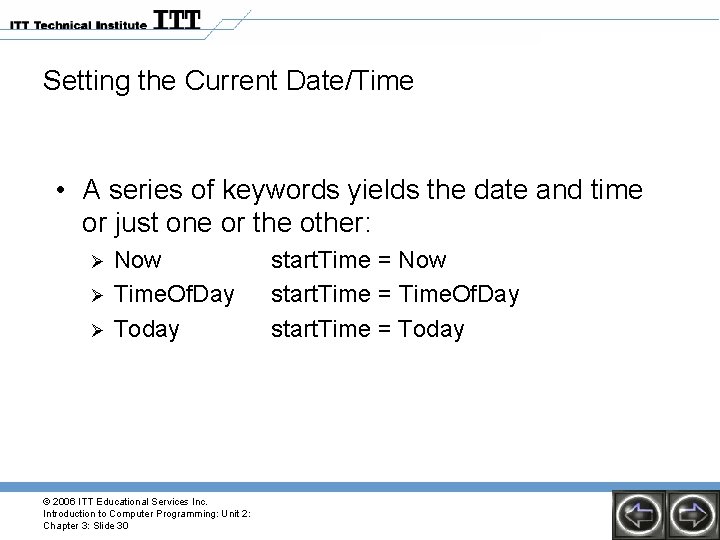
Setting the Current Date/Time • A series of keywords yields the date and time or just one or the other: Ø Ø Ø Now Time. Of. Day Today © 2006 ITT Educational Services Inc. Introduction to Computer Programming: Unit 2: Chapter 3: Slide 30 start. Time = Now start. Time = Time. Of. Day start. Time = Today
The Val Function • Suppose you wish to use text input as a number: number = txt. Input. Text • This will work without a run time error as long as txt. Input. Text is the text equivalent of a numerical value (like "45") • If it is not, there will be a run time error • The Val function is more lenient on conversions from text to numeric values • If the initial characters form a numeric value, it will return that • Otherwise, it will return a value of zero © 2006 ITT Educational Services Inc. Introduction to Computer Programming: Unit 2: Chapter 3: Slide 31
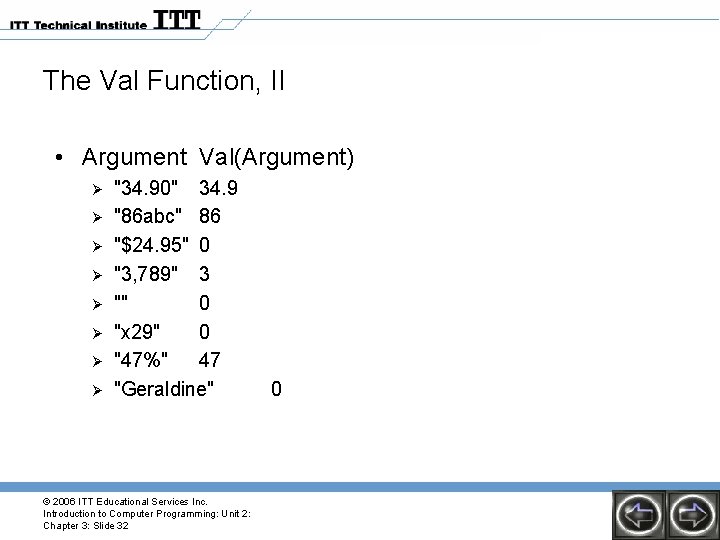
The Val Function, II • Argument Val(Argument) Ø Ø Ø Ø "34. 90" 34. 9 "86 abc" 86 "$24. 95" 0 "3, 789" 3 "" 0 "x 29" 0 "47%" 47 "Geraldine" © 2006 ITT Educational Services Inc. Introduction to Computer Programming: Unit 2: Chapter 3: Slide 32 0
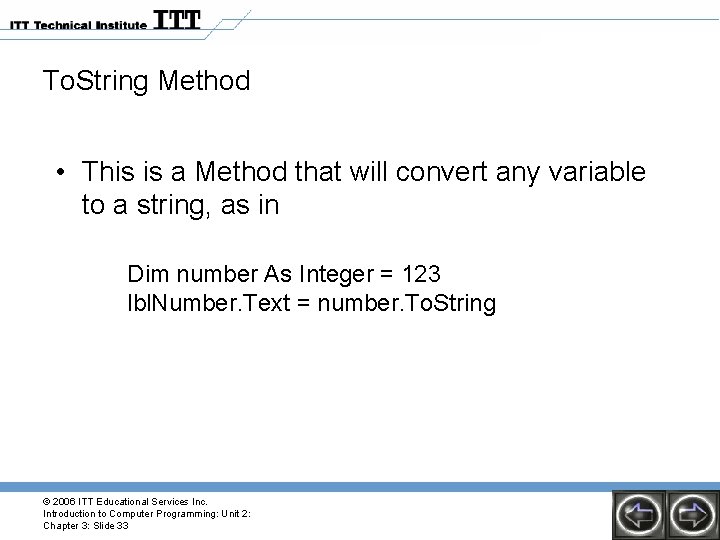
To. String Method • This is a Method that will convert any variable to a string, as in Dim number As Integer = 123 lbl. Number. Text = number. To. String © 2006 ITT Educational Services Inc. Introduction to Computer Programming: Unit 2: Chapter 3: Slide 33
Option Strict On • Placed at the very top of the code window this will prevent Visual Basic. NET from performing implicit data type conversion • The code must perform all conversions using Val or To. String © 2006 ITT Educational Services Inc. Introduction to Computer Programming: Unit 2: Chapter 3: Slide 34
Performing Calculations and Working With Numbers • Visual Basic. NET Provides Several Operators for Performing Mathematical Operations • You May Also Use Parentheses to Group Operations and Build More Complex Mathematical Statements © 2006 ITT Educational Services Inc. Introduction to Computer Programming: Unit 2: Chapter 3: Slide 35
The Arithmetic Operators • Visual Basic. NET provides operators for the common arithmetic operations: Ø Ø Ø Addition Subtraction Multiplication Division Exponentiation + * / ^ • Examples of use: Ø Ø Ø total = price + tax area = length * width average = total / items sale. Price = retail / 2 cube = side ^ 3 © 2006 ITT Educational Services Inc. Introduction to Computer Programming: Unit 2: Chapter 3: Slide 36
Special Integer Division Operator • The backslash () is used as an integer division operator • The result is always an integer, created by doing the division and then discarding any remainder • Any floating-point operand is first rounded to the nearest integer © 2006 ITT Educational Services Inc. Introduction to Computer Programming: Unit 2: Chapter 3: Slide 37
Special Modulo (MOD) Operator • This operator follows the same basic rules as the backslash operator, but yields the remainder after the division Ø Ø operator yields an integer result of division MOD operator yields the integer remainder (after division using the operator) © 2006 ITT Educational Services Inc. Introduction to Computer Programming: Unit 2: Chapter 3: Slide 38
Arithmetic Operator Precedence • Which operations are done first -- precedence tells us -- highest to lowest: Ø Ø Ø Exponentiation (^) Multiplicative (* and /) Integer Division () Modulus (MOD) Additive (+ and -) • When two operators with the same precedence share an operand, the operator on the left works first, then the operator on the right © 2006 ITT Educational Services Inc. Introduction to Computer Programming: Unit 2: Chapter 3: Slide 39
Arithmetic Operator Precedence, II • Grouping with parentheses () forces the expression within those parentheses to be evaluated before others • Roughly speaking, the order of evaluation in Visual Basic. NET is similar to that used in algebra classes (parenthesized expressions first, then exponentiation, then multiplicative operators, then the additive operators) © 2006 ITT Educational Services Inc. Introduction to Computer Programming: Unit 2: Chapter 3: Slide 40
Combined Assignment Operators • Frequently program assignment statements are similar to: number = number - 5 • That is, modify a variable with one arithmetic operator and store the result back into the same variable • There are special assignment operators to enhance this usage: Ø Ø Ø += -= *= /= = &= add a value to the variable subtract a value from the variable multiple the variable by some value divide the variable by some value integer divide the variable by some value concatenate the variable with some value © 2006 ITT Educational Services Inc. Introduction to Computer Programming: Unit 2: Chapter 3: Slide 41
More C (Convert) Functions • • • Cbool Cbyte Cchar Cdate CDbl CDec © 2006 ITT Educational Services Inc. Introduction to Computer Programming: Unit 2: Chapter 3: Slide 42 • • • Cint CLng Cobj Cshort CSng CStr
Named Constants, I • Whenever a program needs to use a constant (e. g. , the local sales tax percentage) it is a good idea to give it a variable name • However, a variable does not necessarily have the same value throughout the program as an assignment statement can change the value • Visual Basic. NET provides for a variable whose value, once established in the declaration, cannot be modified afterwards: Const sales. Tax As Single = 0. 06 © 2006 ITT Educational Services Inc. Introduction to Computer Programming: Unit 2: Chapter 3: Slide 43
- Slides: 43