
Unit 2 Editing and Review Tools Lesson 3
- Slides: 7
Unit 2: Editing and Review Tools Lesson 3: Find and Replace Tools
Lesson 3: Find and Replace Tools Objectives: Use the Find features in the Navigation pane Find and replace using the dialog box
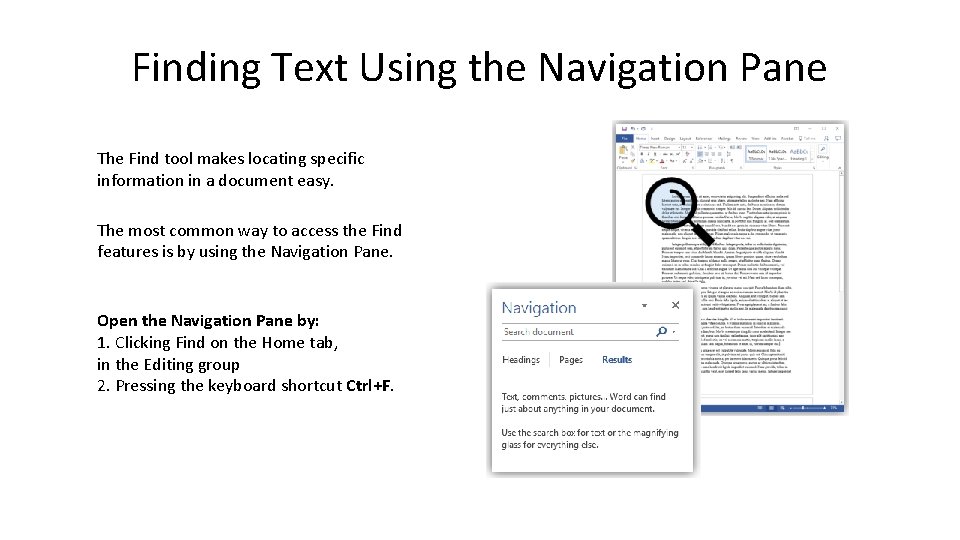
Finding Text Using the Navigation Pane The Find tool makes locating specific information in a document easy. The most common way to access the Find features is by using the Navigation Pane. Open the Navigation Pane by: 1. Clicking Find on the Home tab, in the Editing group 2. Pressing the keyboard shortcut Ctrl+F.
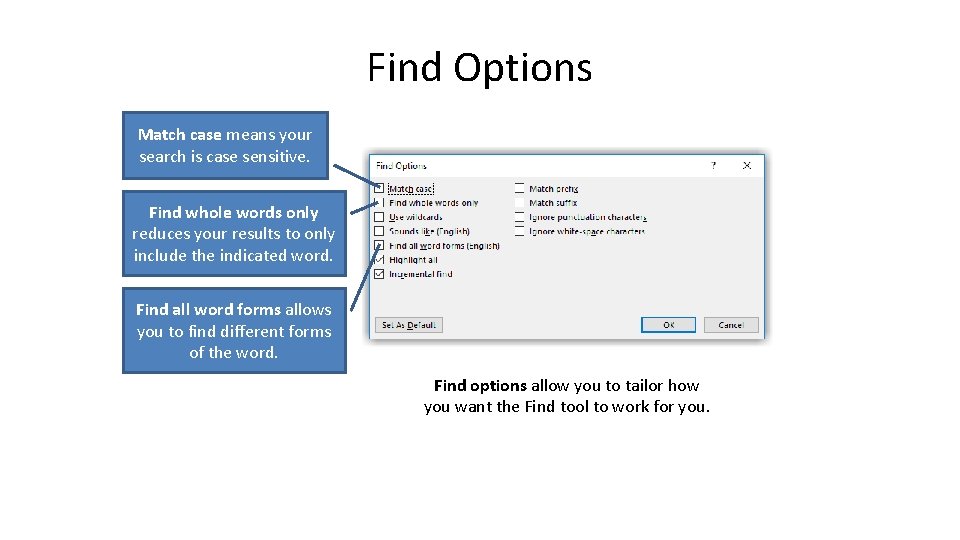
Find Options Match case means your search is case sensitive. Find whole words only reduces your results to only include the indicated word. Find all word forms allows you to find different forms of the word. Find options allow you to tailor how you want the Find tool to work for you.
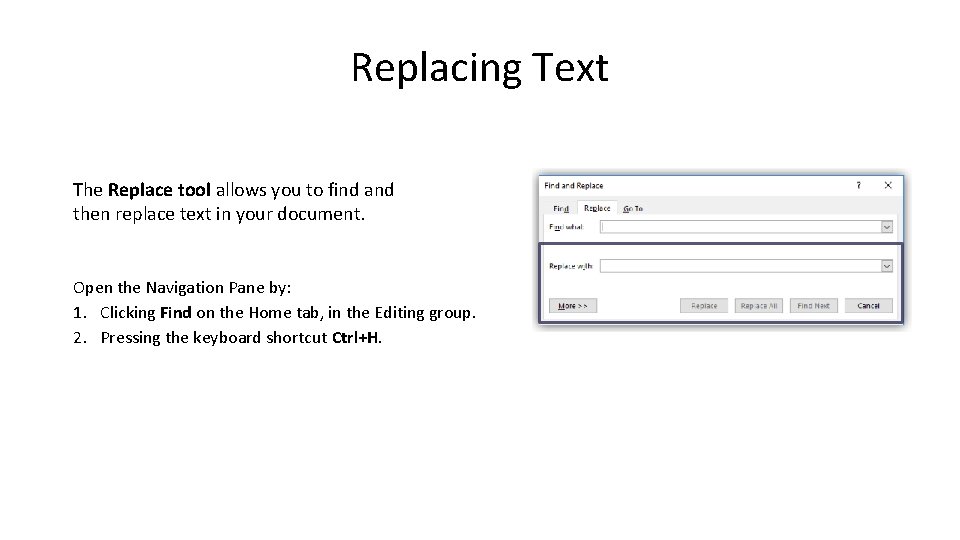
Replacing Text The Replace tool allows you to find and then replace text in your document. Open the Navigation Pane by: 1. Clicking Find on the Home tab, in the Editing group. 2. Pressing the keyboard shortcut Ctrl+H.
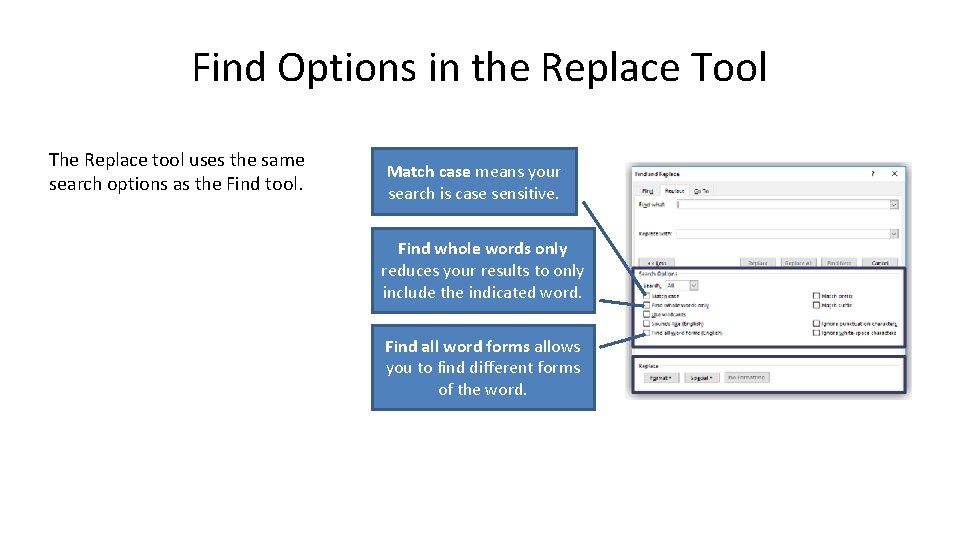
Find Options in the Replace Tool The Replace tool uses the same search options as the Find tool. Match case means your search is case sensitive. Find whole words only reduces your results to only include the indicated word. Find all word forms allows you to find different forms of the word.
Summary In this lesson, you: • Used the Find features in the Navigation pane • Used Find and Replace in the dialog box