
Unit 11 Objectoriented programming Graphical user interface Jin
Unit 11 Object-oriented programming: Graphical user interface Jin Sa
Objectives • GUI components – To create user interfaces using frames, panels, and some simple UI components • Layout managers – To understand the role of layout managers – To use the Flow. Layout, Grid. Layout, and Border. Layout • Graphics – To use the Color class – To use the paint. Component method – To use the Graphics class
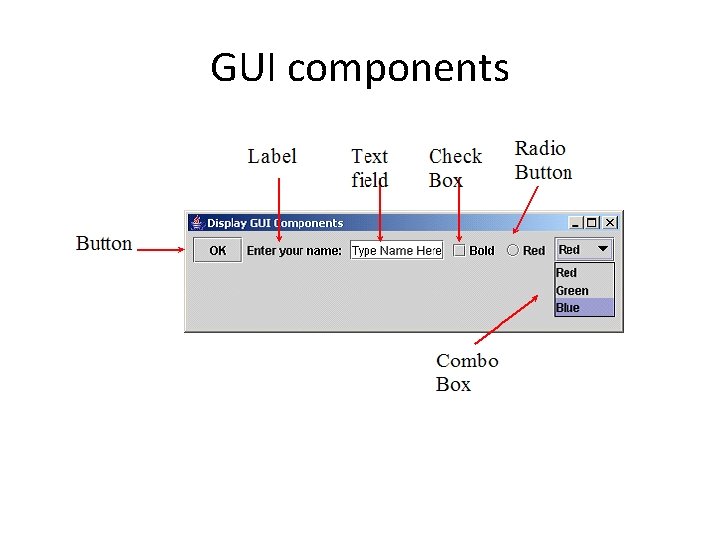
GUI components
AWT and Swing • Java provides many predefined classes for building GUI applications. • These classes are provided in two packages called: Abstract Windows Toolkit (AWT) and Swing. • In Java, to write a GUI program, we derive new classes from those provided in AWT or Swing.
The overall structure of AWT and Swing • Graphics – Drawing, fonts, colour etc. • Components – buttons, text fields, menus and scroll bars etc • Layout managers – Arrangement of GUI components • Event handlers – Event such as clicking button and corresponding actions • Image manipulation.
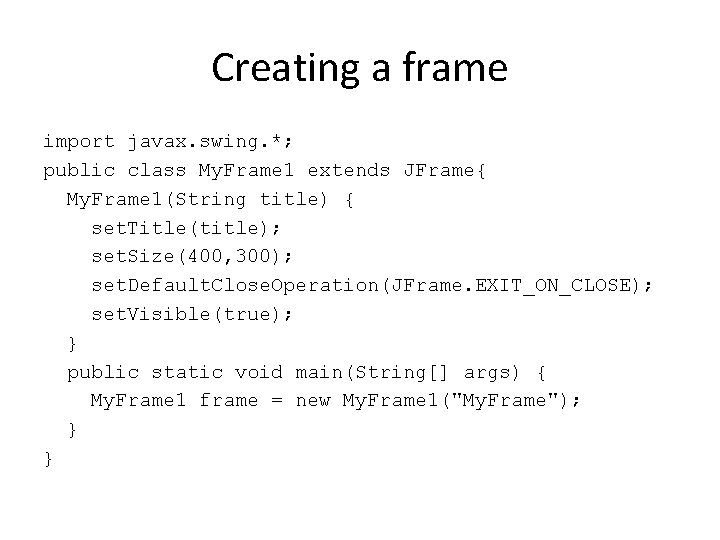
Creating a frame import javax. swing. *; public class My. Frame 1 extends JFrame{ My. Frame 1(String title) { set. Title(title); set. Size(400, 300); set. Default. Close. Operation(JFrame. EXIT_ON_CLOSE); set. Visible(true); } public static void main(String[] args) { My. Frame 1 frame = new My. Frame 1("My. Frame"); } }
Student activity 11. 1 • Implement and run the above example.
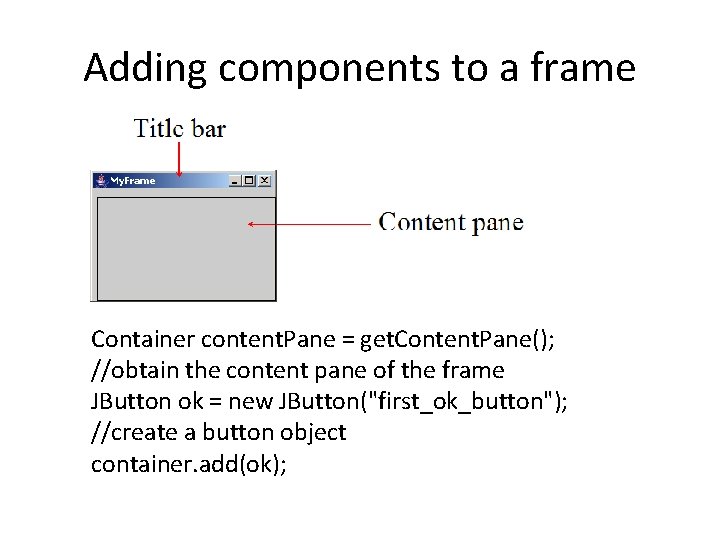
Adding components to a frame Container content. Pane = get. Content. Pane(); //obtain the content pane of the frame JButton ok = new JButton("first_ok_button"); //create a button object container. add(ok);
Student activity 11. 2 • Read the page on “Adding components to a frame” • Add a button to the frame.
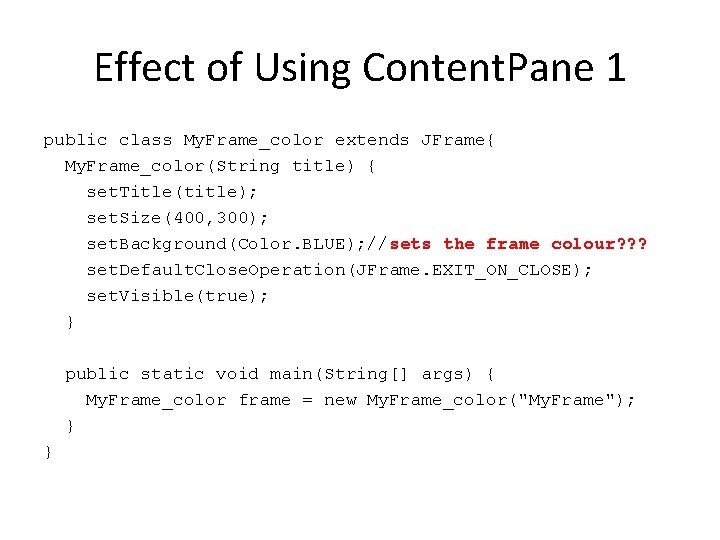
Effect of Using Content. Pane 1 public class My. Frame_color extends JFrame{ My. Frame_color(String title) { set. Title(title); set. Size(400, 300); set. Background(Color. BLUE); //sets the frame colour? ? ? set. Default. Close. Operation(JFrame. EXIT_ON_CLOSE); set. Visible(true); } public static void main(String[] args) { My. Frame_color frame = new My. Frame_color("My. Frame"); } }
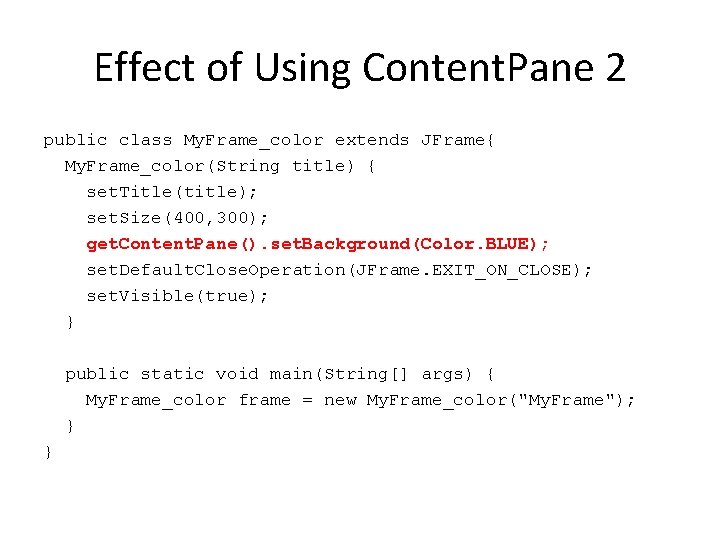
Effect of Using Content. Pane 2 public class My. Frame_color extends JFrame{ My. Frame_color(String title) { set. Title(title); set. Size(400, 300); get. Content. Pane(). set. Background(Color. BLUE); set. Default. Close. Operation(JFrame. EXIT_ON_CLOSE); set. Visible(true); } public static void main(String[] args) { My. Frame_color frame = new My. Frame_color("My. Frame"); } }
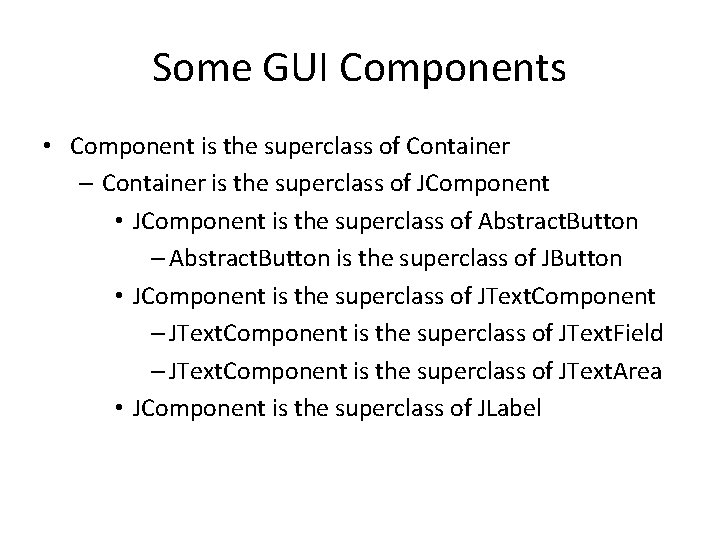
Some GUI Components • Component is the superclass of Container – Container is the superclass of JComponent • JComponent is the superclass of Abstract. Button – Abstract. Button is the superclass of JButton • JComponent is the superclass of JText. Component – JText. Component is the superclass of JText. Field – JText. Component is the superclass of JText. Area • JComponent is the superclass of JLabel
• The Component class provides methods such as setting and getting background colours. • The Container class provides methods for adding component to the container; setting layout manager; and painting the component.
JButton • Mostly used constructors. – JButton(String text) – E. g. – JButton ok = new JButton("first_ok_button"); • JButton also inherits all the methods in its super classes such as set. Background. Color
JText. Field • A JText. Field: user input area. • Commonly used constructors and methods are: – – JText. Field(int columns) Creates an empty text field with the specified number of columns. JText. Field(String text) Creates a text field initialized with the specified text. • Mostly used methods: – get. Text() – Returns the string from the text field. – set. Text(String text) – Puts the given string in the text field.
JLabel • A JLabel is a display area for a short text. • Constructors and methods include the following: – JLabel() – JLabel(String text) – set. Text(String text) – get. Text()
Container • containers can contain a number of components, e. g. frames and panels, Content. Pane • We can use the add method to put components in a container: Container content. Pane = get. Content. Pane(); JButton ok = new JButton("first_ok_button"); content. Pane. add(ok);
JPanel • JPanel is a subclass of Jcomponent • Used as container or sub-containers for grouping user interface components • Often programmers use a JPanel instead of the Content Pane when adding components to a frame as JPanel is a subclass of JComponent; it provides more methods than the Content. Pane
Student activity 11. 4 • Read the page on Container. Use JPanel. Add a JButton to the JPanel instead of to the Content. Pane.
Layout Manger • Controls how the GUI components within the container can be arranged • Java provides a number of predefined layout managers. – Flow. Layout – Grid. Layout – Border. Layout • Containers has a method – set. Layout(Layout. Manager)
Flow. Layout • Flow. Layout is the simplest layout manager. • The components are arranged in the container from left to right in the order in which they were added. • When one row becomes filled, a new row is started.
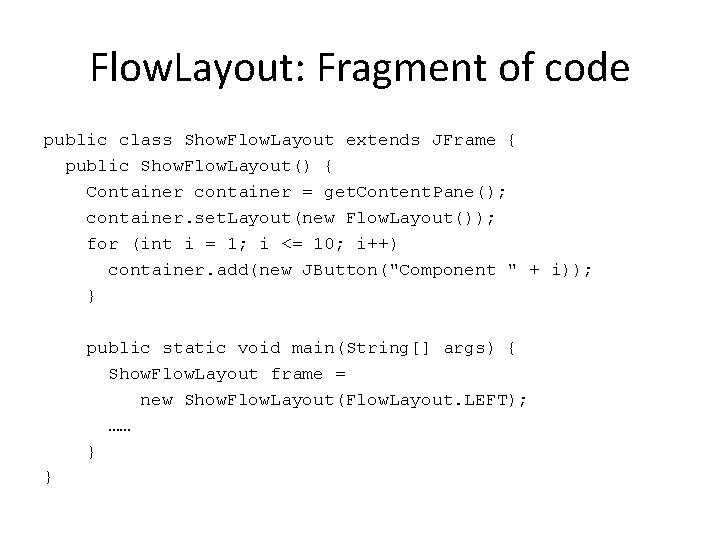
Flow. Layout: Fragment of code public class Show. Flow. Layout extends JFrame { public Show. Flow. Layout() { Container container = get. Content. Pane(); container. set. Layout(new Flow. Layout()); for (int i = 1; i <= 10; i++) container. add(new JButton("Component " + i)); } public static void main(String[] args) { Show. Flow. Layout frame = new Show. Flow. Layout(Flow. Layout. LEFT); …… } }
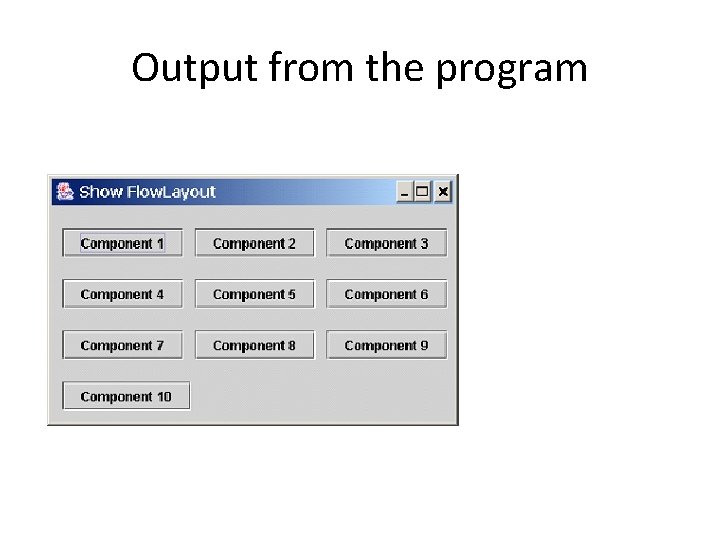
Output from the program
Student activity 11. 5
Grid. Layout • The Grid. Layout manager arranges components in a grid (matrix) formation with the number of rows and columns defined by the constructor. • The components are placed in the grid from left to right starting with the first row, then the second, and so on.
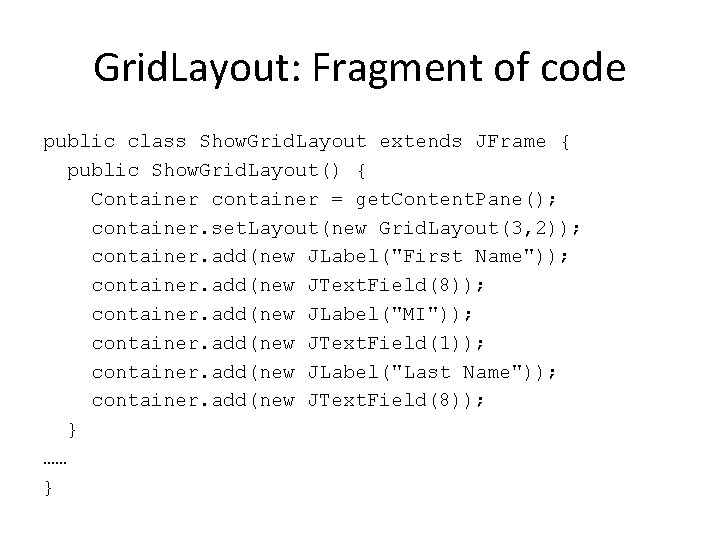
Grid. Layout: Fragment of code public class Show. Grid. Layout extends JFrame { public Show. Grid. Layout() { Container container = get. Content. Pane(); container. set. Layout(new Grid. Layout(3, 2)); container. add(new JLabel("First Name")); container. add(new JText. Field(8)); container. add(new JLabel("MI")); container. add(new JText. Field(1)); container. add(new JLabel("Last Name")); container. add(new JText. Field(8)); } …… }
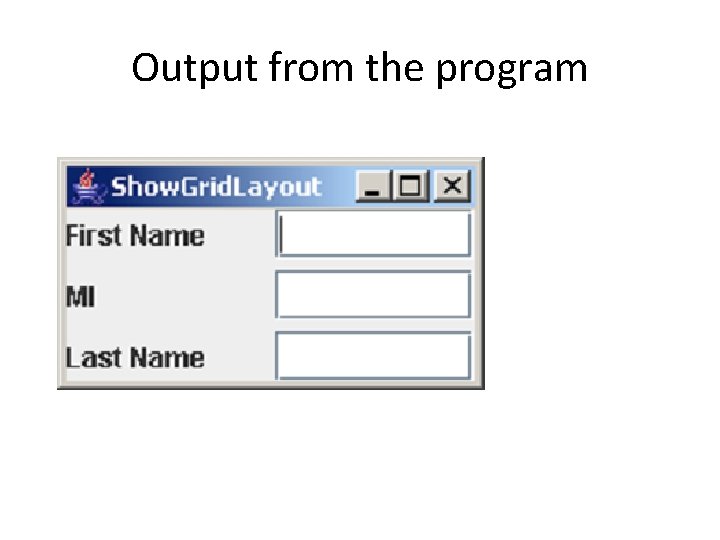
Output from the program
Student activity 11. 6 • Implement the Grid. Layout program
Border. Layout • Divides the container into five areas: East, South, West, North, and Center. • To add a component to a particular area, we use the add(Component, constraint) method, where constraint is – Border. Layout. EAST, – Border. Layout. SOUTH, – Border. Layout. WEST, – Border. Layout. NORTH, – Border. Layout. CENTER
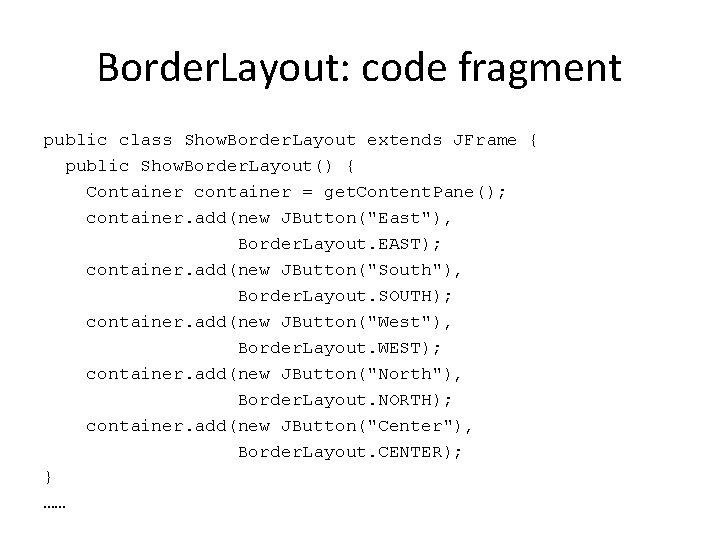
Border. Layout: code fragment public class Show. Border. Layout extends JFrame { public Show. Border. Layout() { Container container = get. Content. Pane(); container. add(new JButton("East"), Border. Layout. EAST); container. add(new JButton("South"), Border. Layout. SOUTH); container. add(new JButton("West"), Border. Layout. WEST); container. add(new JButton("North"), Border. Layout. NORTH); container. add(new JButton("Center"), Border. Layout. CENTER); } ……
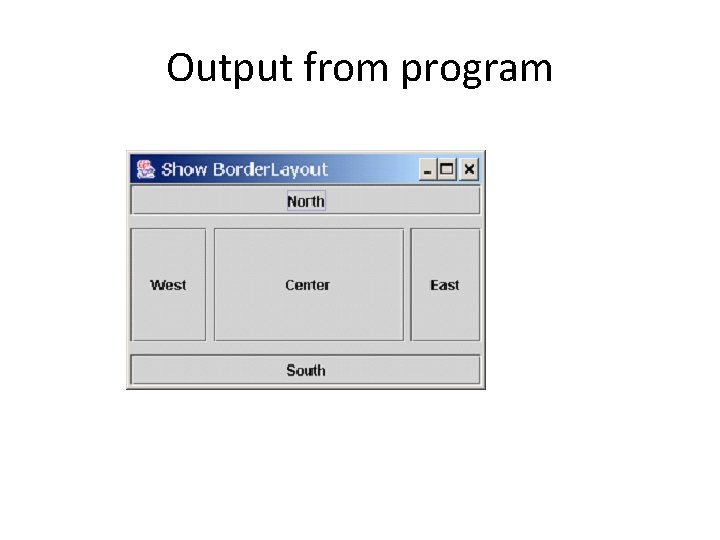
Output from program
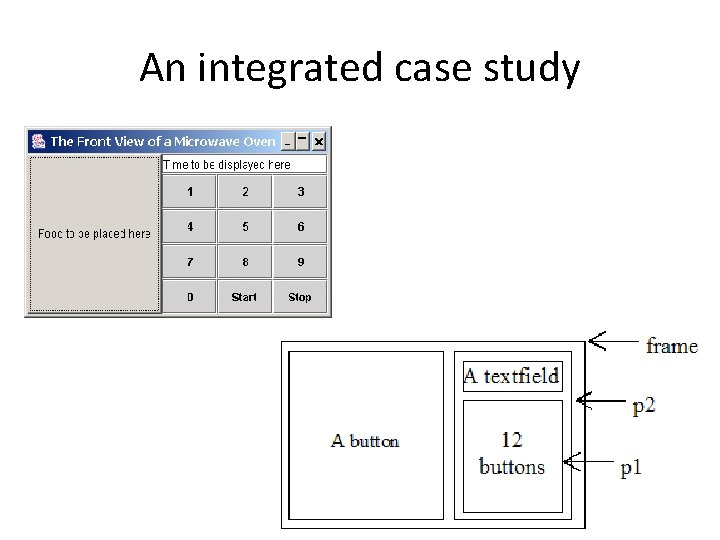
An integrated case study
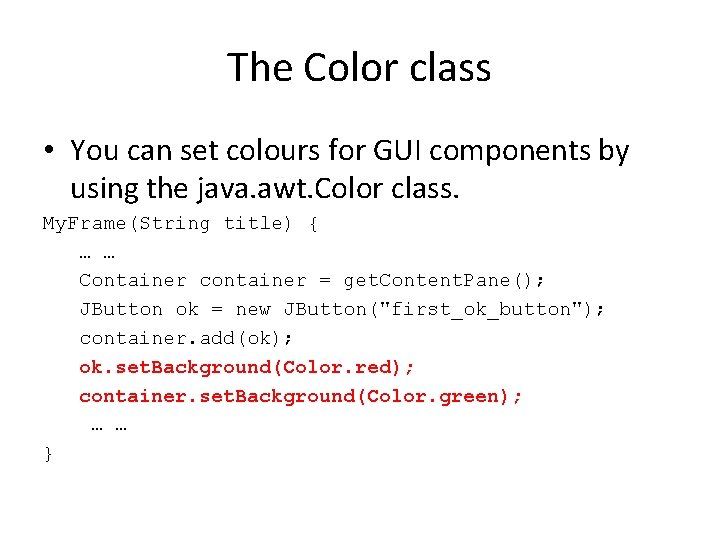
The Color class • You can set colours for GUI components by using the java. awt. Color class. My. Frame(String title) { … … Container container = get. Content. Pane(); JButton ok = new JButton("first_ok_button"); container. add(ok); ok. set. Background(Color. red); container. set. Background(Color. green); … … }
Drawing in Swing • usually create a new class that extends JPanel and override the paint. Component () method • The Graphics object g is created automatically by the Java Virtual Machine for every visible GUI component.
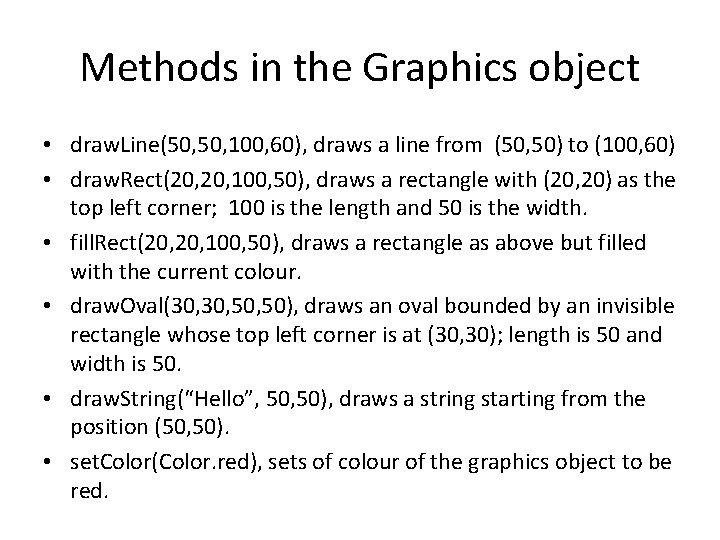
Methods in the Graphics object • draw. Line(50, 100, 60), draws a line from (50, 50) to (100, 60) • draw. Rect(20, 100, 50), draws a rectangle with (20, 20) as the top left corner; 100 is the length and 50 is the width. • fill. Rect(20, 100, 50), draws a rectangle as above but filled with the current colour. • draw. Oval(30, 50, 50), draws an oval bounded by an invisible rectangle whose top left corner is at (30, 30); length is 50 and width is 50. • draw. String(“Hello”, 50), draws a string starting from the position (50, 50). • set. Color(Color. red), sets of colour of the graphics object to be red.
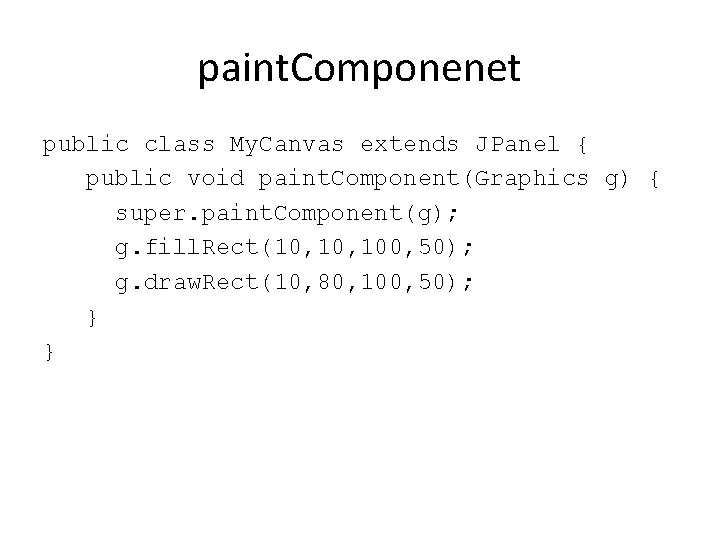
paint. Componenet public class My. Canvas extends JPanel { public void paint. Component(Graphics g) { super. paint. Component(g); g. fill. Rect(10, 100, 50); g. draw. Rect(10, 80, 100, 50); } }
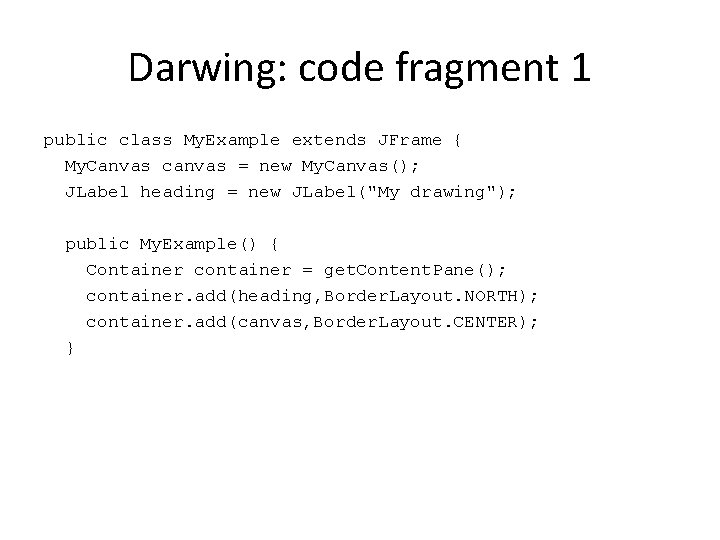
Darwing: code fragment 1 public class My. Example extends JFrame { My. Canvas canvas = new My. Canvas(); JLabel heading = new JLabel("My drawing"); public My. Example() { Container container = get. Content. Pane(); container. add(heading, Border. Layout. NORTH); container. add(canvas, Border. Layout. CENTER); }
![Darwing: code fragment 2 public static void main(String[] args) { My. Example my. Drawing](http://slidetodoc.com/presentation_image_h/f99f89ea469b6f999b75670017570956/image-38.jpg "Darwing: code fragment 2 public static void main(String[] args) { My. Example my. Drawing")
Darwing: code fragment 2 public static void main(String[] args) { My. Example my. Drawing = new My. Example(); my. Drawing. set. Default. Close. Operation(JFram e. EXIT_ON_CLOSE); my. Drawing. set. Size(300, 300); my. Drawing. set. Visible(true); } }
Student activity 11. 8 (homework)
Summary • How to create various GUI components, in particular, JFrame, JPanel, JButton, JTextfield, JLabel. • How to use layout managers for containers, in particular, FLow. Layout, Grid. Layout and Border. Layout. • How to use the graphics object to draw graphics, in particular how to use the paint. Component method.
- Slides: 40